
1Where PlayLab is
PlayLab is a community tool. The owner asks for it in Studio, under Manage tools, and CCE Play turns it on. A community needs 25 members to ask. How to ask is in The owner's settings.
Once it is on, PlayLab is under Tools in the Studio menu. The orange number beside it counts the proofs that wait for a staff check. On a phone, tap the round menu button first.
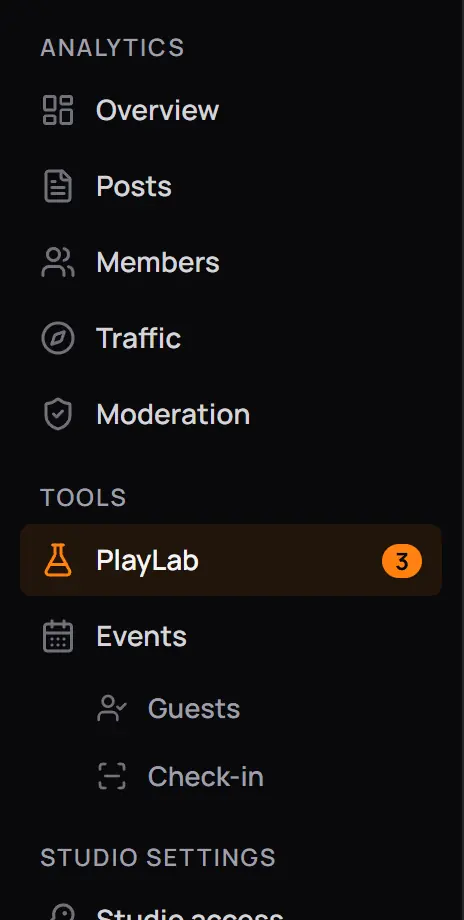
- PlayLabYour PlayLabs, the scanner and the proofs.
- 3Proofs that wait for a staff check. It goes away when none wait.
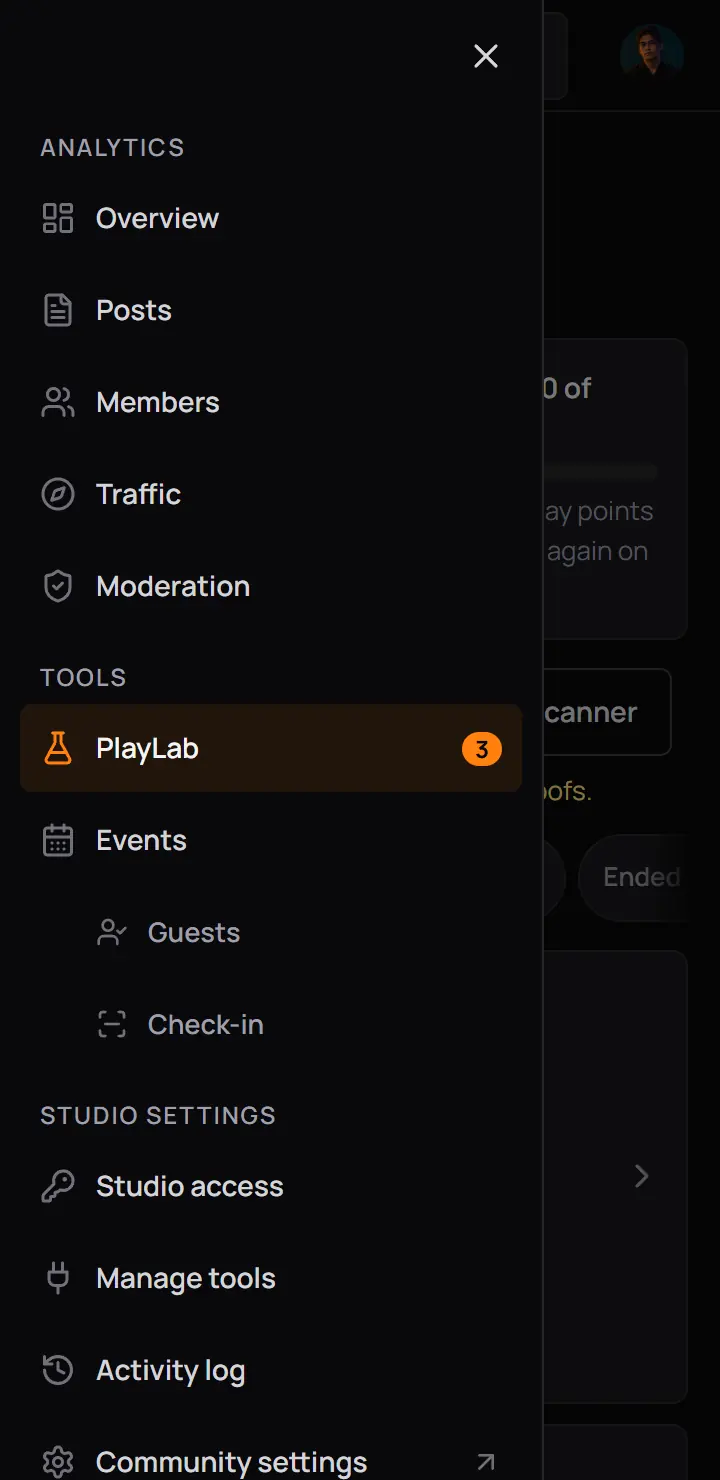
- PlayLabYour PlayLabs, the scanner and the proofs.
- 3Proofs that wait for a staff check. It goes away when none wait.
Who can open it
The owner chooses in Studio access what admins and moderators can do in PlayLab. There are two rows:
- Build and run PlayLabs: make and change PlayLabs, review proofs, mark quests done and see the players. It includes scanning.
- Scan at the venue: open the scanner only. A helper with only this row lands on the scanner. See Scan members at the venue.
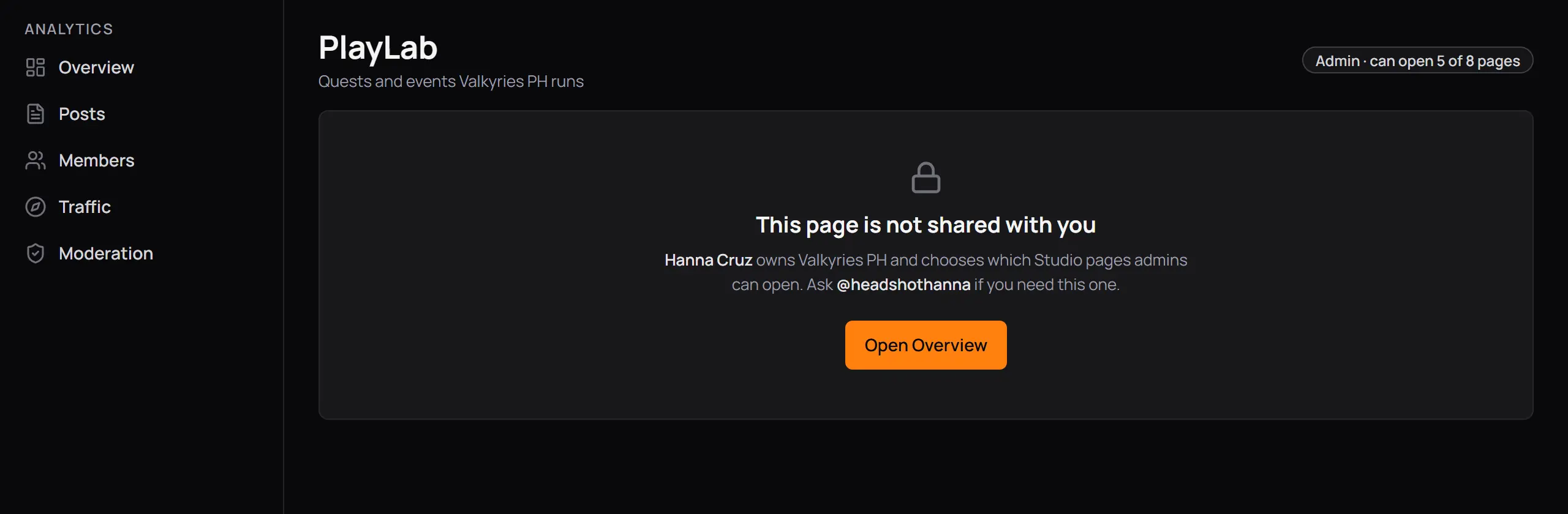
- This page is not shared with youAsk the owner, named under it.
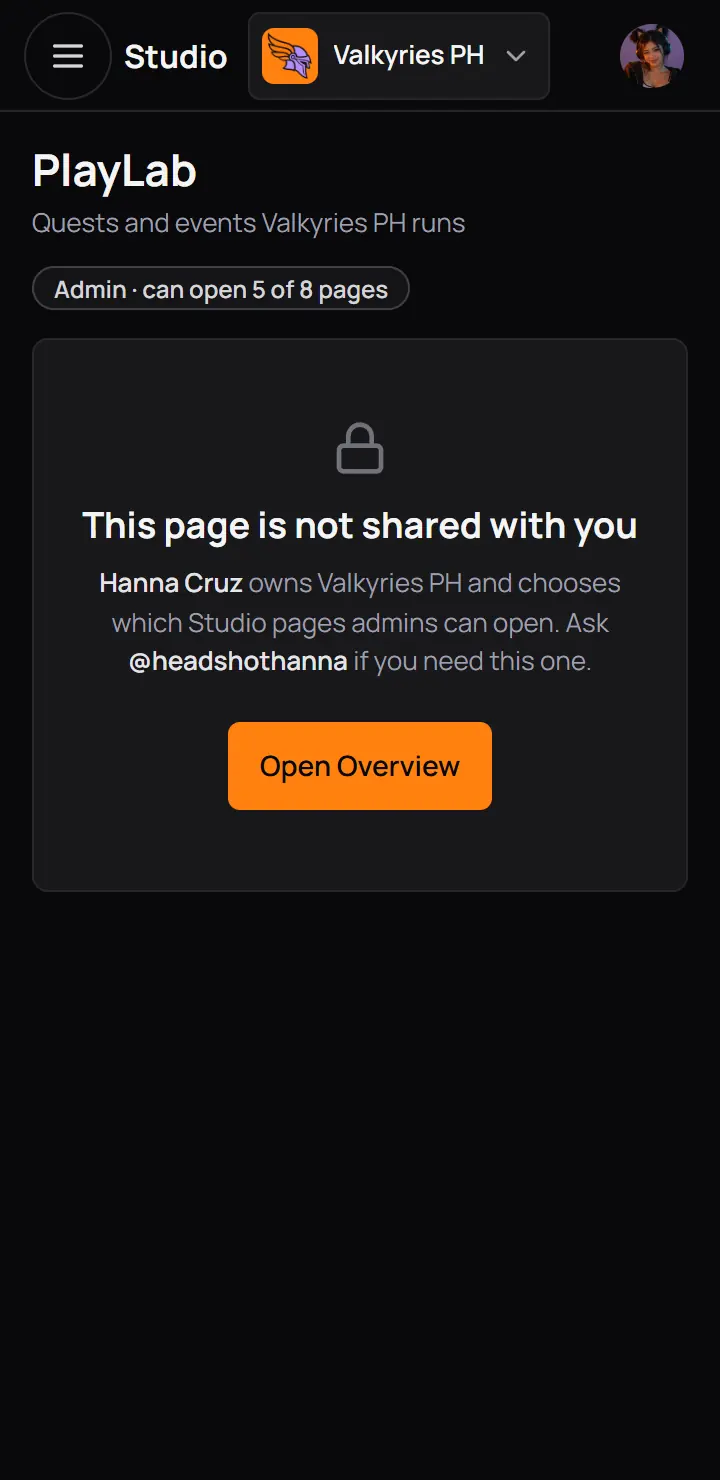
- This page is not shared with youAsk the owner, named under it.
2The PlayLab page
Press PlayLab in the menu. The page starts with your points budget for this month, then your PlayLabs. Before your first PlayLab it explains how a PlayLab works, with one button to start.
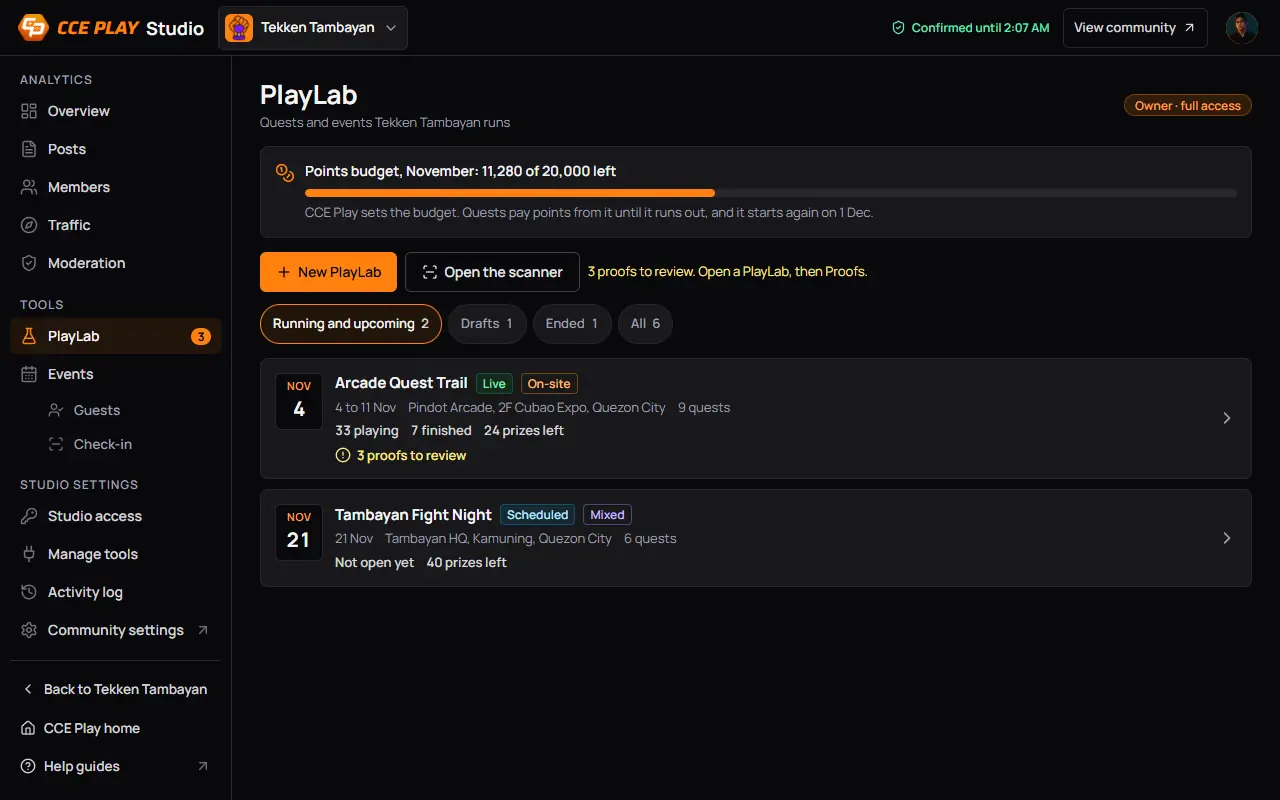
- Points budgetWhat is left of this month's points. See Points and the monthly budget.
- New PlayLabStarts the five steps. Open the scanner is beside it.
- 3 proofs to reviewOpen the PlayLab, then Proofs.
- Running and upcomingLive and scheduled PlayLabs. Drafts, Ended and All are beside it.
- A PlayLabIts stage, where it is, its dates and how many play. Press it to open the builder.
- 3 proofs to reviewWhat waits for you on this PlayLab.
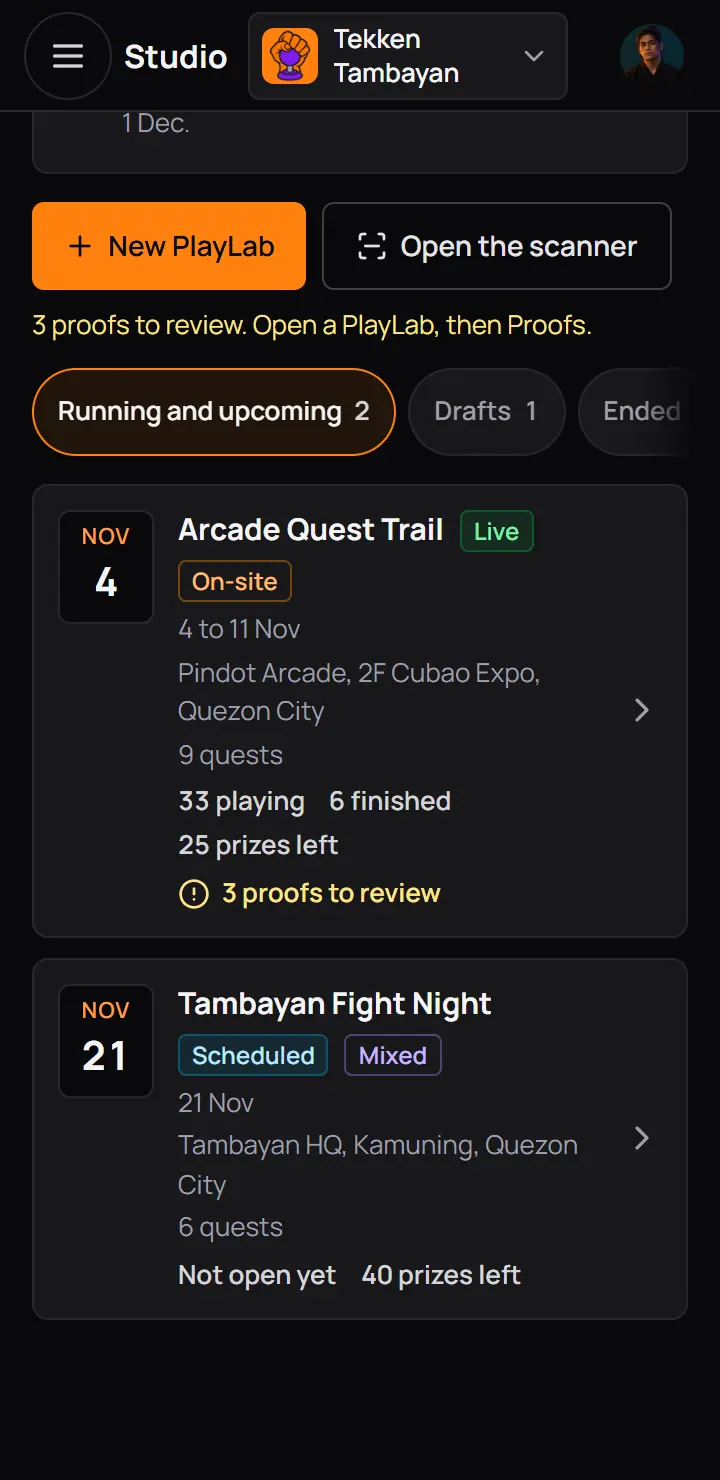
- New PlayLabStarts the five steps. Open the scanner is beside it.
- 3 proofs to reviewOpen the PlayLab, then Proofs.
- Running and upcomingLive and scheduled PlayLabs. Drafts, Ended and All are beside it.
- A PlayLabIts stage, where it is, its dates and how many play. Press it to open the builder.
- Live PlayLabs come first, then the scheduled ones. Inside each, the newest first.
- A chip with no PlayLab in it hides. All shows only while a PlayLab is hidden or taken down.
- A community can have 20 drafts, scheduled and live PlayLabs at a time.
3Every stage of a PlayLab
A PlayLab is in one stage at a time. The badge beside its name says which.
| Stage | What it means | Members see it? |
|---|---|---|
| Draft | What it meansSaved, not published. You add quests and change anything. | Members see it?No. Only staff see a draft. |
| Scheduled | What it meansPublished, and its open time has not come yet. | Members see it?Yes, with the day it opens. Quests do not count yet. |
| Live | What it meansOpen. Quests count and staff scan at the venue. | Members see it?Yes. |
| Ended | What it meansIts close time passed, or you ended it early. Quests stop counting. | Members see it?Yes, by its address and on the Past tab of the PlayLabs page. |
| Hidden | What it meansYou hid it for now. Nothing counts until you show it again. | Members see it?No. |
| Taken down by CCE Play | What it meansCCE Play took it down, with a reason you can read. | Members see it?No. |
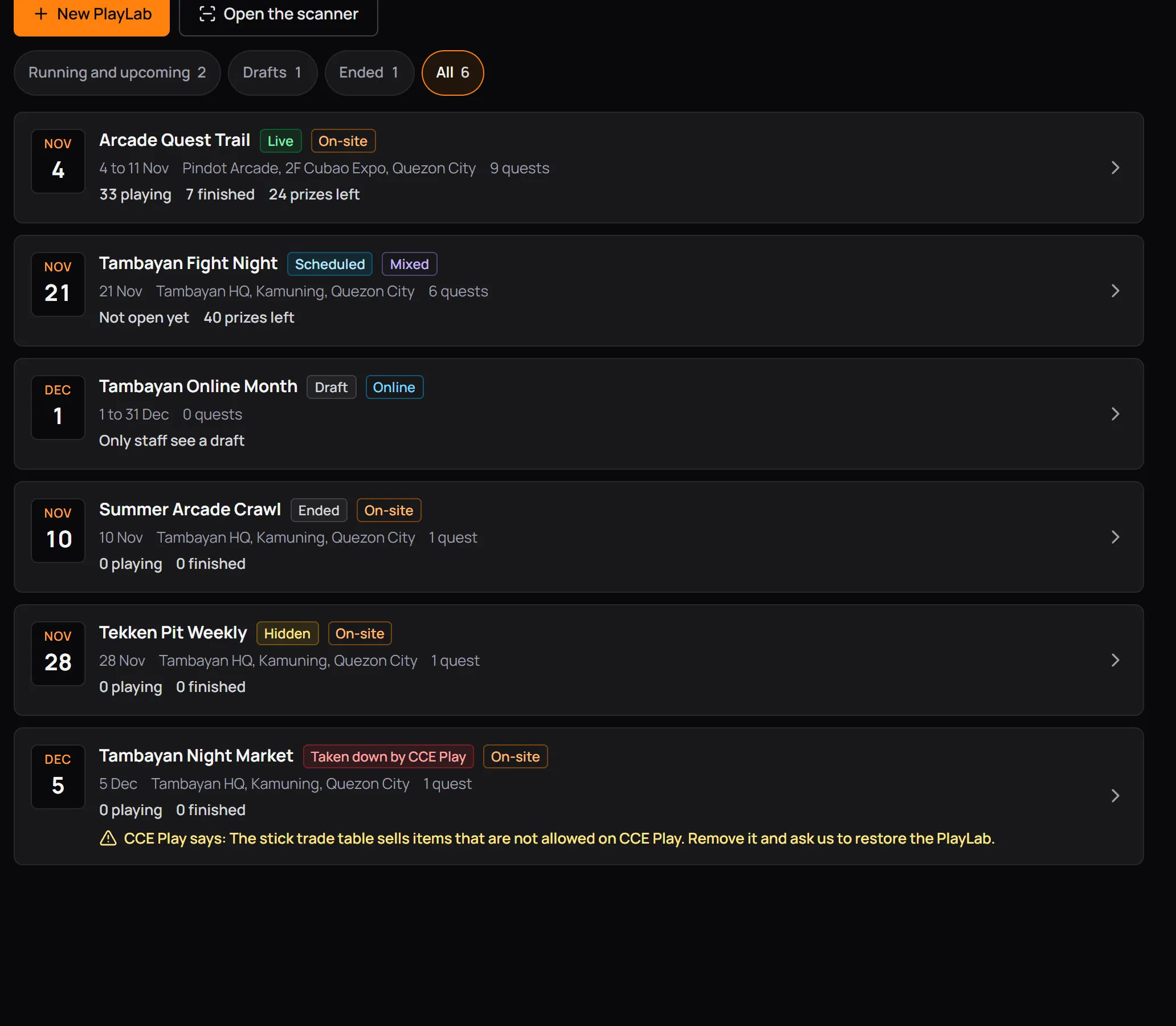
- LiveArcade Quest Trail.
- ScheduledOpens Sat 21 Nov. Not open yet.
- DraftOnly staff see a draft.
- EndedEnded early.
- Hidden
- Taken down by CCE Play
- CCE Play saysThe reason it was taken down.
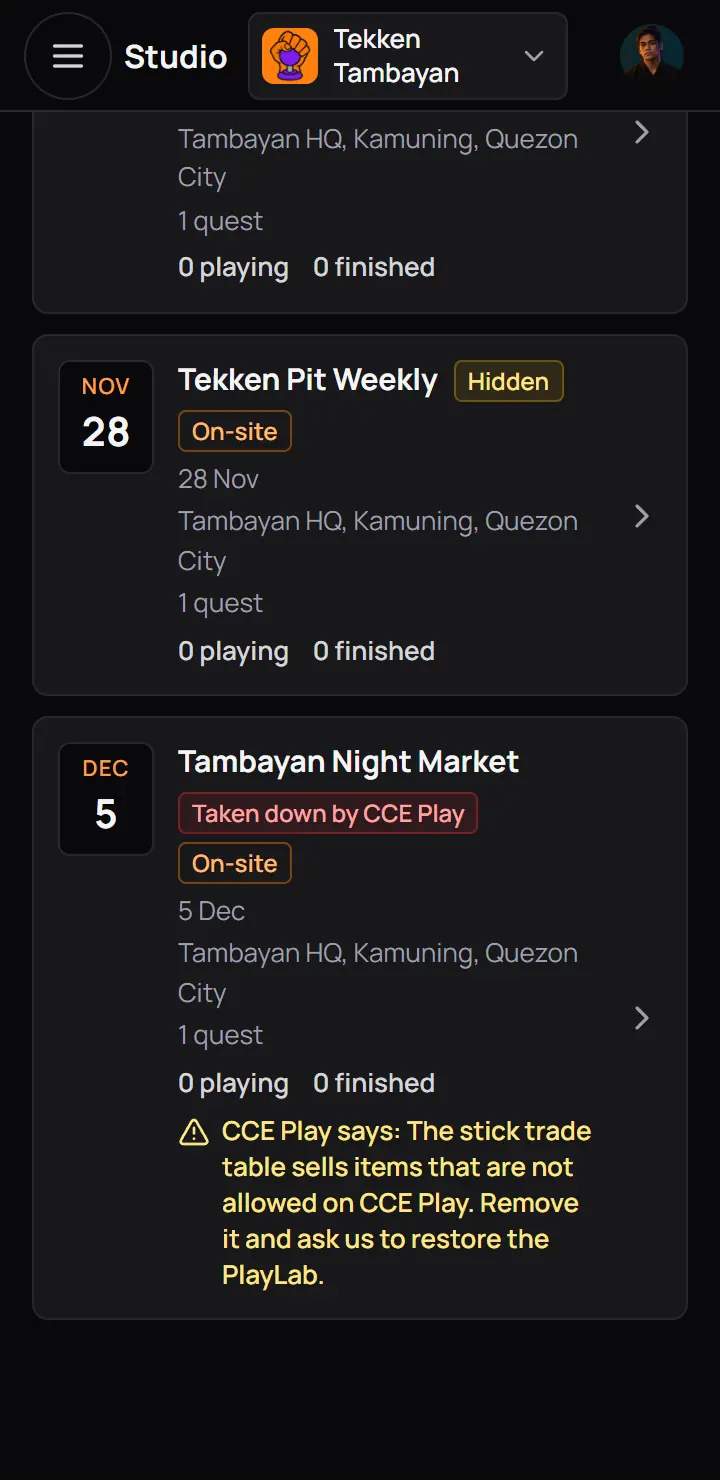
- Hidden
- Taken down by CCE Play
- CCE Play saysThe reason it was taken down.
Open a PlayLab to see its stage at the top of the builder.
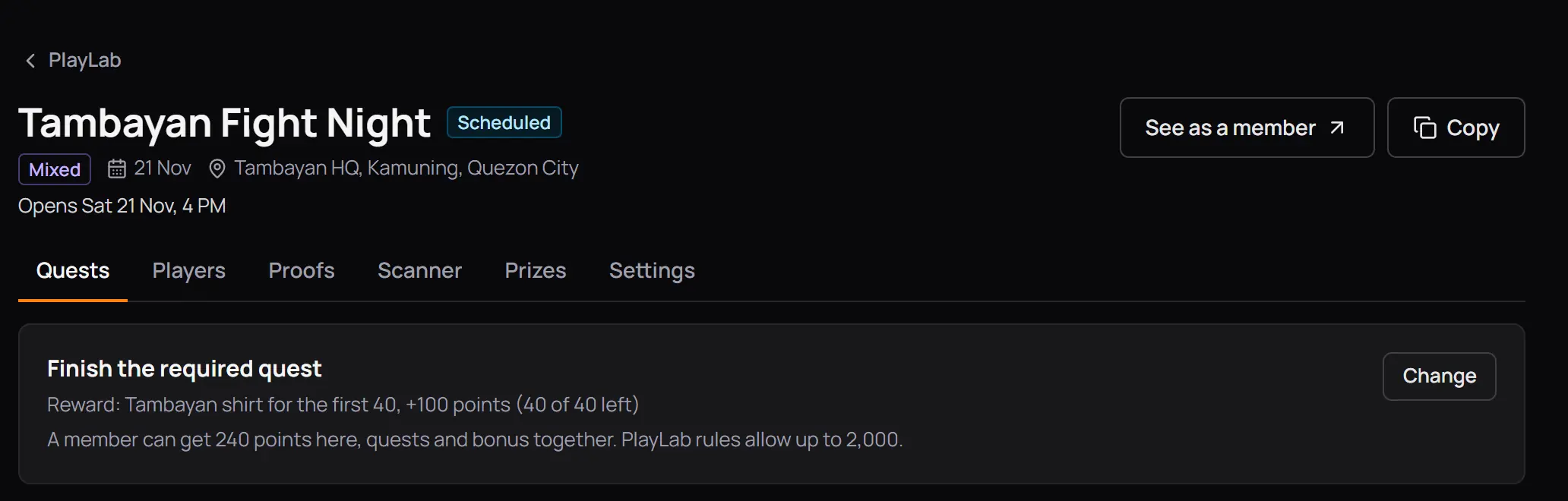
- Scheduled
- Opens Sat 21 Nov, 4 PMIt opens by itself.
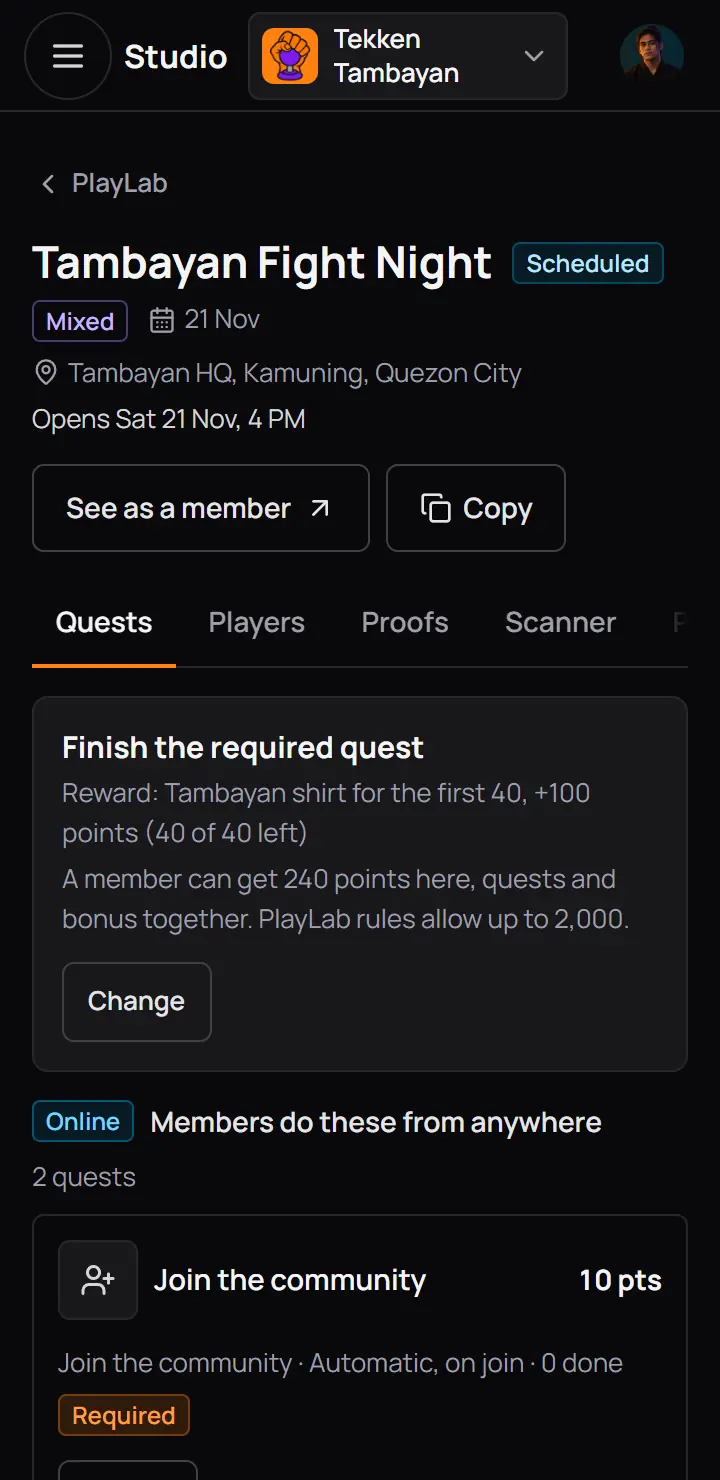
- Scheduled
- Opens Sat 21 Nov, 4 PMIt opens by itself.
- An ended or taken-down PlayLab cannot be changed. A hidden one can.
- Points, badges and prizes members already got stay in every stage.
4Make a new PlayLab
Press New PlayLab. Five steps make the draft, then you add the quests. The steps are on the left on a computer, and behind the "Step 1 of 5" button on a phone. A tick means the step has all it needs.
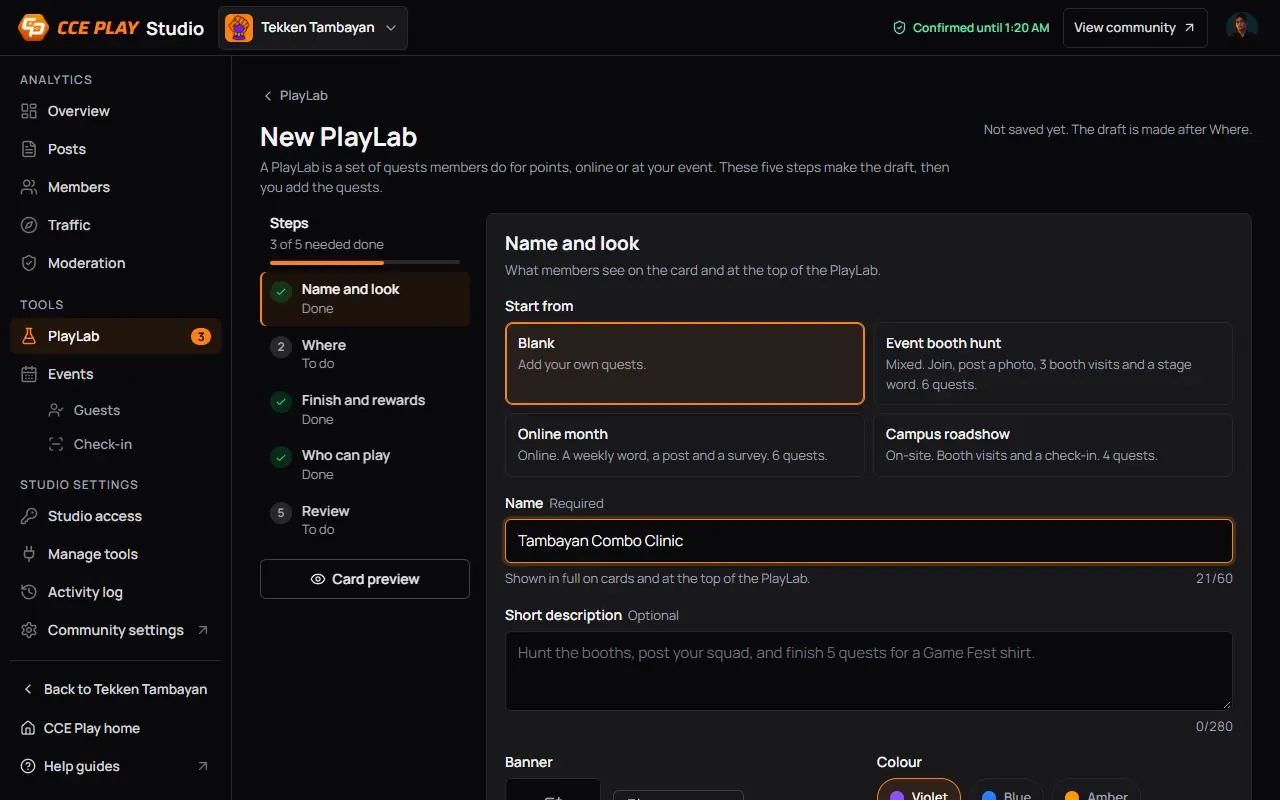
- StepsPress a step to go back to it.
- Start fromBlank, or a template that adds its quests for you.
- Event booth huntMixed, 6 quests. Online month and Campus roadshow are the others.
- NameShown whole on cards and at the top of the PlayLab.
- Card previewThe card as members see it.
Below the name: a short description, a wide banner picture up to 10 MB and a colour.
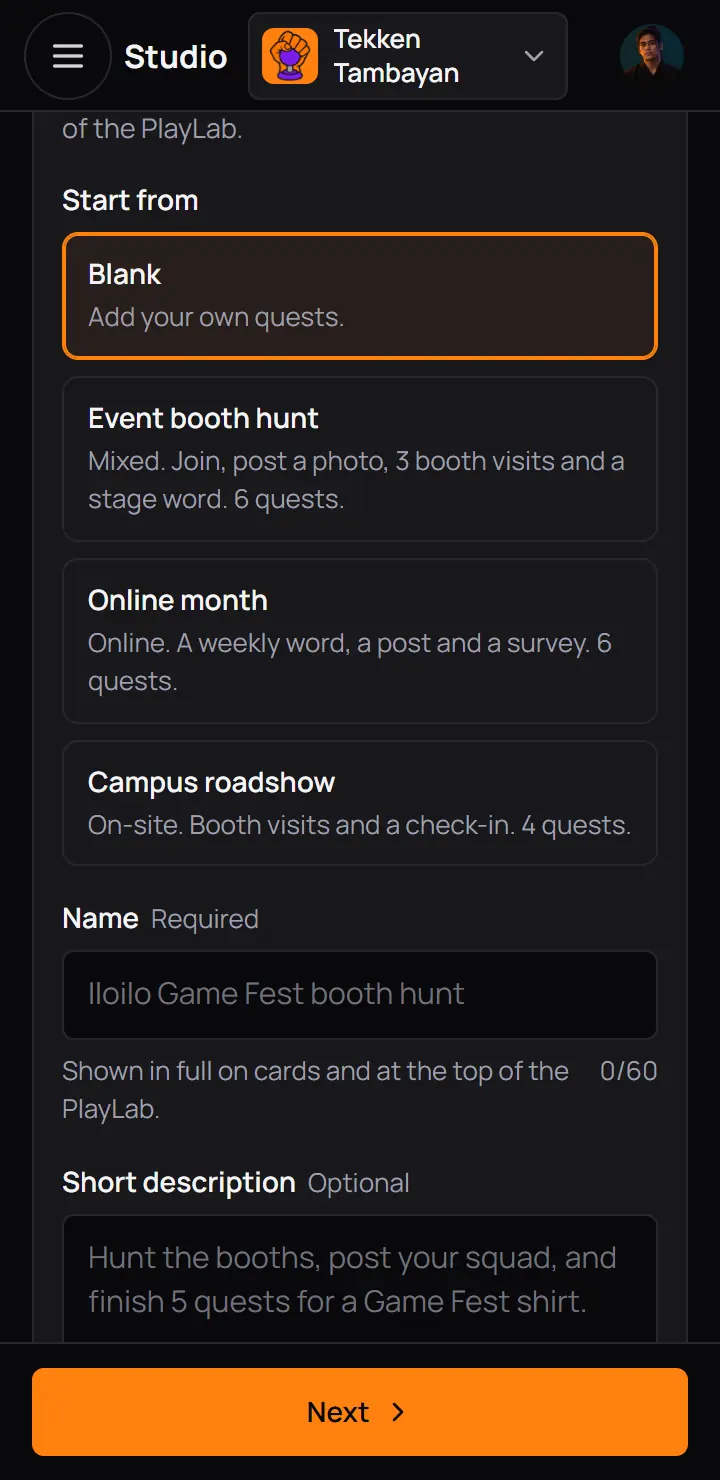
- Start fromBlank, or a template that adds its quests for you.
- Event booth huntMixed, 6 quests. Online month and Campus roadshow are the others.
Below the name: a short description, a wide banner picture up to 10 MB and a colour.
- Stations are added in Settings once the draft is made, up to 30.
- Leaving the page or reloading it never makes a second draft. Open the draft from Drafts on the PlayLab page.
- Where it is played and who can play lock once the first member starts.
5The builder and Publish
Every PlayLab opens in the builder. Its tabs are Quests, Players, Proofs, Scanner, Prizes and Settings. Only the tabs that fit show: a draft has no Players or Proofs, and an Online PlayLab has no Scanner or Prizes.
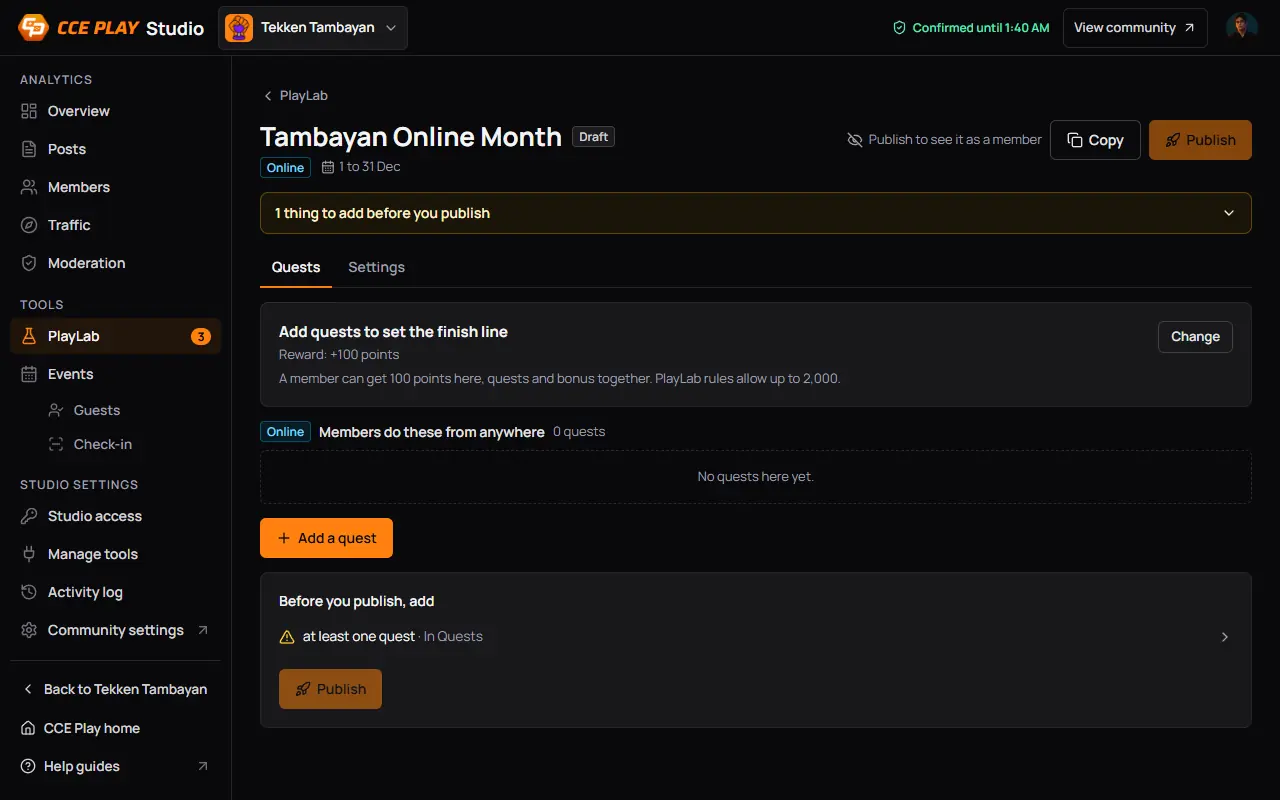
- Draft
- PublishLists what is missing while something is.
- 1 thing to add before you publishOpens the list.
- Quests and Settings
- Add a quest
- Before you publish, addHere, at least one quest. Each line opens the place to fix it.
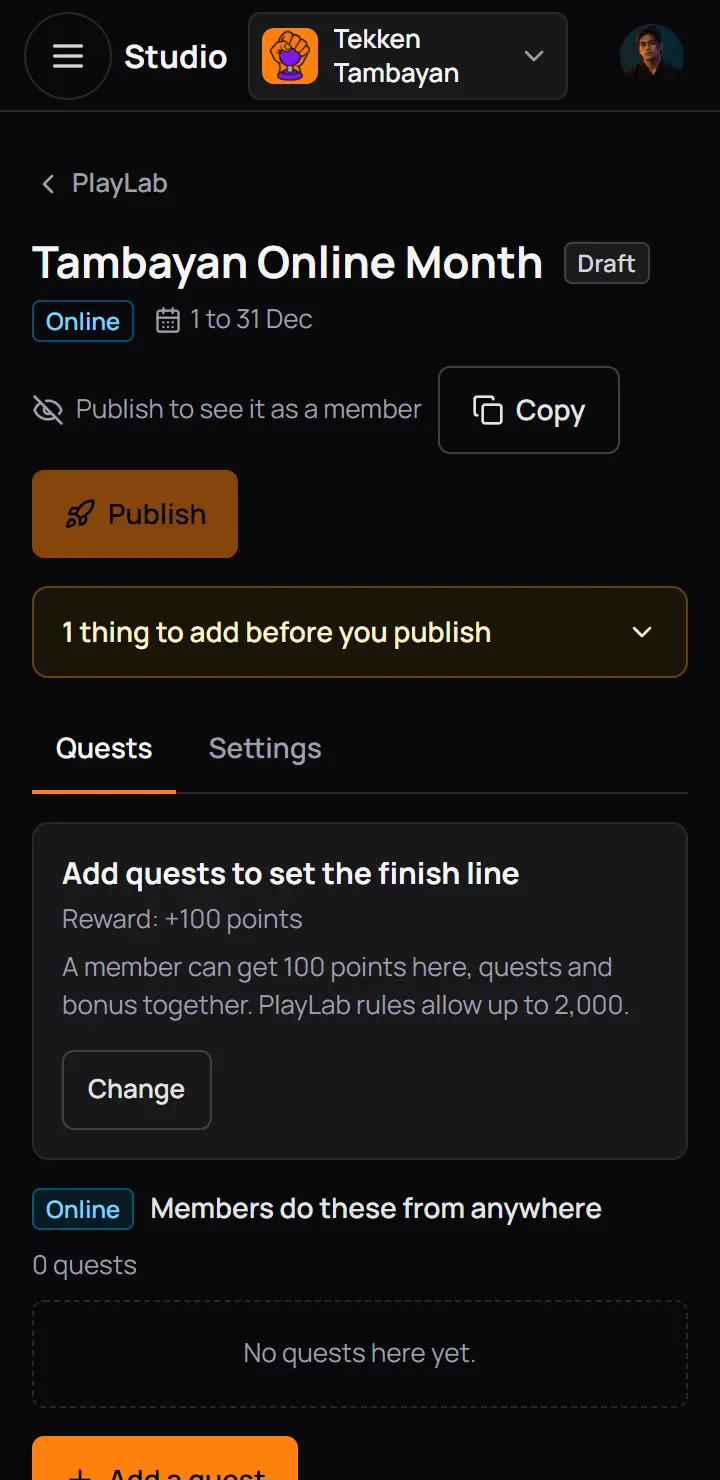
- Draft
- PublishLists what is missing while something is.
- 1 thing to add before you publishOpens the list.
Press Publish when nothing is missing. Members see a published PlayLab at once. Before its open time it is Scheduled, and they can play once it opens.
6Quests
A quest is one thing members do: join, post, answer, find a word, visit a booth. The Quests tab lists them in the order members see them, Online first, then At the venue. A PlayLab holds up to 30 quests.
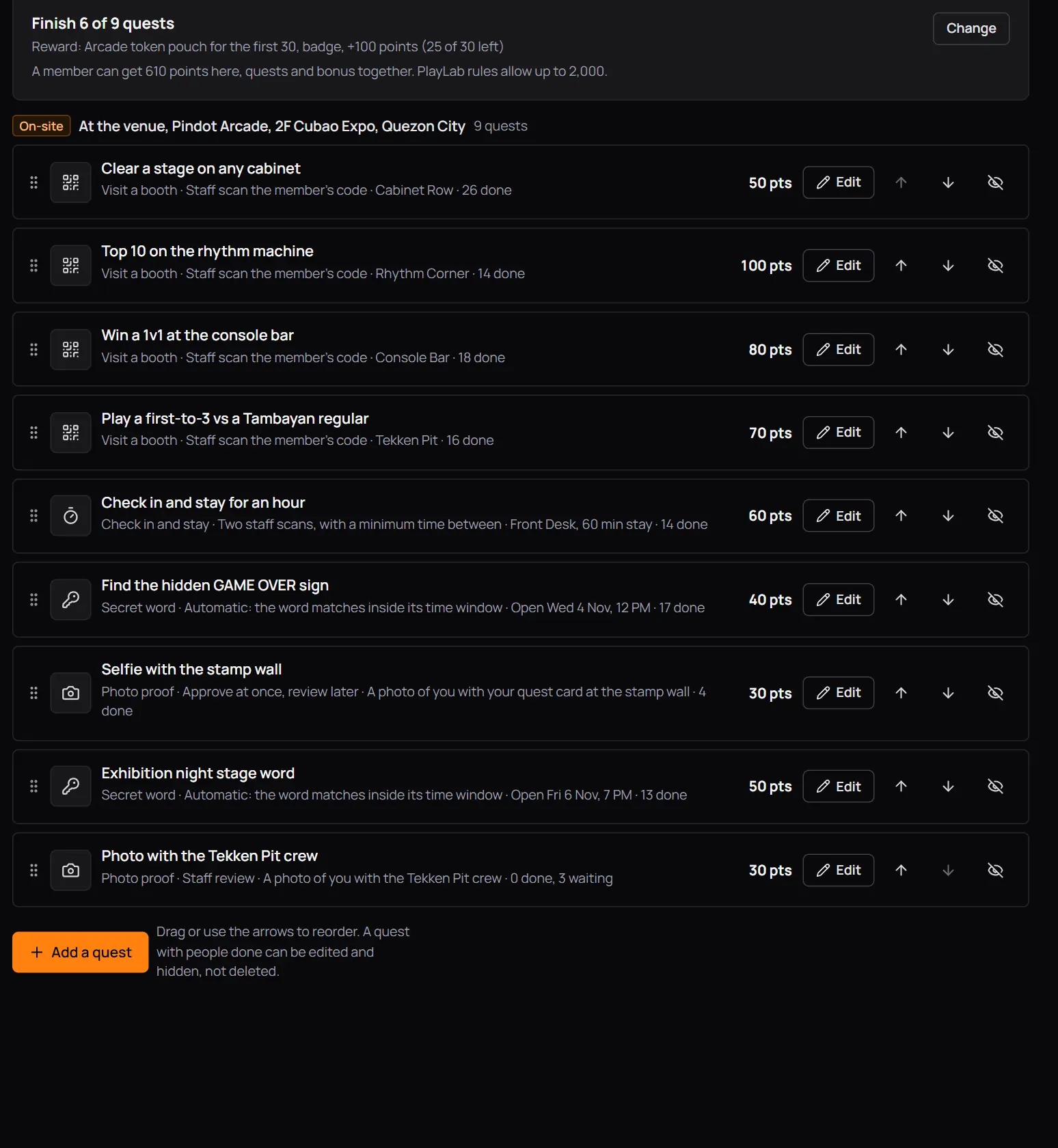
- Finish 6 of 9 questsThe finish line, the rewards and the most points a member can get.
- ChangeOpens Settings.
- A questIts type, how it is checked, its station and how many did it.
- EditChange it. The arrows move it up and down, and the last button hides it from members.
- Add a quest
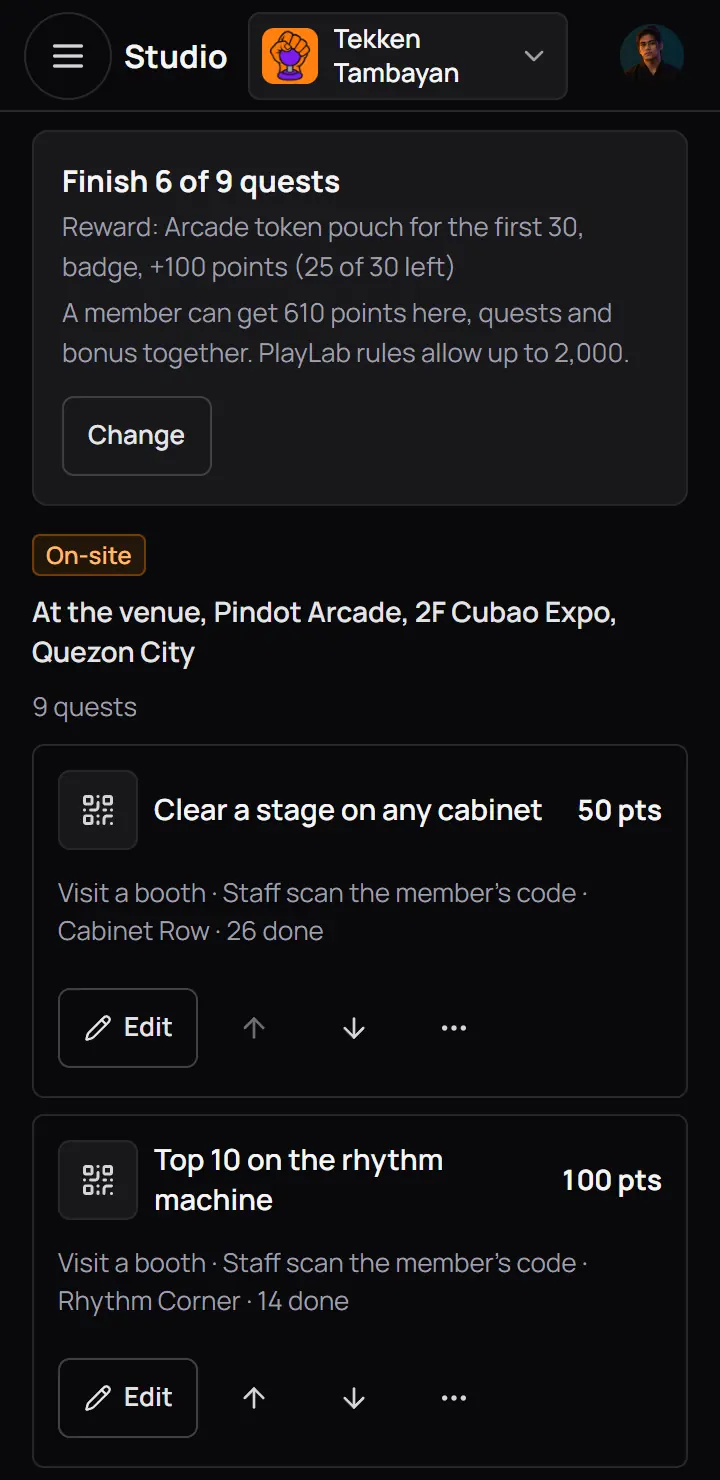
- Finish 6 of 9 questsThe finish line, the rewards and the most points a member can get.
- A questIts type, how it is checked, its station and how many did it.
| Type | Where | How it counts |
|---|---|---|
| Join the community | WhereOnline | How it countsWhen the member joins. |
| Post in the community | WhereOnline | How it countsA post in a channel you pick, with a hashtag or a photo if you ask. |
| Answer questions | WhereOnline | How it countsWhen the member sends the answers. Up to 10 questions. |
| Visit a link | WhereOnline | How it countsWhen the member comes back from the link. At most 10 points. |
| Share a link | WhereOnline | How it countsThe member pastes a link to their own post. Staff check it, or it counts at once. |
| Google Form | WhereOnline | How it countsWhen the member sends your Google Form. |
| Secret word | WhereBoth | How it countsThe member types the word inside its time window. Up to 12 time windows. |
| Photo proof | WhereBoth | How it countsThe member uploads a photo. Staff check it, or it counts at once. |
| Visit a booth | WhereAt the venue | How it countsStaff scan the member's code at a station. |
| Check in and stay | WhereAt the venue | How it countsTwo scans at a station, a set number of minutes apart. |
| Kiosk game | WhereAt the venue | How it countsThe member beats a score at a CCE Play kiosk. Off until CCE Play turns it on. |
- Quests unlock one after another when you turn that on in Settings. Off, members do them in any order.
- A quest that nobody did yet can be deleted. A quest with people done can be changed or hidden, never deleted.
- Hide from members takes a quest out of the PlayLab. If hiding it finishes members, Studio asks first.
Good to know. A finish cannot be undone. Lowering the finish count or hiding a quest can finish members at once, and Studio says how many first.
7Add a quest
Press Add a quest. Five steps ask only what the type needs. The pictures add a photo quest to Tambayan Online Month. Types that do not fit the PlayLab are greyed out.
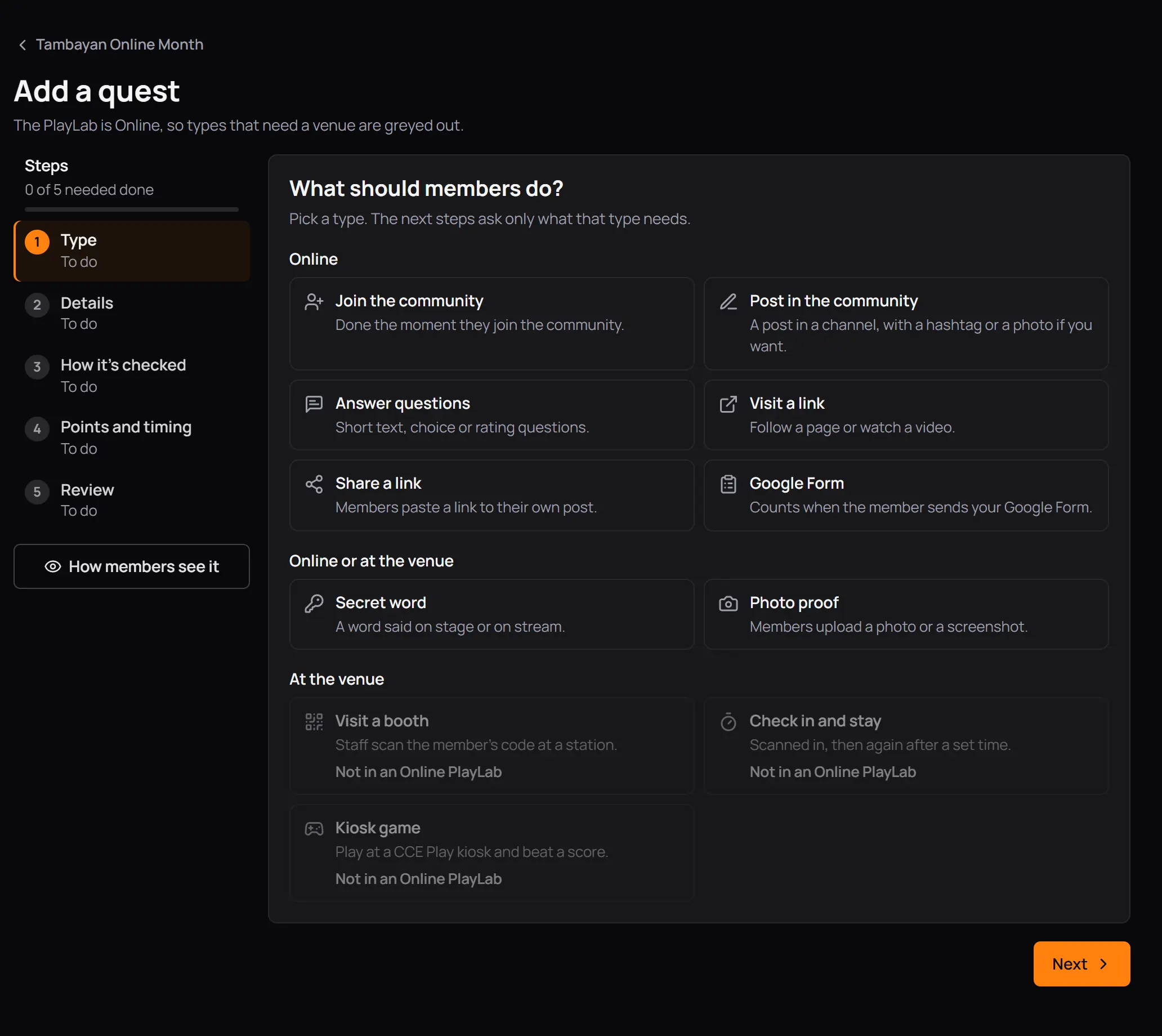
- Online
- Secret wordOnline or at the venue.
- Visit a boothAt the venue only.
- Not in an Online PlayLabWhy a type is greyed out.
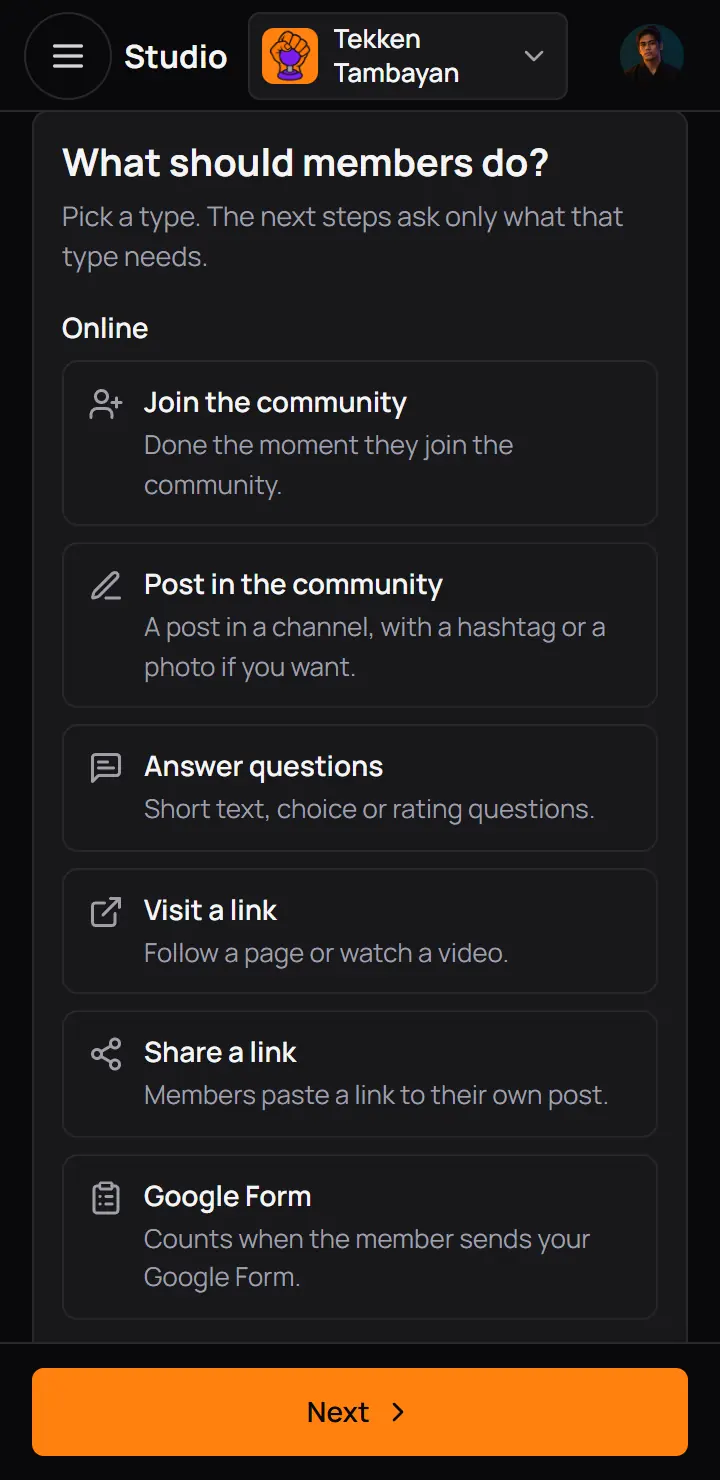
- Join the community
- Post in the community
- A secret word quest needs its words and a time window for each. Members have 5 tries a minute.
- A Google Form quest needs its form token. Studio makes it once and shows a short script for the form.
- A quest left half done stays on this phone or computer until you add it.
8Points and the monthly budget
Members get CCE Play points for each quest they do, and the bonus when they finish. Every point comes out of your community's budget for the month, which CCE Play sets. The budget is shared with Events: points for coming to an event come out of it too.
| Limit | Today |
|---|---|
| Points for one quest | TodayUp to 100. |
| Visit a link | TodayUp to 10, because nobody checks it. |
| Points one member can get from one PlayLab | TodayUp to 2,000, quests and bonus together. |
| Your community's budget each month | Today20,000 unless CCE Play set another number for you. It starts again on the 1st. |
- When the budget is used up, quests still count for the finish line, the community score and XP. Members read that points for this month are used up.
- The PlayLab page shows what is left, and you get a bell when 80% of it is used.
- Every quest point also counts on your community's leaderboard, paid or not.
9Change a PlayLab
Settings has every answer of the five steps, and a Save changes button. Some answers lock once the first member starts, so that nobody's progress changes under them.
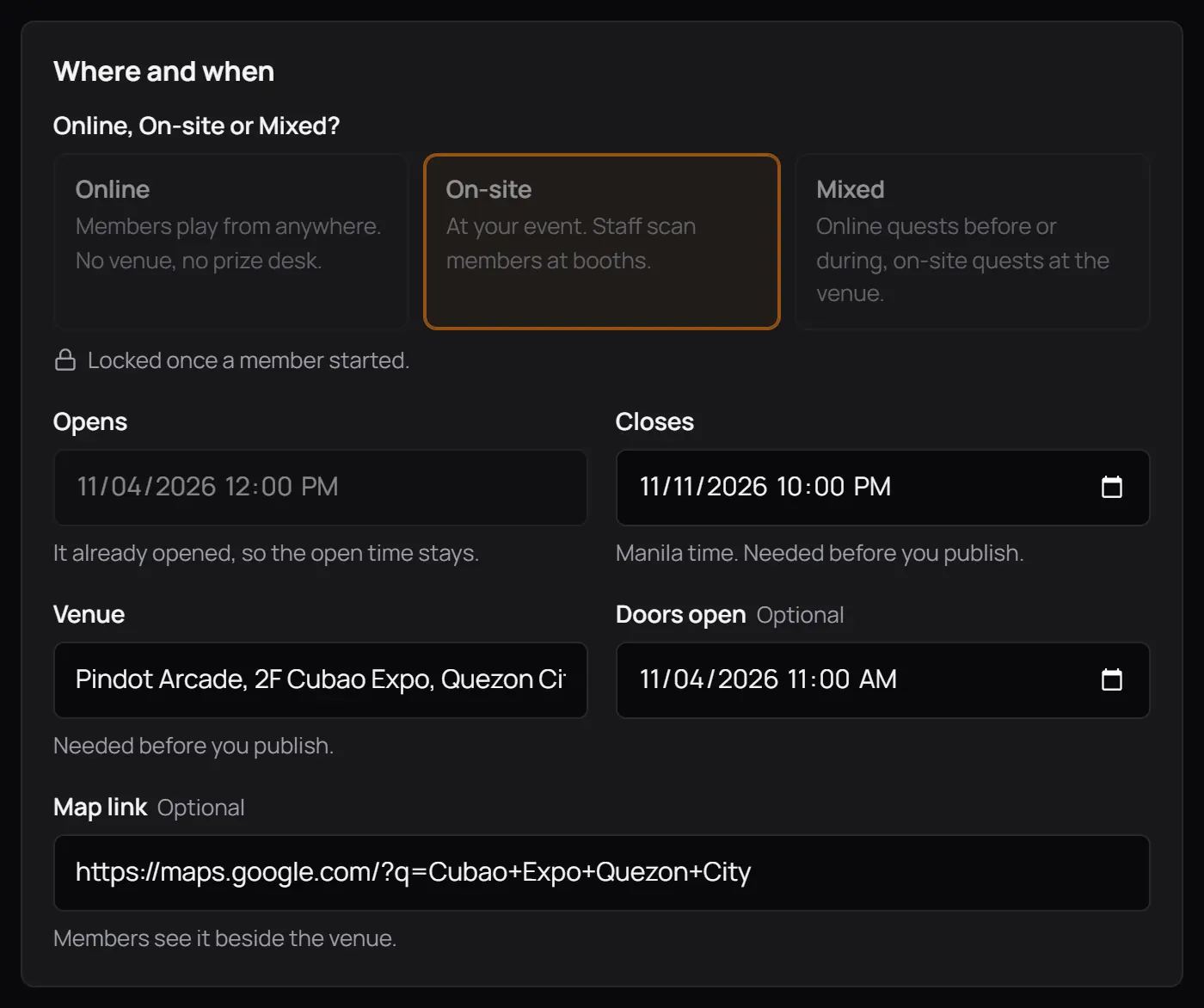
- Locked once a member startedOnline, On-site or Mixed stays.
- It already opened, so the open time stays
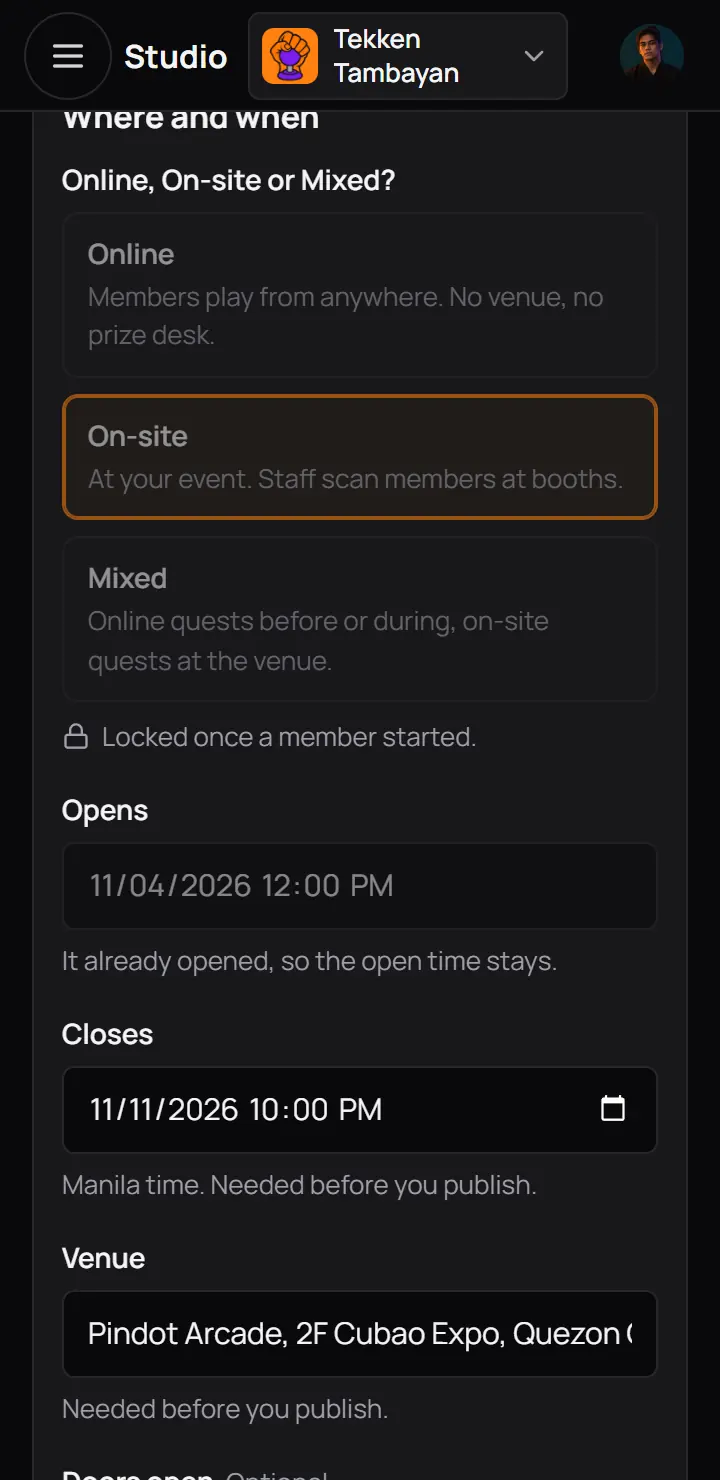
- Locked once a member startedOnline, On-site or Mixed stays.
- Who can play also locks once a member started.
- Stations are under Where and when, up to 30. A station a quest uses cannot be removed.
- The close time can move, but stays in the future.
10What members see
Members find PlayLabs on your community's PlayLab tab and on the PlayLabs page, which lists PlayLabs from every community. Each PlayLab has its own page with the quests, the progress and the rewards.
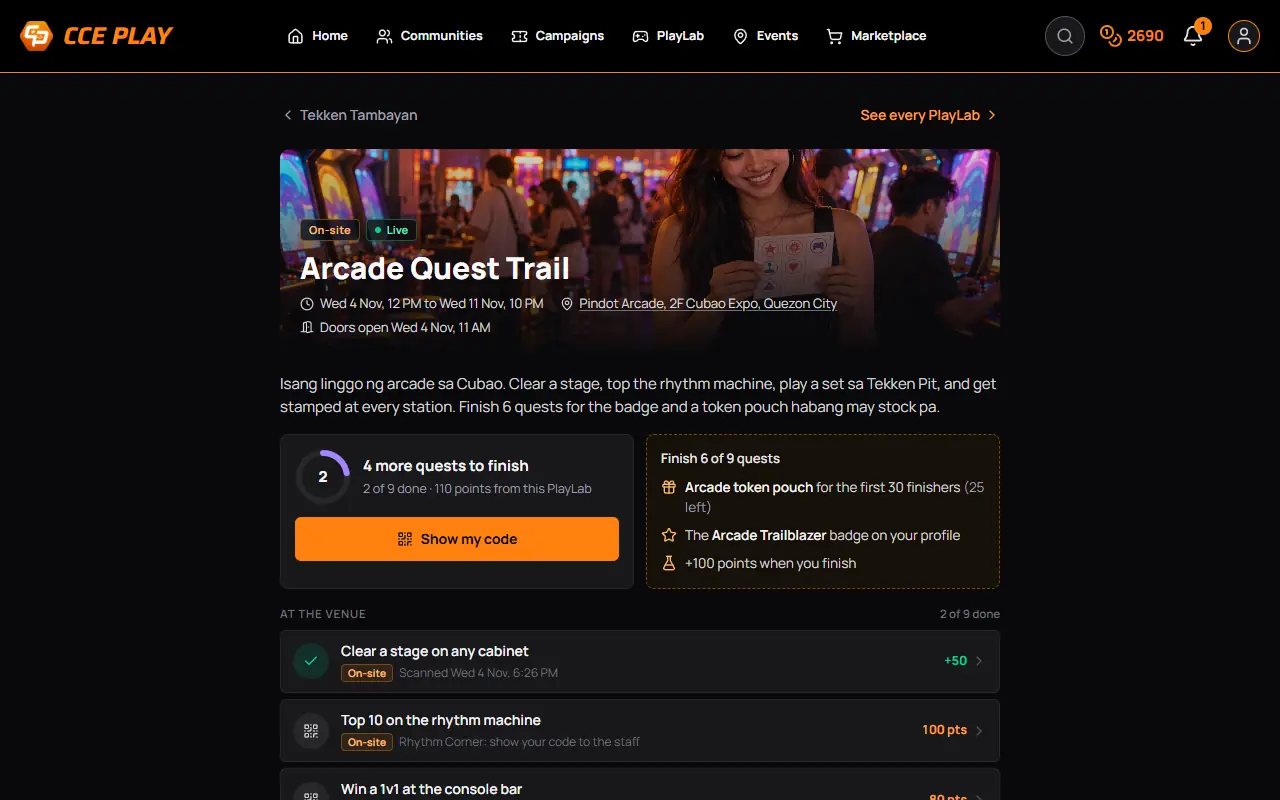
- Show my codeThe member's QR code that staff scan at the venue.
- 4 more quests to finishTheir progress and their points from this PlayLab.
- Finish 6 of 9 questsThe finish line and the rewards.
- A questPress it to do it.
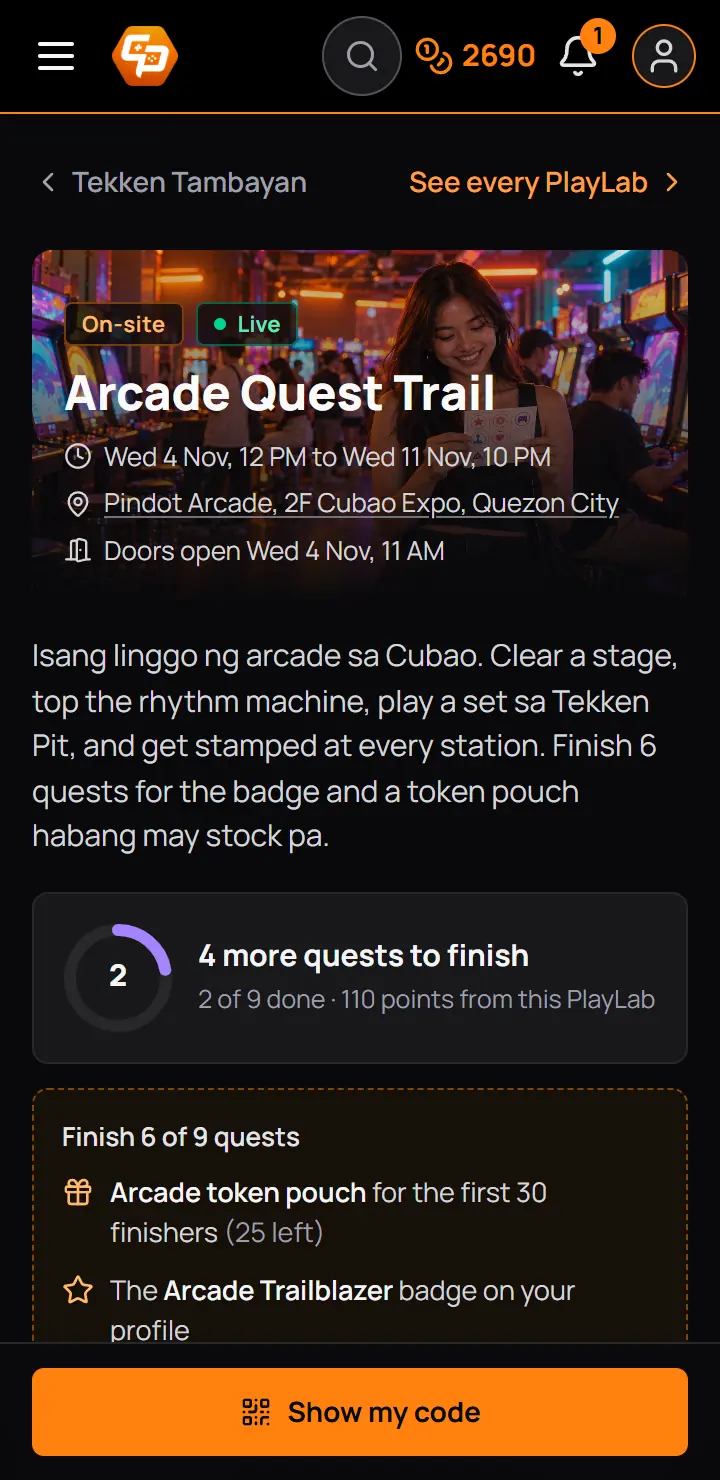
- Show my codeThe member's QR code that staff scan at the venue.
- 4 more quests to finishTheir progress and their points from this PlayLab.
- Finish 6 of 9 questsThe finish line and the rewards.
- Members can report a PlayLab from its page. The report goes to CCE Play, never to you, and CCE Play never says who sent it.
- A community that is not open to everyone shows its PlayLabs only to its members.
- A PlayLab for people with the link is on neither page. Send its address yourself.
- The PlayLabs page lists ended PlayLabs on its Past tab for 90 days.
11Scan members at the venue
At an On-site or Mixed PlayLab, staff scan each member's code at a station. Open the scanner from the PlayLab page or the Scanner tab, on a phone. Pick the station you stand at, then point the camera at the member's code. The scanner reads it by itself and shows the answer over the camera.
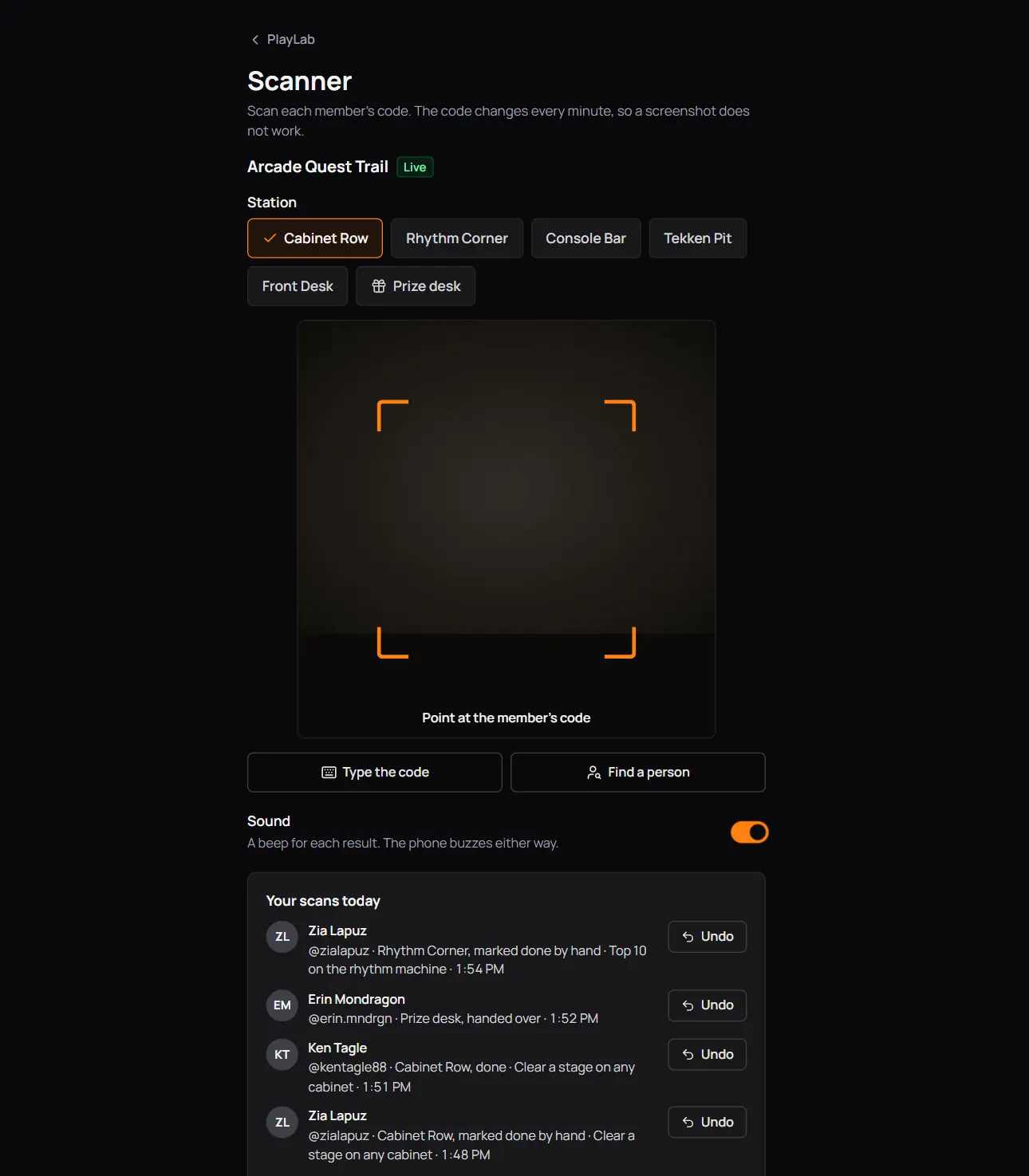
- StationsPick the one you stand at. The phone keeps it.
- Prize deskOnly when the PlayLab has a prize.
- The camera
- Find a personFor a member without a code. Type the code is beside it.
- Your scans today
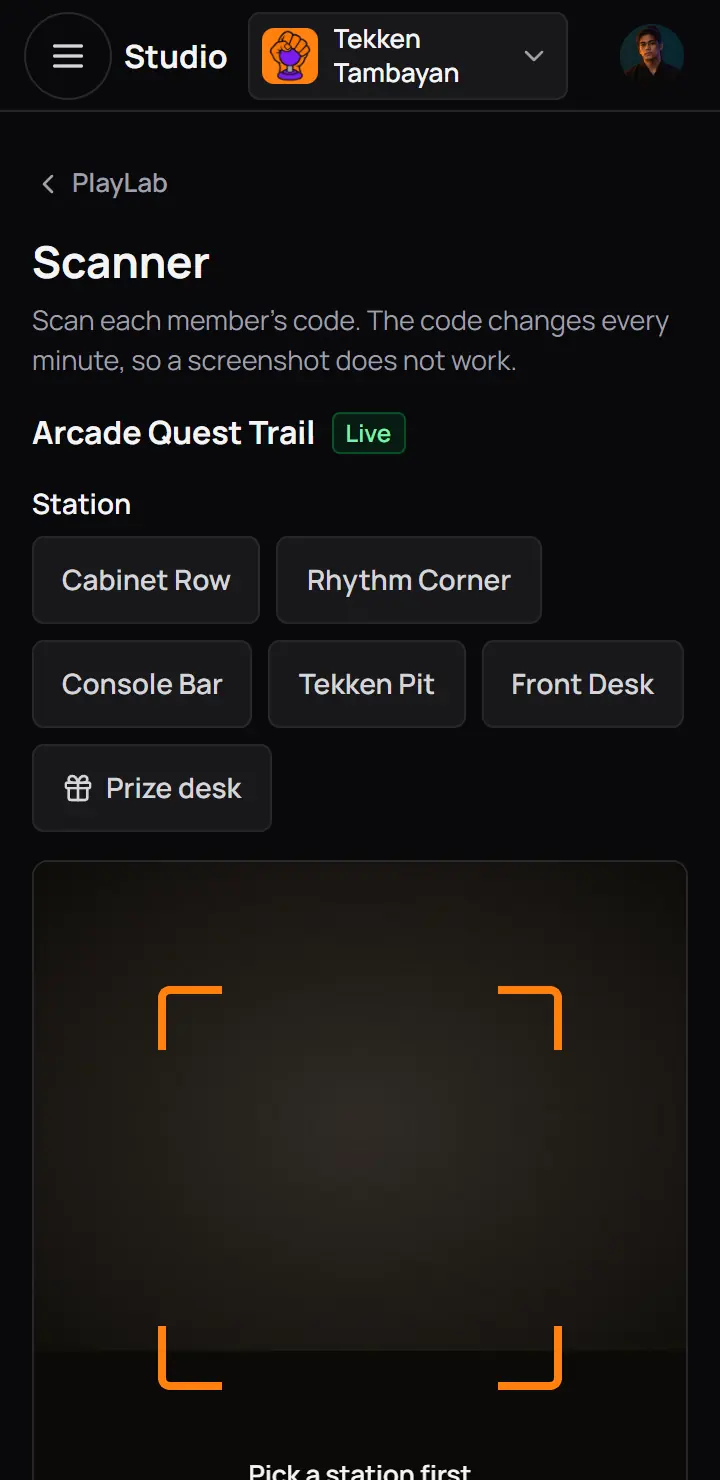
- StationsPick the one you stand at. The phone keeps it.
- Prize deskOnly when the PlayLab has a prize.
- A member code changes every minute. Ask the member to press Show my code again rather than show a screenshot.
- Check in and stay needs two scans at its station: the first checks them in, the second, after the set minutes, counts the quest.
- Staff cannot scan their own code.
- With a weak signal the scanner keeps the scan and sends it when the signal comes back. "Counted. The first try went through before the signal dropped." means it counted once.
Helpers who only scan
A moderator or admin with only Scan at the venue opens PlayLab straight on the scanner. They see no builder, players or proofs.
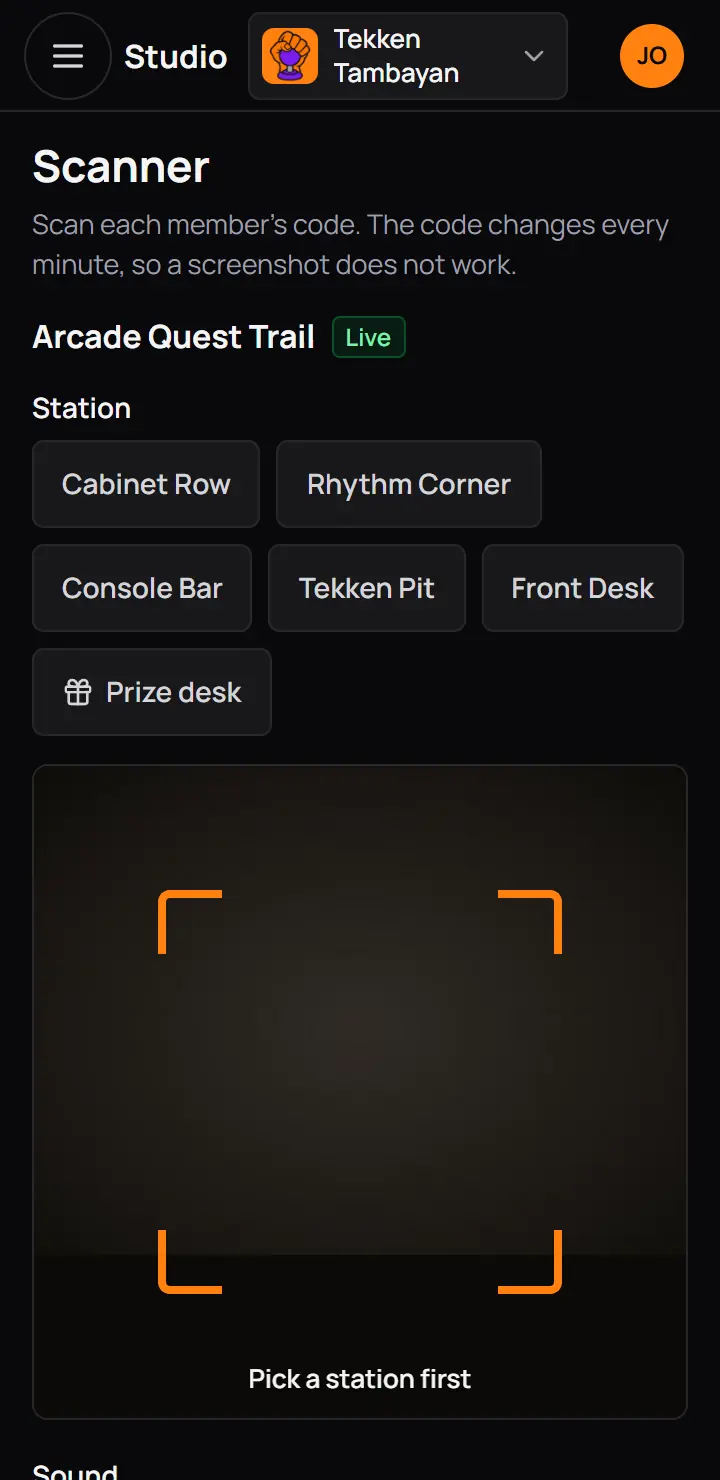
- ScannerNo way back to the list: there is nothing else to open.
- ScannerNo way back to the list: there is nothing else to open.
12No code? Find a person
When a member's phone is dead or the camera cannot read the code, press Find a person and type the first letters of their name or @username. Each row says where the member is with this station's quest. Type the code is for a code read out loud, but a member code is long, so Find a person is easier.
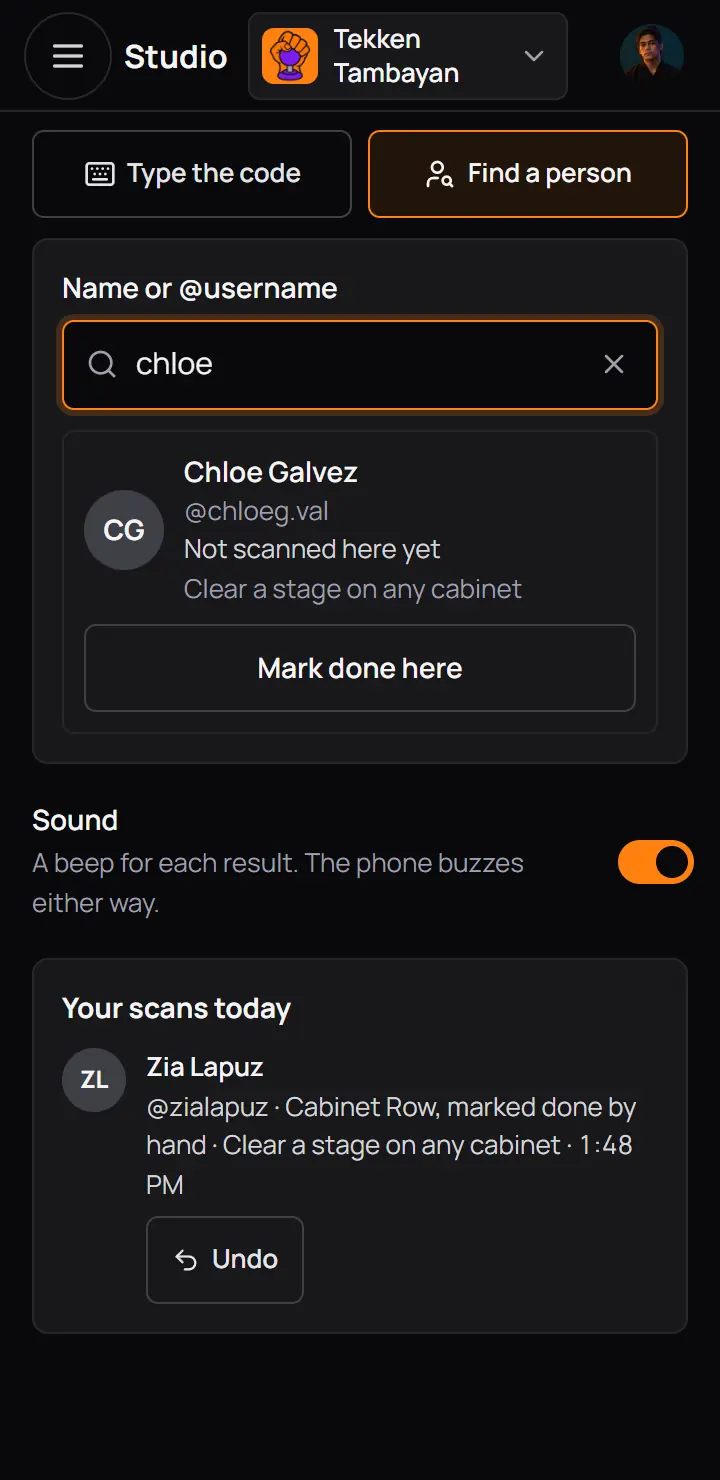
- Name or @usernameTwo letters or more.
- The memberCheck the name with them before you press.
- Mark done hereCounts the station's quest as a scan would.
- Name or @usernameTwo letters or more.
- The memberCheck the name with them before you press.
- Mark done hereCounts the station's quest as a scan would.
The prize desk has no Find a person: a prize always needs the member's prize code.
13The prize desk
A member who finishes gets a prize code on the PlayLab page. At the desk, pick Prize desk in the scanner and scan it. The scanner shows who it is first, so you can check before you hand anything over.
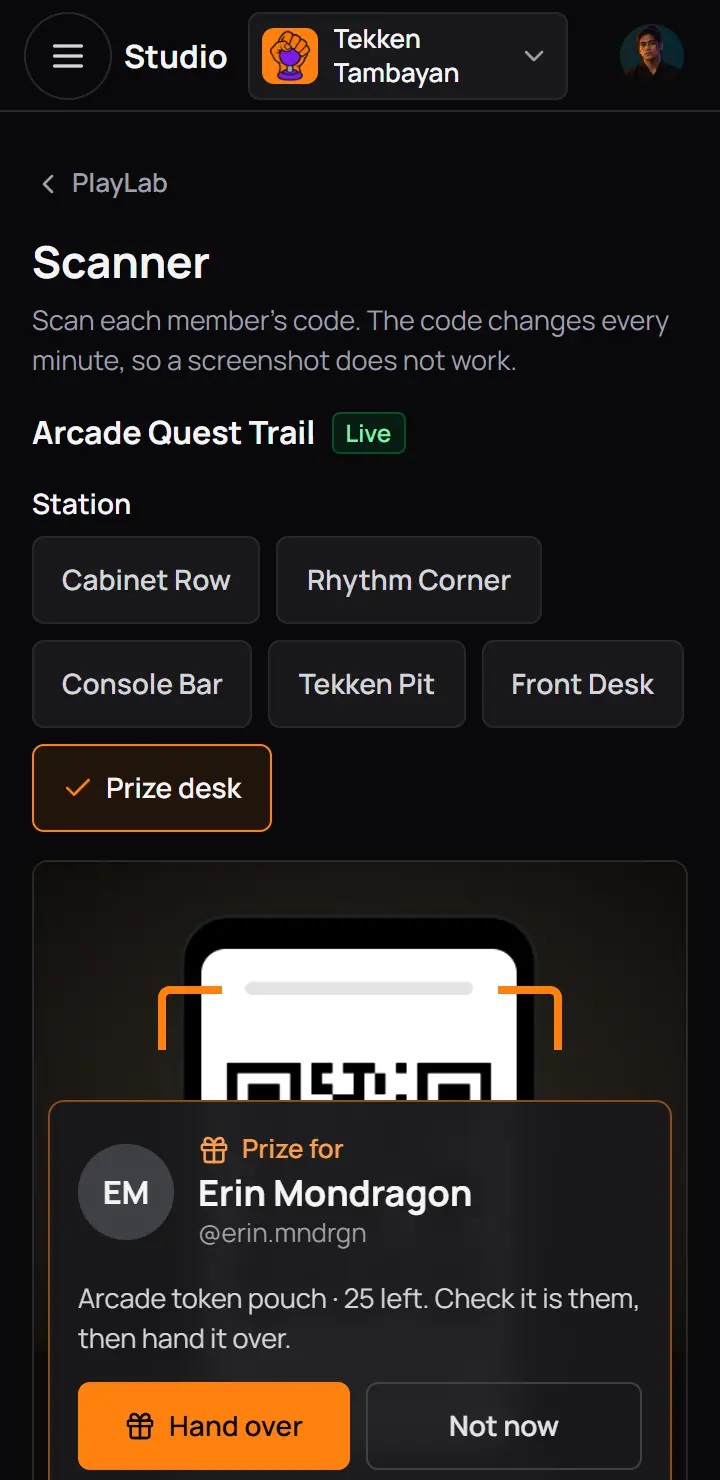
- The memberName and picture, and how many prizes are left.
- Hand overGive the prize, then press it.
- Not nowNothing changes.
- The memberName and picture, and how many prizes are left.
- Hand overGive the prize, then press it.
- Not nowNothing changes.
- The desk stays open 48 hours after the PlayLab closes or ends.
- "Not finished yet" means the member has quests left. "No prizes left" means all of them are handed out.
- A prize code works for 2 minutes. The member's page makes a new one every minute.
14Undo a scan
Scanned the wrong member? Press Undo on the answer, or on the scan in Your scans today, and give a reason. A scan can be undone for 15 minutes, once.
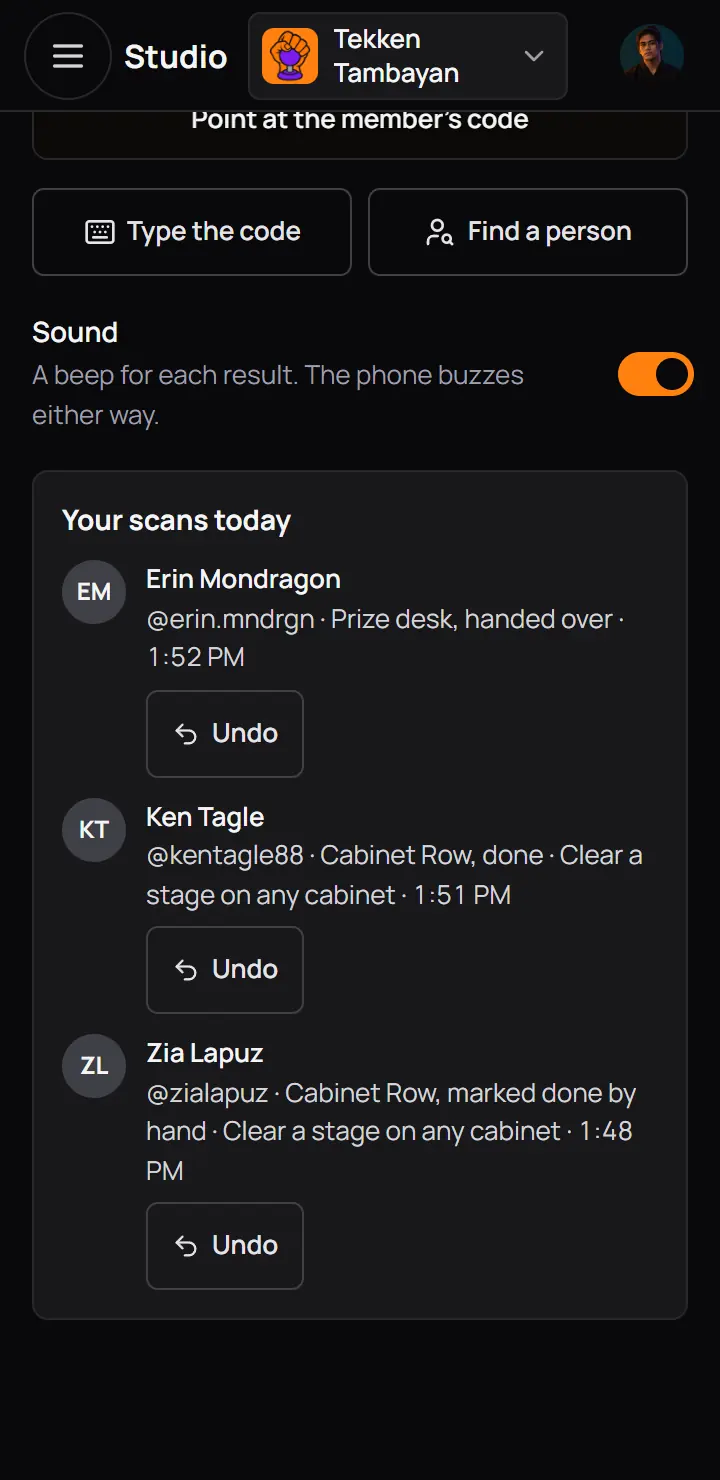
- Your scans todayEach scan you made today, newest first.
- Undo
- Your scans todayEach scan you made today, newest first.
- Undo
- The quest goes back to "Try again" for the member, and its points come back to your budget.
- A finish, its badge, its bonus and XP stay. After a prize undo the member shows a new prize code.
- A member who spent the points keeps them.
- With Scan at the venue only, you can undo your own scans. Build and run PlayLabs can undo anyone's.
15Scanner links for volunteers
Helpers who are not staff of your community scan with a link. Make one on the Scanner tab of a scheduled or live PlayLab. The volunteer opens it on their phone, types their name once, and every scan they make carries it.
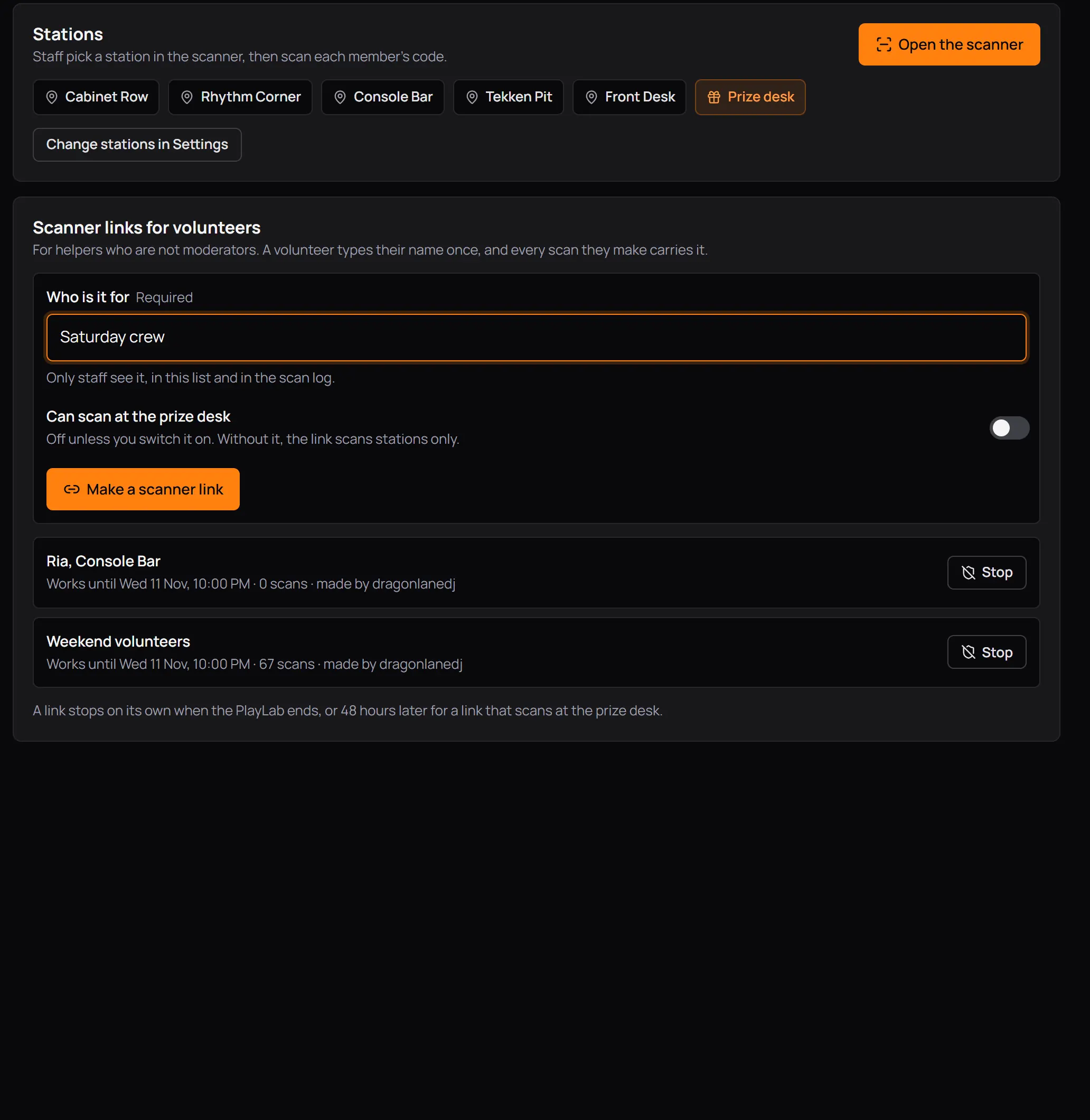
- StationsChange them in Settings.
- Prize desk
- Open the scanner
- Who is it forA name only staff see.
- Can scan at the prize deskOff unless you turn it on.
- Make a scanner linkShows the link once. Copy it and send it.
- A linkUntil when it works, and its scans.
- StopThe link stops at once.
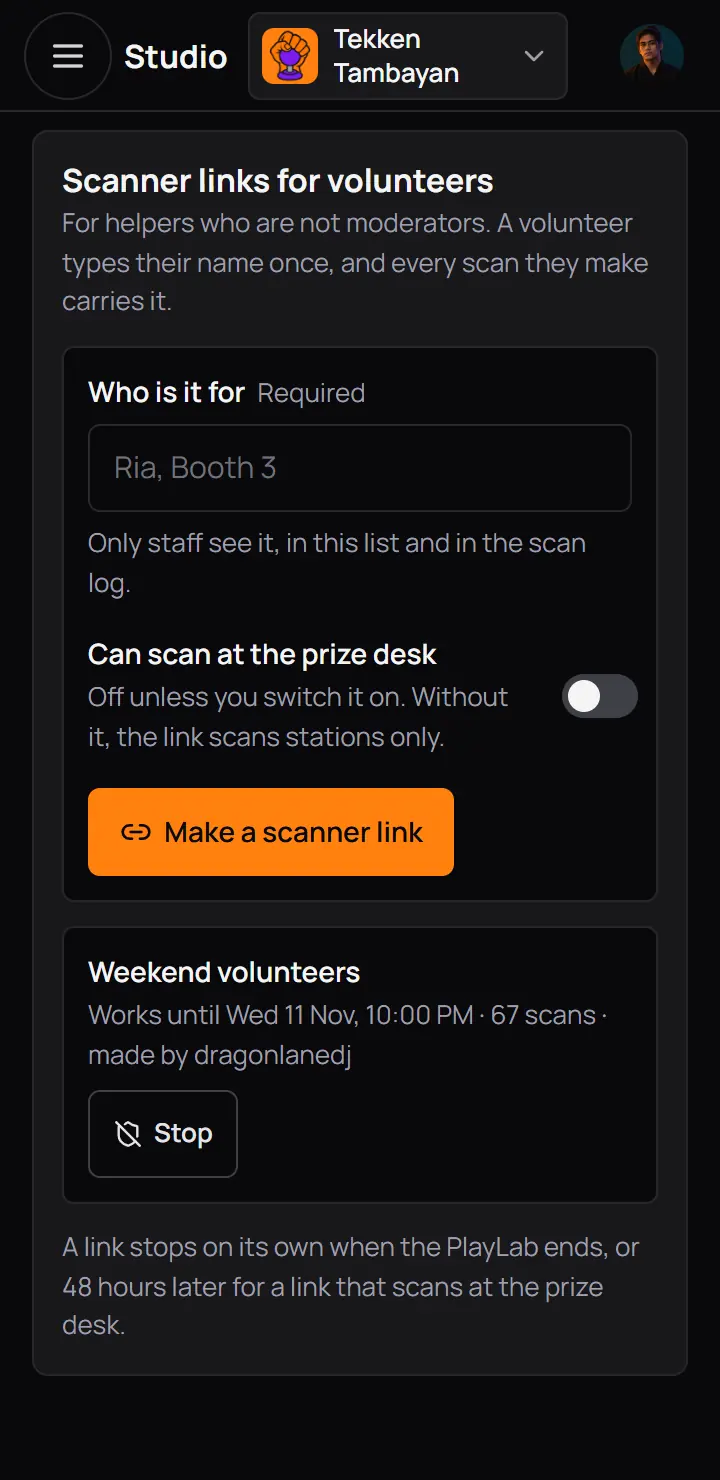
- Make a scanner linkShows the link once. Copy it and send it.
- A linkUntil when it works, and its scans.
- StopThe link stops at once.
- A link stops by itself when the PlayLab ends, or 48 hours later for a link that scans at the prize desk.
- A volunteer finds members by @username only, never by their real name.
- A PlayLab can have 20 links.
16Proofs to review
Photo proofs and shared links with Staff review wait in Proofs until someone checks them. Approving gives the points. Sending one back asks the member to try again, with your reason in a bell.
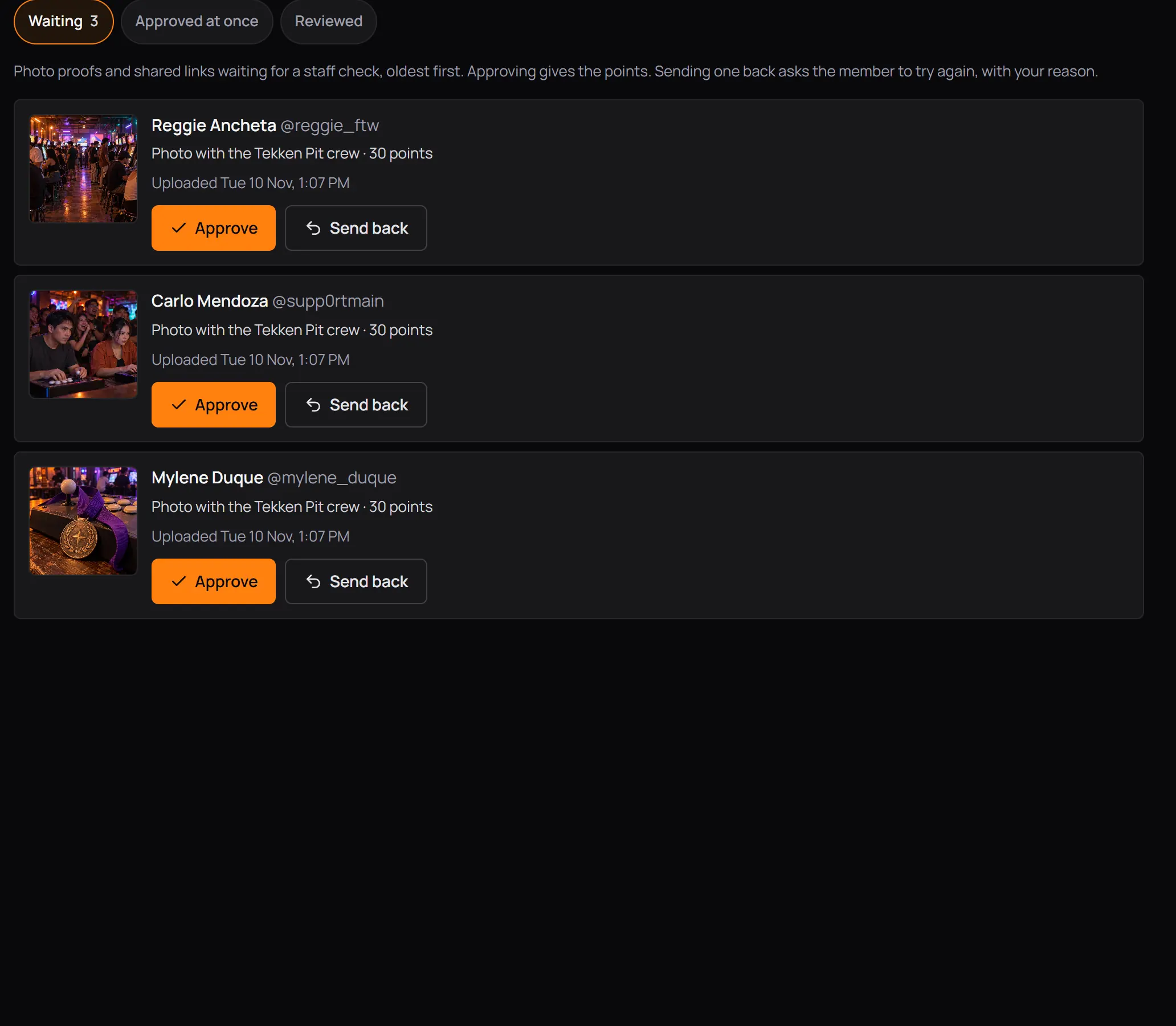
- WaitingOldest first. Approved at once and Reviewed are beside it.
- The member and the quest
- ApproveThe quest counts and pays.
- Send backAsks for a reason.
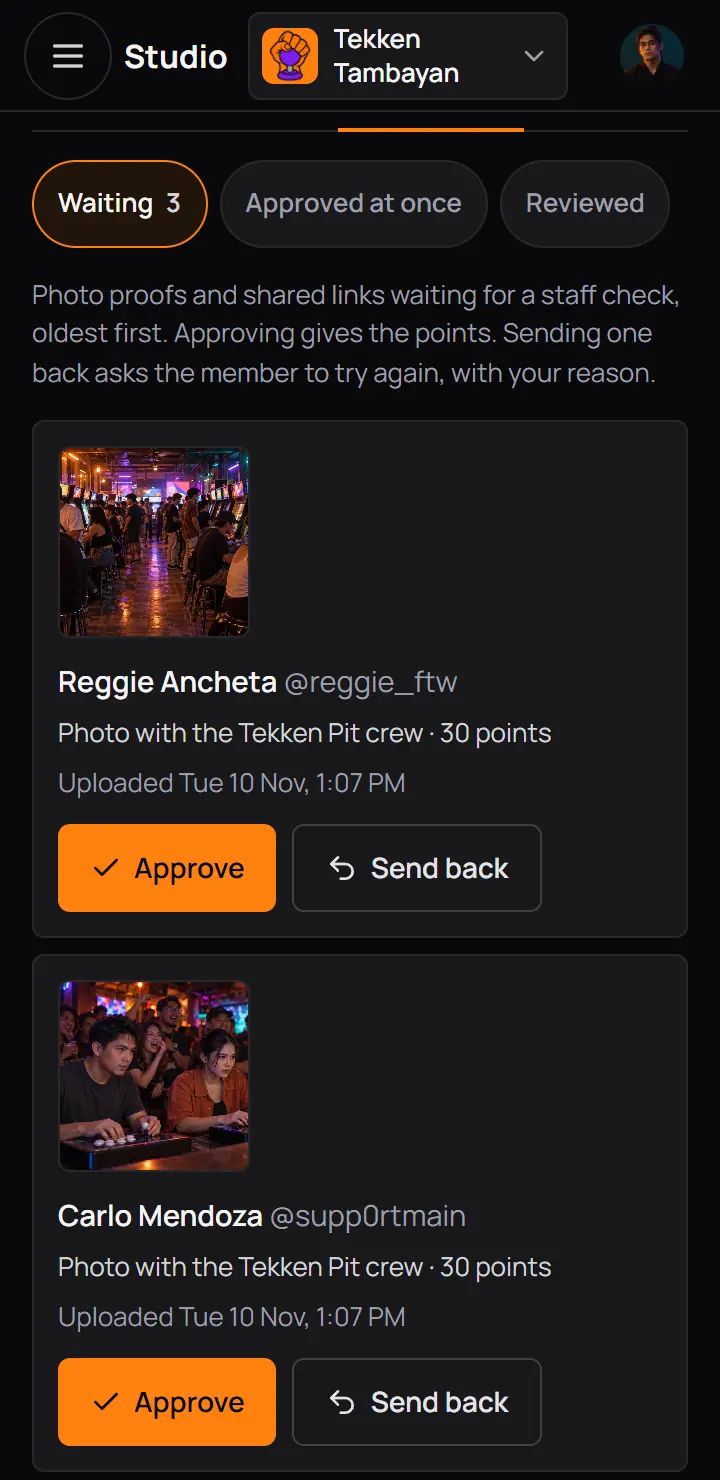
- WaitingOldest first. Approved at once and Reviewed are beside it.
- ApproveThe quest counts and pays.
- Send backAsks for a reason.
- Approved at once lists proofs of quests that count at once. Look through them later and send back any that is wrong. The member keeps the points.
- A proof sent while the PlayLab was live can still be checked after it ends.
17Players and Mark done
Players lists everyone who started the PlayLab, with what they did and the points they got. Export CSV downloads the list. Open a player to see each quest and each scan.
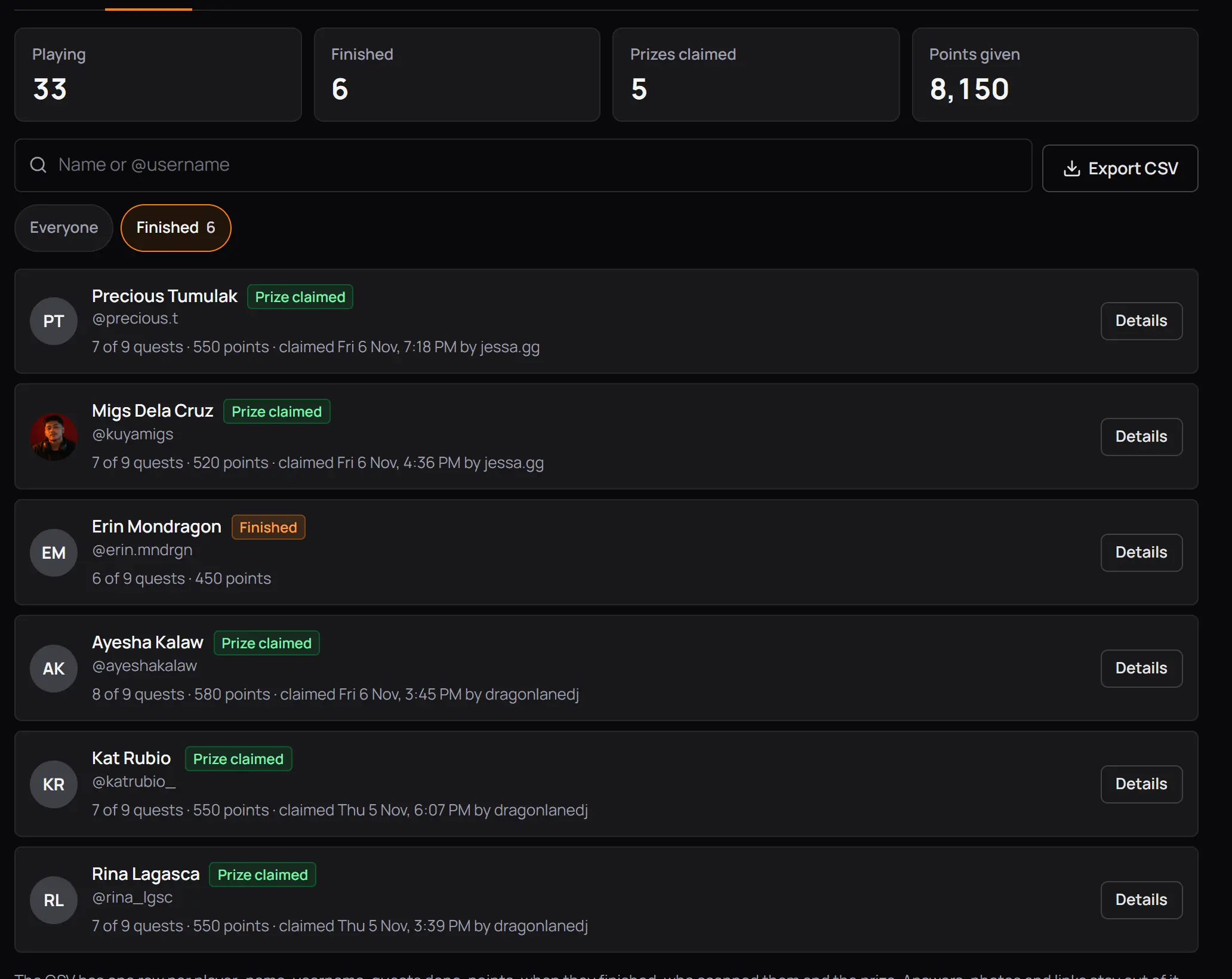
- The numbersPlaying, Finished, Prizes claimed and Points given.
- Search players
- Export CSVOne row per player. Answers, photos and links stay out.
- Finished
- Prize claimedAnd who handed it over.
- Details
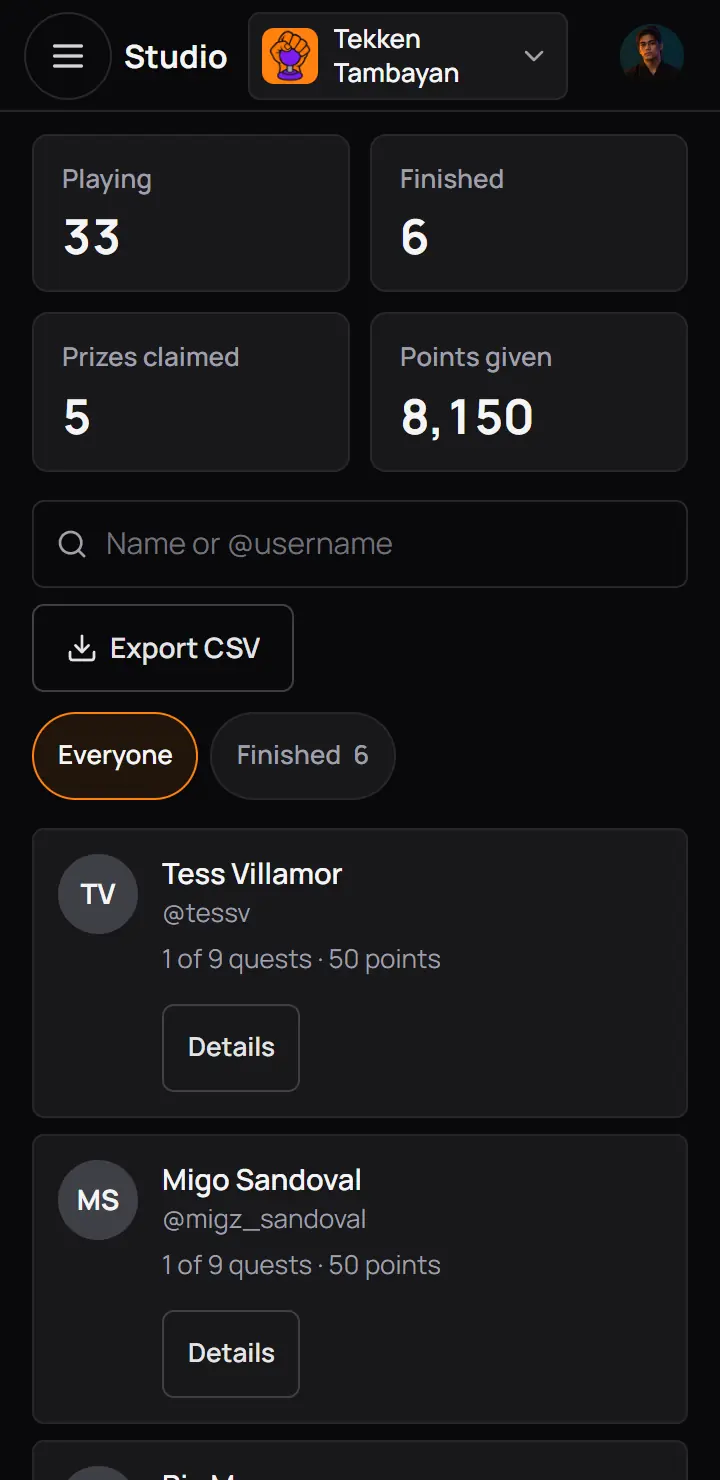
- Search players
- Export CSVOne row per player. Answers, photos and links stay out.
- Under the quests, Scans lists who scanned the member, with Undo for 15 minutes.
- Mark done pays the quest's points and can finish the member. A reason is optional, and it shows in the scans.
- A photo or a link waiting for a check is approved in Proofs, not here.
- Quests can be marked done only while the PlayLab is live.
18Hide, end, delete or copy
The last box of Settings is Hide, end or delete. Copy is at the top of every PlayLab.
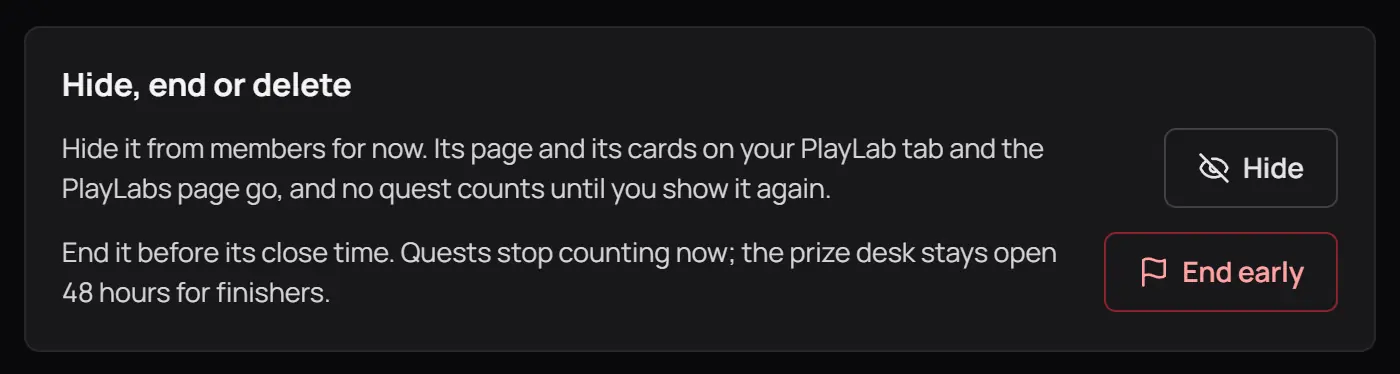
- HideMembers lose its page and cards until you show it again.
- End earlyQuests stop counting now.
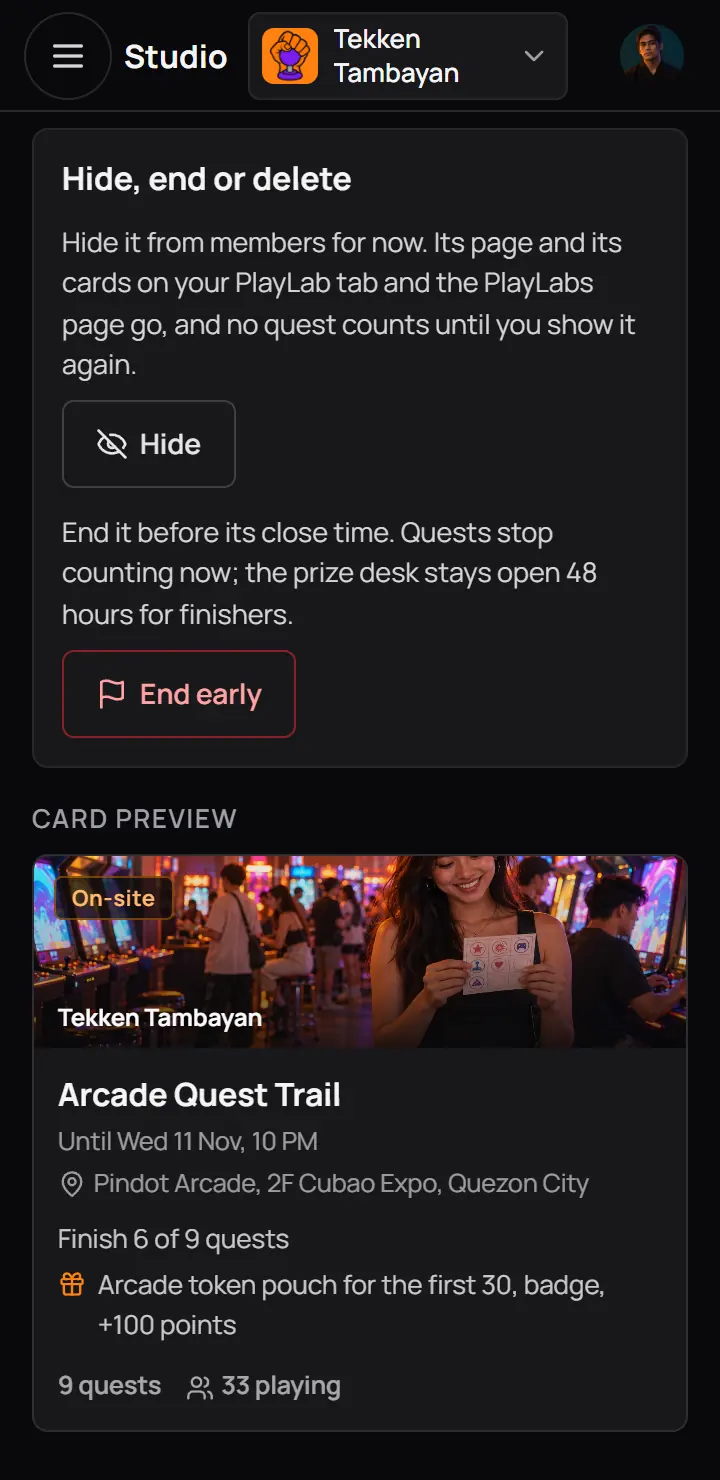
- HideMembers lose its page and cards until you show it again.
- End earlyQuests stop counting now.
- Only a draft nobody played can be deleted.
- A copy is a new draft with the same quests and settings. Set its dates, then publish it.
- A PlayLab taken down by CCE Play cannot be copied.
19CCE Play's side, in the admin app
For CCE Play staff. This step is for CCE Play staff. PlayLabs and PlayLab rules are in the admin app under Community tools.
CCE Play turns the tool on for a community (Studio part 3), sets each community's monthly budget, picks the featured PlayLabs, takes a PlayLab down and sets the rules every PlayLab follows. There is no builder in the admin app: CCE Play's own PlayLabs are made in Studio, from the CCE Play community.
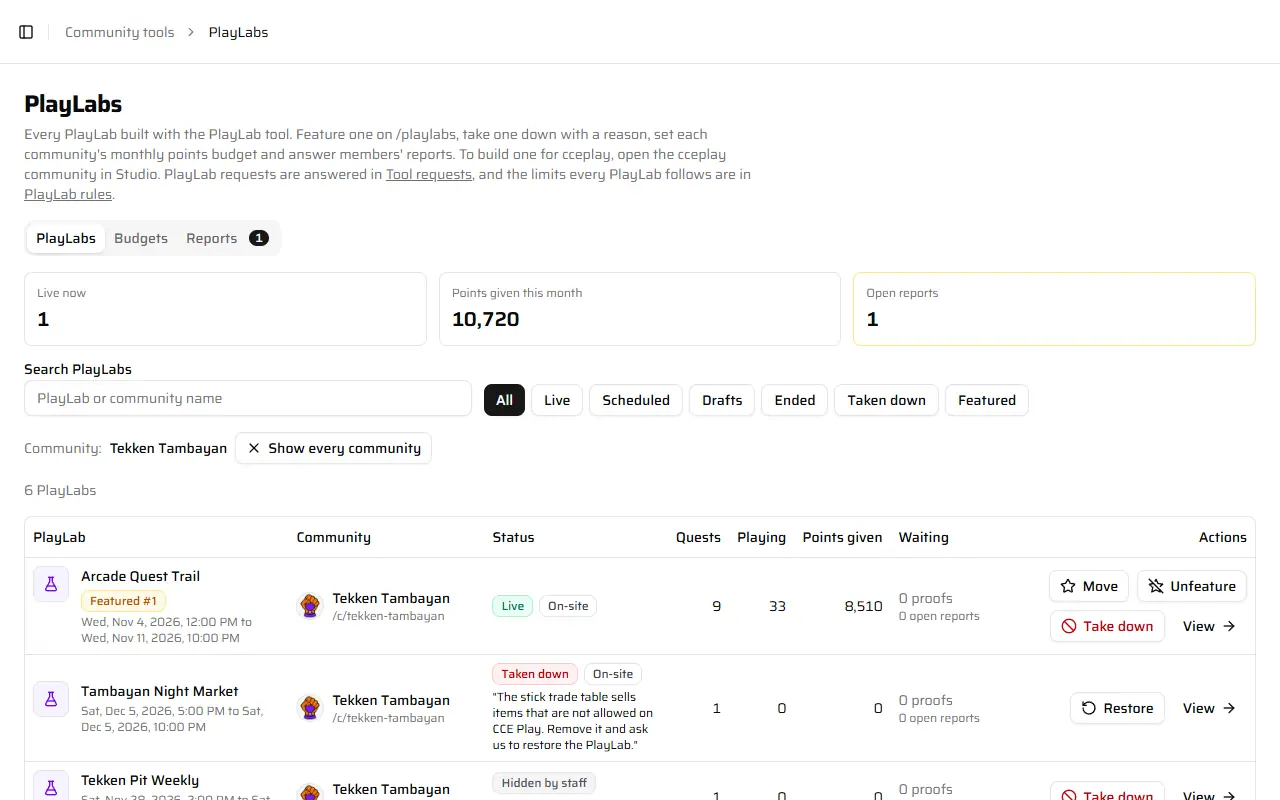
- PlayLabs, Budgets and Reports
- A PlayLabFeatured ones first. Open it to see it, read only.
- Taken downWith its reason.
- PlayLabs, Budgets and Reports
- A PlayLabFeatured ones first. Open it to see it, read only.
- Taken downWith its reason.
- A community never learns who reported its PlayLab.
- A takedown keeps the points, badges and prizes members already got.
- Opening a PlayLab in the admin app adds "CCE Play support viewed" to the owner's Activity log, at most once an hour.
20If something goes wrong
CCE Play can pause every PlayLab at once, for example while it fixes a problem. Studio and the PlayLab pages then say so, and no quest counts until the pause ends. You do not need to do anything.
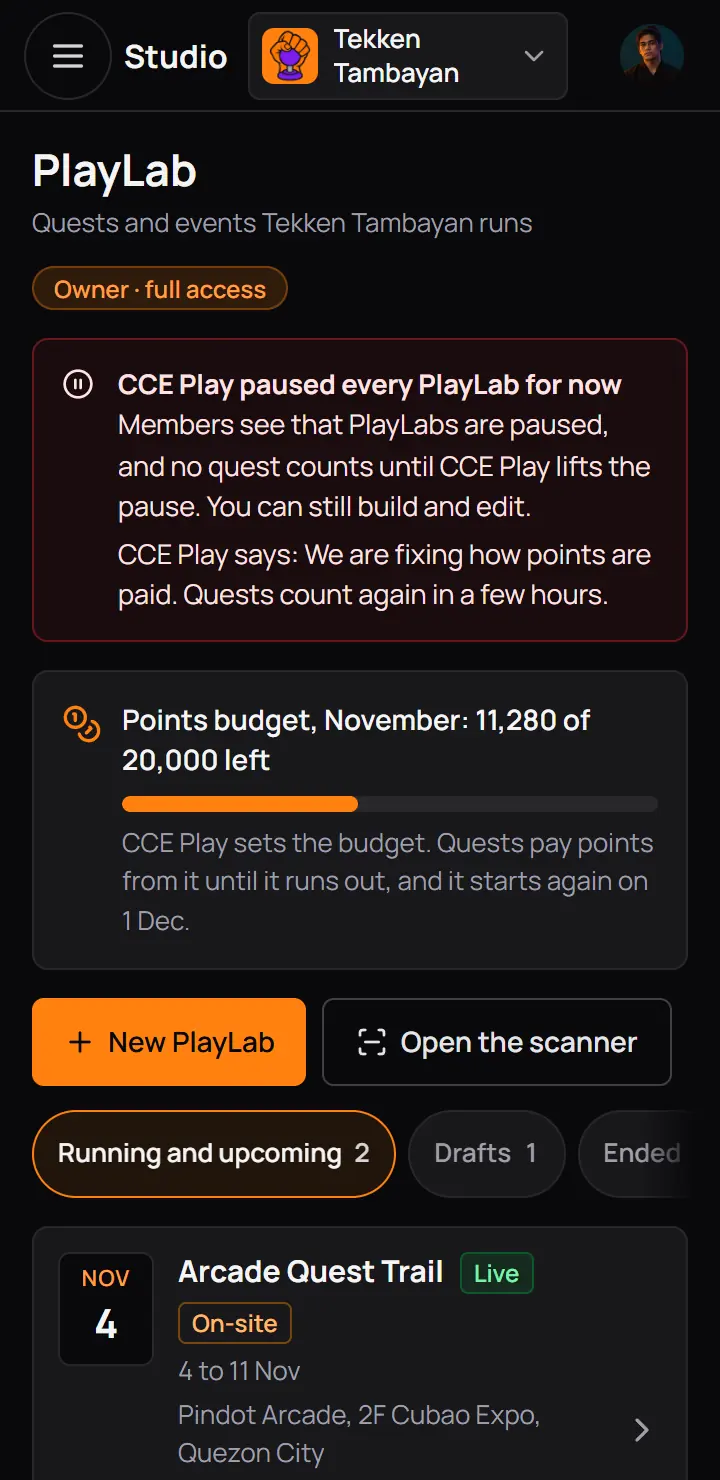
- CCE Play paused every PlayLab for nowWith CCE Play's reason. You can still build and change PlayLabs.
- CCE Play paused every PlayLab for nowWith CCE Play's reason. You can still build and change PlayLabs.
| You see | What to do |
|---|---|
| This page is not shared with you | What to doAsk the owner to turn on Build and run PlayLabs or Scan at the venue for your role in Studio access. |
| Finish these first | What to doPress each line of Before you publish, fix it, then publish. |
| Locked once a member started | What to doCopy the PlayLab into a new draft to change it. |
| No PlayLab is live right now | What to doThe scanner works while a PlayLab is live, and at the prize desk for 48 hours after it ends. |
| Scanned again | What to doThe member did this quest before. Nothing to do. |
| Stop | What to doRead the line under it. Ask the member to press Show my code again, or use Find a person. |
| Not finished yet | What to doThe member has quests left. Show them the PlayLab page. |
| Points for this month are used up | What to doQuests still count. Ask CCE Play if you need a bigger budget. |
| Paused by CCE Play | What to doEvery PlayLab stopped for now. Wait for CCE Play. |
| Taken down by CCE Play | What to doRead the reason, then write to CCE Play support. |
| The PlayLabs could not load. Try again. | What to doCheck your internet connection, then press Try again. |