
1Where guests are
Guests is under Events in the Studio menu. The orange number beside it counts the guests waiting for your approval, across all your events. On a phone, tap the round menu button first.
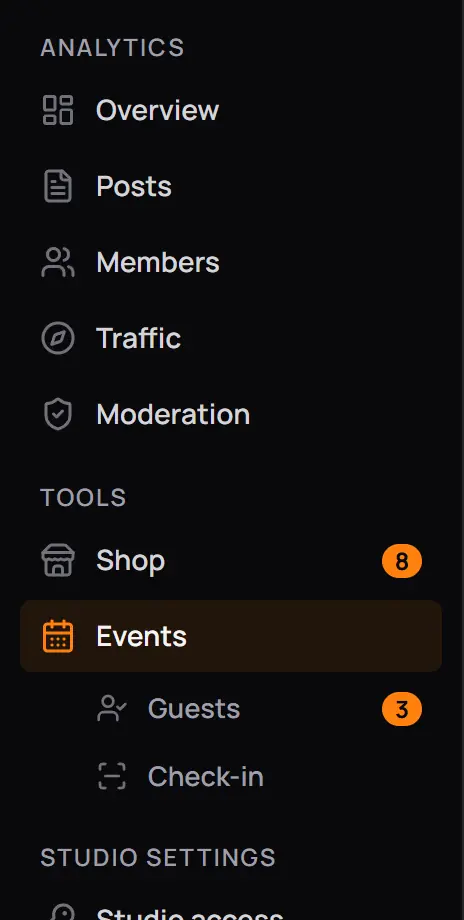
- GuestsEveryone waiting for approval, from every event.
- 3How many are waiting. It goes away when nobody is.
- Check-inThe door scanner.
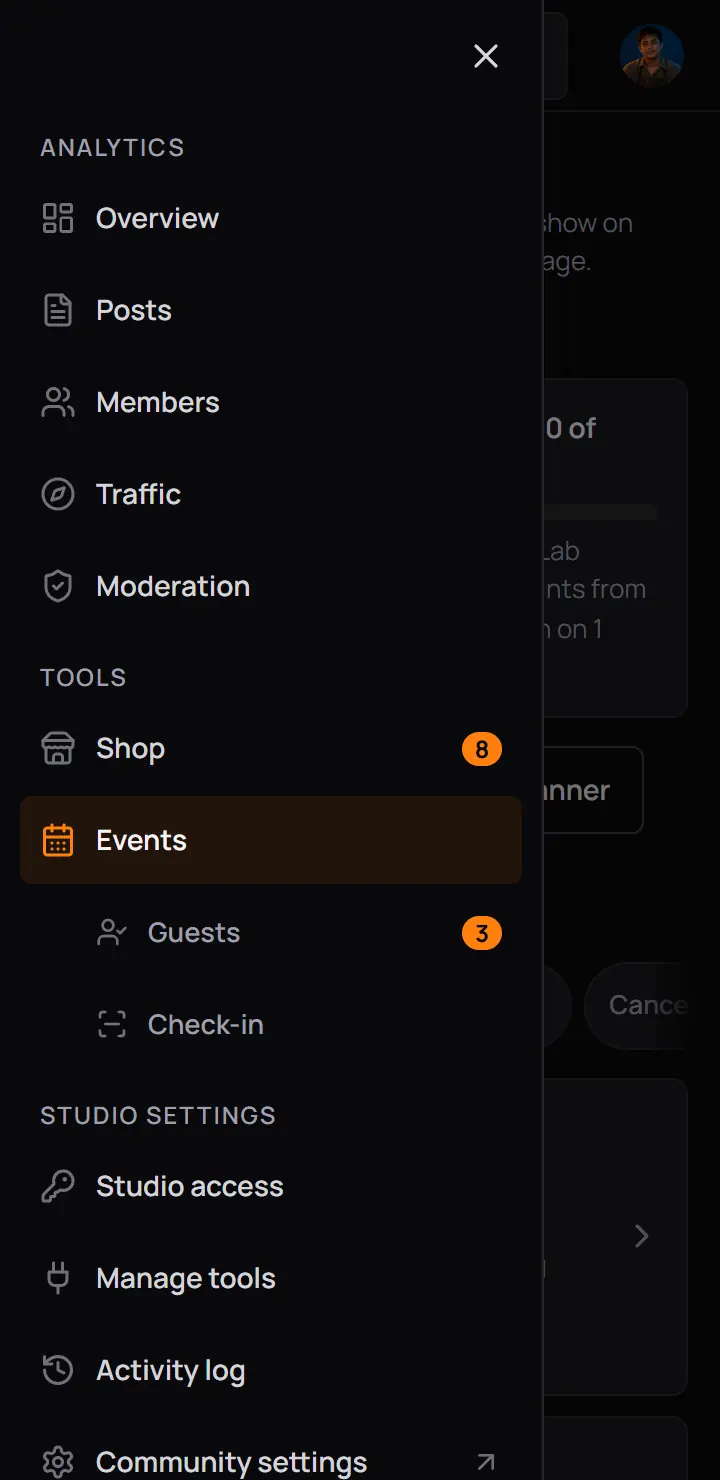
- GuestsEveryone waiting for approval, from every event.
- 3How many are waiting. It goes away when nobody is.
- Check-inThe door scanner.
The Events page says the same thing twice: a button with the count beside New event, and an orange line on the event's row.
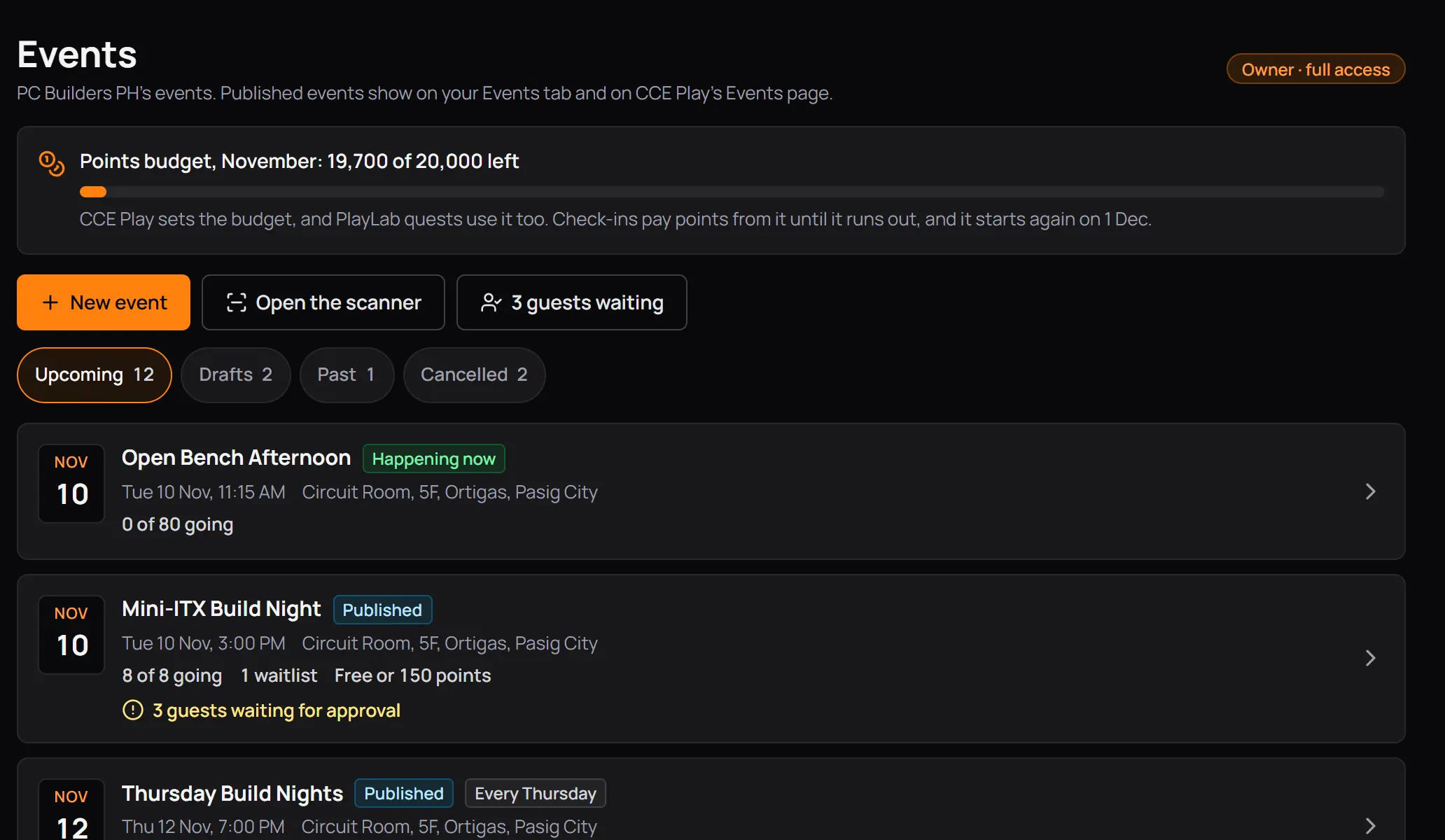
- 3 guests waitingOpens Guests.
- 3 guests waiting for approvalOn the row of the event they asked for.
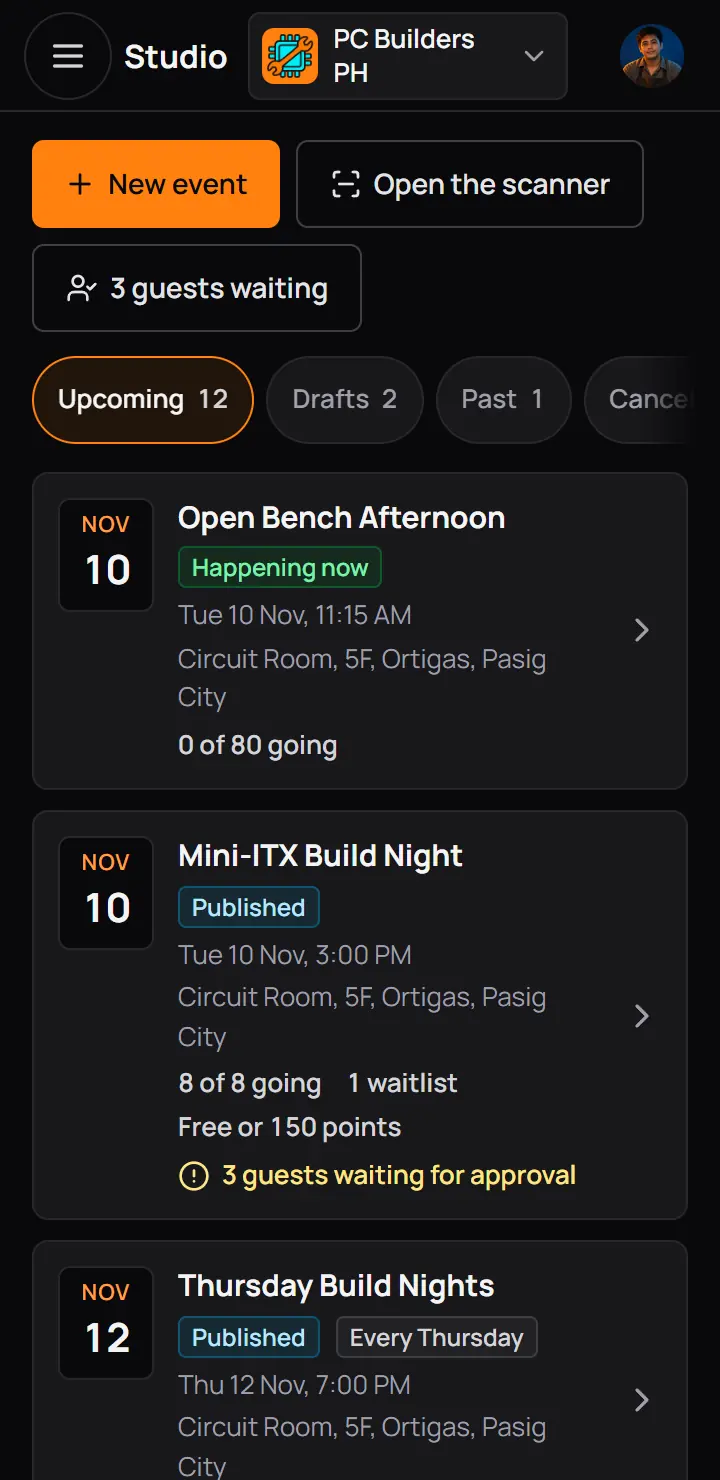
- 3 guests waitingOpens Guests.
- 3 guests waiting for approvalOn the row of the event they asked for.
- An event without approval has no waiting guests: players who register get a seat at once.
- Approval is a setting of the event, in Tickets and who can come. See Step 3 of making an event.
2Every guest status
Each guest of an event has one status. The guest list has a chip for each, with how many are in it.
| Status | What it means | Can they register again? |
|---|---|---|
| Pending | What it meansAsked to join an event with approval on. Waits for you. Holds no seat yet. | Can they register again?They are already registered. |
| Waitlist | What it meansNo seat was free. They are in line, and the first in line gets the next free seat. | Can they register again?They are already registered. |
| Going | What it meansHolds a seat and a ticket with a QR code. | Can they register again?They are already registered. |
| Checked in | What it meansCame in at the door. | Can they register again?No. |
| Did not come | What it meansHeld a seat but never checked in. Set after the door closes. | Can they register again?No. |
| Declined | What it meansYou said no to them. | Can they register again?No. A declined guest cannot register for this event again. |
| Cancelled | What it meansThey cancelled, you removed them, or the event was cancelled. | Can they register again?Yes, while the event has not started. |
Good to know. To keep someone out of one event for good, decline them. Someone you remove is cancelled, and can register again if a seat is free.
3Guests waiting for approval
The Guests page lists everyone waiting, grouped by event, the oldest request first. Each row shows the guest's name, their first answer, the ticket they picked and where they found the event.
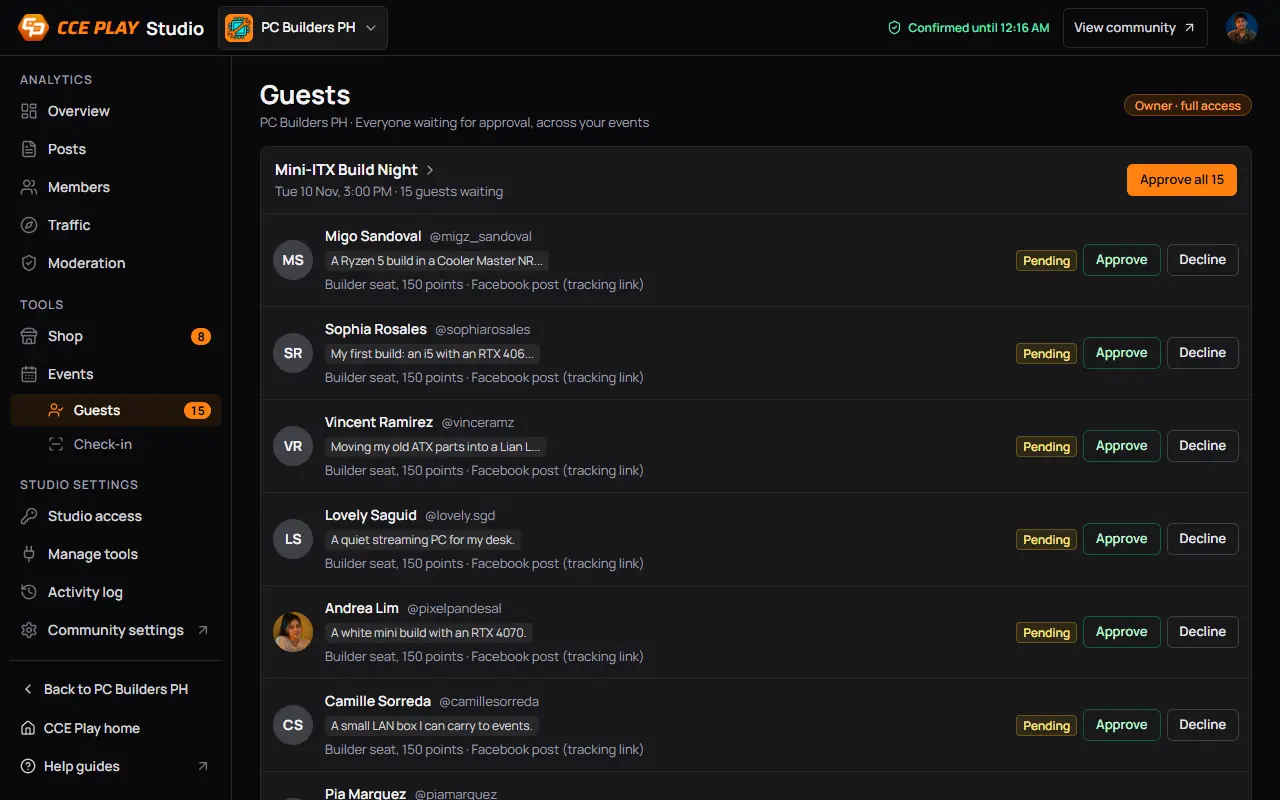
- The eventIts date and how many wait. Press it to open the event's guest list.
- Their answerThe first answer they gave. Press the name to read every answer.
- ApproveThey get a seat, a bell and an email with the ticket.
- DeclineAsks for a reason first.
- Approve all 15Every waiting guest of this event, after a confirm.
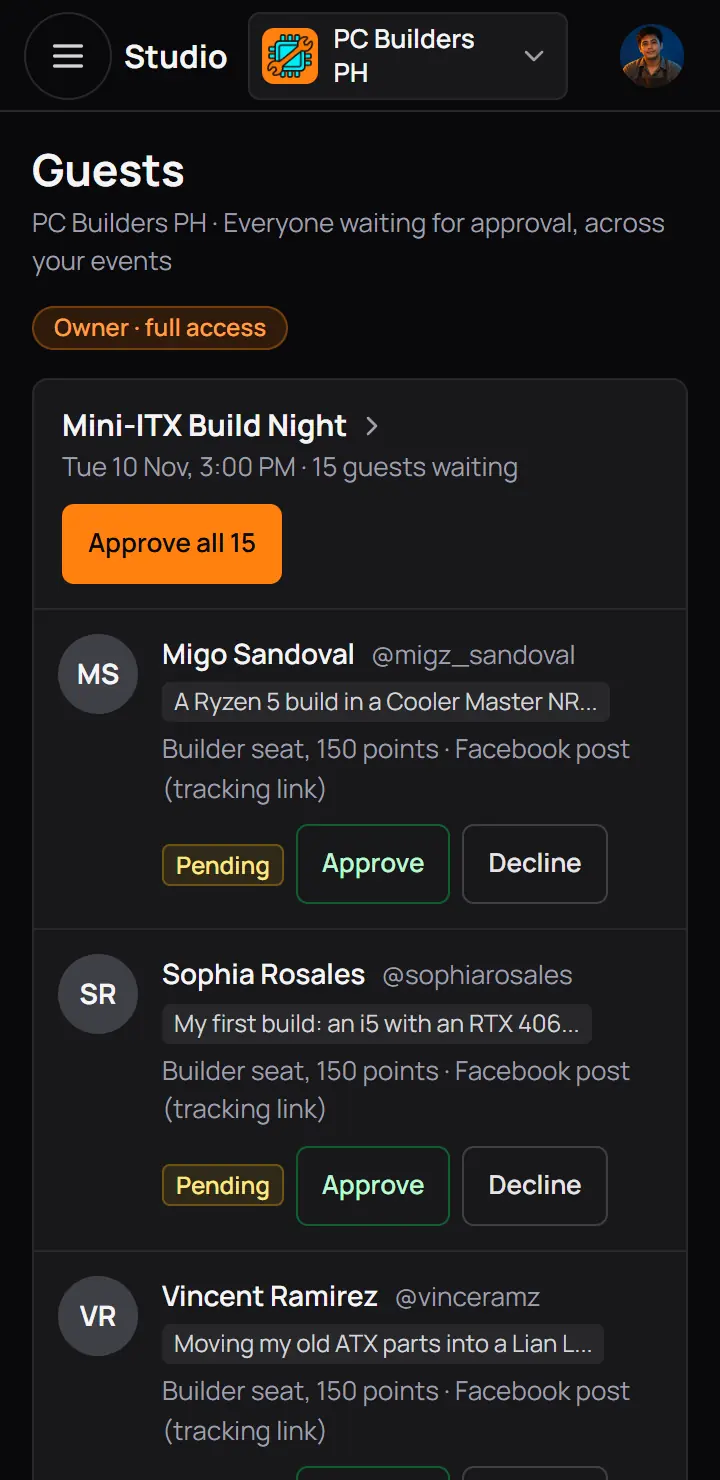
- The eventIts date and how many wait. Press it to open the event's guest list.
- ApproveThey get a seat, a bell and an email with the ticket.
- DeclineAsks for a reason first.
- Approve all 15Every waiting guest of this event, after a confirm.
Approve all
Approve all asks first and counts every waiting guest of the event, not only the ones on the screen. Guests get seats in the order they asked. When the seats run out, the rest go on the waitlist if it is on.
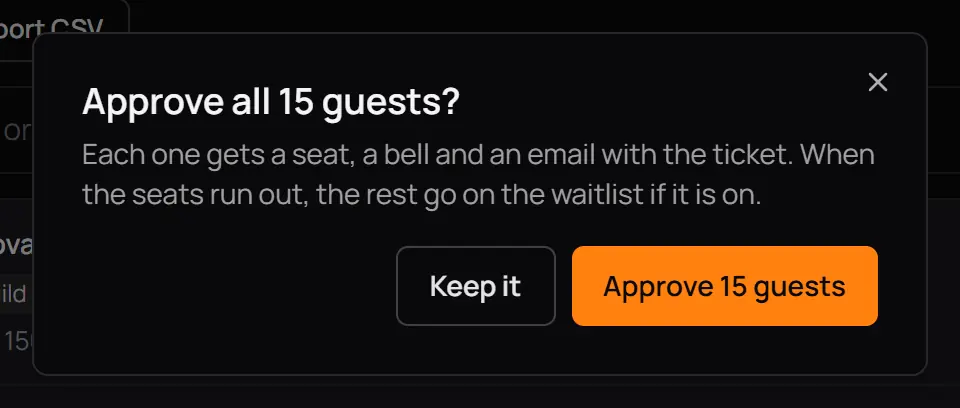
- Approve 15 guestsEach one gets a bell and an email with the ticket.
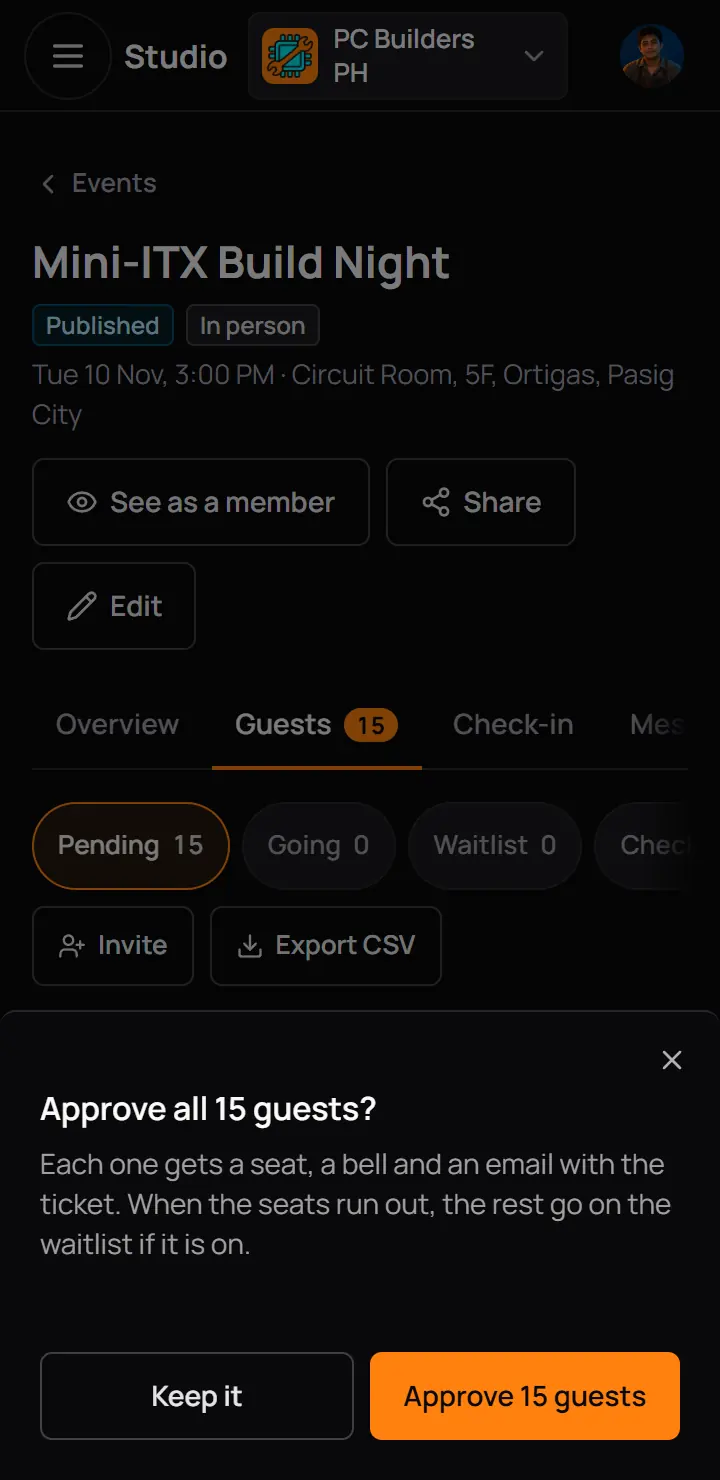
- Approve 15 guestsEach one gets a bell and an email with the ticket.
- You get a bell when guests wait, at most once an hour per event.
- A guest who waits until the event ends is cancelled when the door closes, and gets their points back.
4One event's guest list
Open an event and press its Guests tab. The chips pick a status; All shows everyone. The tab's orange number is the guests waiting.
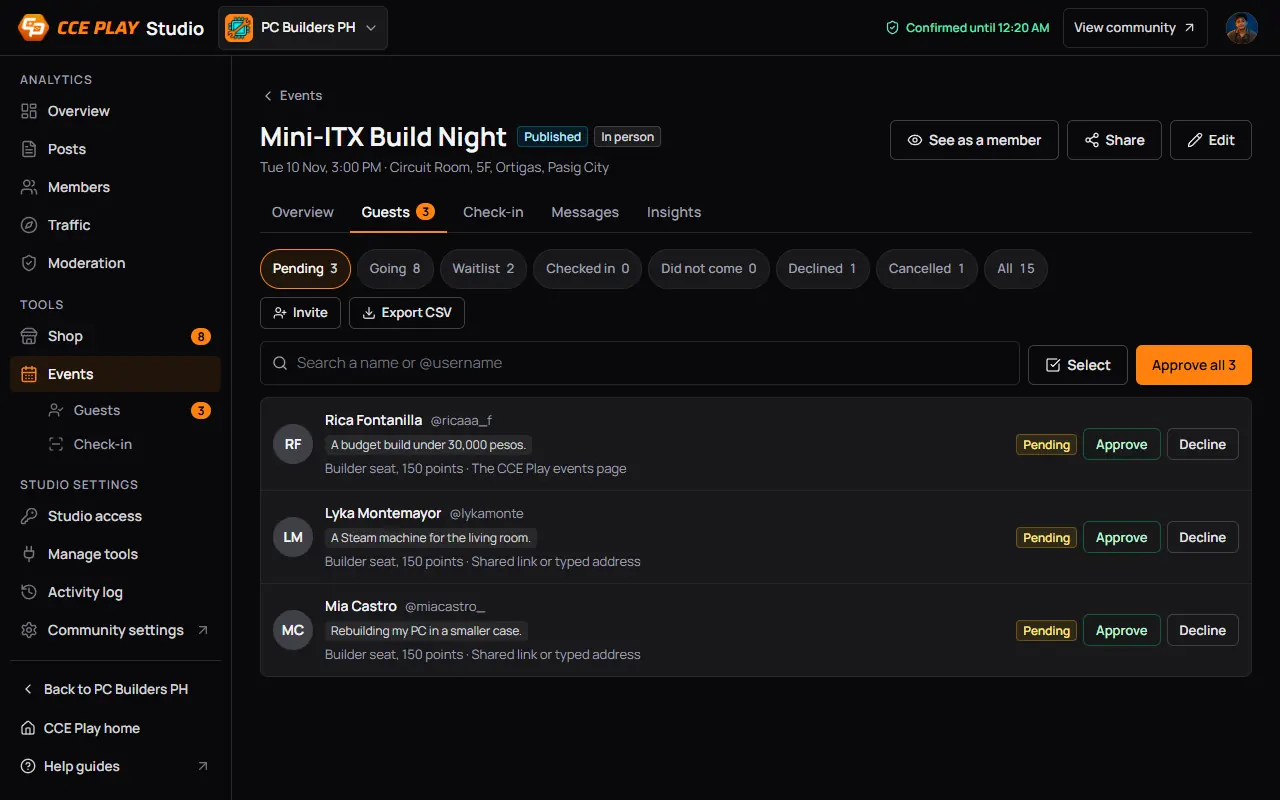
- GuestsThe tab of the event.
- Status chipsPending, Going, Waitlist, Checked in, Did not come, Declined, Cancelled and All.
- InviteAdds a player by username. See step 7.
- Export CSVA spreadsheet of every guest, with their answers.
- SearchThe start of a name or a username, inside the chip you picked.
- SelectPick several guests to approve, decline or message. See step 8.
- Approve all 3Shows on Pending.
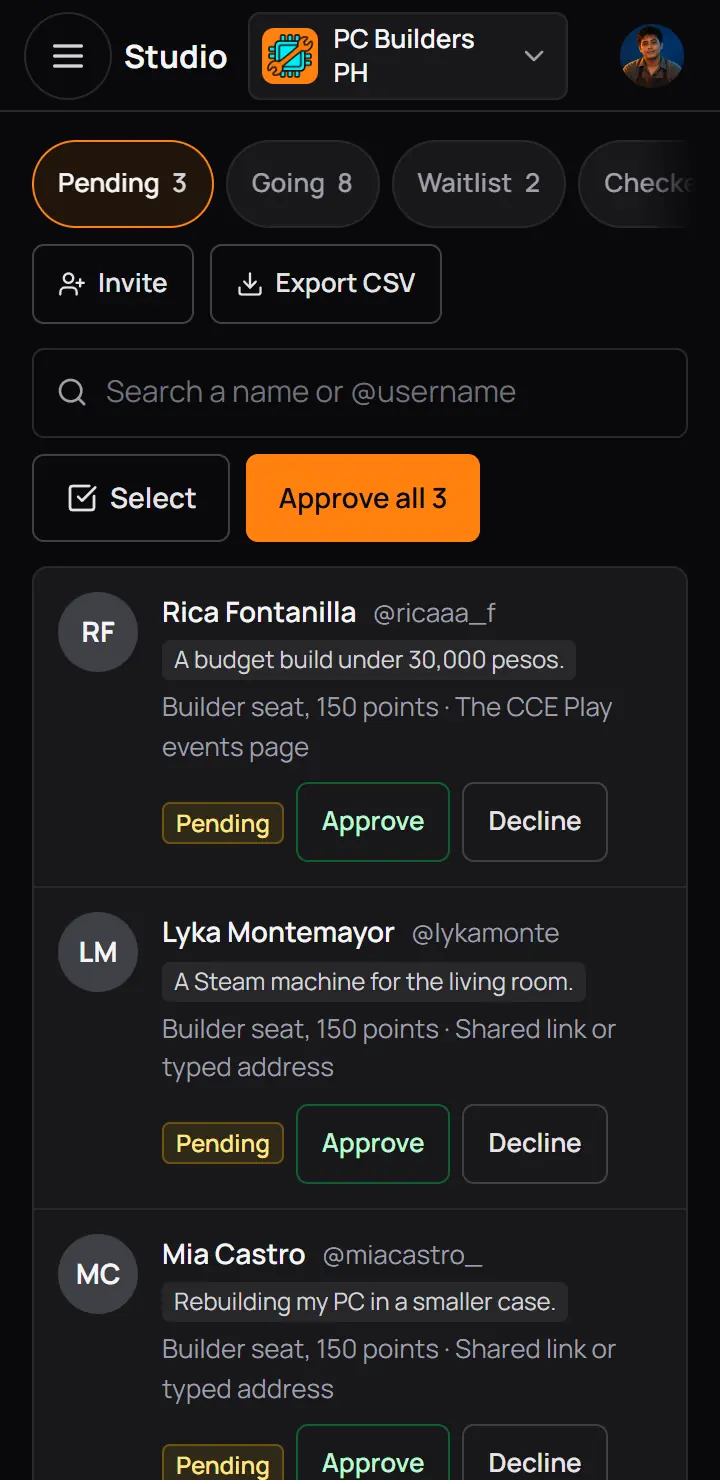
- Status chipsPending, Going, Waitlist, Checked in, Did not come, Declined, Cancelled and All.
- InviteAdds a player by username. See step 7.
- Export CSVA spreadsheet of every guest, with their answers.
- SearchThe start of a name or a username, inside the chip you picked.
- SelectPick several guests to approve, decline or message. See step 8.
- Approve all 3Shows on Pending.
- When the search finds nobody in the chip you picked, it says which other chips have a match, with a Search all guests button.
- A chip with nobody in it says so: "The waitlist is empty", "Nobody has checked in yet", and so on.
- An event with no guest at all says "No guests yet". Share the event page to bring them in.
5One guest's details
Press a guest's name to open their details: the status, the ticket, when they registered, how to reach them, and every answer.
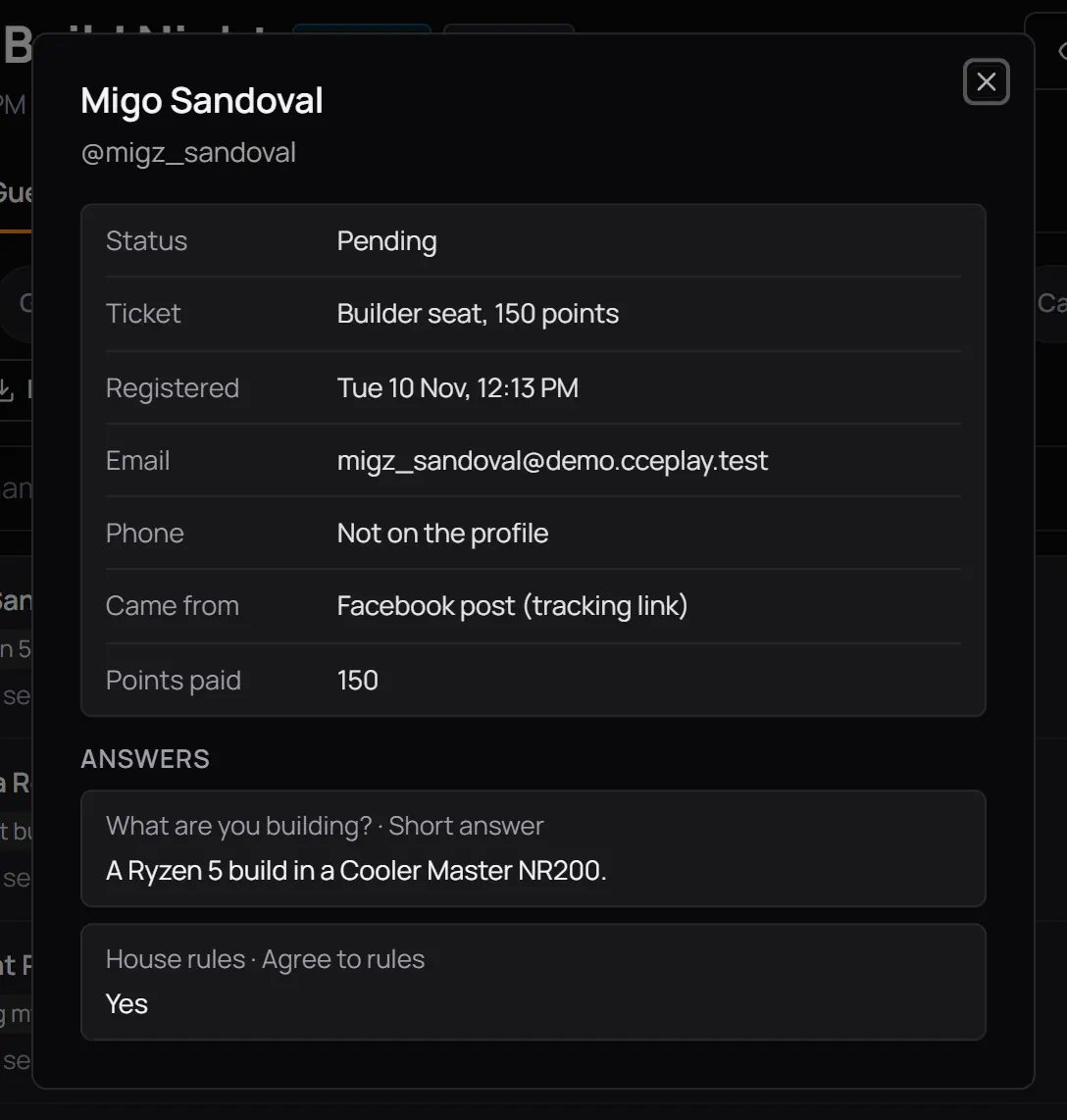
- Status, ticket and Registered
- Email and PhoneFrom the player's profile.
- Came fromWhere they found the event. See step 17.
- AnswersEach question with their answer.
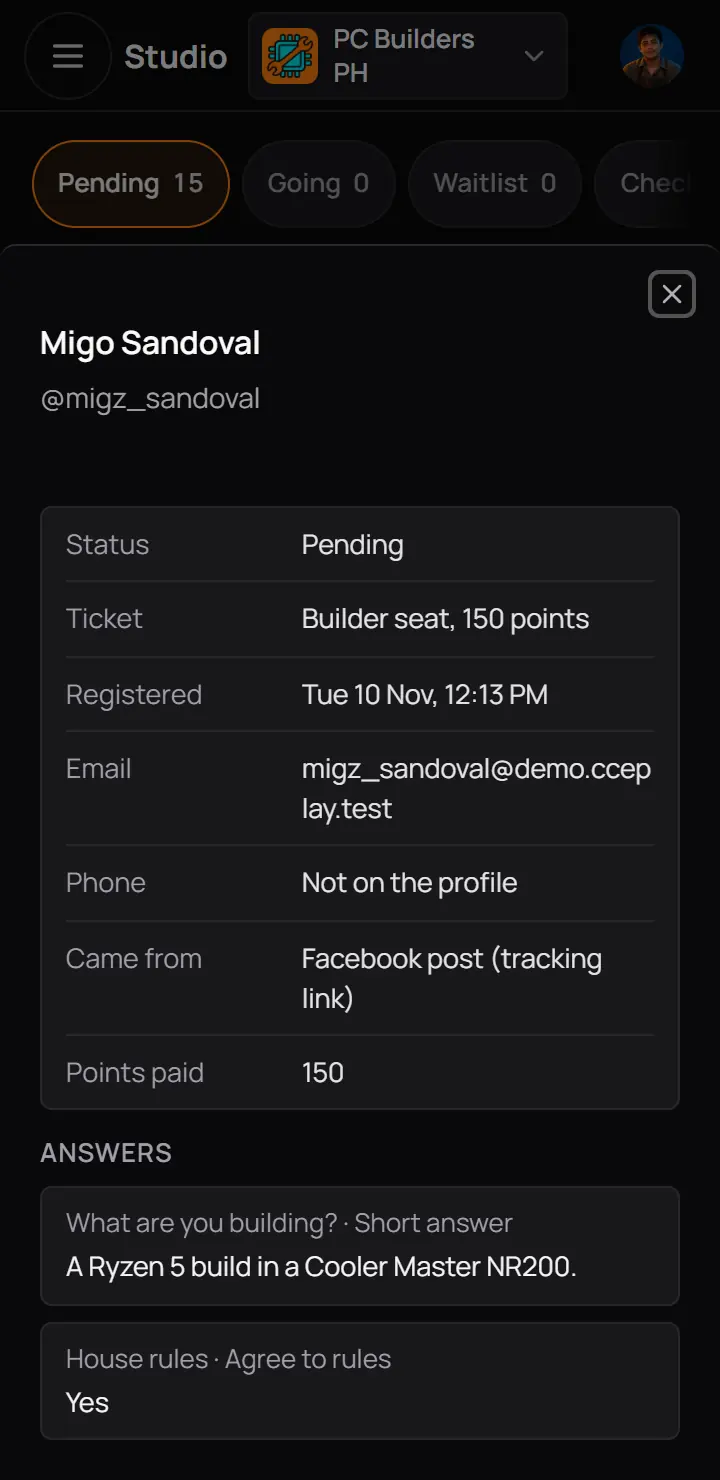
- Status, ticket and Registered
- Email and PhoneFrom the player's profile.
- Came fromWhere they found the event. See step 17.
Good to know. Only people who run events see the email, the phone and the answers. A helper at the door sees none of them (step 14).
6Seats and the waitlist
Every guest who holds a seat counts against the event's seats, whatever their ticket. A pending guest holds none. Once the seats are gone, a new guest goes on the waitlist if it is on; if it is off, the event says it is full.
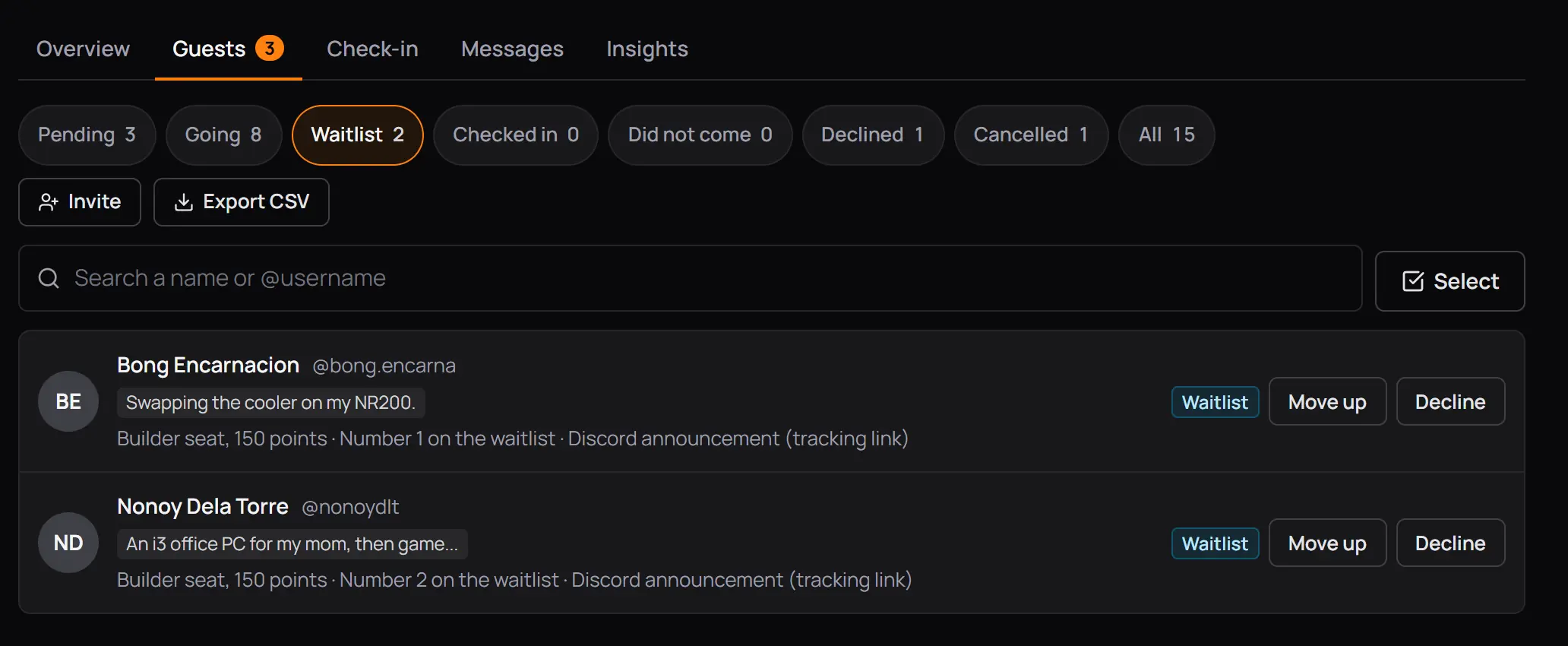
- Waitlist 2
- Number 1 on the waitlistTheir place in line.
- Move upGives them a seat now. Use it after the event starts.
- DeclineTakes them off the waitlist with their points back.
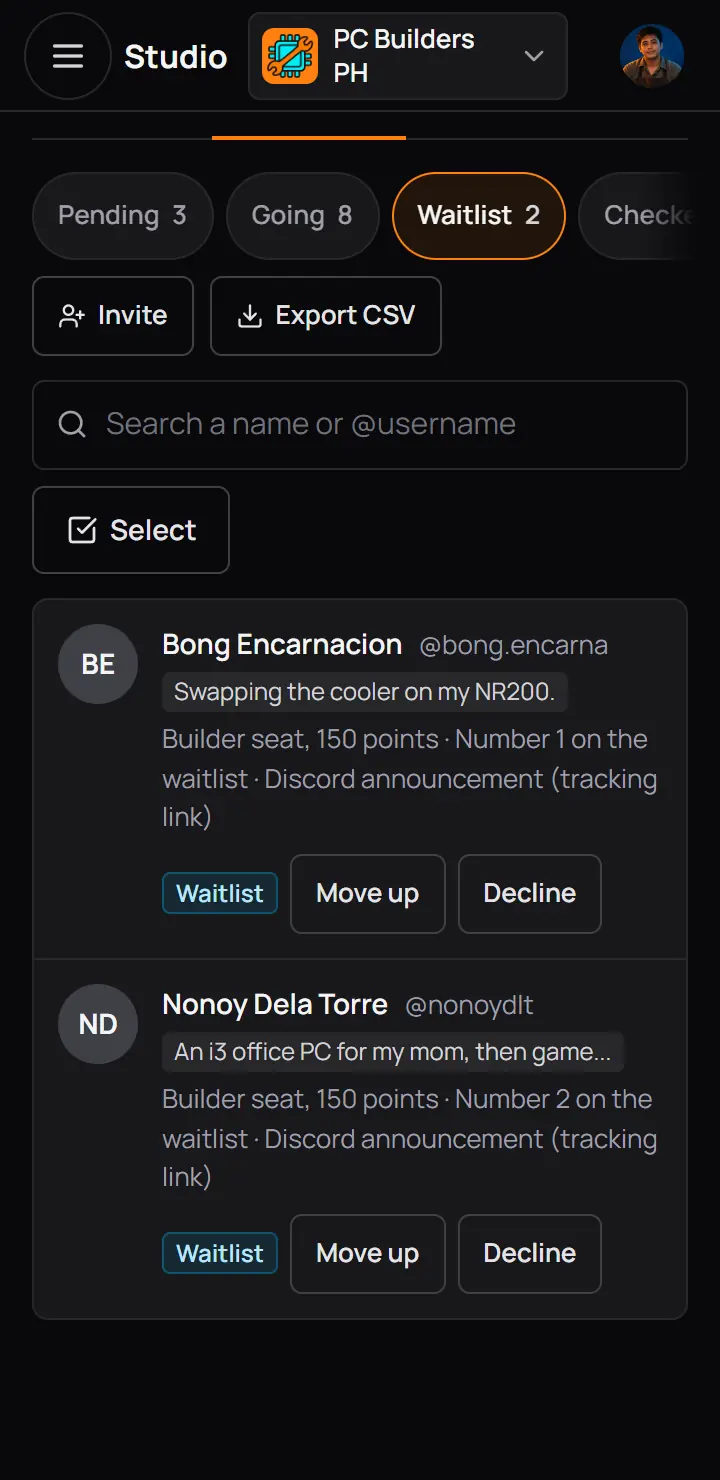
- Waitlist 2
- Number 1 on the waitlistTheir place in line.
- Move upGives them a seat now. Use it after the event starts.
- Until the event starts, the waitlist moves up by itself. When a seat frees (someone cancels, you remove someone, or you add seats), the first in line gets it, with a bell and the ticket email. In the demo, Bong Encarnacion got Lovely Saguid's seat this way.
- After the start nobody moves up by themselves. Press Move up for a guest you let in.
- Approving a guest when no seat is free puts them on the waitlist, as long as it is on.
- You can lower the seats below the guests going. Nobody is removed; new guests wait until enough cancel.
7Remove or invite a guest
Remove is on each Going guest. It frees the seat, the first on the waitlist moves up, and the guest gets a bell and an email with your reason. Points they paid come back.
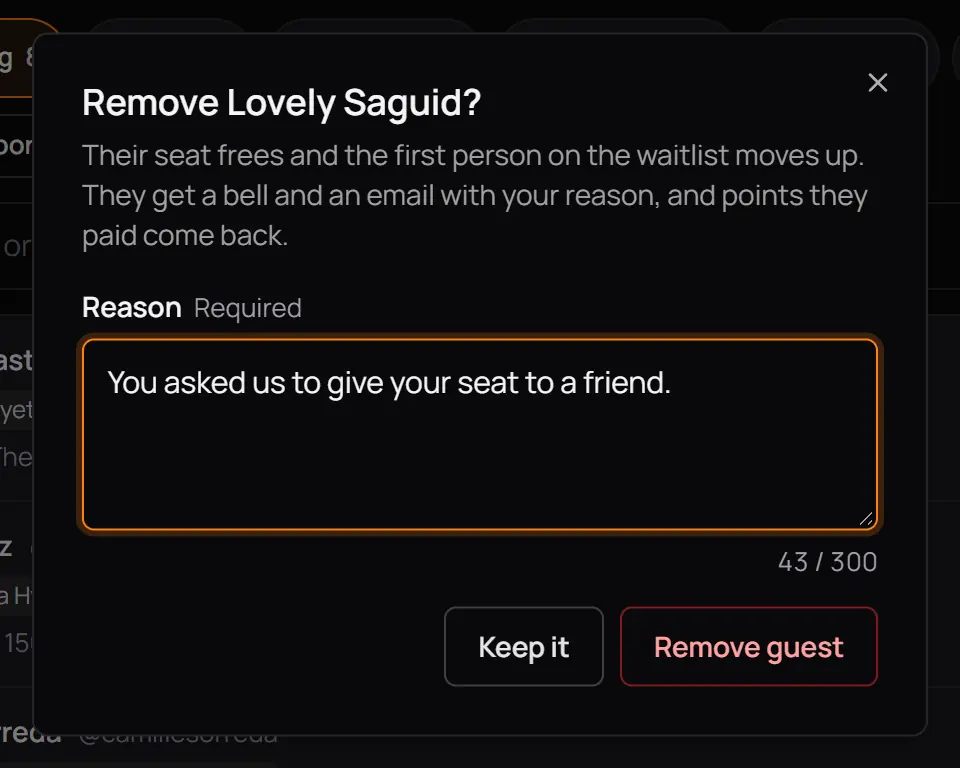
- ReasonRequired. The guest reads it.
- Remove guest
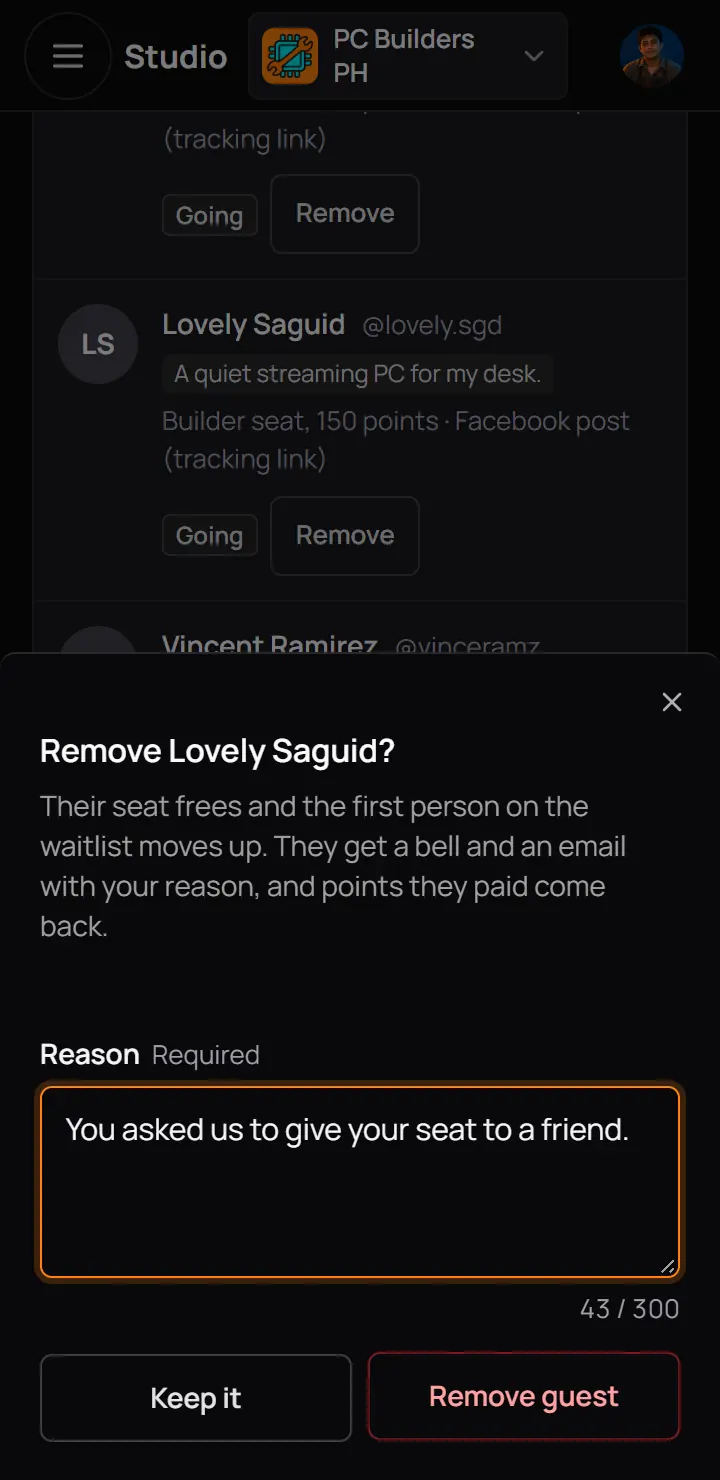
- ReasonRequired. The guest reads it.
- Remove guest
- An invited guest skips approval and pays nothing, even for a points ticket. The event's age limit still applies.
- An event that has ended, was cancelled or was taken down takes no approvals, removals or invites.
8Message your guests
The Messages tab sends a message to a group of guests. It always goes as a bell; tick Email to send it by email too. Each event can send 5 messages a day.
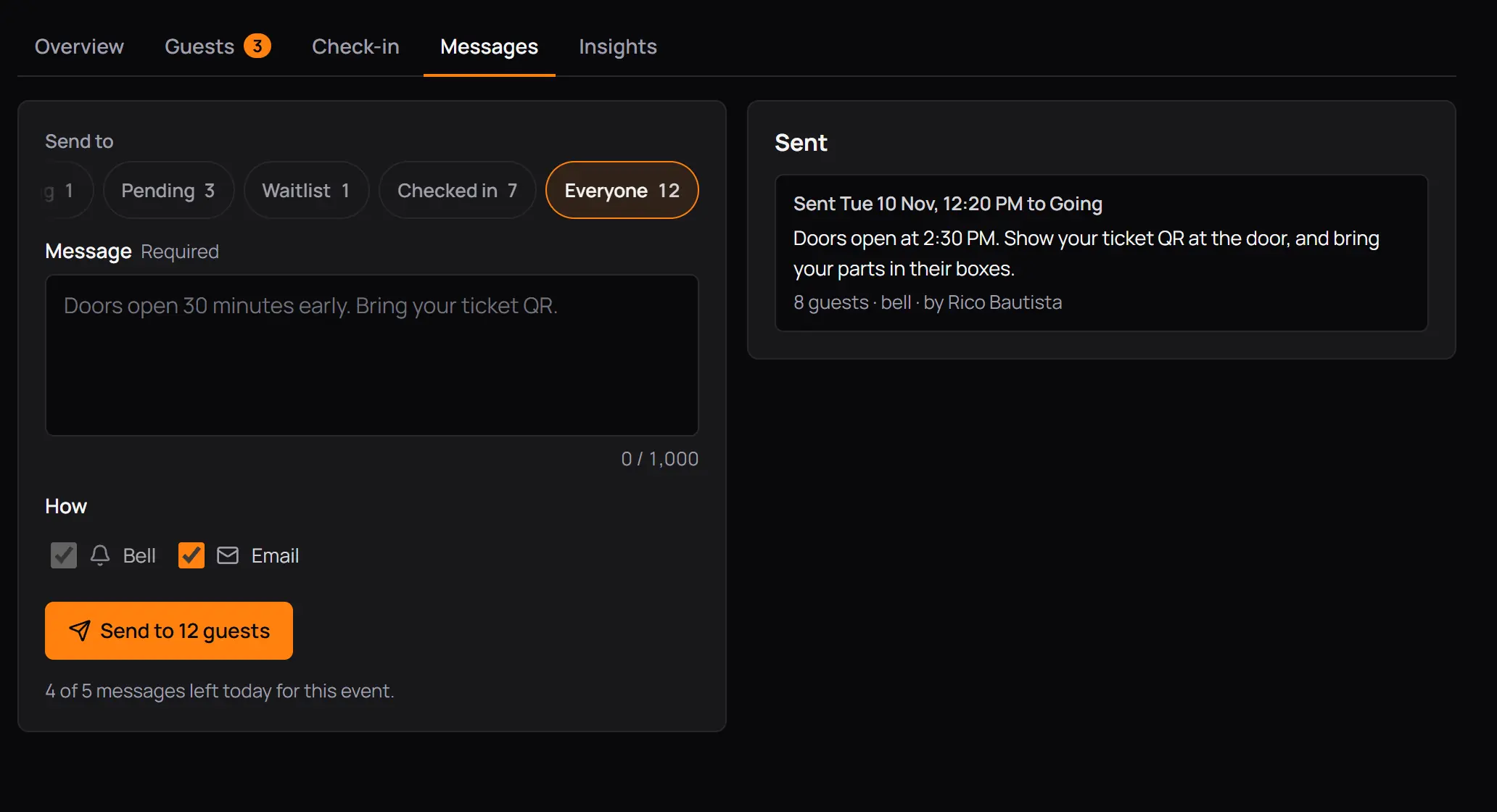
- Send toGoing, Pending, Waitlist, Checked in or Everyone, with how many are in each.
- MessageUp to 1,000 characters.
- 4 of 5 messages left todayThe count starts again at midnight.
- Send to 12 guestsAbove 5 guests it asks first.
- SentEvery message, who got it and who sent it.
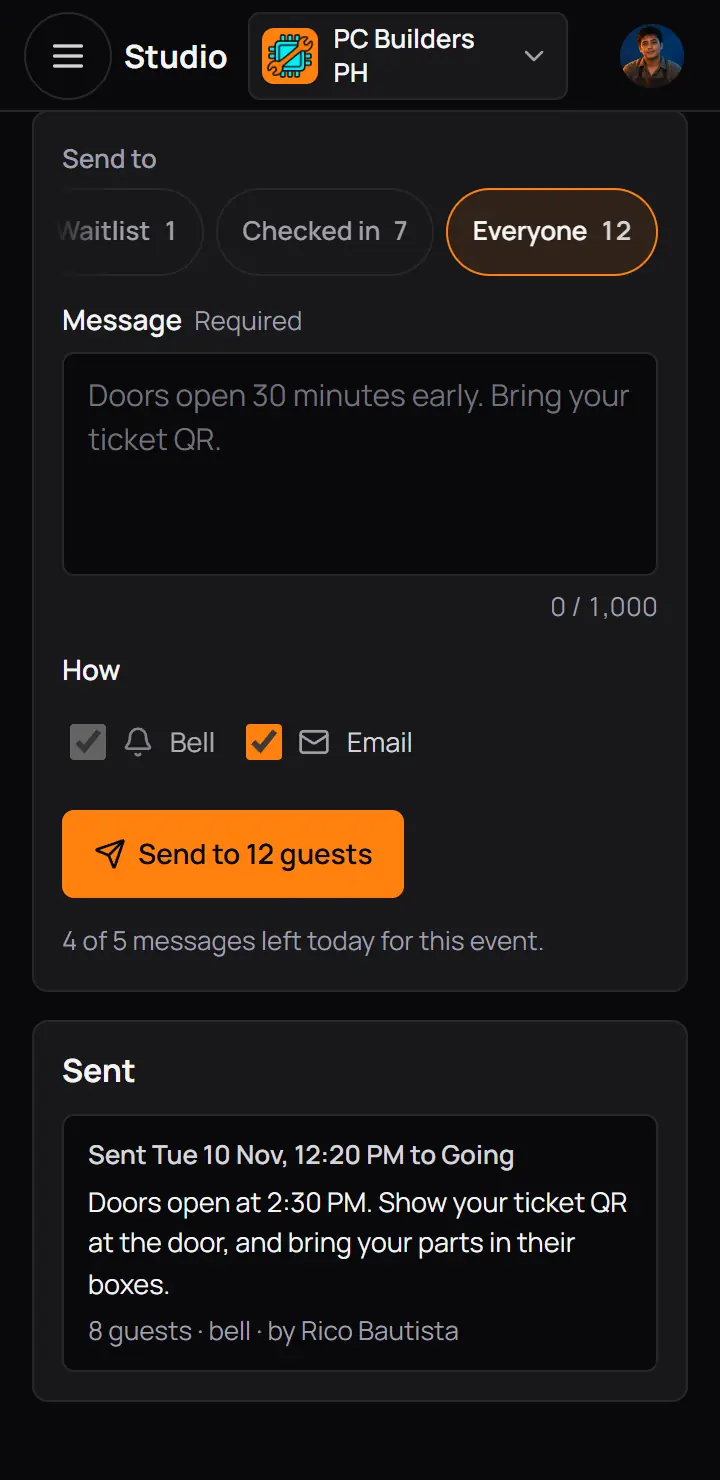
- Send toGoing, Pending, Waitlist, Checked in or Everyone, with how many are in each.
- MessageUp to 1,000 characters.
- 4 of 5 messages left todayThe count starts again at midnight.
- Send to 12 guestsAbove 5 guests it asks first.
Message only some guests
On the Guests tab, press Select, tick the guests, then press Message. Select works on Pending, Waitlist, Going, Checked in and All, and it can pick up to 500 guests.
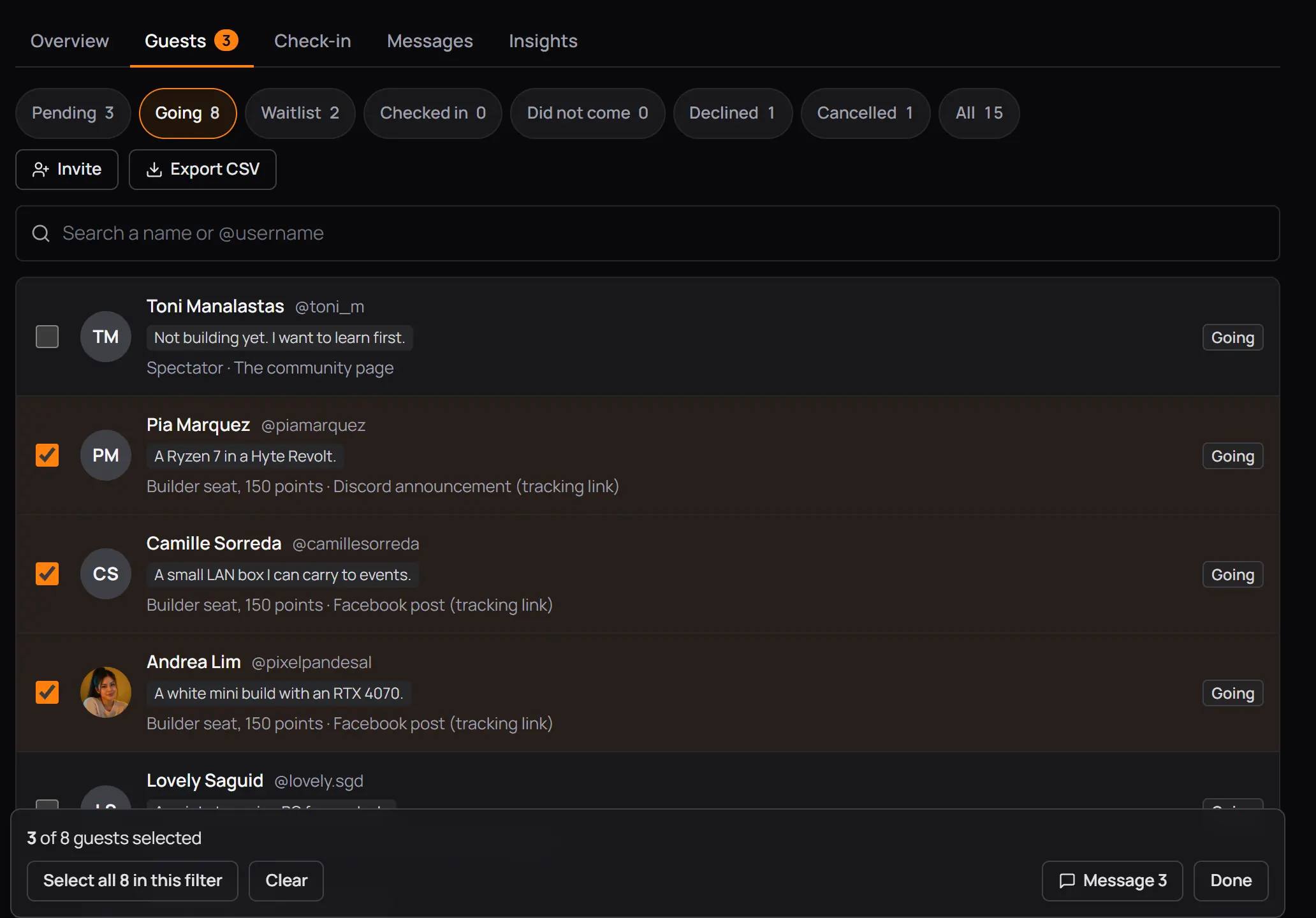
- Tick a guest
- 3 of 8 guests selectedThe bar stays at the bottom while you scroll.
- Select all 8 in this filter
- Message 3Approve and Decline show here too on Pending and Waitlist.
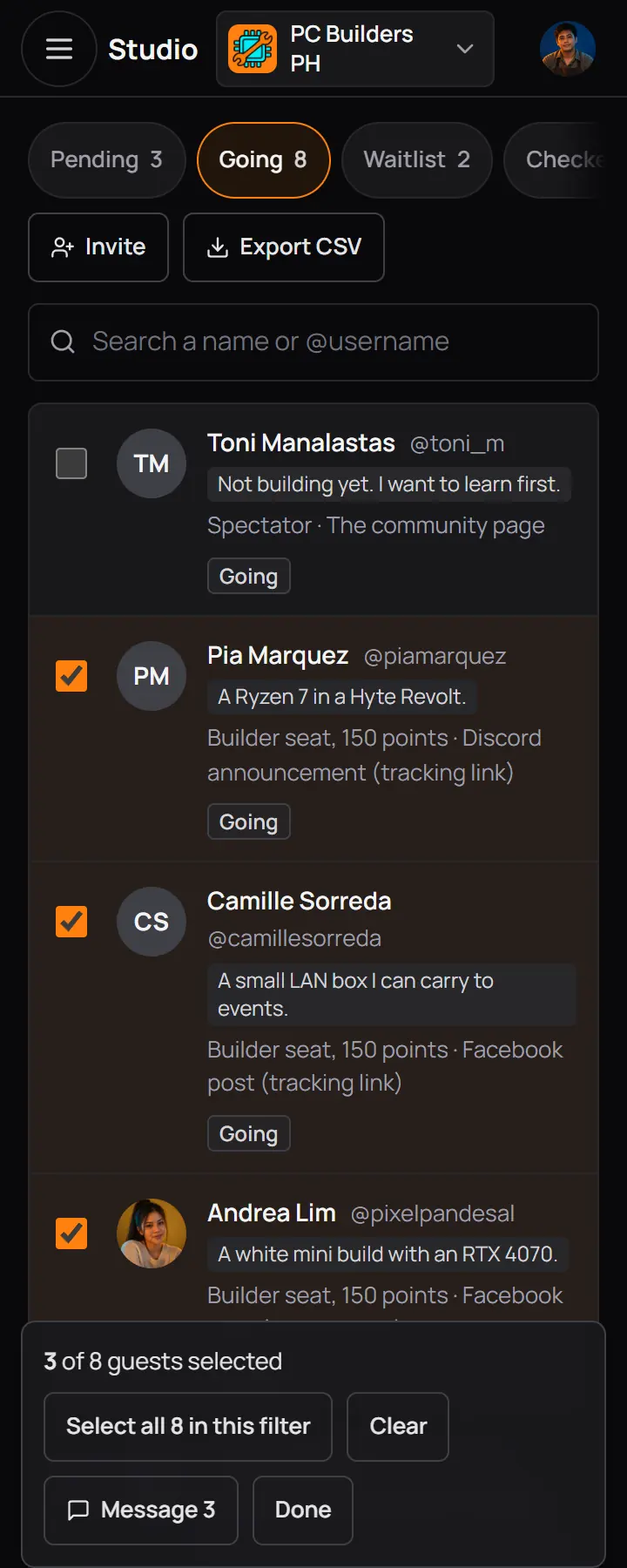
- Tick a guest
- 3 of 8 guests selectedThe bar stays at the bottom while you scroll.
- Select all 8 in this filter
- Message 3Approve and Decline show here too on Pending and Waitlist.
- A message reaches only guests who are pending, on the waitlist, going or checked in. A picked guest who cancelled is left out.
- A draft, a cancelled event and an event CCE Play took down send no messages. An event that has ended still can.
- A new time moved by 15 minutes or more tells guests by itself. See Change an event.
9What guests see
With approval on, the event page shows Request to join. The player picks a ticket, answers your questions and presses Send my request. The address stays hidden until they get a seat; they see only the city.
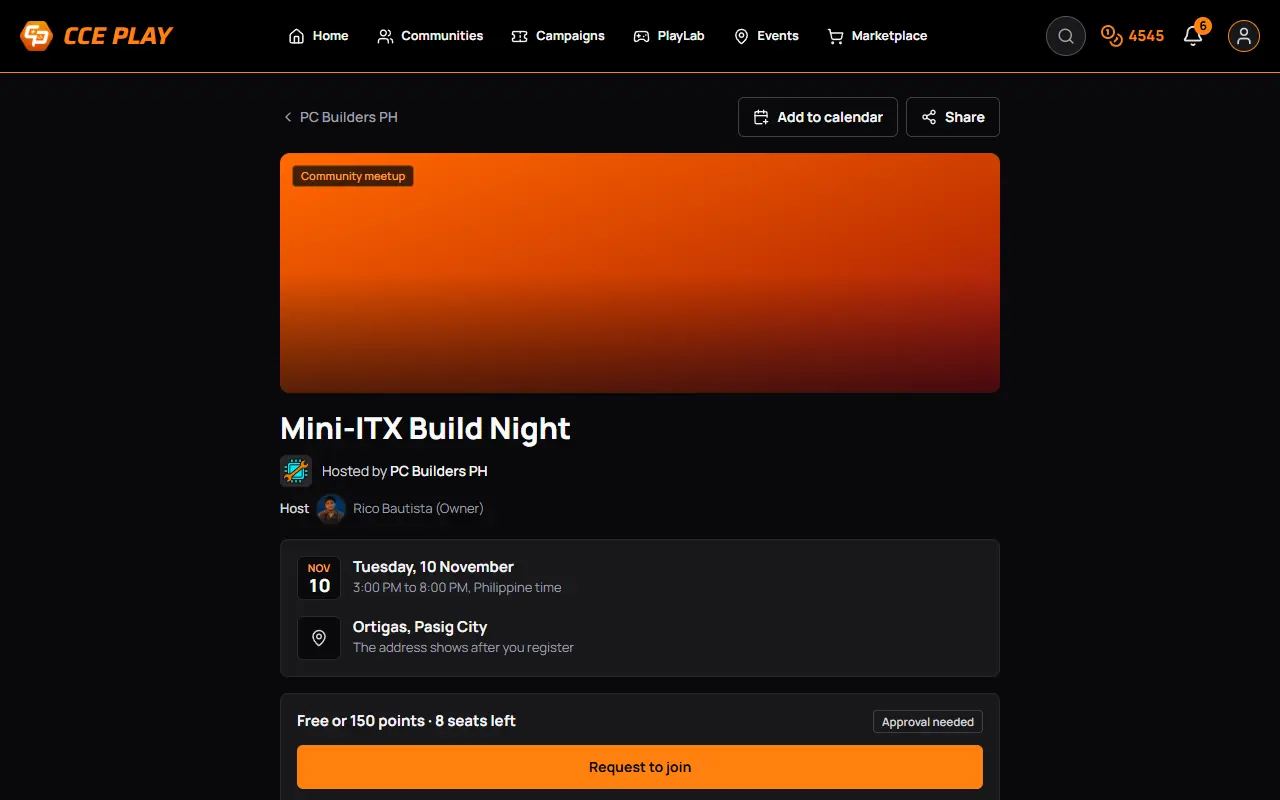
- The address shows after you registerOnly the city until they hold a seat.
- Approval needed
- Request to join
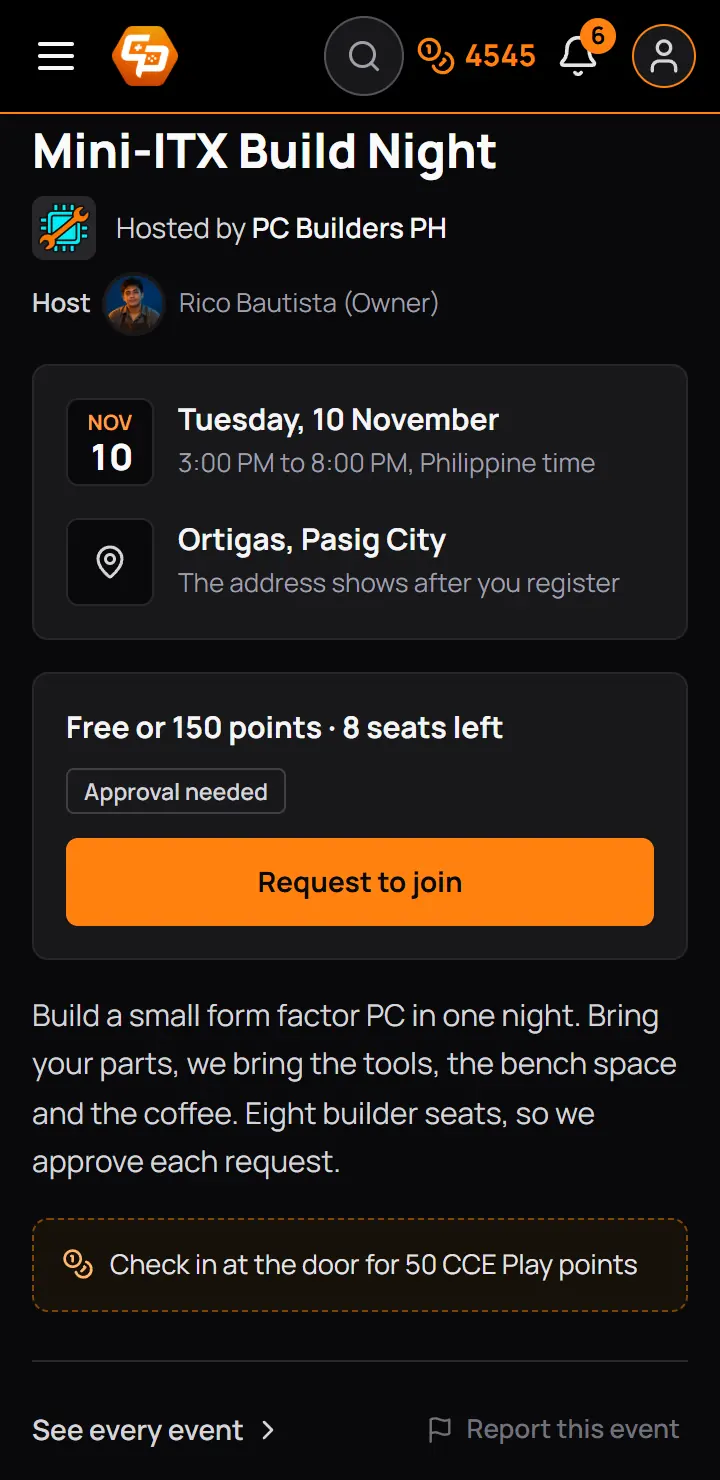
- Request to join
Their ticket page then shows where they stand. They reach it from the event page, the bell and the email.
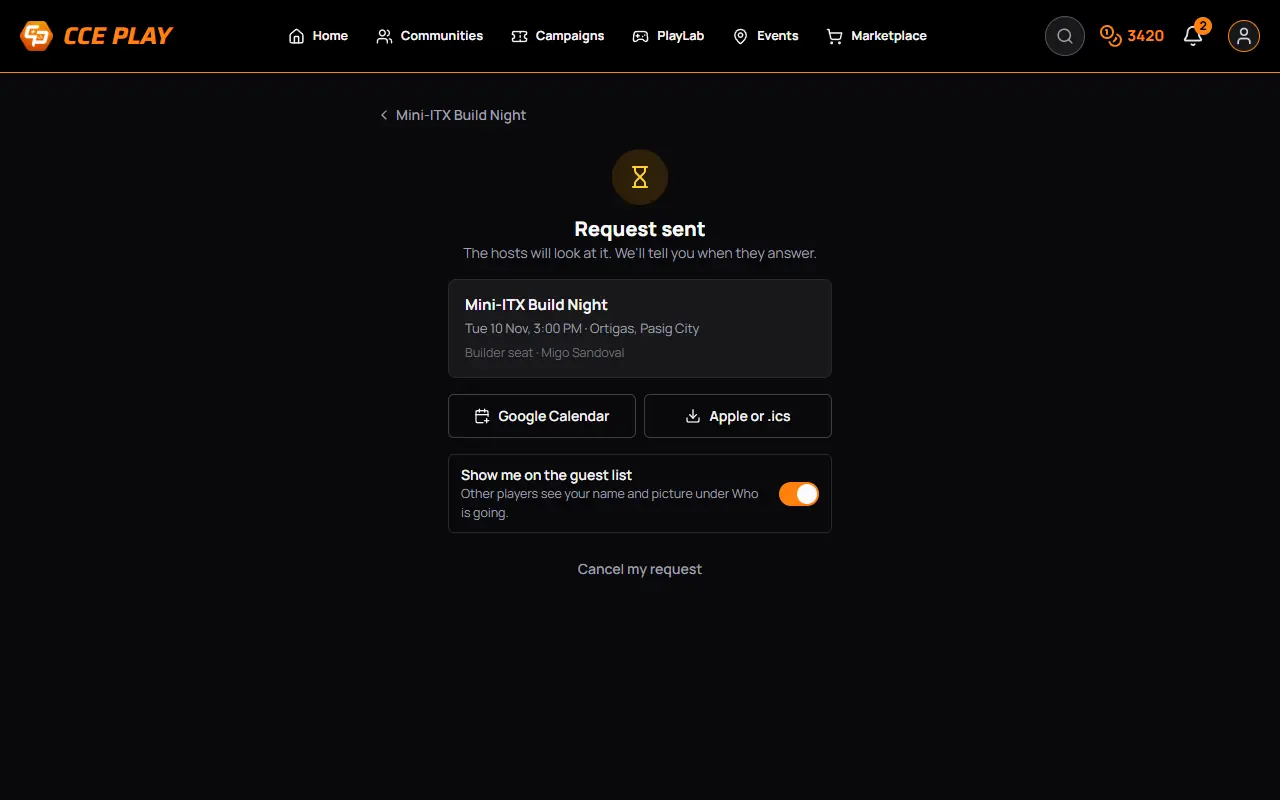
- Request sentThey are told when you answer.
- Cancel my request
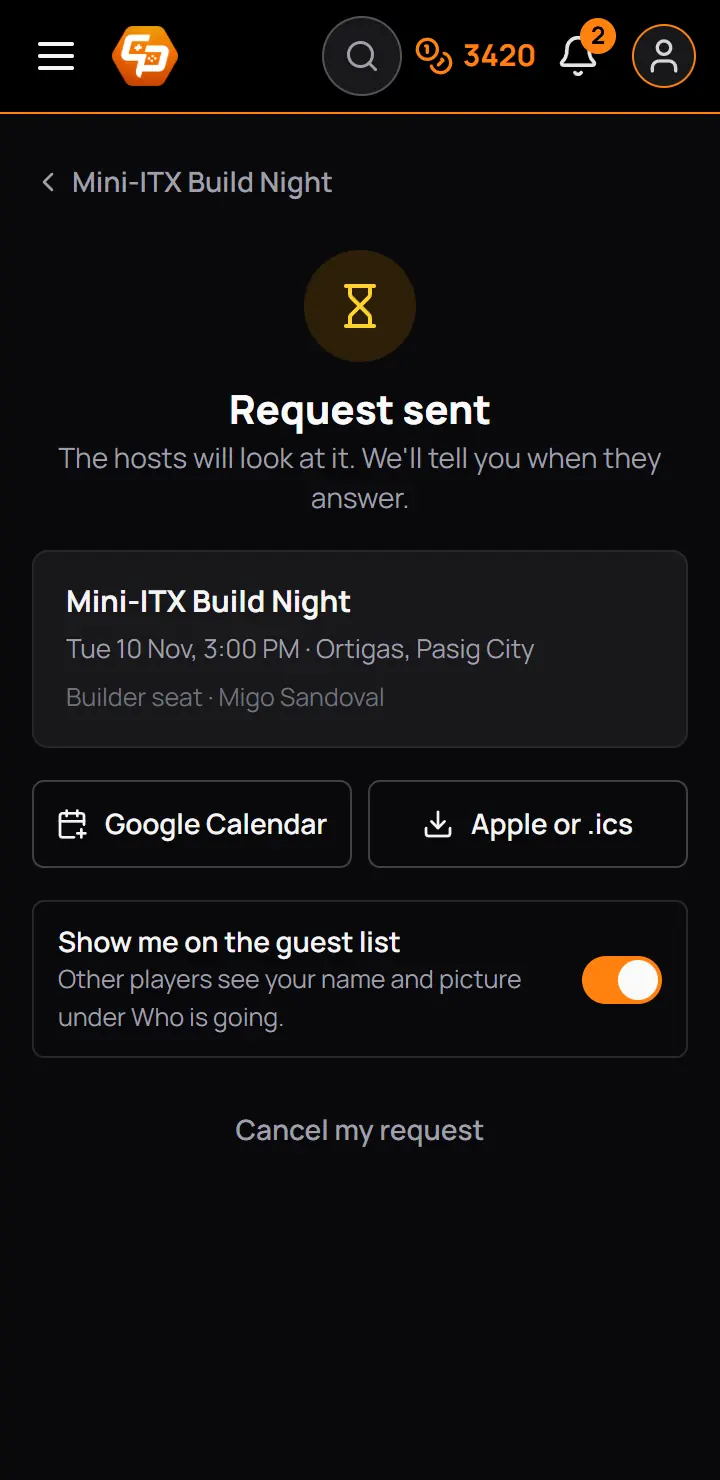
- Request sentThey are told when you answer.
- Cancel my request
10The door
Check-in is the door scanner, made for a phone. Open it from the Studio menu, from Open the scanner on the Events page, or from the Check-in tab of the event. The door of an in-person event opens 3 hours before it starts and closes 6 hours after it ends.
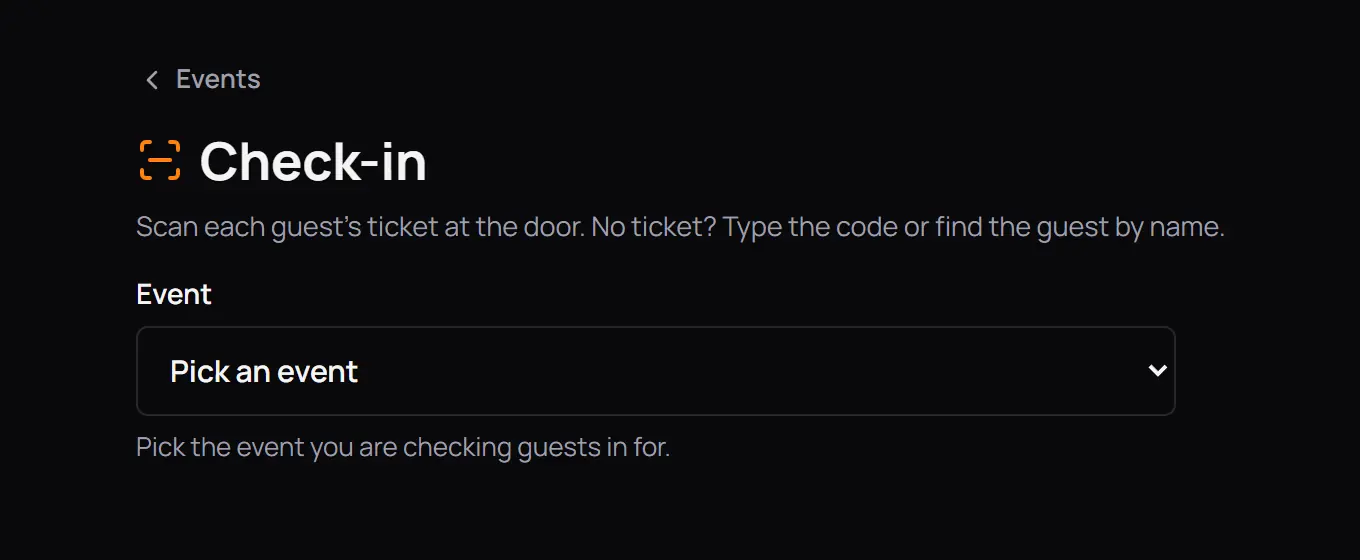
- EventShows when more than one door is open. One open door is picked for you.
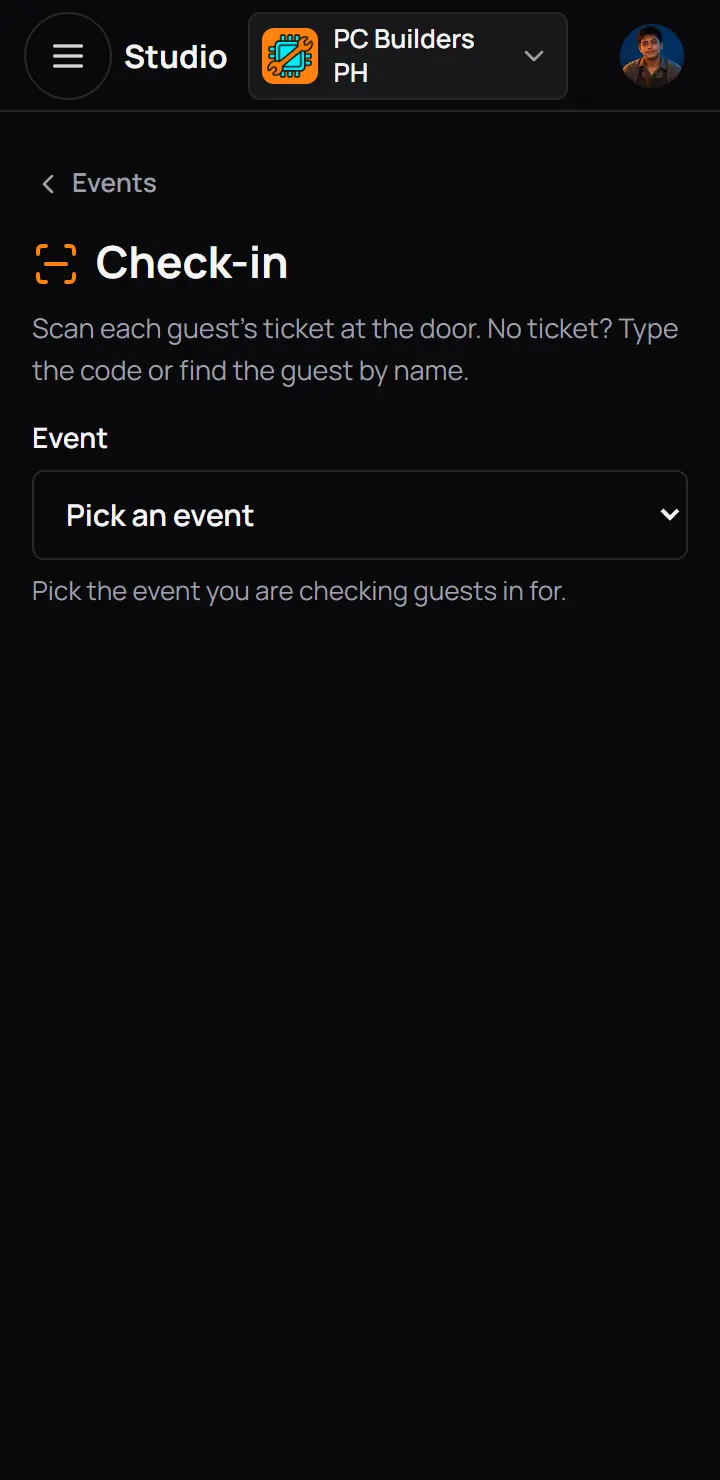
- EventShows when more than one door is open. One open door is picked for you.
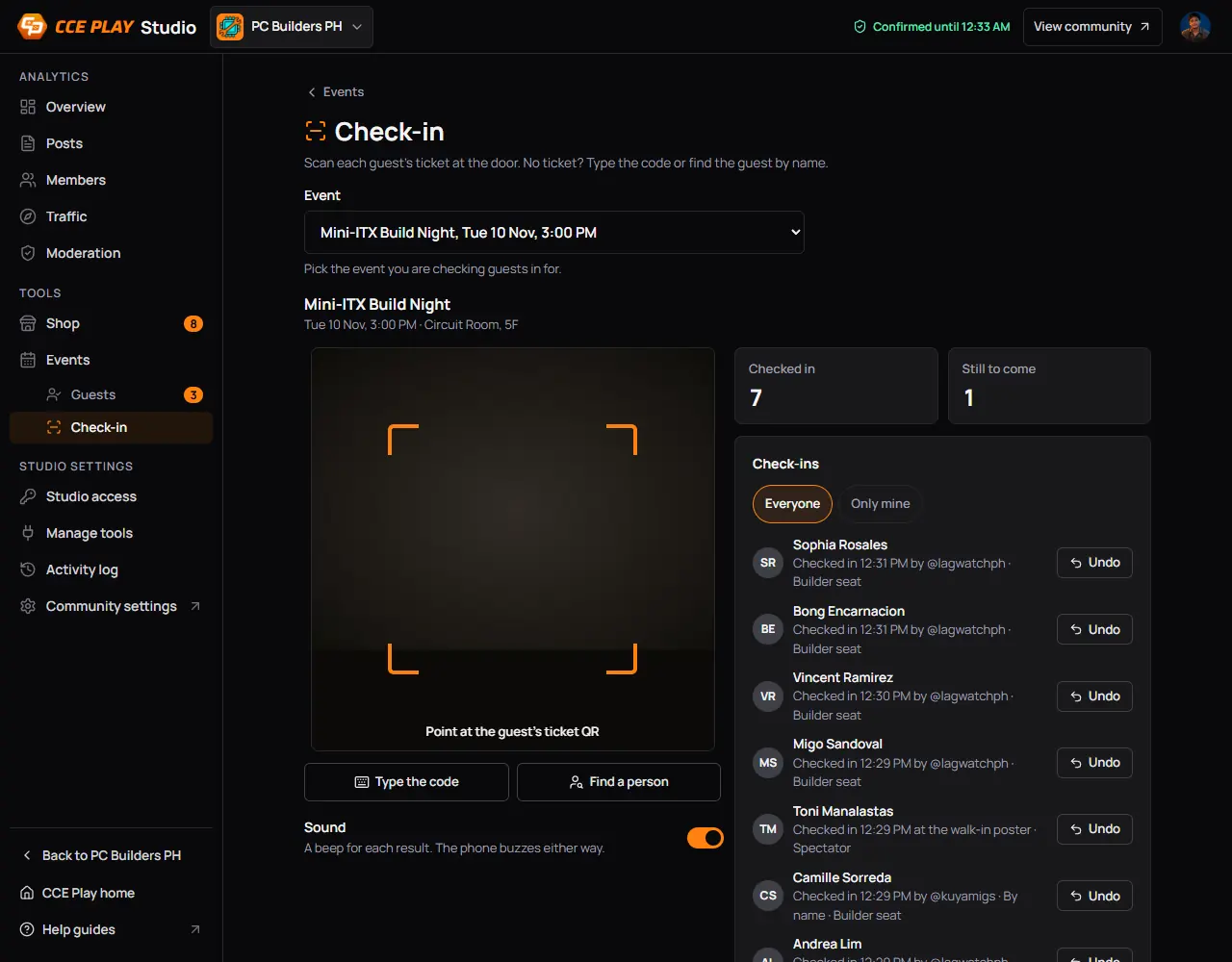
- The cameraPoint it at the guest's ticket QR. It reads by itself, one guest after another.
- Type the codeFor a QR that does not scan. See step 12.
- Find a personFor a guest with no ticket on them. See step 12.
- SoundA beep for each result. The phone buzzes either way.
- Checked in and Still to comeGuests with an in-person seat.
- Check-insWho came in, and who let them in. See step 13.
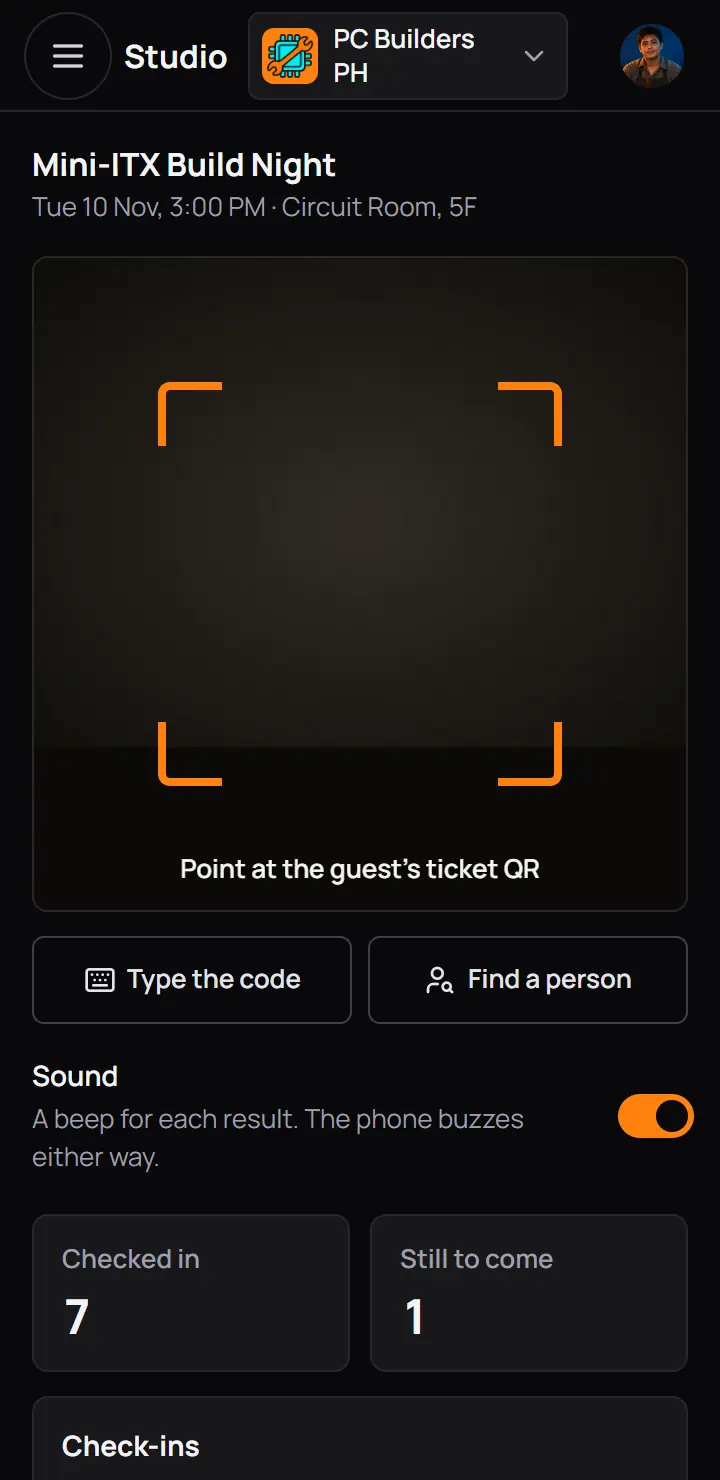
- The cameraPoint it at the guest's ticket QR. It reads by itself, one guest after another.
- Type the codeFor a QR that does not scan. See step 12.
- Find a personFor a guest with no ticket on them. See step 12.
- The first time, the phone asks to use the camera. Choose Allow.
- If the camera is blocked, the page shows how to allow it. On Chrome for Android: tap the lock left of the web address, then Permissions, then Camera, then Allow, then Try again.
- Online tickets have no door. Only in-person guests are checked in.
11Scan a ticket
Each scan shows one card over the camera, in a colour you can read from across the table.
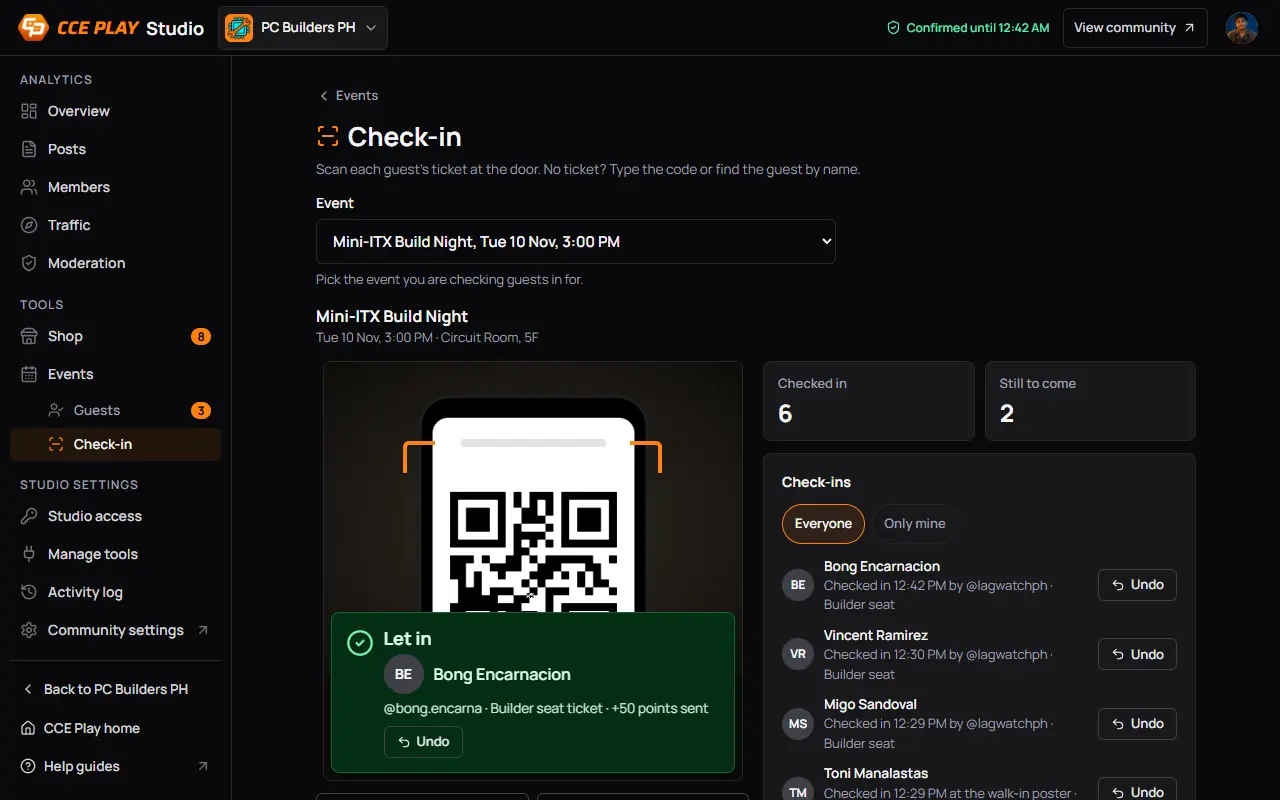
- Let inGreen. The name, the ticket, and the points sent for coming.
- UndoFor a wrong check-in. It stays for 15 seconds.
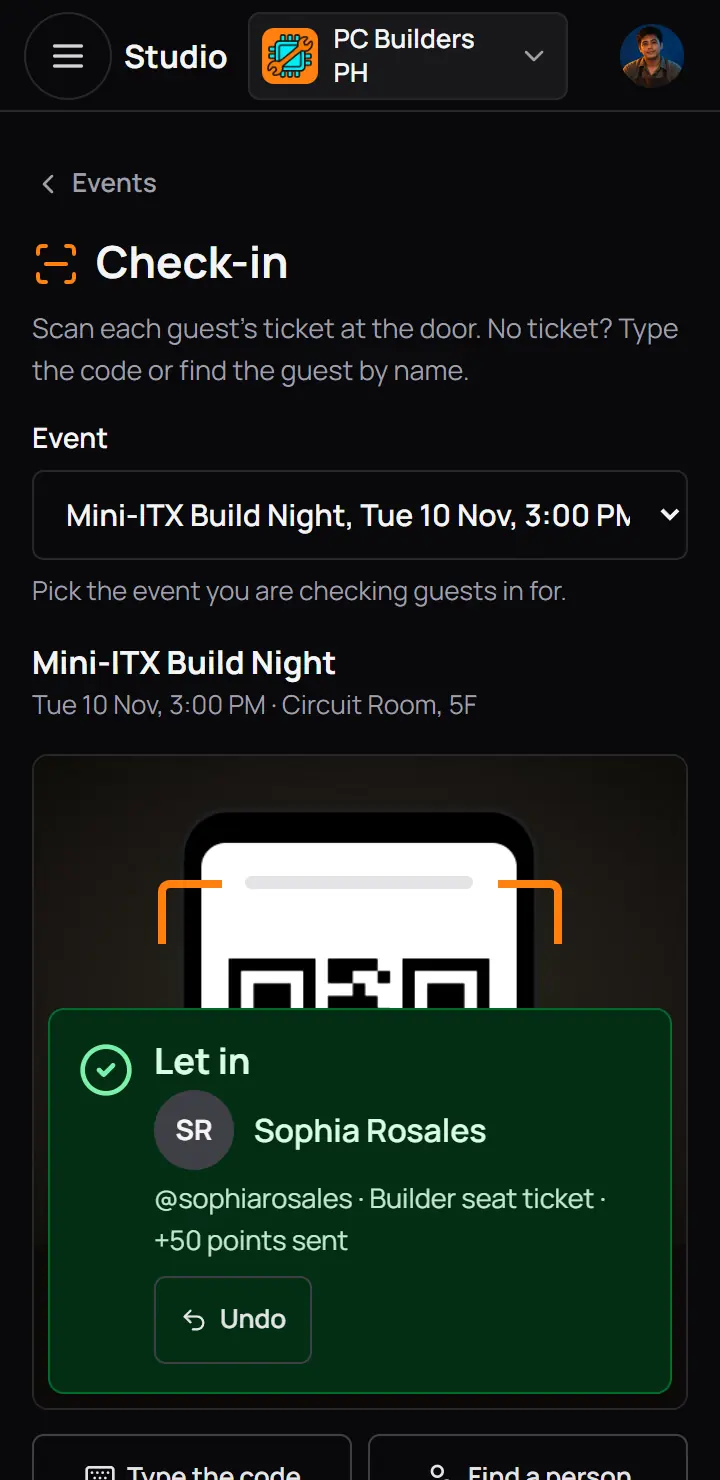
- Let inGreen. The name, the ticket, and the points sent for coming.
- UndoFor a wrong check-in. It stays for 15 seconds.
| The card says | What to do |
|---|---|
| This ticket is not for this event, or the code is wrong. | What to doCheck the event name on the guest's ticket, and the code under the card. The old QR of a cancelled ticket stops working too. |
| This is an online ticket. Online guests do not check in at the door. | What to doNothing to do. Online guests have no door. |
| You cannot check in your own ticket. Ask another host. | What to doAsk another staff member to scan it. |
| Check-in opens 3 hours before the event and closes 6 hours after it ends. | What to doThe door is not open. Check the time of the event. |
- No signal: the card says No connection and keeps the check-in. It sends again when the signal is back. Keep the guest there until it counts.
- A check-in that went through before the signal dropped shows green: "Counted. The first try went through before the signal dropped."
12No ticket: the code or the name
Under the camera are two buttons for guests whose QR does not scan.
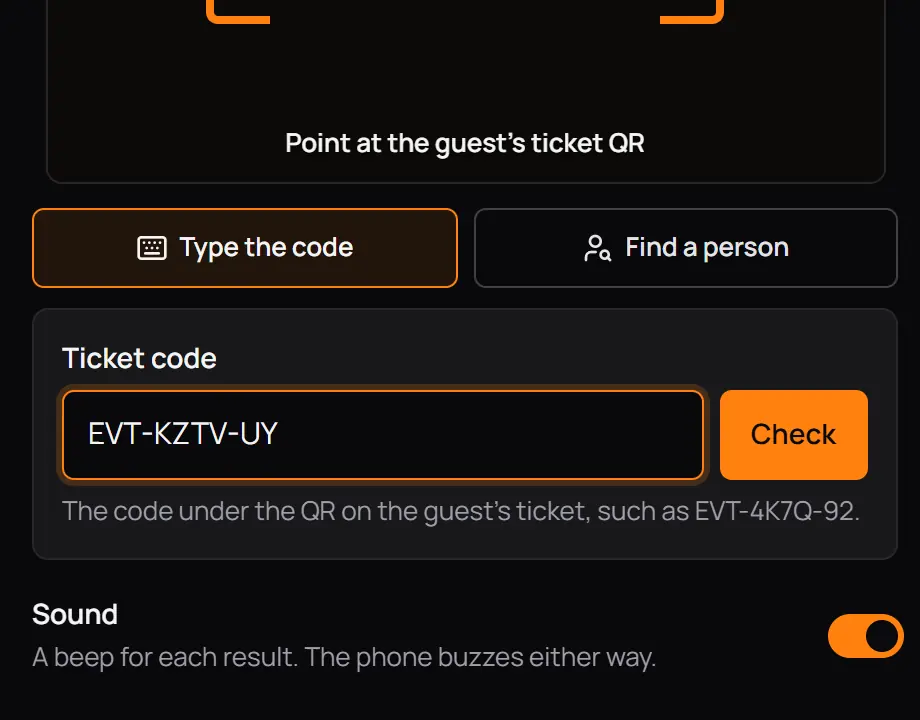
- Ticket codeThe code under the QR on the guest's ticket, such as EVT-4K7Q-92.
- CheckThe same card as a scan shows.
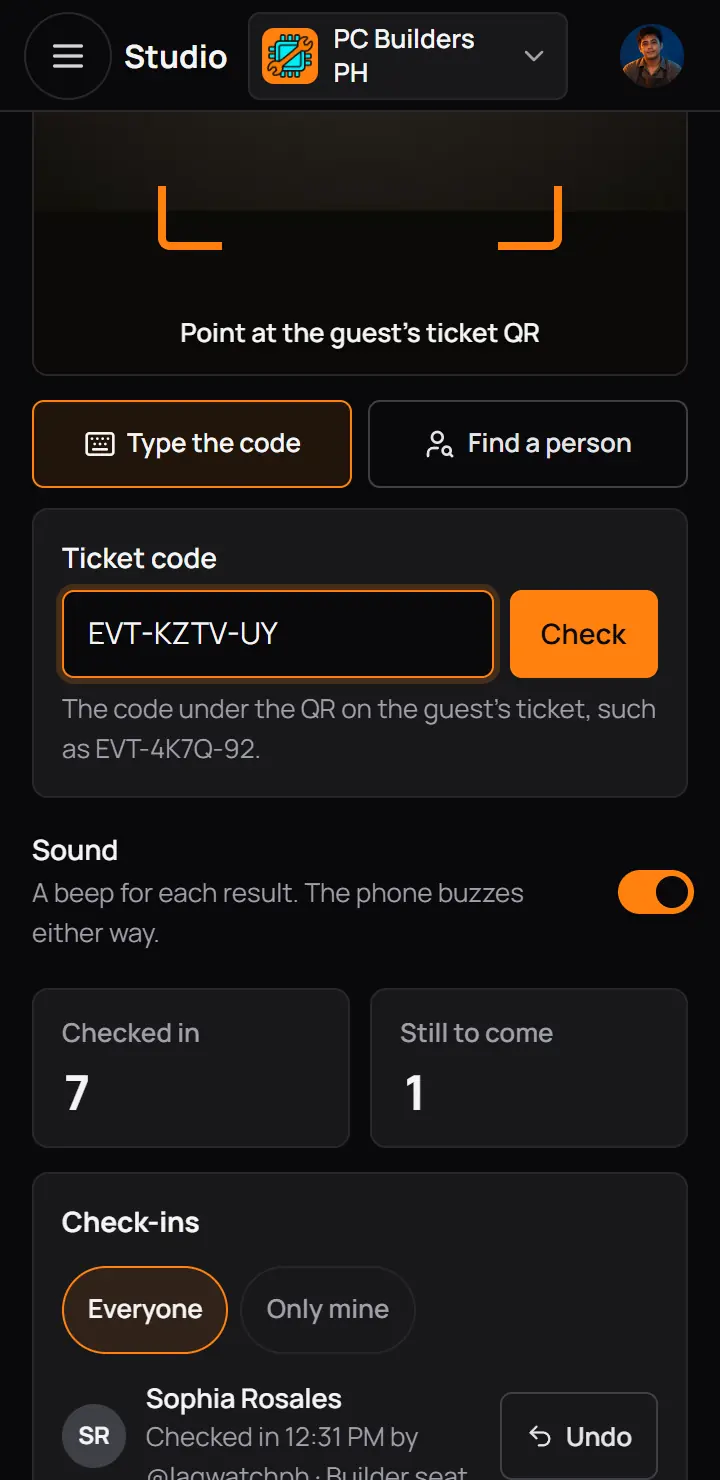
- Ticket codeThe code under the QR on the guest's ticket, such as EVT-4K7Q-92.
- CheckThe same card as a scan shows.
Good to know. Find a person finds every guest of the event, whatever their status, so you can tell a guest at the door why they cannot come in.
13The check-in log and Undo
Beside the scanner on a computer, and under it on a phone, are the two numbers and the log of check-ins, the newest first. Each row names who let the guest in.
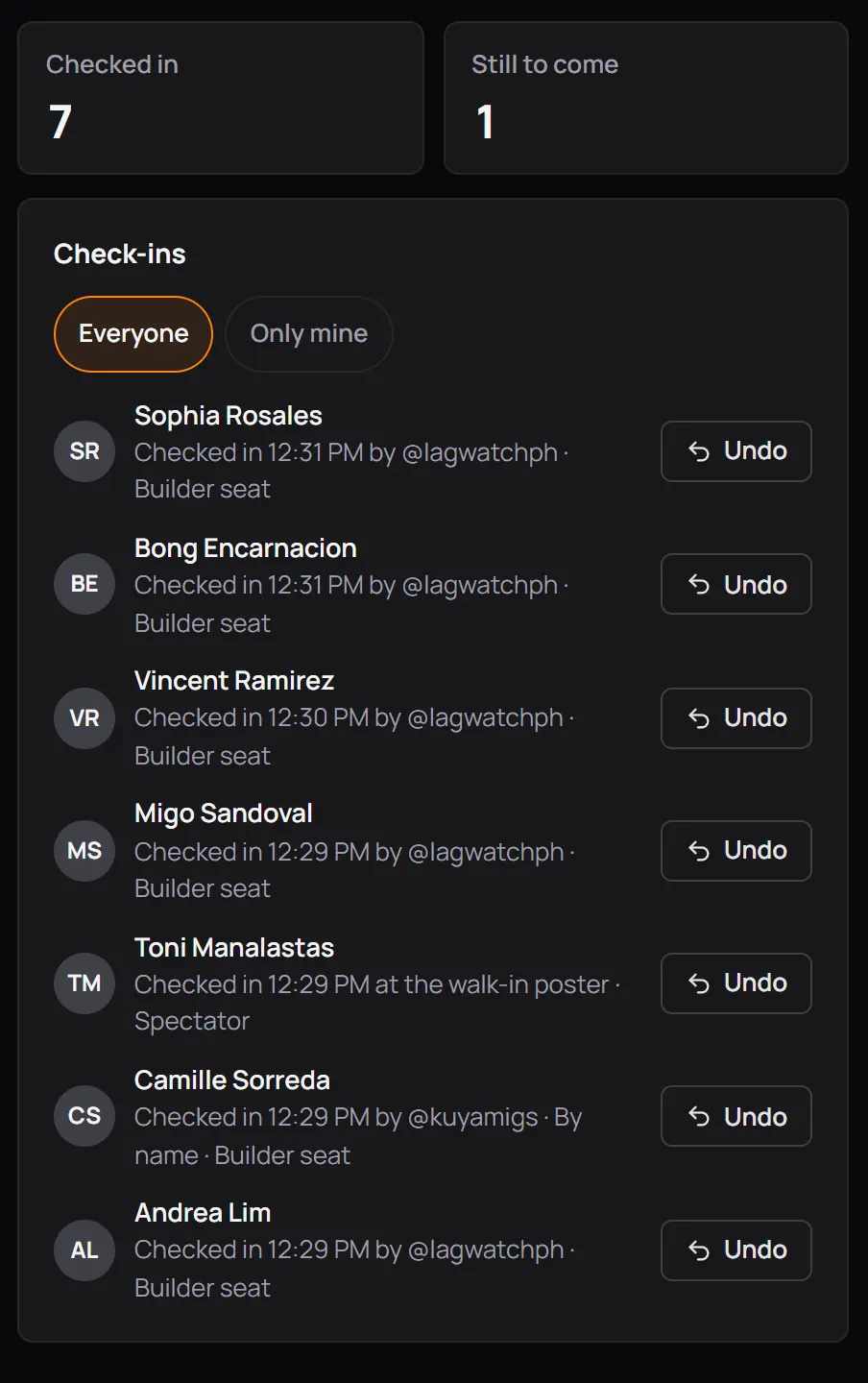
- Checked in and Still to come
- Everyone or Only mineOnly mine shows the guests you let in.
- A check-inThe guest, the time, and by @username.
- at the walk-in posterThe guest checked themselves in at the poster.
- UndoAsks first.
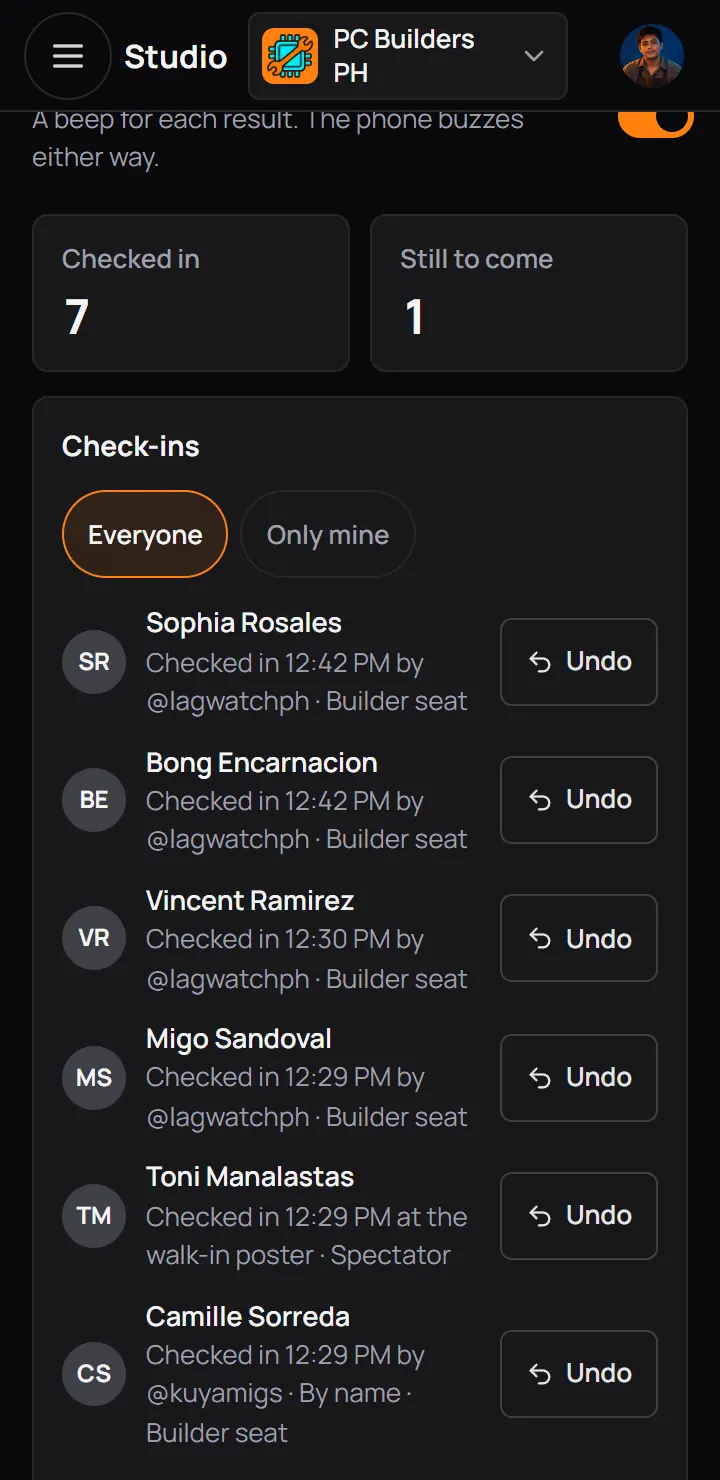
- Checked in and Still to come
- Everyone or Only mineOnly mine shows the guests you let in.
- A check-inThe guest, the time, and by @username.
- at the walk-in posterThe guest checked themselves in at the poster.
- UndoAsks first.
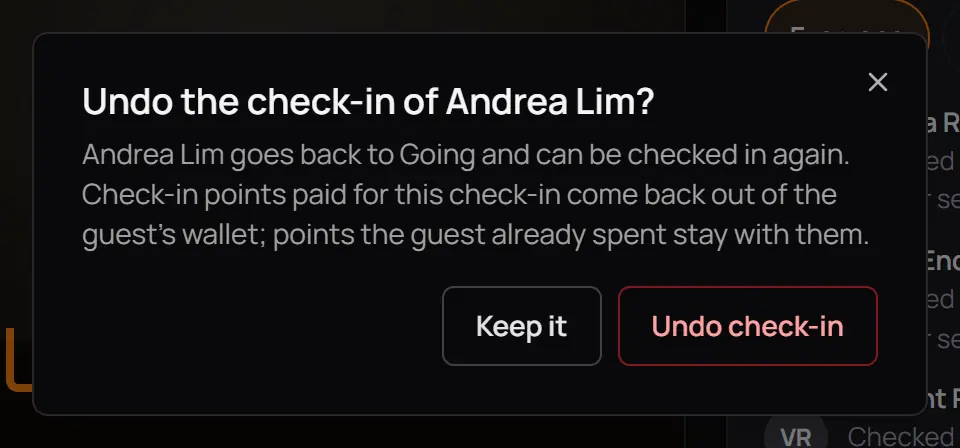
- Undo check-inThey go back to going and can be checked in again.
- Undo check-inThey go back to going and can be checked in again.
- Undo works while the door is open. The points paid for coming go back to the community's budget.
- If the guest has spent those points already, the undo still stands and they keep the points.
- A badge given at that check-in stays with the player.
14Helpers at the door
A volunteer at the door does not need to run your events. In Studio access, give their role only Check in guests (see Studio access). In the pictures, @marvin.builds is a moderator of PC Builders PH, and moderators have only Check in guests.
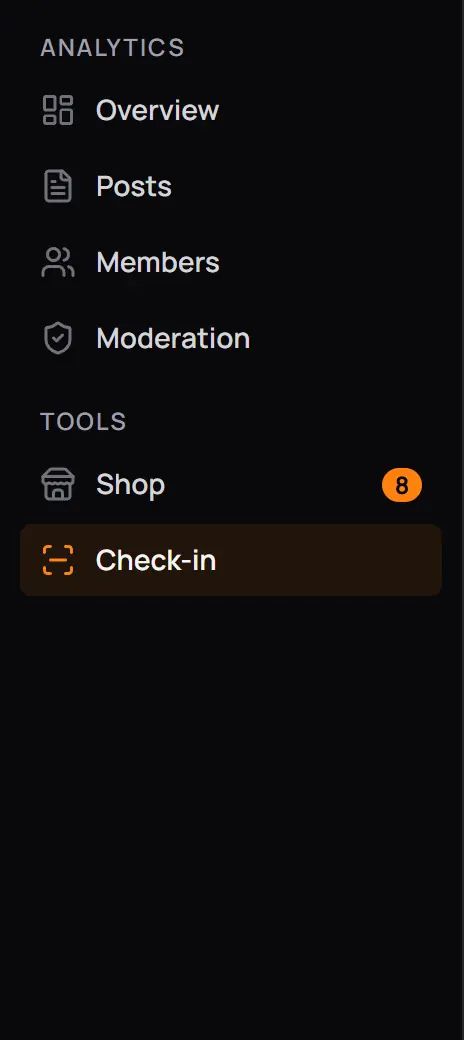
- Check-inThe only Events page they can open.
- Check-inThe only Events page they can open.
- A helper scans, types codes, finds guests by name, sees the log and can undo while the door is open.
- A helper cannot approve guests. A pending guest's line says "An organiser must approve the guest first."
- A link to Guests or to an event sends a helper to Check-in instead.
15Points, refunds and points for coming
Tickets are free or cost CCE Play points, never pesos. The points come out of the player's wallet when they register, even while they wait for approval, and the guest's details show Points paid.
| What happened | Points back? |
|---|---|
| You declined them | Points back?Yes |
| They were still pending or on the waitlist when the door closed | Points back?Yes |
| They cancelled while pending or on the waitlist | Points back?Yes |
| They cancelled while going, before the refund window | Points back?Yes. The window is set per event; it is 24 hours before the start unless you changed it. |
| They cancelled while going, after the refund window | Points back?No. Their seat frees for the waitlist. |
| You removed them | Points back?Yes |
| You cancelled the event, or CCE Play took it down | Points back?Yes, for every guest who did not check in |
Points for coming
An event can pay points to each guest you check in (Points for showing up, in Tickets and who can come). They come from your community's monthly points budget, the one PlayLab uses too.
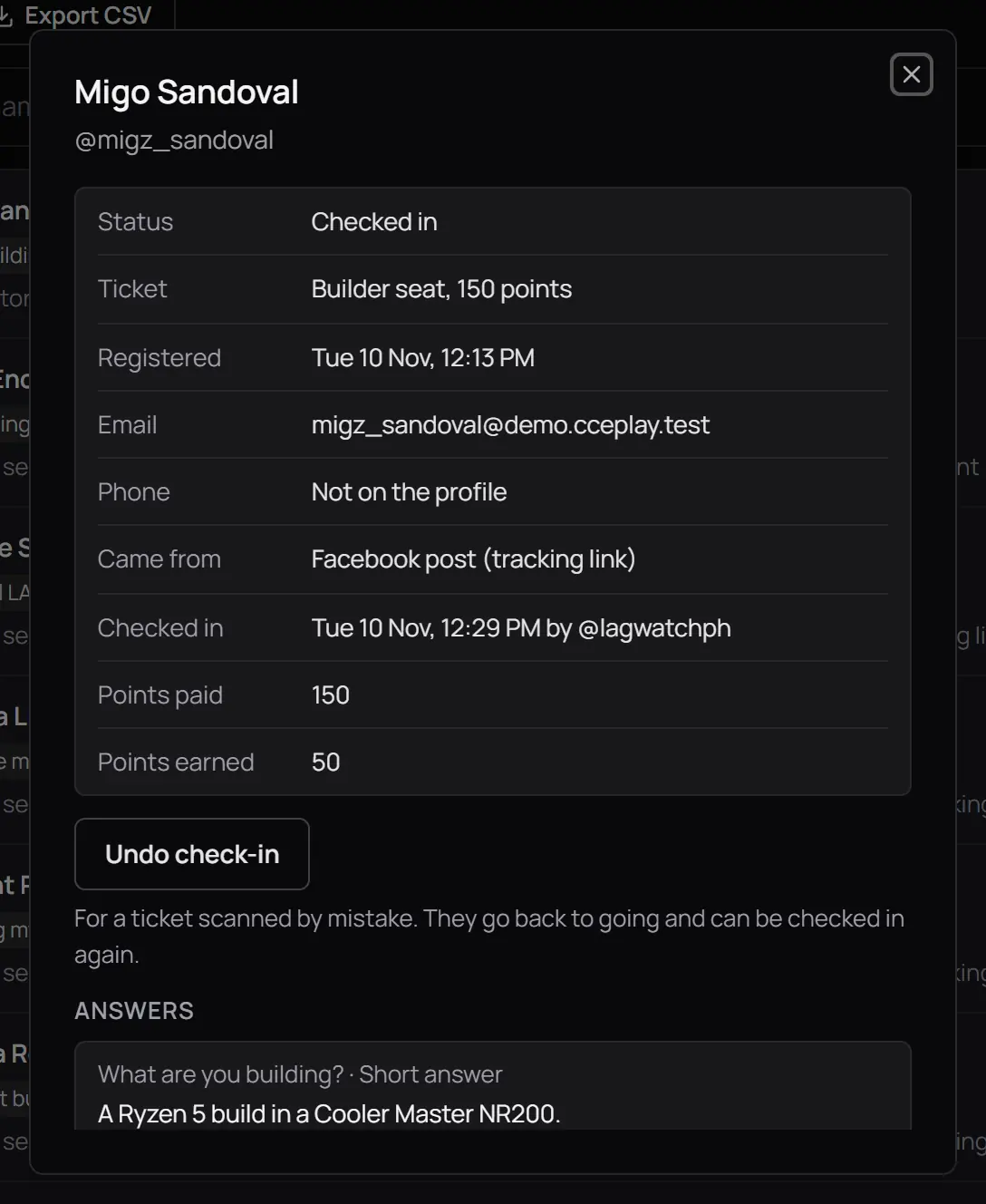
- Checked inWhen, and by whom.
- Points paidWhat the ticket cost.
- Points earnedWhat the check-in paid.
- Undo check-inWhile the door is open.
- Checked inWhen, and by whom.
- Points paidWhat the ticket cost.
- Points earnedWhat the check-in paid.
- Undo check-inWhile the door is open.
- Points for coming are paid once per guest per event, for a scan or a check-in by name of an in-person ticket.
- A guest who checks themselves in at the walk-in poster gets no points, but the check-in counts for badges.
- A staff member who scans their own ticket is refused. Ask someone else to scan it.
- When the month's budget is used up, the check-in still counts and the card says "Points for this month are used up, so none were sent."
For CCE Play staff. CCE Play sets each community's monthly budget in the admin app, on the PlayLabs page, Budgets tab.
16After the event
Checked in lists everyone who came, with the time and who let them in. When the door closes, 6 hours after the end, guests who held an in-person seat and never checked in move to Did not come, and guests still pending or on the waitlist are cancelled with their points back.
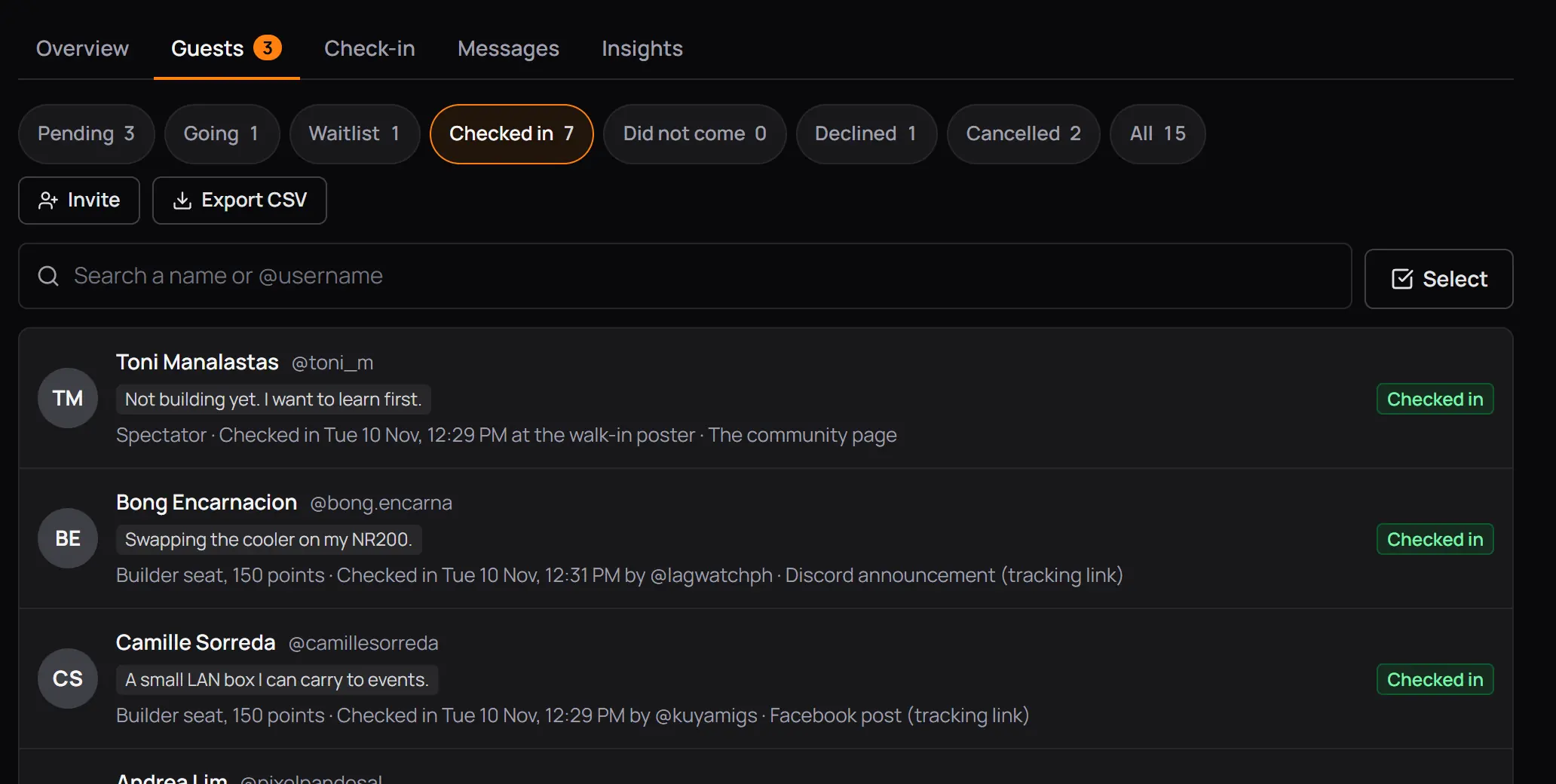
- Checked in
- by @lagwatchphThe staff member who let them in.
- at the walk-in poster
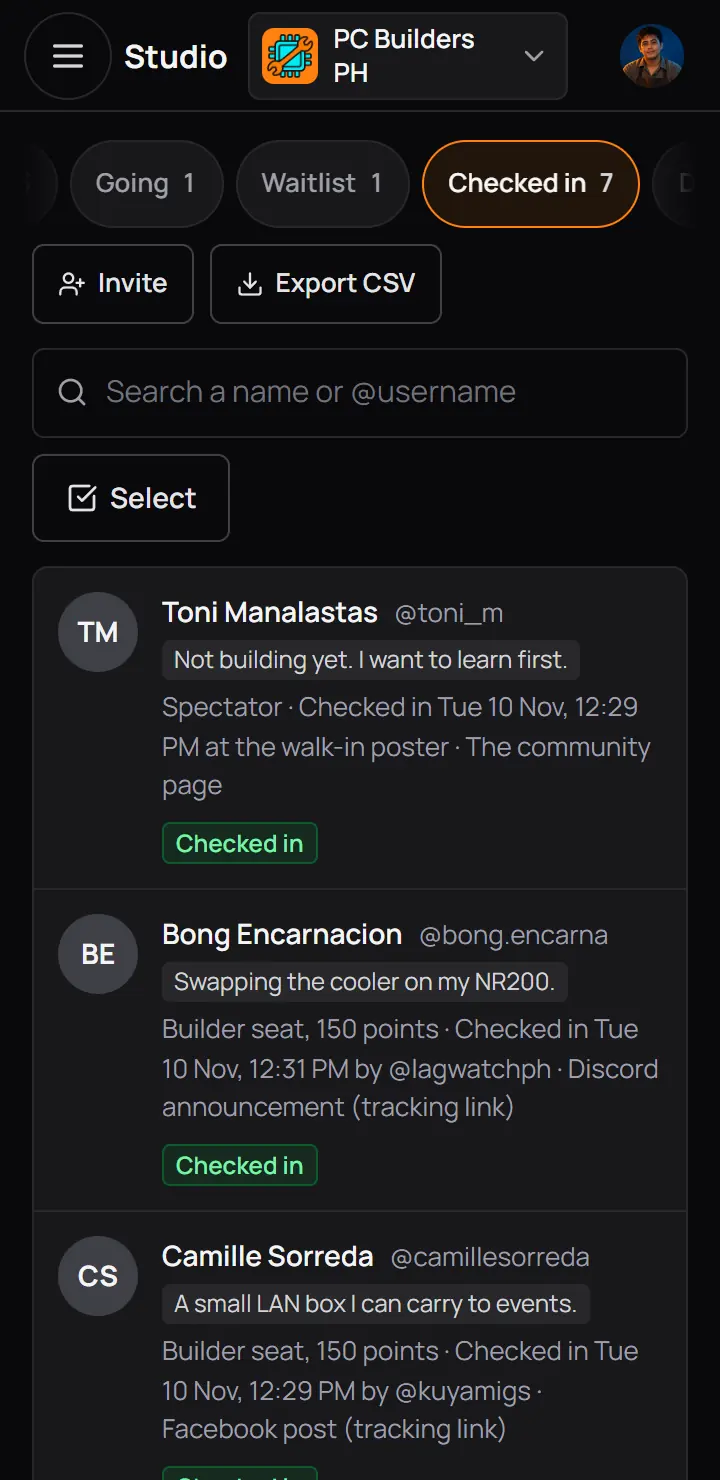
- Checked in
- by @lagwatchphThe staff member who let them in.
- A guest with an online ticket stays going and is never marked Did not come.
- The day after, guests who came get a bell asking for feedback. Their ratings show on Insights.
- A guest who did not come sees "You did not check in" on their ticket: points and badges come only with a check-in.
17Tracking links: where guests came from
The Insights tab counts the event page's views and registrations, and says where guests came from. A tracking link is a copy of the event's address with a short code, one for each place you share it. Make one for a Facebook post and another for Discord, and Insights tells them apart.
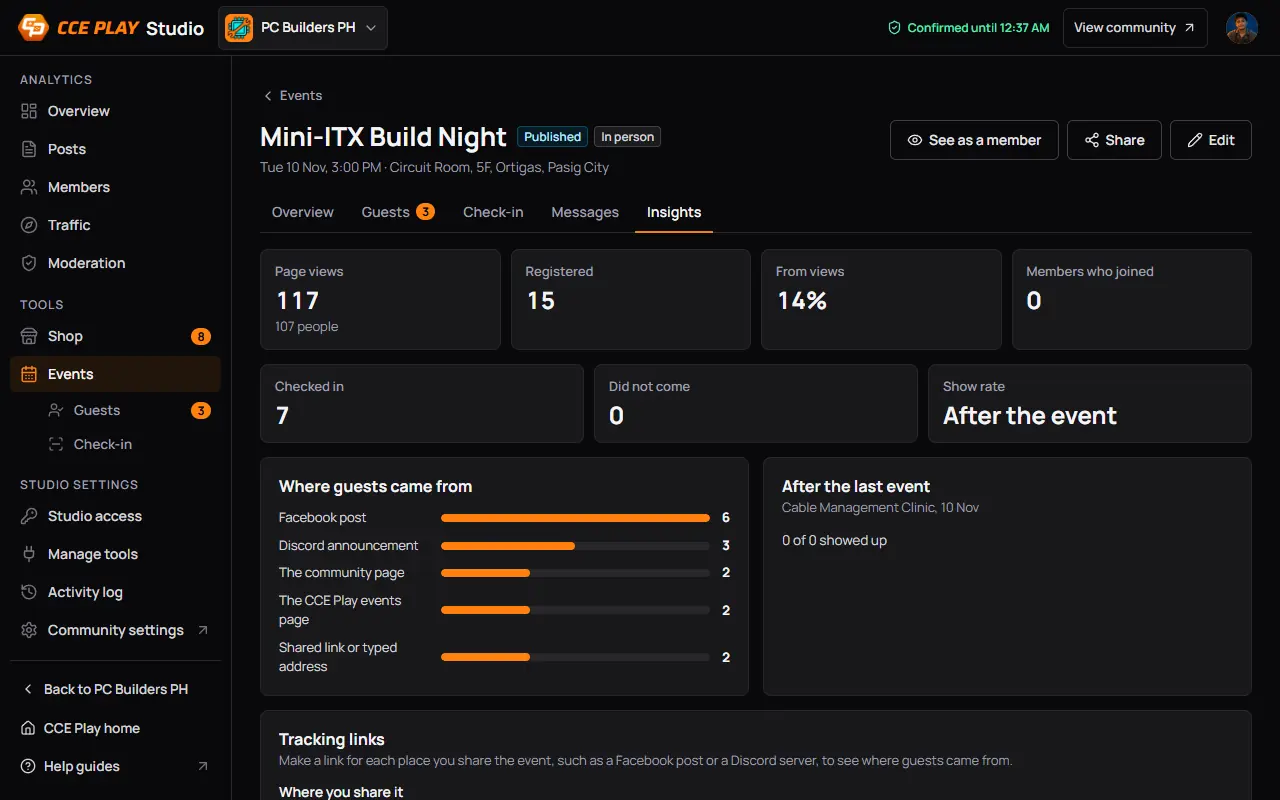
- Page viewsAnd how many different people viewed it.
- RegisteredInvited guests are left out.
- Where guests came fromEach tracking link by its name, then the other places.
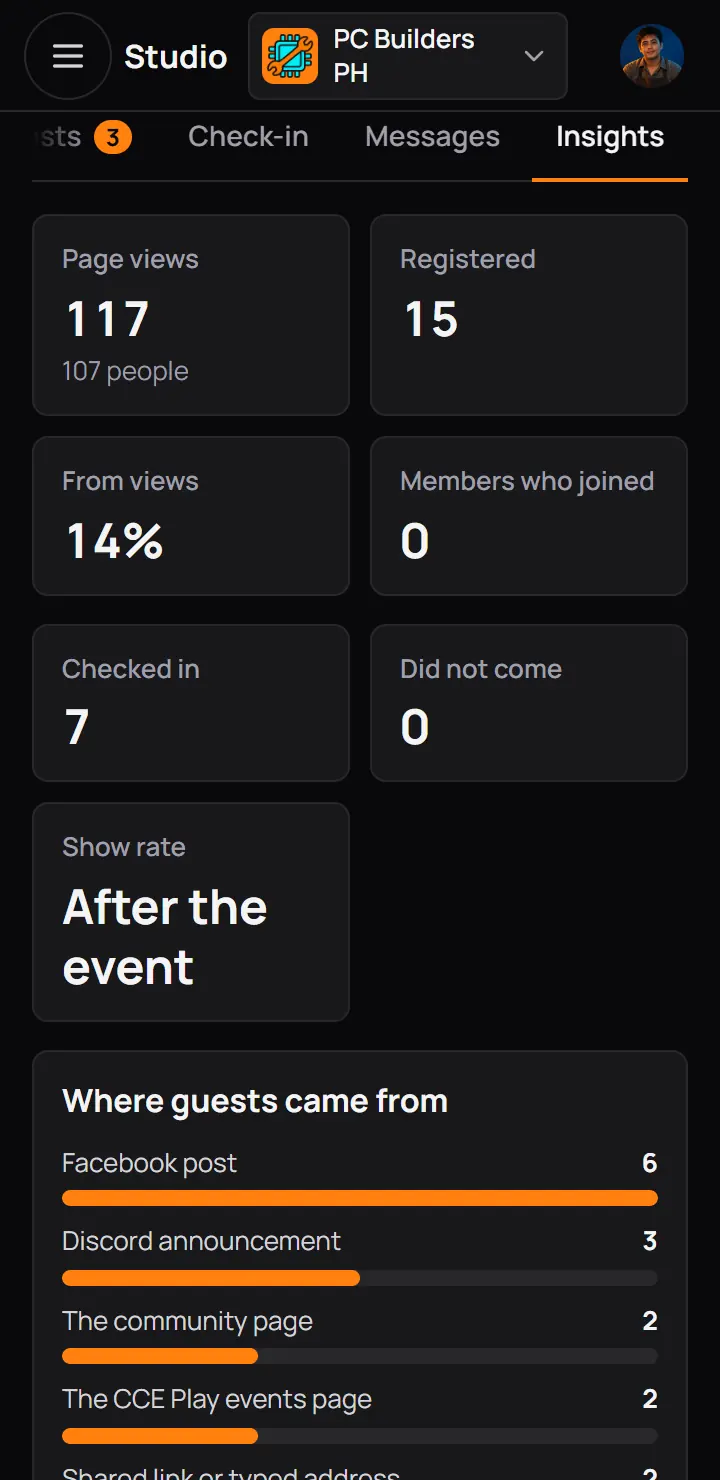
- Page viewsAnd how many different people viewed it.
- RegisteredInvited guests are left out.
- From views is how many registered out of the people who viewed the page. Members who joined counts players who joined your community while they registered.
- An event can have 20 tracking links. A deleted link stops counting, and its numbers stay in Where guests came from.
- Other places are counted without a link: the CCE Play events page, the community page, a feed post, a bell, and a shared link or typed address.
- The same source shows on each guest's details as Came from.
18If something goes wrong
| You see | What to do |
|---|---|
| No door is open now | What to doThe door opens 3 hours before the start. Check the event's date. |
| The camera is blocked | What to doAllow the camera for the site, then press Try again. Or use Type the code. |
| No connection | What to doKeep the guest at the door. The check-in sends again when the signal is back. |
| Scanned again | What to doThe ticket checked in already. Nothing changed. |
| Stop | What to doRead the reason on the card. Most need a step on the Guests tab first. |
| No seat is left. Raise the capacity, or move the guest to the waitlist. | What to doTurn the waitlist on, or add seats in Edit. |
| No messages left today | What to doThe event sent its 5 messages today. Send again tomorrow. |
| Nobody is in that group yet. | What to doPick another group under Send to. |
| A message can go to at most 500 picked guests | What to doClear some, or send to a whole group from the Messages tab. |
| The guests could not load. Try again. | What to doCheck your internet connection, then press Try again. |
| This page is not shared with you | What to doAsk the owner for Run events or Check in guests in Studio access. |