
1Where the owner's settings are
The owner's pages are under Studio settings, at the end of the menu. On a phone, tap the round menu button first. Admins and moderators never see this part of the menu. The Verified badge page sits between Manage tools and the Activity log.
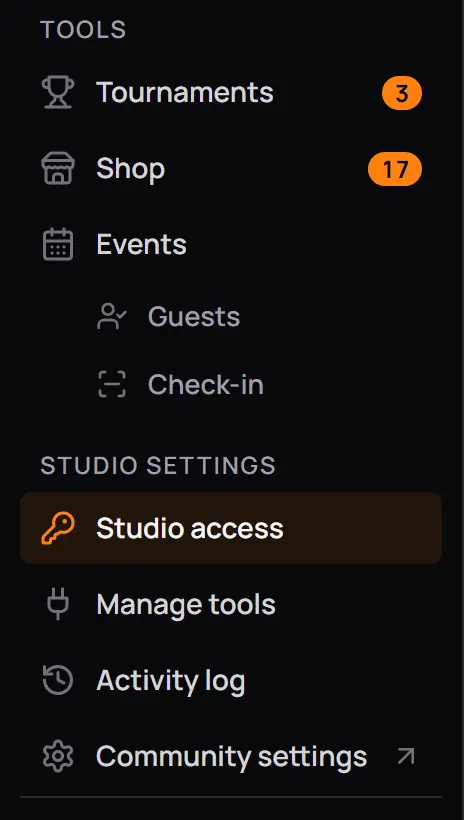
- Studio settingsOnly the owner has this part of the menu.
- Studio accessChoose what admins and moderators can open.
- Manage toolsAsk CCE Play for a tool, and turn your tools off and on.
- Activity logWho opened Studio and what they changed.
- Community settingsOpens the community's own settings in a new tab, so Studio stays open in this one.
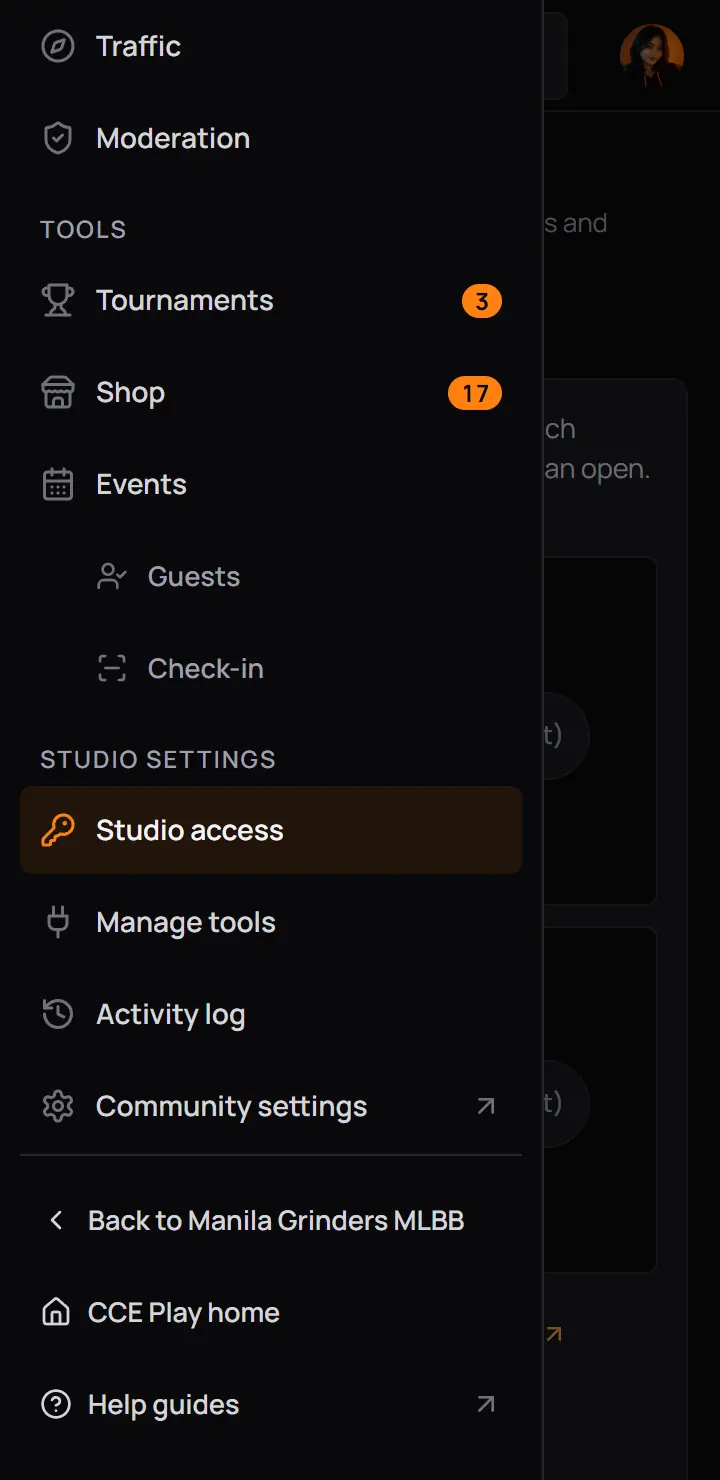
- Studio settingsOnly the owner has this part of the menu.
- Studio accessChoose what admins and moderators can open.
- Manage toolsAsk CCE Play for a tool, and turn your tools off and on.
- Activity logWho opened Studio and what they changed.
- Community settingsOpens the community's own settings in a new tab, so Studio stays open in this one.
What an admin or moderator sees
If an admin or moderator opens one of these pages from a link, Studio says the page is not shared with them. The owner cannot share these four pages, even with "Everything". In the picture an admin of Manila Grinders MLBB opened Studio access.
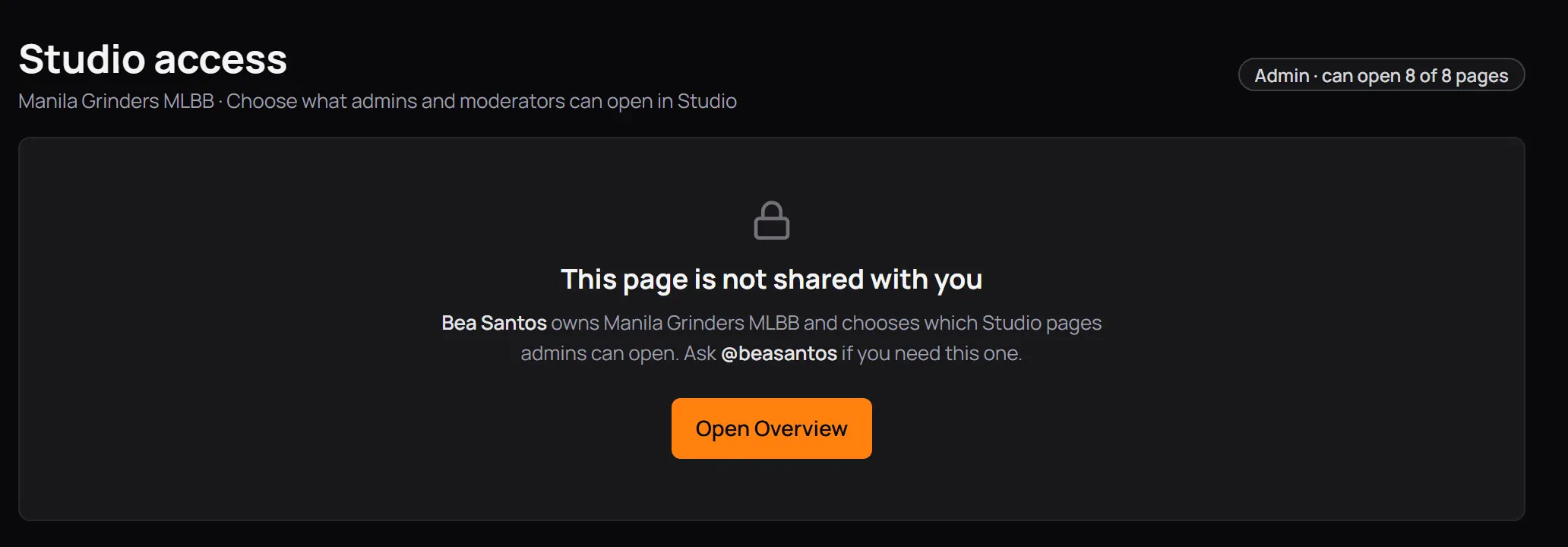
- Who decidesThe owner's name. Press the @username to open their profile.
- Go to a page you can openTakes you to the first page in your menu.
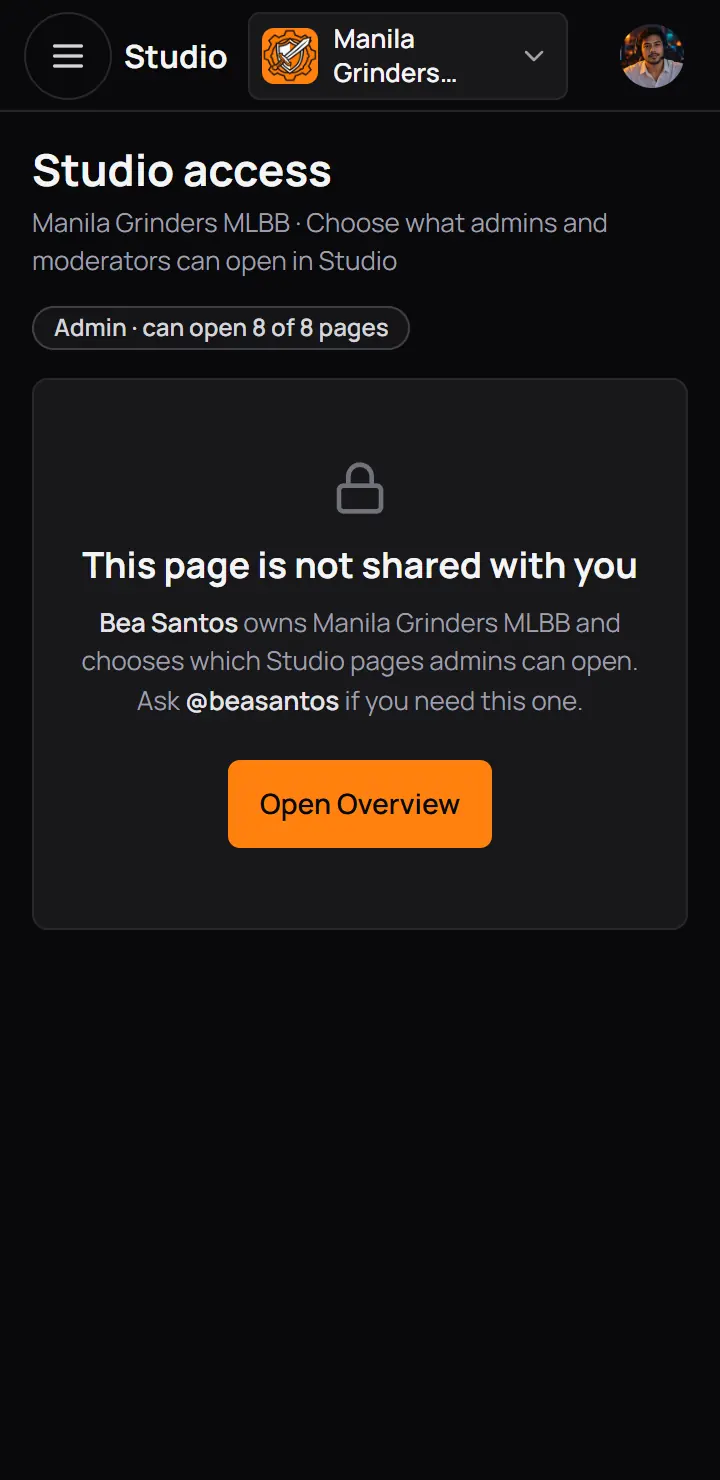
- Who decidesThe owner's name. Press the @username to open their profile.
- Go to a page you can openTakes you to the first page in your menu.
2Studio access
Studio access is where you choose which Studio pages your admins and moderators can open. You always see everything. Members never see Studio. Every admin gets the same pages, and every moderator gets the same pages.
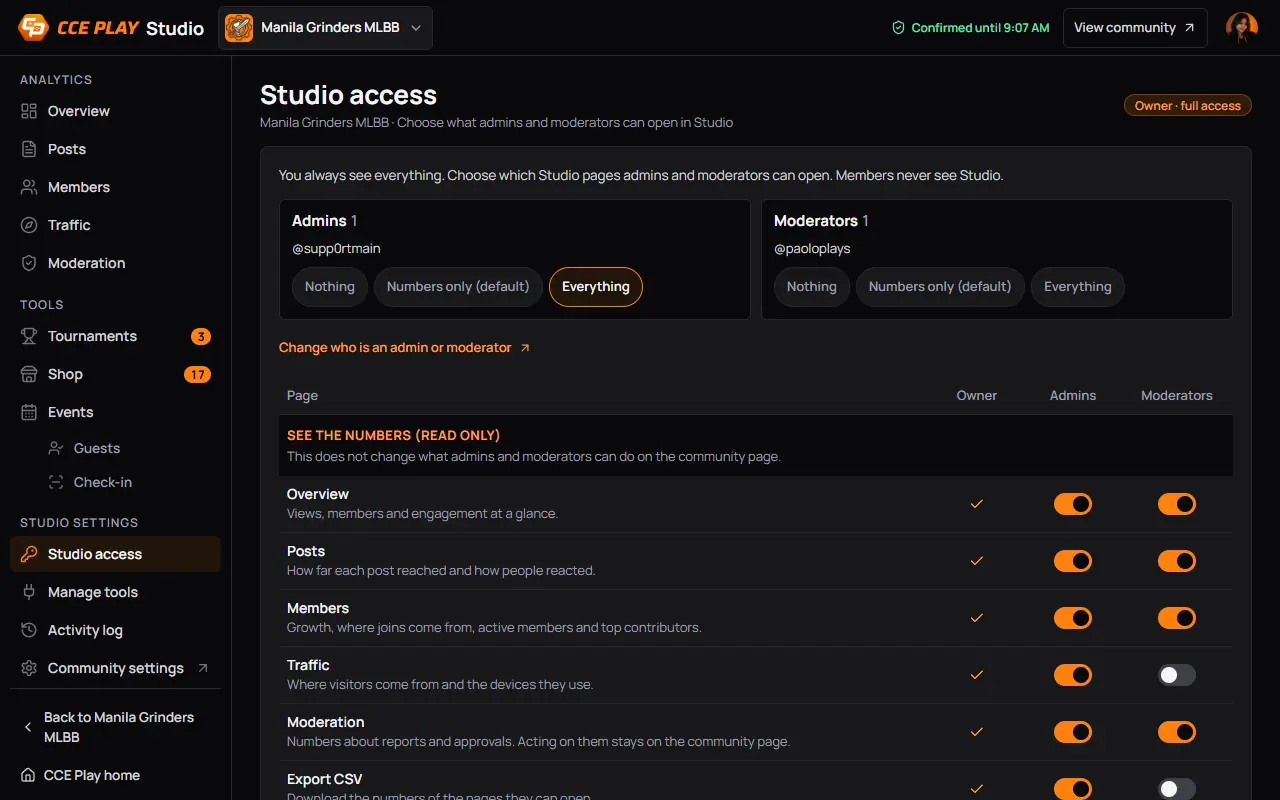
- AdminsWho your admins are, and a quick pick for all of them.
- ModeratorsThe same for your moderators.
- Change who is an admin or moderatorOpens the Members tab of your community in a new tab. Roles are given there, not here.
- Each page, one rowA switch for admins and one for moderators.
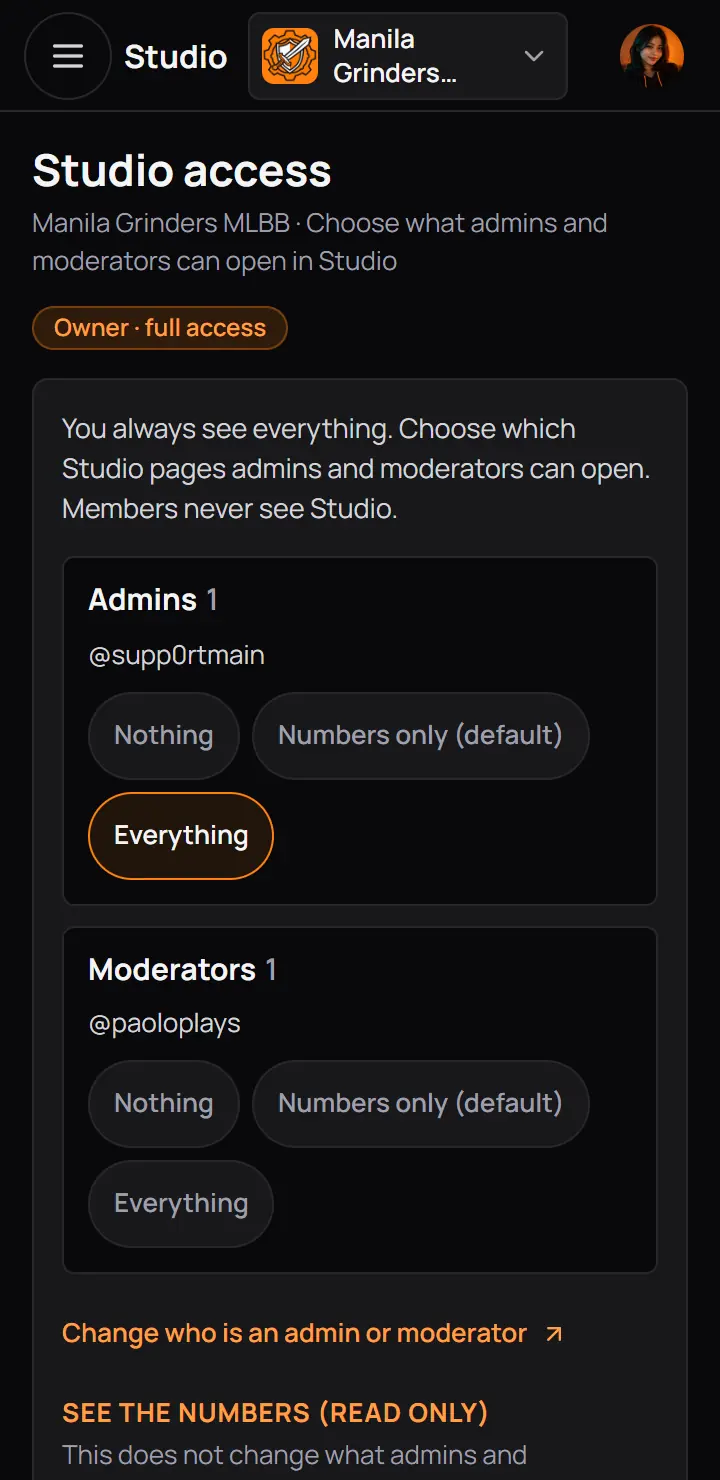
- AdminsWho your admins are, and a quick pick for all of them.
The quick picks

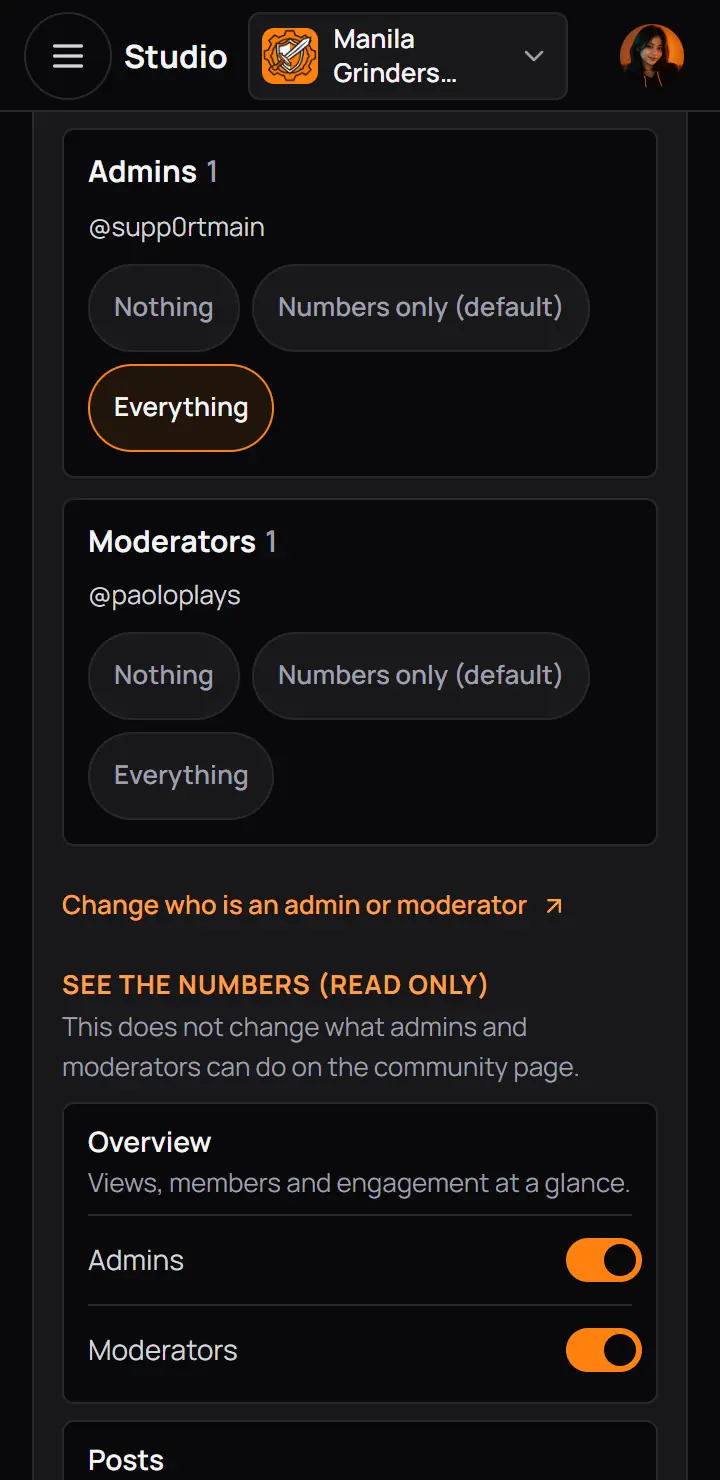
- Who has the role todayTheir @usernames. The number beside the role counts them.
- Pick one to set every switchNothing turns every switch off. Numbers only turns on CCE Play's defaults. Everything turns on every page and every tool.
- The pick that matchesHas an orange edge. If you change single switches, no pick is lit.
- Who has the role todayTheir @usernames. The number beside the role counts them.
- Pick one to set every switchNothing turns every switch off. Numbers only turns on CCE Play's defaults. Everything turns on every page and every tool.
- The pick that matchesHas an orange edge. If you change single switches, no pick is lit.
Good to know. A quick pick only changes the switches on the page. Nothing changes for your staff until you save.
The switches
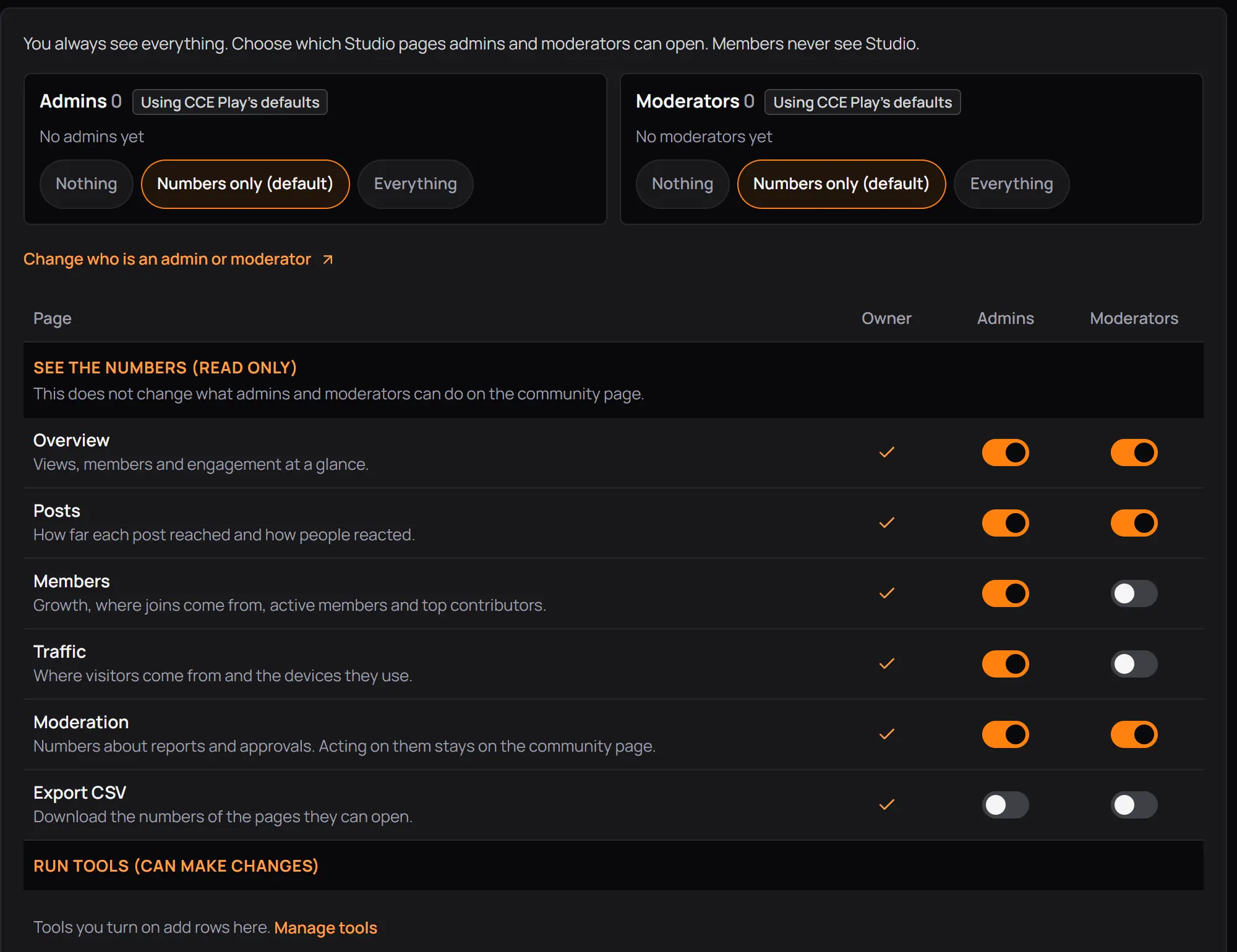
The table has three groups. On a computer each row has a column for you, for admins and for moderators. On a phone each row is a card with a switch for admins and one for moderators.
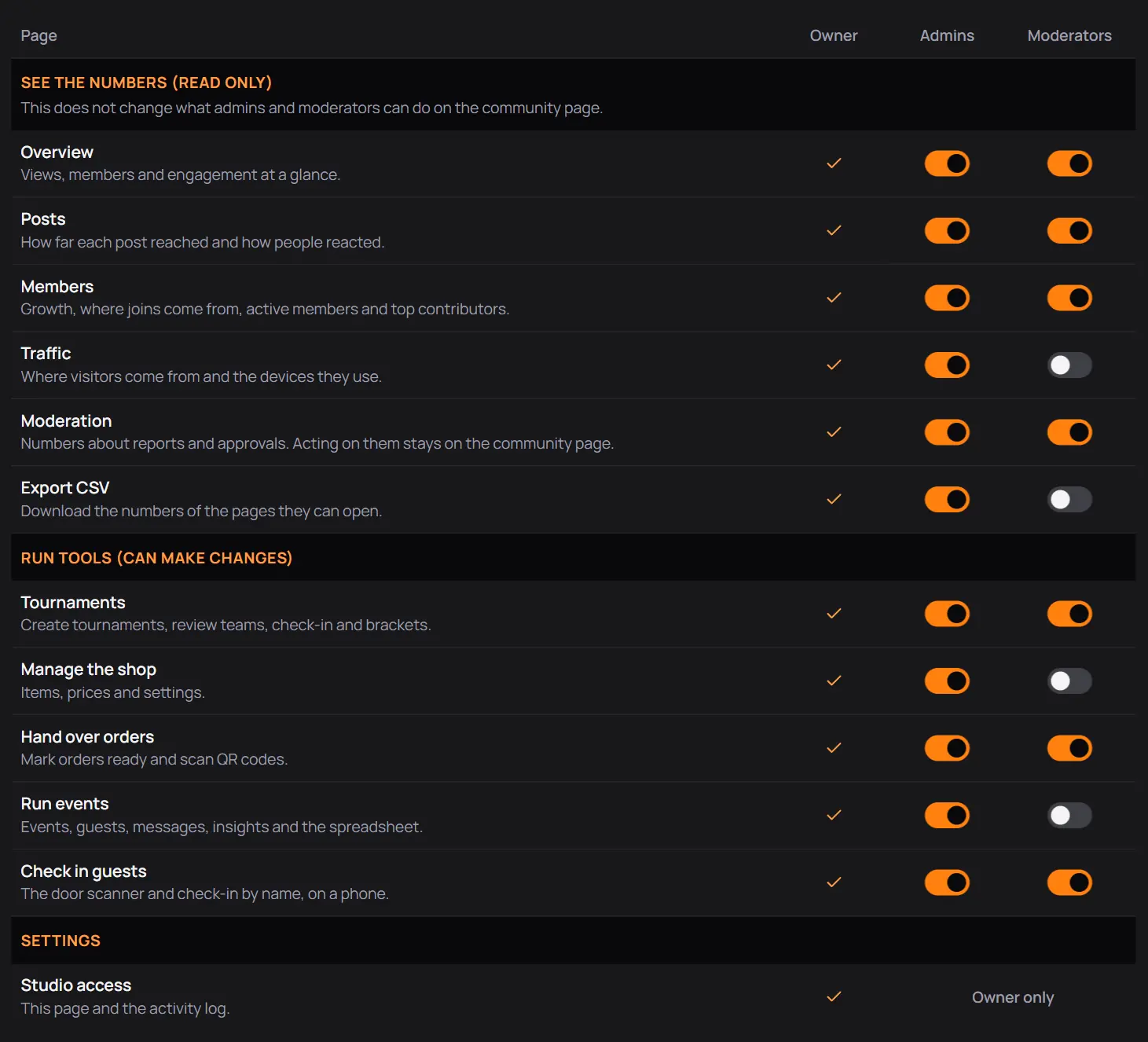
- OwnerA tick on every row. You always have every page.
- AdminsOrange means admins can open it.
- ModeratorsGrey means they cannot.
- See the numbers (read only)The Analytics pages and the download. These only show numbers.
- Off for moderatorsHere moderators cannot open Traffic.
- Run tools (can make changes)A row for each tool that is on. These let staff change things, not only look.
- Owner onlyStudio access and the Activity log can never be shared.
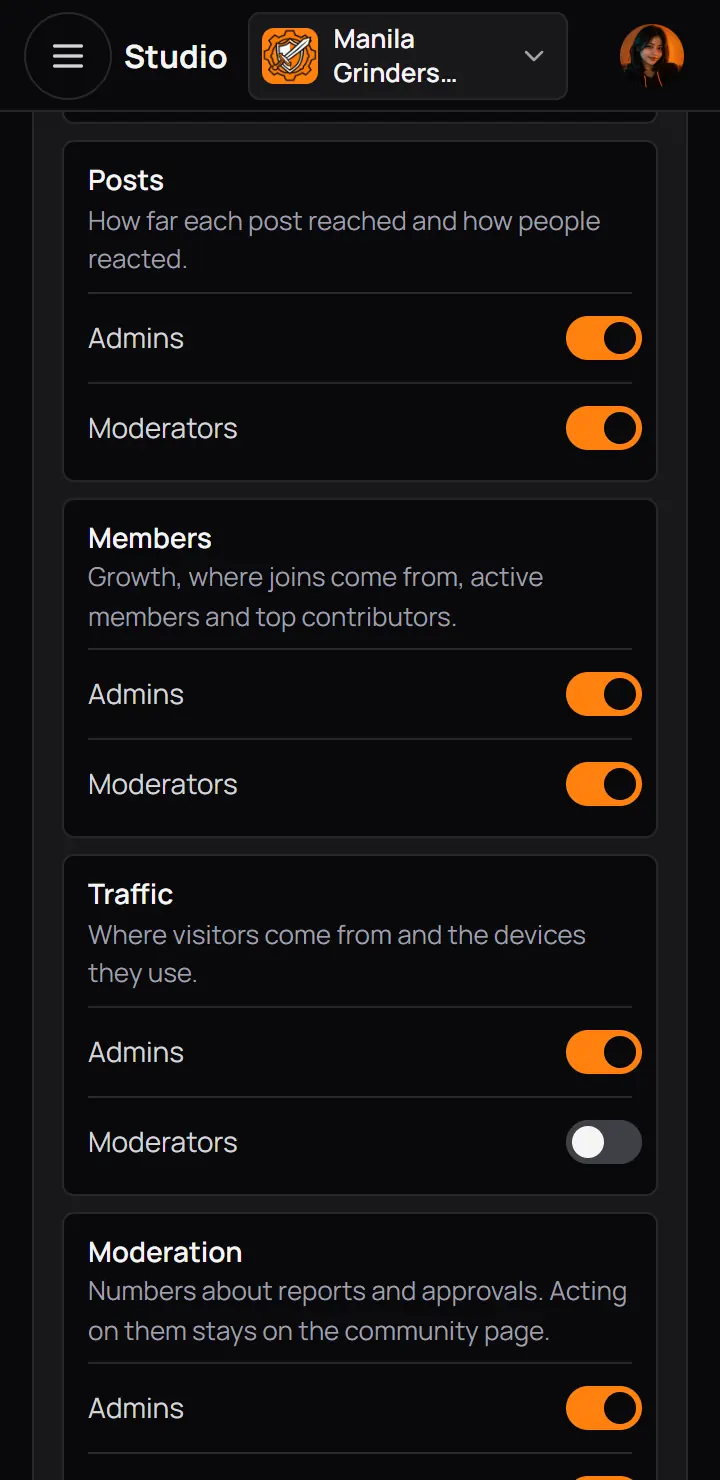
- A switchTap it to turn the page on or off for that role.
- Off for moderatorsHere moderators cannot open Traffic.
| Row | What they can do with it |
|---|---|
| Overview, Posts, Members, Traffic, Moderation | What they can do with itOpen that numbers page. It does not change what they can do on the community page. |
| Export CSV | What they can do with itDownload the numbers of the pages they can open. |
| Tournaments | What they can do with itCreate tournaments, review teams, run check-in and the bracket. |
| Manage the shop | What they can do with itAdd items, set prices and the store's settings. |
| Hand over orders | What they can do with itMark orders ready and scan the buyer's QR code. |
| Build and run PlayLabs | What they can do with itBuild quests, review proofs, and see players and the spreadsheet. |
| Scan at the venue | What they can do with itOnly the PlayLab scanner, on a phone. |
| Run events | What they can do with itMake events, and manage guests, messages and the spreadsheet. |
| Check in guests | What they can do with itOnly the door scanner and check-in by name, on a phone. |
| Run ads | What they can do with itMake ads, send them for review, pause them and read their results. |
| Studio access | What they can do with itNothing. It stays yours. |
A tool's rows show only while the tool is on. If you turn a tool off and on again, its switches come back the way you left them.
A new community
Until you save Studio access once, your community uses CCE Play's defaults: admins open the five numbers pages, moderators open Overview, Posts and Moderation, and nobody but you can download or run a tool. In the picture Paolo's Ranked Grind has no staff and no tools yet.
- Using CCE Play's defaultsShows until you save a change for that role.
- No admins yetMake someone an admin in the Members tab of your community.
- Numbers only (default)The defaults are the Numbers only pick.
- Tools you turn on add rows hereWith no tool on, the tools group has a link to Manage tools instead of rows.
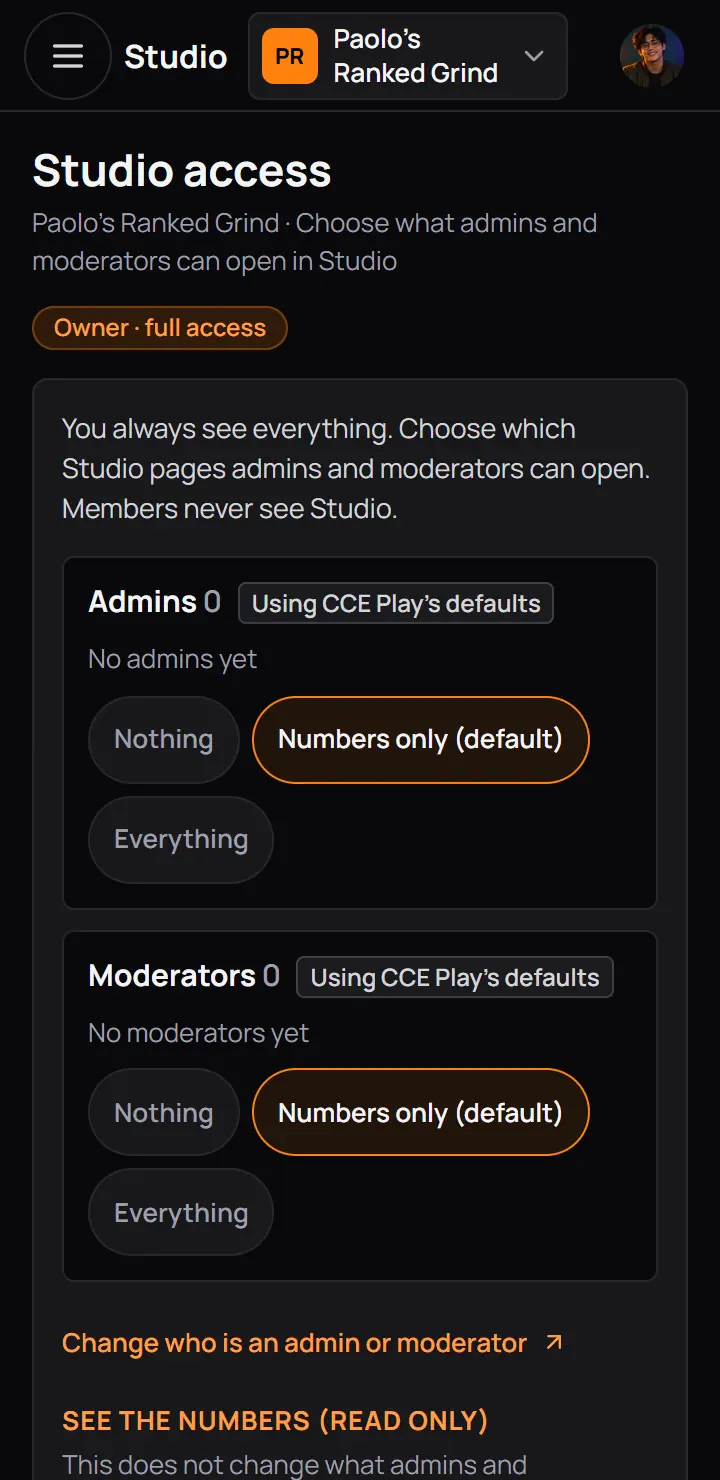
- Using CCE Play's defaultsShows until you save a change for that role.
- No admins yetMake someone an admin in the Members tab of your community.
- Numbers only (default)The defaults are the Numbers only pick.
3Save your changes
As soon as you change a switch or a quick pick, a bar comes up at the bottom of the page: "You have unsaved changes in Studio access".
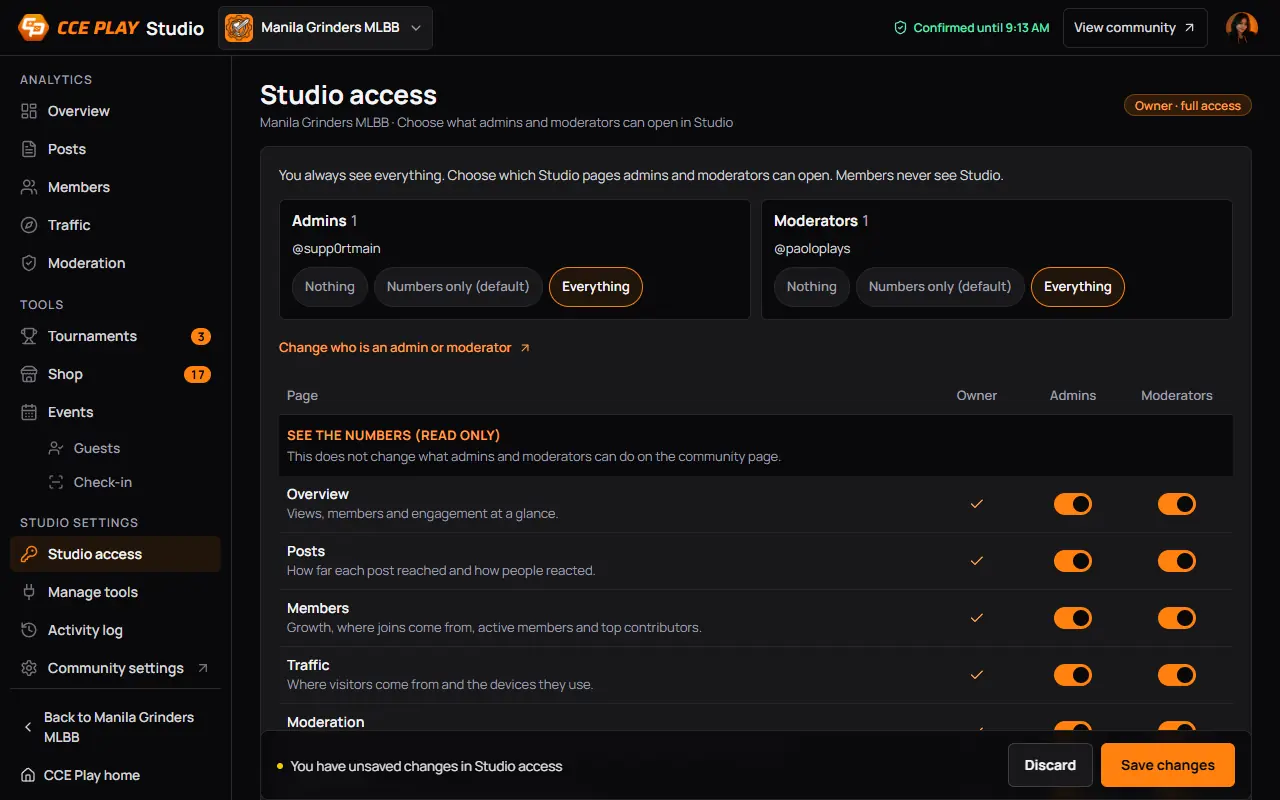
- Your changeHere the owner picked Everything for moderators.
- DiscardPuts every switch back the way it was saved.
- Save changesOpens a last check before anything changes.
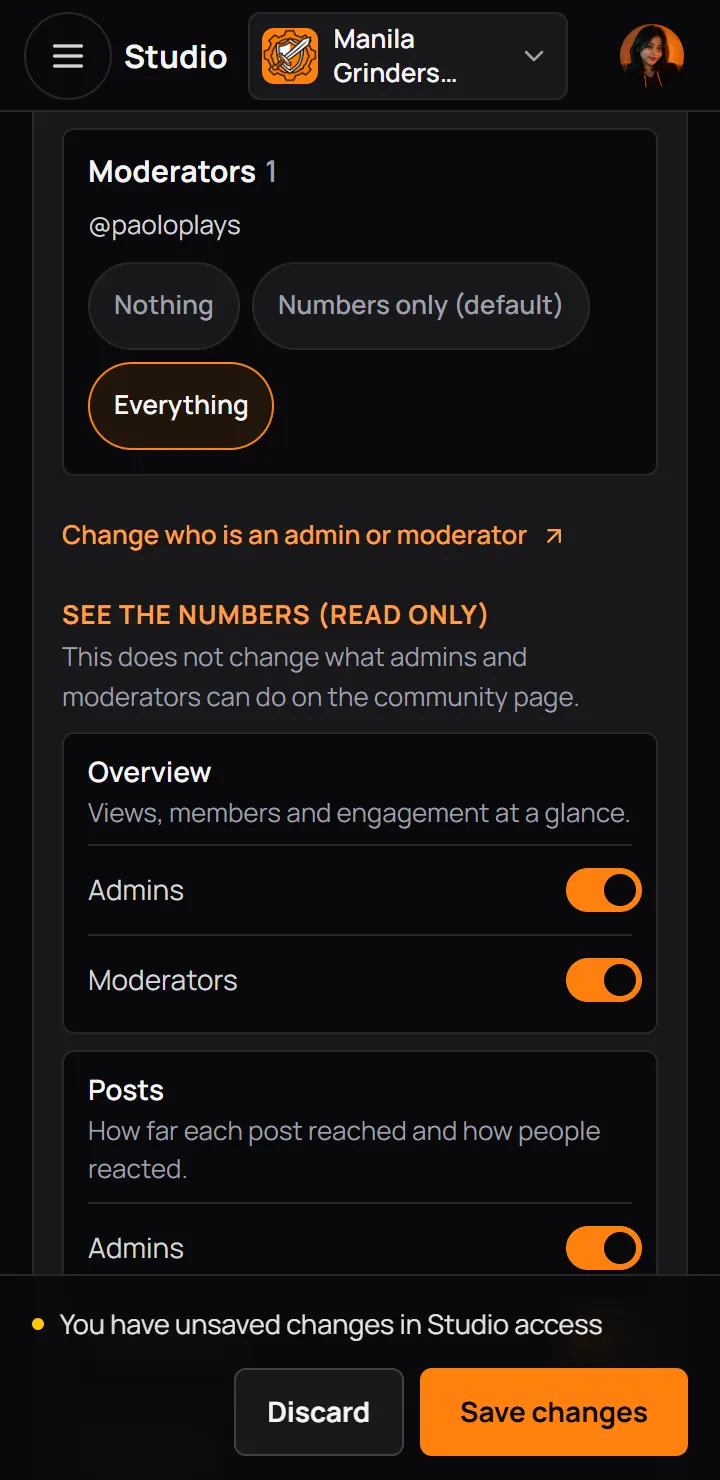
- Your changeHere the owner picked Everything for moderators.
- DiscardPuts every switch back the way it was saved.
- Save changesOpens a last check before anything changes.
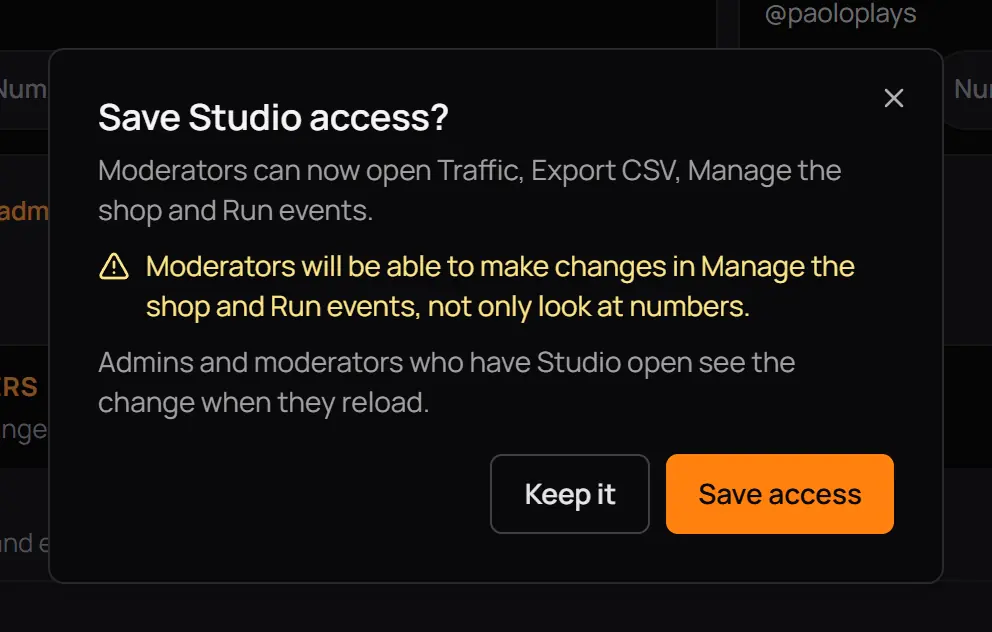
- Every change in a sentenceWho can now open what, and who cannot any more.
- The warningShows when a role gets a tool row, because that lets them change things, not only look at numbers.
- Save accessSaves it. The change counts at once.
- Keep itBack to the page. Your switches stay as you set them, not saved yet.
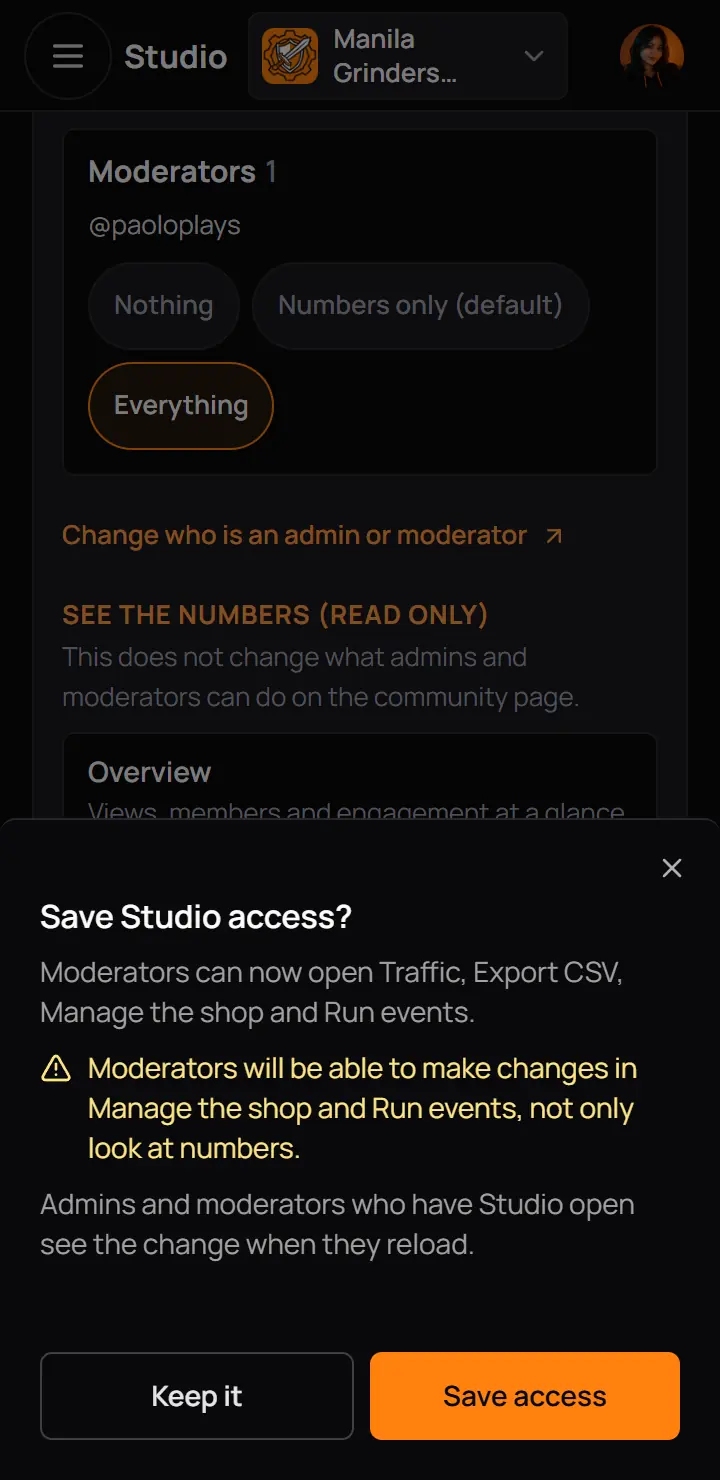
- Every change in a sentenceWho can now open what, and who cannot any more.
- The warningShows when a role gets a tool row, because that lets them change things, not only look at numbers.
- Save accessSaves it. The change counts at once.
- Keep itBack to the page. Your switches stay as you set them, not saved yet.

- SavedAdmins and moderators who have Studio open see the change when they reload the page.
- SavedAdmins and moderators who have Studio open see the change when they reload the page.
Go back to the defaults
Reset to defaults, at the foot of the card, sets every switch back to CCE Play's defaults. It asks first.
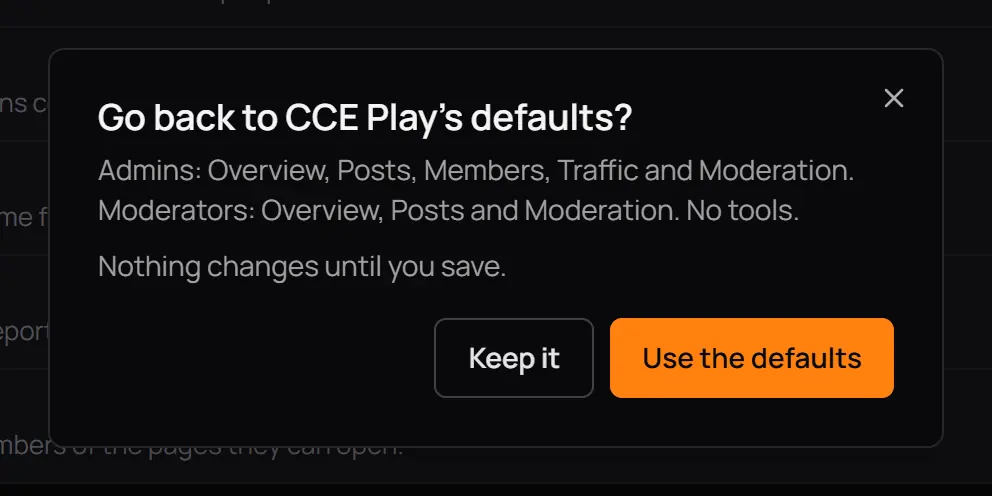
- What the defaults areThe pages each role opens by default. No tools.
- Use the defaultsChanges the switches. Press Save changes afterwards to keep them.
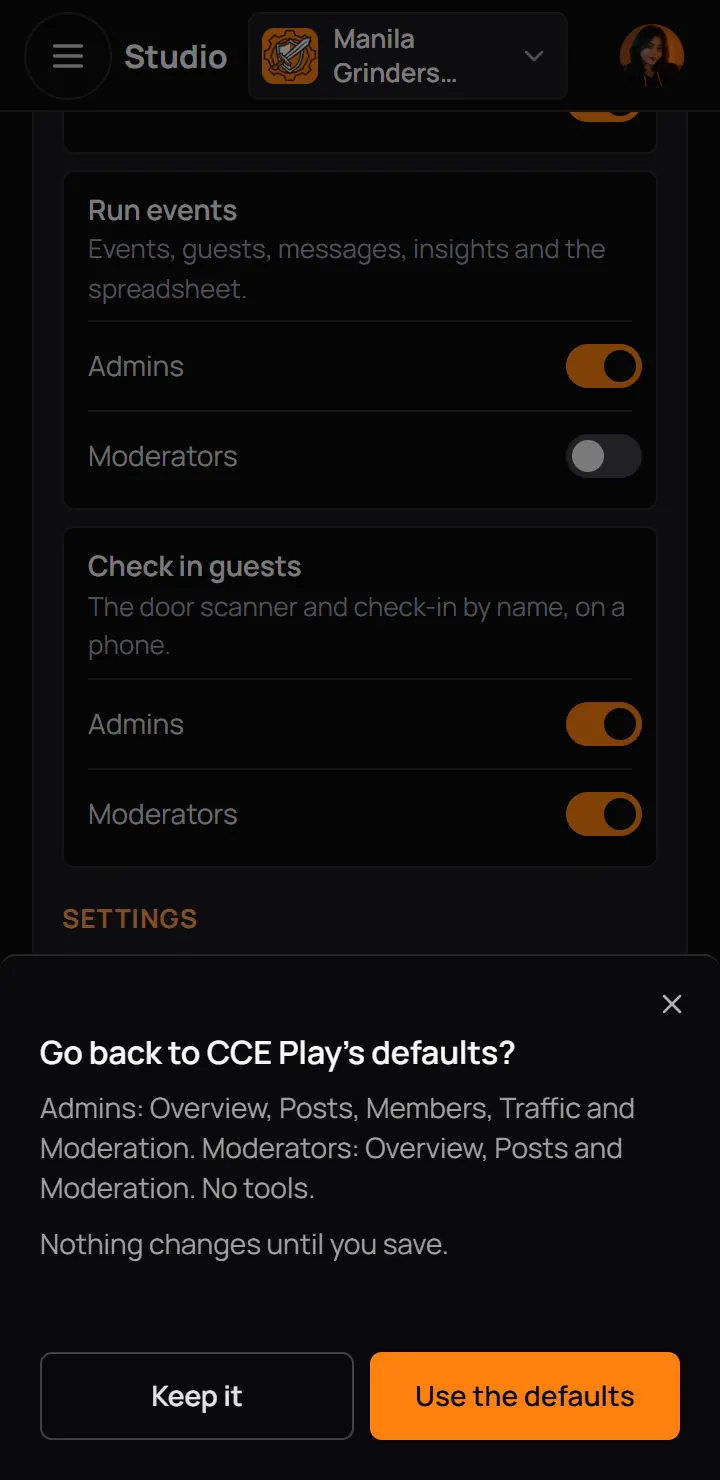
- What the defaults areThe pages each role opens by default. No tools.
- Use the defaultsChanges the switches. Press Save changes afterwards to keep them.
Good to know. If you leave Studio access with changes you did not save, Studio asks first, so a half-done change is never lost by accident.
4The Activity log
The Activity log lists who opened Studio and what they changed, newest first. Only you see it. Entries are kept for 12 months. In the pictures the owner of Grinders Varsity asked CCE Play for four tools in one day, so the log shows each answer.
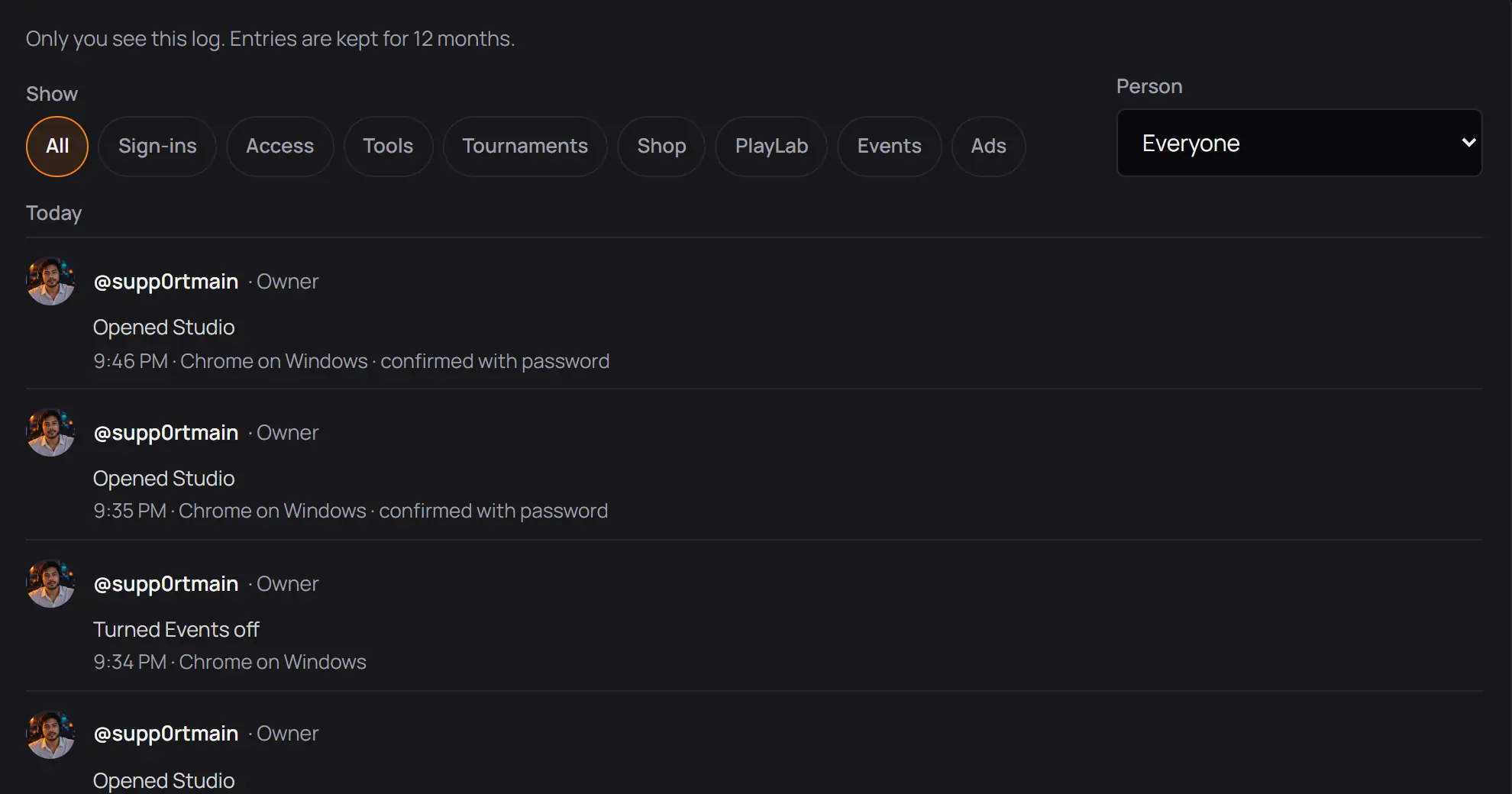
- ShowPick a kind of entry. All shows everything.
- PersonOnly you, or only one of your admins or moderators.
- The dayEntries come under Today, Yesterday or the date.
- Who did it, and whatTheir @username, their role today, and what they did in a short sentence. Press the @username to open their profile.
Under each entry: the time in Manila, the device, and for sign-ins how they confirmed. Hold the pointer on the time for the full date.
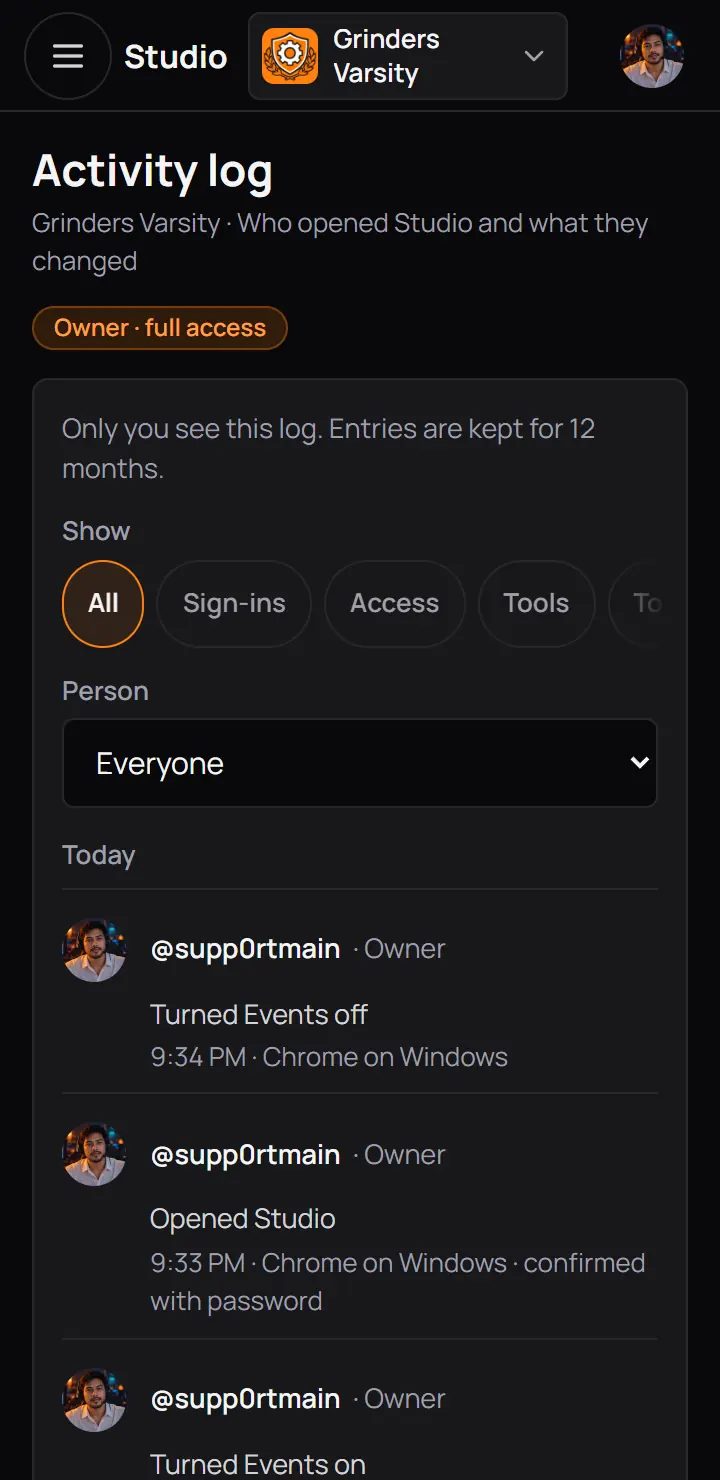
- ShowPick a kind of entry. All shows everything.
- PersonOnly you, or only one of your admins or moderators.
- Who did it, and whatTheir @username, their role today, and what they did in a short sentence. Press the @username to open their profile.
Under each entry: the time in Manila, the device, and for sign-ins how they confirmed. Hold the pointer on the time for the full date.
| Chip | What it lists |
|---|---|
| Sign-ins | What it listsOpened Studio, a wrong password, a 15-minute lock, and Ended every Studio session. |
| Access | What it listsEach save of Studio access, with what each role can now open or not. |
| Tools | What it listsAsking for a tool, cancelling, CCE Play's answer, turning it off and on, and a takedown. |
| Tournaments, Shop, PlayLab, Events, Ads | What it listsWhat staff did in that tool, such as publishing a tournament or handing over an order. |
| All | What it listsEverything above, plus downloads of the numbers and each time CCE Play support looked at your Studio. |
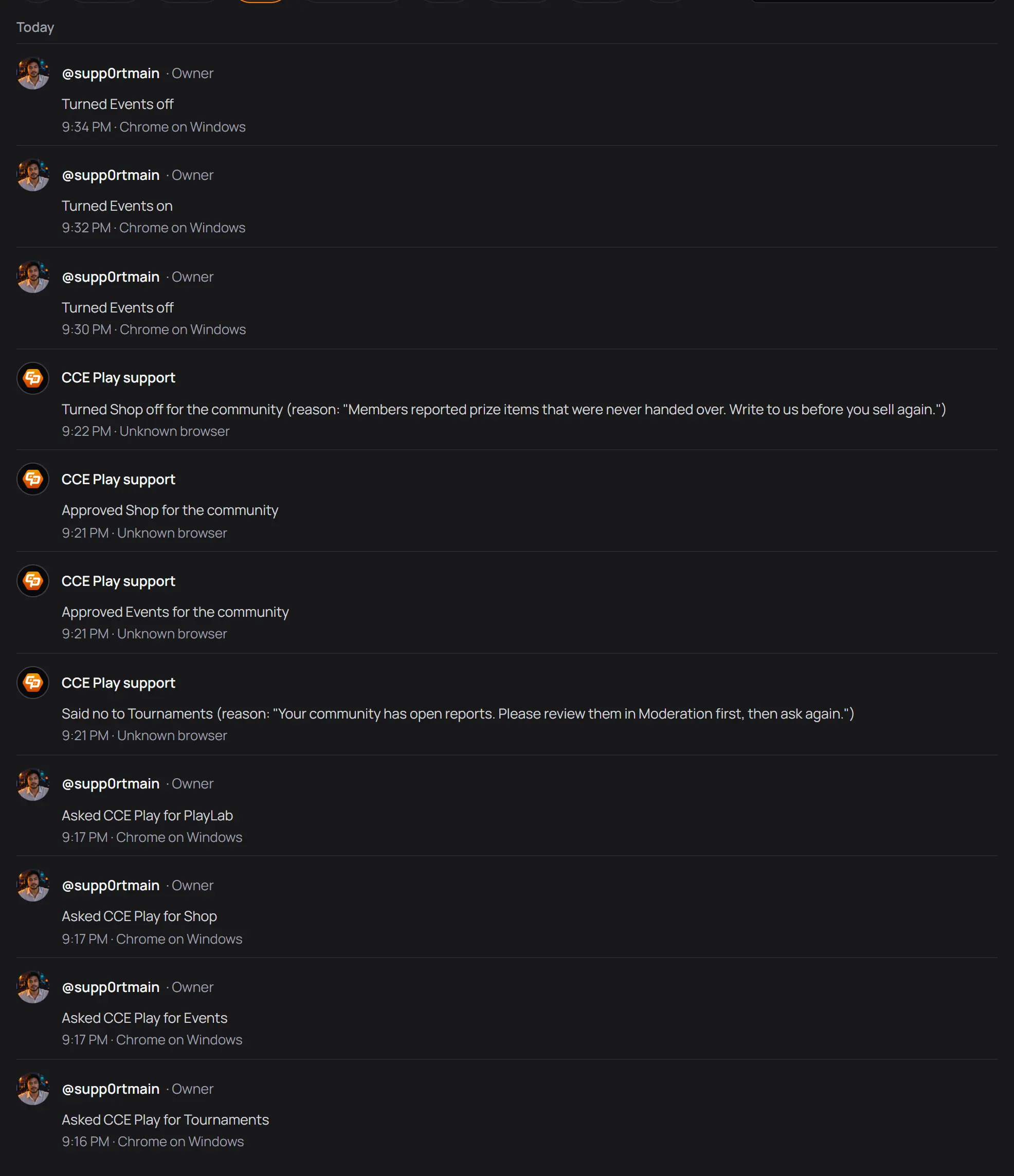
- CCE Play supportAn answer from CCE Play has the CCE Play badge, and its reason is in the sentence.
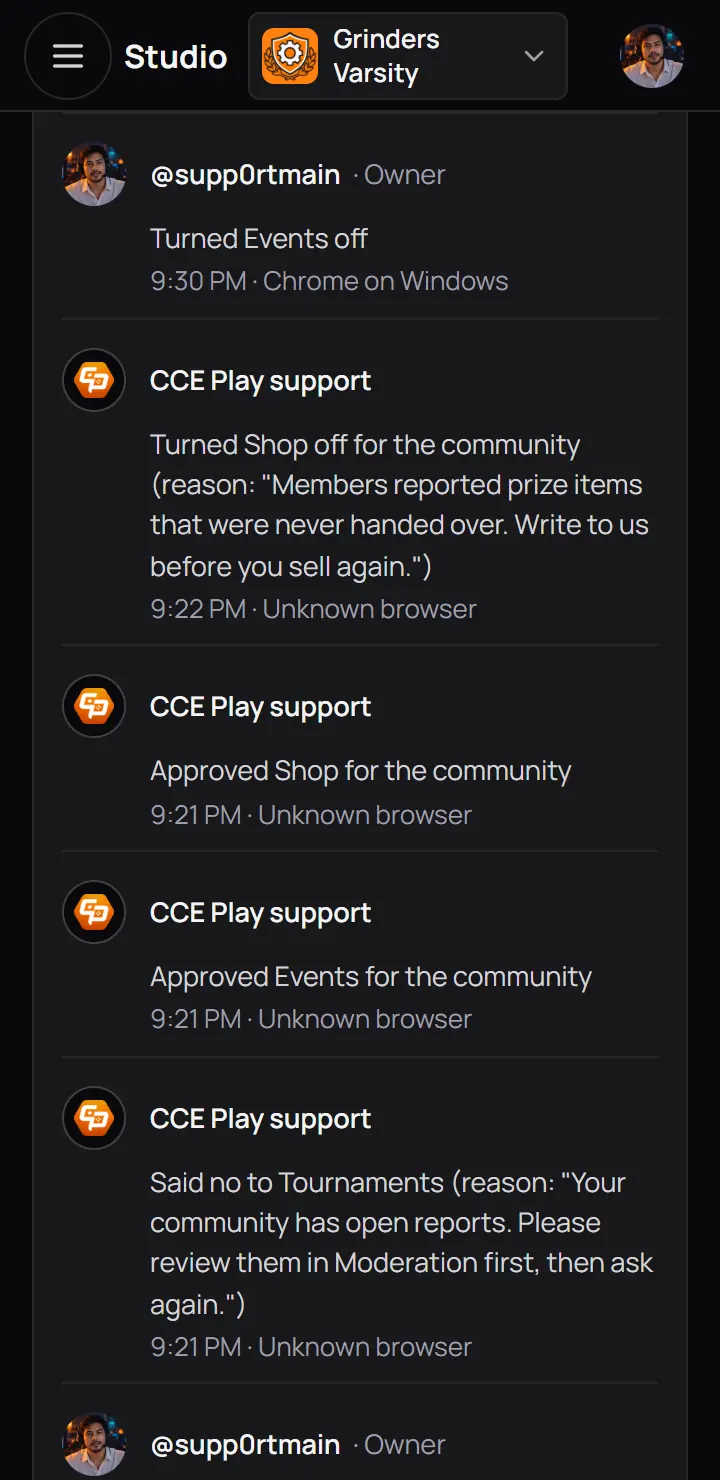
- CCE Play supportAn answer from CCE Play has the CCE Play badge, and its reason is in the sentence.
A community where nobody has done anything yet shows "Nothing in the log yet". You rarely see it, because opening Studio is the first entry.
For CCE Play staff. Each time a CCE Play admin opens a community's numbers, tournament, shop, PlayLab or event in the admin app, the owner's log says "CCE Play support viewed ... (read only)", at most once an hour.
5End every Studio session
At the foot of the Activity log, End every Studio session closes Studio for everyone who has it open for your community, you included. Use it if a phone with Studio open is lost, or a staff member left on bad terms.

- End every Studio sessionAsks first.
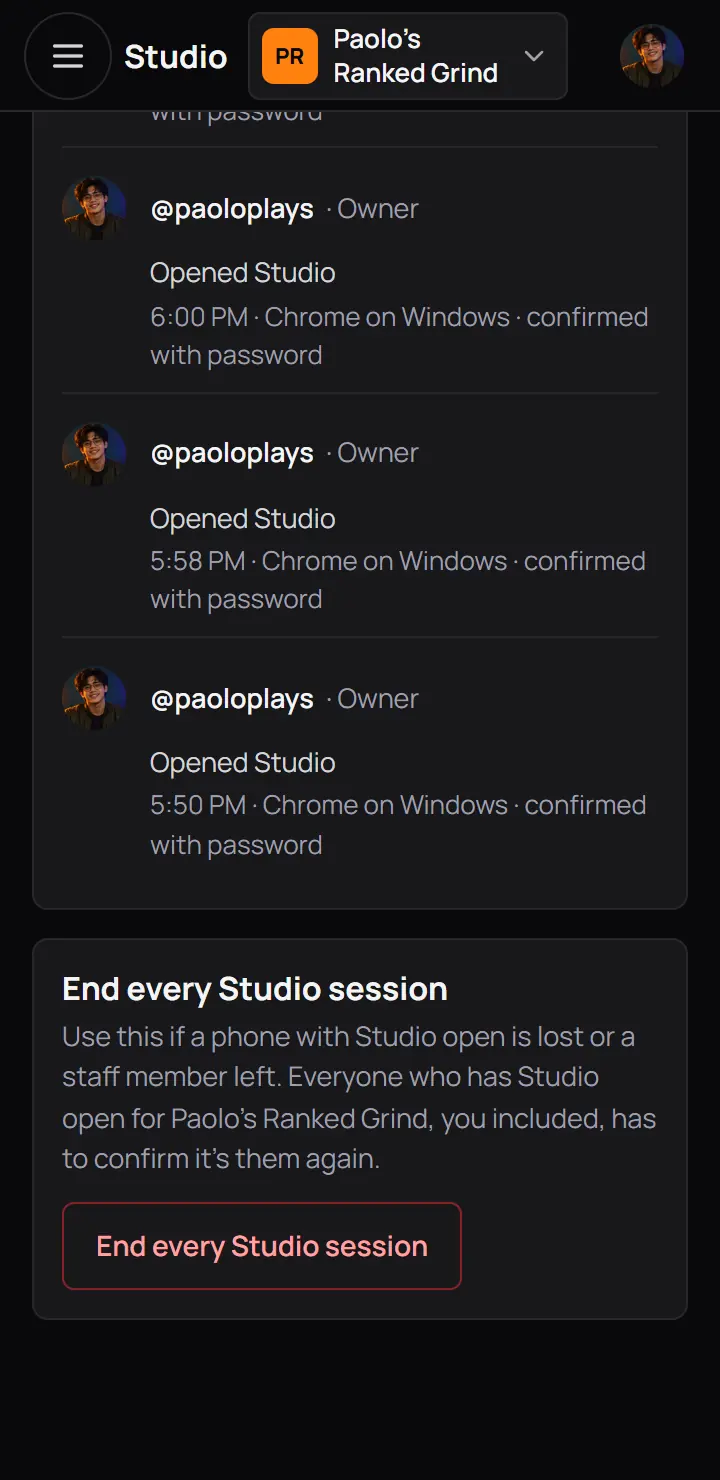
- End every Studio sessionAsks first.
Good to know. To take Studio away from one person for good, change their role in the Members tab of your community. Ending the sessions alone only makes them confirm again.
6Manage tools
Tools add features to your community, like plugins: Tournaments, Shop, PlayLab, Events and Sponsored posts. You ask CCE Play for a tool, CCE Play checks your community and approves it, and from then on you turn it off and on yourself. Each tool has a card with its state in a coloured label.
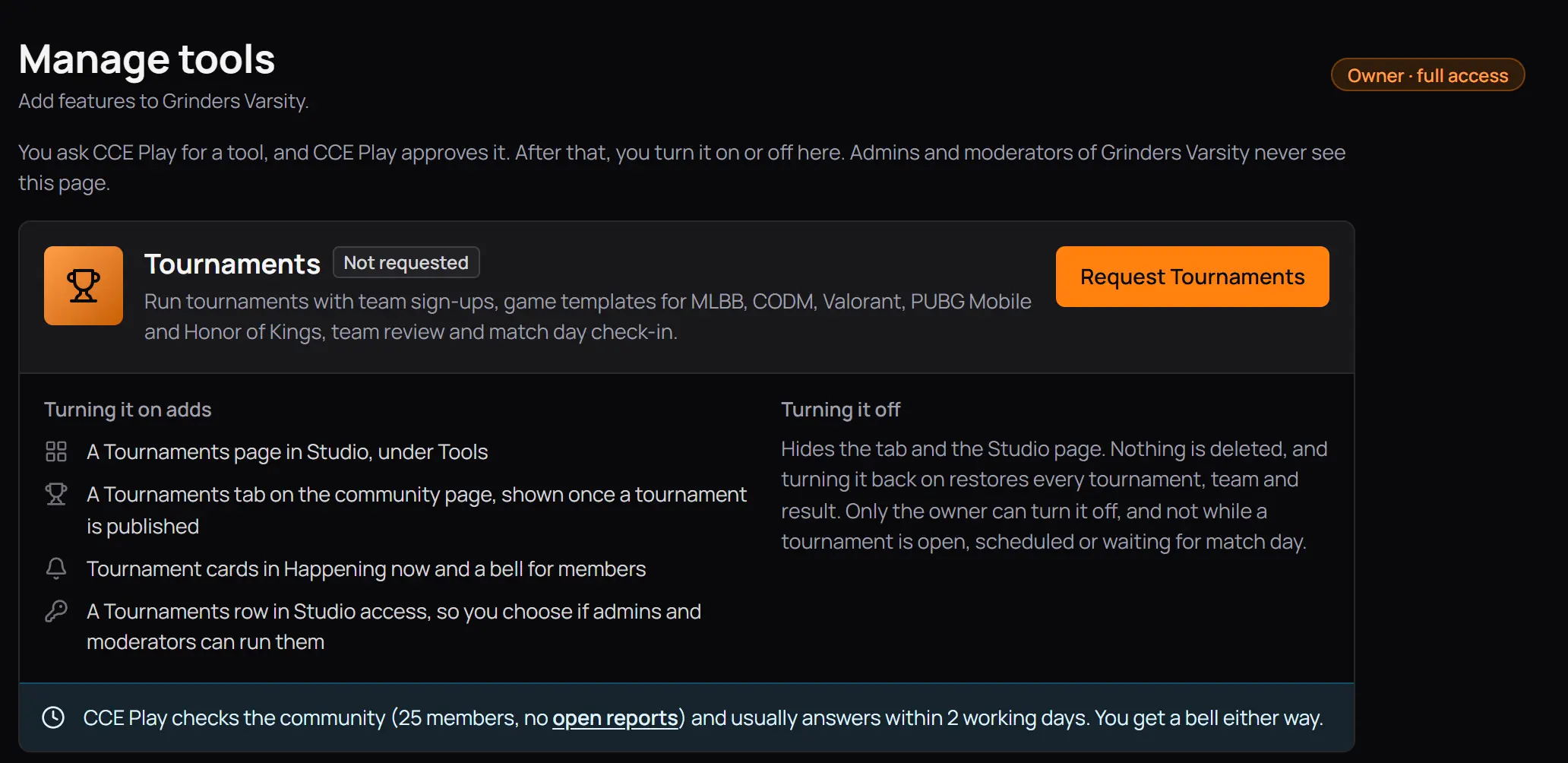
- Only you see this pageAdmins and moderators never open it.
- Where the tool standsHere Not requested.
- Request TournamentsAsks CCE Play for the tool.
- What it adds and what turning it off doesRead it before you ask. Once a tool is approved, this part folds away under a line you can open.
- What CCE Play checksYour member count and open reports.
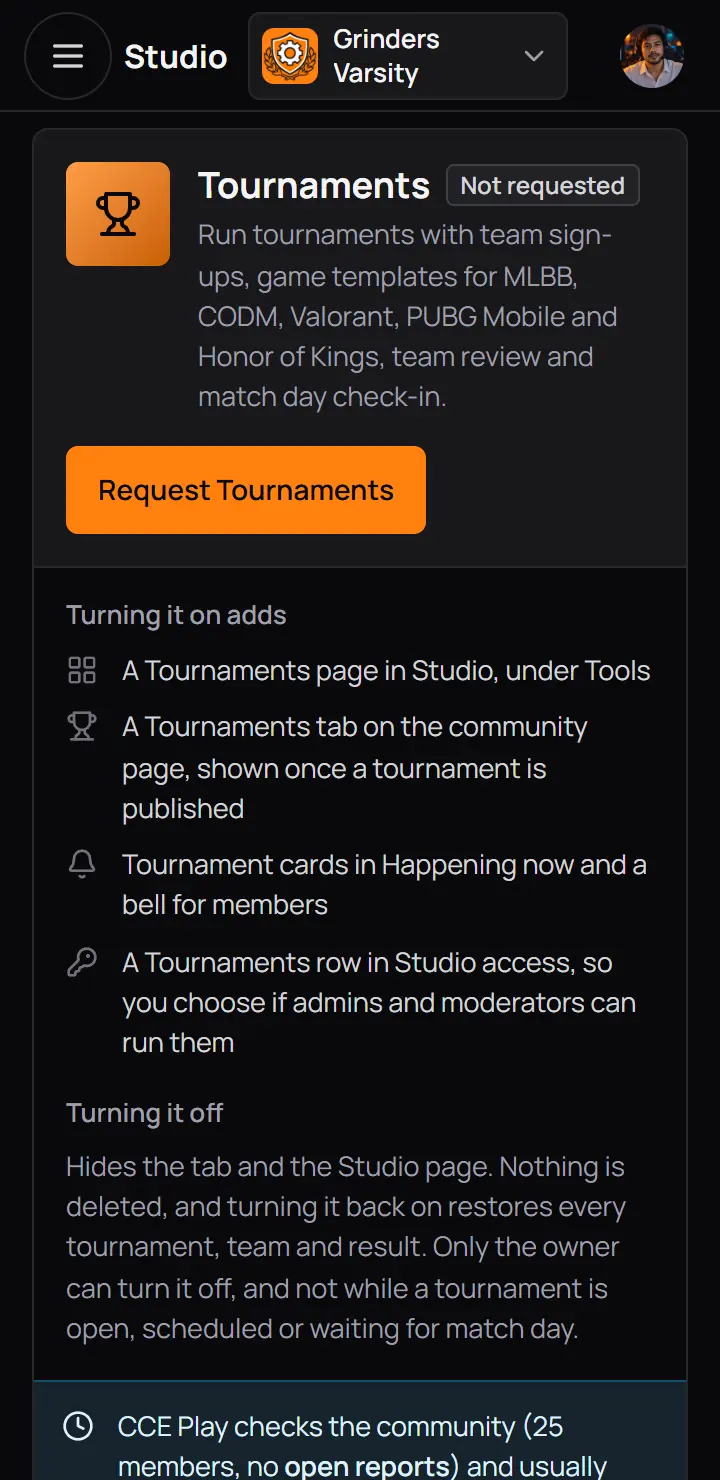
- Where the tool standsHere Not requested.
- Request TournamentsAsks CCE Play for the tool.
- What it adds and what turning it off doesRead it before you ask. Once a tool is approved, this part folds away under a line you can open.
| Label | What it means | What you can do |
|---|---|---|
| Not requested | What it meansYou have not asked for it. | What you can doRequest it, once you have 25 members. |
| Waiting for CCE Play | What it meansYour request waits in CCE Play's line. | What you can doCancel request. |
| Not approved | What it meansCCE Play said no, with a reason. | What you can doAsk again, 7 days after the answer. |
| On, approved by CCE Play | What it meansThe tool works. It is in the menu under Tools. | What you can doOpen it, or turn it off. |
| Off | What it meansYou turned it off. Nothing was deleted. | What you can doTurn it back on with the switch. |
| Taken down | What it meansCCE Play turned it off for your community. | What you can doWrite to CCE Play support. Only CCE Play can turn it back on. |
7Ask for a tool
A community needs 25 members to ask for a tool. Until then the request button is off and the card says how many you have.
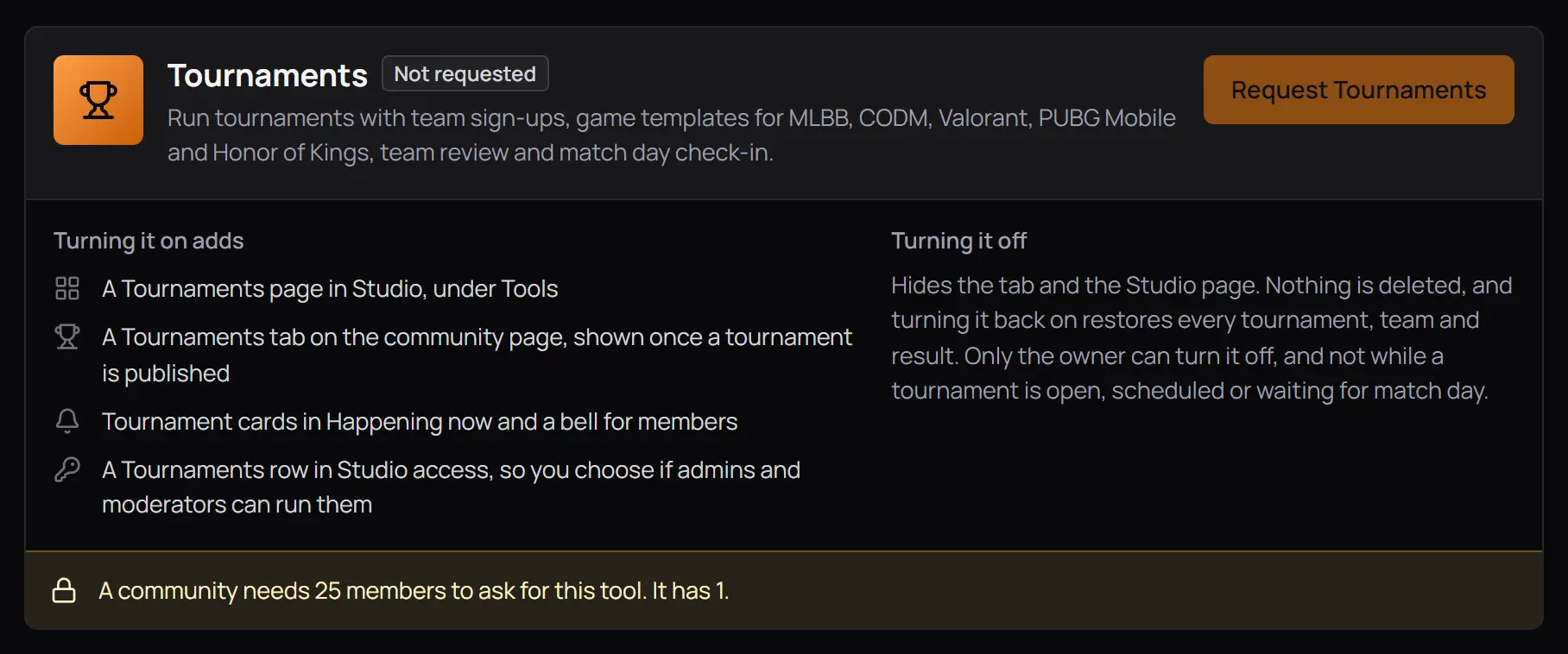
- How many members you haveGrow your community, then come back.
- The button is offIt turns on at 25 members.
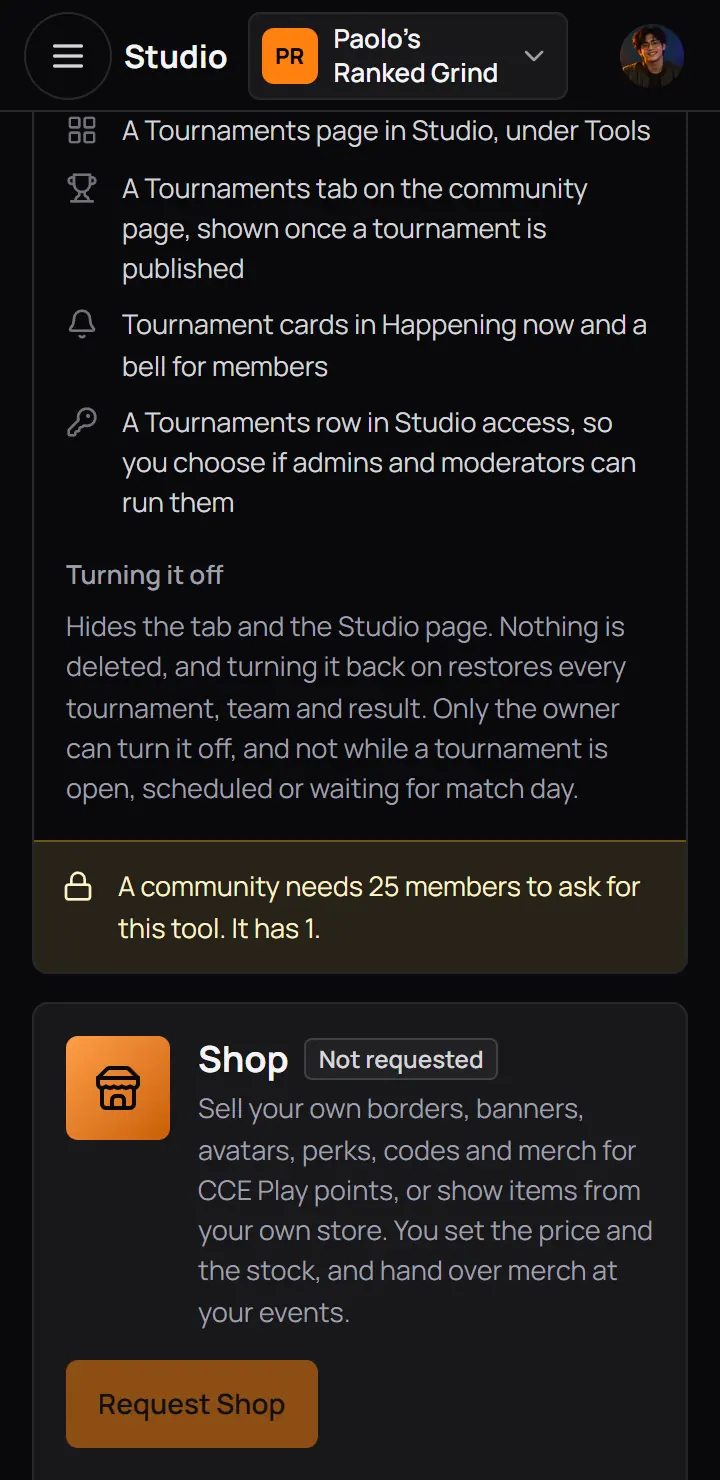
- How many members you haveGrow your community, then come back.
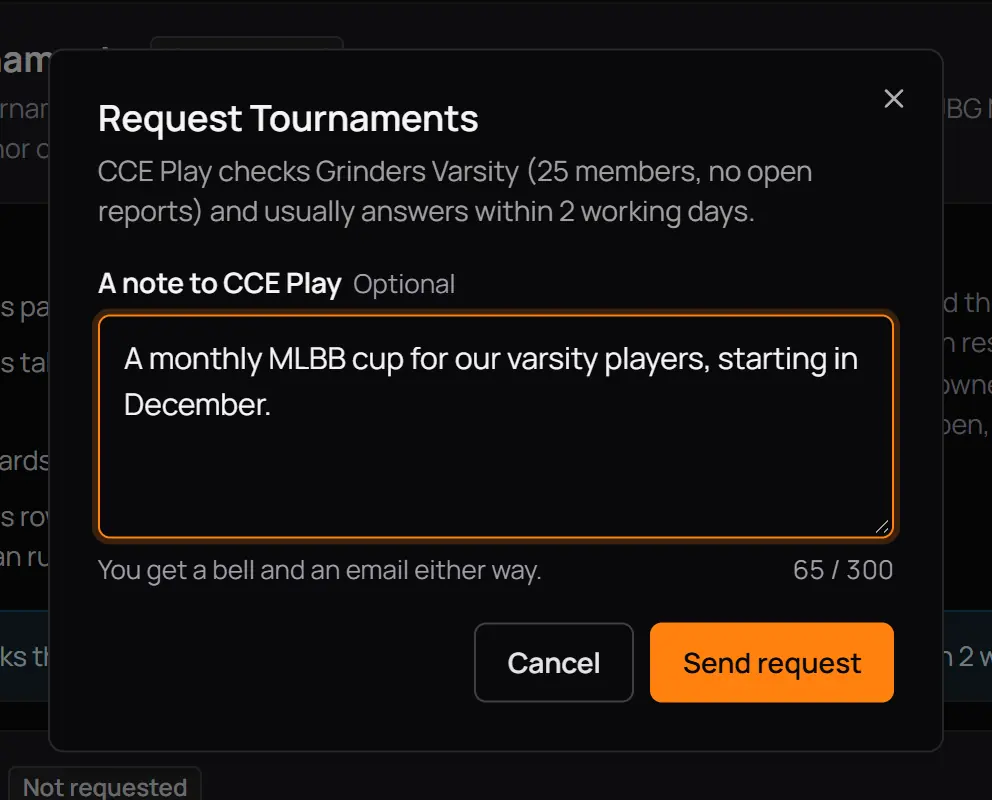
- A note to CCE PlayOptional, up to 300 characters. Say what you plan to run. It helps CCE Play answer.
- Send requestYour request joins CCE Play's line.
- CancelCloses the box. Nothing is sent.
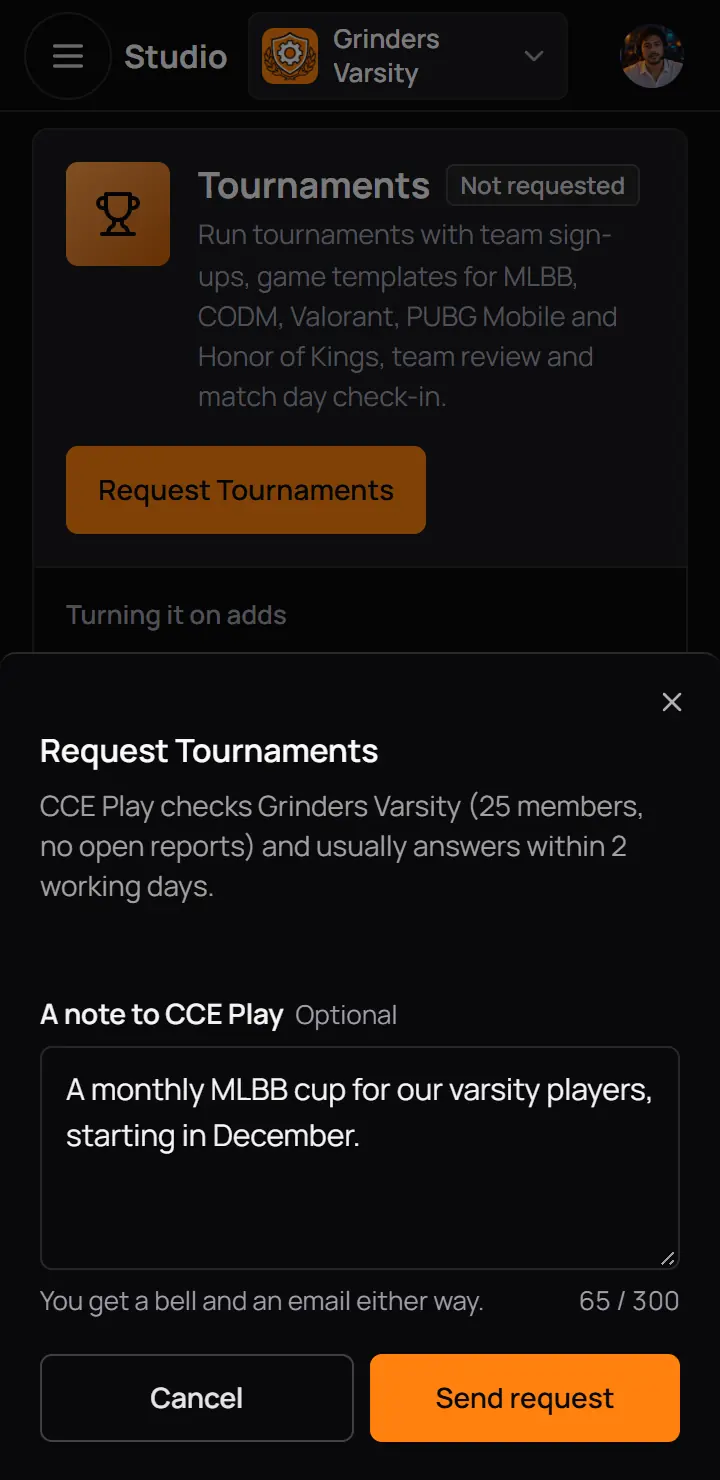
- A note to CCE PlayOptional, up to 300 characters. Say what you plan to run. It helps CCE Play answer.
- Send requestYour request joins CCE Play's line.
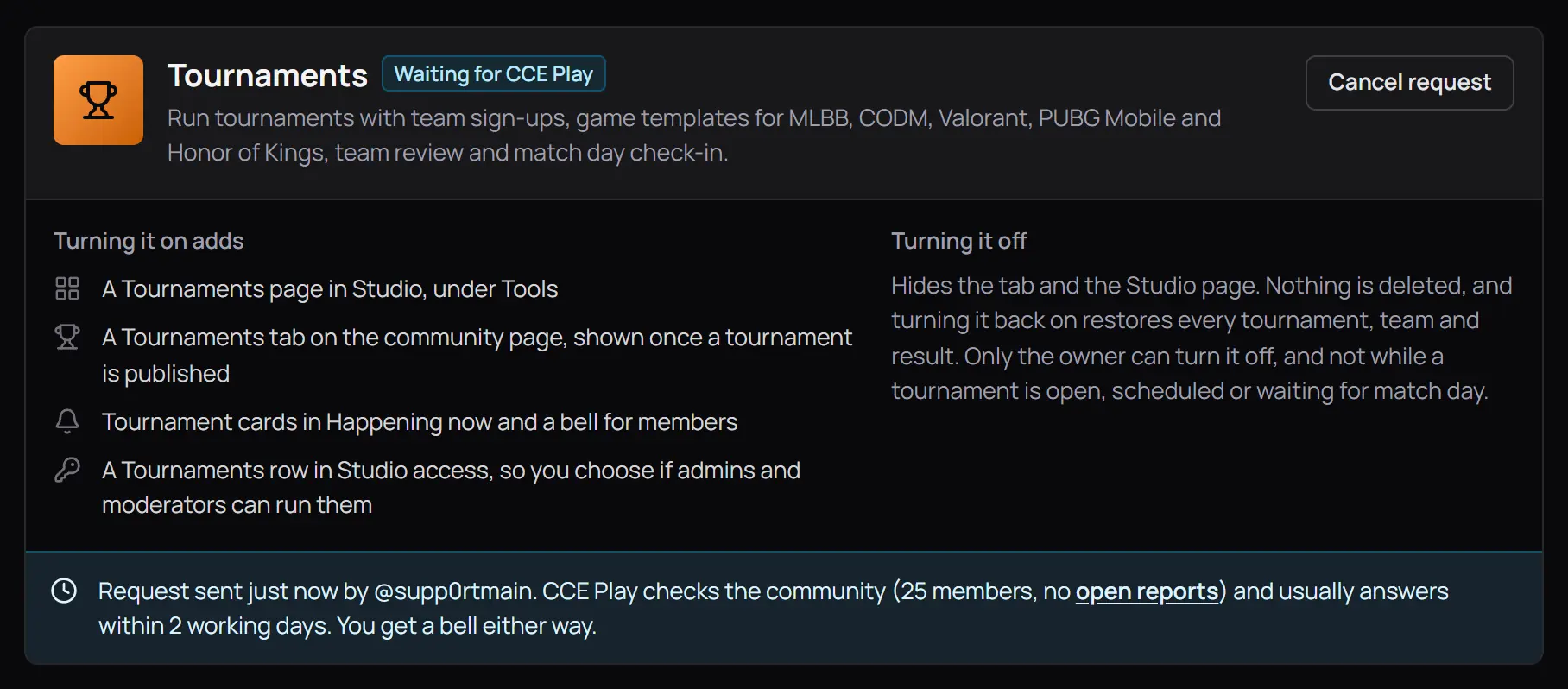
- Waiting for CCE PlayCCE Play usually answers within 2 working days.
- When and by whomYou get a bell and an email when CCE Play answers.
- Cancel requestTakes your request out of the line.
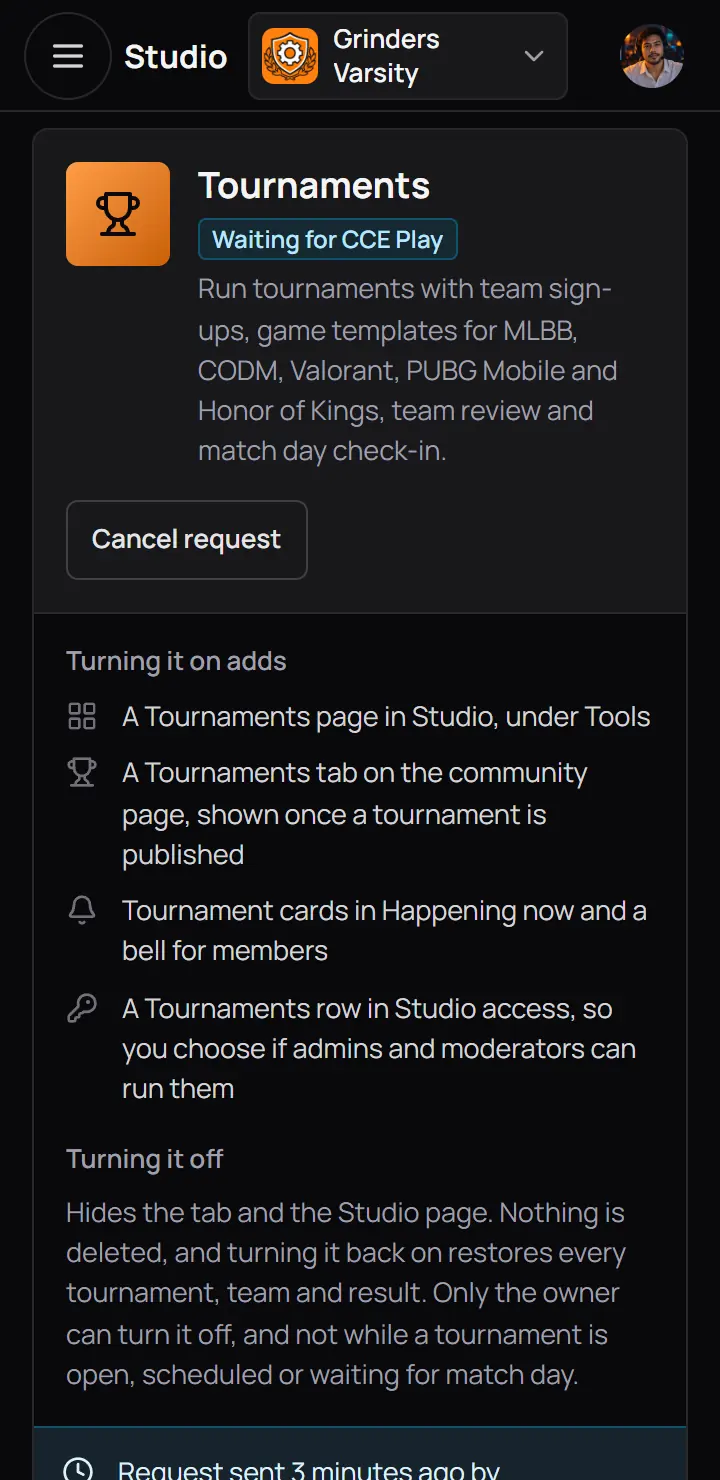
- Waiting for CCE PlayCCE Play usually answers within 2 working days.
- Cancel requestTakes your request out of the line.
8When CCE Play answers
You get a bell and an email either way. The card changes to the answer.
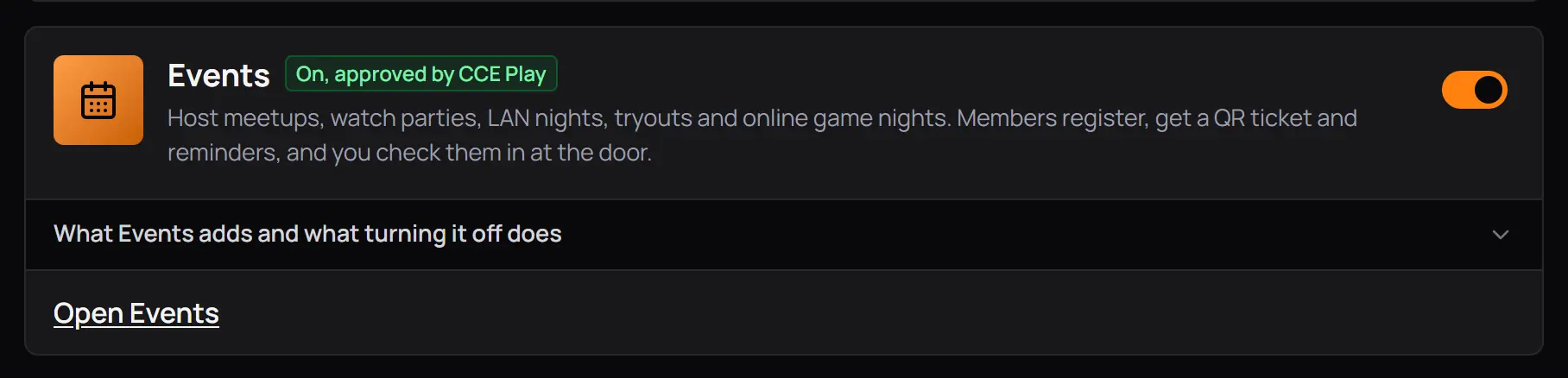
- On, approved by CCE PlayThe tool is in your menu under Tools.
- The switchOrange means on. Only you can turn it off.
- Open EventsGoes to the tool in Studio.
A green box at the top of the page reminds you that admins and moderators can run the tool only if you give them its row in Studio access.
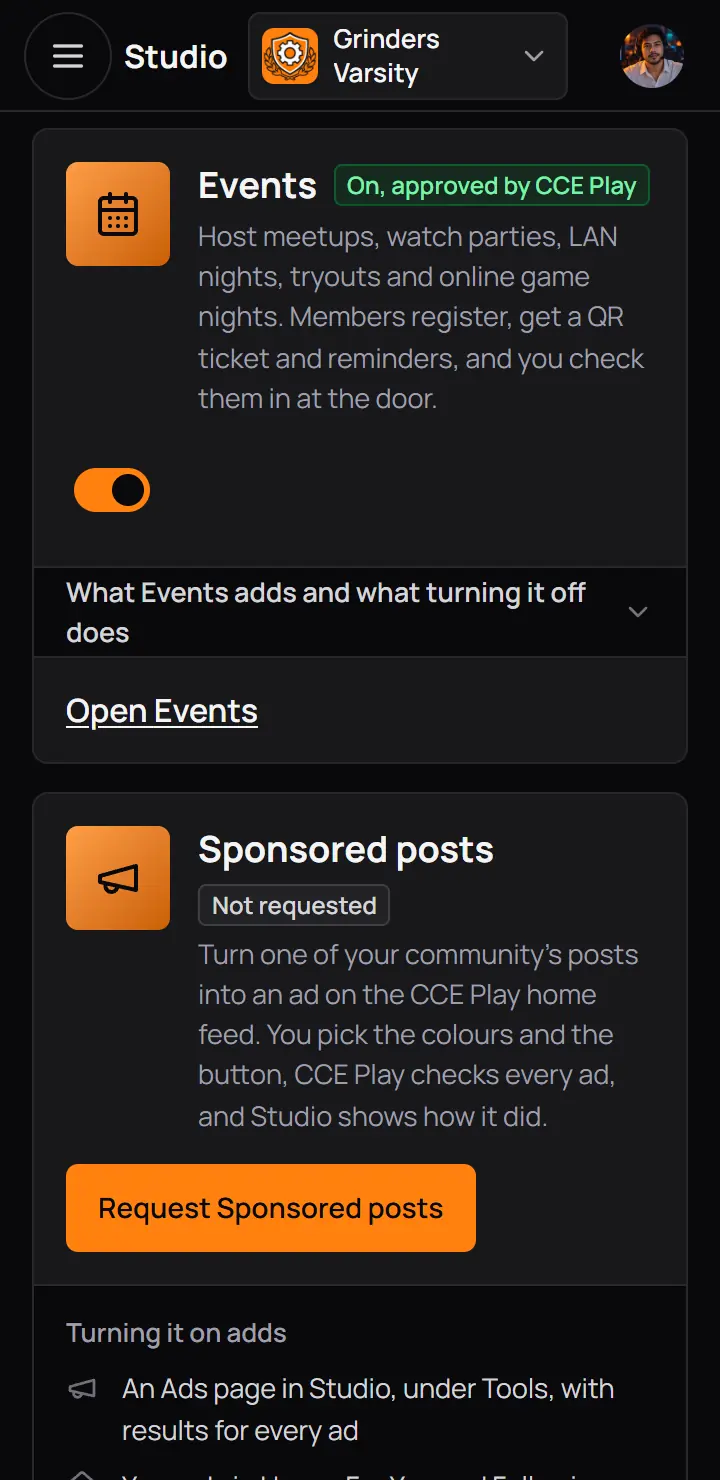
- On, approved by CCE PlayThe tool is in your menu under Tools.
- The switchOrange means on. Only you can turn it off.
- Open EventsGoes to the tool in Studio.
A green box at the top of the page reminds you that admins and moderators can run the tool only if you give them its row in Studio access.
Good to know. A new tool gives your admins and moderators nothing until you say so. Open Studio access and turn on its rows for the roles that should run it.
9Turn a tool off and on
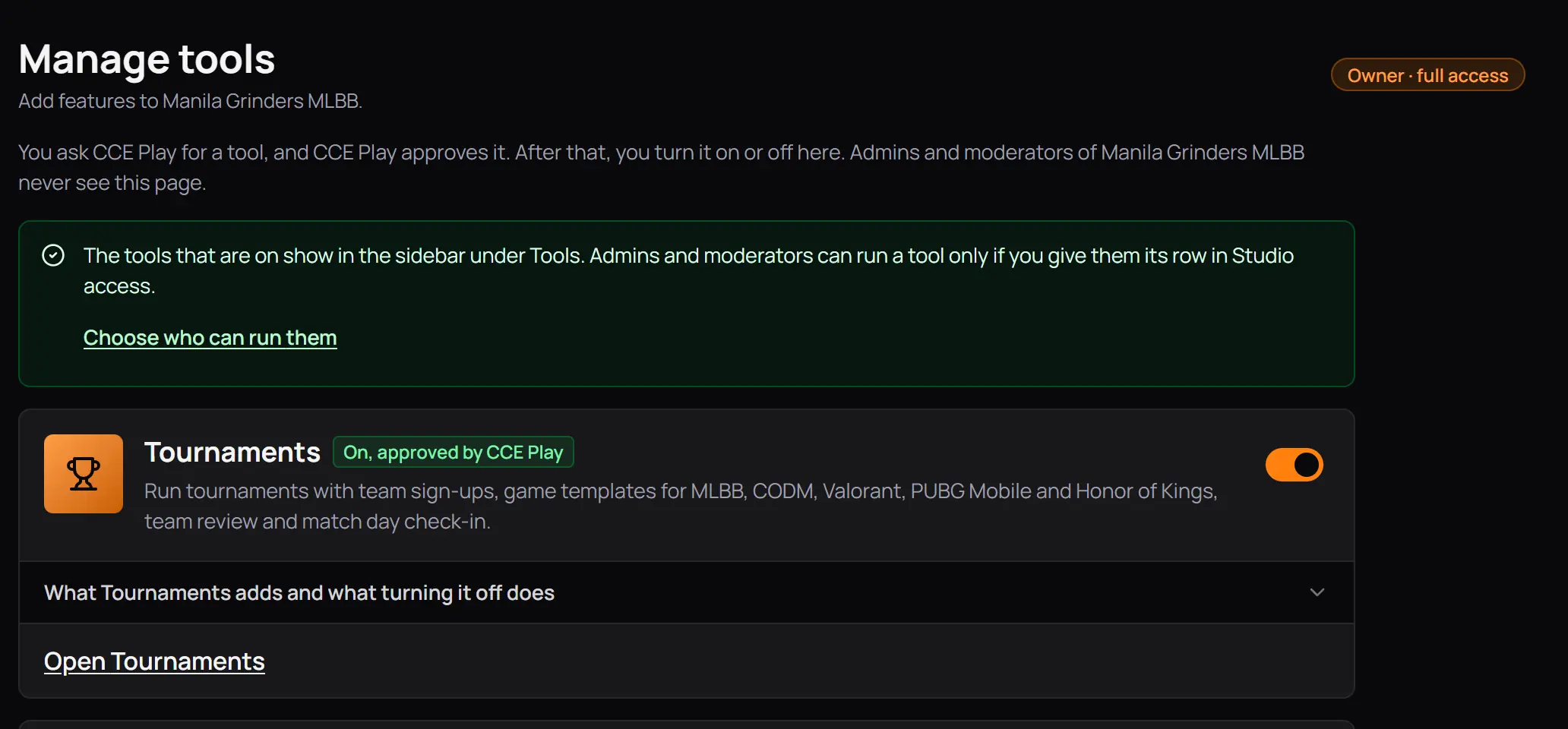
- What on meansThe tools that are on are in the menu under Tools.
- Choose who can run themOpens Studio access.
- On, approved by CCE PlayThe tool works for your community.
- The switchPress it to turn the tool off.
- What it adds and what turning it off doesPress the line to read it again.
- Open TournamentsGoes to the tool.
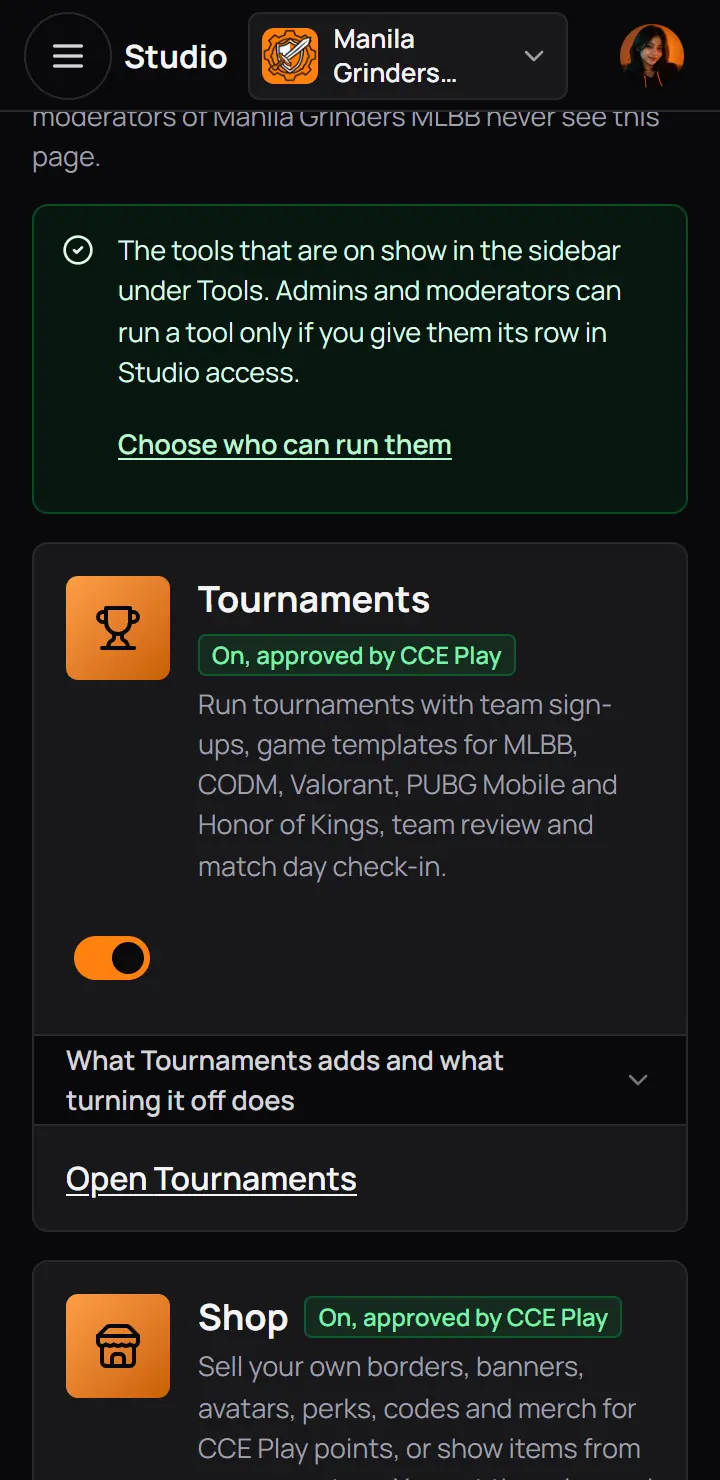
- Choose who can run themOpens Studio access.
- On, approved by CCE PlayThe tool works for your community.
- The switchPress it to turn the tool off.
- What it adds and what turning it off doesPress the line to read it again.
- Open TournamentsGoes to the tool.
Before a tool turns off, Studio checks that nothing is still running. A tournament that is open or set for later, an order that waits to be handed over, a live PlayLab or prizes still to give out, or an upcoming event keeps the tool on.
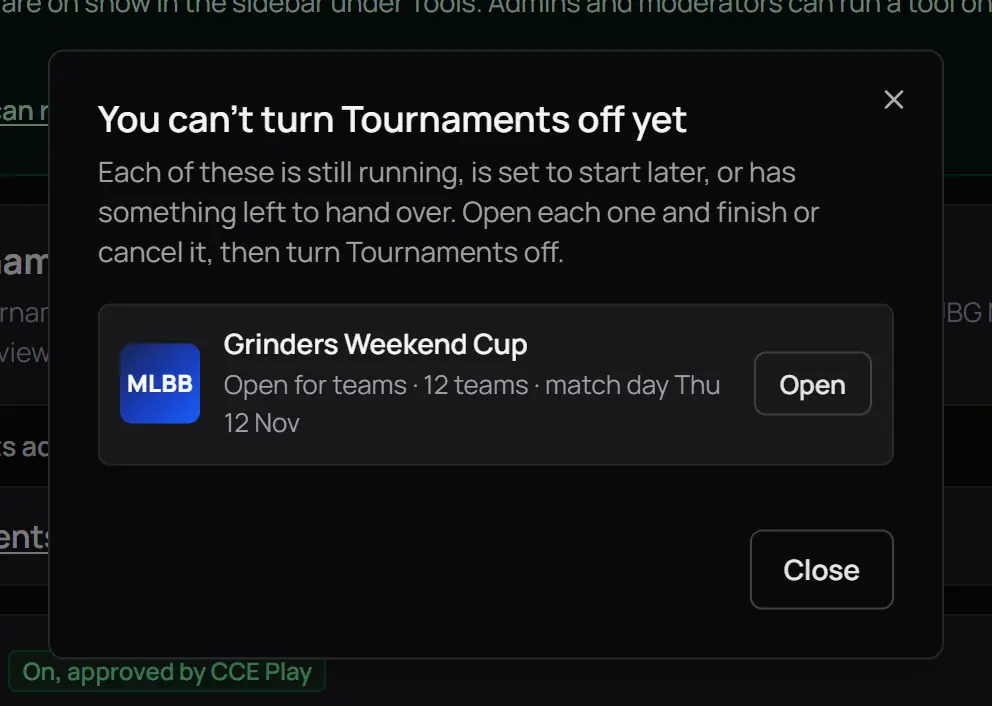
- What keeps it onEach one with where it stands, such as the teams and the match day.
- OpenGoes to it, so you can finish or cancel it.
- CloseThe tool stays on.
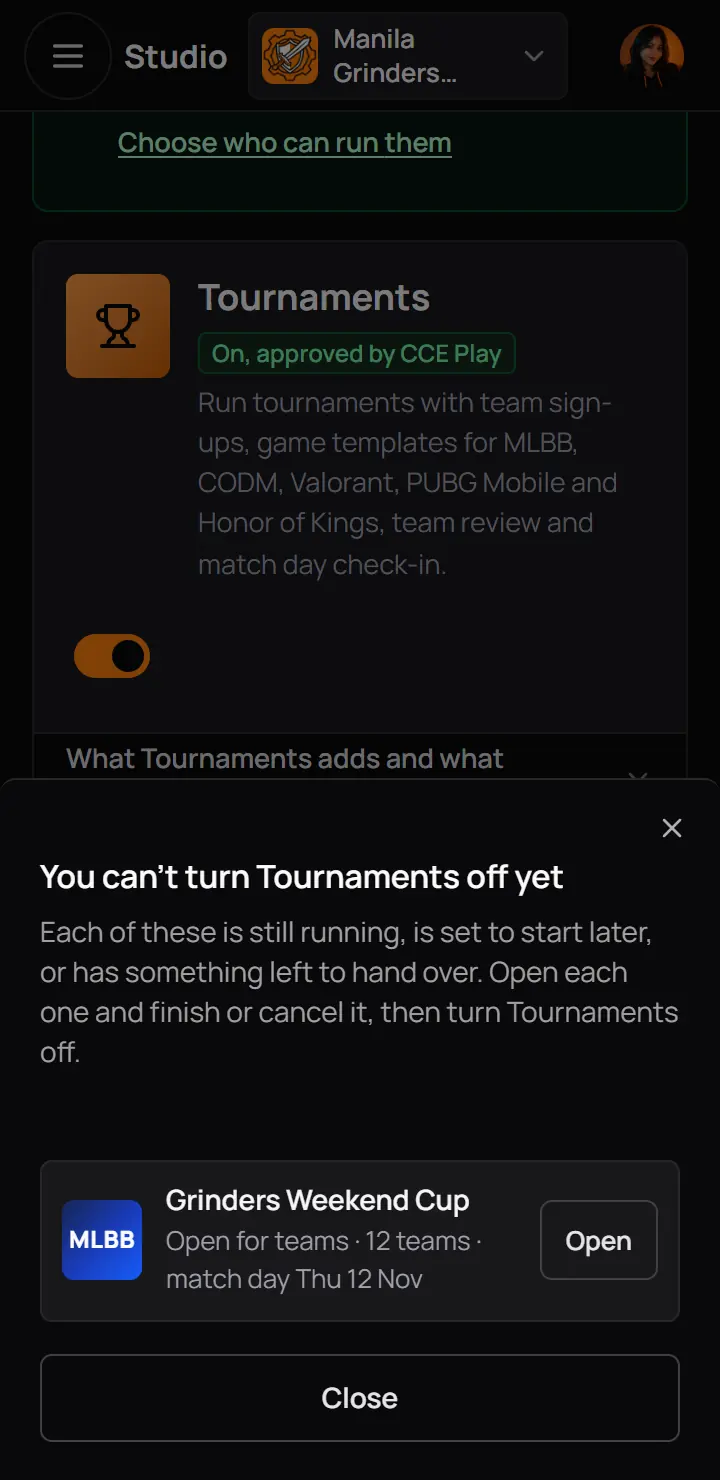
- What keeps it onEach one with where it stands, such as the teams and the match day.
- OpenGoes to it, so you can finish or cancel it.
- CloseThe tool stays on.
Good to know. Turning a tool off deletes nothing. When you turn it back on, every tournament, item, PlayLab or event comes back, and so do the switches you set for it in Studio access.
10When CCE Play turns a tool off
If a community misuses a tool, CCE Play can take it down. Members cannot see it, and you cannot turn it back on yourself. Nothing is deleted.
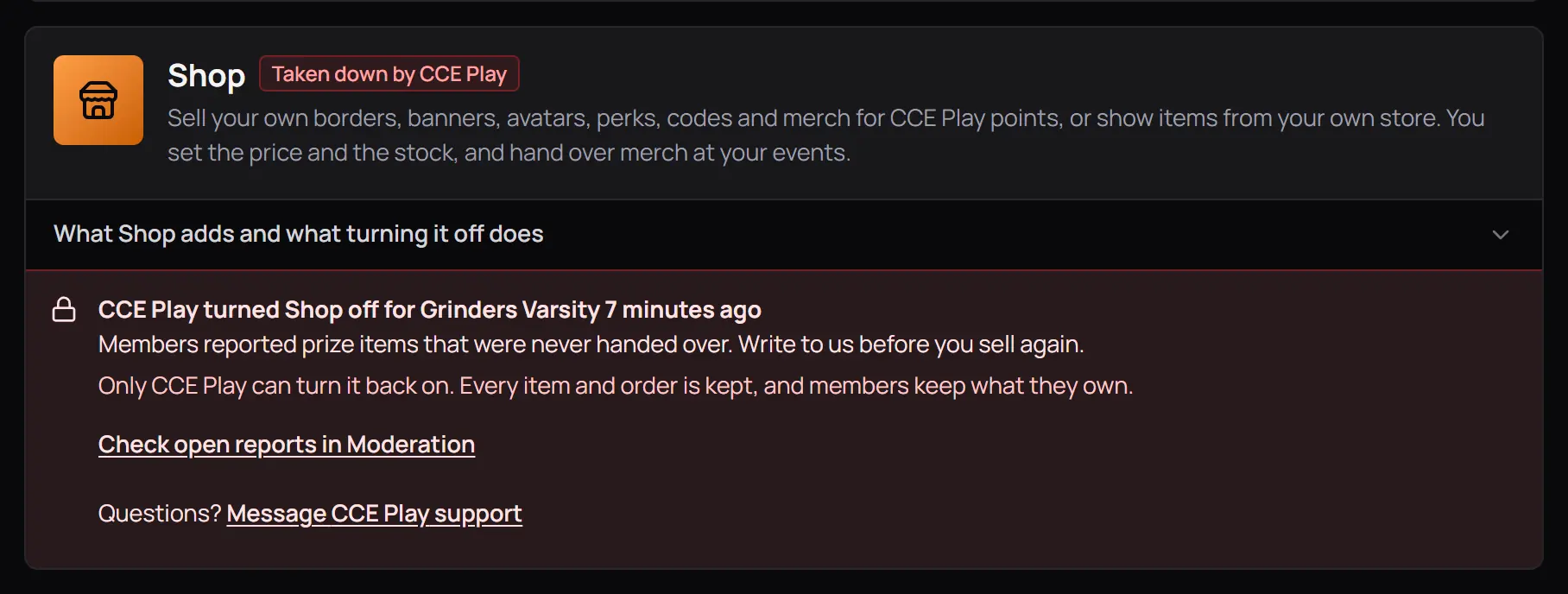
- Taken downThe card has no switch.
- CCE Play's reasonWhat happened, what is kept, a link to your open reports, and Message CCE Play support.
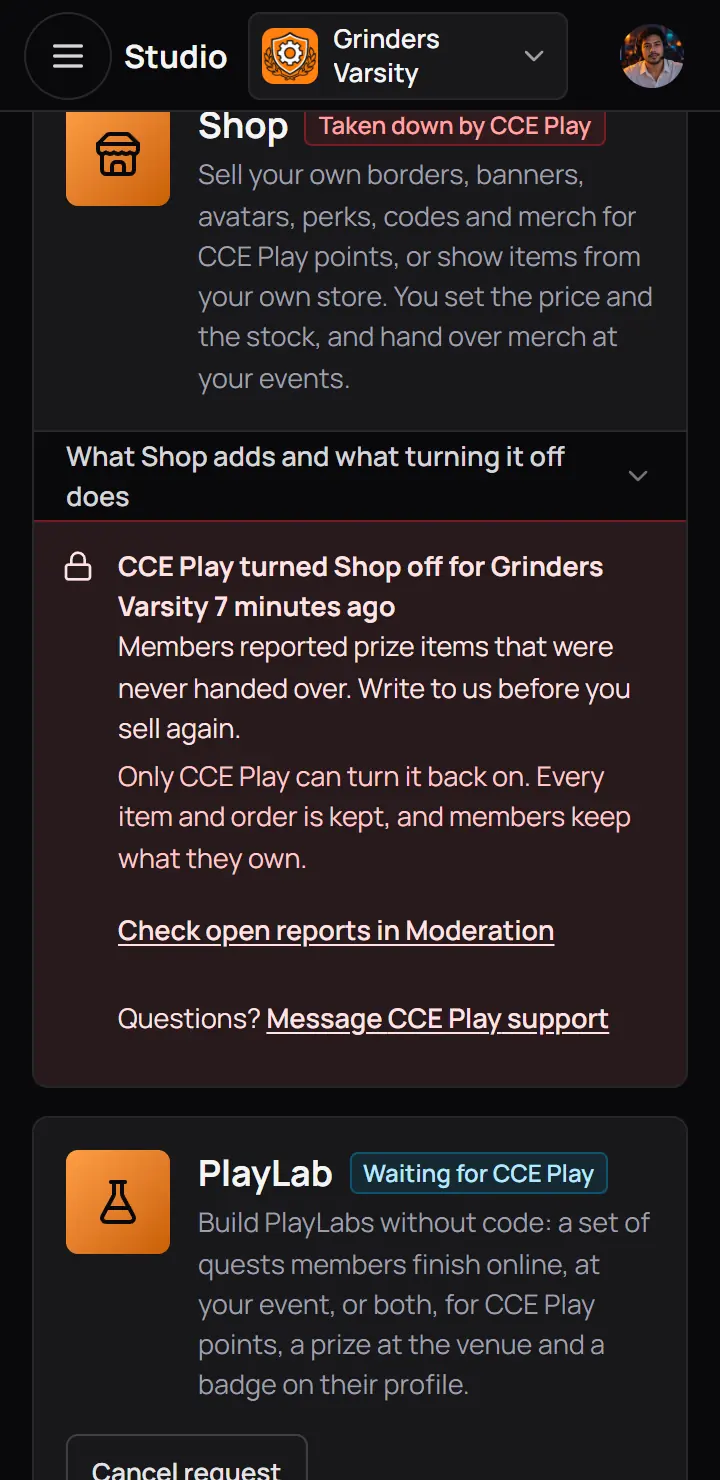
- Taken downThe card has no switch.
- CCE Play's reasonWhat happened, what is kept, a link to your open reports, and Message CCE Play support.
11The Verified badge
The Verified badge is a white seal with a tick next to your community's name. It means CCE Play checked that the community is the real school, team or brand it names. It unlocks nothing. It tells players they found the real one. Open Verified badge under Studio settings to ask for it.
Who can ask
Only the owner can ask, after Studio asks you to confirm it's you. The page shows two checks, and Ask for Verified works once both are met.
- At least 25 members.
- At least 30 days old. When the community is younger, the page names the day you can ask.
What CCE Play looks at
The form is text and links only. CCE Play never asks for files or ID pictures. You say whether the community is a school, a team or a brand, and give your full name, your role there, and a link that names the community, such as its Facebook page or its website. Another link and a note are optional. CCE Play checks that the links show the community and that you run it.
While you wait, the page shows what you sent and a Cancel request button. Cancelling starts no wait. You get a bell and an email with the answer.
After a no, or a removal
If CCE Play says no, the page shows the reason word for word, and you can ask again 30 days later. The same 30 days apply when CCE Play takes the badge off a Verified community.
When the name or the owner changes
A new name, or a new owner after an ownership transfer, sends a Verified community back to CCE Play to check again. The badge keeps showing while they look. If they are happy with the change, nothing changes. If not, they take the badge off and tell you why.
Good to know. Official is a different badge, an orange seal. Official communities are run by CCE Play itself, so it is not something an owner can ask for, and an Official community does not need the Verified badge.
For CCE Play staff. This part is for CCE Play staff. Requests are answered in the admin app under Verified badge. A no or a removal needs a reason the owner reads, and starts the 30 days.
12CCE Play's side, in the admin app
For CCE Play staff. This step is for CCE Play staff. Requests are answered in the admin app under Community tools, Tool requests. Answer the oldest first: the owner was told within 2 working days.
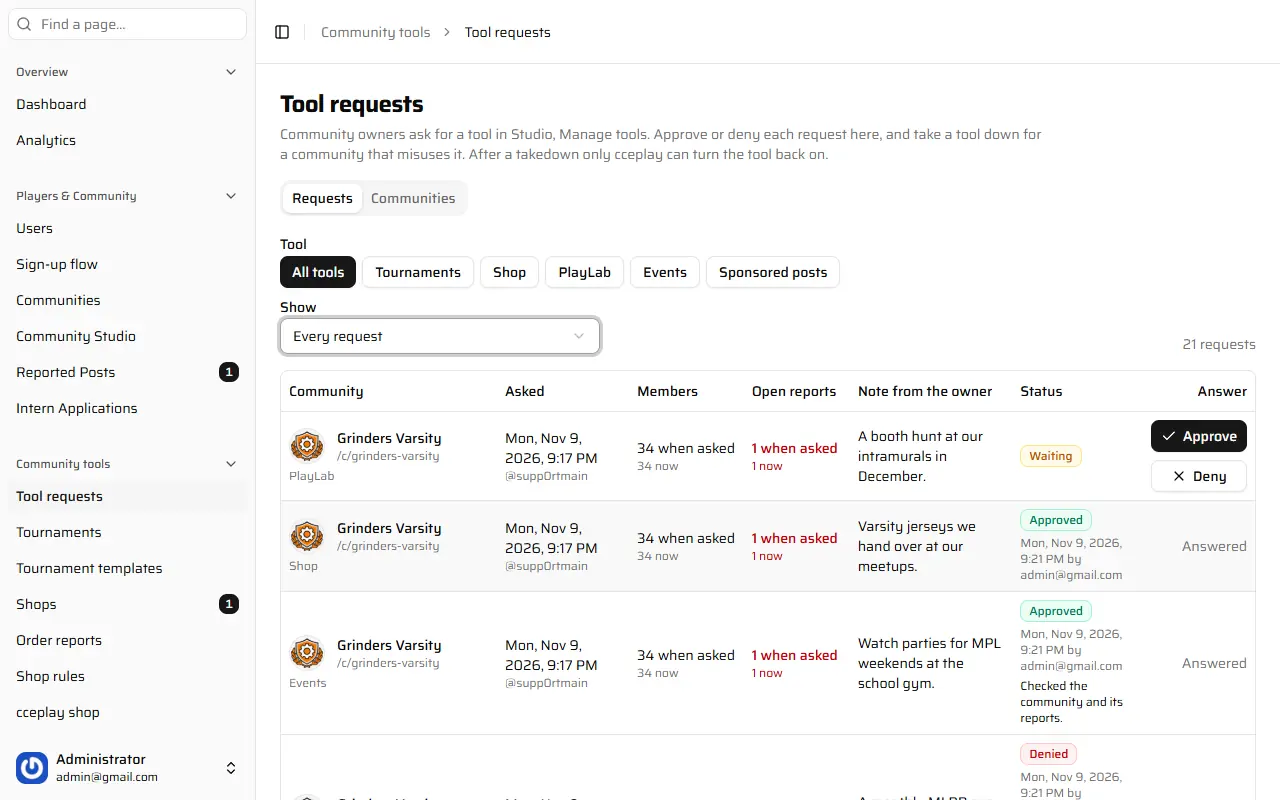
- Requests and CommunitiesRequests waits for an answer. Communities lists every tool that was ever on.
- ToolAll tools, or one.
- ShowWaiting by default. Here Every request, so the answered ones show too.
- One requestThe community, when it asked, its members, its open reports and the owner's note. Press the community to read its Studio, read only.
- ApproveTurns the tool on.
- DenyAsks for a reason the owner reads.
- Requests and CommunitiesRequests waits for an answer. Communities lists every tool that was ever on.
- ToolAll tools, or one.
- ShowWaiting by default. Here Every request, so the answered ones show too.
- One requestThe community, when it asked, its members, its open reports and the owner's note. Press the community to read its Studio, read only.
- ApproveTurns the tool on.
- DenyAsks for a reason the owner reads.
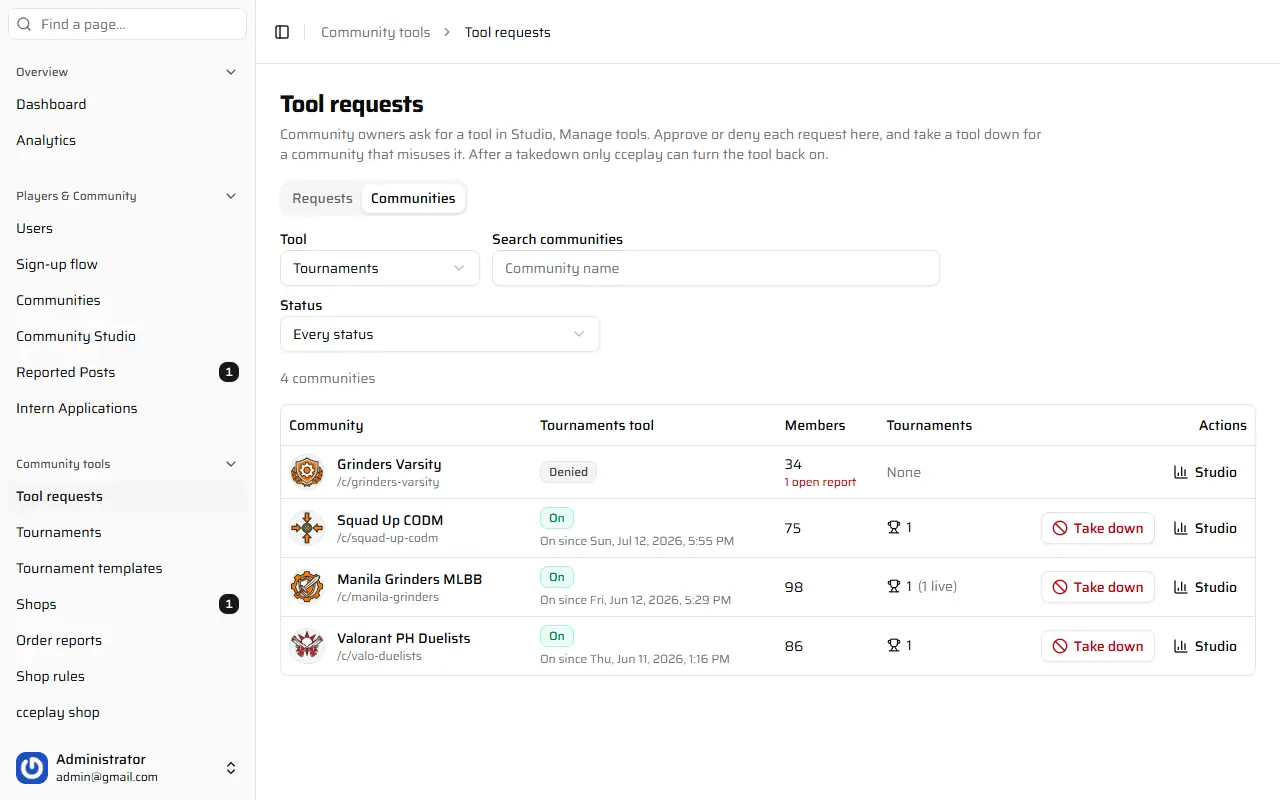
- ToolOne tool at a time. Tournaments shows first.
- Search communitiesBy name.
- StatusOn, off, taken down, or every status.
- One communityThe tool's state and since when, the members and open reports, and what the tool holds.
- Take downTurns the tool off for the community.
- ToolOne tool at a time. Tournaments shows first.
- Search communitiesBy name.
- StatusOn, off, taken down, or every status.
- One communityThe tool's state and since when, the members and open reports, and what the tool holds.
- Take downTurns the tool off for the community.
- A takedown also works while something is running. Players see the tool as paused until a restore.
- A request that was still waiting when you took the tool down becomes Not approved.
- Every answer, takedown and restore is in the owner's Activity log as CCE Play support.
13If something goes wrong
| You see | What to do |
|---|---|
| This page is not shared with you | What to doOnly the owner opens Studio access, Manage tools, the Verified badge and the Activity log. Ask the owner. |
| Studio access could not be saved. Try again. | What to doCheck your internet connection and press Save changes again. Your switches are still set. |
| A community needs 25 members to ask for this tool. It has 12. | What to doGrow the community to 25 members, then ask. |
| CCE Play said no to the last request. You can ask again on ... | What to doFix what the reason says, and ask again on that date. |
| You can't turn Tournaments off yet | What to doOpen each item in the list and finish or cancel it, then turn the tool off. |
| CCE Play turned this tool off for the community. Only CCE Play can turn it back on. | What to doRead the reason on the card, then press Message CCE Play support. |
| The tools could not load. Try again. | What to doCheck your internet connection, then press Try again. |
| You already asked. CCE Play is looking at your request. | What to doWait for the bell. You can cancel the request on the Verified badge page. |
| You can ask again on ... | What to doCCE Play said no or took the badge off less than 30 days ago. Ask again on that date. |
| This community is Official, so it does not need the Verified badge. CCE Play already runs it. | What to doNothing to do. The orange Official seal already shows next to the name. |
Your admins see your changes to Studio access when they reload Studio. A change to your admins and moderators themselves is made in the Members tab of your community, not in Studio.