
1Open Studio
Studio is for the people who run a community: its owner, admins and moderators. It always opens in a new tab, so the community page stays open in the tab you came from.
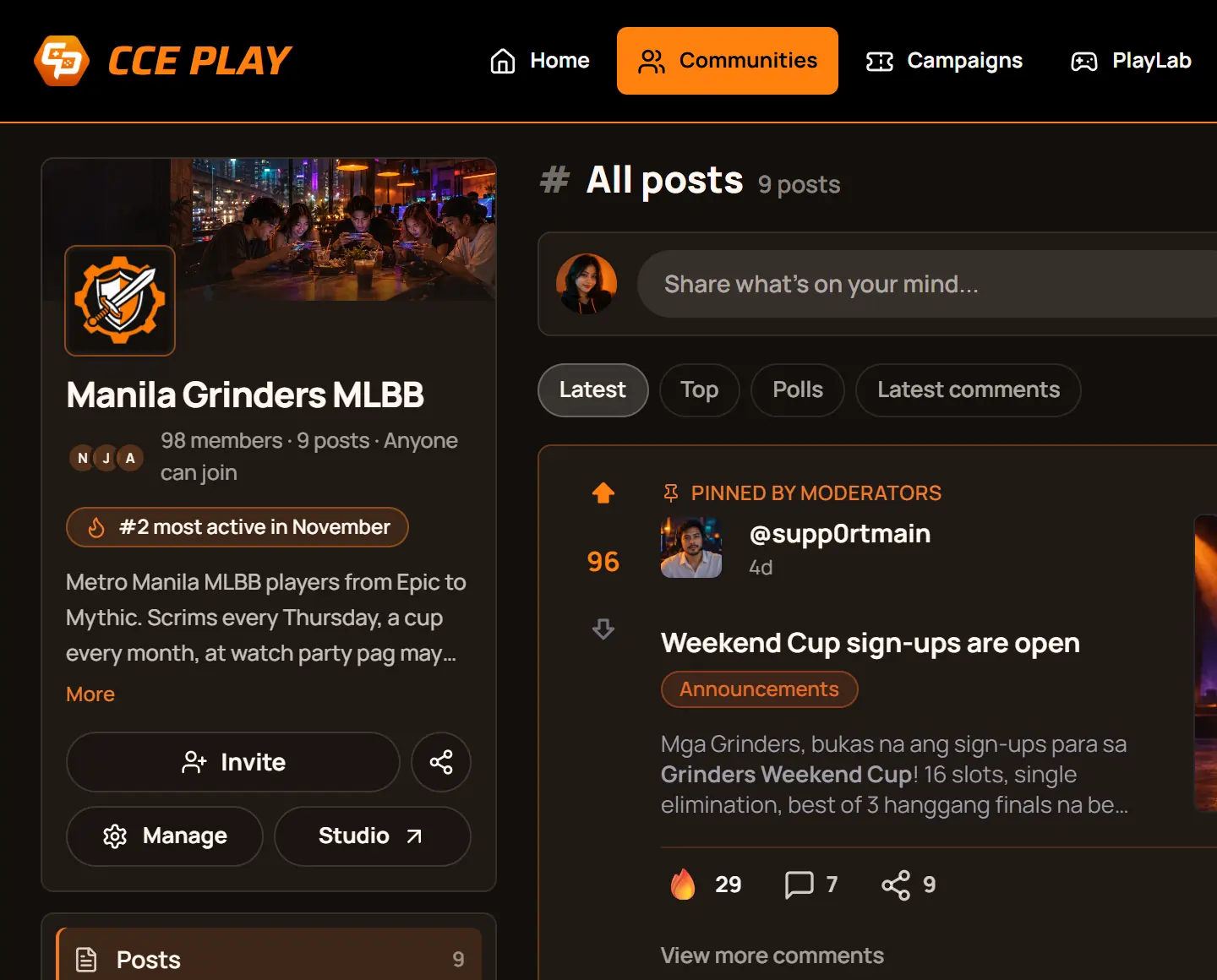
- Press StudioOn a computer it is in the column on the left. On a phone it is the small chart button at the top of the community page.
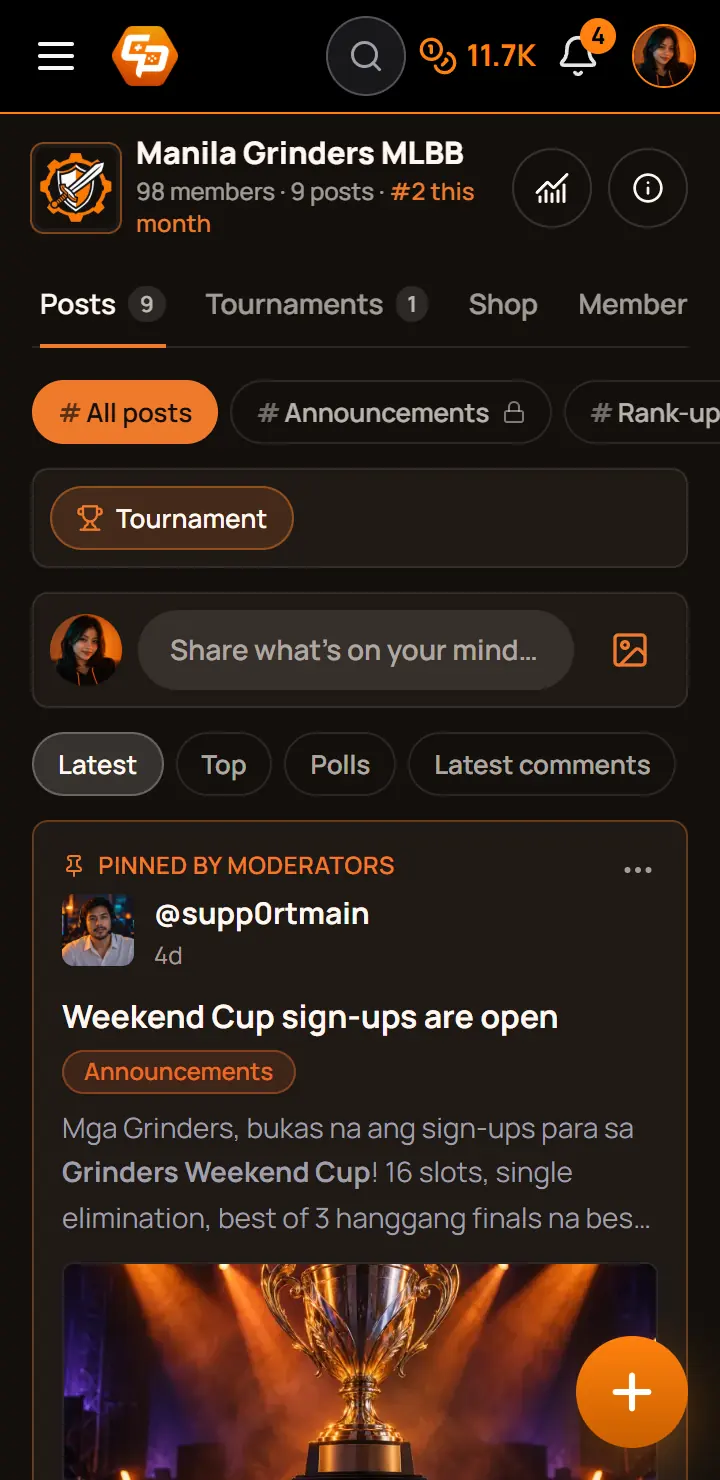
- Press StudioOn a computer it is in the column on the left. On a phone it is the small chart button at the top of the community page.
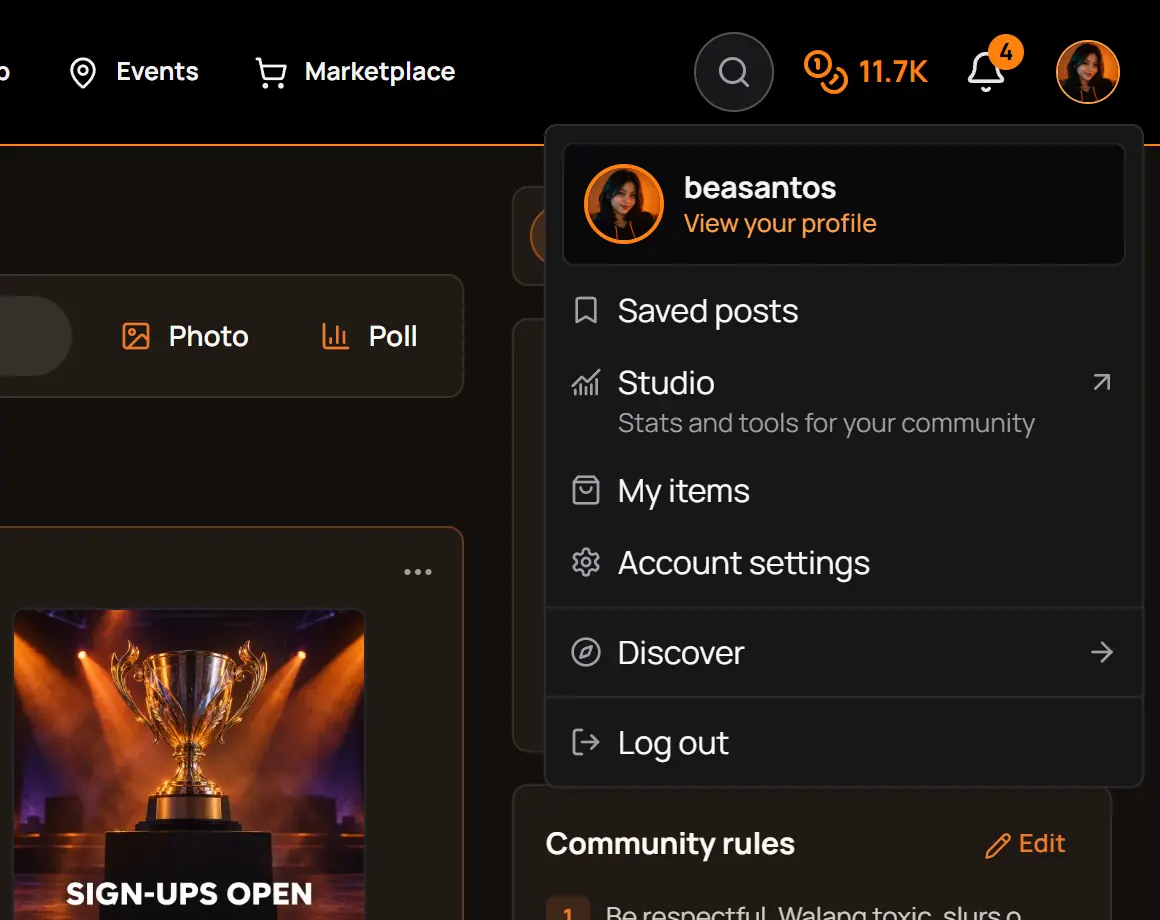
- Open your menuPress your picture at the top right of any page.
- Press StudioOn a phone, tap your picture at the top right first. The Studio row shows once you help run a community.
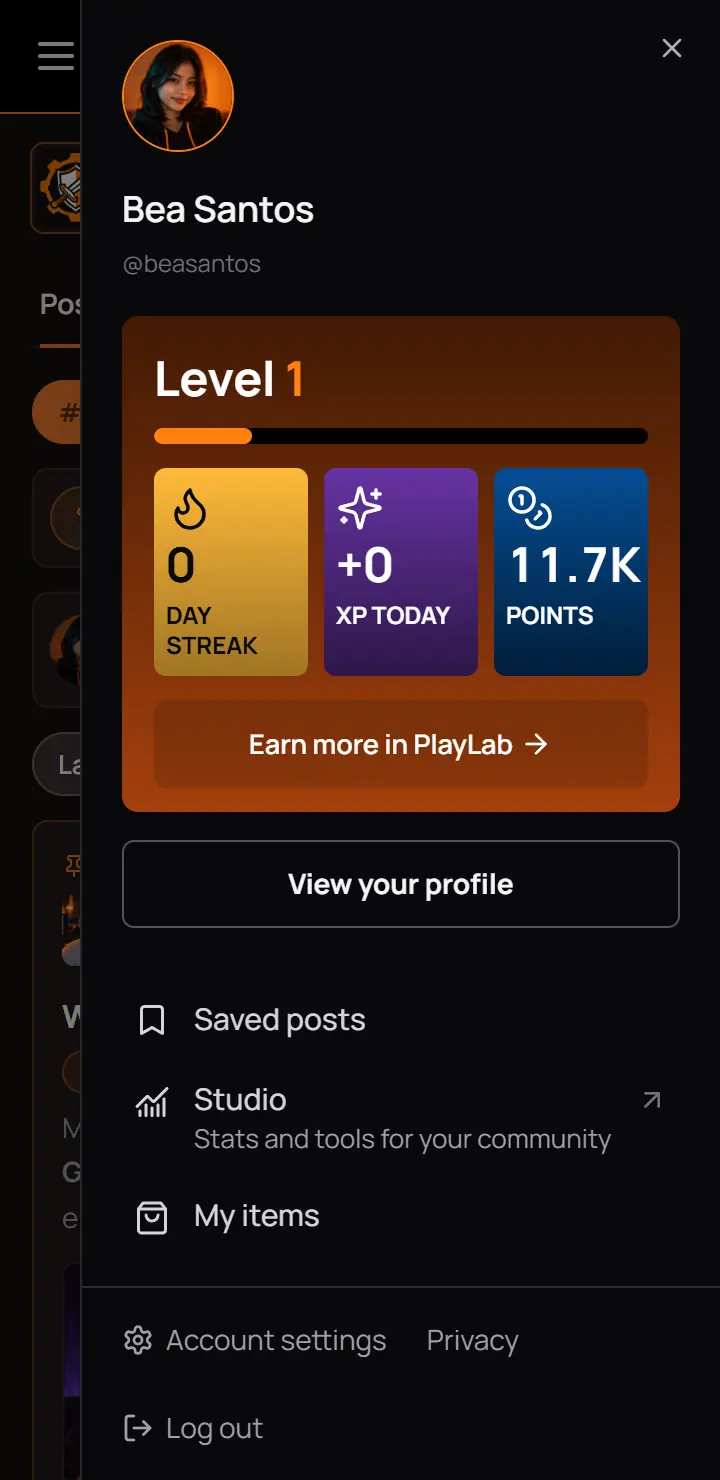
- Press StudioOn a phone, tap your picture at the top right first. The Studio row shows once you help run a community.
Other ways in
- The Studio card in the community's settings.
- "Open Studio" right after you create a community, and in its setup checklist.
- "View insights" in a post's menu, which opens that post's numbers.
- Studio notifications, such as the Monday summary and member milestones.
Good to know. If you do not see the Studio button, you are not staff of that community yet. Ask its owner to make you an admin or moderator.
For CCE Play staff. CCE Play admins can read any community's numbers in the admin app under Studio insights, read only. Each look is written in the owner's Activity log as "cceplay support viewed", so owners can see it.
2Pick a community
If you help run one community, Studio opens it straight away. If you help run two or more, it asks which one first. If you are not logged in, it sends you to Log in.
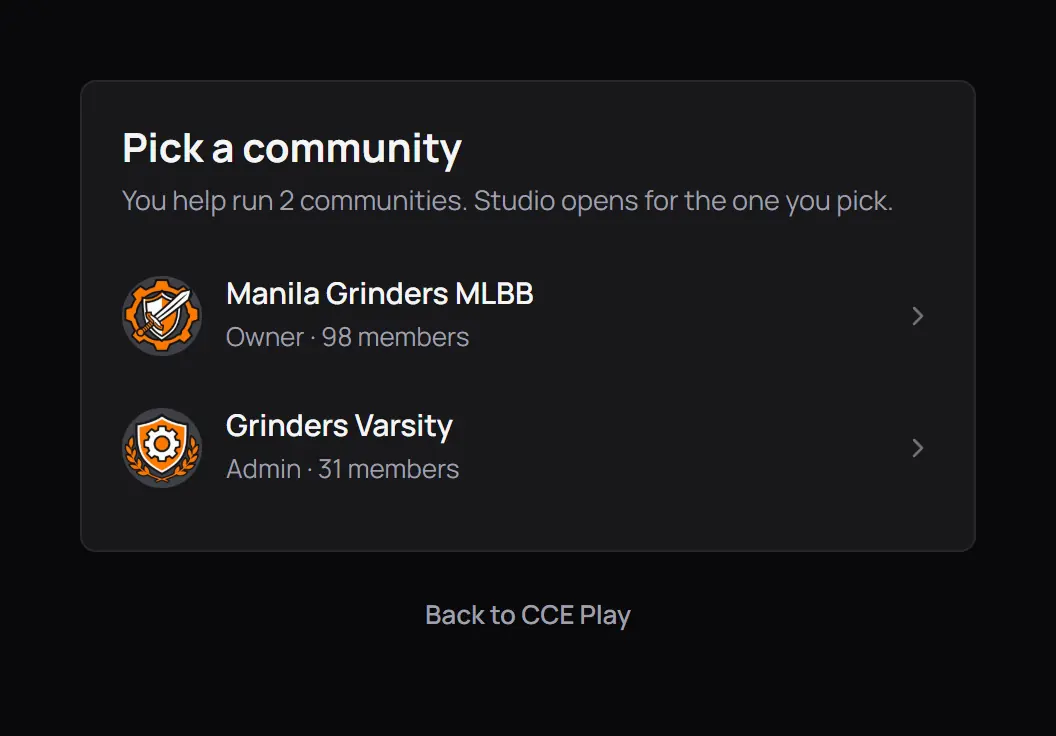
- Press the community you wantEach row shows your role and how many members it has. The ones you own come first.
- Back to CCE PlayLeaves Studio for the CCE Play home page.
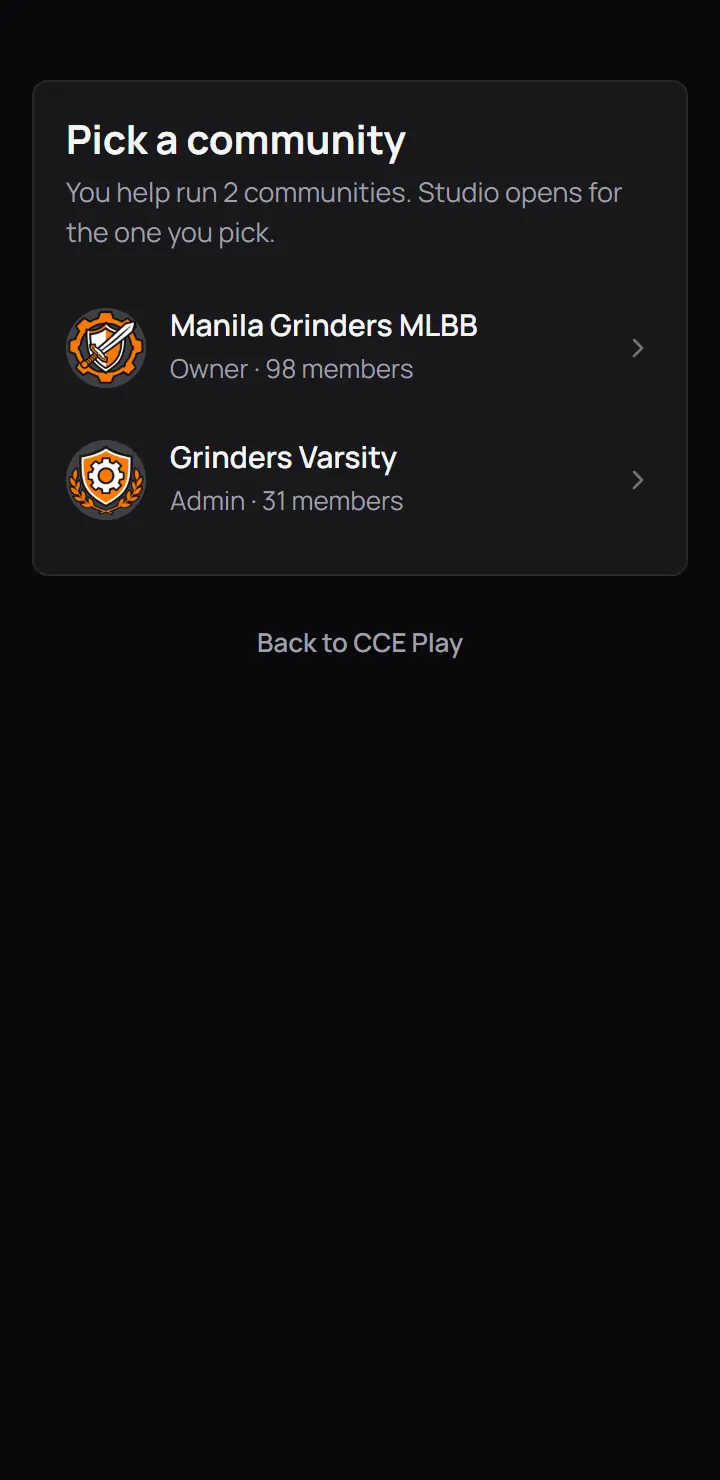
- Press the community you wantEach row shows your role and how many members it has. The ones you own come first.
- Back to CCE PlayLeaves Studio for the CCE Play home page.
3Confirm it's you
Before Studio shows a single number, it asks for your password again. This keeps your community safe if someone else picks up your phone or uses your computer while you are logged in.
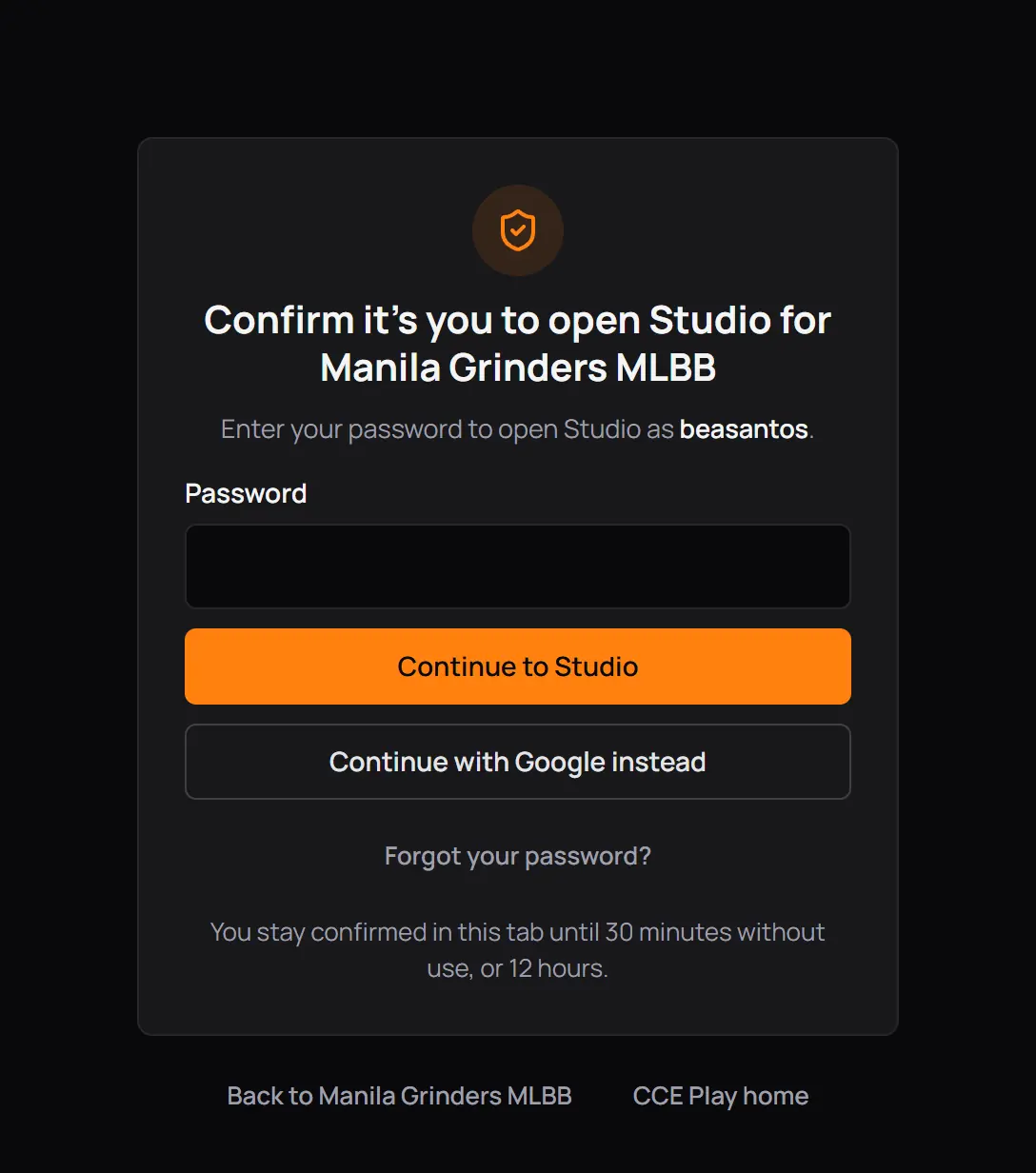
- Type your passwordThe same one you log in to CCE Play with.
- Press Continue to StudioStudio opens on the first page you may open.
- Or continue with GoogleIf your account is linked to Google, confirm with Google instead.
- Forgot your password?Opens the page where you set a new one.
- Not nowGo back to the community, or to the CCE Play home page.
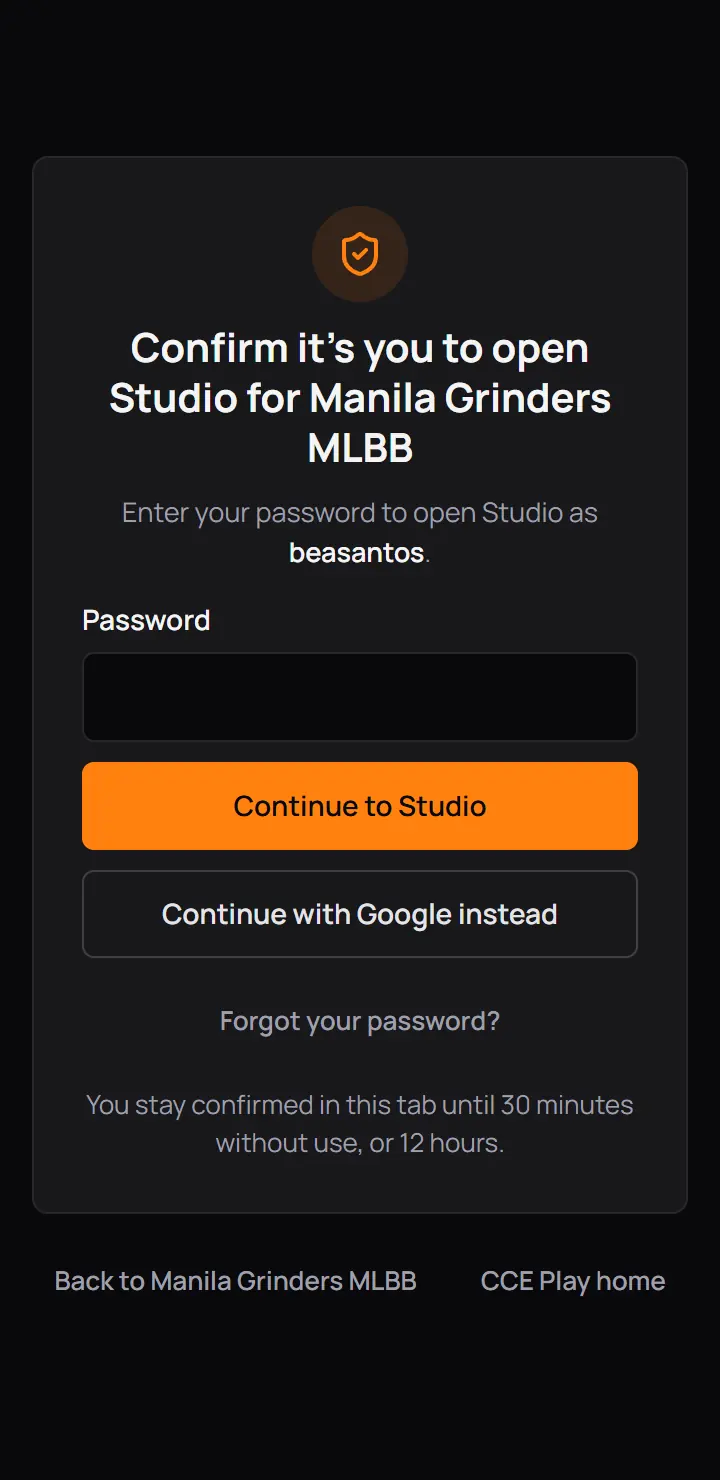
- Type your passwordThe same one you log in to CCE Play with.
- Press Continue to StudioStudio opens on the first page you may open.
- Or continue with GoogleIf your account is linked to Google, confirm with Google instead.
- Forgot your password?Opens the page where you set a new one.
- Not nowGo back to the community, or to the CCE Play home page.
Good to know. You stay confirmed in this tab until you leave Studio alone for 30 minutes, or for 12 hours at most. One confirm covers every community you help run, so switching communities does not ask again. A new tab does.
For CCE Play staff. Nobody can lift a lock early, CCE Play staff included. The owner sees every wrong try and every lock in Studio's Activity log, under Sign-ins.
4Find your way around
Every Studio page has the same frame: the menu, the community you are in, and your role.
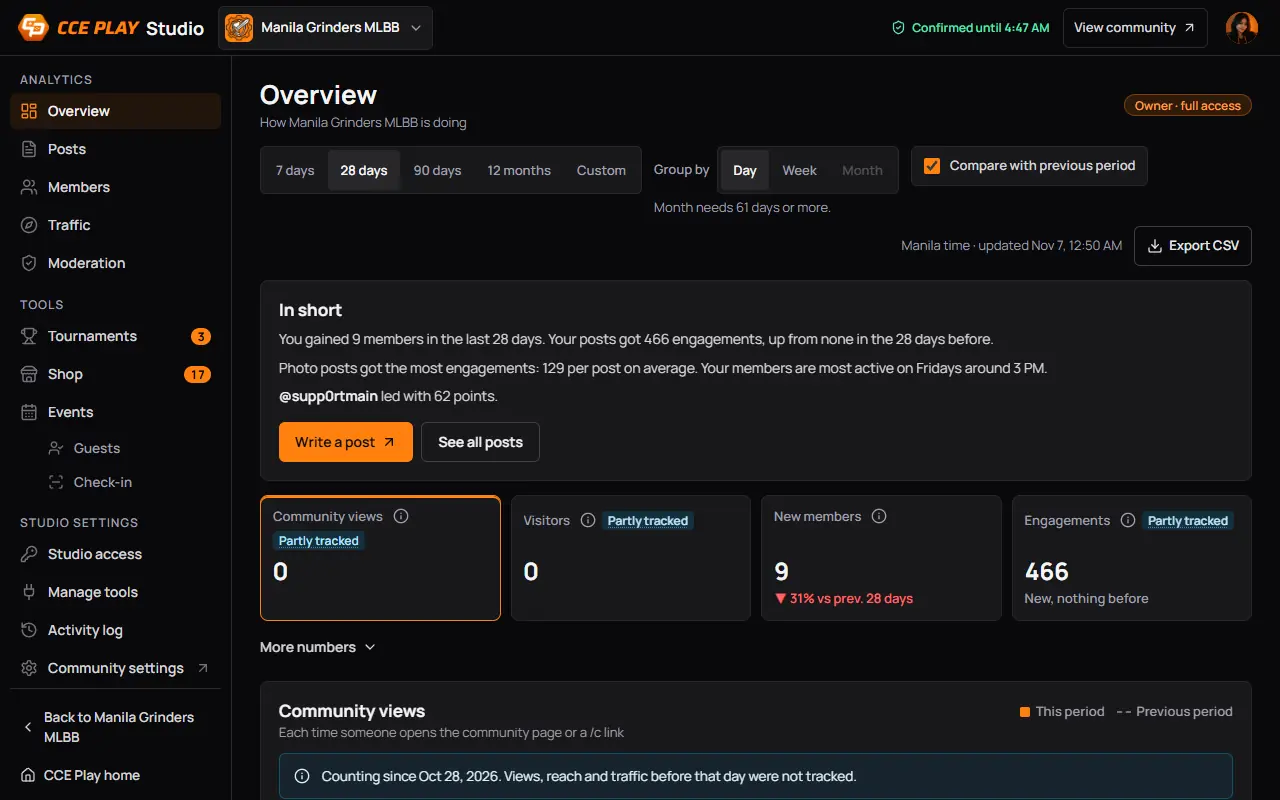
- The community you are inPress it to switch to another community you help run.
- The menuOn a computer it stays on the left. On a phone, tap the round button with three lines.
- Your role"Owner · full access", or for staff how many pages the owner shares with you.
- Something waits for youA number beside a tool, such as teams to review.
- How long you stay confirmedThe time Studio asks for your password again.
- View communityOpens the community page in a new tab.
- Your account menuLock Studio, and the ways back.
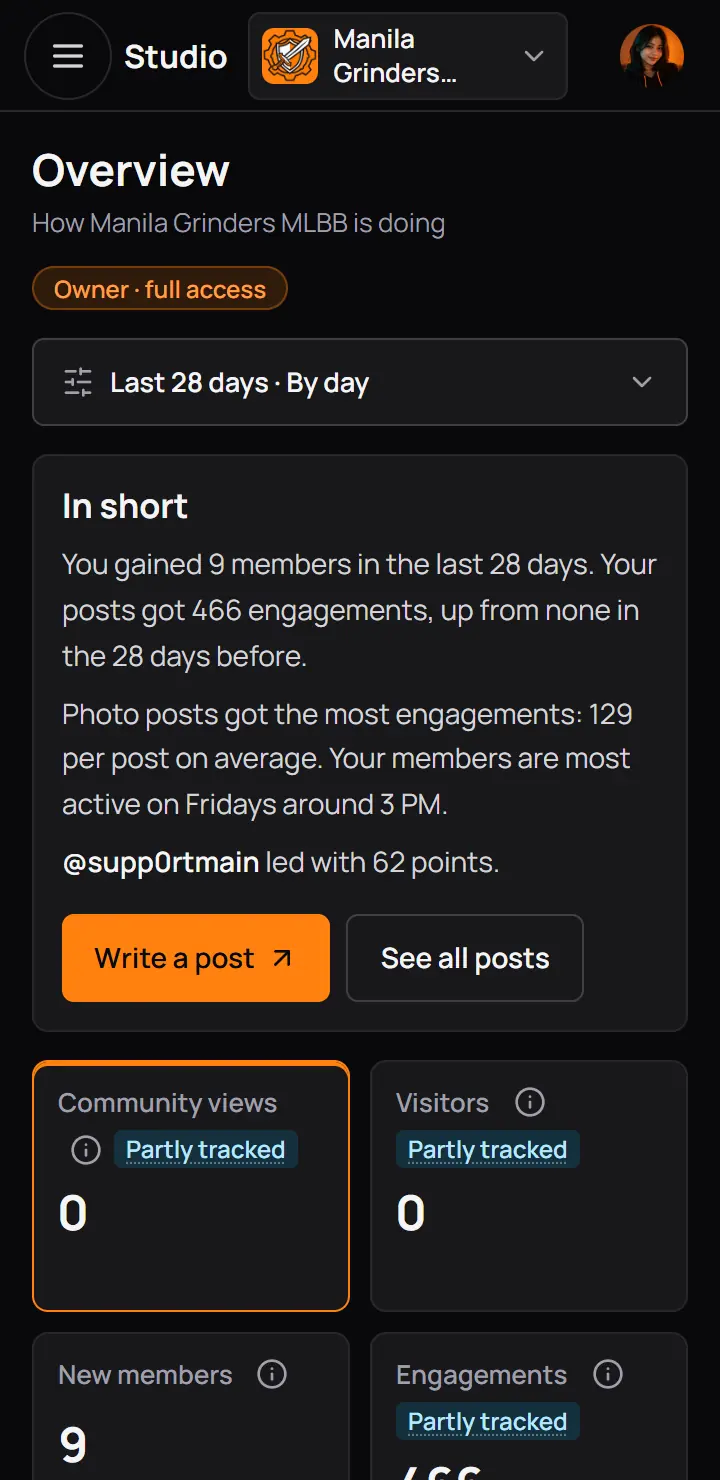
- The community you are inPress it to switch to another community you help run.
- The menuOn a computer it stays on the left. On a phone, tap the round button with three lines.
- Your role"Owner · full access", or for staff how many pages the owner shares with you.
- Your account menuLock Studio, and the ways back.
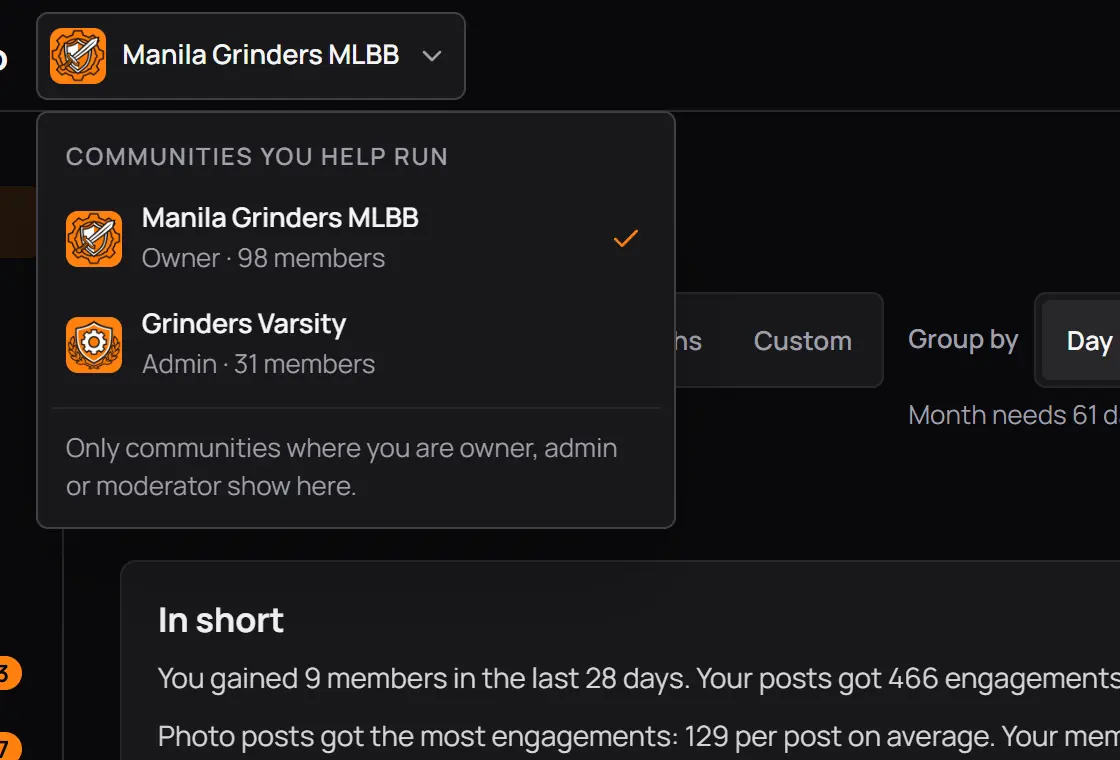
- Open the listPress the community's name at the top.
- The community you are inIt has a tick.
- Press another to switchStudio opens it on the first page you may open there, and you stay confirmed.
Only the communities where you are owner, admin or moderator are in this list.
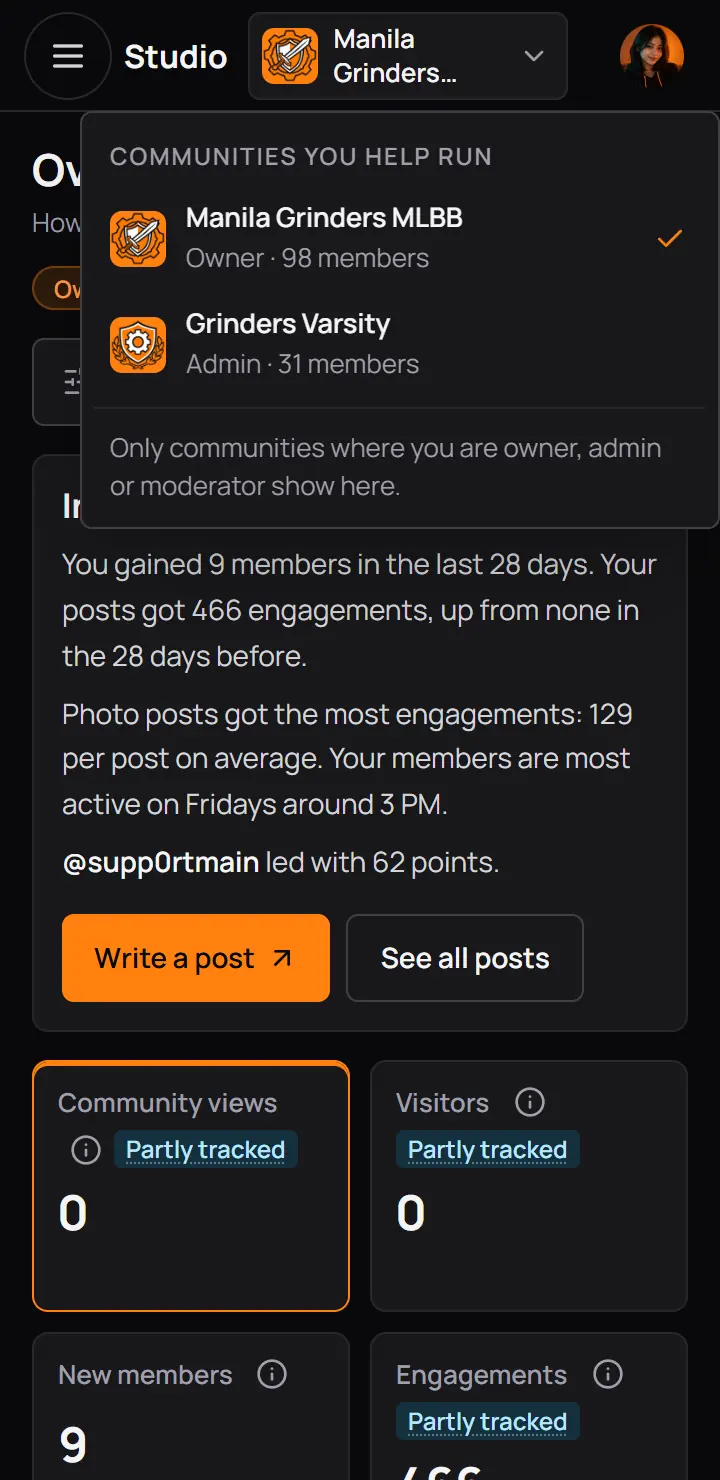
- The community you are inIt has a tick.
- Press another to switchStudio opens it on the first page you may open there, and you stay confirmed.
Only the communities where you are owner, admin or moderator are in this list.
5What your role can open
The menu shows only the pages your role may open, and the badge at the top of every page says how many. The owner always sees everything and chooses what admins and moderators can open.
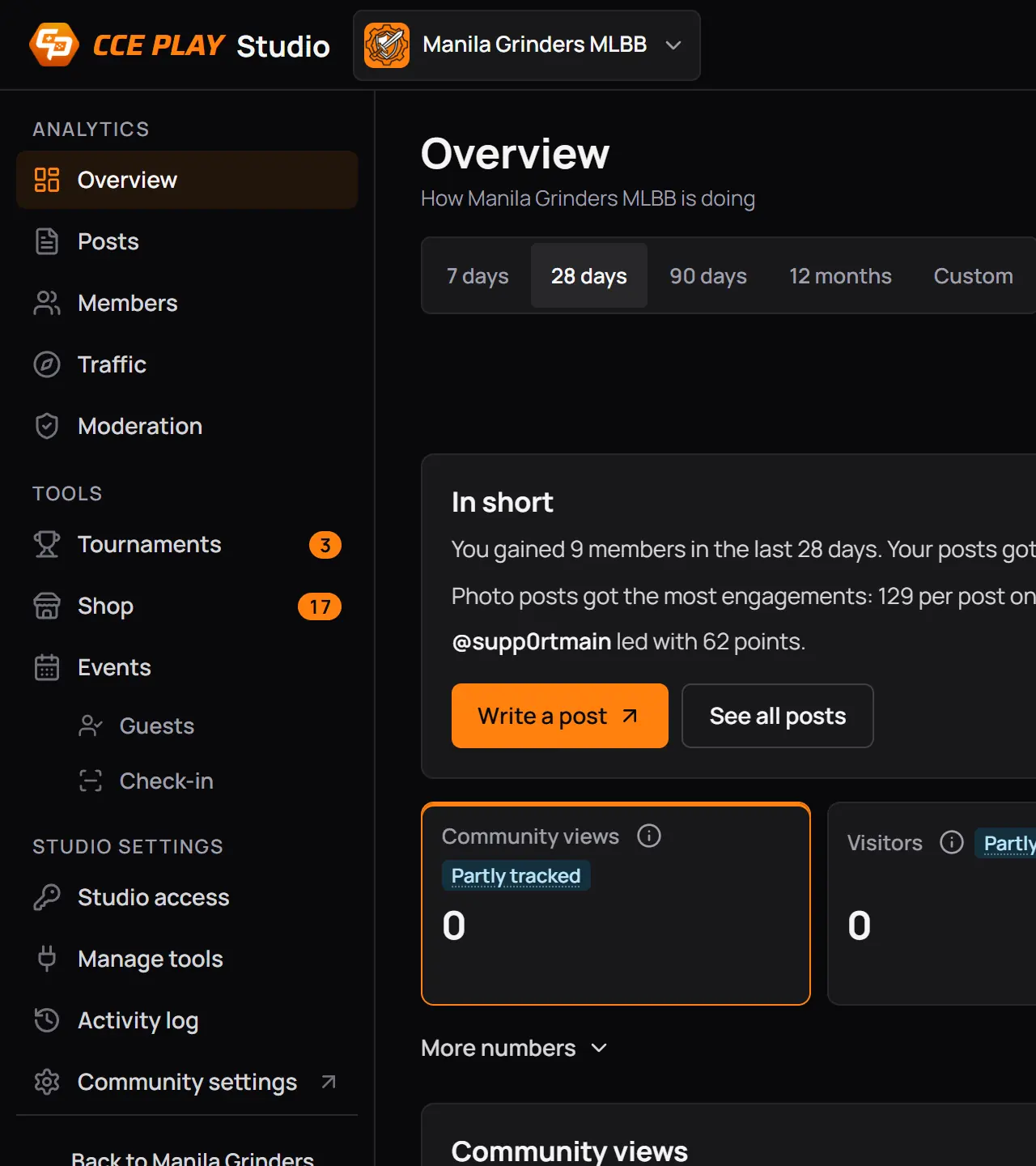
- Every pageAnalytics, the tools that are on, and Studio settings.
The badge at the top of every page reads "Owner · full access".
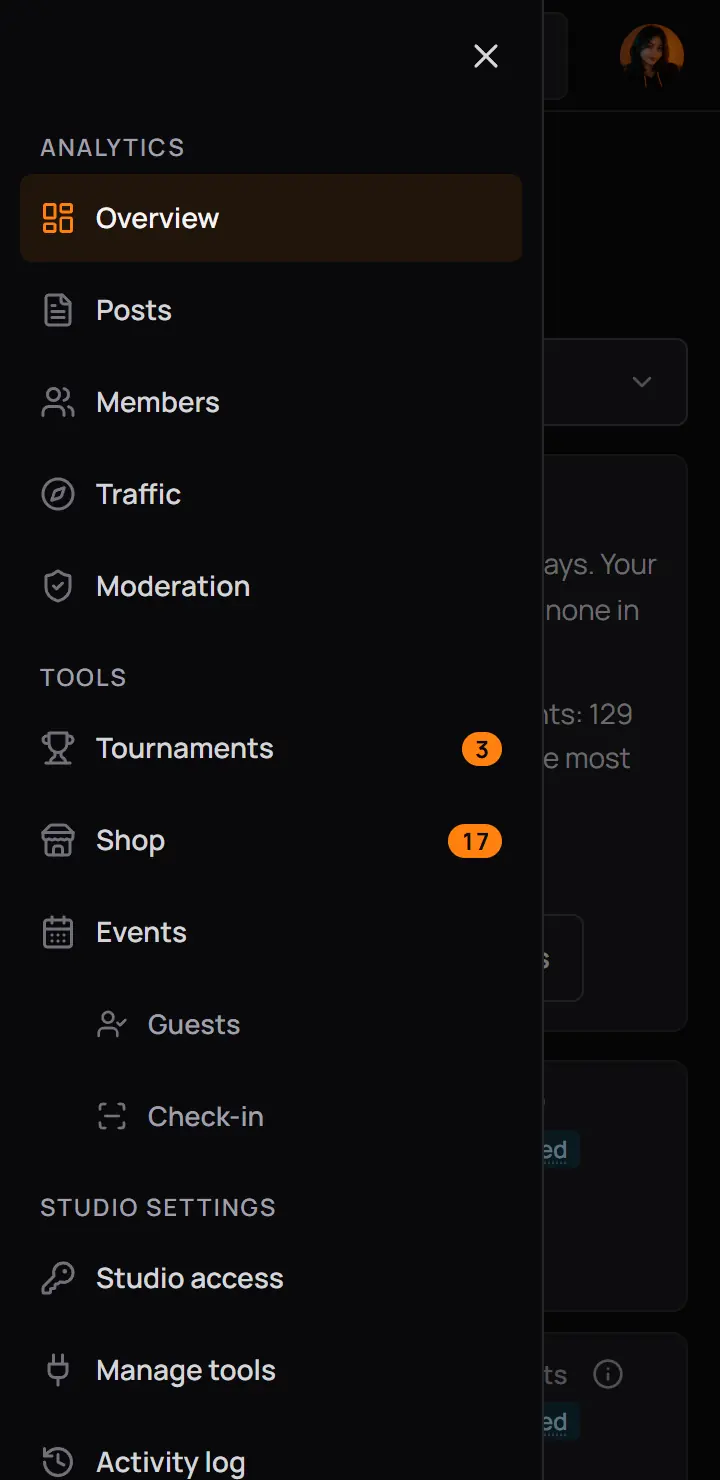
- AnalyticsThe numbers pages: Overview, Posts, Members, Traffic, Moderation.
- ToolsThe tools CCE Play turned on for the community.
- Studio settingsOnly the owner has these.
- Close the menuOr tap outside it.
The badge at the top of every page reads "Owner · full access".
| Role | Can open by default | Who changes it |
|---|---|---|
| Owner | Can open by defaultEvery page, the tools and Studio settings | Who changes itNobody, the owner always has everything |
| Admin | Can open by defaultOverview, Posts, Members, Traffic and Moderation | Who changes itThe owner, in Studio access |
| Moderator | Can open by defaultOverview, Posts and Moderation | Who changes itThe owner, in Studio access |
In the pictures the owner of Manila Grinders MLBB shared more than the defaults. Admins and moderators run a tool, or download the numbers, only when the owner ticks it for their role in Studio access. The owner's settings shows how.
A page that is not shared with you
If you open a page your role may not see, for example from a link someone sent you, Studio says so and names the owner. In the picture a moderator opened Traffic.
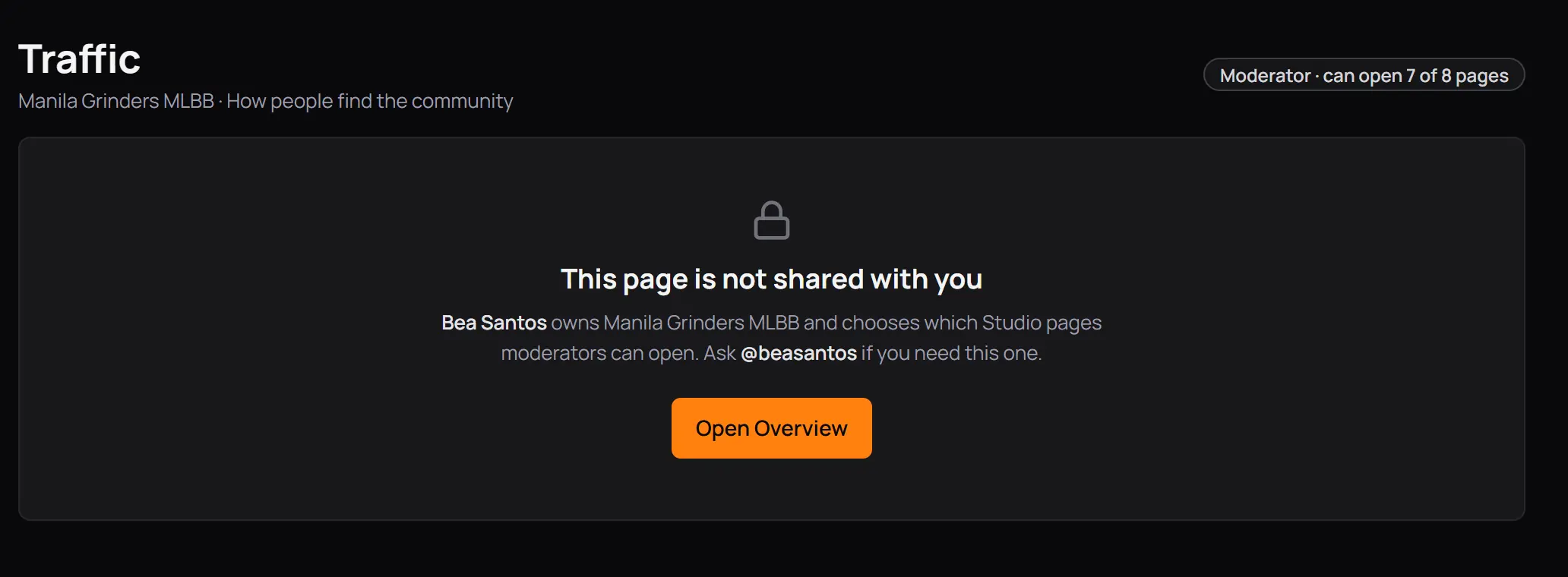
- Who to askThe owner's name and @username. Press the @username to open their profile in a new tab.
- Go to a page you can openTakes you to your first page in the menu.
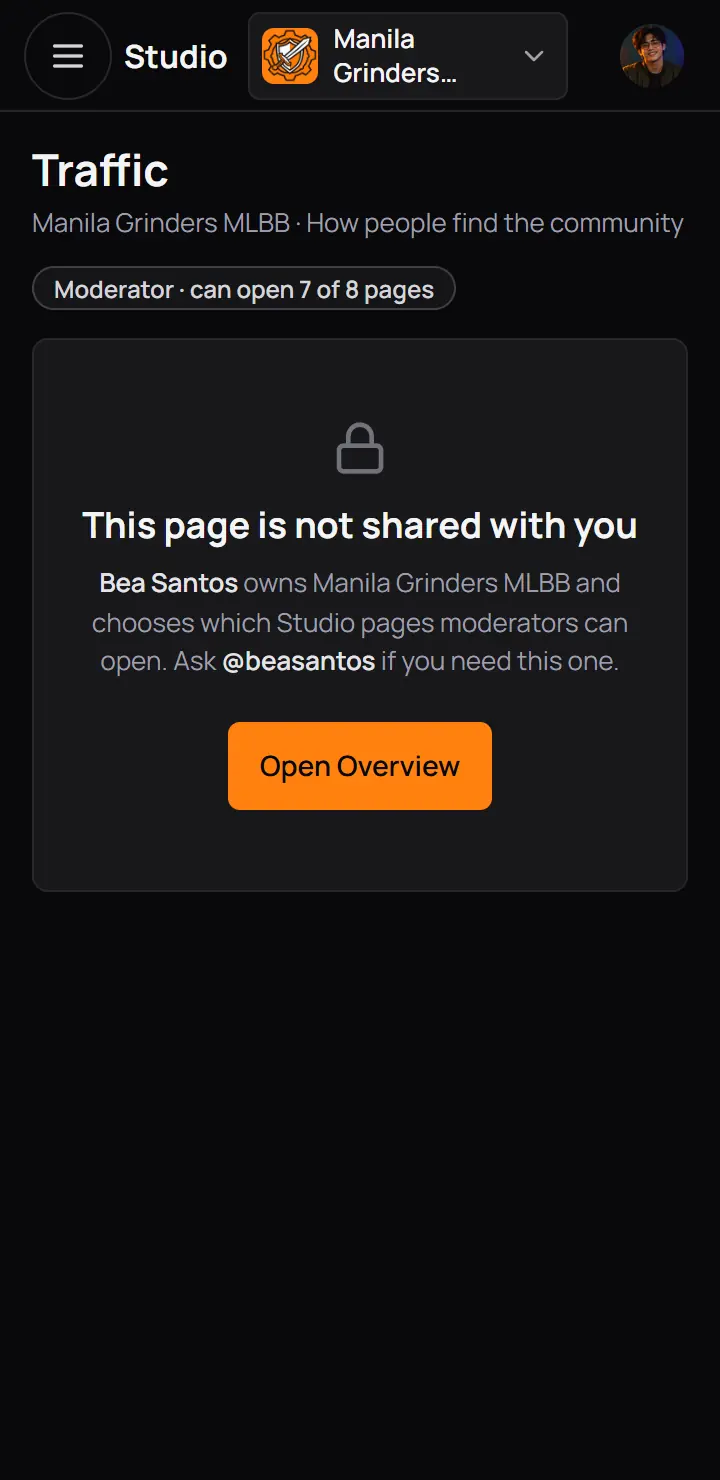
- Who to askThe owner's name and @username. Press the @username to open their profile in a new tab.
- Go to a page you can openTakes you to your first page in the menu.
Good to know. When the owner changes what you can open, reload Studio to see the new menu.
6The numbers in the menu
A small orange number beside a tool means something is waiting for you there. Hold the pointer on it to read what it counts.
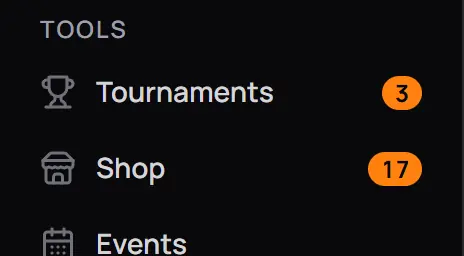
- 3 teams to reviewTeams that signed up and wait for you to accept them.
- 17 orders to hand overShop orders that wait for you to hand them over.
- 3 teams to reviewTeams that signed up and wait for you to accept them.
- 17 orders to hand overShop orders that wait for you to hand them over.
| Beside | What it counts | Who sees it |
|---|---|---|
| Tournaments | What it countsTeams waiting for review in running and upcoming tournaments | Who sees itPeople who run tournaments |
| Shop | What it countsOrders to hand over | Who sees itPeople who hand over orders |
| PlayLab | What it countsProofs waiting for review | Who sees itPeople who build PlayLabs |
| Guests, under Events | What it countsGuests waiting for approval | Who sees itPeople who run events |
No number means nothing waits. Above 99 it shows 99+.
7When Studio asks again
Studio asks you to confirm it's you again when:
- you leave it alone for 30 minutes,
- 12 hours have passed since you confirmed,
- you press Lock Studio,
- you log out of CCE Play, in any tab,
- or the owner ends every Studio session of the community.
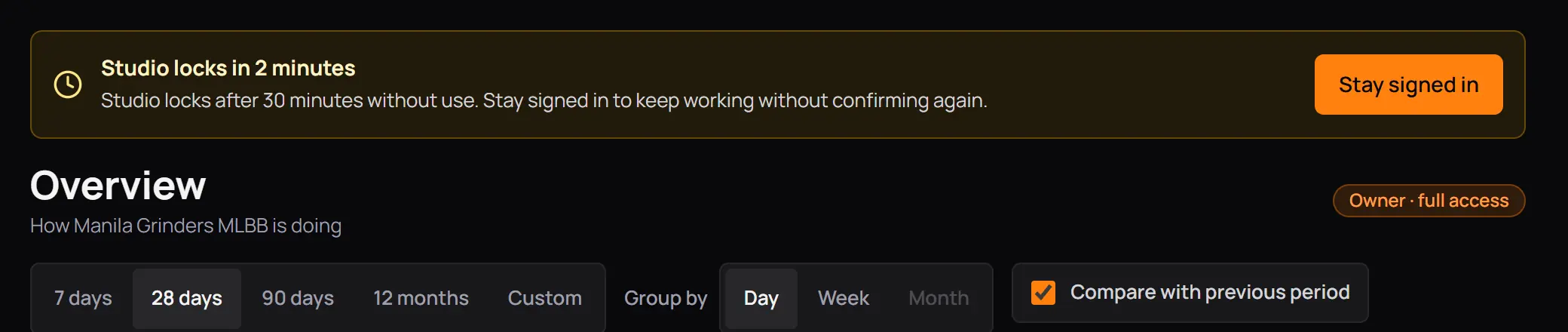
- Studio locks in 2 minutesShows 2 minutes before the 30 quiet minutes are up.
- Stay signed inKeeps Studio open without typing your password.
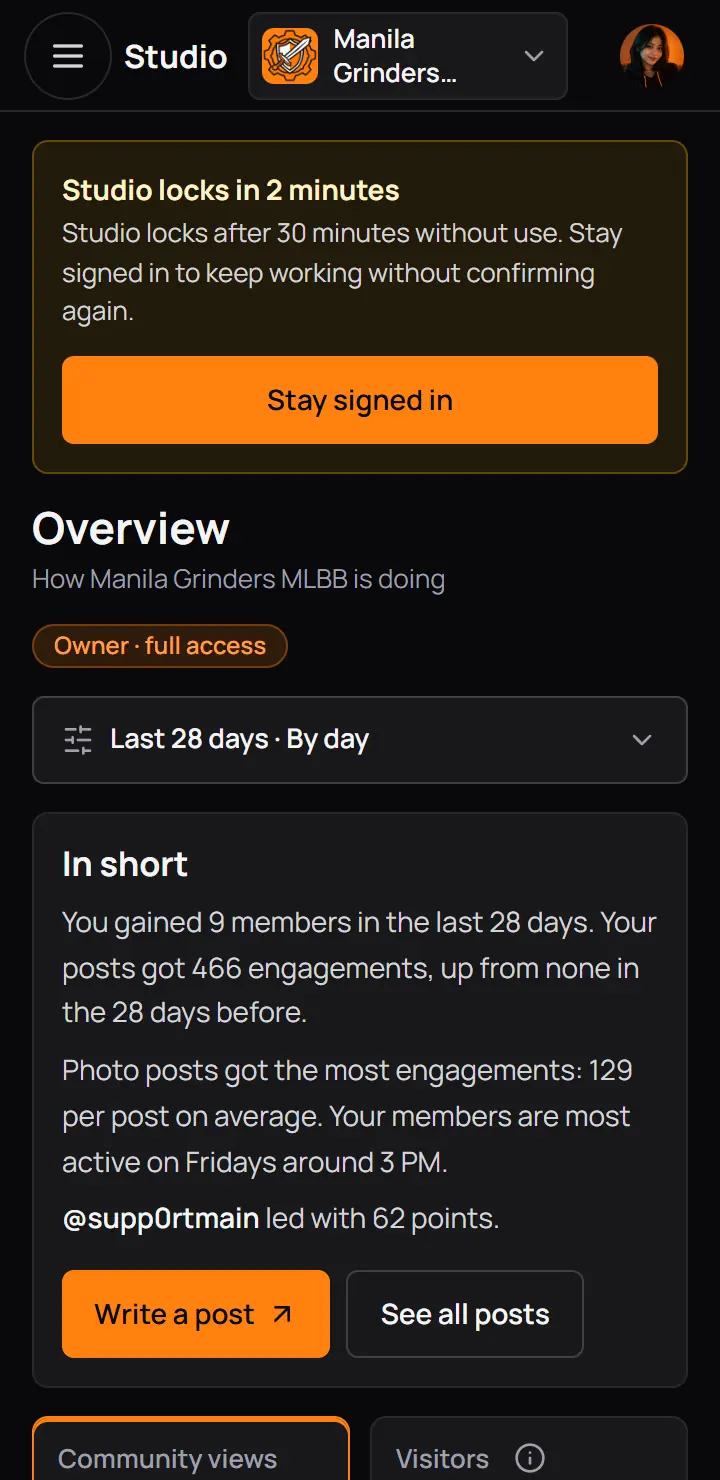
- Studio locks in 2 minutesShows 2 minutes before the 30 quiet minutes are up.
- Stay signed inKeeps Studio open without typing your password.
Good to know. Your work is safe. The confirm screen covers the page instead of reloading it, so a half-filled form or an open step is still there after you confirm, and a save you pressed goes through.
8Lock Studio and leave
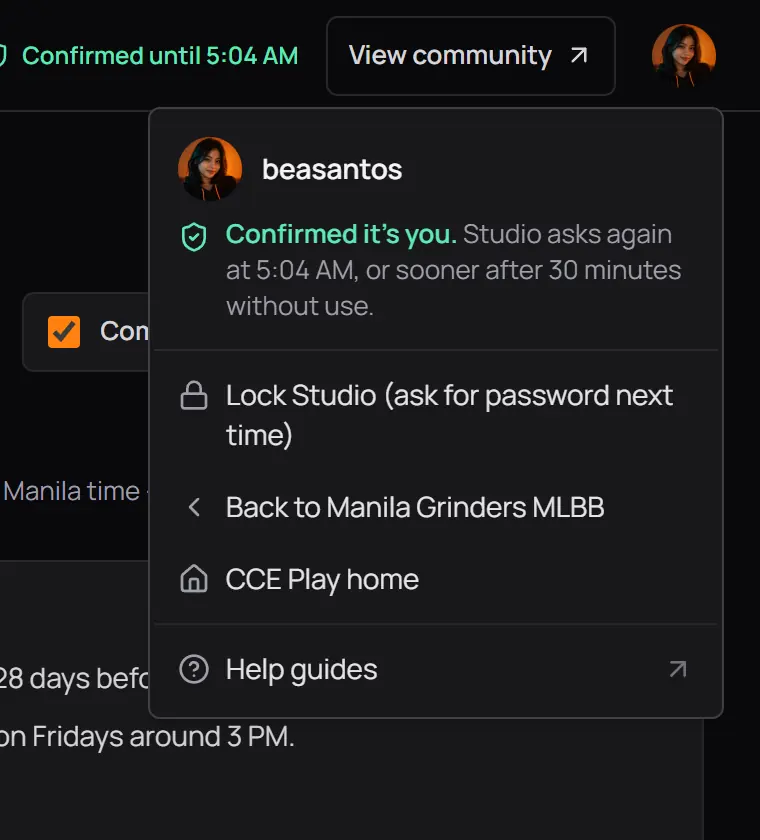
- When Studio asks againThe time your confirm ends, or sooner after 30 quiet minutes.
- Lock StudioEnds your confirm now, so Studio asks for your password next time. Use it on a shared computer.
- Back to the communityOpens the community page in this tab.
- CCE Play homeOpens the CCE Play home page in this tab.
- Help guidesOpens these guides in a new tab, so Studio stays open.
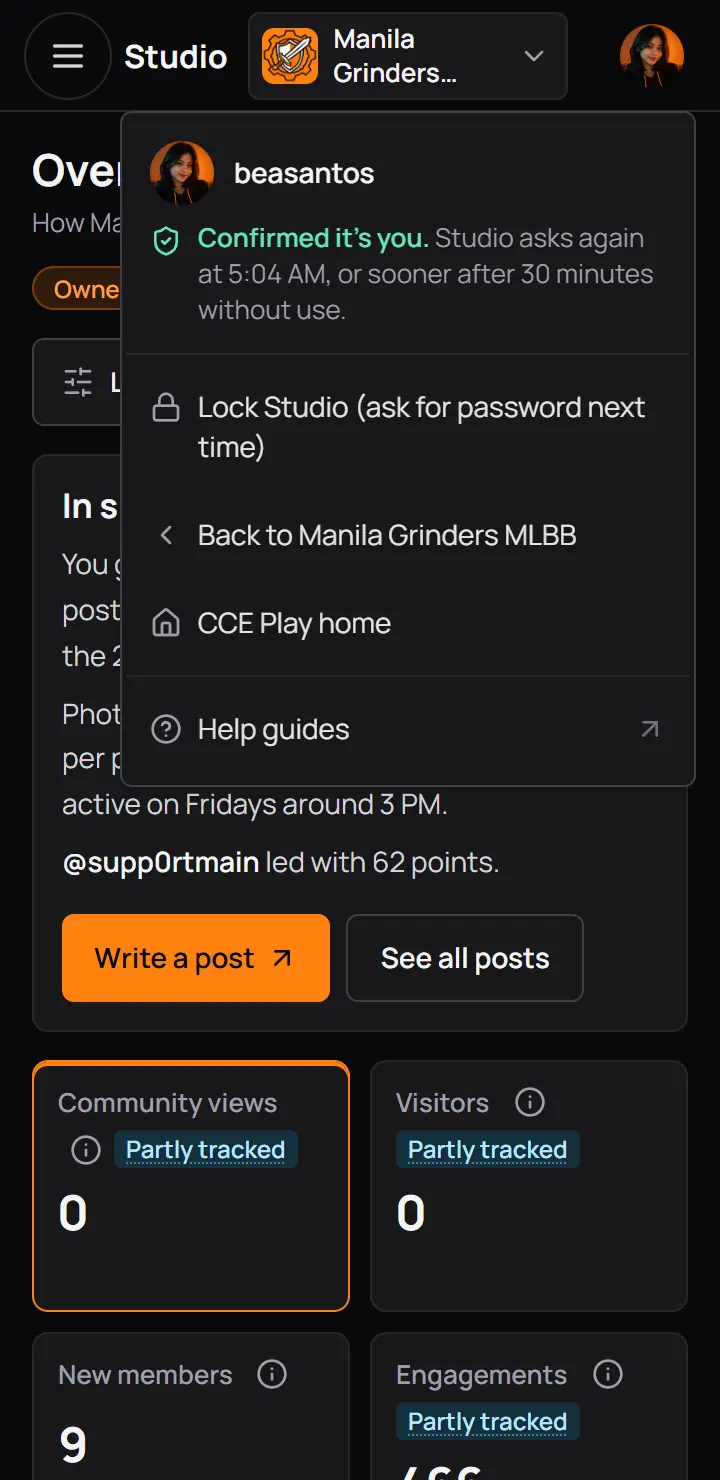
- When Studio asks againThe time your confirm ends, or sooner after 30 quiet minutes.
- Lock StudioEnds your confirm now, so Studio asks for your password next time. Use it on a shared computer.
- Back to the communityOpens the community page in this tab.
- CCE Play homeOpens the CCE Play home page in this tab.
- Help guidesOpens these guides in a new tab, so Studio stays open.
The same ways out are at the foot of the menu on every Studio page. On a small computer screen, scroll the menu down to reach them.
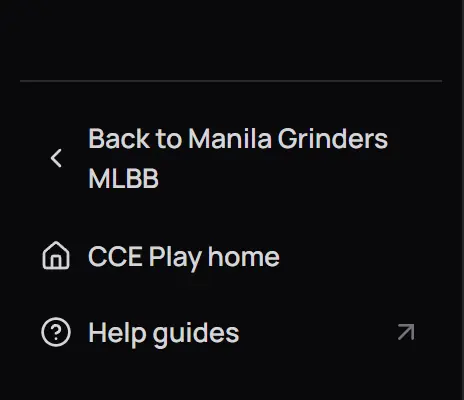
- Back to the communitySame tab, the community page.
- CCE Play homeSame tab, the home page.
- Help guidesA new tab, so Studio stays open in this one.
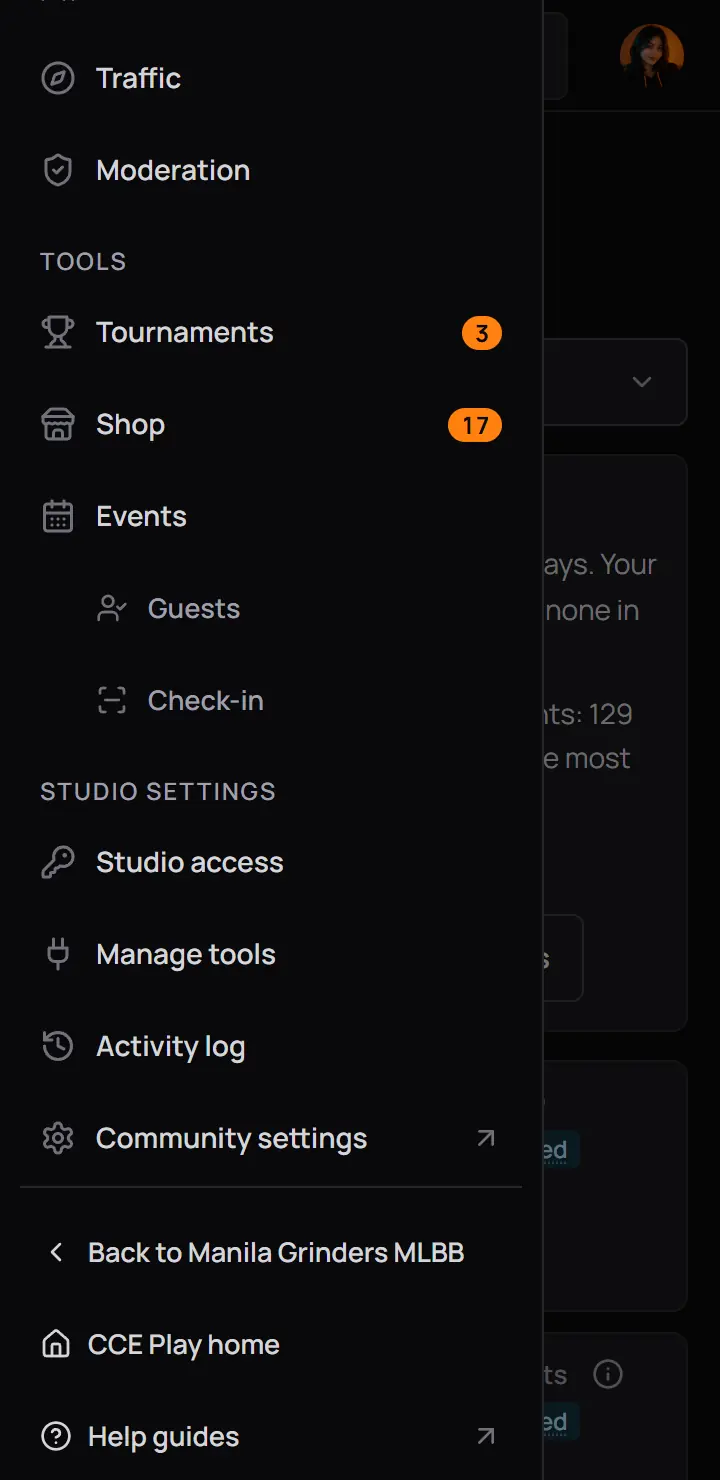
- Back to the communitySame tab, the community page.
- CCE Play homeSame tab, the home page.
- Help guidesA new tab, so Studio stays open in this one.
View community, at the top right on a computer, opens the community page in a new tab and keeps Studio open too.
Good to know. An account made with Google sees "Lock Studio (confirm it's you next time)", because it has no password to ask for.
9If something goes wrong
| You see | What to do |
|---|---|
| Studio could not load | What to doCheck your internet connection, then press Try again. |
| <Page> could not open | What to doPress Try again, or open another page from the menu. |
| This page could not be found | What to doYou are not staff of that community, or it is gone. Check you are logged in with the right account. |
| No Studio button or Studio row | What to doYou are not an owner, admin or moderator of any community yet. |
Still stuck? Ask your community's owner, or read the other help guides.