
1Pick the dates
Every numbers page starts with the same row. It decides which days the page counts. Studio opens on the last 28 days, by day, compared with the 28 days before.

- Date range7 days, 28 days, 90 days, 12 months, or Custom for your own dates.
- Group byShows each point on the charts as a day, a week or a month. A choice that does not fit your dates is grey, and the line under it says why.
- Compare with previous periodAdds the change against the same number of days before them, such as 7.7% down from the 28 days before.
- Manila time and the last updateDays follow Manila time. Studio adds up each day's numbers overnight.
- Export CSVDownloads this page's numbers. Step 9 shows it.
On a phone the row is one button. Tap it to open these choices.
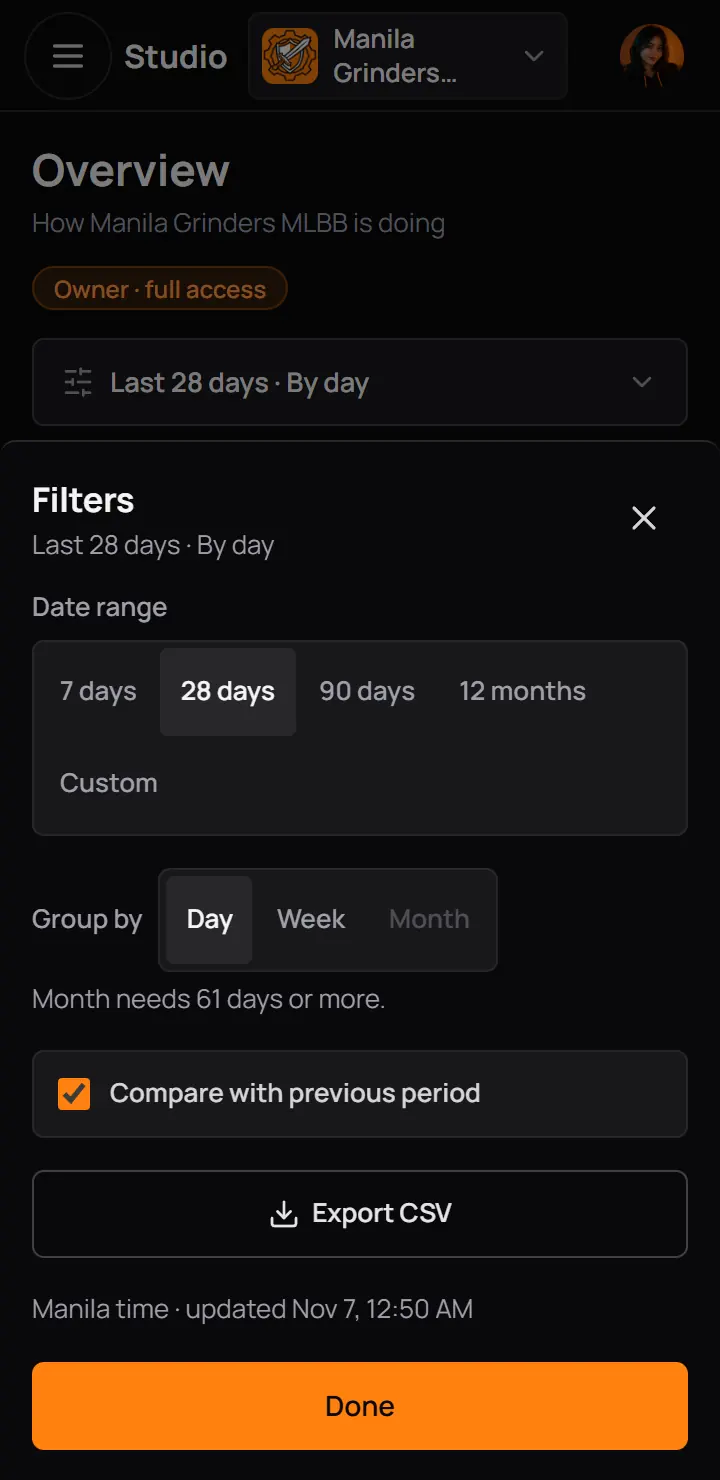
- Date range7 days, 28 days, 90 days, 12 months, or Custom for your own dates.
- Group byShows each point on the charts as a day, a week or a month. A choice that does not fit your dates is grey, and the line under it says why.
- Compare with previous periodAdds the change against the same number of days before them, such as 7.7% down from the 28 days before.
- Export CSVDownloads this page's numbers. Step 9 shows it.
- DoneCloses the choices and shows the page.
On a phone the row is one button. Tap it to open these choices.
Good to know. Today is never in the numbers. Studio counts each day after it ends, so what happens today shows tomorrow morning. The dates you pick stay as you move between the numbers pages.
2Overview
Overview is the short report: a few sentences, the main numbers, a chart, the top posts and where visitors come from.
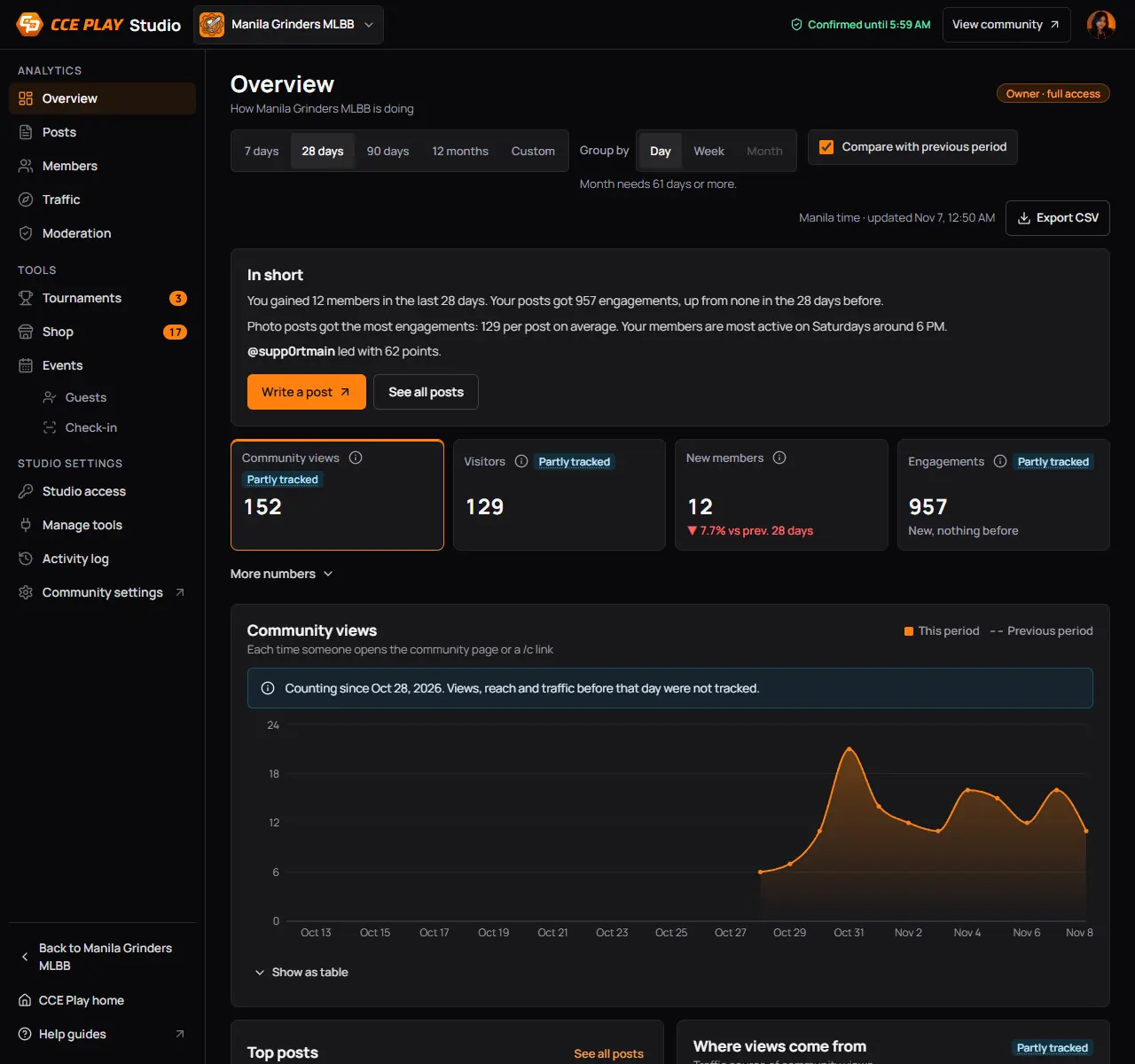
- In shortThe main news of your dates in plain sentences, then one or two things to do.
- A number tileCommunity views, Visitors, New members and Engagements. Press a tile to see it on the chart.
- The changeGreen is better than the period before, red is worse.
- More numbersFour more tiles: Net change, Posts, Engagement rate and Active members.
- The chartThe tile you picked, day by day. The dashed line is the period before.
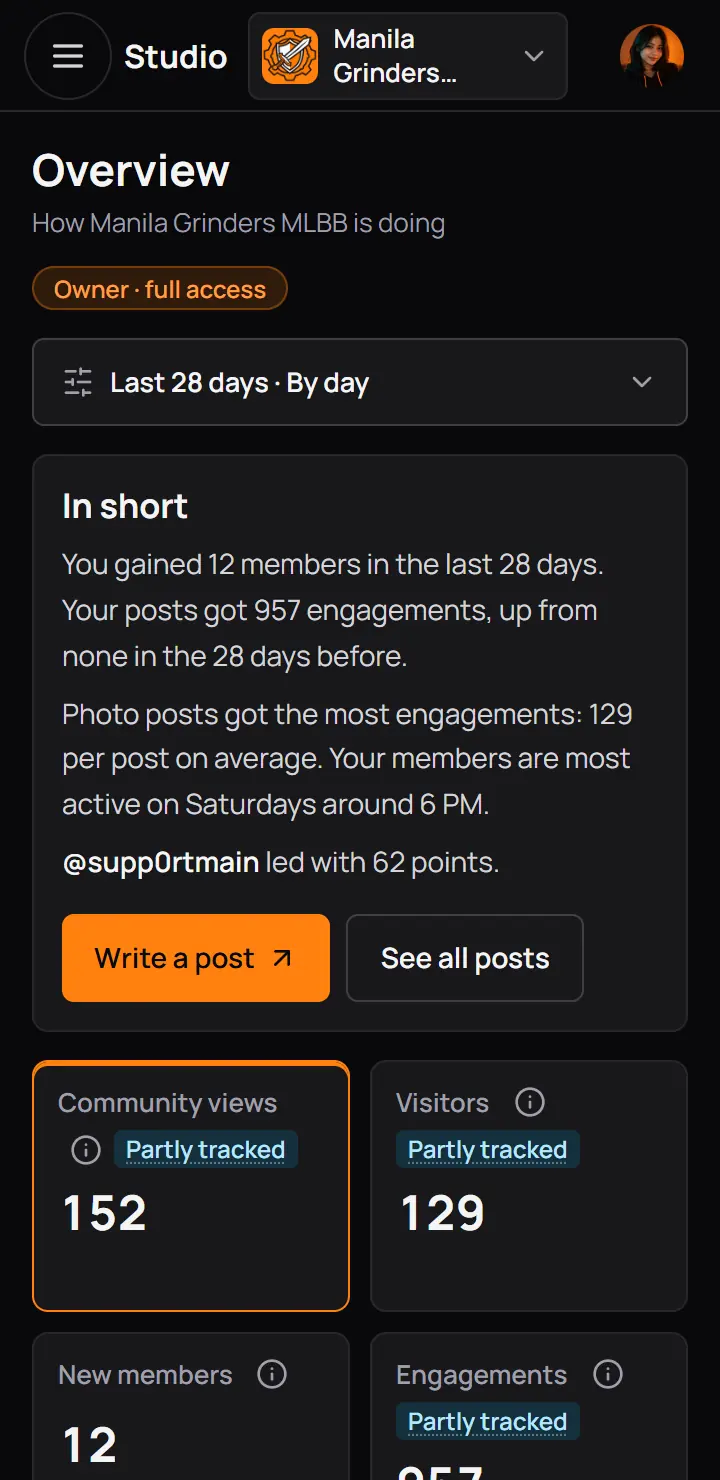
- In shortThe main news of your dates in plain sentences, then one or two things to do.
- A number tileCommunity views, Visitors, New members and Engagements. Press a tile to see it on the chart.
| Tile | What it counts |
|---|---|
| Community views | What it countsEach time someone opens your community page, also through its short /c link. Switching tabs does not add a view. |
| Visitors | What it countsThe different people who opened the page. Each person counts once, however often they came back. |
| New members | What it countsPeople who joined. In a community that approves members, a person counts when approved. |
| Engagements | What it countsEvery reaction, post vote, comment, share, save and poll vote, your team's included. |
| Net change | What it countsNew members minus the members who left or were removed. |
| Posts | What it countsPosts published in your community. |
| Engagement rate | What it countsOf the people who saw your posts, the share who reacted, voted, commented, shared or saved. |
| Active members | What it countsMembers who posted, commented, reacted, voted or answered a poll. Reading alone does not count. |
What a number means
Every number with a small (i) beside it explains itself. Press the (i) to read it, and press anywhere else to close it.
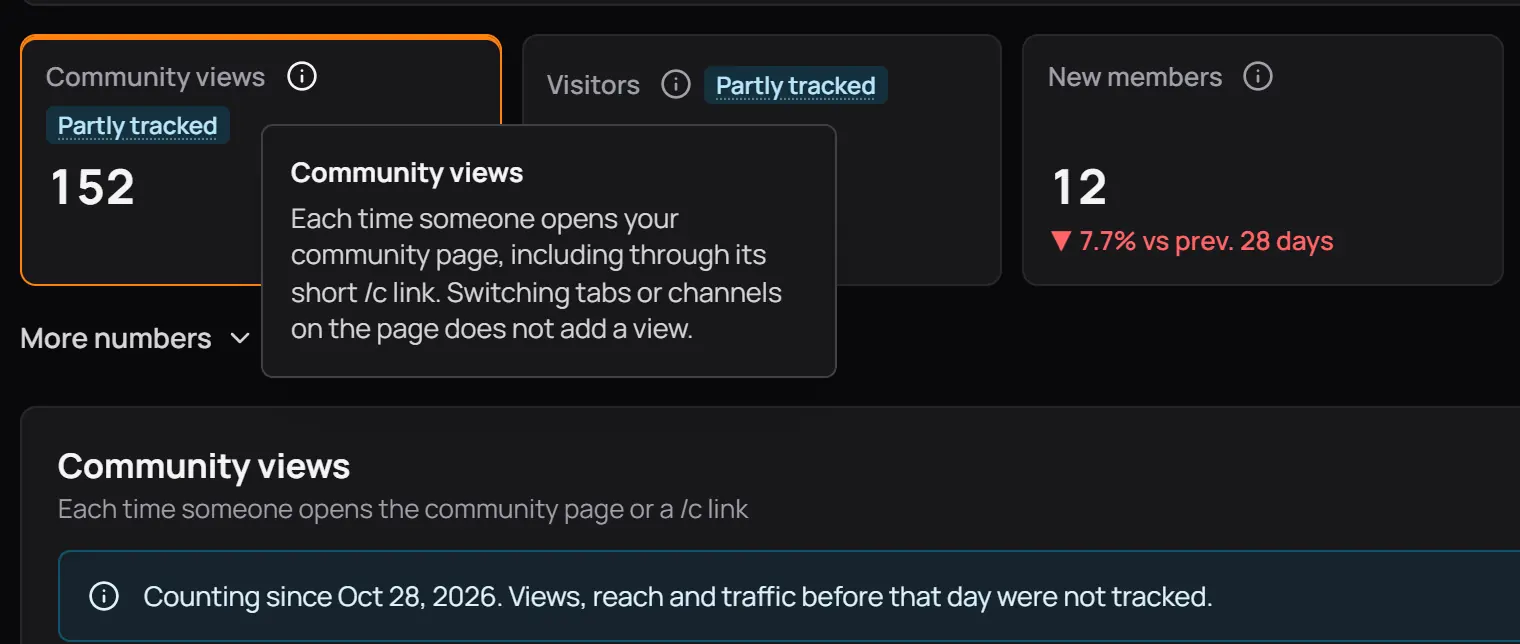
- Press the (i)
- Read what it countsThe same words as the table above.
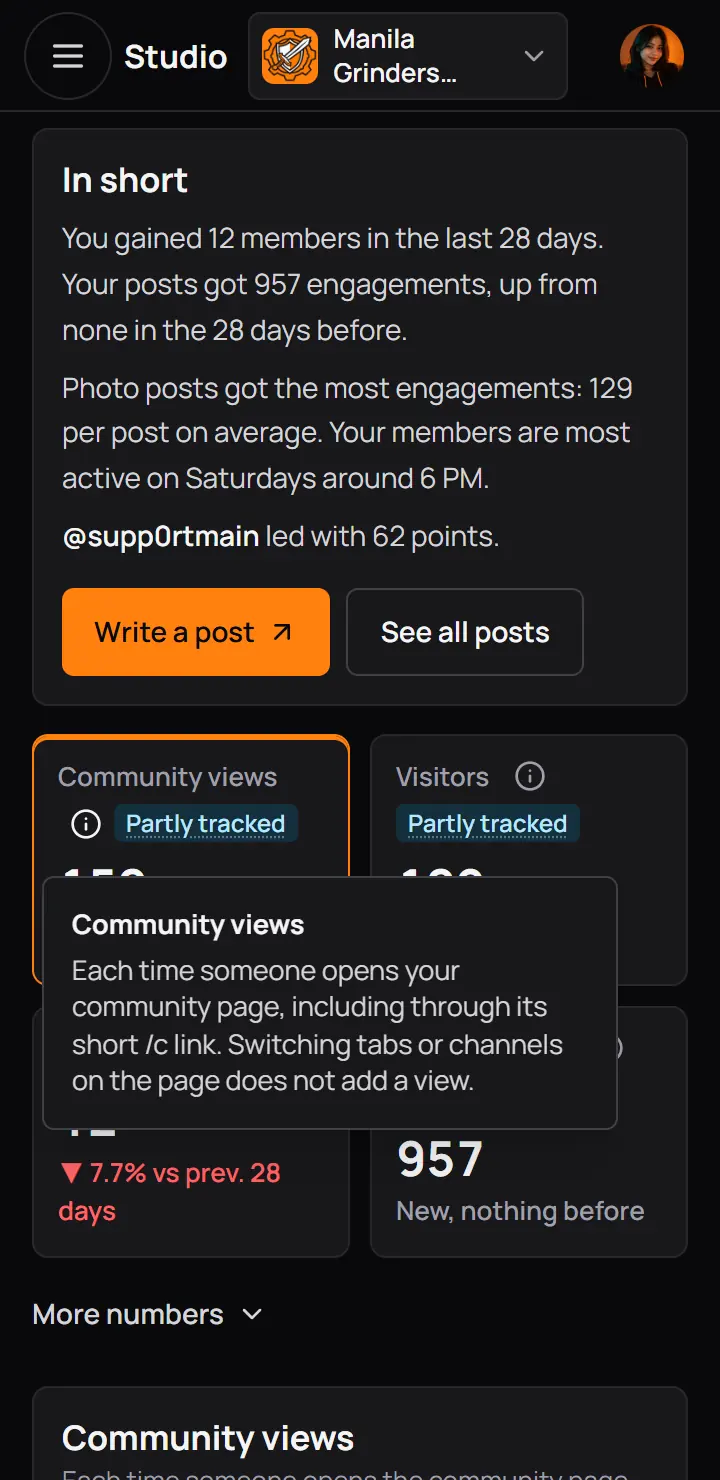
- Press the (i)
- Read what it countsThe same words as the table above.
When something waits for you
The buttons at the foot of In short change with what waits. With nothing to review, they are Write a post and See all posts. When reports, posts or join requests wait, In short offers them instead. Each opens the community page in a new tab, where you handle them.
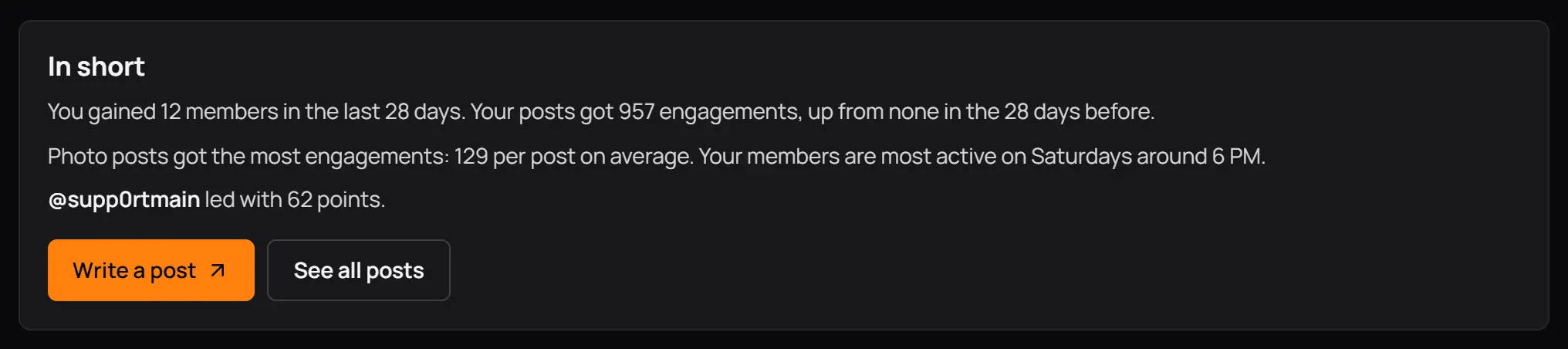
- Write a postOpens the post composer for your community in a new tab.
- See all postsOpens Studio's Posts page.
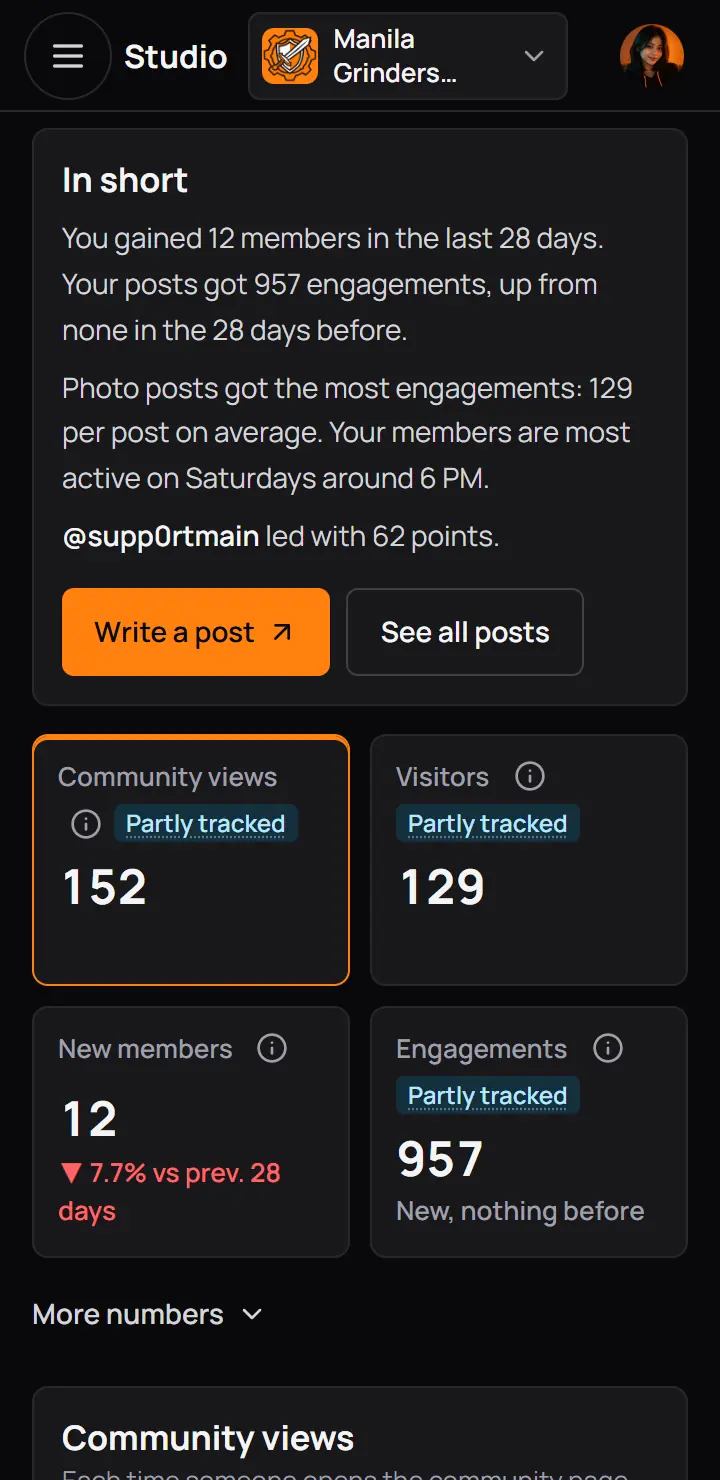
- Write a postOpens the post composer for your community in a new tab.
- See all postsOpens Studio's Posts page.
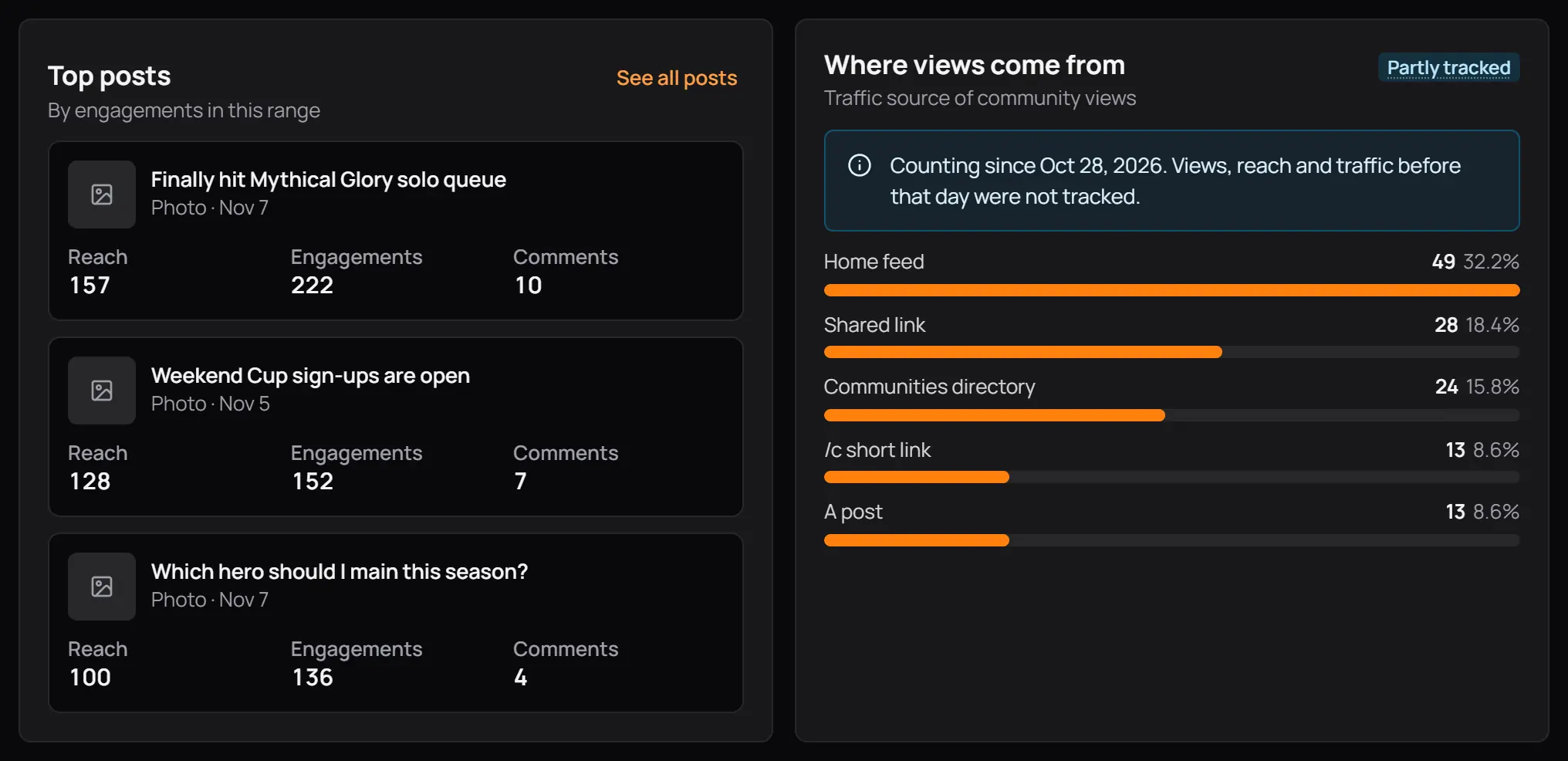
- Top postsThe 3 posts with the most engagements in your dates.
- Open a post's numbersPress its title. Step 4 shows that page.
- See all postsOpens the Posts page.
- Where views come fromHow people reached your community page. The Traffic page has the full list.
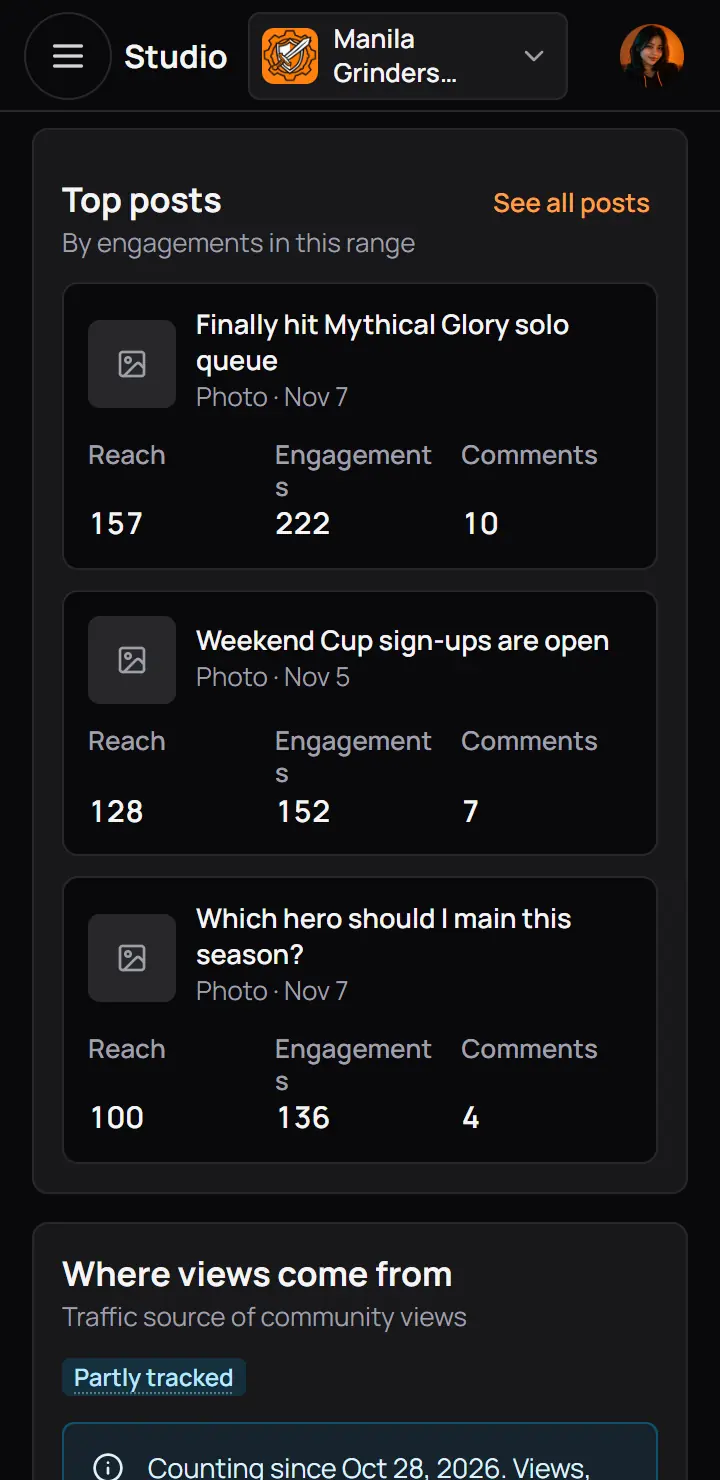
- Top postsThe 3 posts with the most engagements in your dates.
- Open a post's numbersPress its title. Step 4 shows that page.
- See all postsOpens the Posts page.
When your community runs tournaments, a Tournaments box closes the page with the tournaments run, the teams that signed up and the views of their pages.
3Posts and What works
Posts shows how each post did, and which kind of post works best in your community.
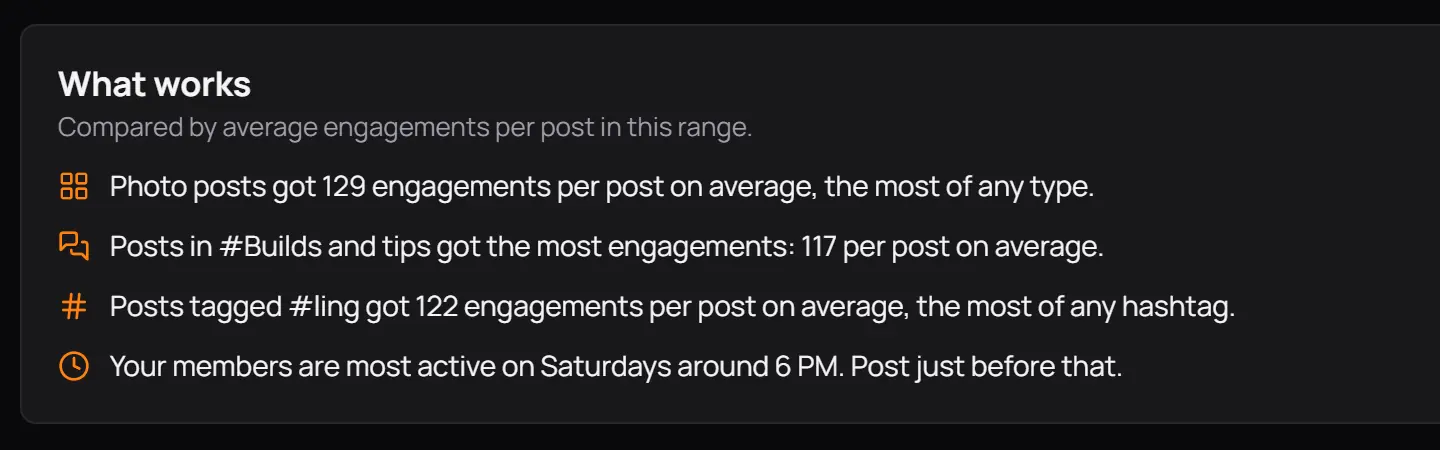
- The best kind of postPhoto, video, poll, text or link.
- The best channel
- The best hashtag
- The busiest hourWhen your members are most active. Post a little before it.
Best means the most engagements per post on average. A kind, channel or hashtag is only compared once it has 2 posts.
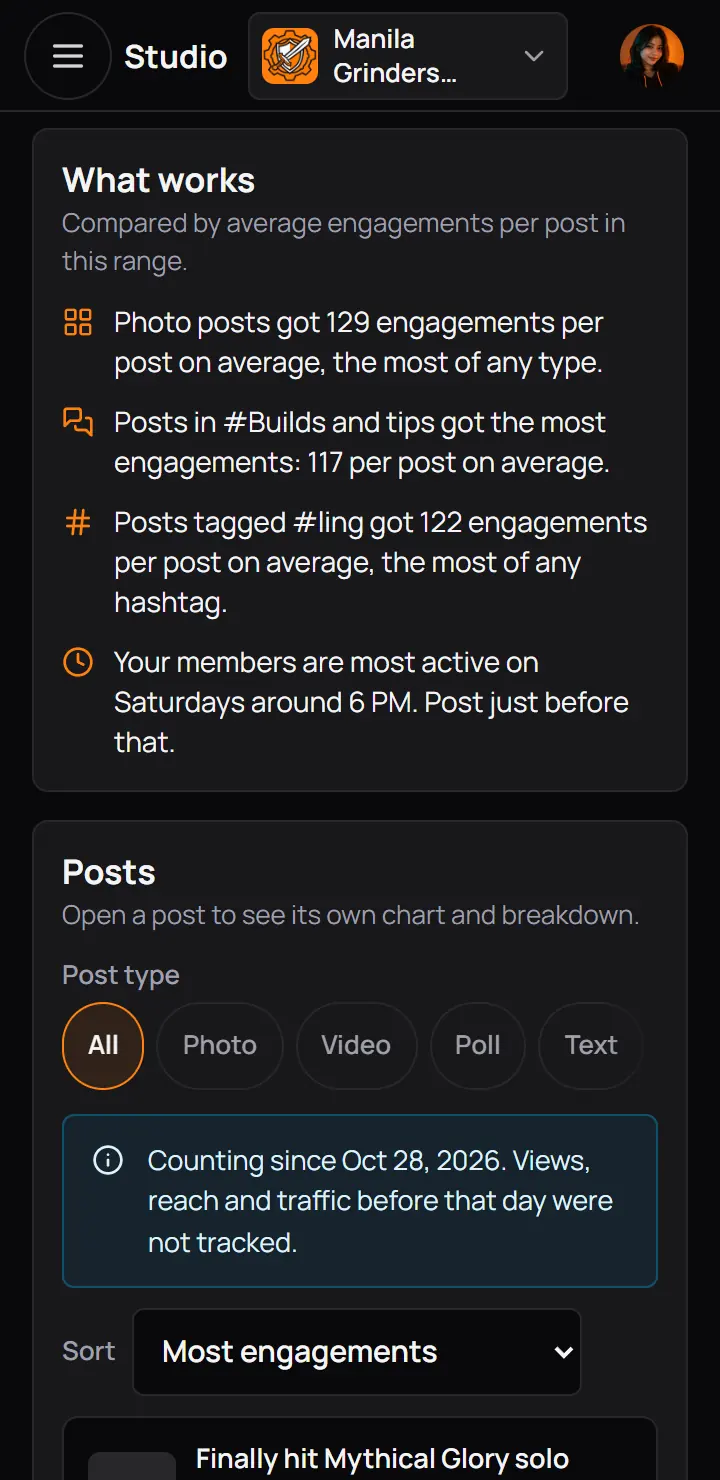
- The best kind of postPhoto, video, poll, text or link.
- The best channel
- The best hashtag
- The busiest hourWhen your members are most active. Post a little before it.
Best means the most engagements per post on average. A kind, channel or hashtag is only compared once it has 2 posts.
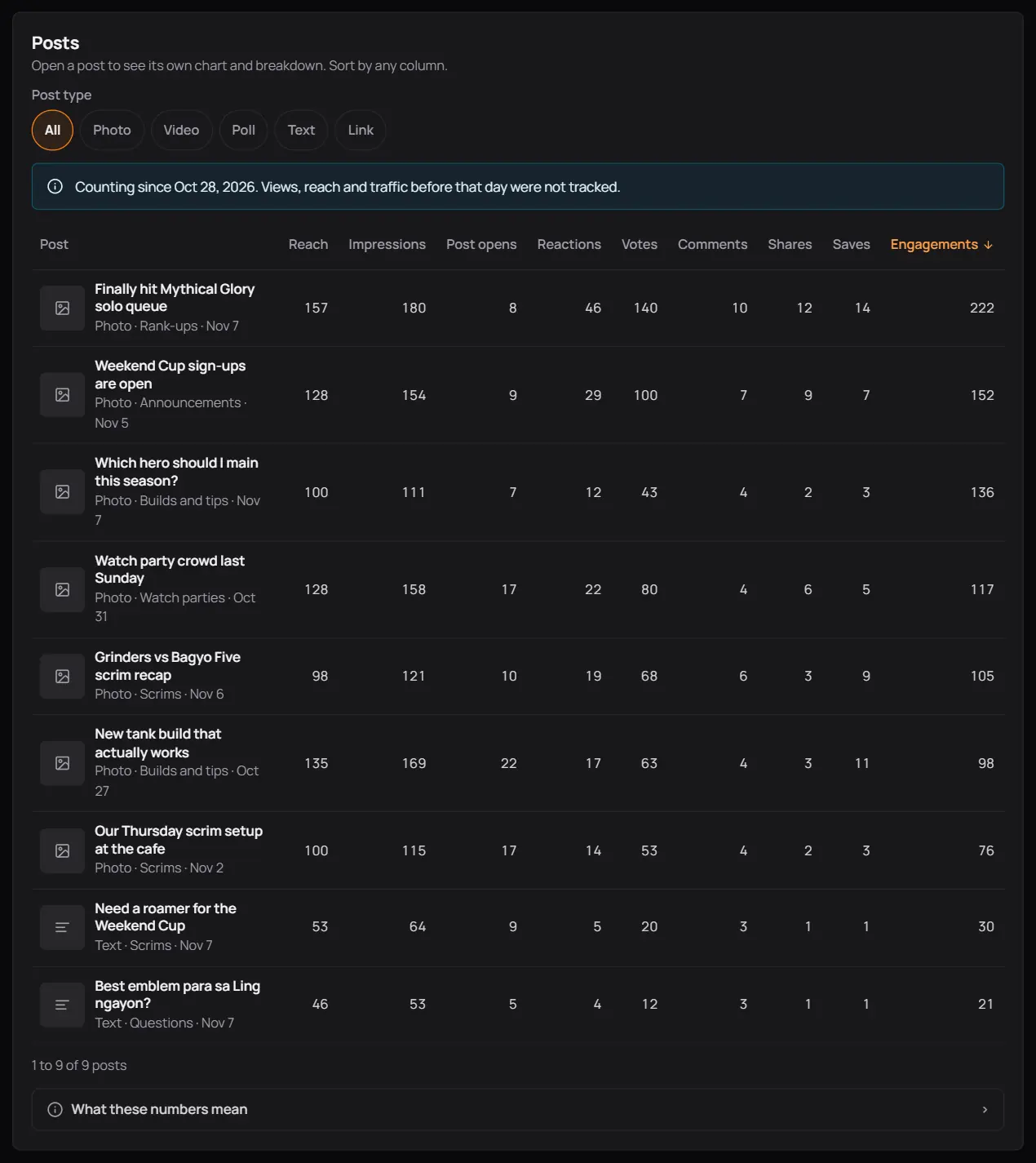
- Post typeShow only photo, video, poll, text or link posts.
- A post's titlePress it to open that post's own page.
- Sort by a columnPress a column's name. Press it again to turn the order around.
- What these numbers meanOpens a short list of what Reach, Impressions and the rest count.
On a phone each post is a card with its Reach, Engagements and Engagement rate. Tap the title for the rest.
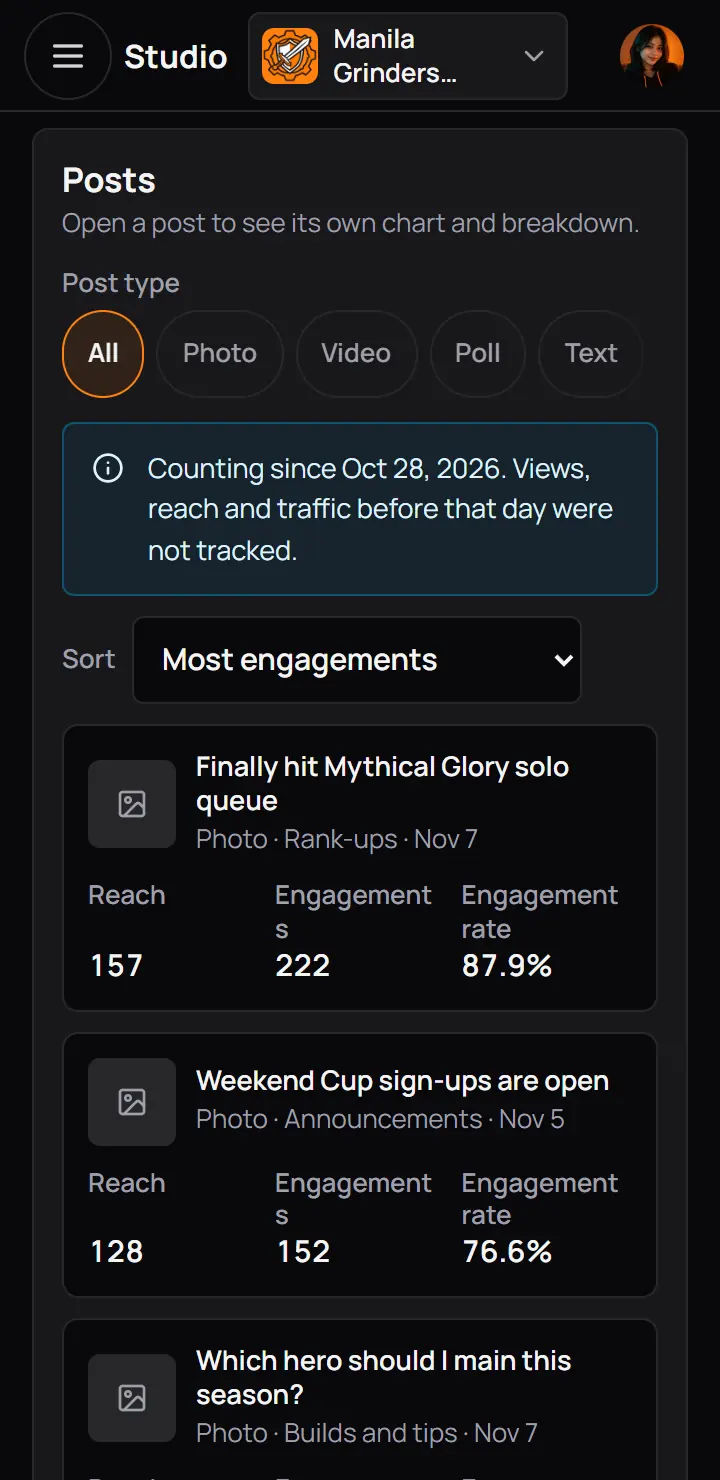
- Post typeShow only photo, video, poll, text or link posts.
- A post's titlePress it to open that post's own page.
On a phone each post is a card with its Reach, Engagements and Engagement rate. Tap the title for the rest.
| Number | What it counts |
|---|---|
| Reach | What it countsThe different people who saw the post, in a feed or by opening it. |
| Impressions | What it countsEach time the post was on someone's screen for a full second, or opened. A reload can count again. |
| Post opens | What it countsEach time someone opened the full post. |
| Engagements | What it countsReactions, votes, comments, shares, saves and poll votes. |
| Engagement rate | What it countsOf the people the post reached, the share who reacted, voted, commented, shared or saved. |
Your team, and the post's author on their own post, never add to Reach, Impressions or Post opens.
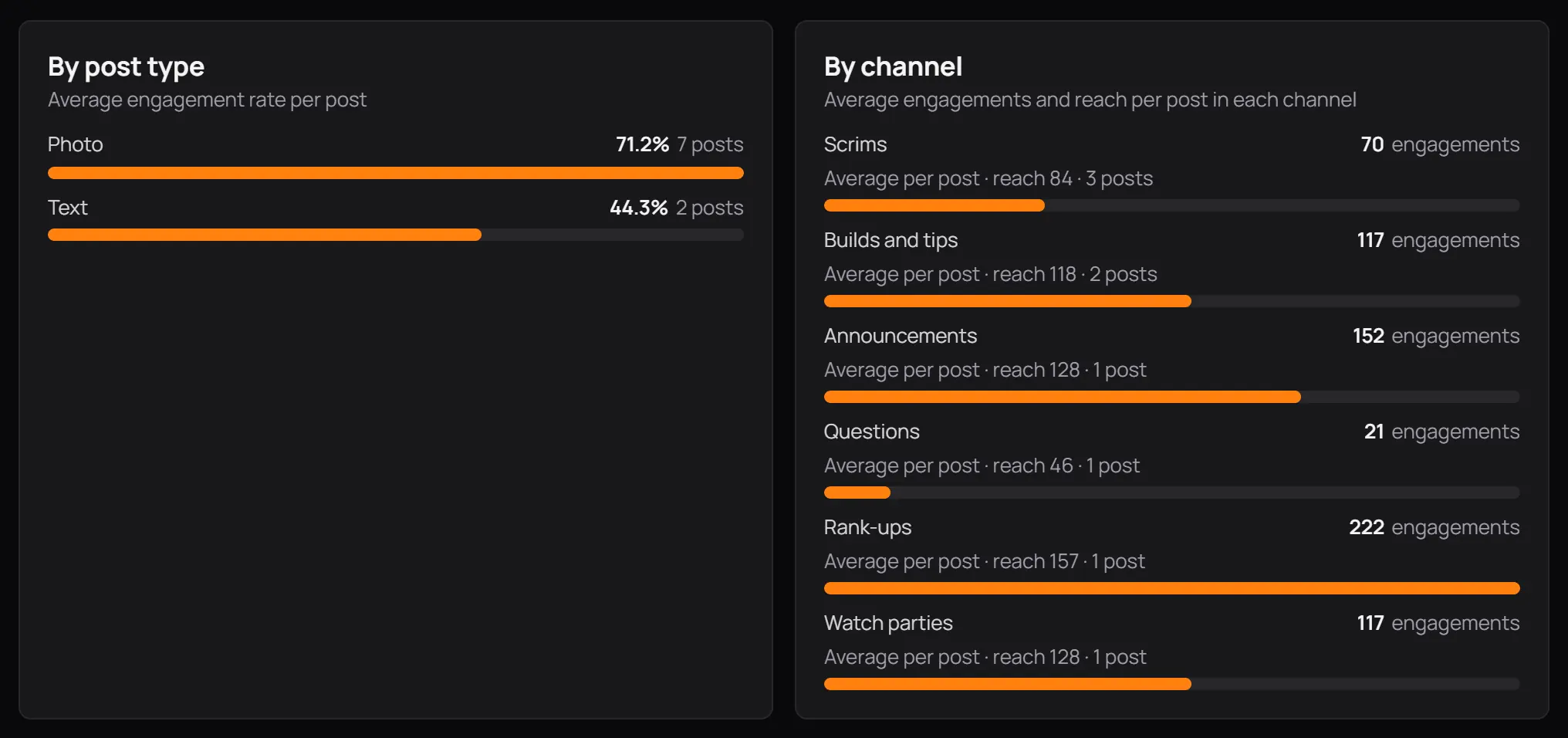
- By post typeThe average engagement rate of each kind of post.
- By channelThe average engagements and reach per post in each channel.
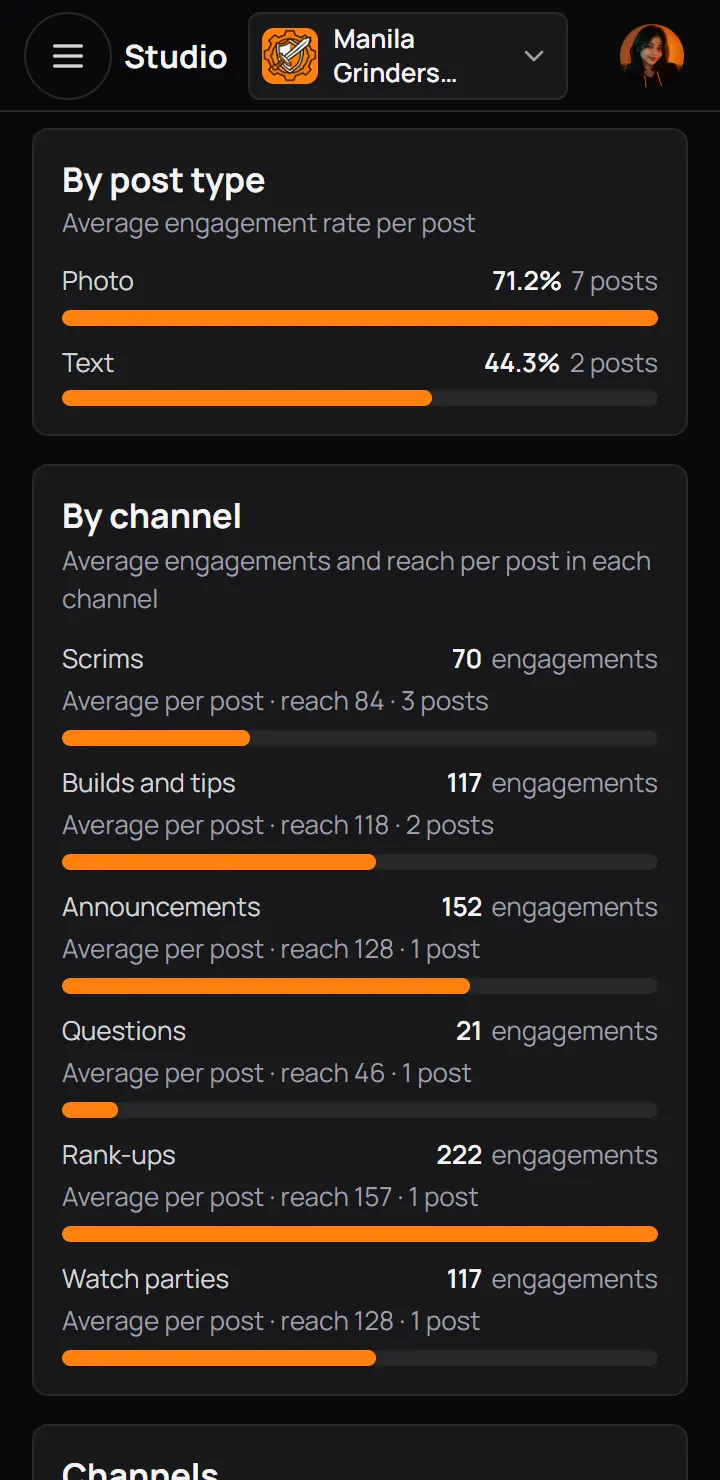
- By post typeThe average engagement rate of each kind of post.
- By channelThe average engagements and reach per post in each channel.
Further down the page:
- Channels: the posts, post opens and comments of each channel.
- By hashtag: the average engagements and reach of your 10 most used hashtags.
- Video: plays of 3 seconds or more, the average watch time, how many watched to the end and how many had the sound on.
- Polls: each poll's votes, voters and turnout, which is voters divided by the people the poll reached.
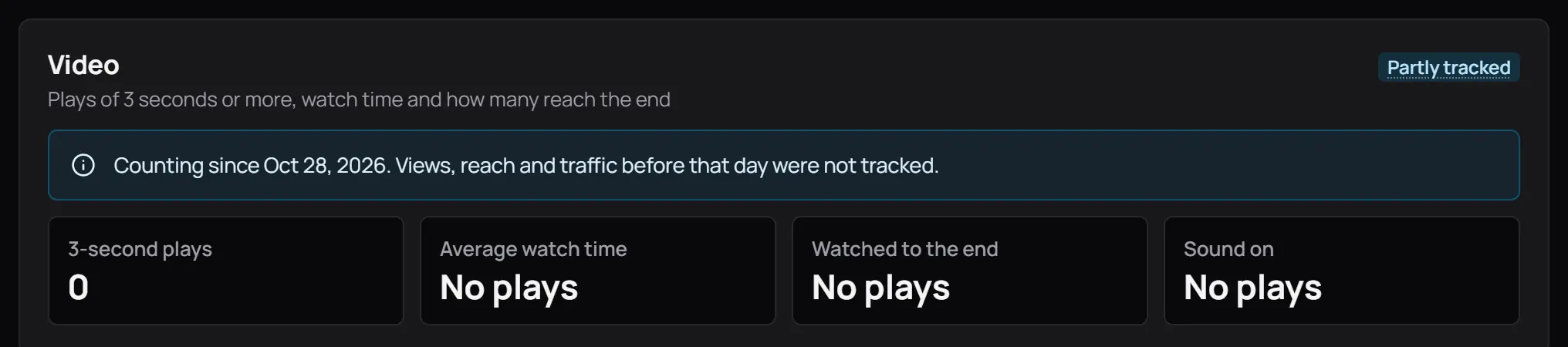
- 3-second plays0 here: no video in the community played for 3 seconds in these dates.
- No playsWith no play there is nothing to share out, so the other tiles say No plays.
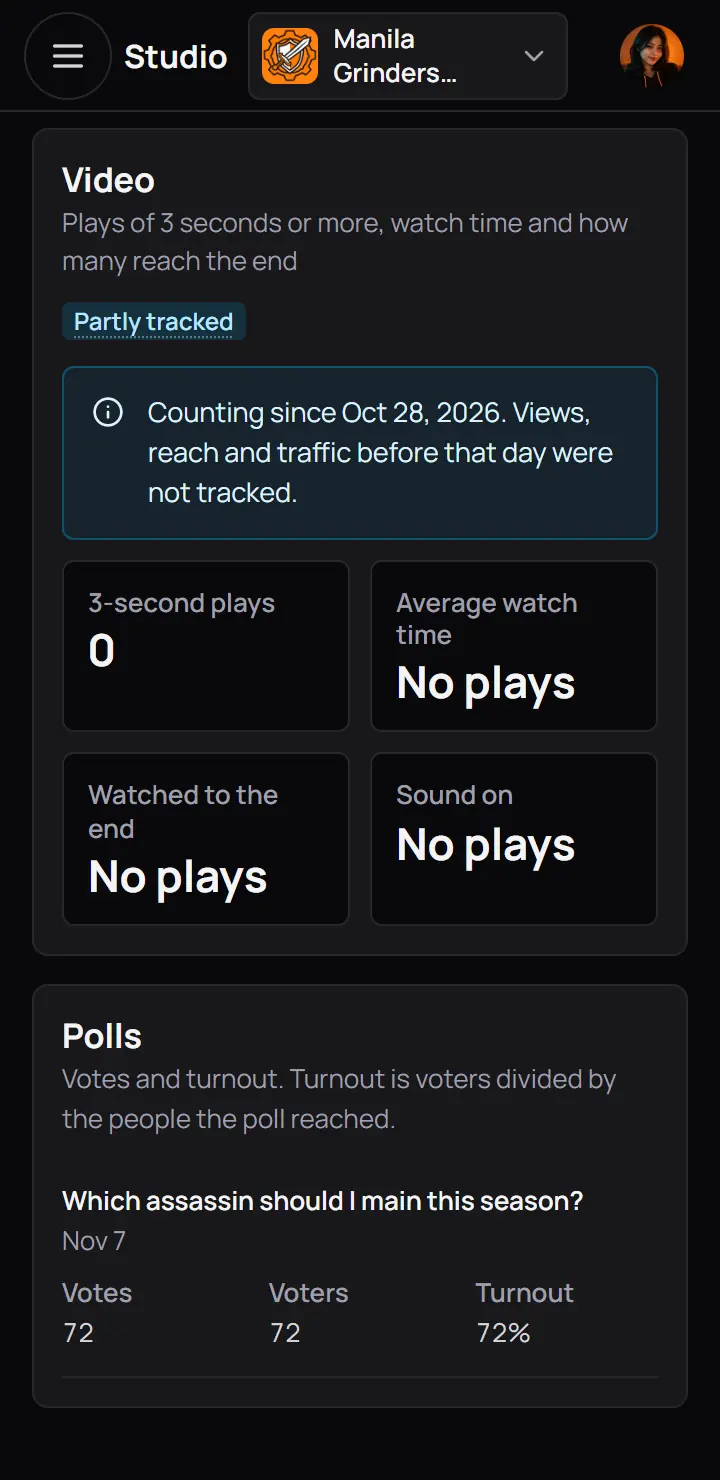
- 3-second plays0 here: no video in the community played for 3 seconds in these dates.
- No playsWith no play there is nothing to share out, so the other tiles say No plays.
4One post's page
Press a post's title on Posts or Overview to open its own page. You can also choose View insights in the post's menu on the community page.
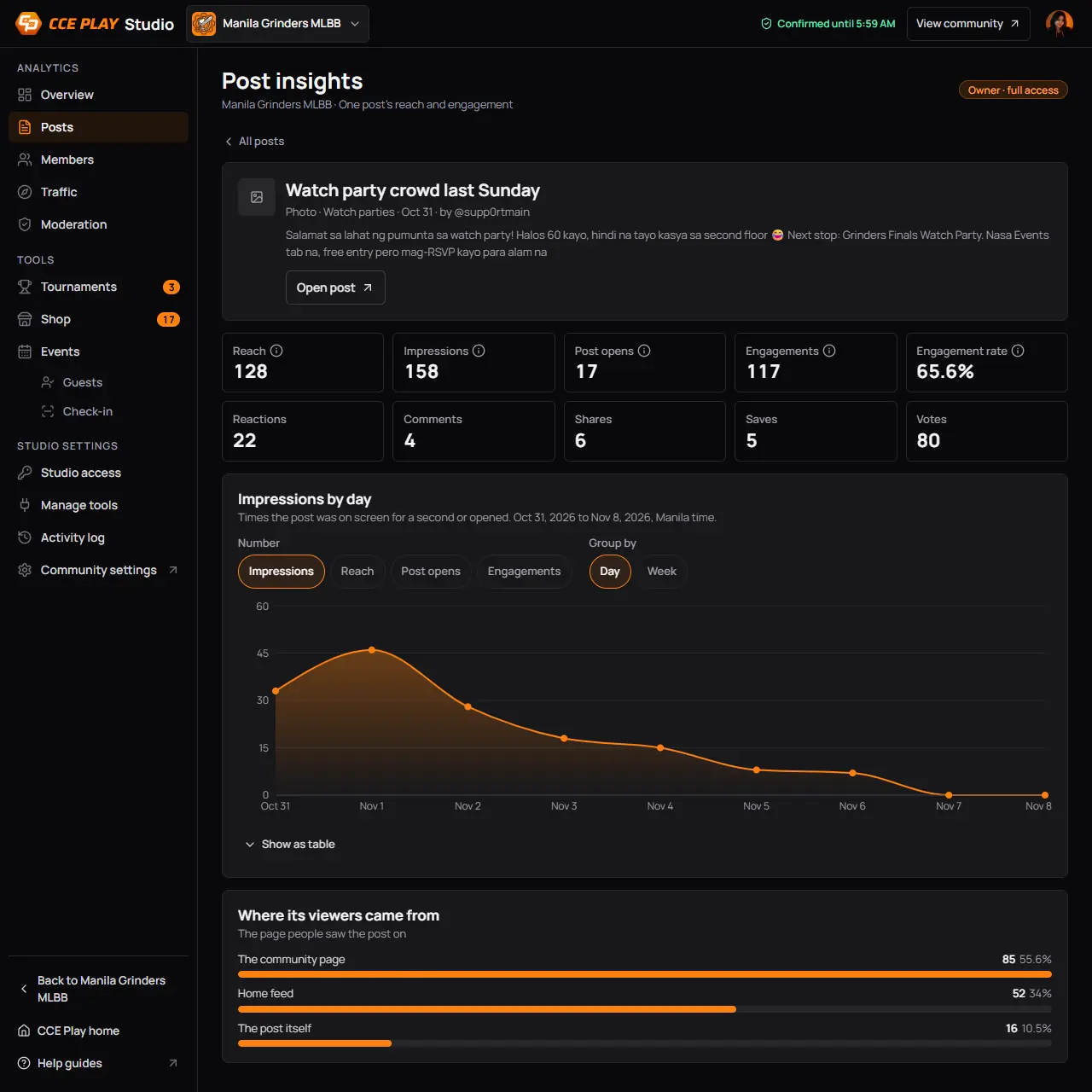
- All postsBack to the Posts page, with your dates and sorting kept.
- Open postOpens the post itself in a new tab.
- The post's numbersReach, impressions, opens and every kind of engagement.
- Engagement rateOf the people it reached, the share who took part.
- Pick the number for the chartImpressions, Reach, Post opens or Engagements.
- Day or weekHow the chart groups the days.
- Where its viewers came fromThe page people saw the post on: the community page, the home feed or the post itself.
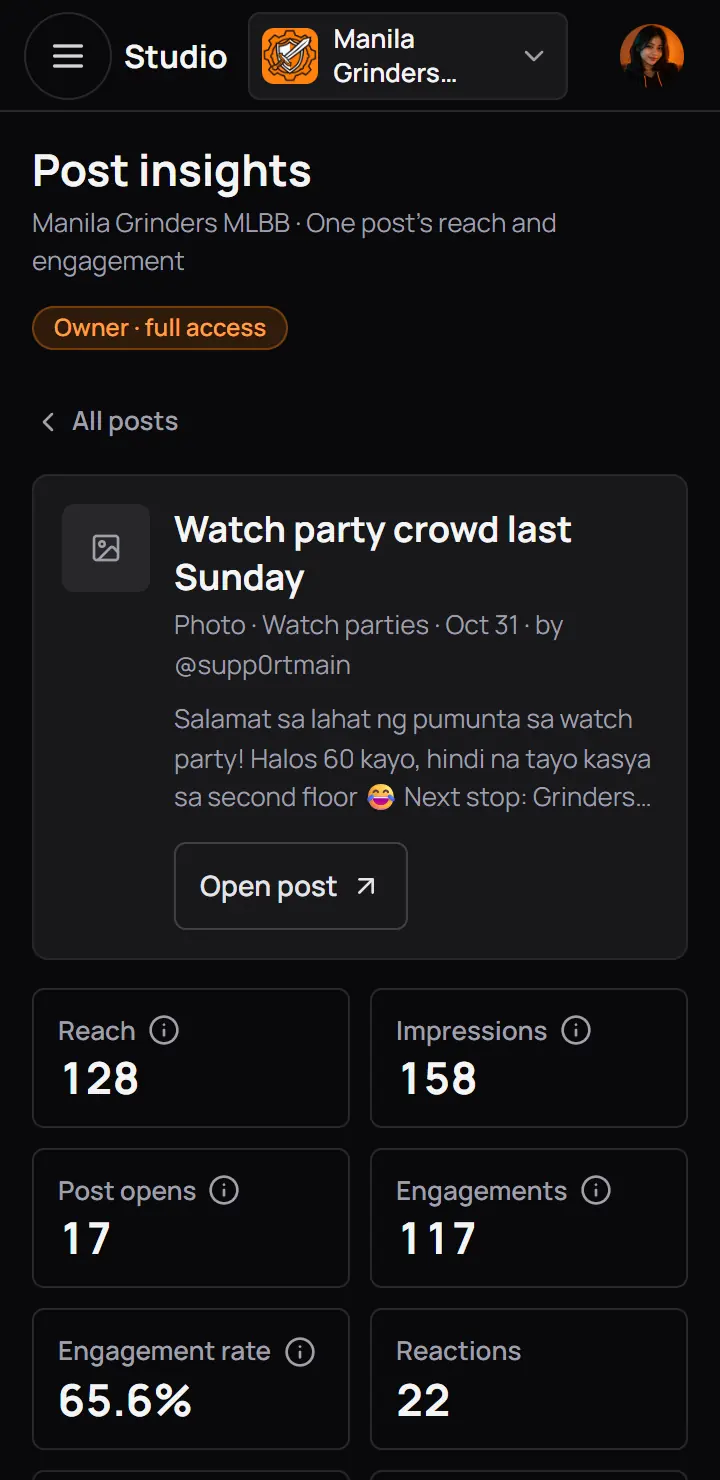
- All postsBack to the Posts page, with your dates and sorting kept.
- Open postOpens the post itself in a new tab.
- The post's numbersReach, impressions, opens and every kind of engagement.
- Engagement rateOf the people it reached, the share who took part.
- The chart starts on the day the post went up, not on your dates.
- A poll adds Poll results: the votes per option, the voters and the turnout.
- A video adds its plays and "Where people stop watching", the share still watching at each point of the clip.
- A post a moderator took down shows "Removed by a moderator".
- A post that is gone shows "This post is not here" with See all posts.
Good to know. A post's author sees its main numbers too, under "Your post's stats" on the post itself, without Studio.
5Members
Members shows who joins, who leaves and who takes part. The pictures show Grinders Varsity, a community that approves its members.
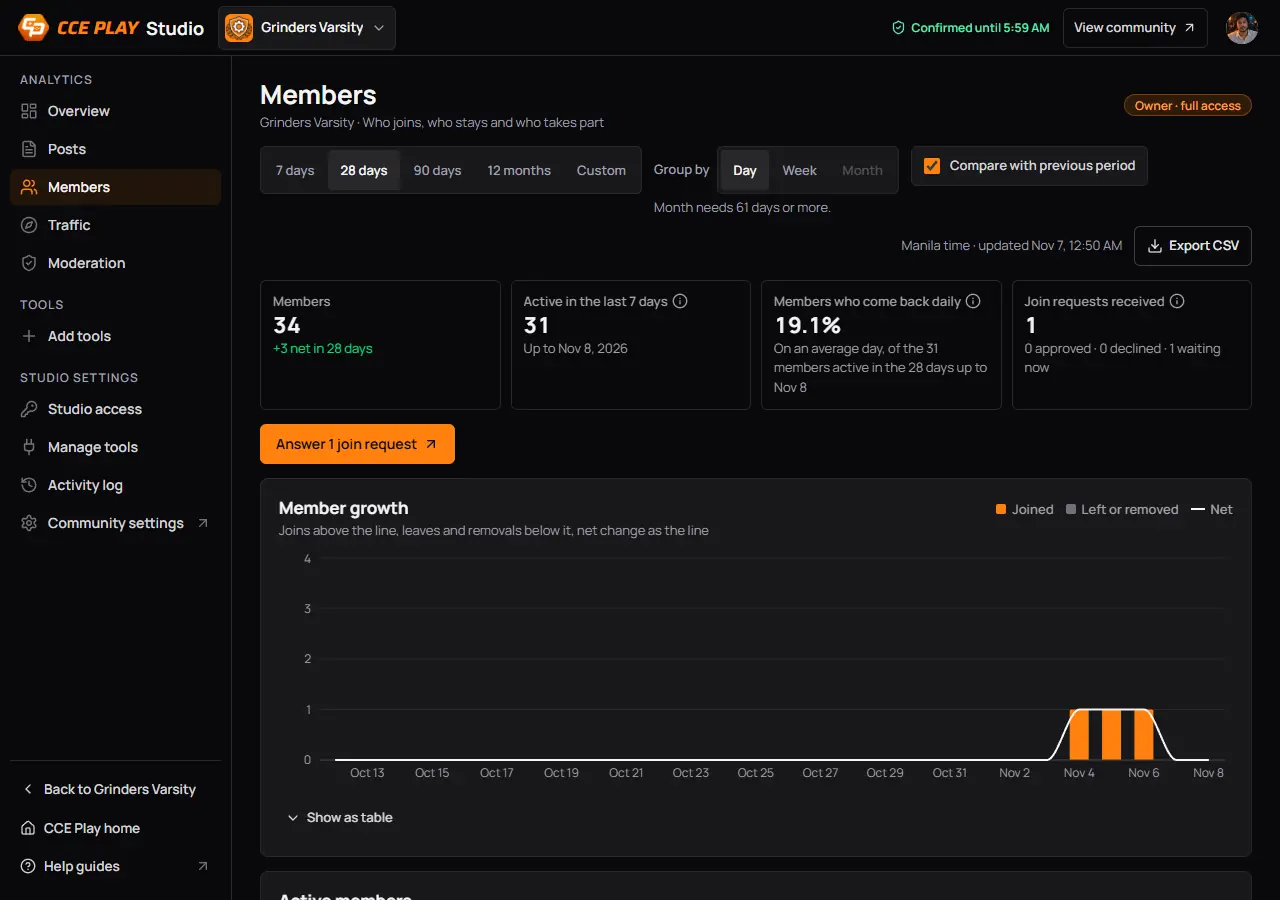
- MembersHow many members you have today, and the net change in your dates.
- Active in the last 7 daysMembers who posted, commented, reacted or voted in the 7 days up to the date under it.
- Members who come back dailyOf the members active in 28 days, the share who are active on an average day. Higher means people come back more often.
- Join requests receivedWith how many were approved or declined, how fast your team usually answers, and how many wait now.
- Answer 1 join requestOpens the Members tab of the community page in a new tab. Owners and admins see it.
- Member growthJoins above the line, leaves and removals below it.
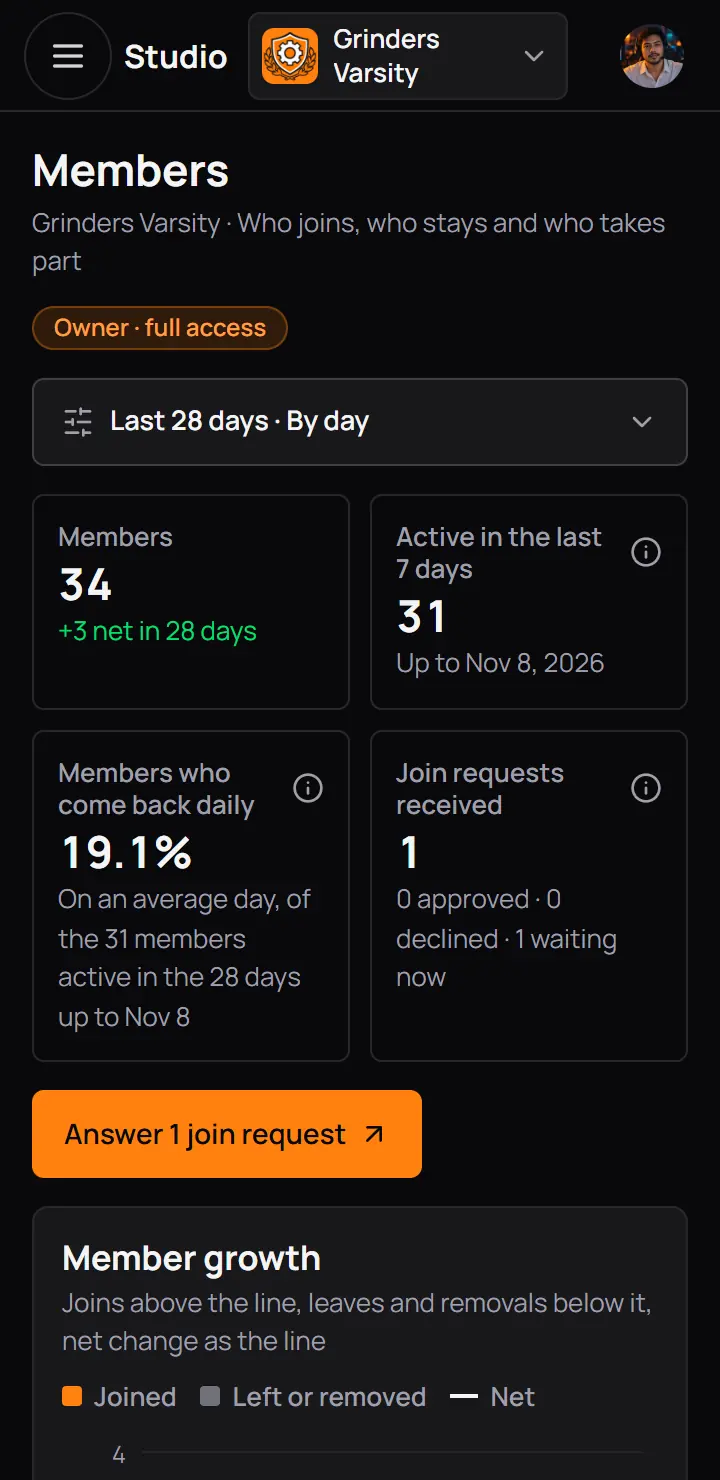
- MembersHow many members you have today, and the net change in your dates.
- Active in the last 7 daysMembers who posted, commented, reacted or voted in the 7 days up to the date under it.
- Members who come back dailyOf the members active in 28 days, the share who are active on an average day. Higher means people come back more often.
- Join requests receivedWith how many were approved or declined, how fast your team usually answers, and how many wait now.
- Answer 1 join requestOpens the Members tab of the community page in a new tab. Owners and admins see it.
Further down: Active members by day, How people joined, and Top contributors, ranked by the same score as the member leaderboard.
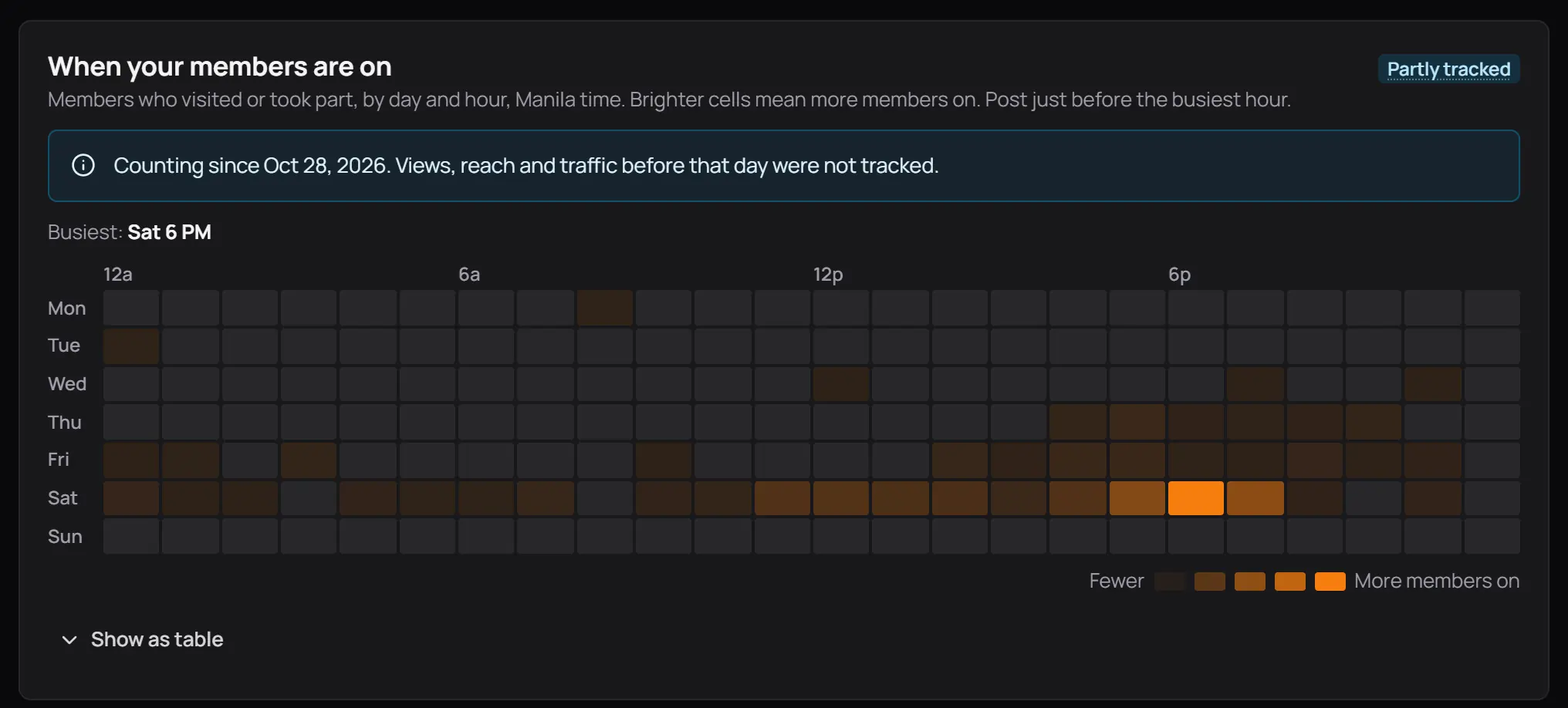
- The busiest hourEach square is one hour of one weekday, Manila time. The brighter, the more members were on.
On a narrow screen the grid becomes a list of the top 3 hours.
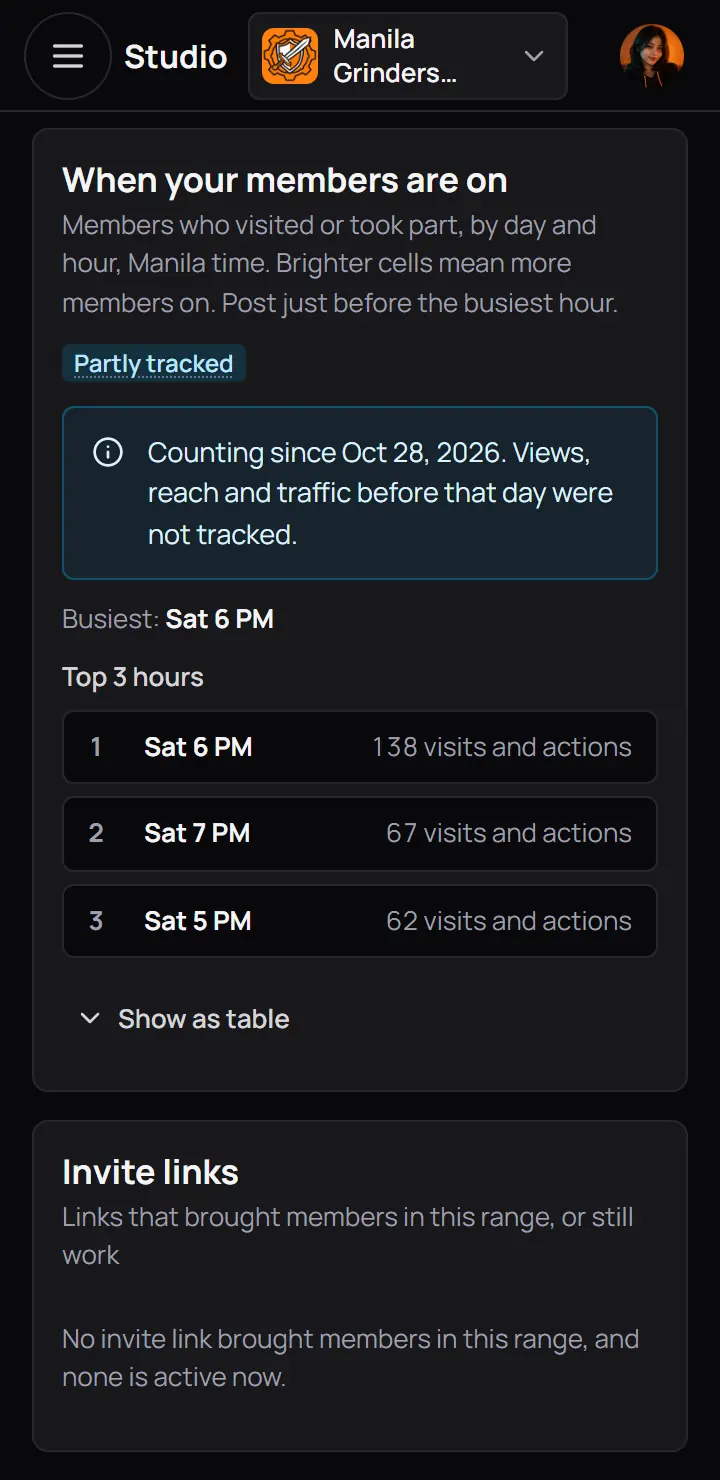
- The busiest hourEach square is one hour of one weekday, Manila time. The brighter, the more members were on.
On a narrow screen the grid becomes a list of the top 3 hours.
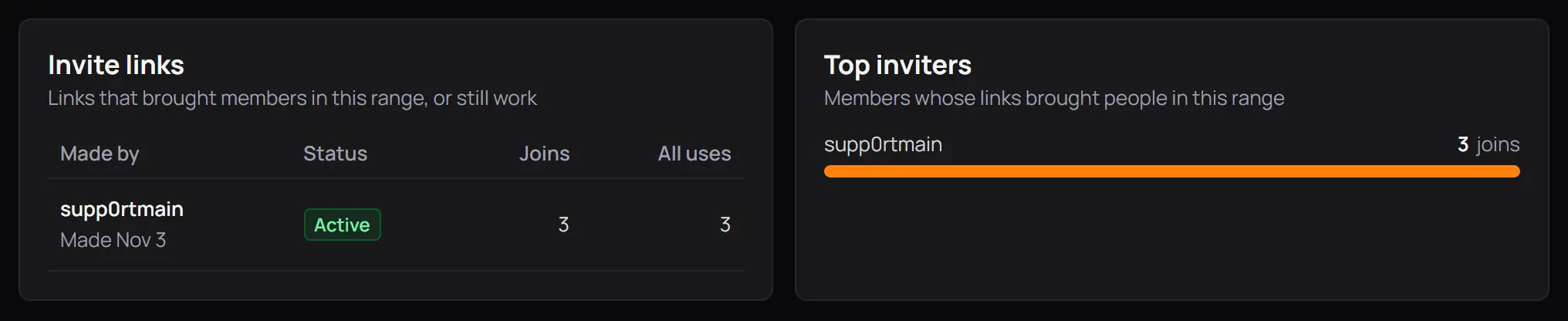
- Invite linksEach link that brought members in your dates or still works: who made it, whether it still works, the joins in your dates and all its uses.
- Top invitersThe members whose links brought the most people in.
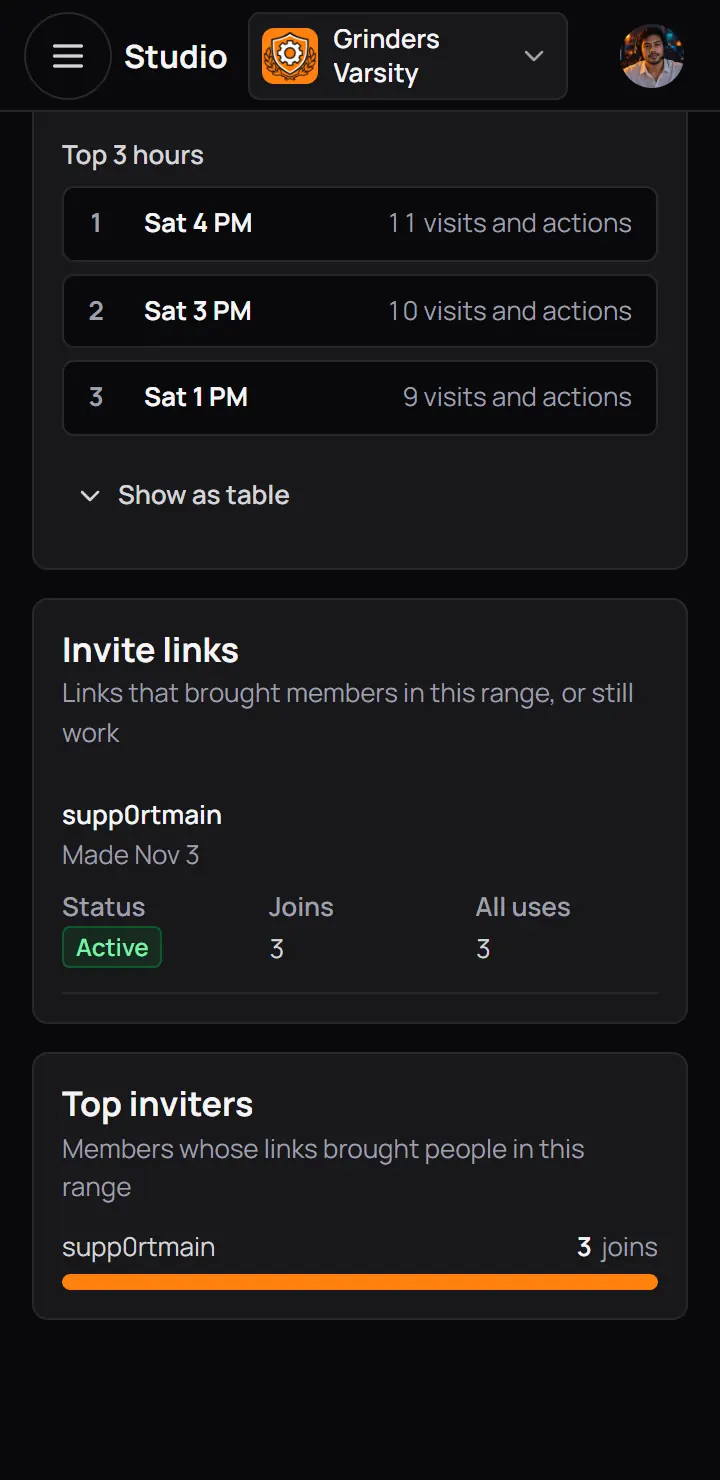
- Invite linksEach link that brought members in your dates or still works: who made it, whether it still works, the joins in your dates and all its uses.
- Top invitersThe members whose links brought the most people in.
6Traffic
Traffic shows how people find your community page, who they are and what they open there.
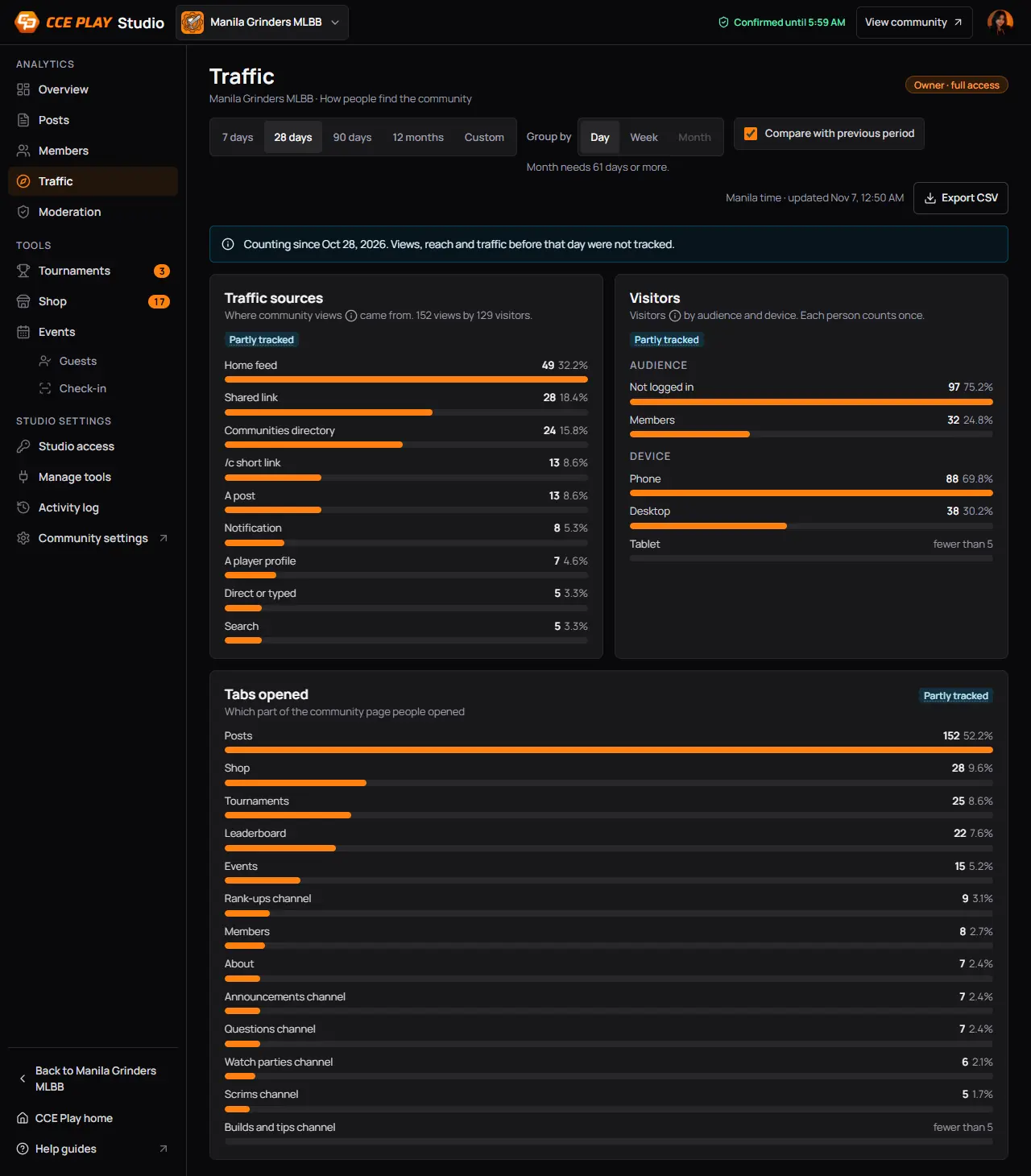
- Counting sinceStudio started counting visits on this day. Days before it are not in these numbers.
- Traffic sourcesWhere each view came from: the home feed, a shared link, the communities directory, the short /c link, a post, a notification and more.
- AudienceNot logged in, Members, and Logged in, not a member.
- DevicePhone, desktop or tablet.
- fewer than 5Fewer than 5 people are behind this row, so Studio hides the number. Nobody can be picked out.
- Tabs openedWhich tabs and channels of the community page people opened.
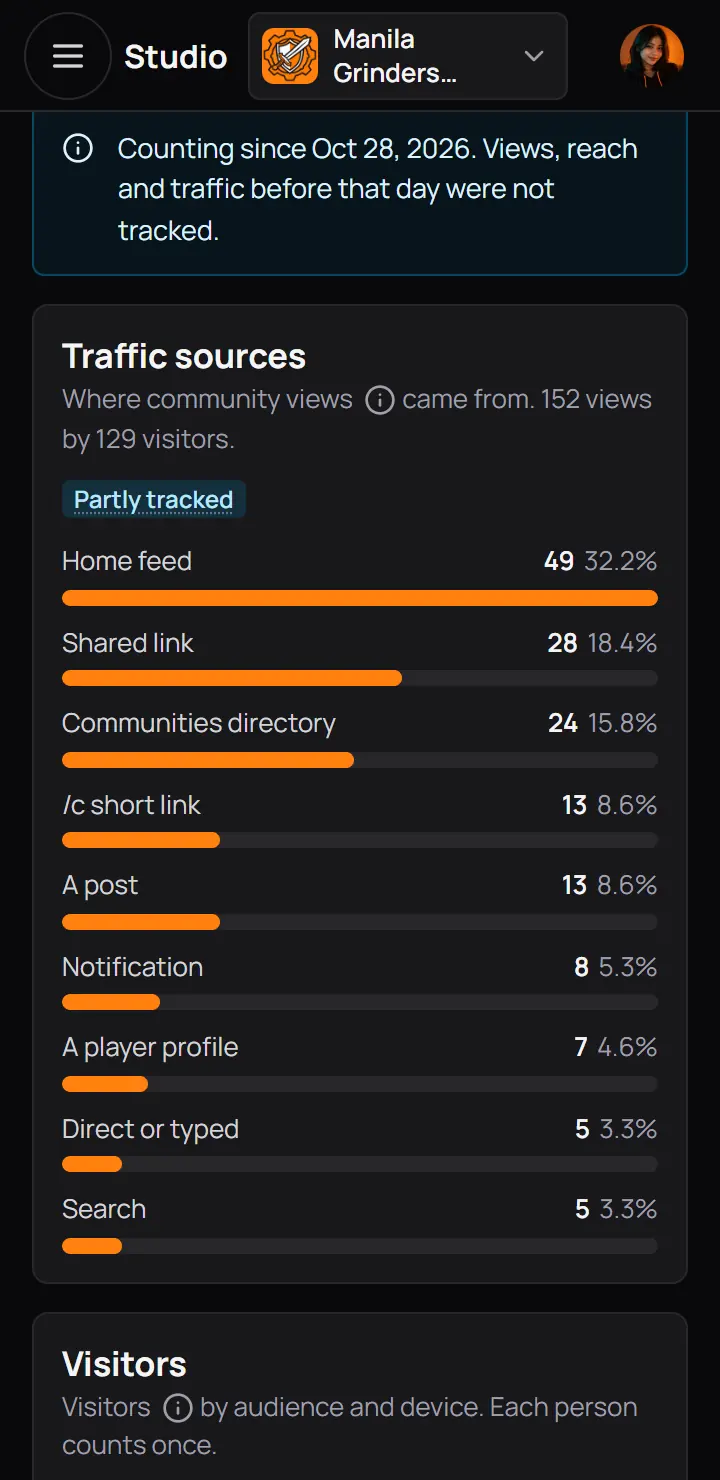
- Counting sinceStudio started counting visits on this day. Days before it are not in these numbers.
- Traffic sourcesWhere each view came from: the home feed, a shared link, the communities directory, the short /c link, a post, a notification and more.
Good to know. Studio shows totals only. It never lists who visited.
7Moderation
Moderation shows reports, posts waiting for approval and what your team did about them.
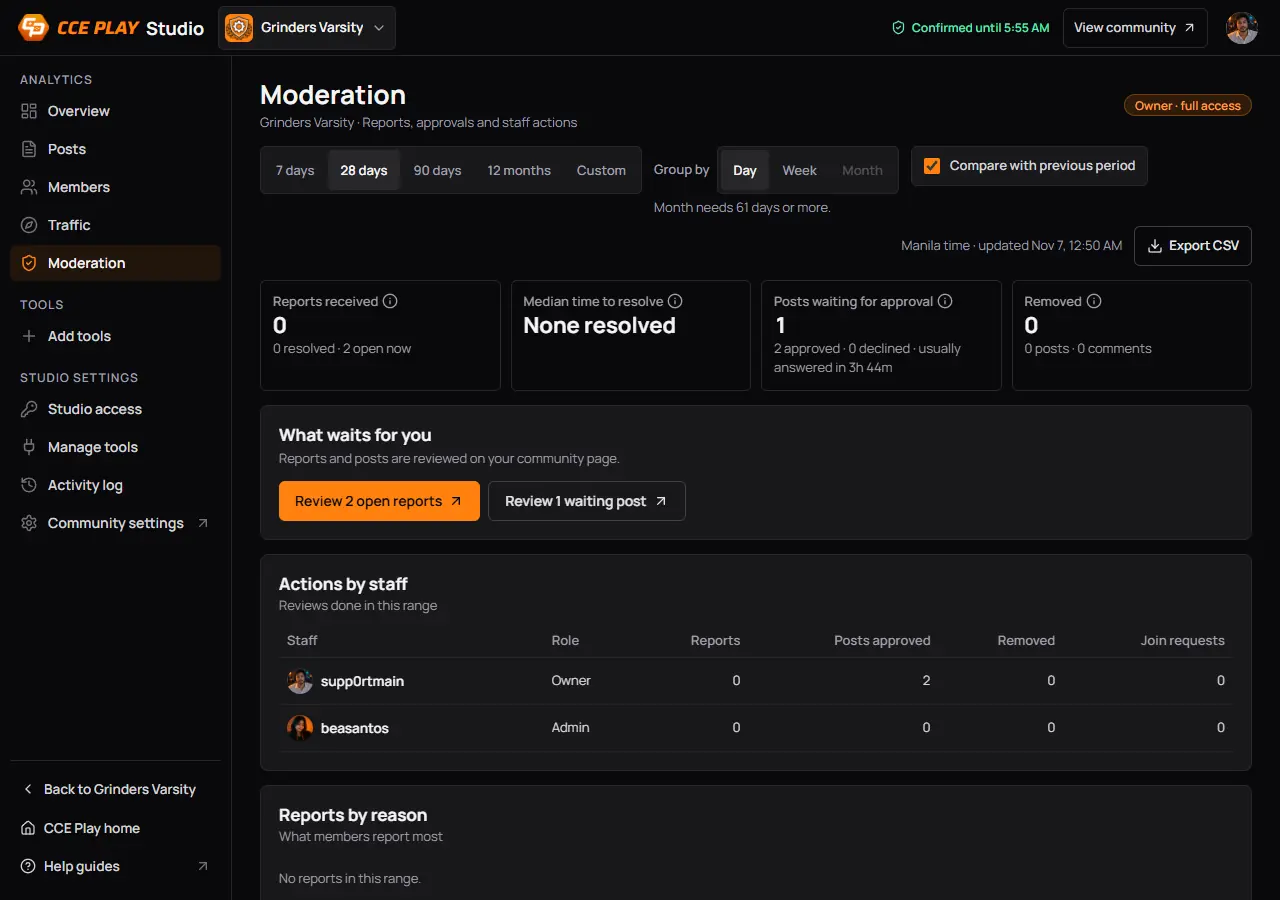
- Reports receivedReports sent in your dates. The line under it says how many were resolved, and how many are open now from any day.
- Median time to resolveHow long a report usually waited for an answer. None resolved means no report was answered in your dates.
- Posts waiting for approvalThe big number waits now. The line under it counts the posts answered in your dates.
- RemovedPosts and comments taken down in your dates.
- Review 2 open reportsOpens the community page's Reports tab in a new tab.
- Review 1 waiting postOpens the Pending tab in a new tab.
- Actions by staffWhat each owner, admin and moderator reviewed in your dates.
The 2 reports came in today, so Reports received is still 0. It counts them tomorrow.
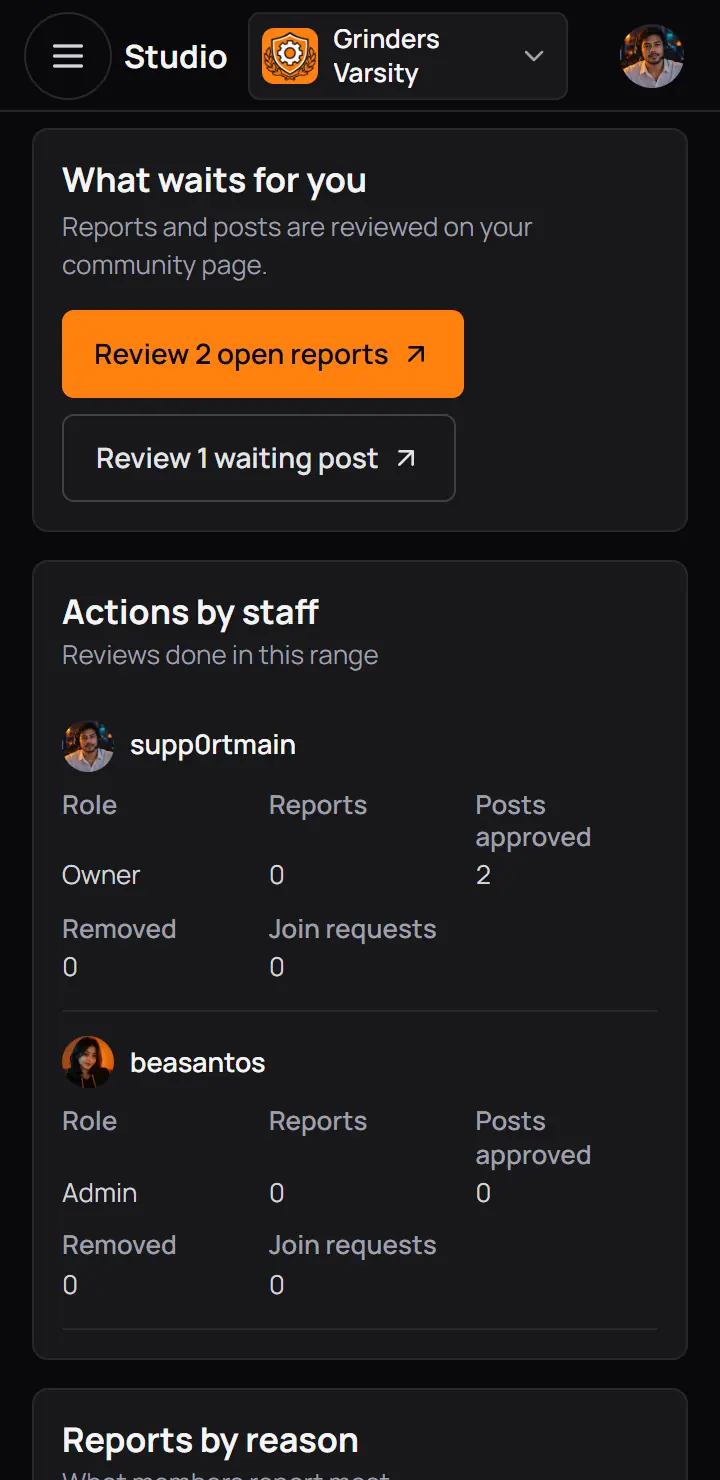
- Review 2 open reportsOpens the community page's Reports tab in a new tab.
- Review 1 waiting postOpens the Pending tab in a new tab.
The 2 reports came in today, so Reports received is still 0. It counts them tomorrow.
Last on the page, Reports by reason shows what members report most.
Where you review them
Reports and waiting posts are reviewed on the community page, not in Studio. On the Reports tab, each report has two buttons:
- Dismiss: the post or comment stays up and the report closes. Undo shows for 6 seconds.
- Remove post (or Remove comment): takes it down for everyone and closes every report on it.
8The note a reporter gets
When your team reviews a report, the player who sent it gets a notification. It does not name who reviewed it. In the pictures the owner of Grinders Varsity dismissed a report, so the reporter reads that the post was left up.
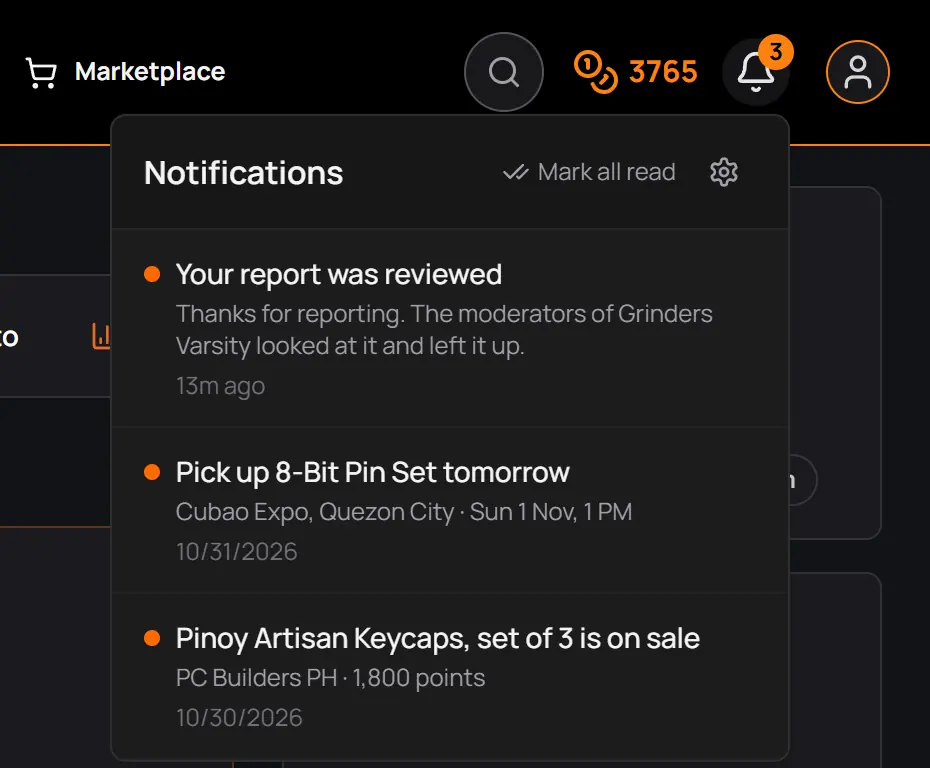
- The bellThe reporter sees a new notification.
- Your report was reviewedPressing it opens the post, or the community page when the post is gone.
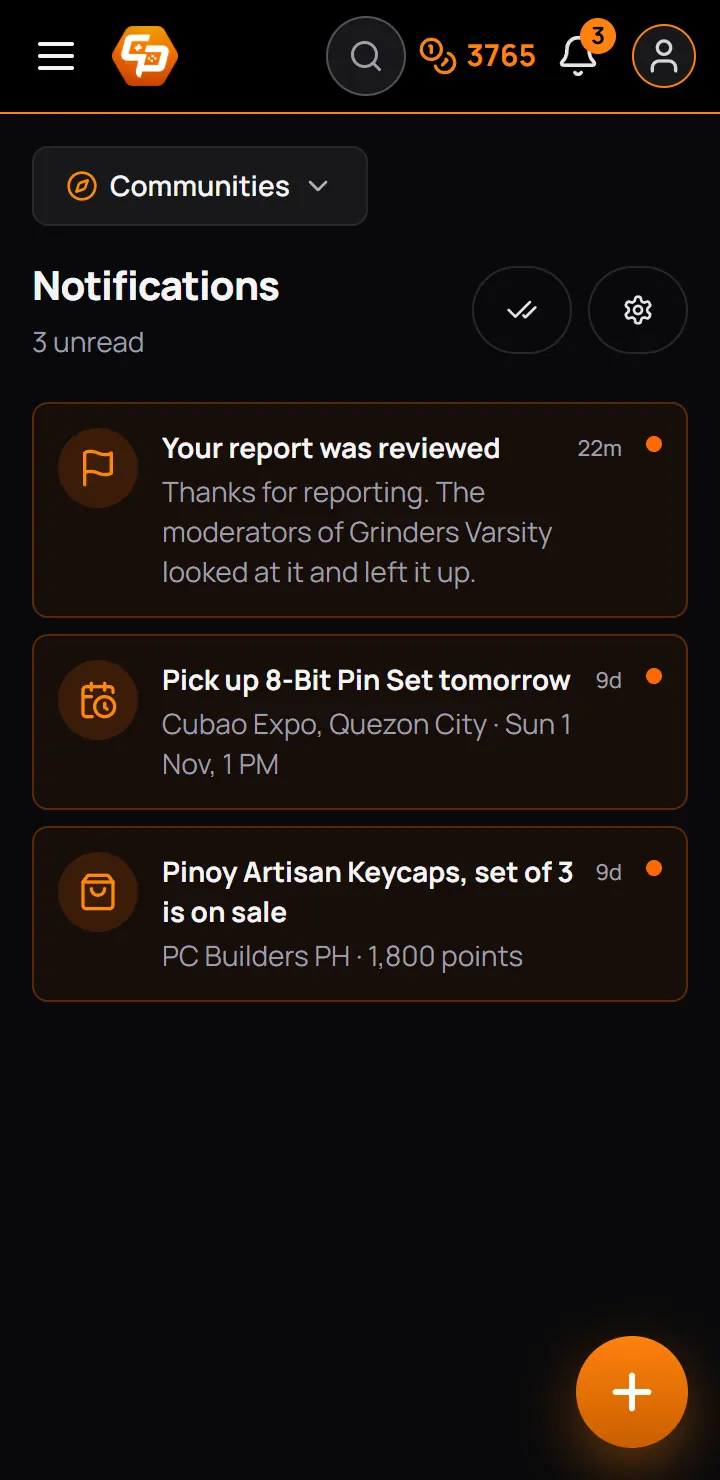
- Your report was reviewedPressing it opens the post, or the community page when the post is gone.
| Your team | The note says |
|---|---|
| Dismissed the report | The note saysThanks for reporting. The moderators of <community> looked at it and left it up. |
| Removed the post or comment | The note saysThanks for reporting. The moderators of <community> took the post down. |
- When a post is removed, everyone who reported it gets the note.
- The person who reviewed it gets none.
- Players can turn these notes off under "Answers to your reports" in their notification settings.
For CCE Play staff. When CCE Play staff review a report in the admin app, the note says "CCE Play" instead of the community's moderators.
9Download the numbers
Export CSV downloads the numbers of the page you are on, for the dates you picked, as a file that Excel and Google Sheets open. The owner always has it. Admins and moderators have it only when the owner ticks it for their role in Studio access.
- Press Export CSVIt reads Preparing... while Studio makes the file, then the file downloads.
- Press Export CSVIt reads Preparing... while Studio makes the file, then the file downloads.
| Page | One row for each |
|---|---|
| Overview | One row for eachDay, week or month: views, visitors, joins, leaves, posts, engagements and active members |
| Posts | One row for eachPost: its date, title, type, channel, hashtags, author, every number and a link |
| Members | One row for eachDay, week or month: joined, left, removed, net change and active members |
| Traffic | One row for eachSource, audience, device and tab, with the views and the people |
| Moderation | One row for eachOwner, admin or moderator, with what they reviewed |
The file is named after the community, the page and the dates, such as manila-grinders-overview-2026-10-12-to-2026-11-08.csv. Every download is written in the owner's Activity log.
10A new community
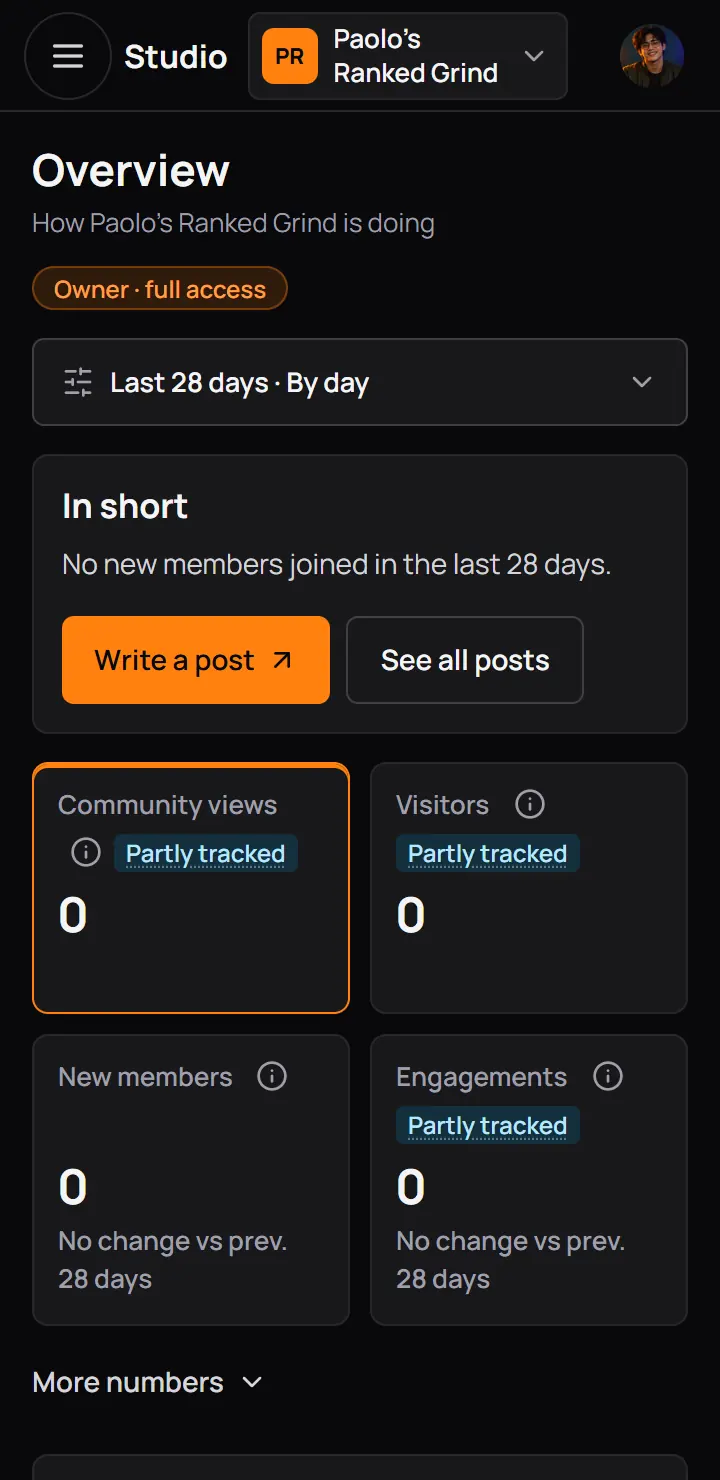
A new community has no numbers yet. Every page still opens: the tiles read 0, the charts are flat, and the boxes say what is missing, such as "No posts in this range."
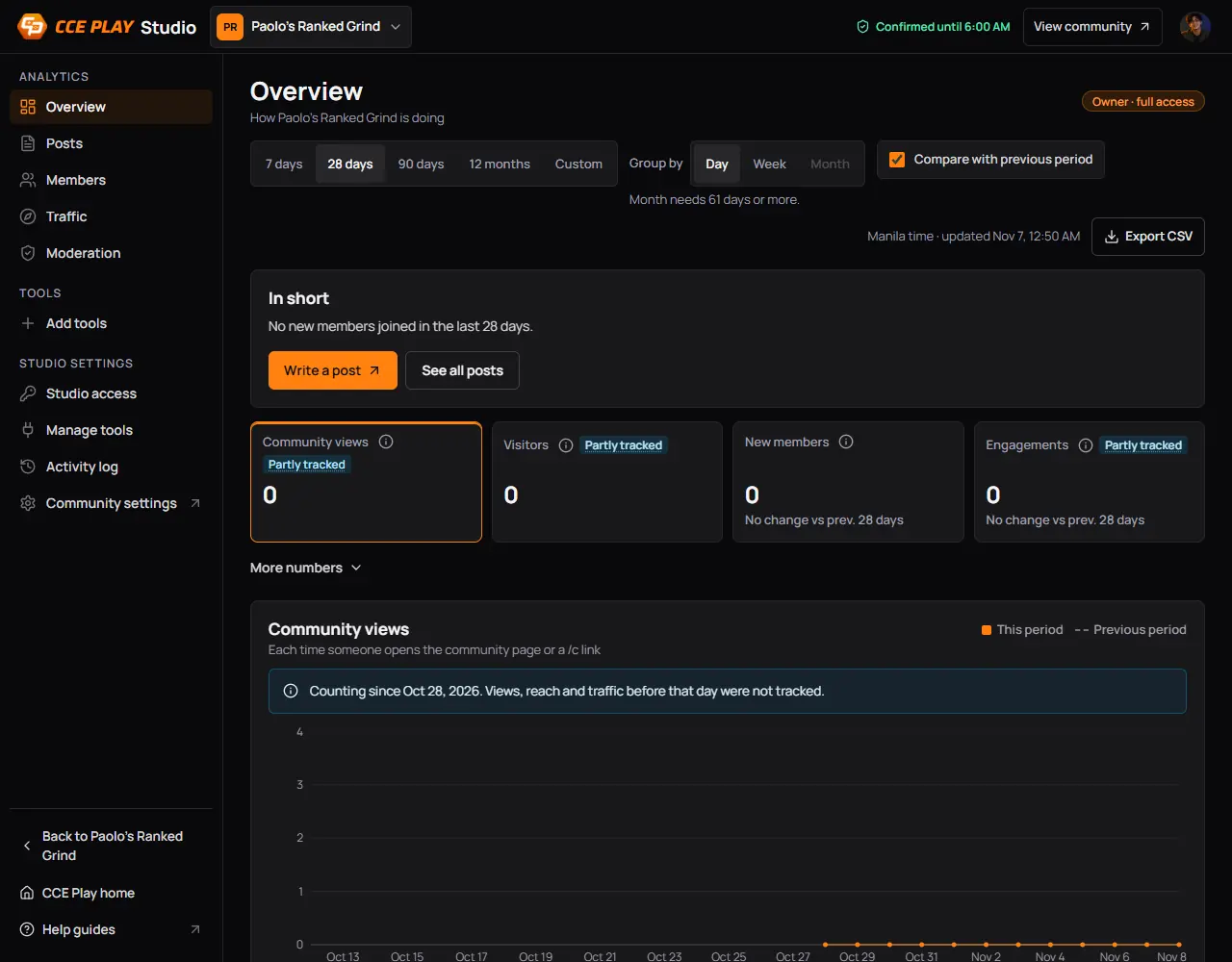
- In shortSays nobody joined yet, or that not much happened.
- Write a postA first post is the quickest way to get people talking.
- The tiles read 0
- Counting sinceThe first day Studio counted visits on CCE Play.
- In shortSays nobody joined yet, or that not much happened.
- Write a postA first post is the quickest way to get people talking.
Good to know. Numbers arrive the morning after something happens. Write a post and invite a few friends today, and check Studio tomorrow.
11Words you will see
| You see | It means |
|---|---|
| ▲ 12% vs prev. 28 days | It meansThe change against the same number of days before them. Green is better, red is worse. |
| New, nothing before | It meansThe period before had none, so there is no change to show. |
| Partly tracked | It meansStudio started counting this after the first day of your dates. Press the badge to read more. |
| Counting since <date> | It meansThe first day Studio counted visits, reach and traffic. The charts show a gap before it, not a zero. |
| About 1,240 | It meansFor dates older than 90 days Studio adds up the daily counts, so a person who came on two days counts twice. |
| Not tracked | It meansStudio did not count this for your dates. |
| fewer than 5 | It meansFewer than 5 people are behind this row. Studio hides the number so nobody can be picked out. |
| No plays | It meansNo video played for 3 seconds or more in your dates. |
| Nobody active | It meansNo member was active in the 28 days, so there is no daily share. |
| None resolved | It meansNo report was answered in your dates. |
| Show as table | It meansUnder every chart: the same numbers as a table. |
For CCE Play staff. CCE Play admins can read any community's numbers in the admin app under Studio insights: Overview, Posts with each post's page, Members, Traffic and Moderation, read only and without Export CSV. Each page they open is written in the owner's Activity log as "cceplay support viewed".
12If something goes wrong
| You see | What to do |
|---|---|
| Today's numbers are missing | What to doStudio counts a day after it ends. Check again tomorrow morning. |
| A thin orange bar at the top of the page | What to doStudio is getting the numbers for your new dates. The old ones stay until then. |
| Week or Month is grey | What to doYour dates are too short. Week needs 15 days or more, Month 61 days or more. |
| The last day with numbers is yesterday | What to doPick an end date before today. |
| Studio keeps 12 months. Pick a later start date. | What to doPick a start date within the last 12 months. |
| The CSV could not be made. Try again. | What to doPress Export CSV again. If it keeps failing, try a shorter date range. |
| This post is not here | What to doThe post was deleted, or it belongs to another community. Press See all posts. |
| <Page> could not open | What to doPress Try again, or open another page from the menu. |
Still stuck? Ask your community's owner, or read the other help guides.