
1Where Tournaments is
Tournaments is a tool. Once CCE Play has turned it on for your community, it is in the Studio menu under Tools. On a phone, tap the round menu button first.
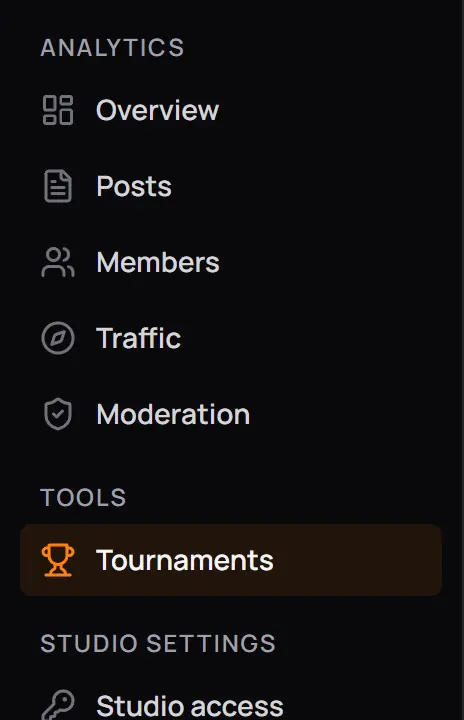
- ToolsEvery tool that is on for your community.
- TournamentsOpens the list of your tournaments.
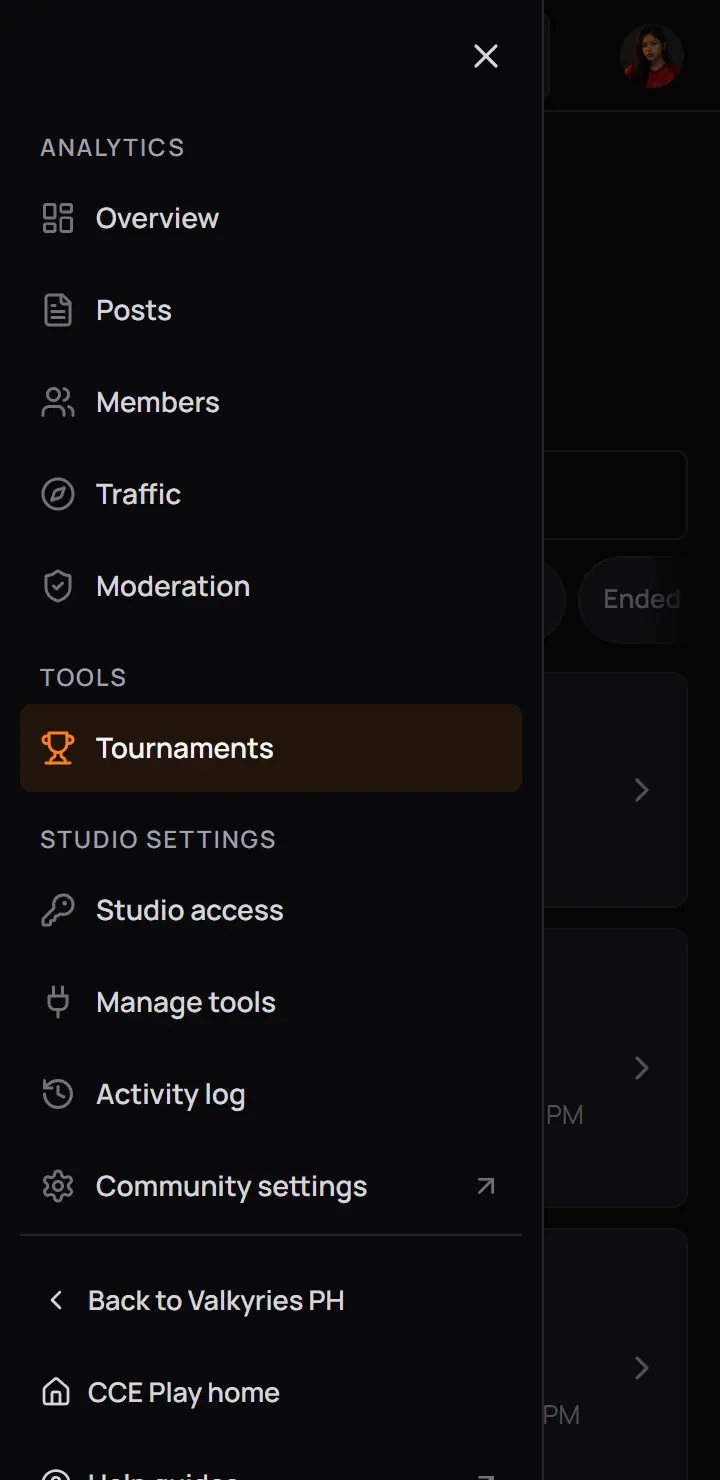
- ToolsEvery tool that is on for your community.
- TournamentsOpens the list of your tournaments.
Who can open it
The owner always can. An admin or moderator can only if the owner turned on the Tournaments row for their role in Studio access. Without it, Tools is not in their menu, and a link to a tournament page says the page is not shared with them. In the picture an admin of Valkyries PH opened the Tournaments page.
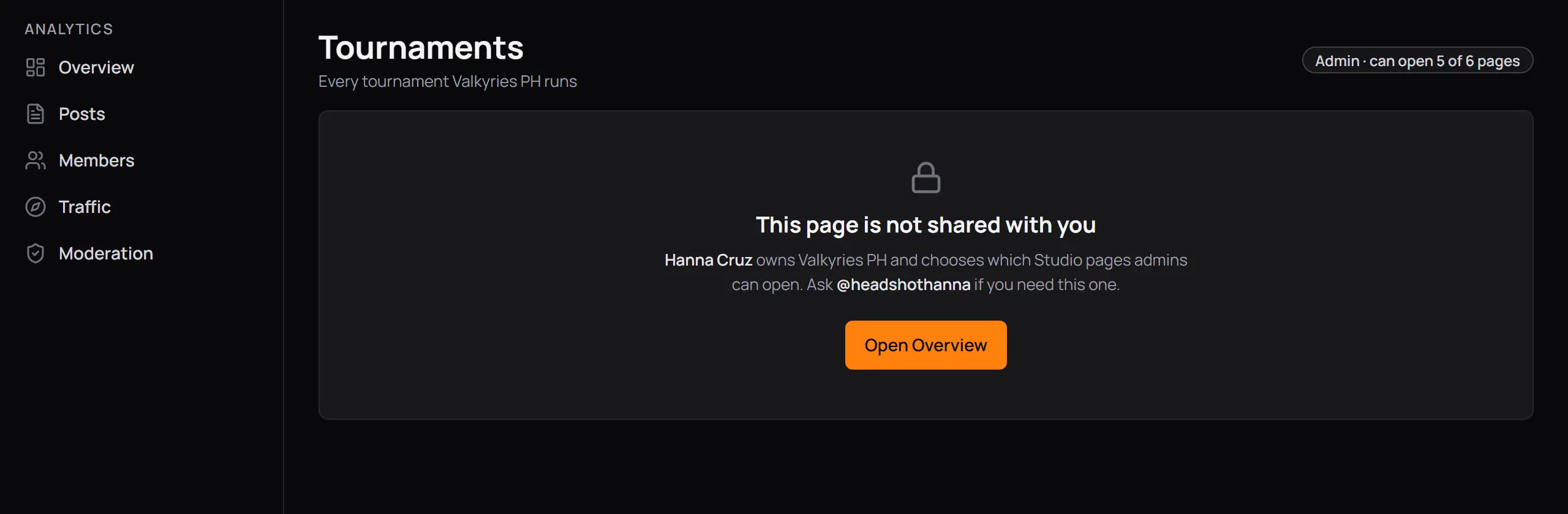
- This page is not shared with youIt names the owner. Ask them to turn on the Tournaments row for your role.
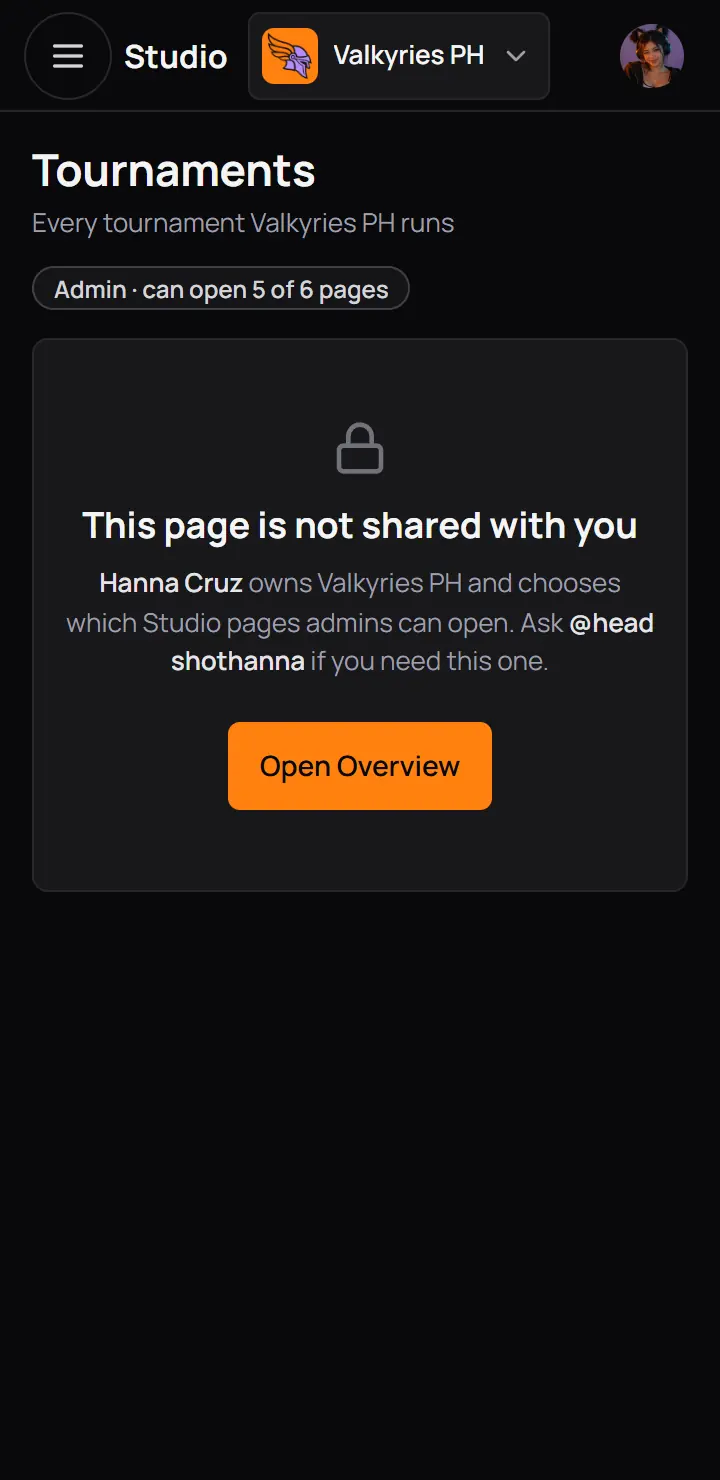
- This page is not shared with youIt names the owner. Ask them to turn on the Tournaments row for your role.
Good to know. If Tools is not in the owner's menu at all, the community does not have the tool yet. The owner asks for it in Manage tools. See Ask for a tool.
2The list of tournaments
The Tournaments page lists every tournament your community made. Each row has the match day on the left, the title, the stage label, the game, where sign-ups stand and how many teams have a spot. Press a row to open it: a draft opens in the builder, any other tournament on its Teams page.
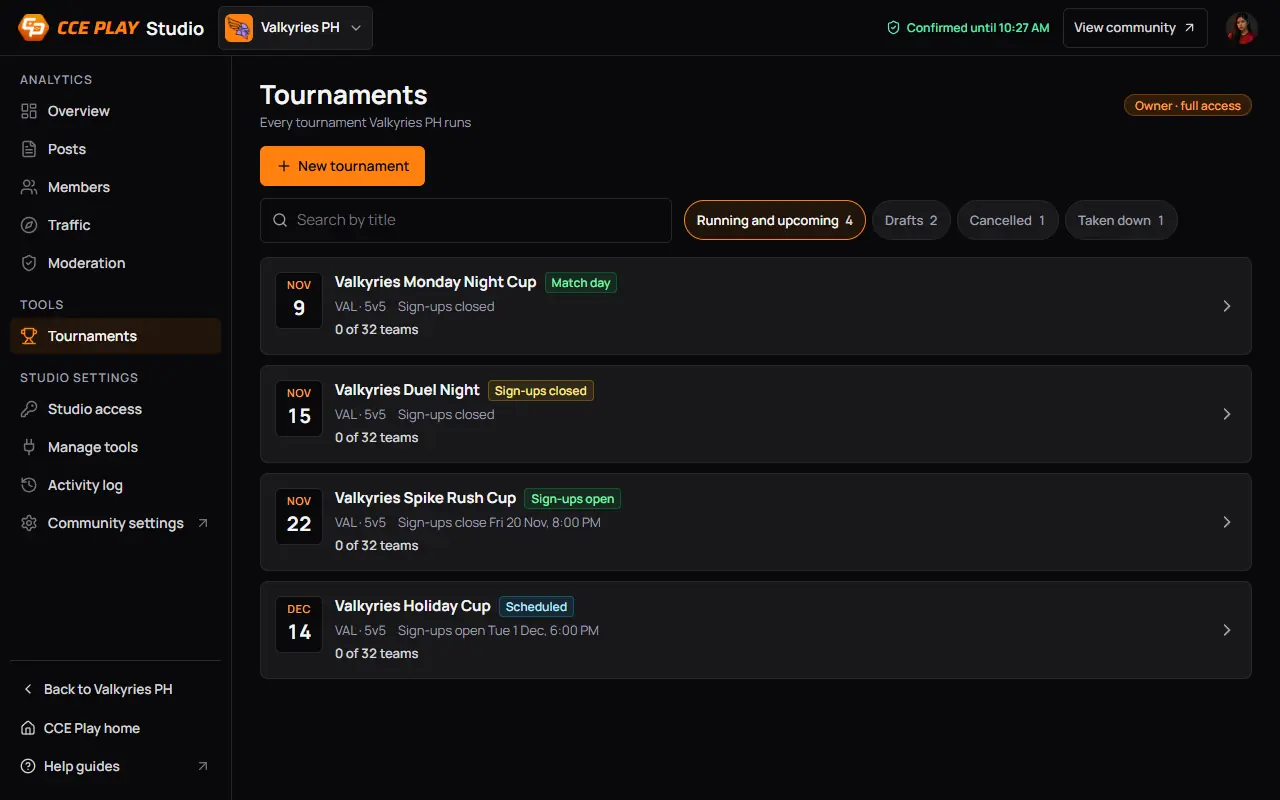
- New tournamentOpens New tournament: start from scratch or from a template.
- Search by titleShows once your community has 7 tournaments.
- The chipsRunning and upcoming is the first. A chip shows only when it has tournaments: Drafts, Ended, Cancelled, Taken down.
- One tournamentIts match day, title, stage and teams. Press it to open it.
Running and upcoming lists the soonest date first: when sign-ups open, when they close, or match day.
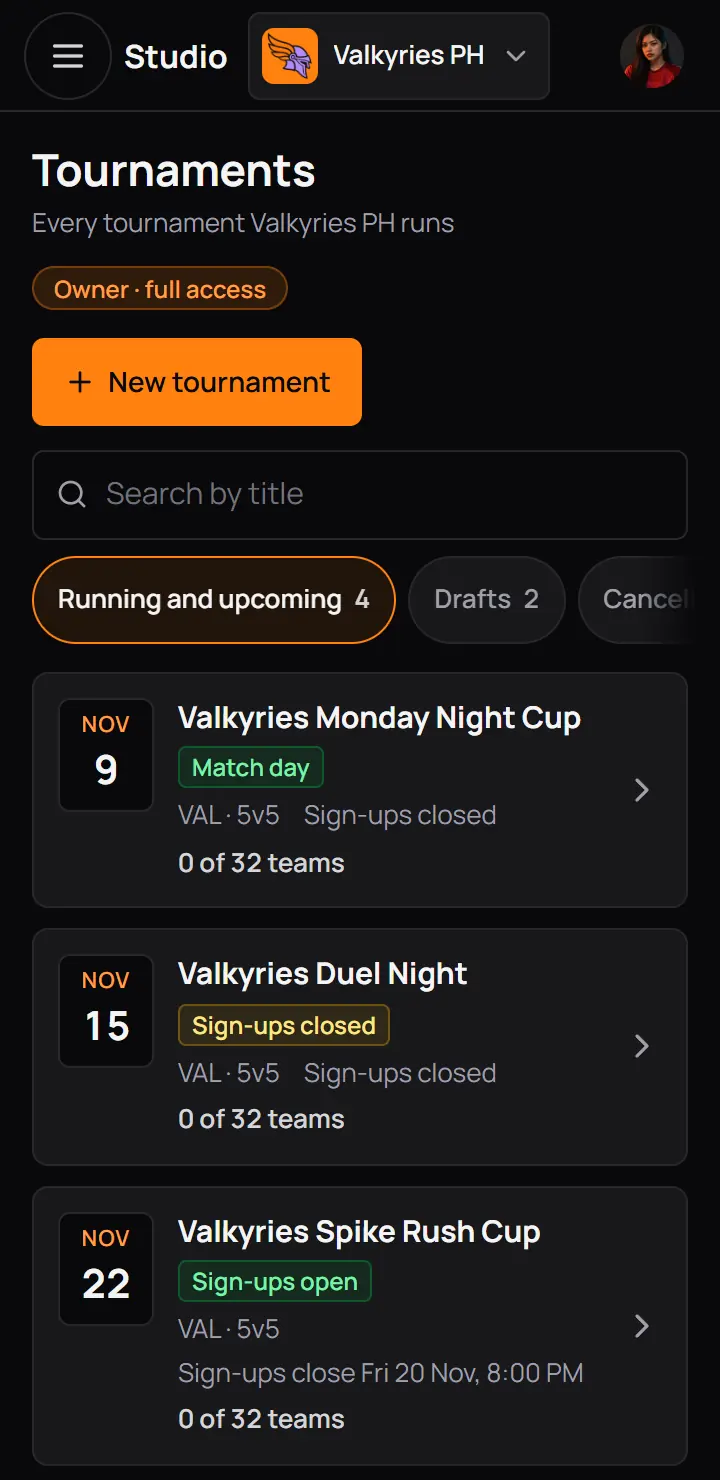
- New tournamentOpens New tournament: start from scratch or from a template.
- The chipsRunning and upcoming is the first. A chip shows only when it has tournaments: Drafts, Ended, Cancelled, Taken down.
- One tournamentIts match day, title, stage and teams. Press it to open it.
Running and upcoming lists the soonest date first: when sign-ups open, when they close, or match day.
- A row can also say "3 teams to review" in orange, or a warning in yellow such as "Match day is Sun 8 Nov and only 1 team is approved." The warning shows when match day is 3 days away or less and fewer than 2 teams are approved.
- A community can have 20 drafts and tournaments that have not ended. At 20, a yellow box above the list says so: end, cancel or delete one to make a new one.
3Start a tournament
New tournament asks for the tournament's name first. It suggests one with the month, such as "Community Cup, Nov 2026", until you type your own. Then you pick how to start. Picking only selects: the button at the bottom makes the draft and opens the builder.
| Pick | What the draft starts with |
|---|---|
| Start from scratch | What the draft starts withA team of the size you pick, 1 to 10 players. With 1 it is solo, one player per entry. With more, a Captain and the other players. Single elimination, best of 1. |
| One of your templates | What the draft starts withThe template's team, roles, questions, rules, format and game. Its card shows the team size, the format and when it was last used. |
- You can change all of it in the builder before you publish. Only Studio staff see a new draft until you publish it.
- Players 17 and under are always asked for a parent consent file before their team is submitted. You cannot turn it off.
- The bar at the bottom says how many of the 20 open tournaments your community uses. Drafts count too.
Your templates
A template keeps your team shape, roles, questions, rules and format, so the next tournament starts ready. It leaves out the name, the dates, the prizes and the pictures. The Templates tab beside the list of tournaments holds your community's templates, up to 20, and only your Studio staff see them.
- New template asks a name and the players per team, then opens the template in the same steps as the builder.
- Each template's menu has Edit, Rename and Delete.
- To reuse a tournament, open it and press Save as template in its More menu. It works in every stage, an ended or cancelled tournament too.
- Editing or deleting a template never changes a tournament made from it.
4The builder
The builder has six steps. Basics, Team, Schedule, and Rules and prizes are needed. Team questions and Sign-ups are optional: a new tournament starts with them set, so you can leave them as they are. Every change saves by itself.
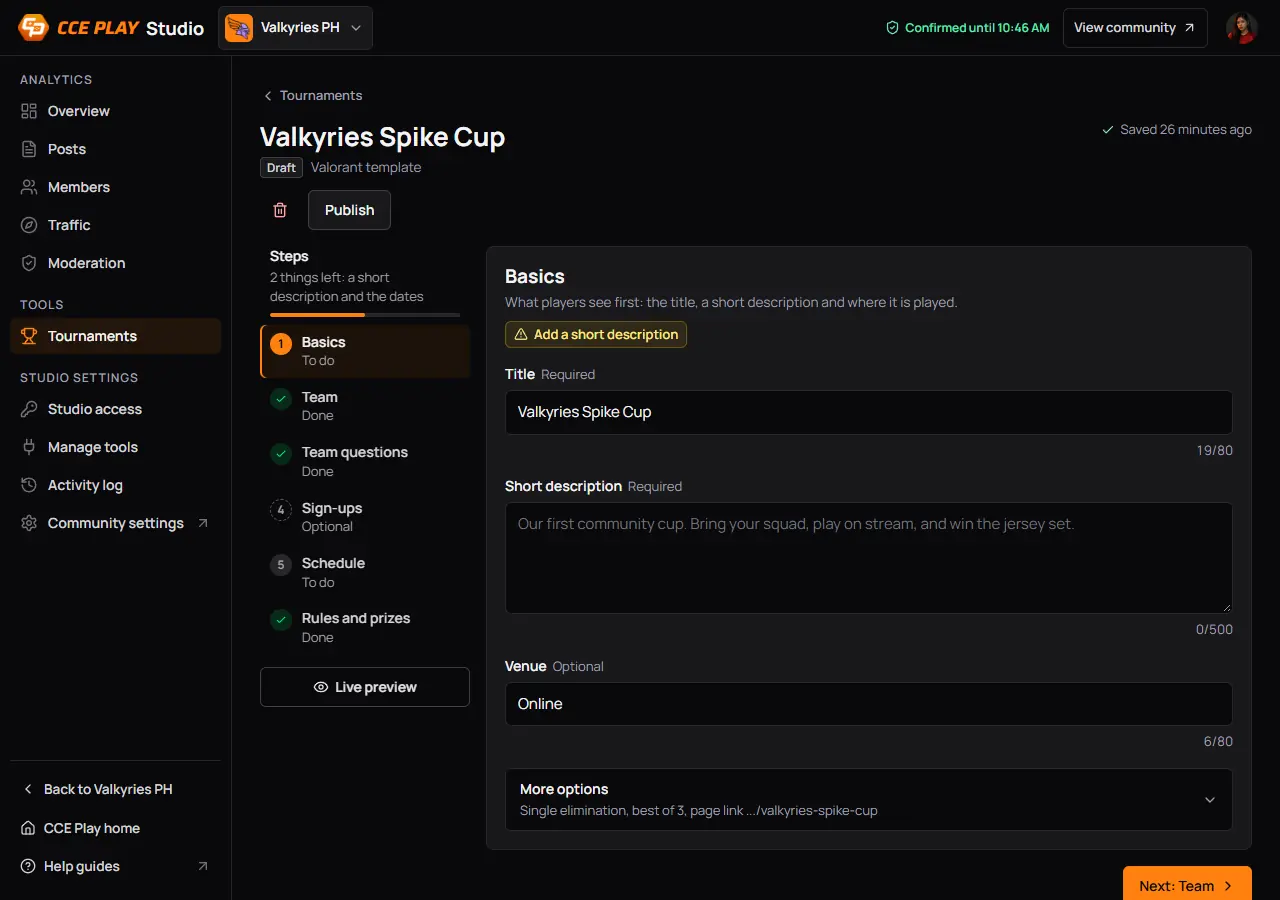
- DraftAnd From template with its name, when it came from one.
- Delete this draftAsks first. A published tournament cannot be deleted.
- PublishChecks every step first.
- SavedEvery change saves by itself.
- What is leftHere 2 things left: a short description and the dates. It says Ready to publish when nothing is missing.
- The six stepsPress one to open it.
- Live previewShows the step as players will see it.
- NextOpens the next step.
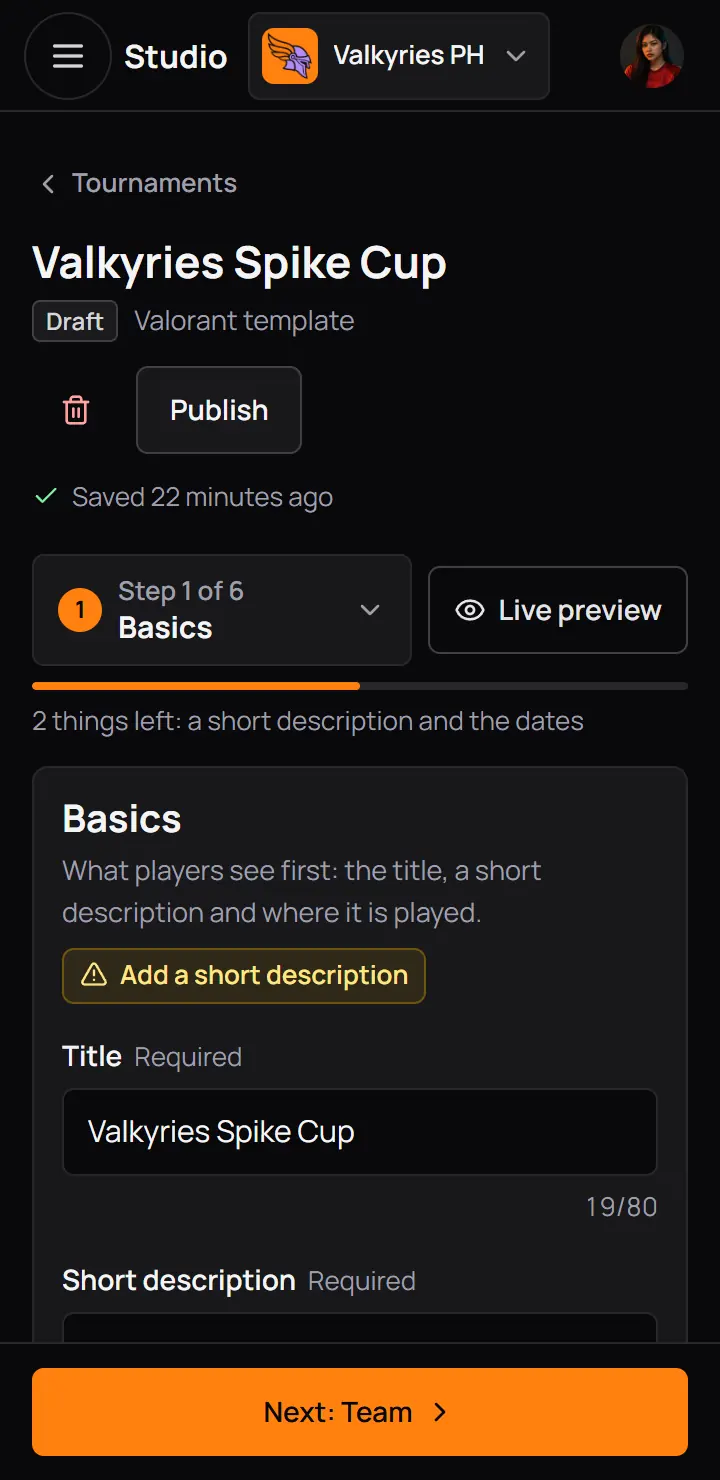
- PublishChecks every step first.
- SavedEvery change saves by itself.
- What is leftHere 2 things left: a short description and the dates. It says Ready to publish when nothing is missing.
- The step you are onTap it to see all six steps.
- Live previewShows the step as players will see it.
- NextOpens the next step.
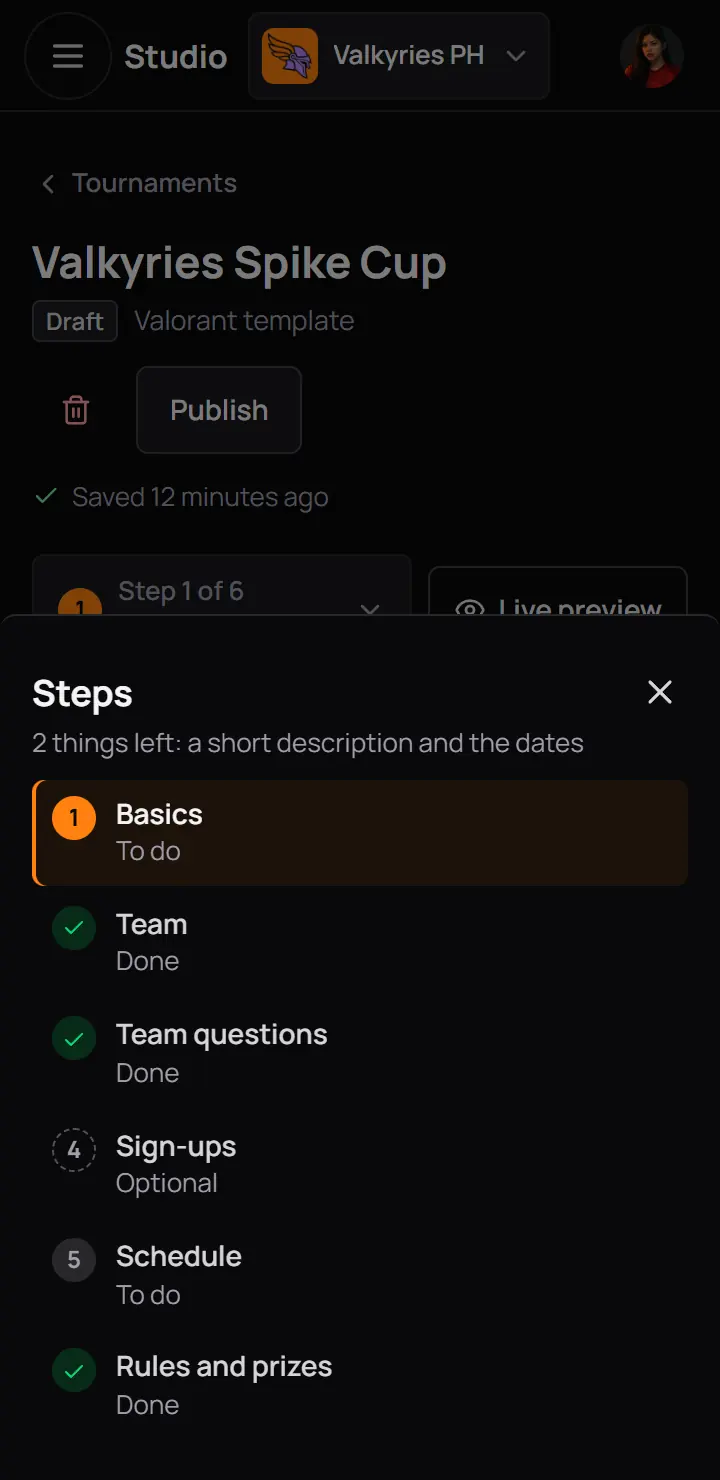
- To doA needed step that is still missing something.
- DoneA green tick.
- OptionalGrey until you open it.
After you press Next or Publish on a step, a step that is still missing something shows a ! and the words Something is missing.
- To doA needed step that is still missing something.
- DoneA green tick.
- OptionalGrey until you open it.
After you press Next or Publish on a step, a step that is still missing something shows a ! and the words Something is missing.
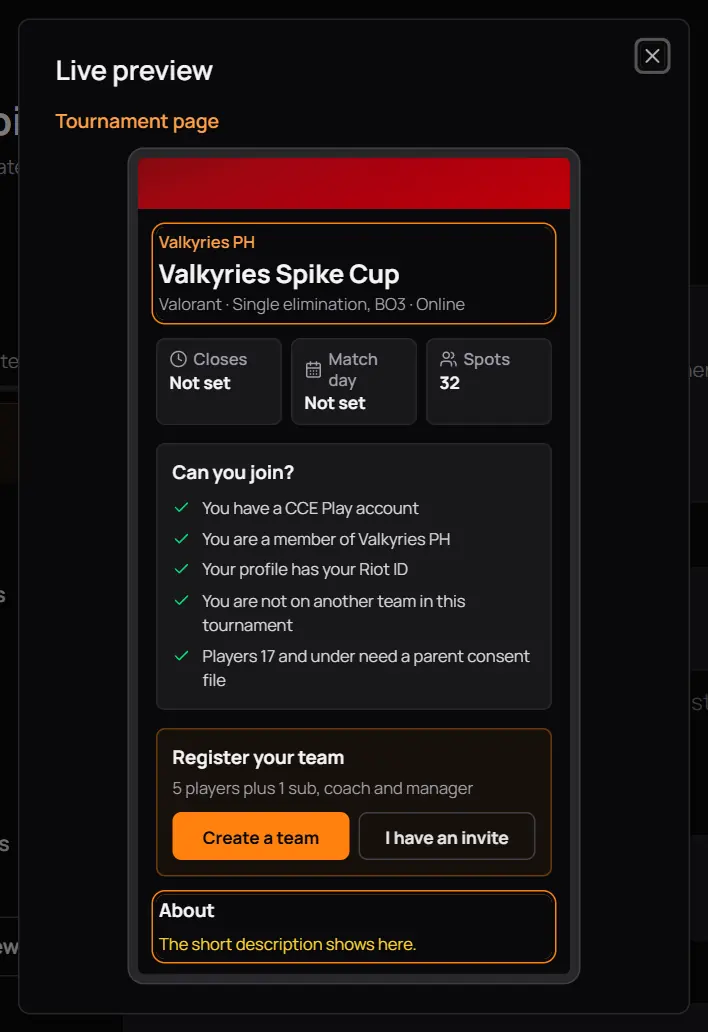
- Live previewThe page players will see, drawn as you type.
- Live previewThe page players will see, drawn as you type.
5Step 1: Basics
What players see first. A title and a short description are needed.
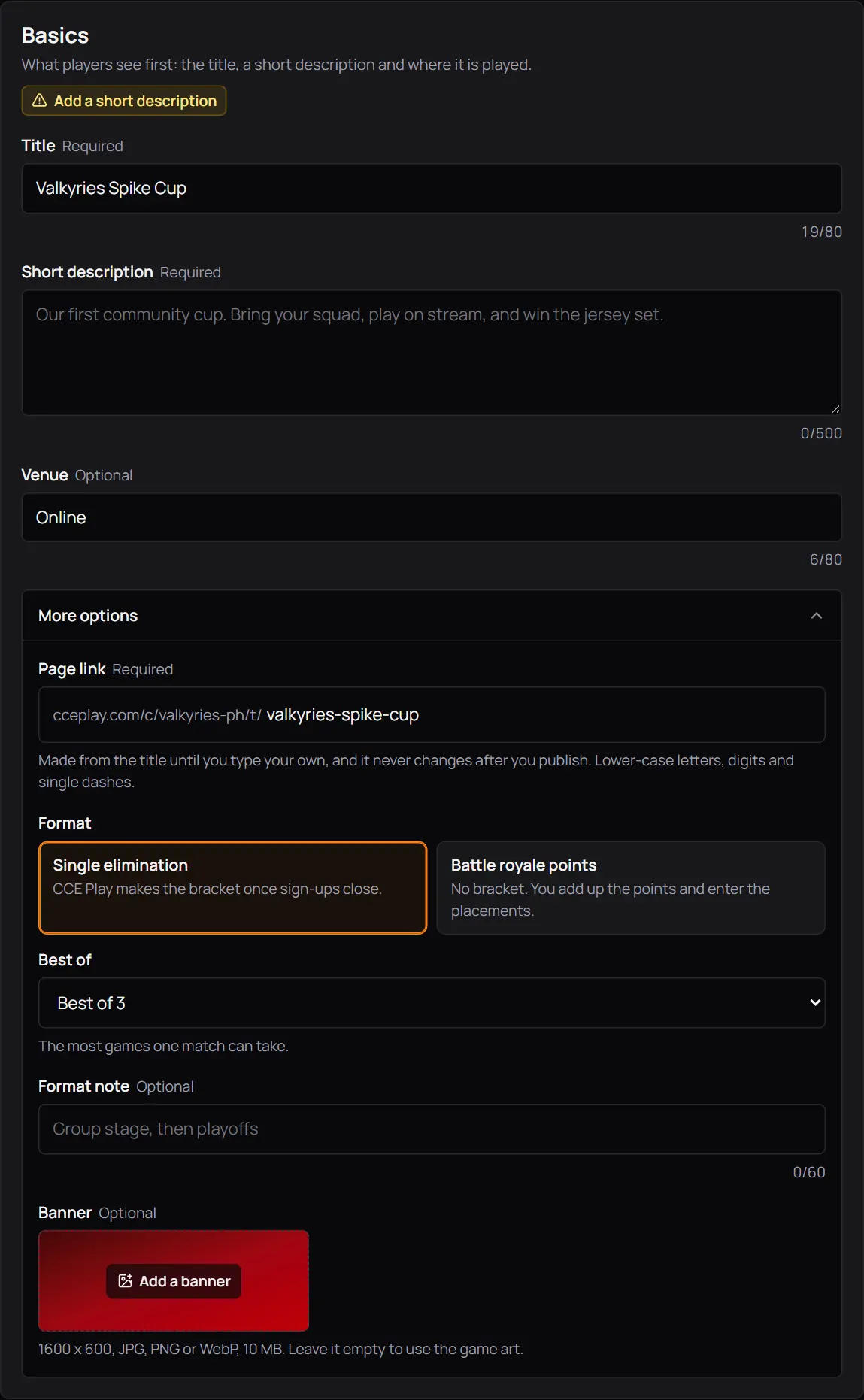
- What this step is missingYellow until it is done, then green.
- TitleUp to 80 letters.
- Short descriptionUp to 500 letters. Members read it on the tournament page.
- VenueOptional. Online, or the place.
- More optionsClosed at first. Its line says what is set.
- Page linkMade from the title. Lower-case letters, digits and single dashes. It never changes after you publish.
- FormatSingle elimination: CCE Play makes the bracket. Battle royale points: no bracket, you enter the placements.
- Best ofThe most games one match can take.
- Banner1600 x 600. Leave it empty to use the plain backdrop.
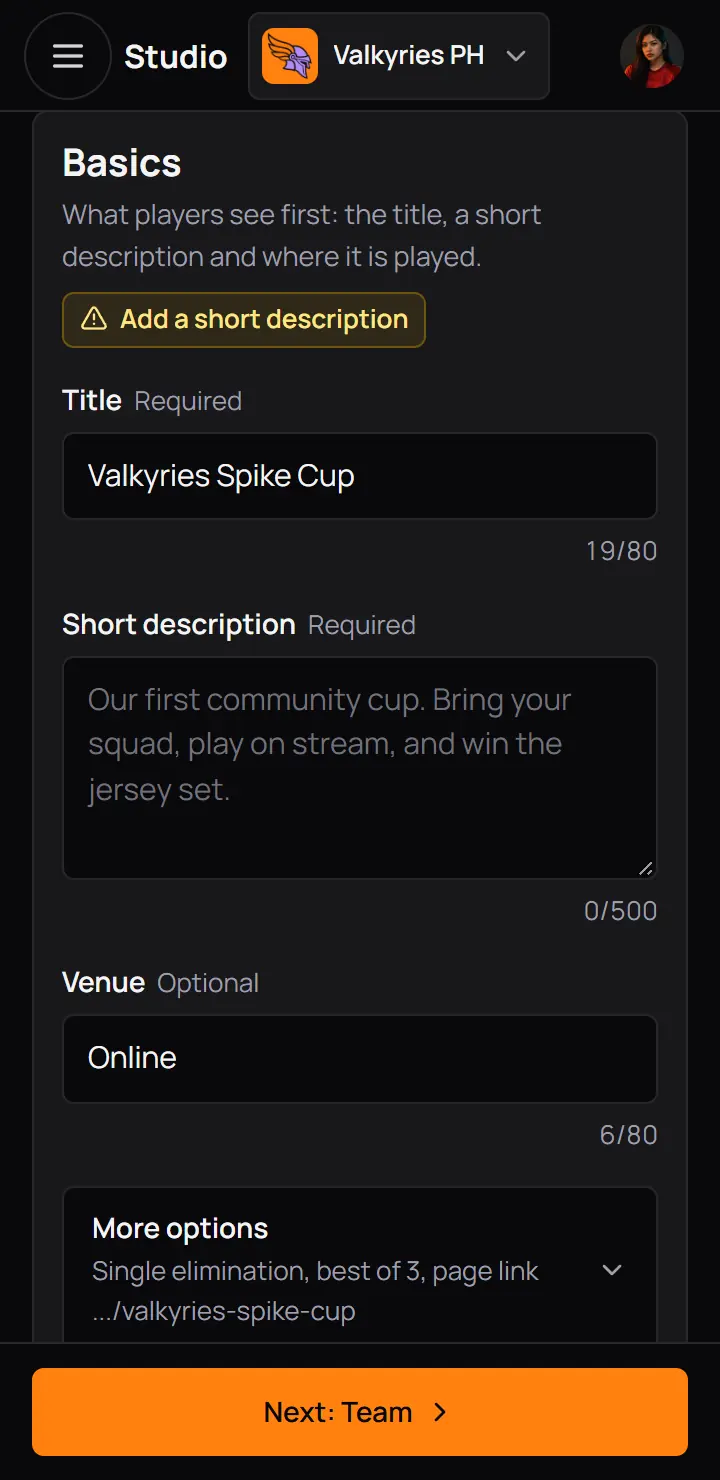
- What this step is missingYellow until it is done, then green.
- TitleUp to 80 letters.
- Short descriptionUp to 500 letters. Members read it on the tournament page.
- Game is optional free text under the title, up to 40 letters, such as Mobile Legends, chess or basketball. It shows on the tournament card and page.
6Step 2: Team
How many play, who else is on a team, and what each person fills in when they join. The step has two parts: Players, then Roles.
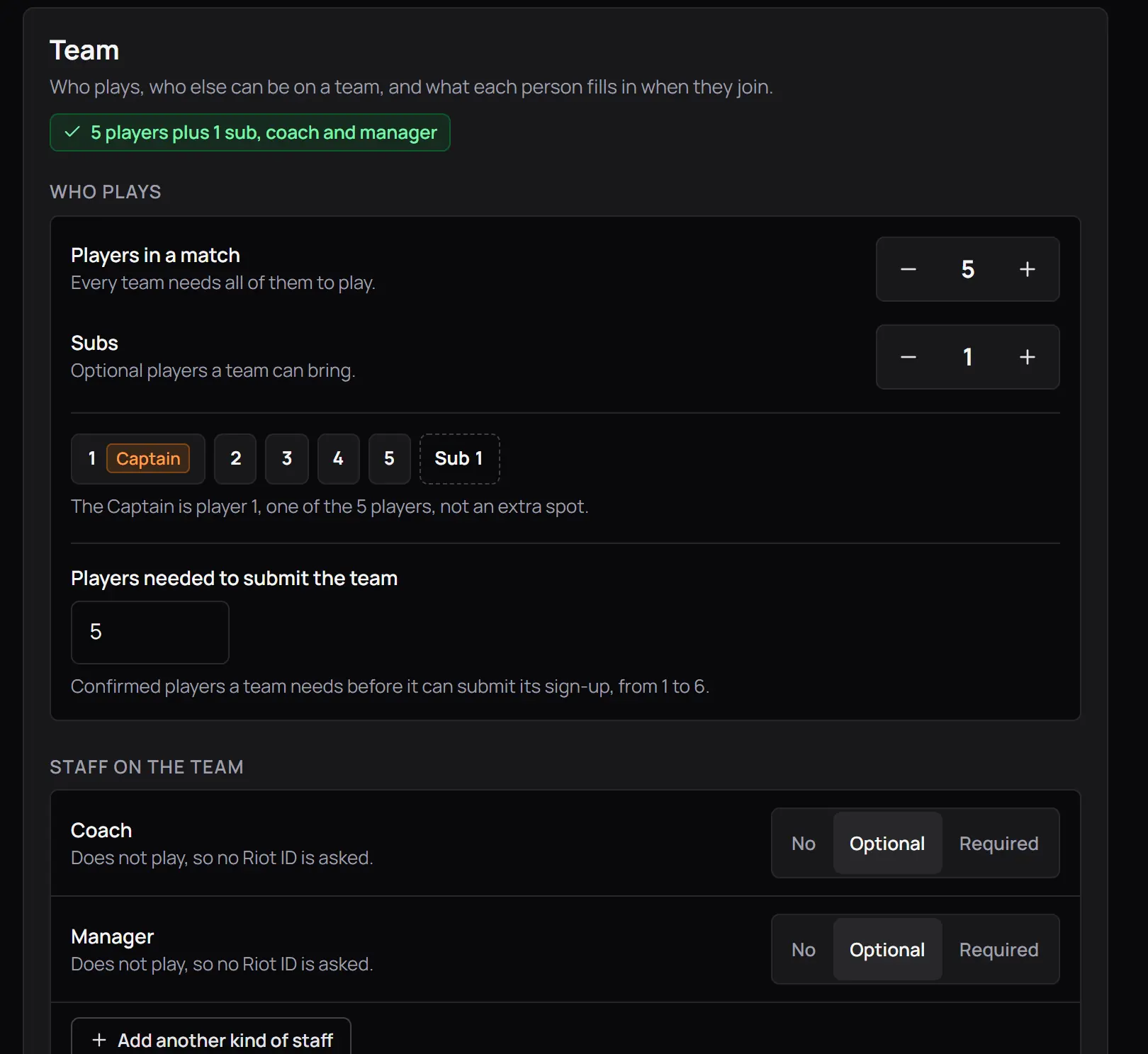
- Players in a matchEvery team needs this many to play. Set it to 1 for a one-player tournament.
- SubstitutesExtra players a team can add. Leave it at 0 for none.
- Substitutes a team must haveShows once there is a substitute. A team always needs all its players, and this many substitutes too, before it can submit.
- The spots that playEach spot by the name players see in the team lobby. A dashed spot is a substitute.
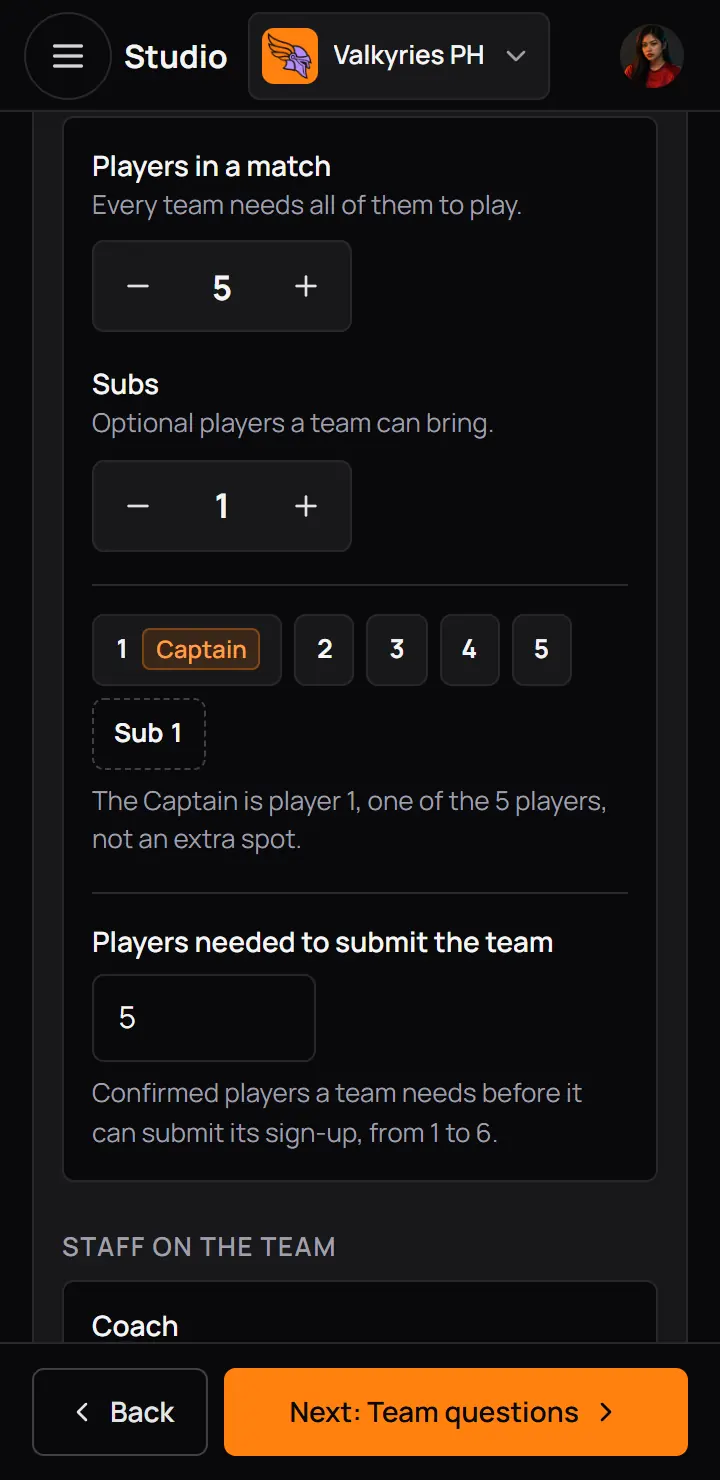
- Players in a matchEvery team needs this many to play. Set it to 1 for a one-player tournament.
- SubstitutesExtra players a team can add. Leave it at 0 for none.
- The spots that playEach spot by the name players see in the team lobby. A dashed spot is a substitute.
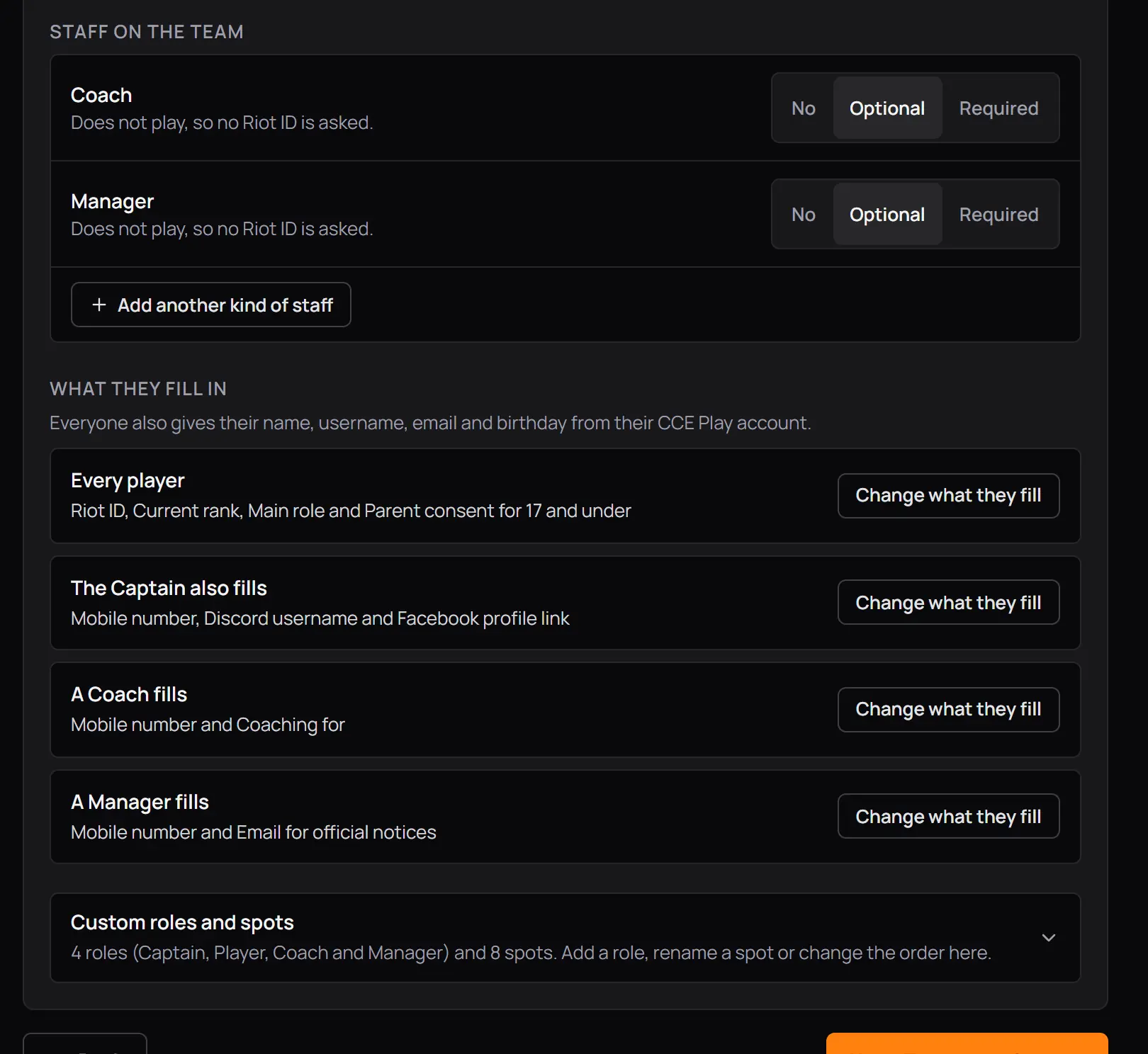
- RolesOne card for each kind of person on a team. Everything about a role is on its card.
- No, Optional or RequiredFor a role that does not play, like Coach: whether a team can or must have one.
- What the role fills inEveryone also gives their name, username, email and birthday from their account.
- Change what they fill inOpens the list of fields for that role, inside its card.
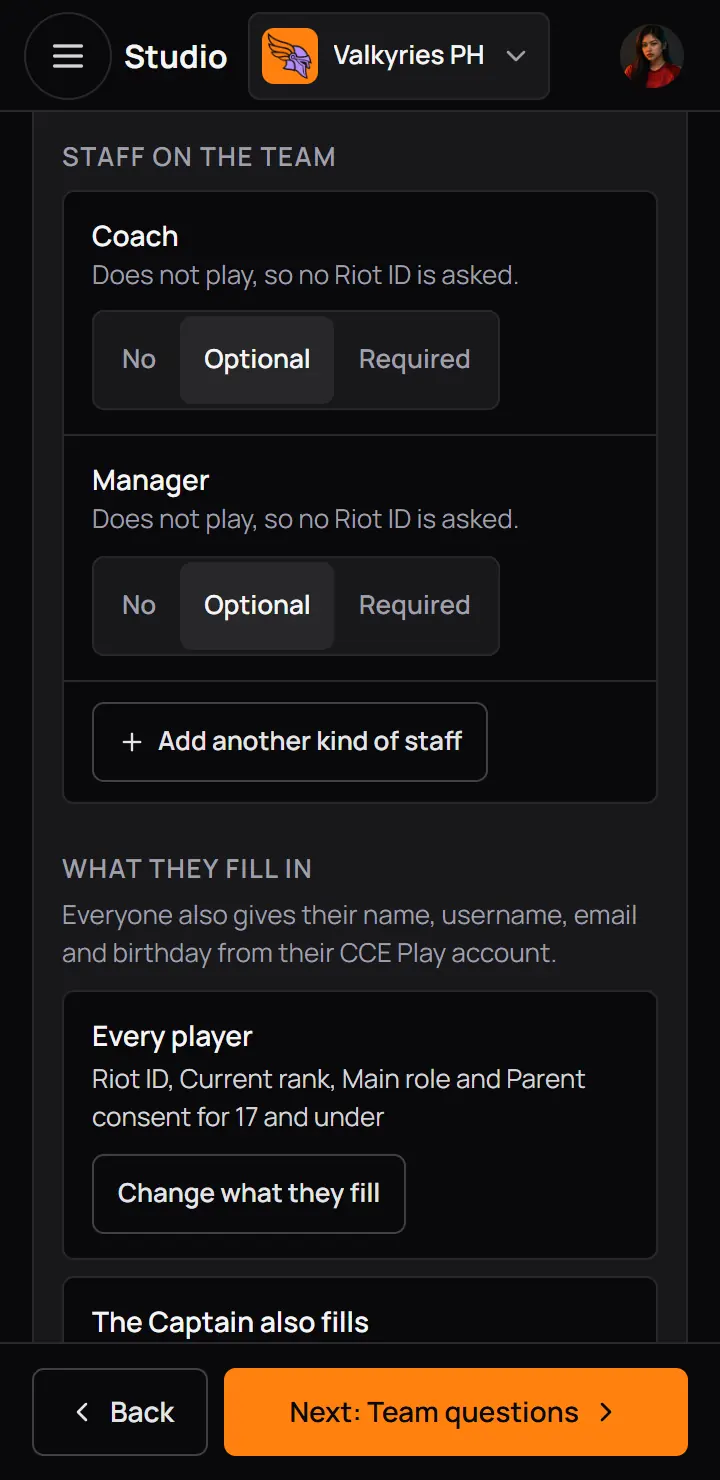
- RolesOne card for each kind of person on a team. Everything about a role is on its card.
- No, Optional or RequiredFor a role that does not play, like Coach: whether a team can or must have one.
- What the role fills inEveryone also gives their name, username, email and birthday from their account.
- A role that plays, like Captain, is one of the players, not an extra person. Its card asks how many players are a Captain. Set it to 0 for a tournament with no captain.
- Add a role makes a new role that is ready to use: a team can add one, and it fills in a mobile number. It starts as Helper, so type its real name, such as Coach.
- Role settings on a card holds the role's name, Plays in matches, Can be on more than one team and Remove role. Remove role works once no team spot has the role, and shows Undo for 8 seconds.
- Spot names, closed at the end of the step, is where you give a spot a name of its own, such as Jungler in place of Player 2.
- Add a field with Add a field: short or long text, a choice, yes or no, a file, Discord, school, mobile number, email or a link.
- A game ID or in-game name is a Short text field. It can have a shortest and a longest answer, such as 5 to 15 characters, and a switch "No two players can give the same answer".
- A short text field can also fill in from the player's profile, such as their MLBB ID and server. Players who saved it on their profile see it filled in, and a new answer goes back to their profile only when it fits.
- Player always has the parent consent file, with a lock. It is asked only of players who are 17 or under on match day, and you cannot turn it off or remove it.
7Step 3: Team questions
Questions asked once for the whole team, by whoever starts it. This step is optional.
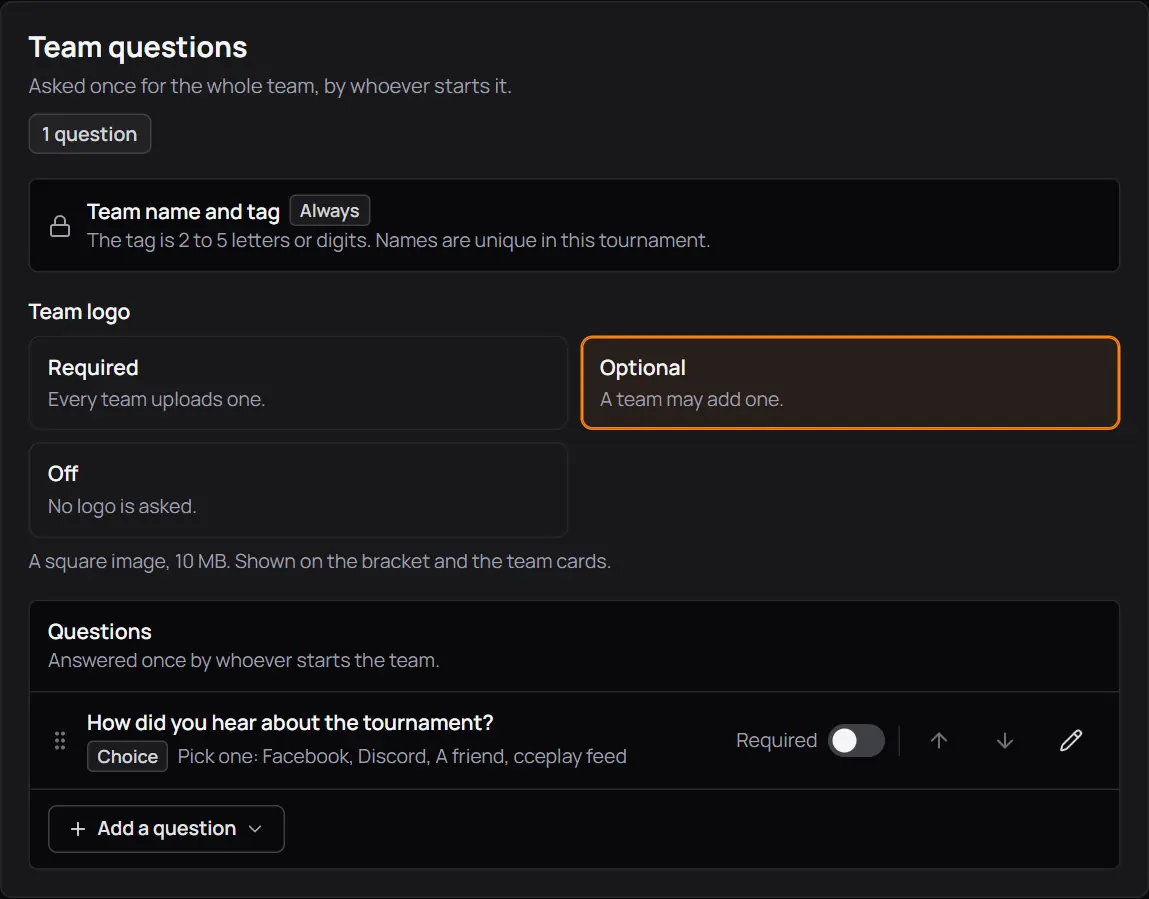
- Team name and tagAlways asked. The tag is 2 to 5 letters or digits.
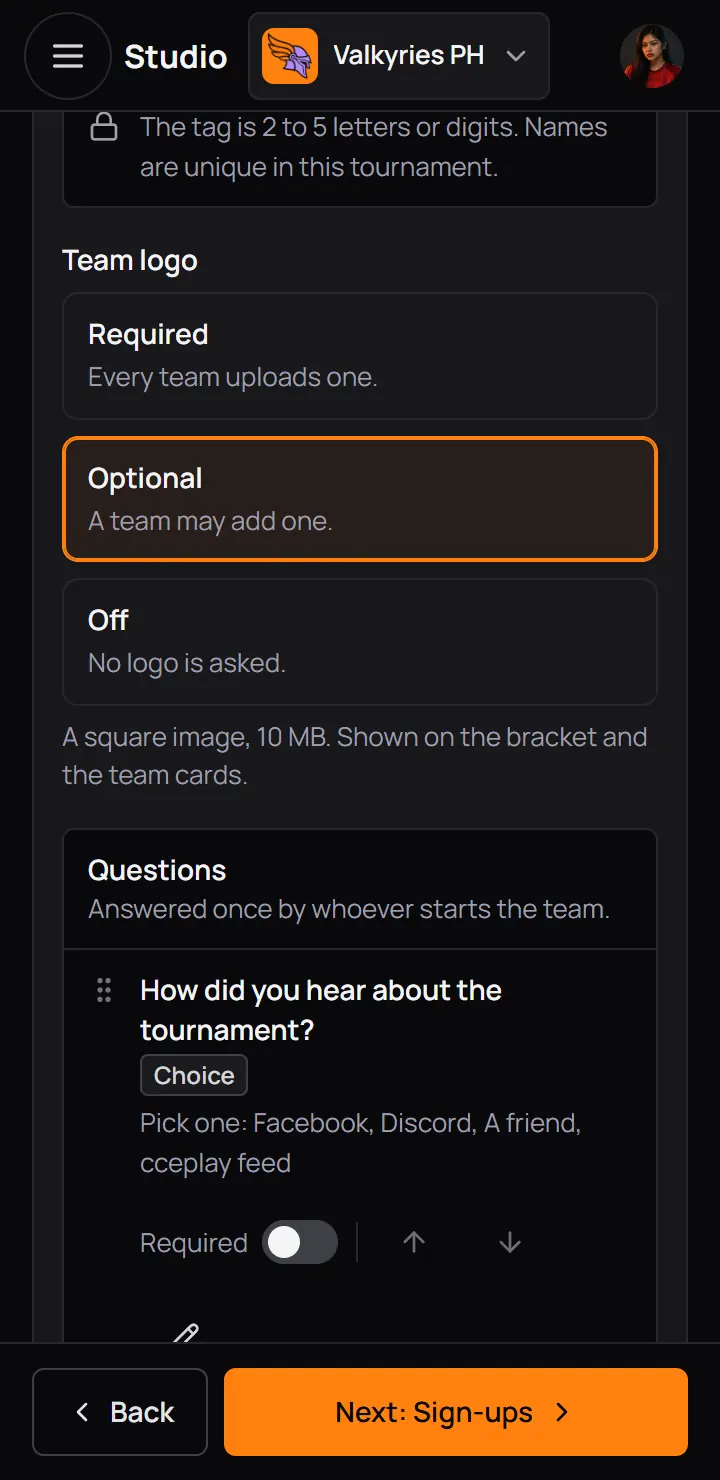
- Team logoRequired, Optional or Off.
- A questionHere how they heard about the tournament.
- Add a question
- Team logoRequired, Optional or Off.
- A questionHere how they heard about the tournament.
8Step 4: Sign-ups
Who can join, how many teams fit, and how a team gets in. This step is optional: a new tournament starts with it set.
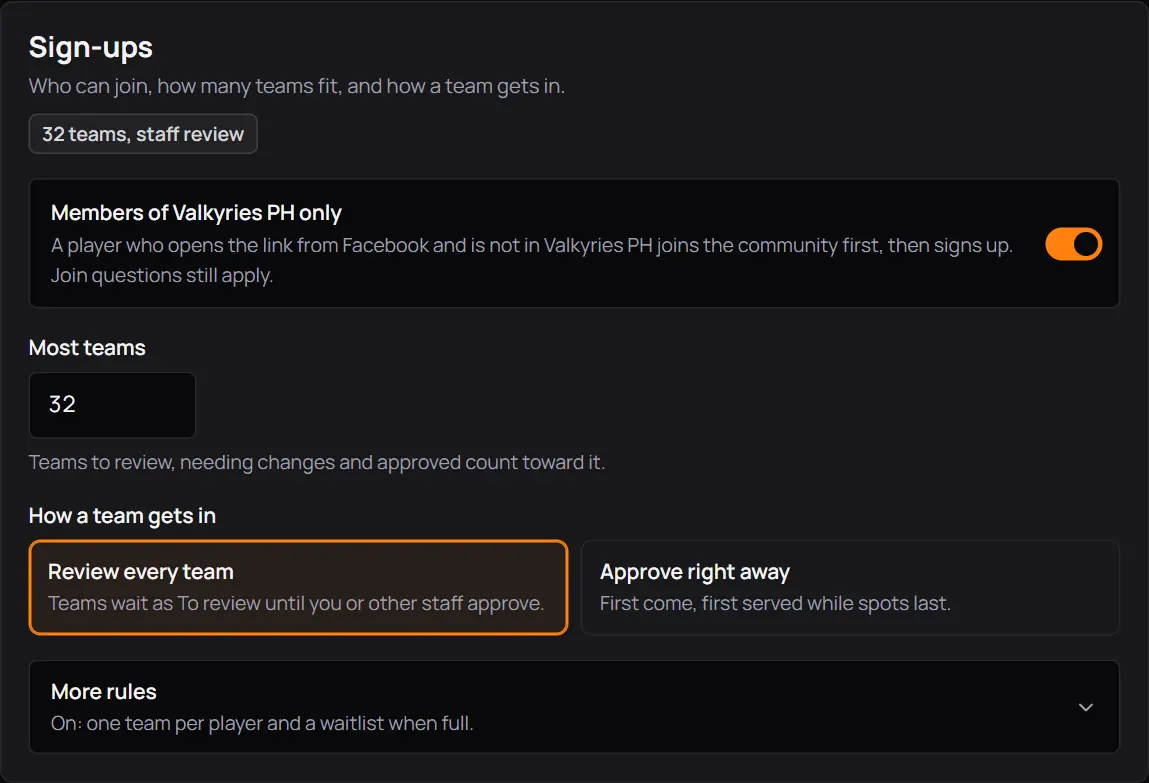
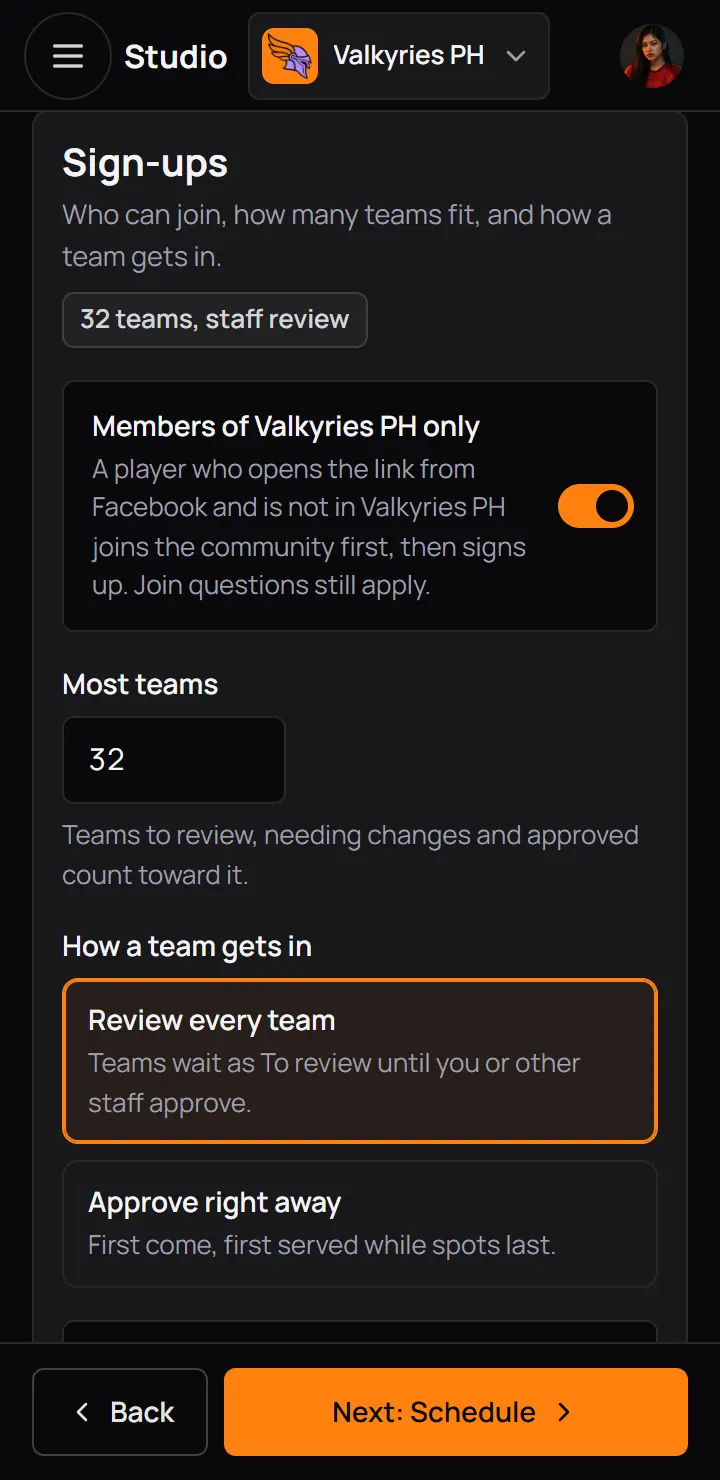
- Members of Valkyries PH onlyA player who opens the link from Facebook joins the community first.
- Most teamsTeams to review, needing changes and approved all count.
- How a team gets inReview every team, or Approve right away (first come, first served).
- More rulesClosed at first. Its line says what is on.
- Members of Valkyries PH onlyA player who opens the link from Facebook joins the community first.
- Most teamsTeams to review, needing changes and approved all count.
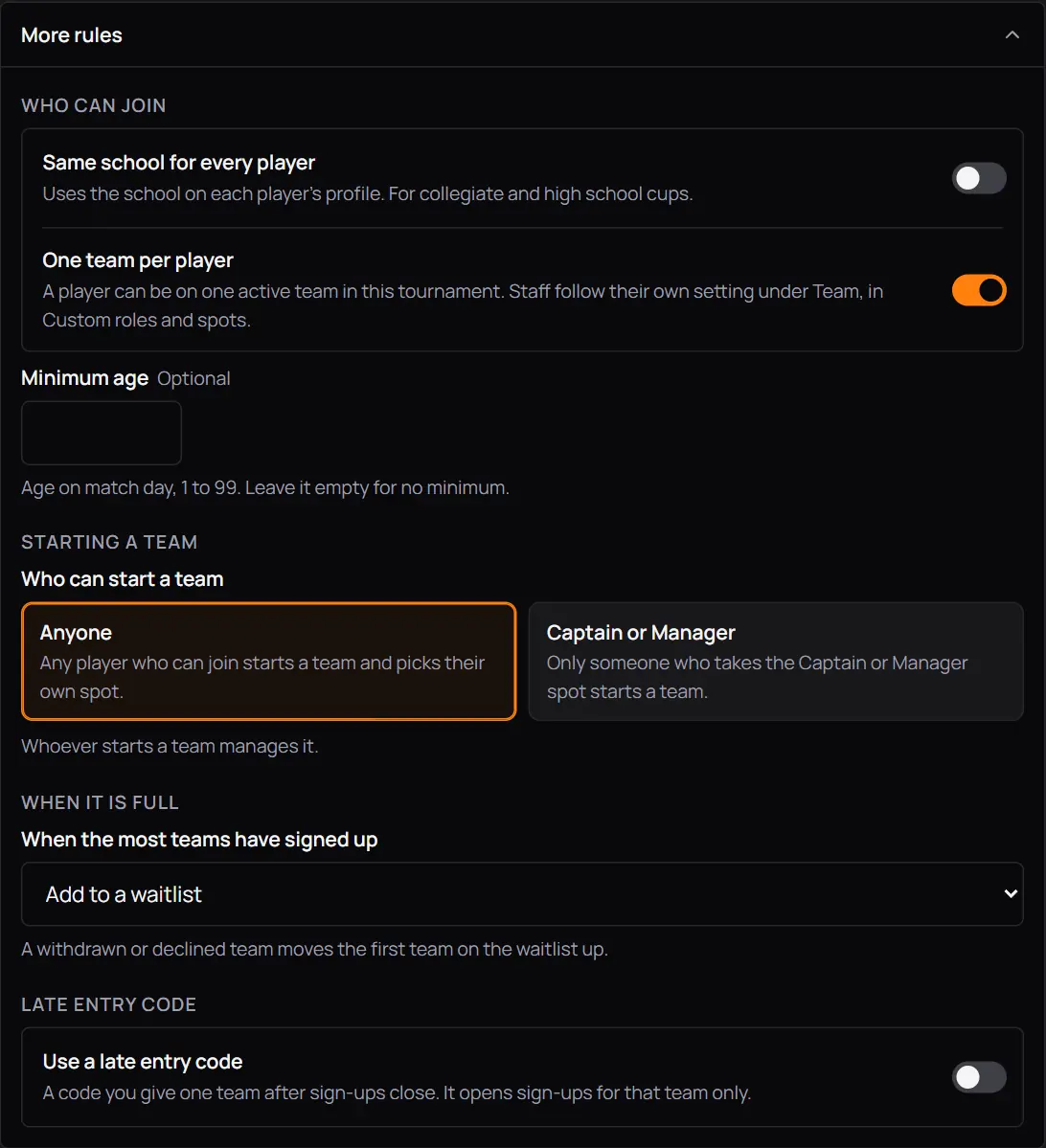
- Same school for every playerFor collegiate and high school cups.
- One team per playerA player can be on one team in this tournament.
- Minimum ageAge on match day. Empty means no minimum.
- Who can start a teamAnyone, or only a Captain or Manager.
- When it is fullAdd to a waitlist, or stop taking teams.
- Use a late entry codeA code you give one team after sign-ups close. It opens sign-ups for that team only.
- Same school for every playerFor collegiate and high school cups.
- One team per playerA player can be on one team in this tournament.
- Minimum ageAge on match day. Empty means no minimum.
- Who can start a teamAnyone, or only a Captain or Manager.
- When it is fullAdd to a waitlist, or stop taking teams.
- Use a late entry codeA code you give one team after sign-ups close. It opens sign-ups for that team only.
9Step 5: Schedule
All times are Manila time. Sign-ups close and match day starts are needed. The line at the top shows the four dates in the order they must run.
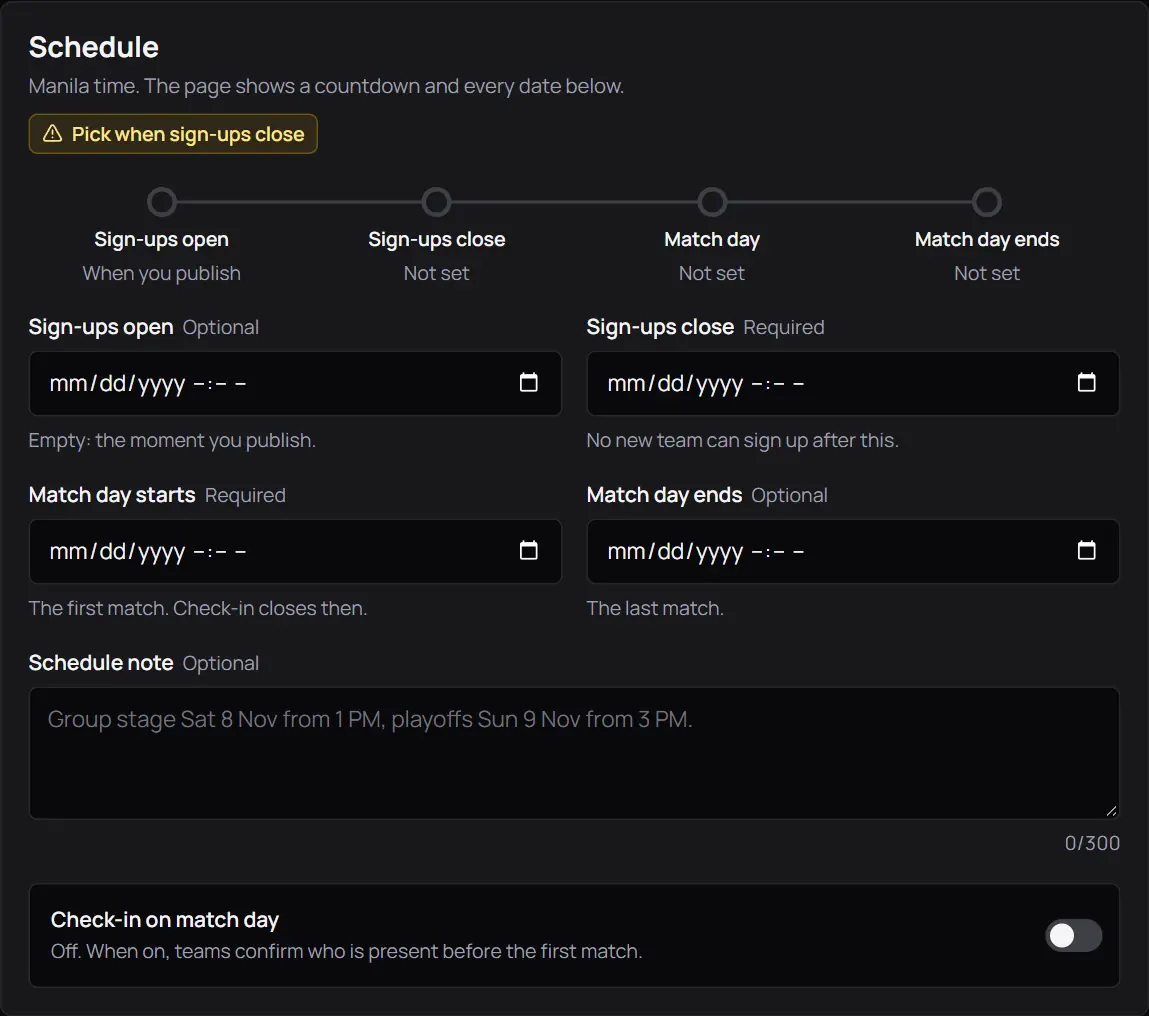
- The four datesAn empty one says what happens without it.
- Sign-ups openOptional. Empty means the moment you publish.
- Sign-ups closeNo new team can sign up after this.
- Match day startsThe first match. Check-in closes then.
- Match day endsOptional. Empty means the end of that day.
- Schedule noteOptional, for a group stage and playoffs.
- Check-in on match dayOff at first. When on, teams confirm who is there before the first match.
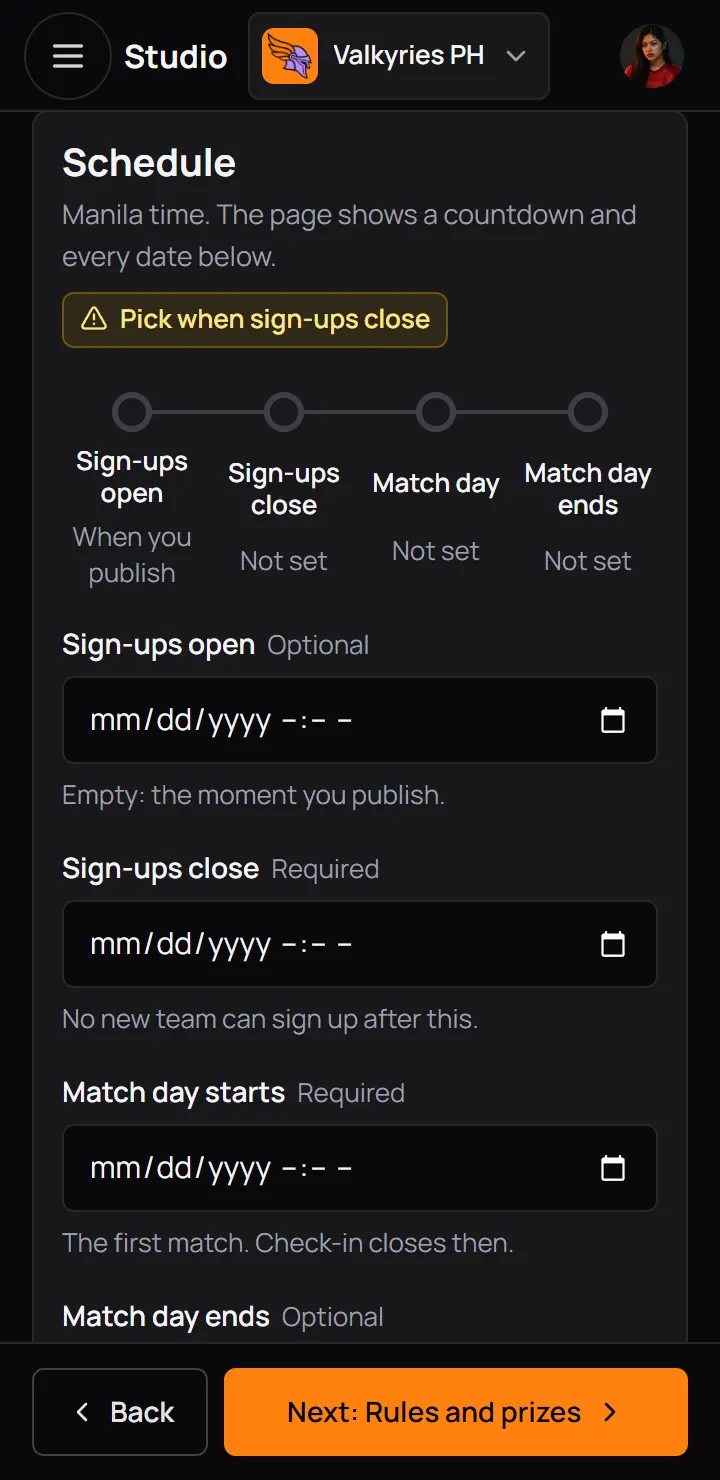
- The four datesAn empty one says what happens without it.
- Sign-ups openOptional. Empty means the moment you publish.
- Sign-ups closeNo new team can sign up after this.
- Match day startsThe first match. Check-in closes then.
- Sign-ups open before they close.
- Sign-ups close in the future, and at or before match day starts.
- Match day starts at or before it ends.
10Step 6: Rules and prizes
Players tick that they read the rules before they join. Publishing needs the rules or a rulebook. Prizes are optional.
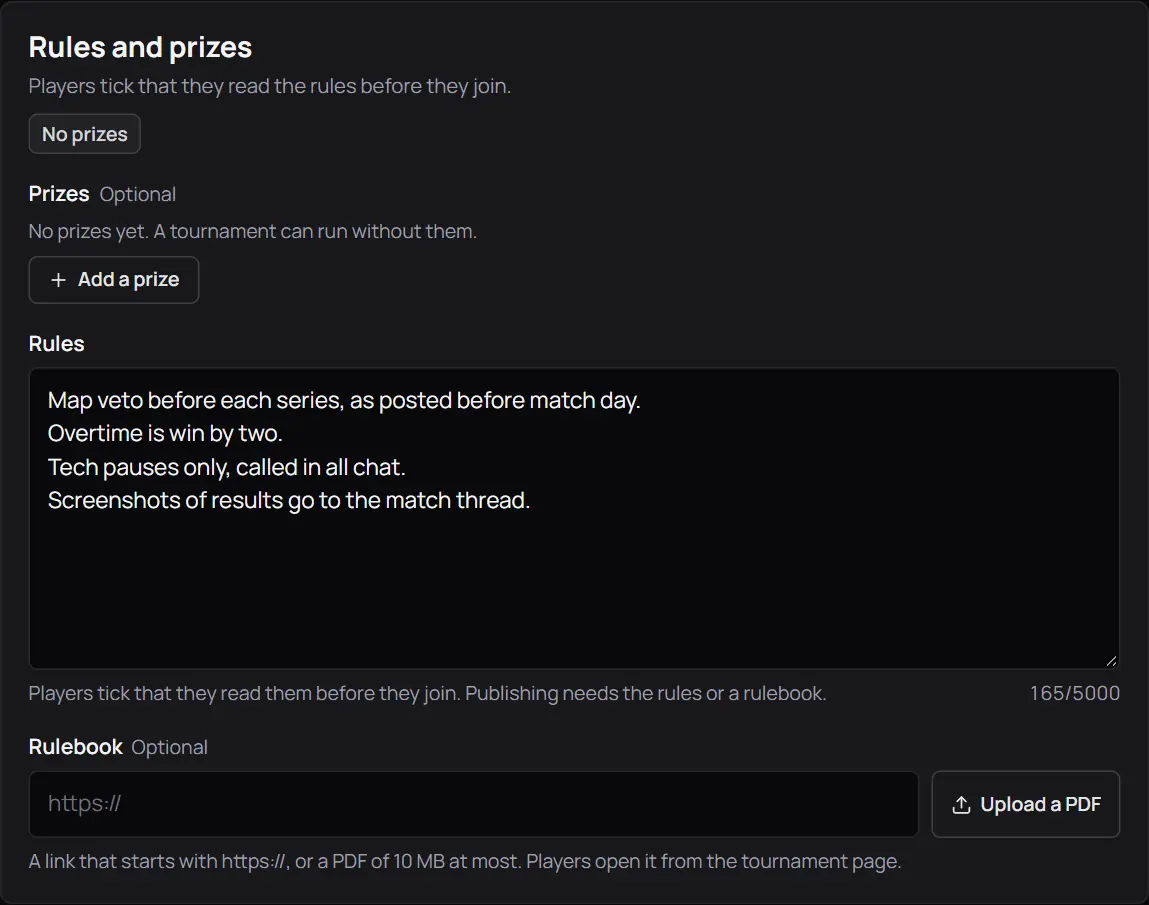
- Add a prizeThe place, the prize and an extra line.
- RulesEmpty from scratch, or the template's rules. Up to 5000 letters.
- RulebookA link that starts with https://, or a PDF up to 10 MB.
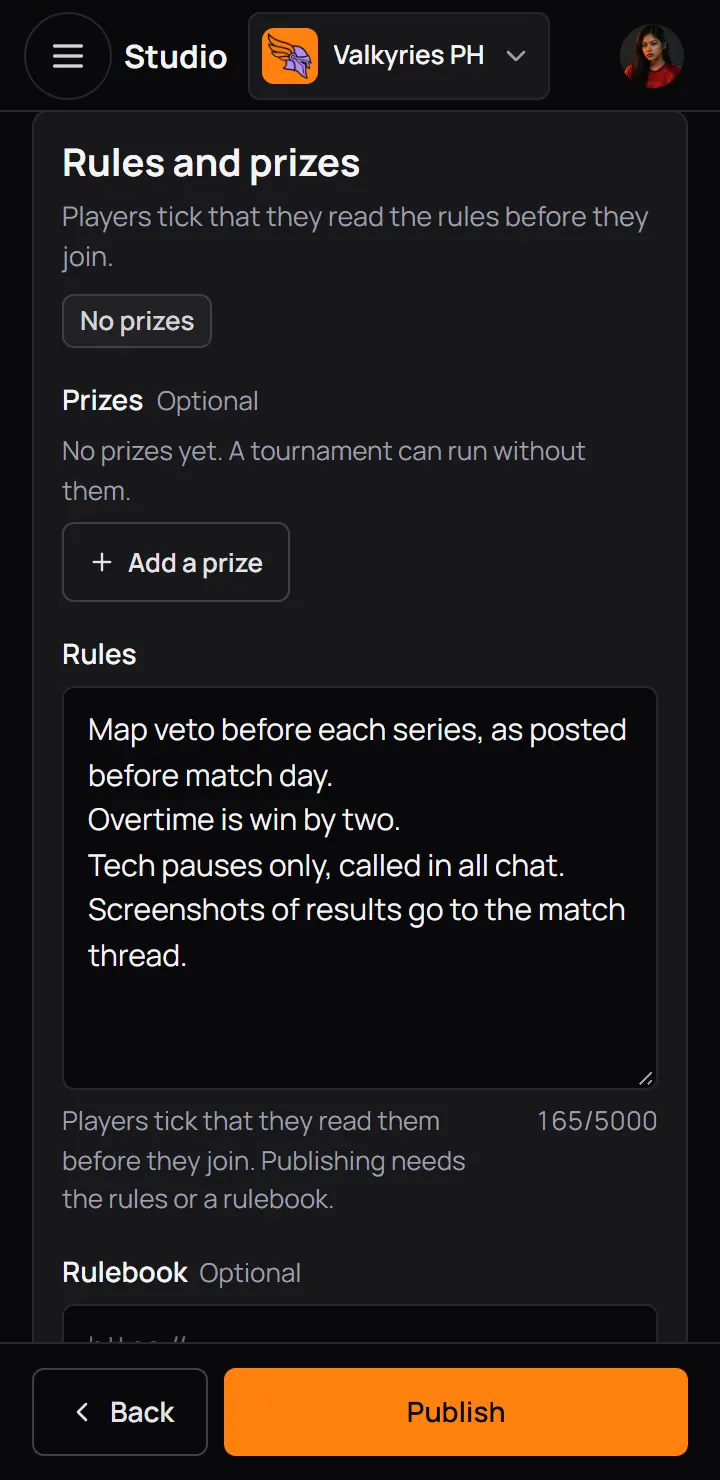
- Add a prizeThe place, the prize and an extra line.
- RulesEmpty from scratch, or the template's rules. Up to 5000 letters.
Good to know. If your community has the Shop, a prize can be a Shop item for a place. CCE Play gives it to every member of that team once the tournament ends. Linking an item needs the Manage the shop row too.
11Publish
Press Publish in the header or on the last step. The box lists the six steps. Publish stays off until every step marked ! has what it needs.
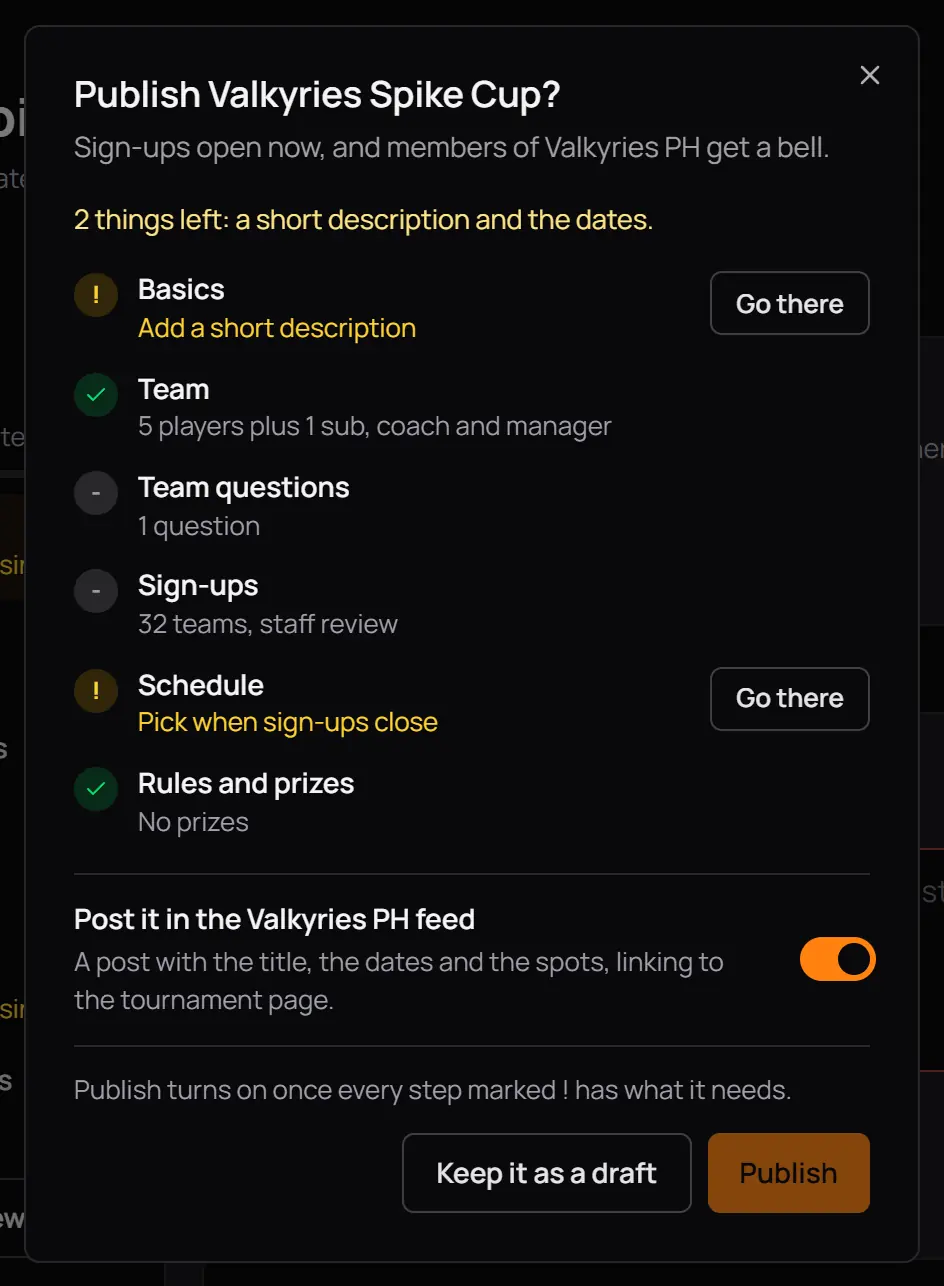
- What is leftIn yellow.
- Go thereOpens the step and puts you in the box to fix.
- Post it in the Valkyries PH feedA post with the title, the dates and the spots, linking to the tournament.
- Keep it as a draftCloses the box.
- PublishOff while something is missing.
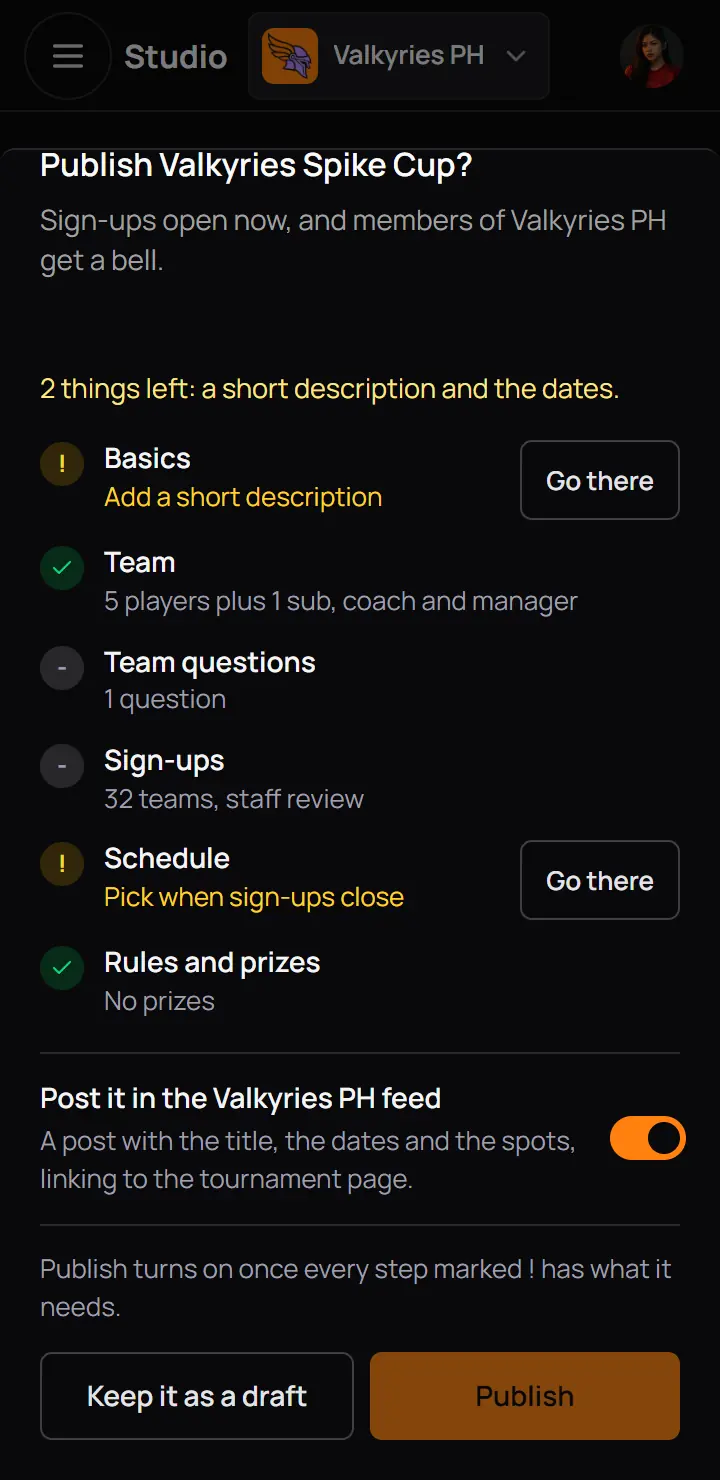
- Go thereOpens the step and puts you in the box to fix.
- PublishOff while something is missing.
- With no Sign-ups open date, sign-ups open the moment you publish, and members get a bell. With a later date, the tournament is Scheduled and the bell goes out when sign-ups open.
- After publishing, Studio opens the tournament's Teams page.
- A published tournament still saves as you change it, under the locks below.
Delete a draft
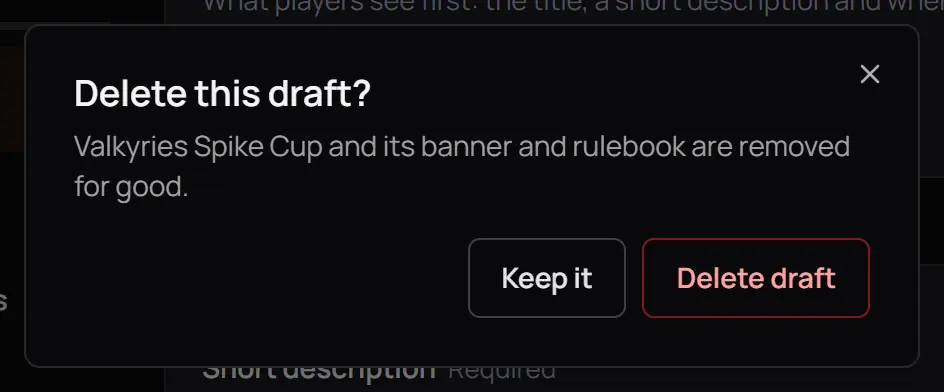
- Delete draftRemoved for good. Only a draft can be deleted.
- Delete draftRemoved for good. Only a draft can be deleted.
12Every stage of a tournament
A tournament shows its stage in a label beside its title. Under the header, the Next step card says the one thing to do now, with its button.
| Label | What it means | What you do next |
|---|---|---|
| Draft | What it meansOnly Studio staff see it. | What you do nextContinue setup, then publish. |
| Scheduled | What it meansPublished. Sign-ups open on the date you set. | What you do nextWait, or Open sign-ups now. |
| Sign-ups open | What it meansTeams can start and submit. | What you do nextShare it, review teams, or Close sign-ups now. |
| Sign-ups closed | What it meansNo new team can sign up. Match day has not started. | What you do nextReview teams and make the bracket, or reopen. |
| Match day | What it meansSign-ups closed and match day started. | What you do nextReport the matches, then end it. |
| Ended | What it meansFinished. It is under Past on the community page. | What you do nextSave it as a template to run it again. |
| Cancelled | What it meansYou cancelled it. Every team got a bell with your reason. | What you do nextNothing. Save it as a template to run it again. |
| Taken down | What it meansCCE Play hid it. Players cannot see it. | What you do nextWrite to CCE Play support. |
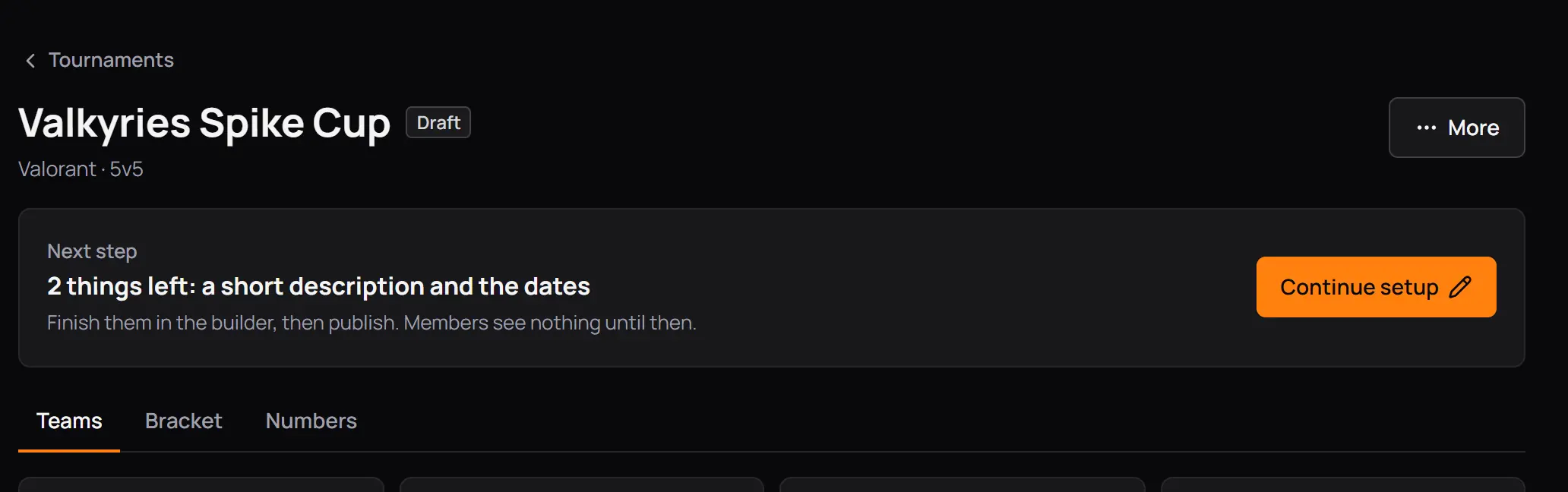
- DraftThe label beside the title.
What is left. Continue setup opens the builder. Members see nothing until you publish.
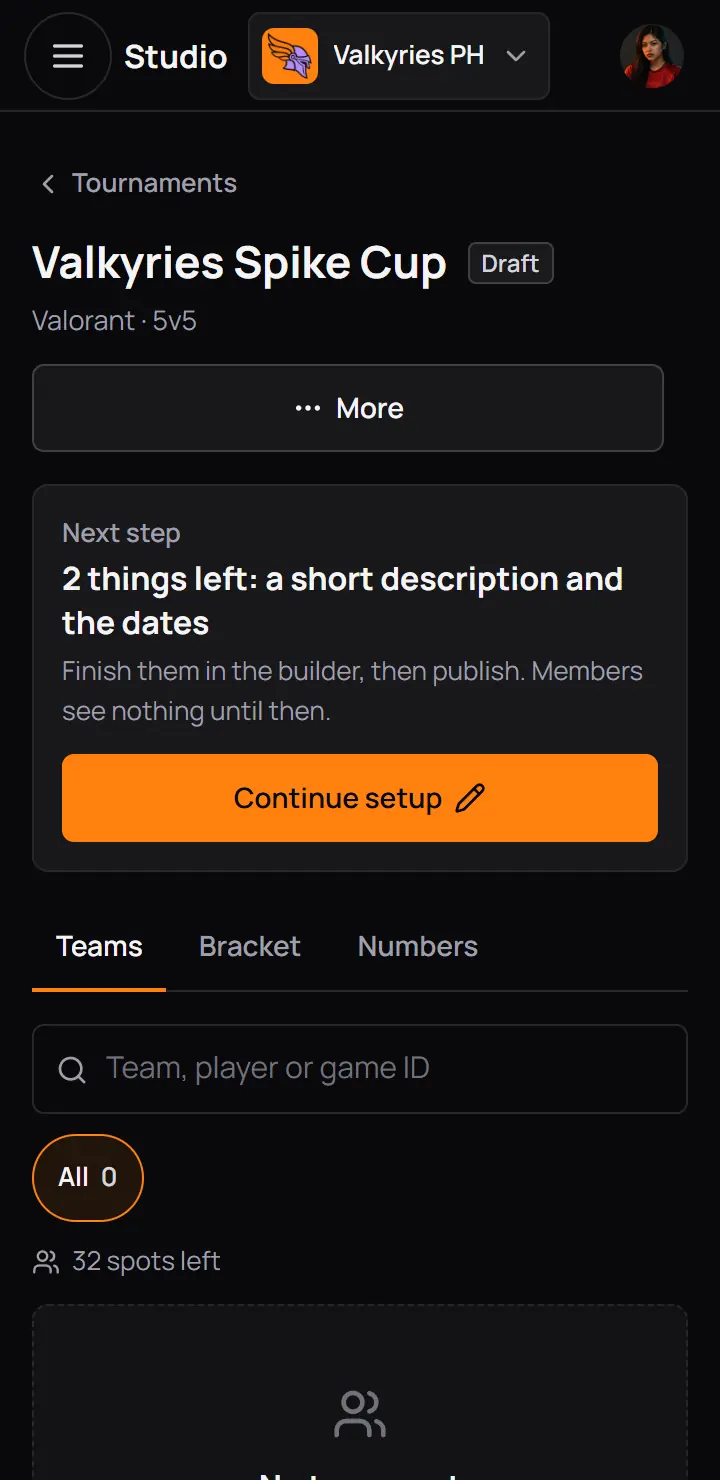
- DraftThe label beside the title.
What is left. Continue setup opens the builder. Members see nothing until you publish.
- A tournament also ends by itself 24 hours after match day ends.
- Reporting the final of the bracket ends it too.
- An ended, cancelled or taken-down tournament can no longer change. Its builder only shows the settings.
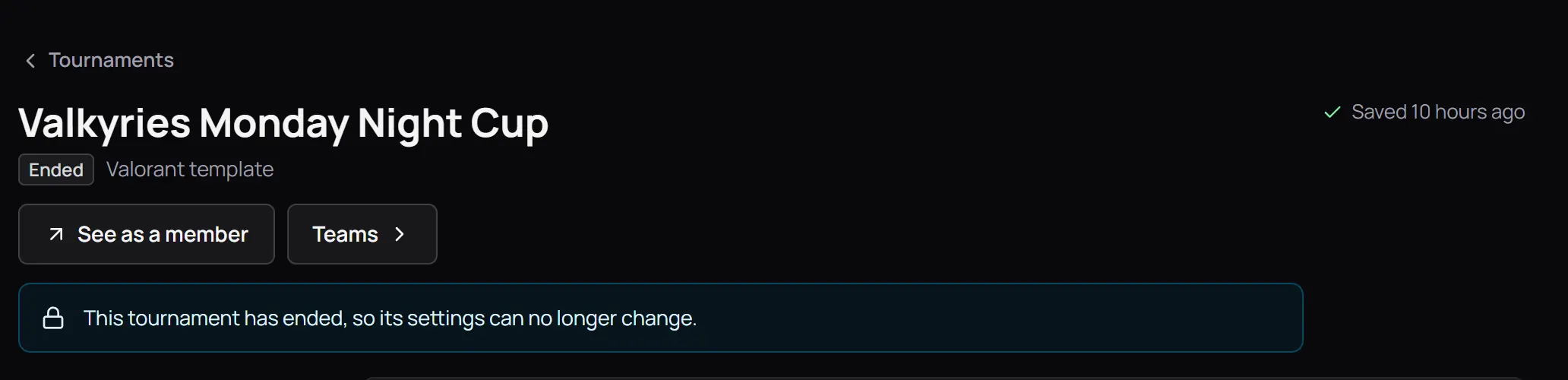
- Its settings can no longer change
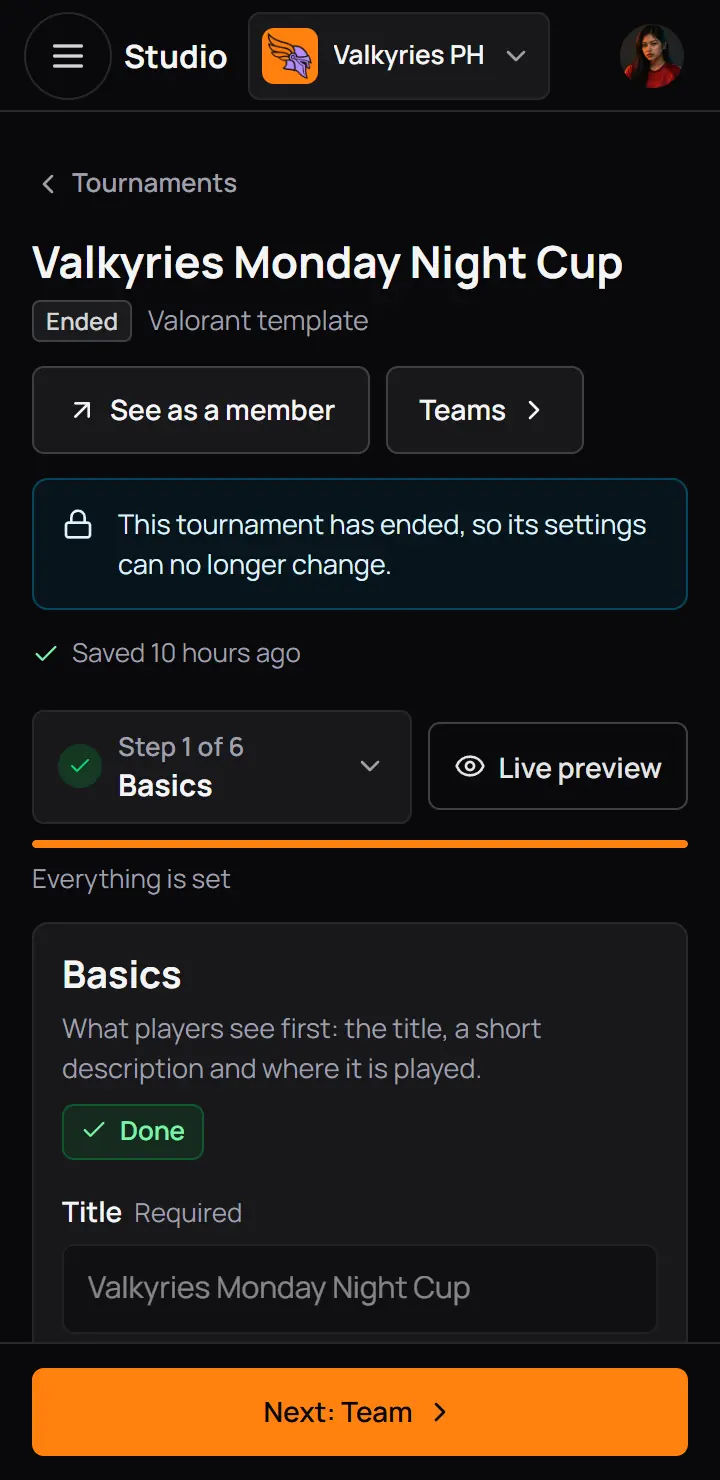
- Its settings can no longer change
13Move it to the next stage
The Next step card has the button for the stage you are in. The rest are in More, at the top right (on a phone, More is beside Copy link and Share). Each one opens a box first.
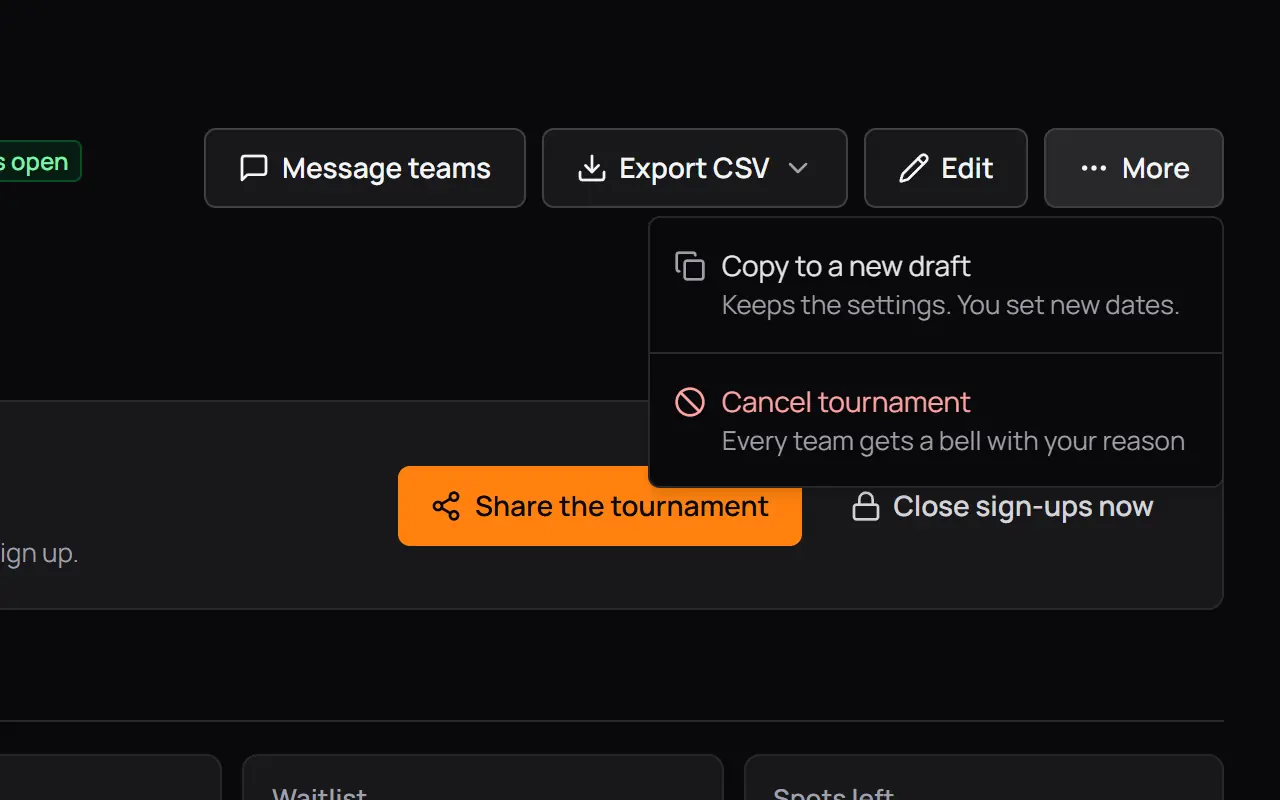
- Save as templateAsks a name, then keeps the team, questions, rules and format for your next tournament. You stay on this one.
- Cancel tournamentEvery team gets a bell with your reason.
While a tournament is scheduled and no team has signed up, More also has Back to draft.
- Save as templateAsks a name, then keeps the team, questions, rules and format for your next tournament. You stay on this one.
- Cancel tournamentEvery team gets a bell with your reason.
While a tournament is scheduled and no team has signed up, More also has Back to draft.
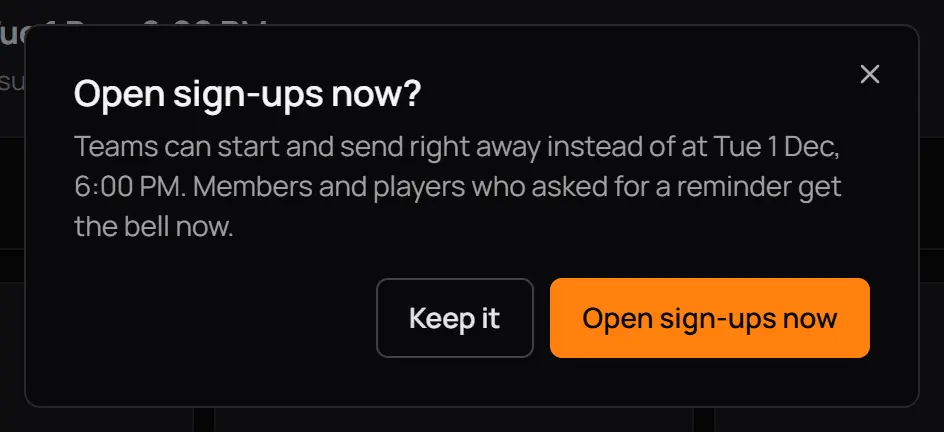
- Open sign-ups nowOnly while scheduled. Members and players who asked for a reminder get the bell now.
- Open sign-ups nowOnly while scheduled. Members and players who asked for a reminder get the bell now.
Share it
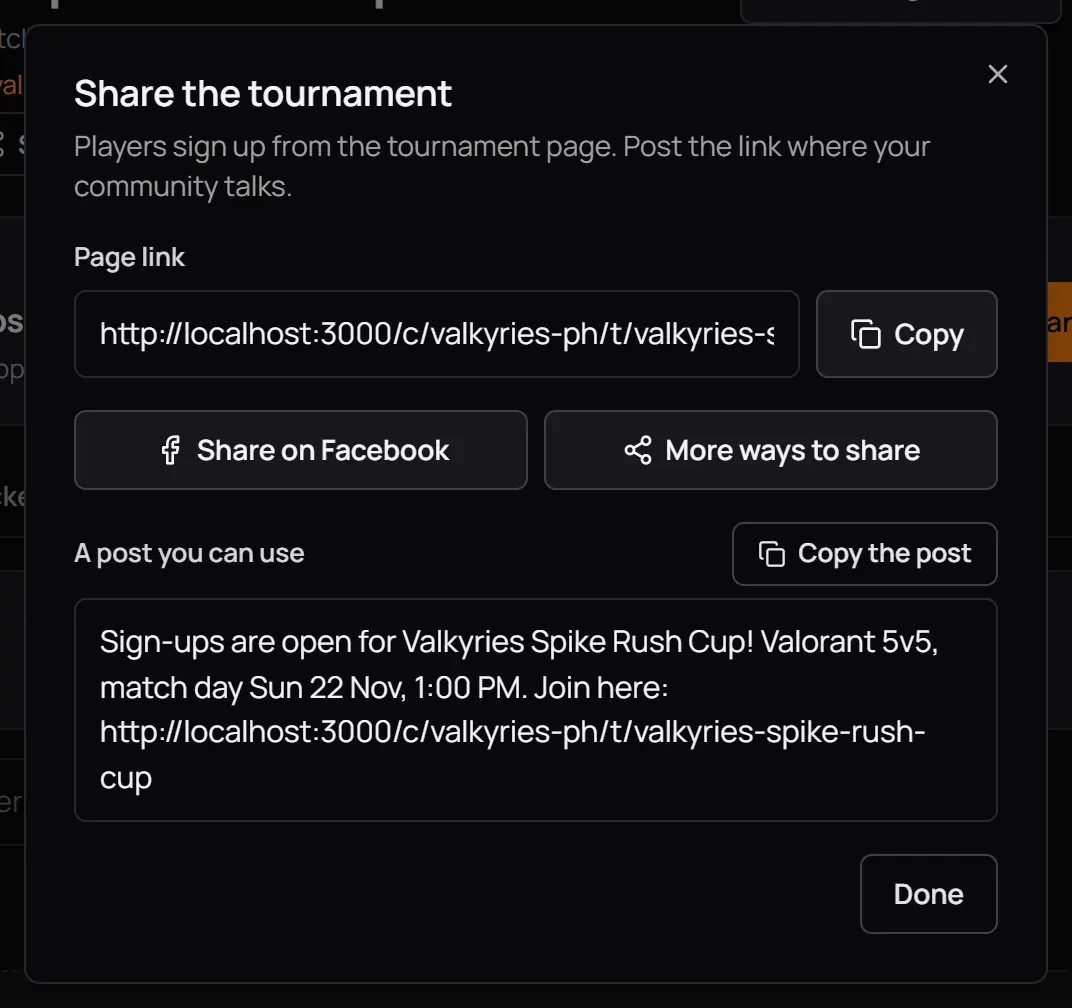
- Page linkCopy it to post anywhere.
- Share on FacebookOn a phone there is also Send in Messenger. Below it, a ready post to copy.
- Page linkCopy it to post anywhere.
- Share on FacebookOn a phone there is also Send in Messenger. Below it, a ready post to copy.
14What locks after the first team
Once a team signs up, some settings lock, so no team loses its spot or its answers. The builder turns those buttons off and says why next to each one. In the pictures Grinders Weekend Cup of Manila Grinders MLBB already has teams.
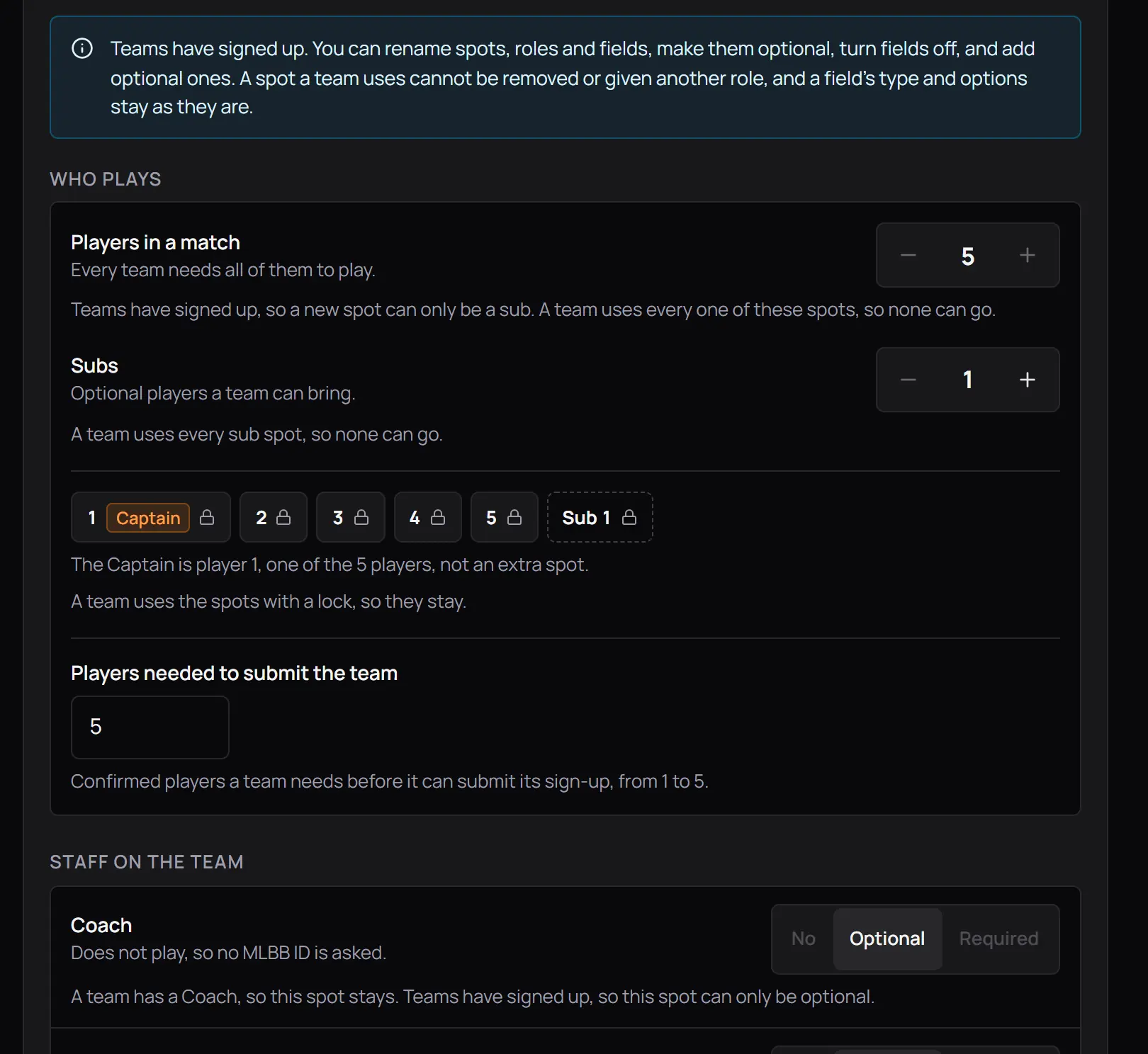
- Teams have signed upWhat you can still change.
- Why a button is offA new spot can only be a substitute now.
- A lock on each spot a team usesIt stays.
- A Coach a team hasThat spot stays, and can only be optional.
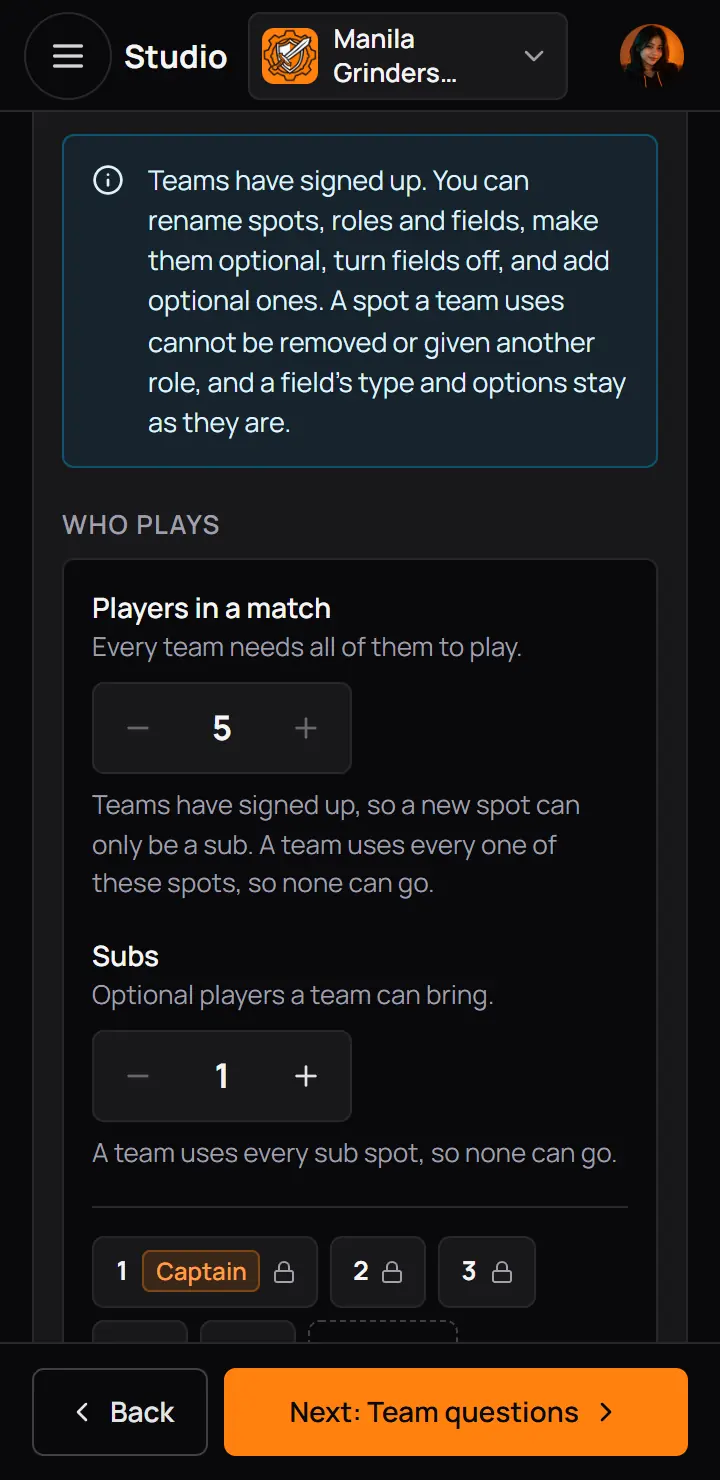
- Teams have signed upWhat you can still change.
- Why a button is offA new spot can only be a substitute now.
| You can | You cannot |
|---|---|
| Rename a spot, a role or a field, and change its help text | You cannotRemove a spot a team uses, or give it another role |
| Make a spot or field optional, or turn a field off | You cannotChange a field's type or its choices |
| Add a spot or a field, as optional (a new spot is a sub) | You cannotAdd a required spot or field |
| Raise Most teams (waitlisted teams move up) | You cannotLower Most teams below the teams that have a spot |
| Change the dates, the rules and the prizes | You cannotMake an optional Coach or Manager spot required |
15CCE Play's side, in the admin app
For CCE Play staff. This step is for CCE Play staff. Every published tournament is in the admin app under Community tools. Templates belong to each community, and CCE Play keeps none of its own.
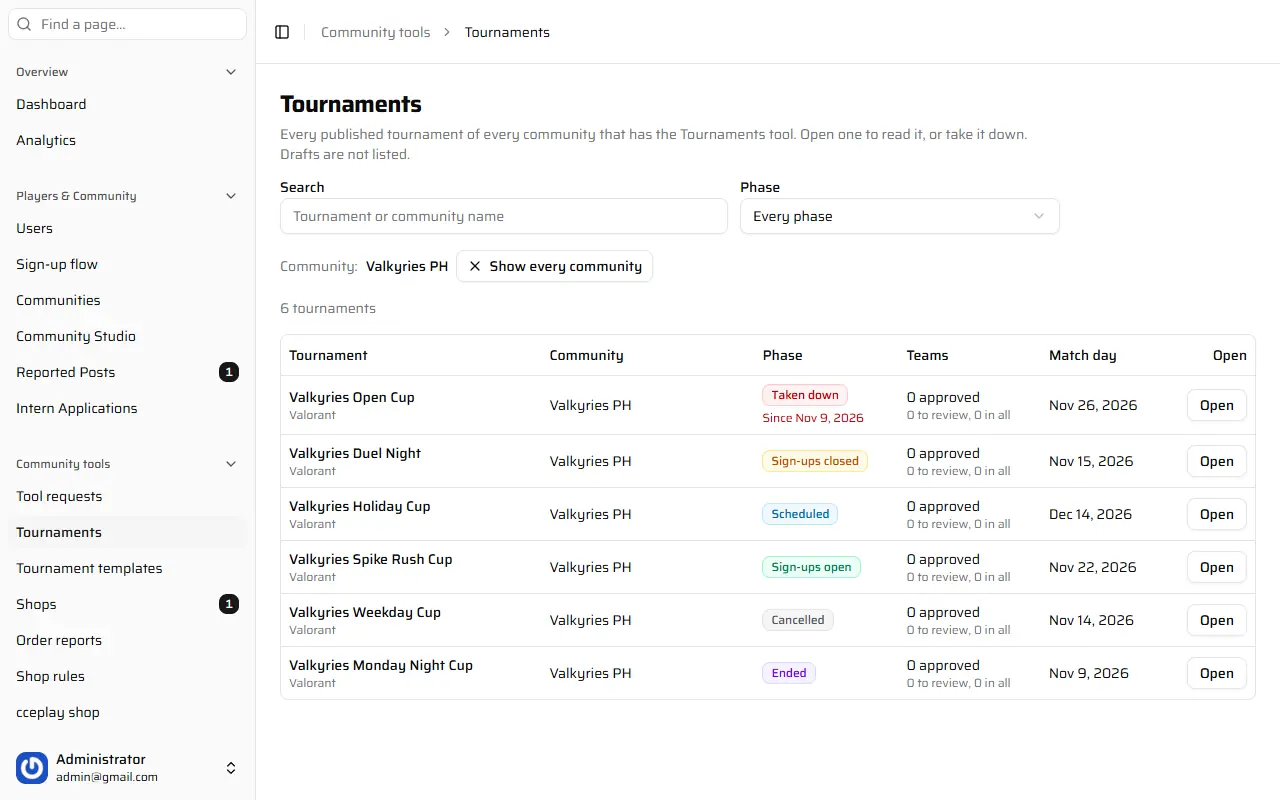
- SearchBy title. Drafts are not listed.
- A tournamentPress it to read it, with its teams.
- SearchBy title. Drafts are not listed.
- A tournamentPress it to read it, with its teams.
Opening a tournament in the admin app adds "CCE Play support viewed" to the owner's Activity log, at most once an hour.
16If something goes wrong
| You see | What to do |
|---|---|
| This page is not shared with you | What to doAsk the owner to turn on the Tournaments row for your role in Studio access. |
| Your community has 20 drafts and tournaments that have not ended | What to doEnd, cancel or delete one, then make the new one. |
| Your community has 20 templates | What to doDelete a template you no longer use, then save or make the new one. |
| A template with this name already exists | What to doPick another name for the template. |
| 2 things left: a short description and the dates | What to doPress Publish, then Go there on each step marked !. |
| This time has passed. Sign-ups must close in the future. | What to doPick a later close time in Schedule. |
| Match day starts after sign-ups close. | What to doPick a later match day, or close sign-ups earlier. |
| Not saved, with Try again | What to doCheck your internet connection and press Try again. |
| Teams have signed up, so a new spot can only be a sub. | What to doAdd the spot as a sub, or leave the team as it is. |
| Taken down by CCE Play | What to doRead the reason, then write to CCE Play support. |
| The tournaments could not load. Try again. | What to doCheck your internet connection, then press Try again. |