
1One tournament in Studio
Open Tournaments in the Studio menu and press a published tournament. It opens on its Teams page. The top of the page is the same on every tab: the title and stage, the Next step card, and the tabs.
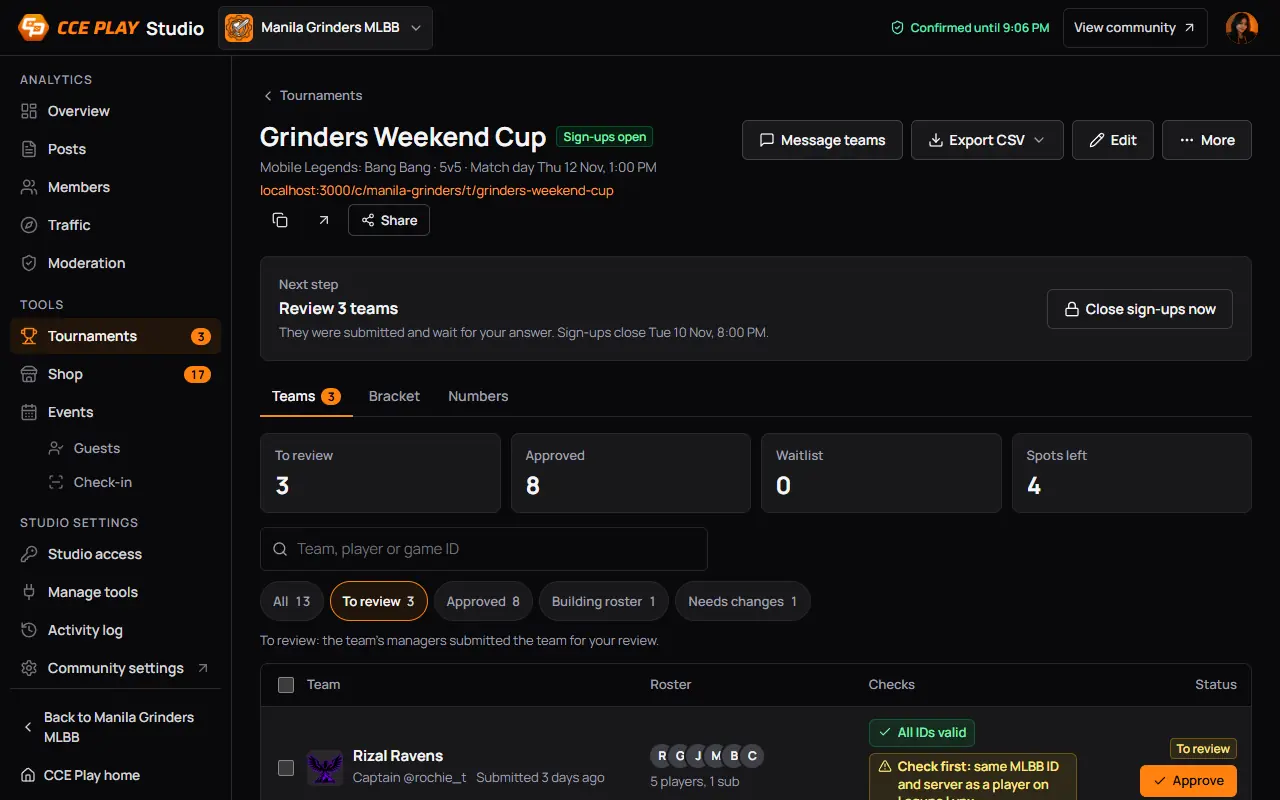
- Teams to reviewThe orange number beside Tournaments counts the teams waiting for you, in every tournament.
- The stageHere Sign-ups open.
- Message teamsA bell, and an email if you like, to the teams you pick.
- Export CSVDownloads every team with its answers.
- MoreSave as template, Cancel tournament and the other stage changes.
- Next stepThe one thing to do now, with its button. Here Review 3 teams.
- Close sign-ups nowOnly when you have enough teams. See step 9.
- The tabsTeams, Check-in (once it is on), Bracket and Numbers.
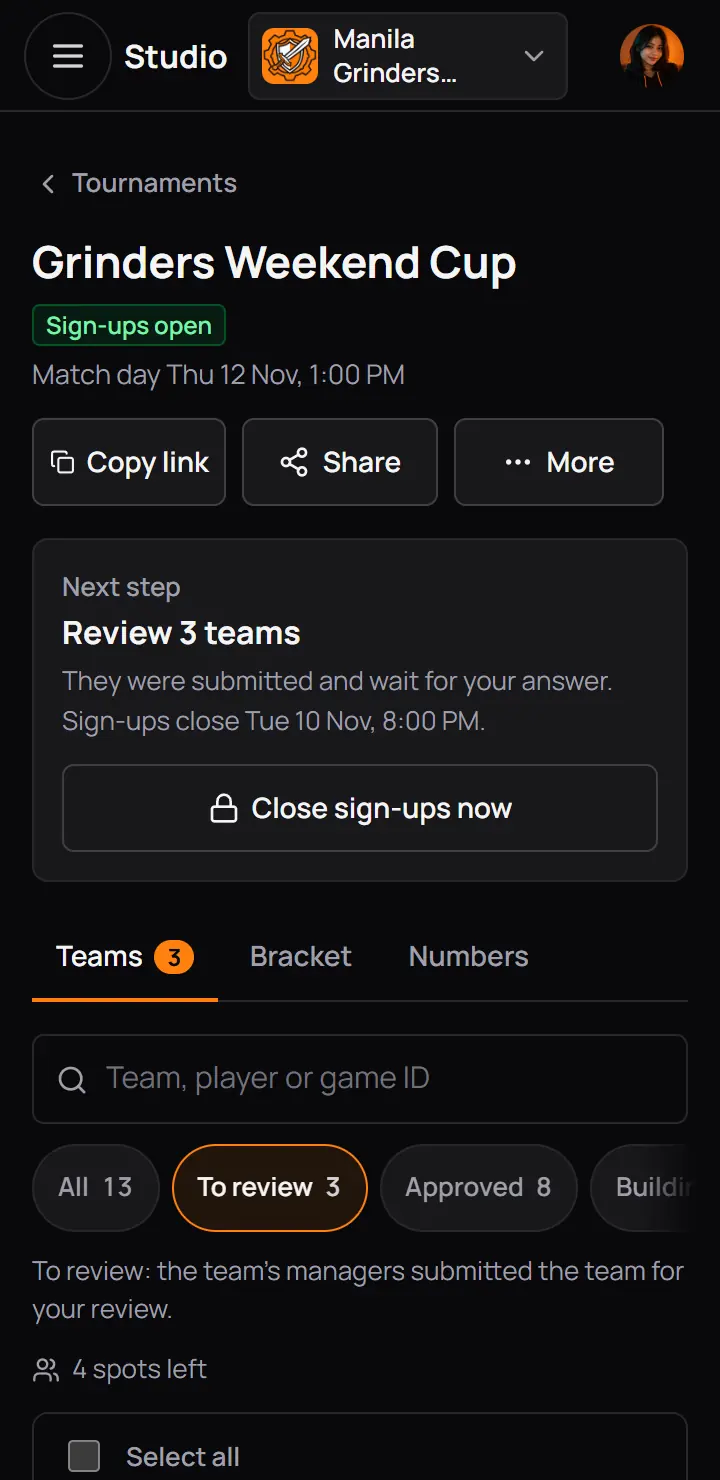
- The stageHere Sign-ups open.
- MoreSave as template, Cancel tournament and the other stage changes.
- Next stepThe one thing to do now, with its button. Here Review 3 teams.
- The tabsTeams, Check-in (once it is on), Bracket and Numbers.
A tournament made with the points format has a Results tab in place of Bracket. Who can open these pages, and every stage of a tournament, are in part 1.
2How teams sign up
Players sign up on the tournament page. One player starts a team and becomes its captain and first manager. The managers then fill the other spots: they invite players, and each player confirms their own game ID and details. When every required spot is ready, a manager presses Send team for review, and the team comes to you.
A one-player tournament says entry and player in place of team. The player presses Create your entry, then Send entry for review, and checks in with Check in. The steps are the same as in the pictures below, which show a team tournament.
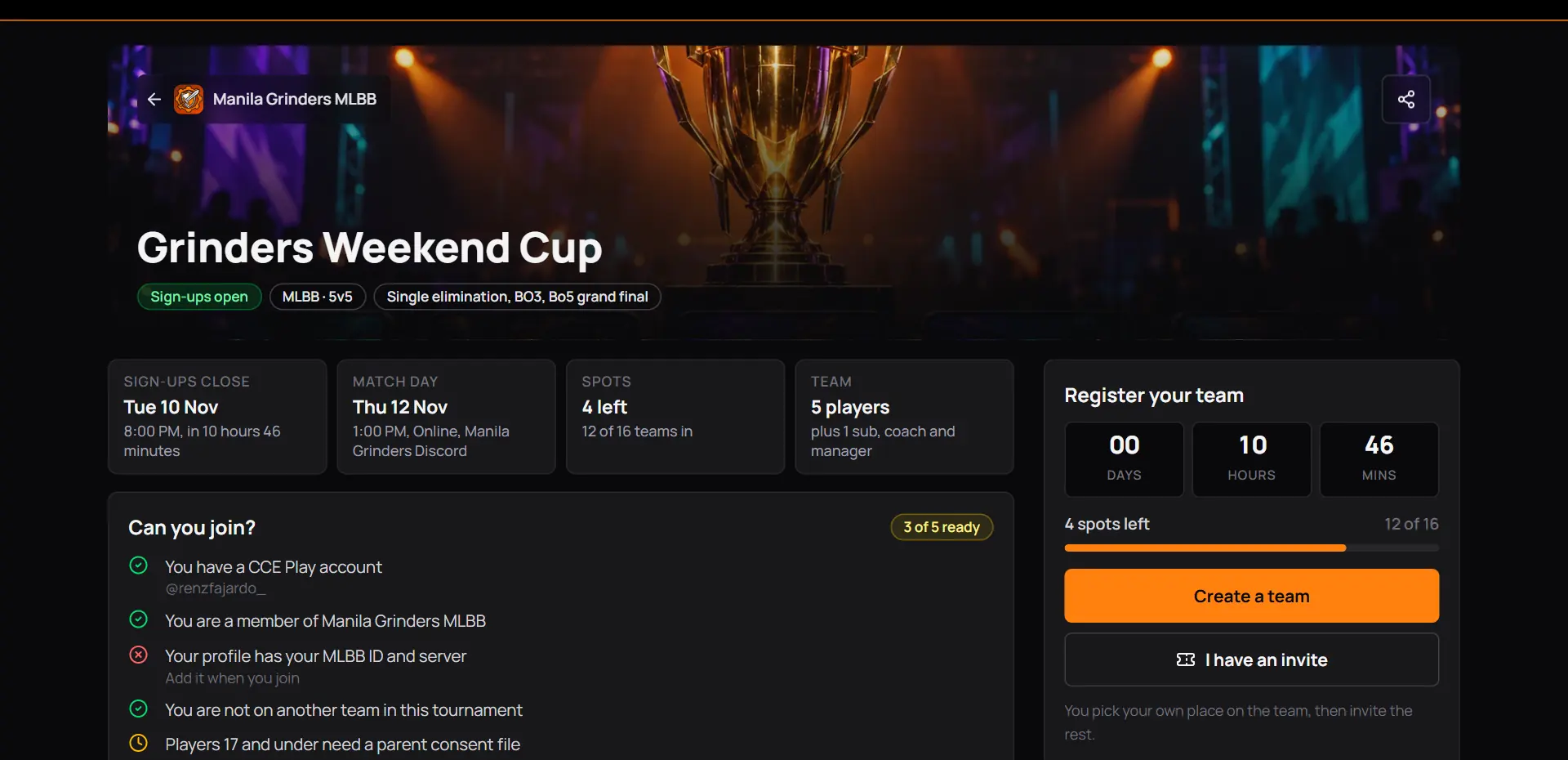
- Register your teamWith a countdown to when sign-ups close.
- Spots leftHere 4 of 16.
- Can you join?What the player still needs, such as being a member of the community or a game ID on their profile.
- Create a teamStarts a team. The player becomes its captain.
- I have an inviteOpens a teammate's invite code.
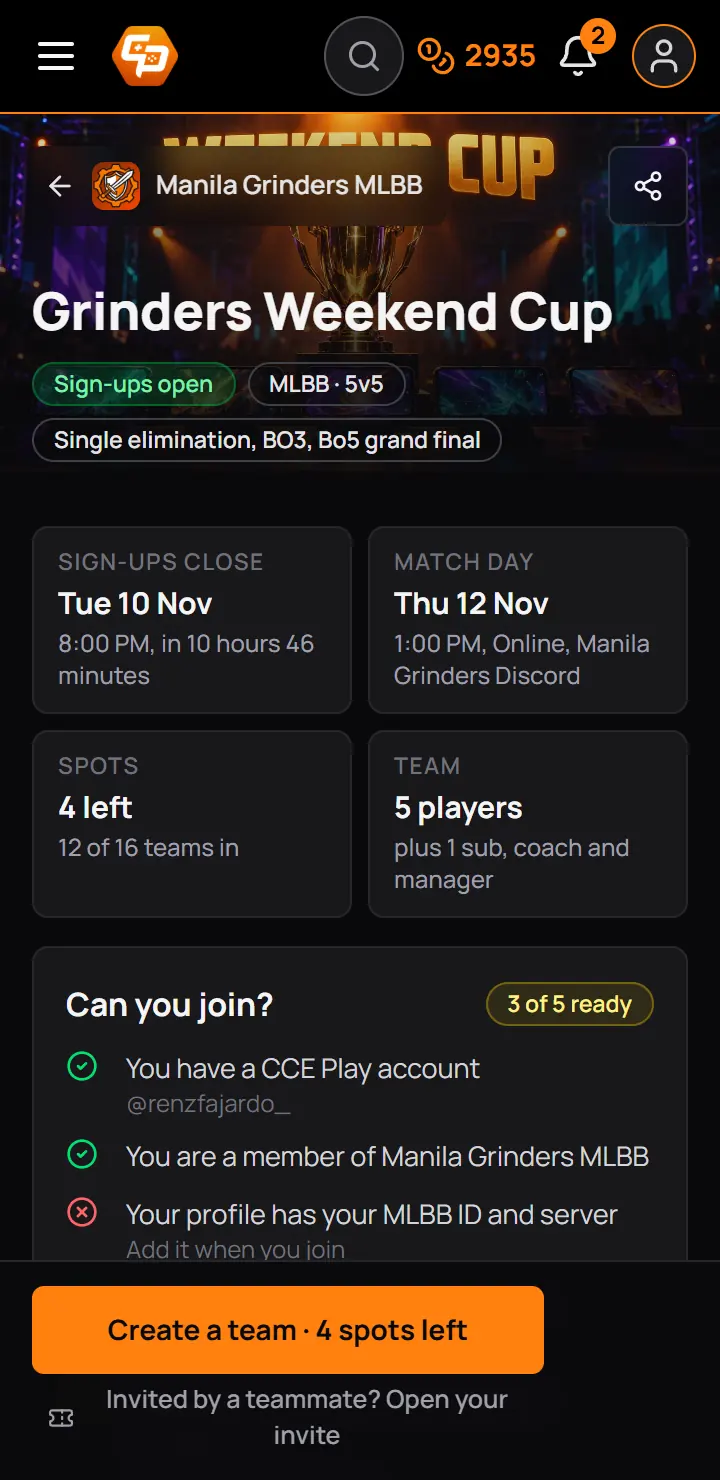
- Spots leftHere 4 of 16.
- Can you join?What the player still needs, such as being a member of the community or a game ID on their profile.
- Create a teamStarts a team. The player becomes its captain.
- I have an inviteOpens a teammate's invite code.
The team page
The captain lands on the team page. It shows each spot, who fills it and who is ready. In the picture, Cavite Crushers has its captain and one invite waiting.
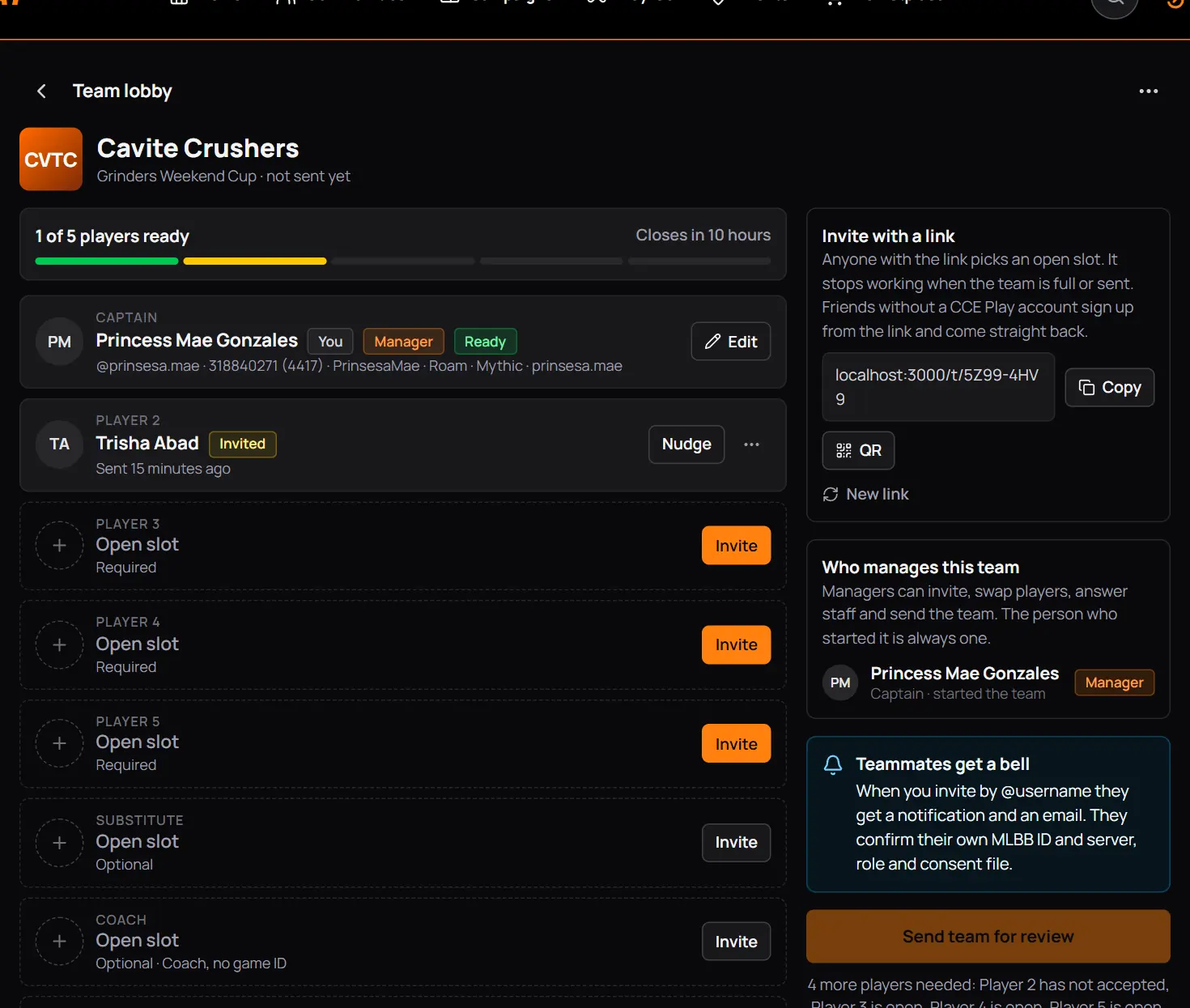
- 1 of 5 players readyAnd when sign-ups close.
- InvitedThe player has not answered yet.
- InviteInvites someone to this open spot.
- Invite with a linkOne link for anyone to pick an open spot.
- Send team for reviewTurns on when every required spot is ready.
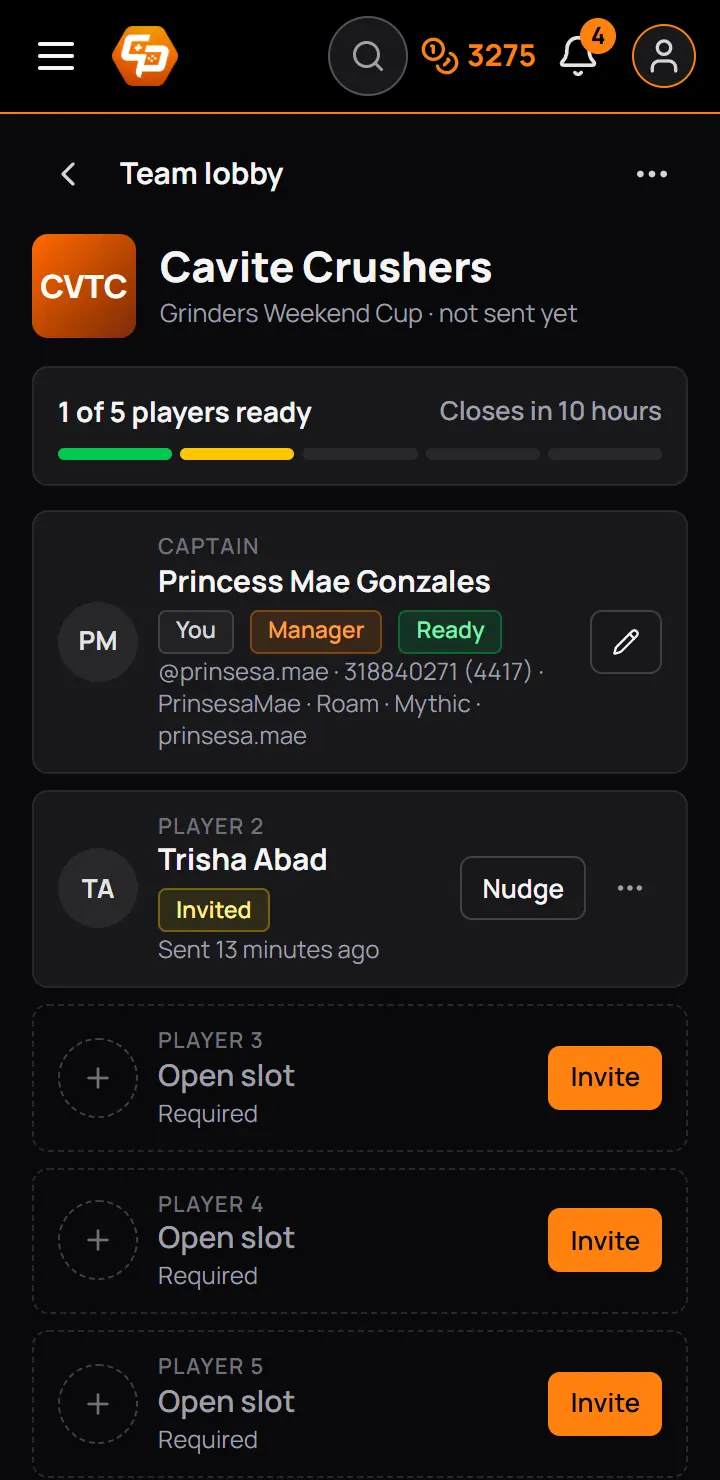
- 1 of 5 players readyAnd when sign-ups close.
- InvitedThe player has not answered yet.
- NudgeSends them a reminder.
- InviteInvites someone to this open spot.
Invites and codes
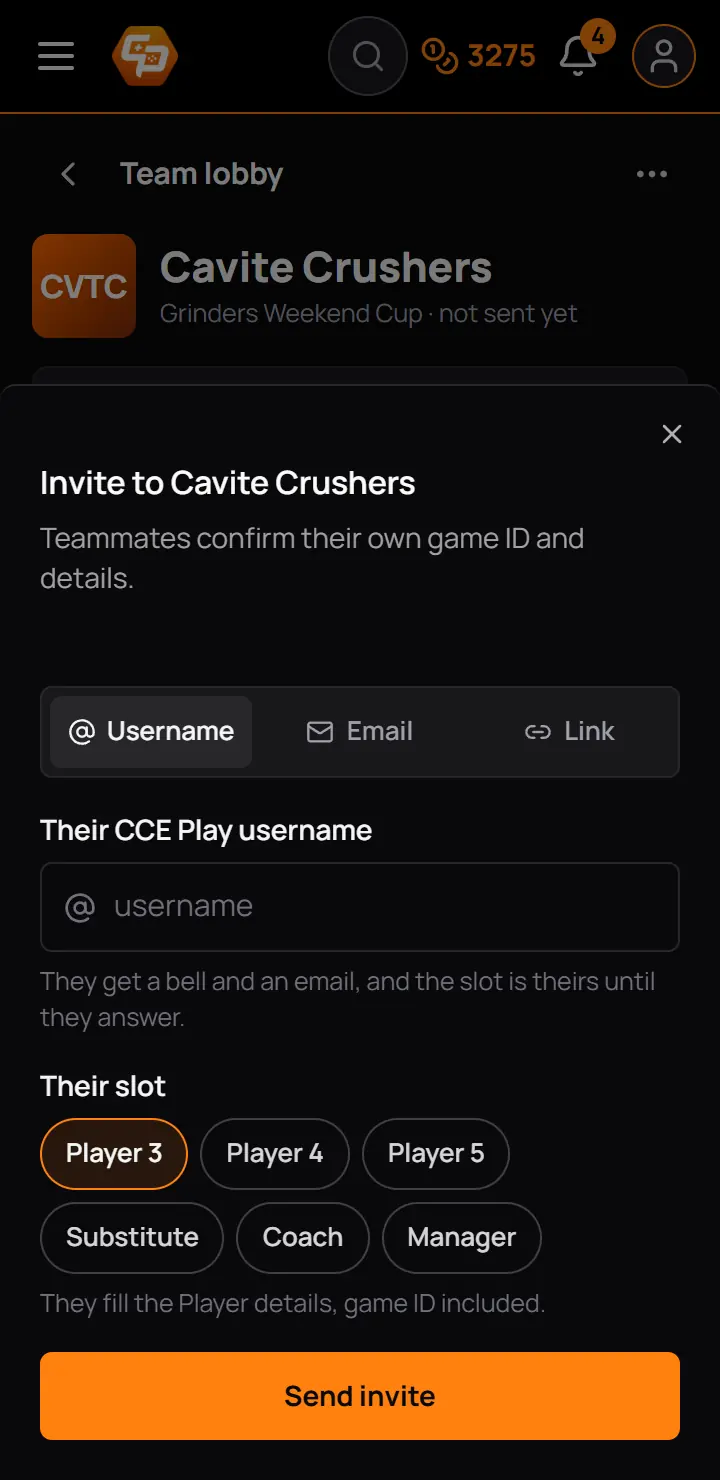
- Their CCE Play usernameThey get a bell and an email. Or pick Email or Link at the top.
- Send invite
- Their CCE Play usernameThey get a bell and an email. Or pick Email or Link at the top.
- Send invite
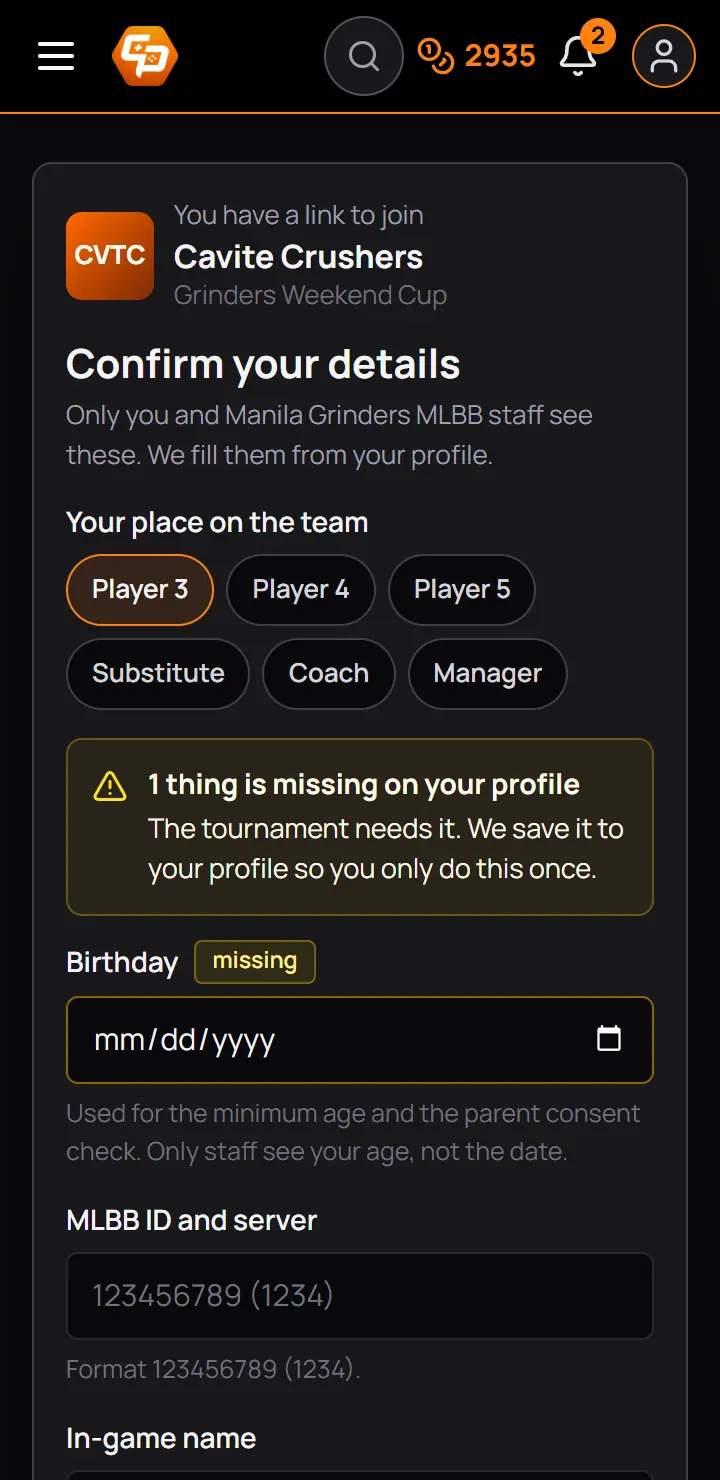
- Your place on the teamThe player picks an open spot.
- What is missingAsked once and saved to their profile. Below it, their game ID and the other answers, then Save and join.
- Your place on the teamThe player picks an open spot.
- What is missingAsked once and saved to their profile. Below it, their game ID and the other answers, then Save and join.
- An invite by username holds its spot until the player answers, the invite is cancelled, or sign-ups close.
- An invite by email holds its spot for 48 hours. It can be sent 3 times at most.
- A team can have 12 invites waiting at once.
- Five wrong late entry codes in 15 minutes lock a player out of late entry codes for 15 minutes.
Good to know. A late entry code lets a team start or submit after sign-ups close. You set it in the builder's Sign-ups step, under More rules. See Step 4: Sign-ups.
3Review a team
When a team is submitted, it waits under To review on the Teams page. Each row shows the team, its roster, its checks and its status. In the picture three teams wait, and two of them share one MLBB ID.
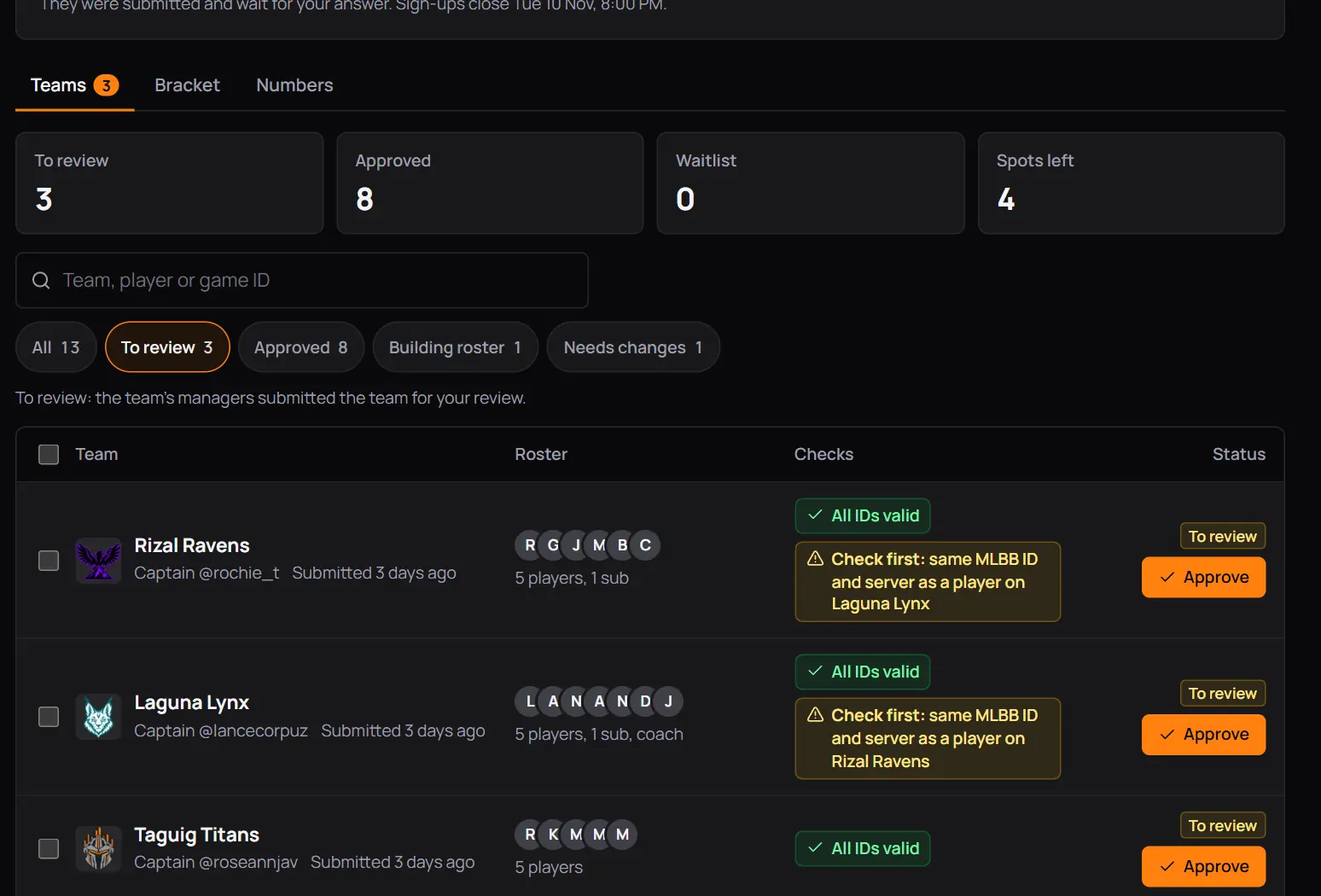
- The numbersTo review, Approved, Waitlist and Spots left.
- SearchBy team, player or an answer they gave.
- The status chipsAll is always there. The others show when a team has that status.
- What the chip means
- A checkHere Check first: the same MLBB ID as a player on another team.
- ApproveApproves this team in one tap.
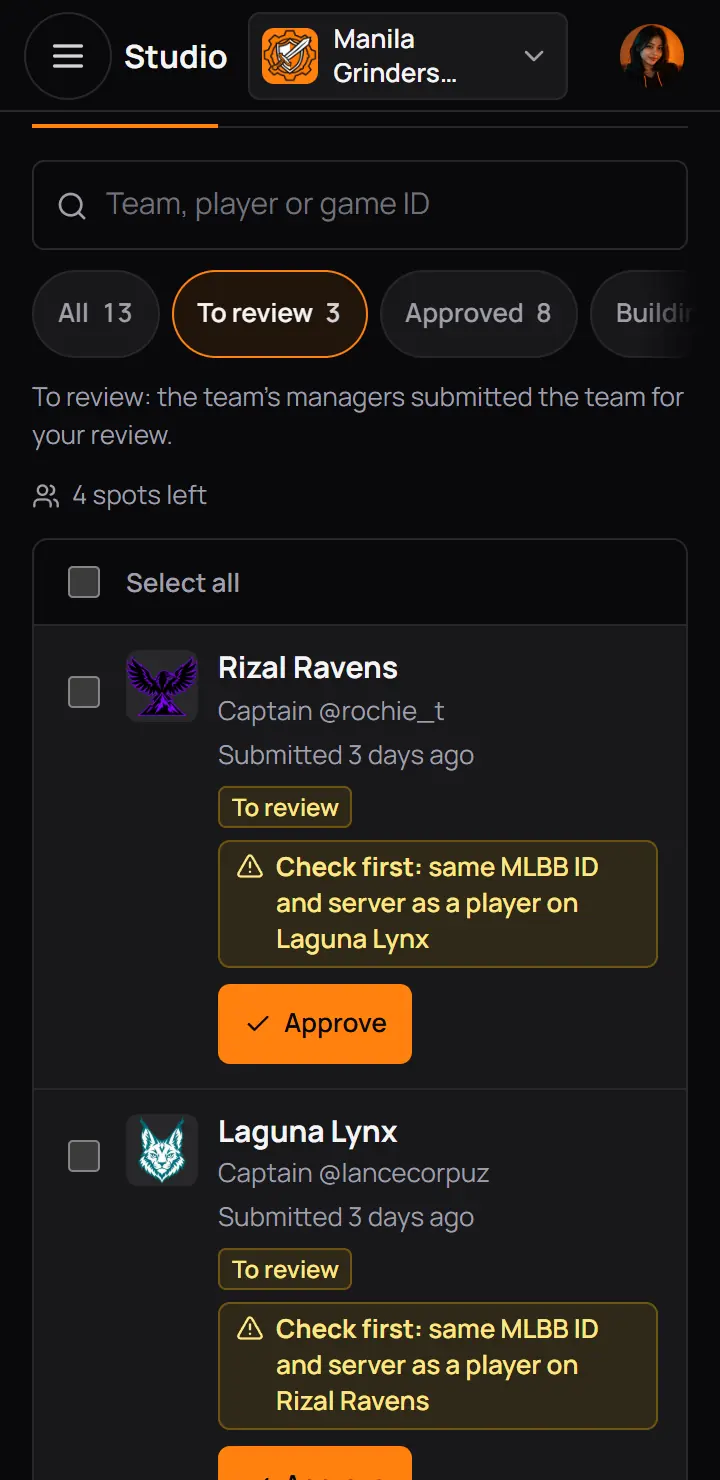
- SearchBy team, player or an answer they gave.
- The status chipsAll is always there. The others show when a team has that status.
- Spots leftOn a phone it is one line under the chips.
- A checkHere Check first: the same MLBB ID as a player on another team.
- ApproveApproves this team in one tap.
Press a team's name to open it. You see every player with their answers, the checks, the team questions and a timeline.
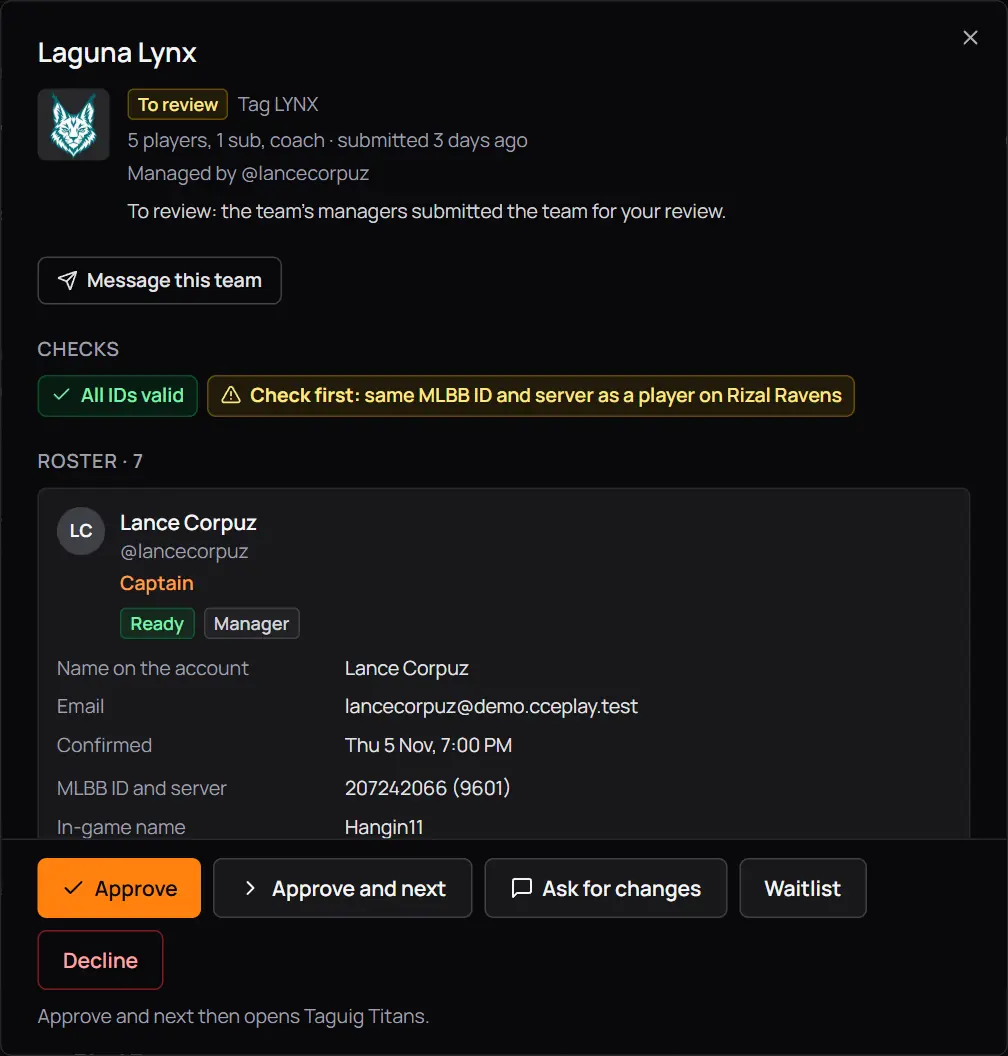
- To reviewWith the tag, the roster size and who manages the team.
- Message this team
- The checksRead them before you approve.
- Approve
- Approve and nextApproves, then opens the next team to review.
- Ask for changes
- Waitlist
- Decline
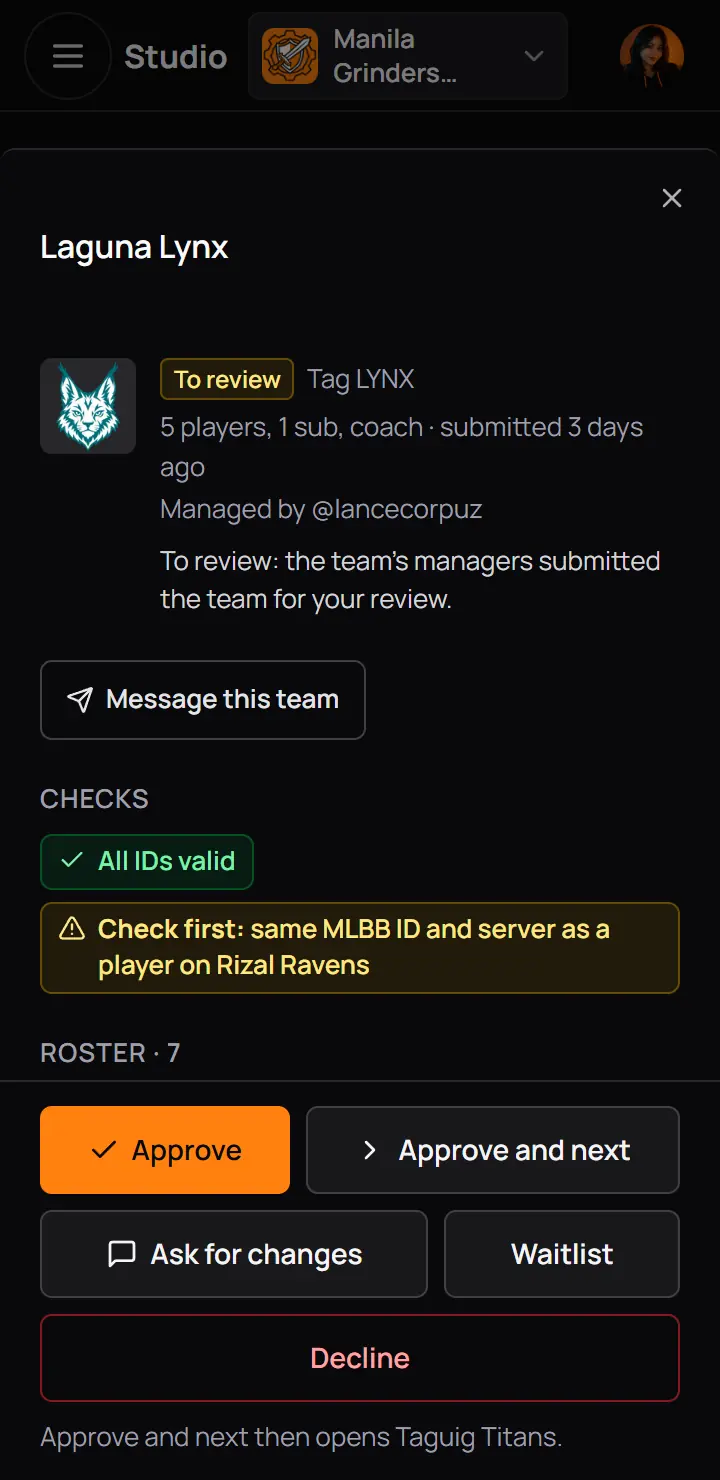
- To reviewWith the tag, the roster size and who manages the team.
- Message this team
- The checksRead them before you approve.
- Approve
- Approve and nextApproves, then opens the next team to review.
- Ask for changes
- Waitlist
- Decline
| Check | What it means |
|---|---|
| Check first: same game ID as a player on another team | What it meansTwo teams have one player, or one ID was typed wrong. A field with No two players can give the same answer turns a second one away, so this shows only for answers given before the switch was on. |
| Can approve: a player is 17 or under, consent file attached | What it meansThe player uploaded a consent file from a parent. |
| Can approve: an email is not verified | What it meansThe player has not confirmed their email yet. |
No check stops you from approving. They are there so you look first.
4Approve, ask for changes, waitlist or decline
Each answer sends the team a bell. Asking for changes and declining need a message, which the team reads on its page. Pick a quick reason under the box, or type your own.
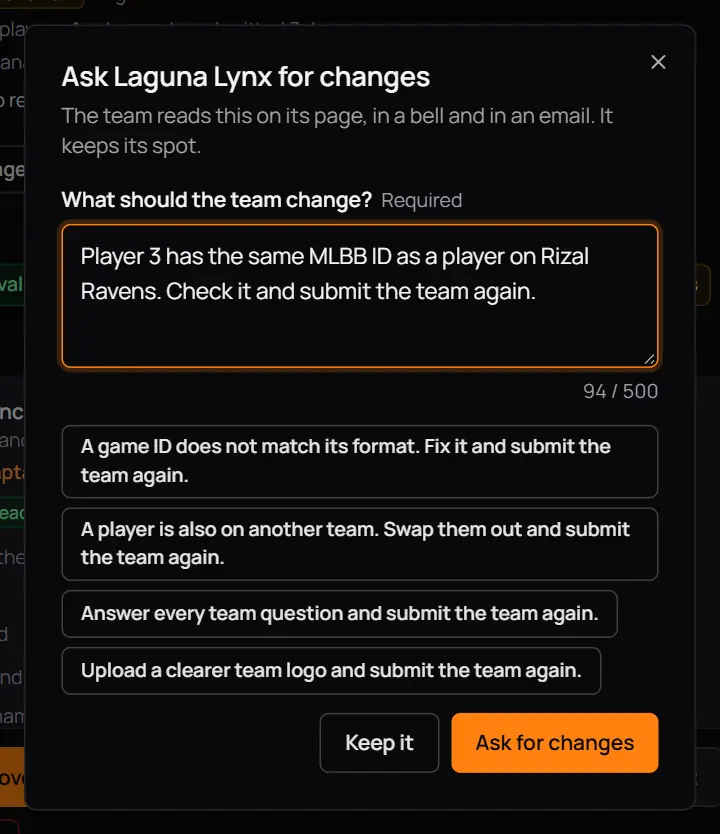
- What should the team change?Required. They read it on their page, in a bell and in an email.
- Ask for changesThe team keeps its spot. It comes back to To review when it is submitted again.
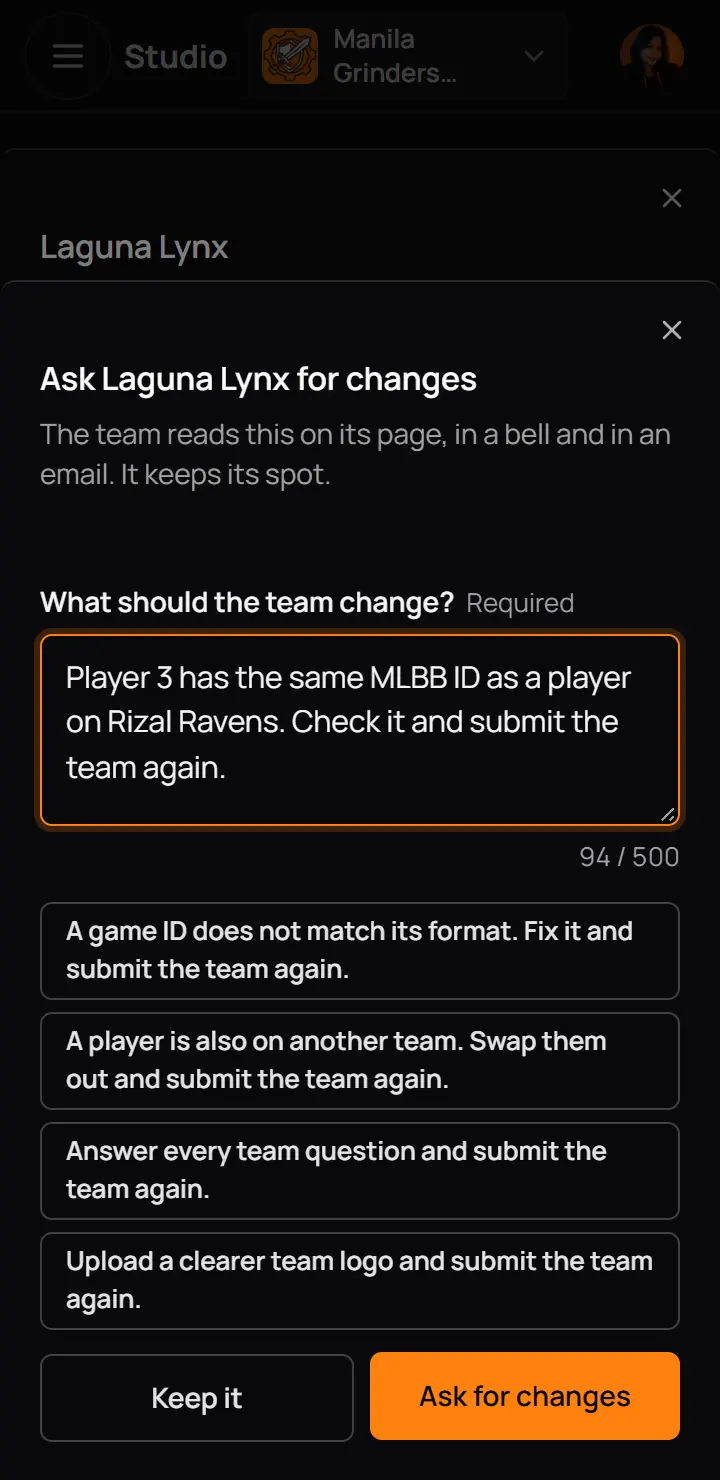
- What should the team change?Required. They read it on their page, in a bell and in an email.
- Ask for changesThe team keeps its spot. It comes back to To review when it is submitted again.
Several teams at once
Tick the box in front of each team. A bar comes up at the bottom with the answers that fit every ticked team.
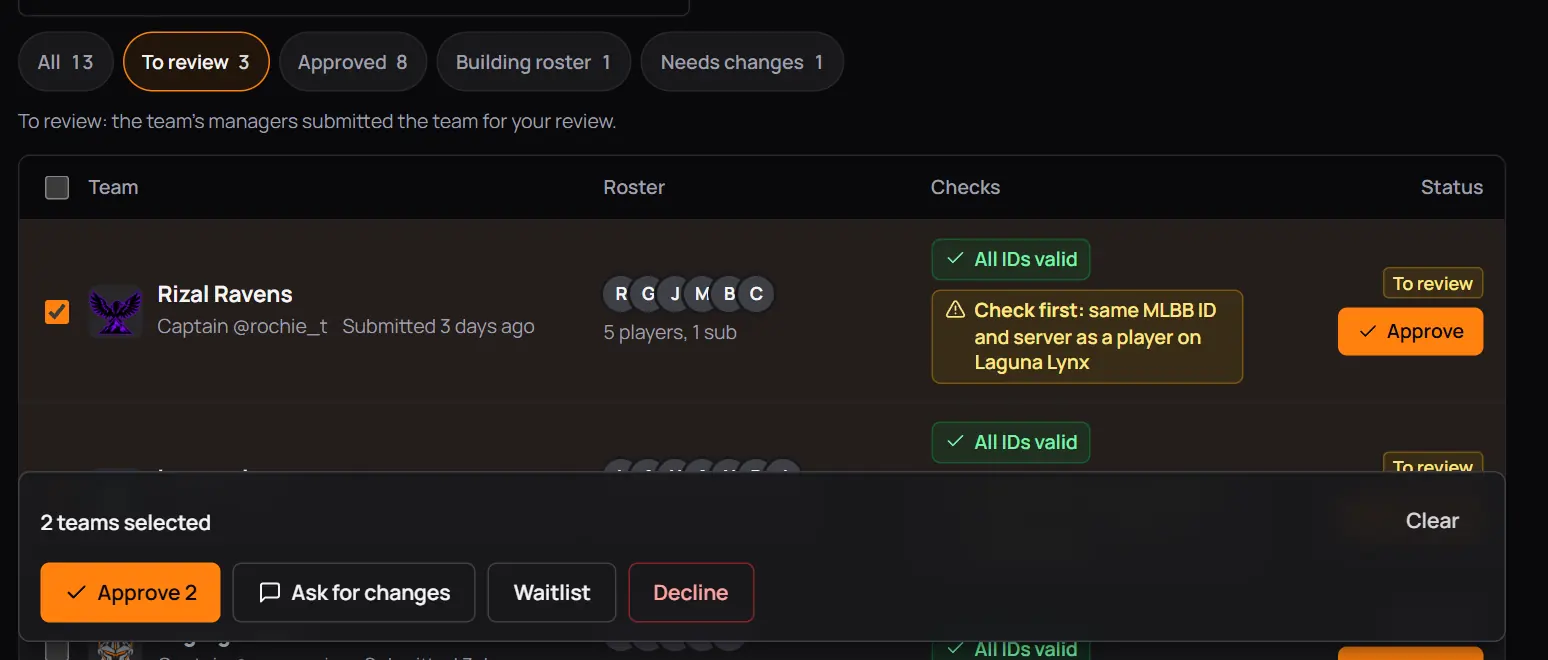
- The tick box
- 2 teams selectedClear takes the ticks off.
- Approve 2And Ask for changes, Waitlist and Decline beside it.
- DeclineAsks for one reason for every ticked team.
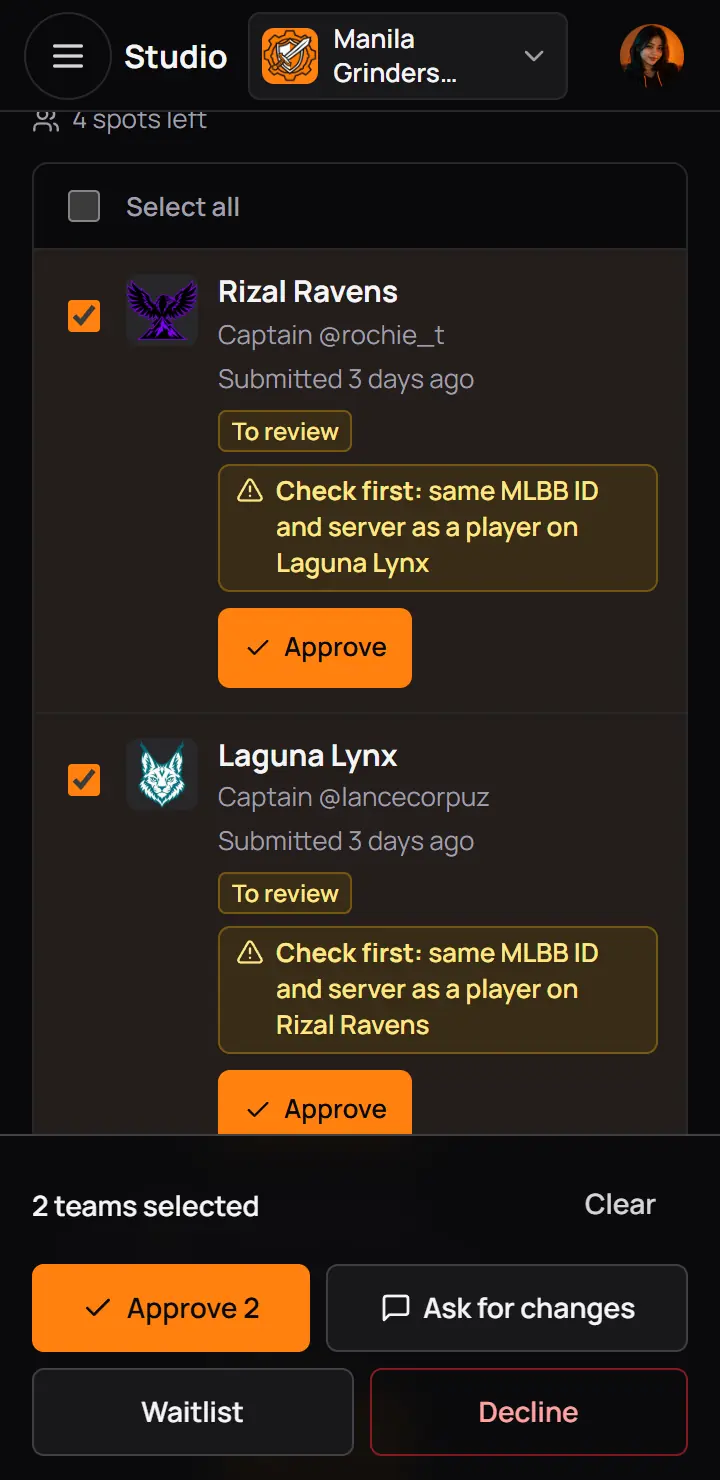
- The tick box
- 2 teams selectedClear takes the ticks off.
- Approve 2And Ask for changes, Waitlist and Decline beside it.
An approved team that you decline later gives up its spot. You can approve a declined team again while it still has its name and players.
5What the team sees
Your answer shows at the top of the team's page, and every step is in its Status list.
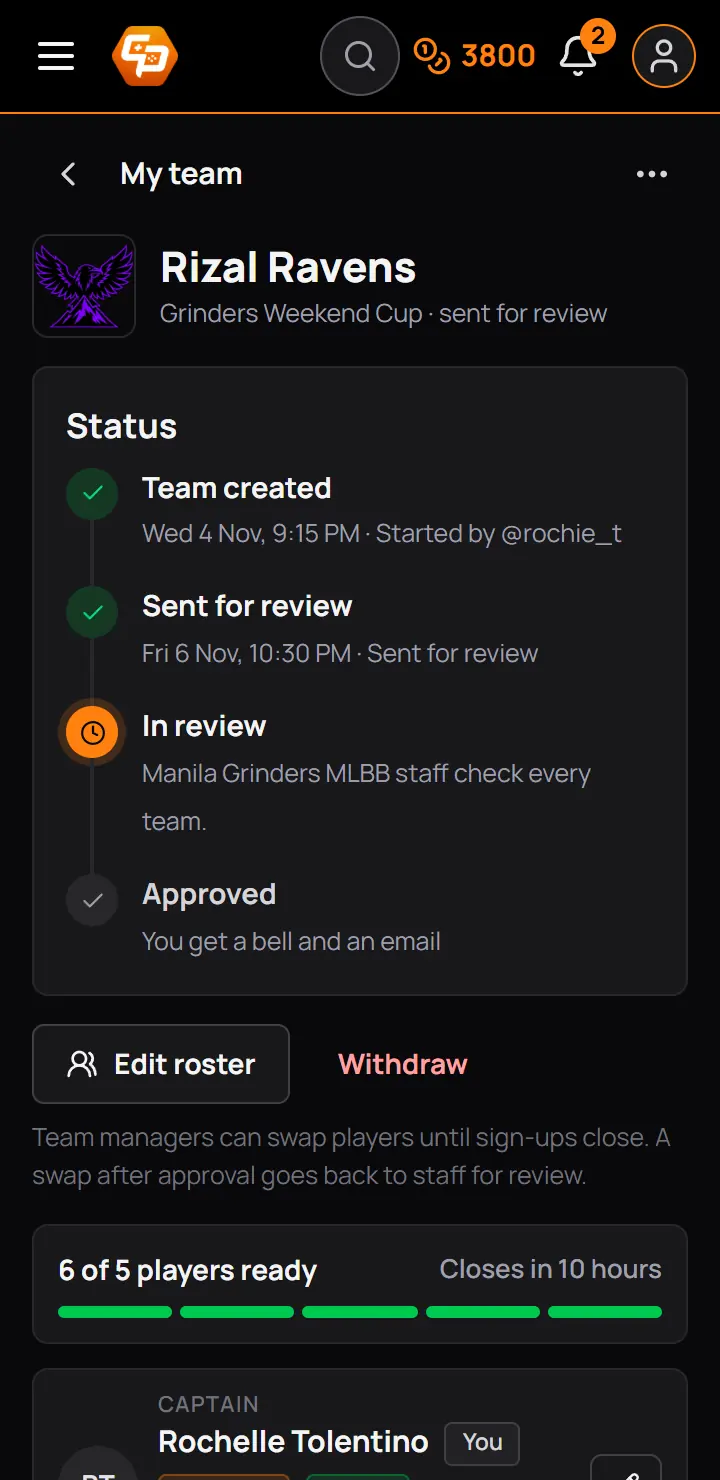
- In reviewManila Grinders MLBB staff check every team.
- Edit rosterManagers can swap players until sign-ups close.
- WithdrawTakes the team out and frees its spot.
- In reviewManila Grinders MLBB staff check every team.
- Edit rosterManagers can swap players until sign-ups close.
- WithdrawTakes the team out and frees its spot.
6Every team status
| Status | What it means | Holds a spot |
|---|---|---|
| Building roster | What it meansThe team started and its managers have not submitted it yet. | Holds a spotNo |
| To review | What it meansThe managers submitted the team. It waits for your answer. | Holds a spotYes |
| Needs changes | What it meansYou asked for a change. It comes back to To review when it is submitted again. | Holds a spotYes |
| Approved | What it meansThe team plays. | Holds a spotYes |
| Waitlist | What it meansThe team waits for a spot. | Holds a spotNo |
| Declined | What it meansYou did not accept the team. | Holds a spotNo |
| Withdrawn | What it meansA manager took the team out. | Holds a spotNo |
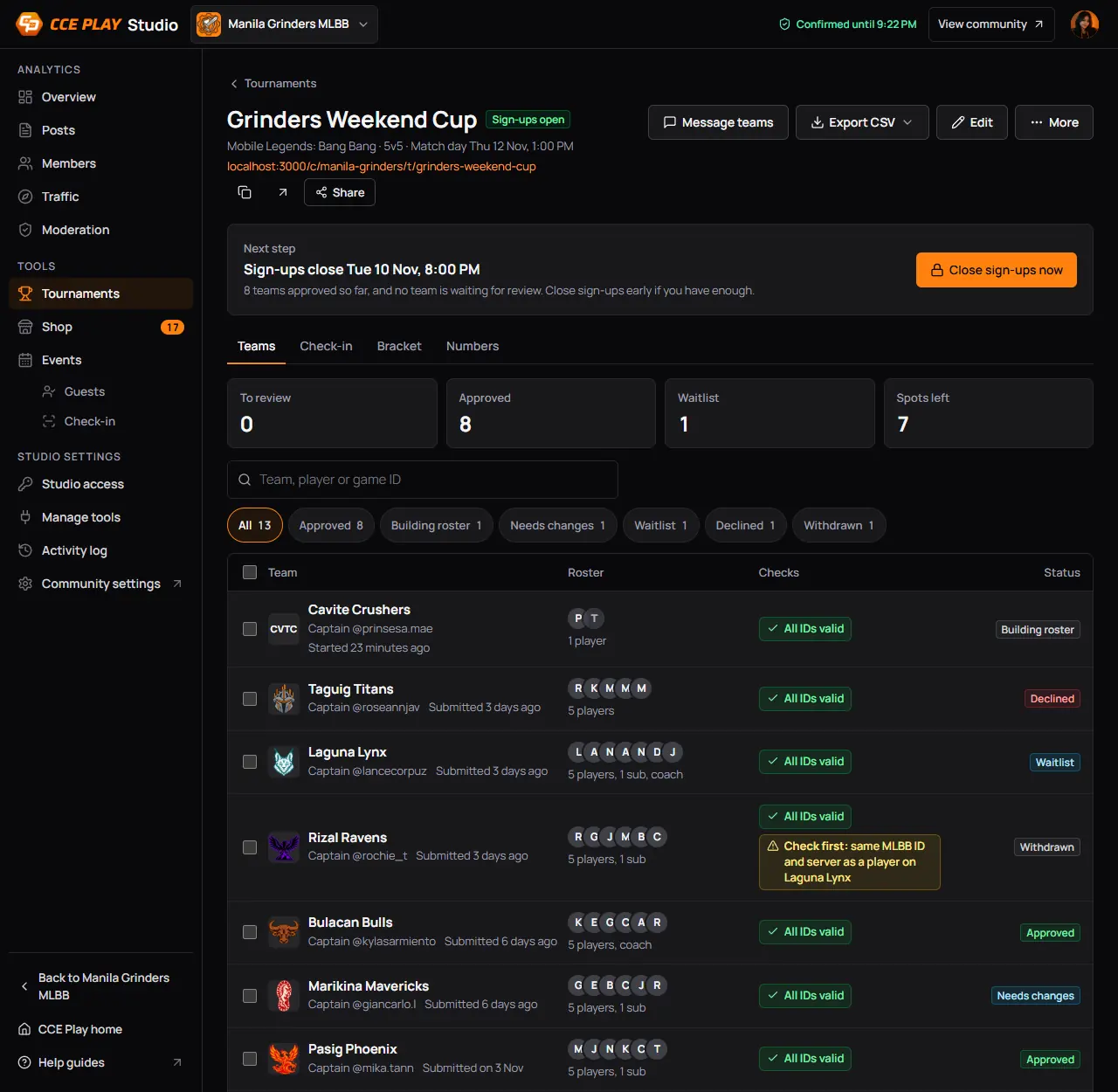
- Next stepNothing waits for review, so the card offers Close sign-ups now.
- Waitlist 1, Spots left 7
- All 13Teams open on All when nothing waits for review.
- Declined
- Waitlist
- Withdrawn
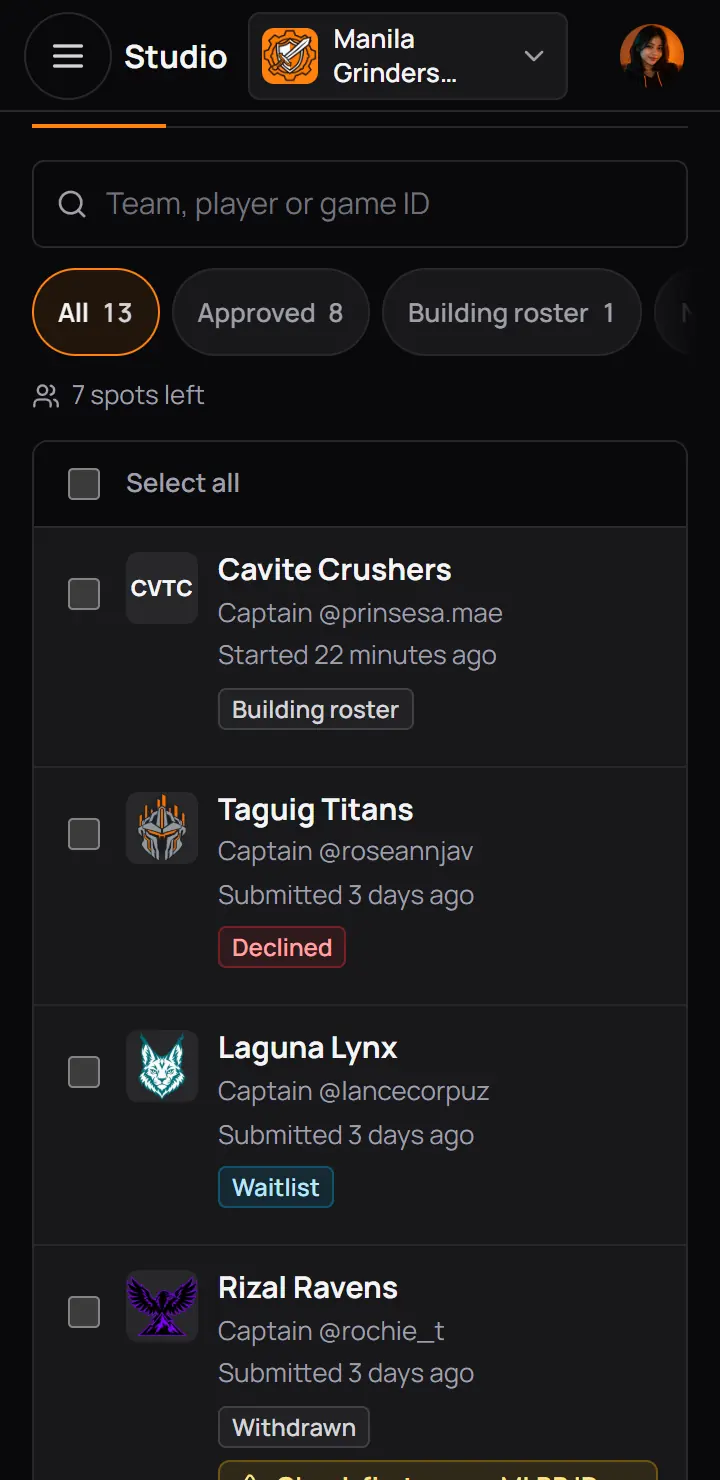
- All 13Teams open on All when nothing waits for review.
Once the tournament has ended, was cancelled or was taken down, the Teams page has no tick boxes and no Approve.
7Spots and the waitlist
A tournament has a number of spots, set as Most teams in the builder's Sign-ups step. A team takes a spot when it is submitted, and keeps it while it waits for review, needs changes or is approved.
- When every spot is taken, the next team that is submitted goes on the waitlist. With the waitlist off, it cannot be submitted.
- When a spot frees up before match day, the team that has waited longest moves up and gets a bell and an email.
- A team you moved to the waitlist yourself does not move up by itself. It comes back only when you approve it.
- Raising Most teams in the builder moves waiting teams up at once. You cannot lower it below the teams that have a spot.
Good to know. Two teams submitted at the same moment for the last spot never both get it: one gets the spot and the other the waitlist.
8Message teams and download the list
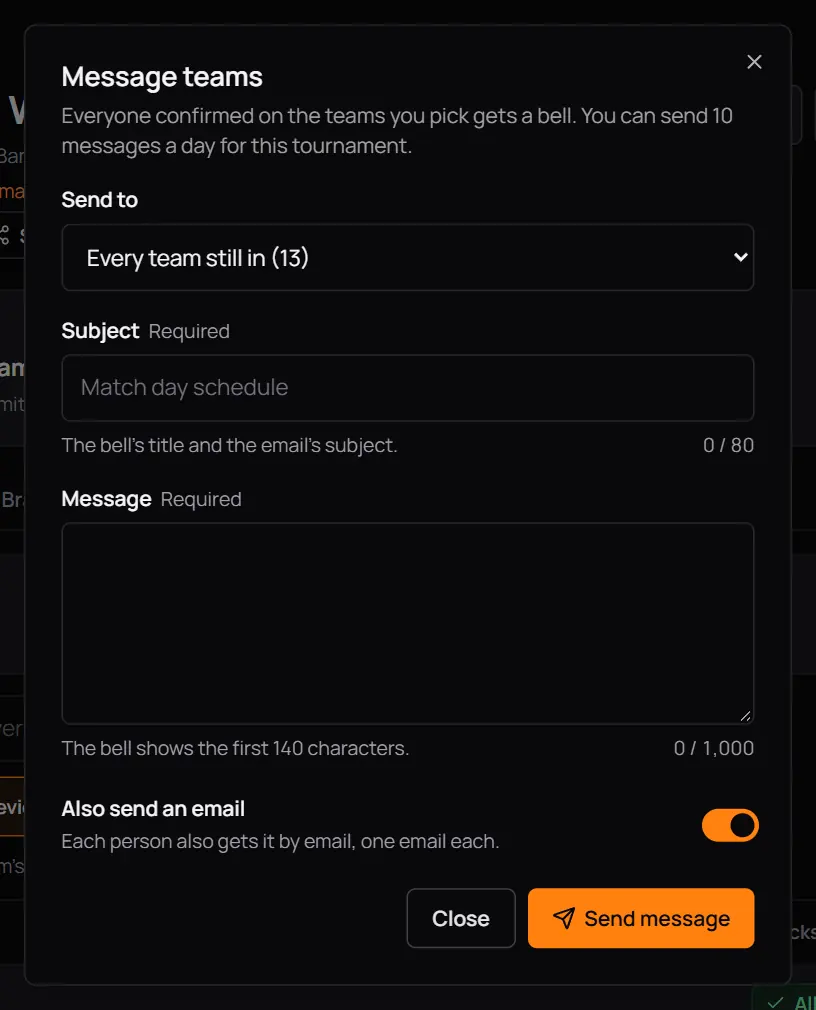
- Send toEvery team still in, one status, one team, or the teams not checked in.
- SubjectThe bell's title and the email's subject.
- MessageThe bell shows the first 140 letters.
- Also send an email
- Send messageEveryone confirmed on those teams gets it.
You can send 10 messages a day for each tournament. On a phone, Message teams is under More.
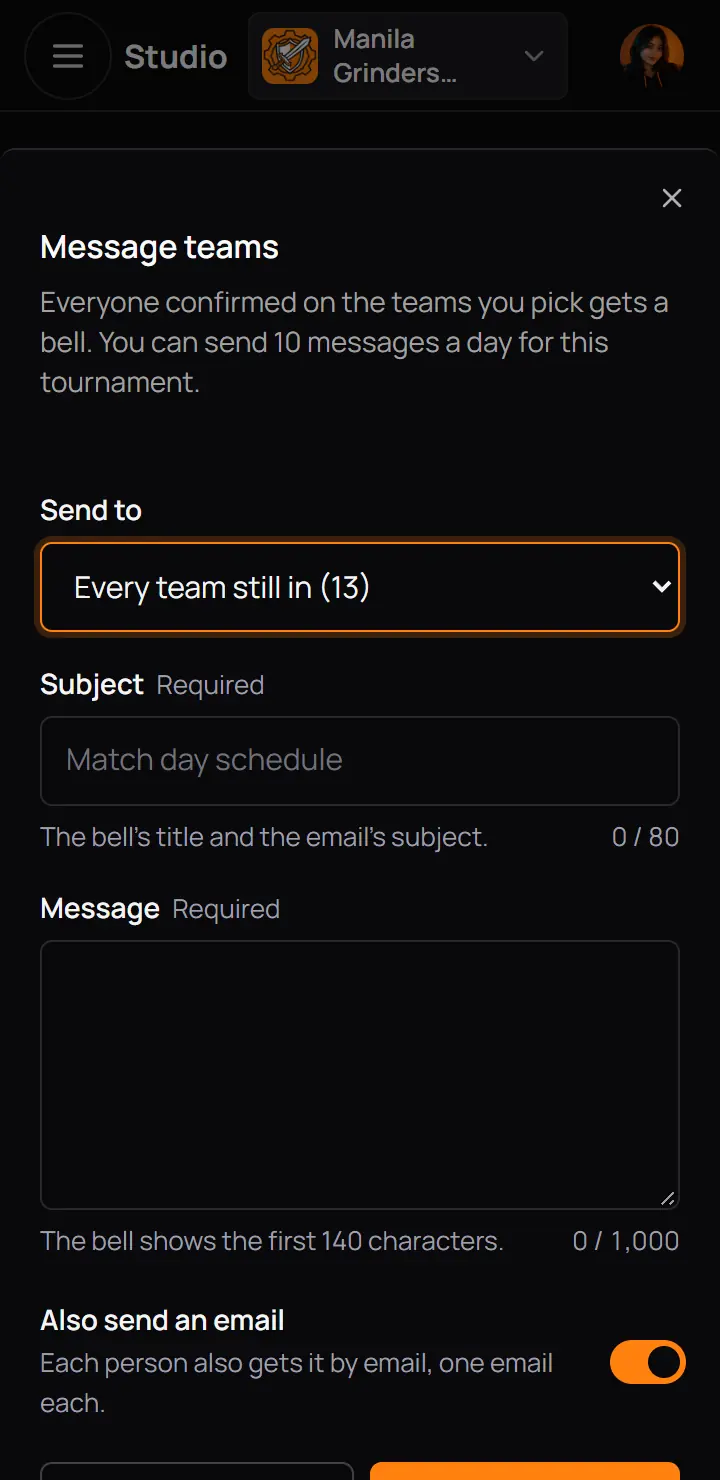
- Send toEvery team still in, one status, one team, or the teams not checked in.
- MessageThe bell shows the first 140 letters.
You can send 10 messages a day for each tournament. On a phone, Message teams is under More.
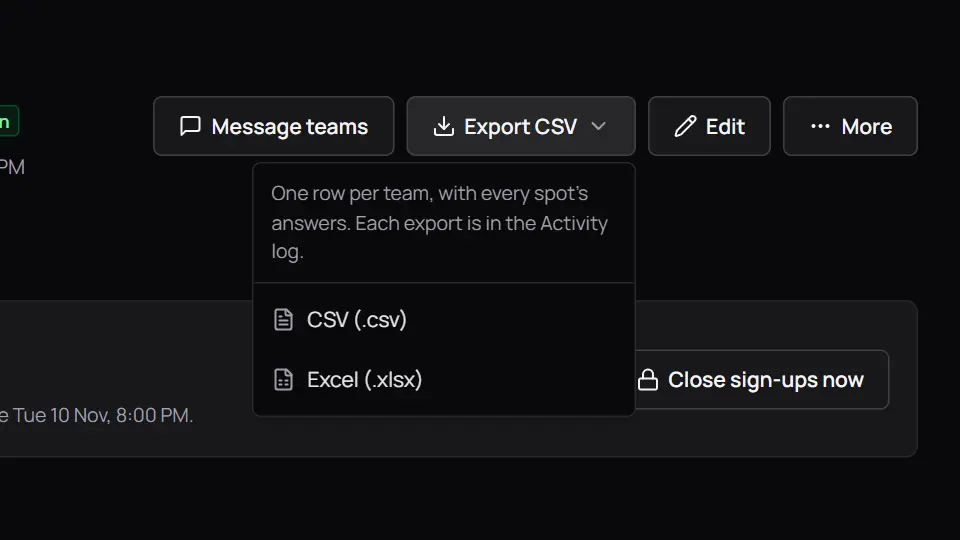
- CSV or ExcelOne row per team, with every spot's answers. Each export is in the Activity log.
On a phone, the exports are under More.
- CSV or ExcelOne row per team, with every spot's answers. Each export is in the Activity log.
On a phone, the exports are under More.
Good to know. The export has players' personal answers, such as mobile numbers. Keep the file to yourself. 90 days after a tournament, CCE Play removes those answers, and later exports show empty cells there.
9Close sign-ups
Sign-ups close by themselves at the time you set. To close them early, press Close sign-ups now on the Next step card. Teams already submitted keep their spot and their review. Once sign-ups close, the card moves on to the bracket.
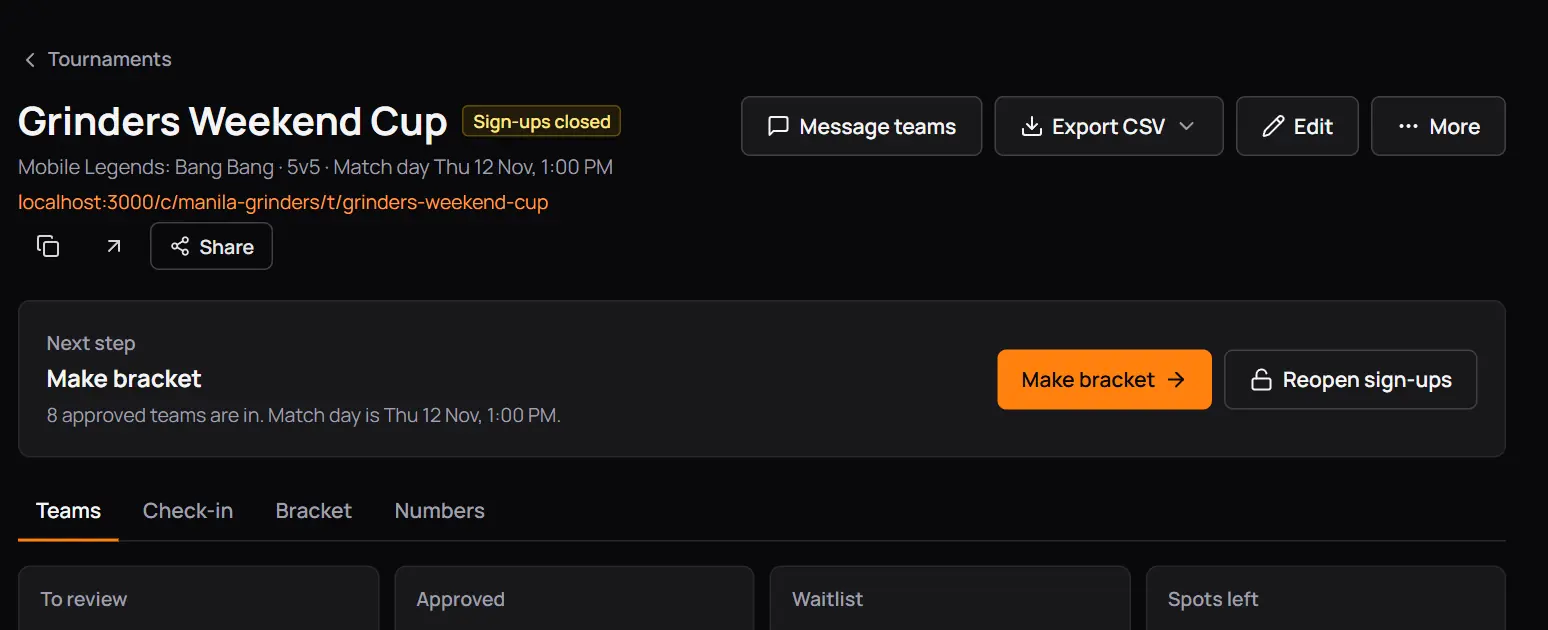
- Sign-ups closed
- Make bracket8 approved teams are in. Match day is Thu 12 Nov, 1:00 PM.
- Make bracketOpens the Bracket tab.
- Reopen sign-upsOnly before match day, and before the bracket is made.
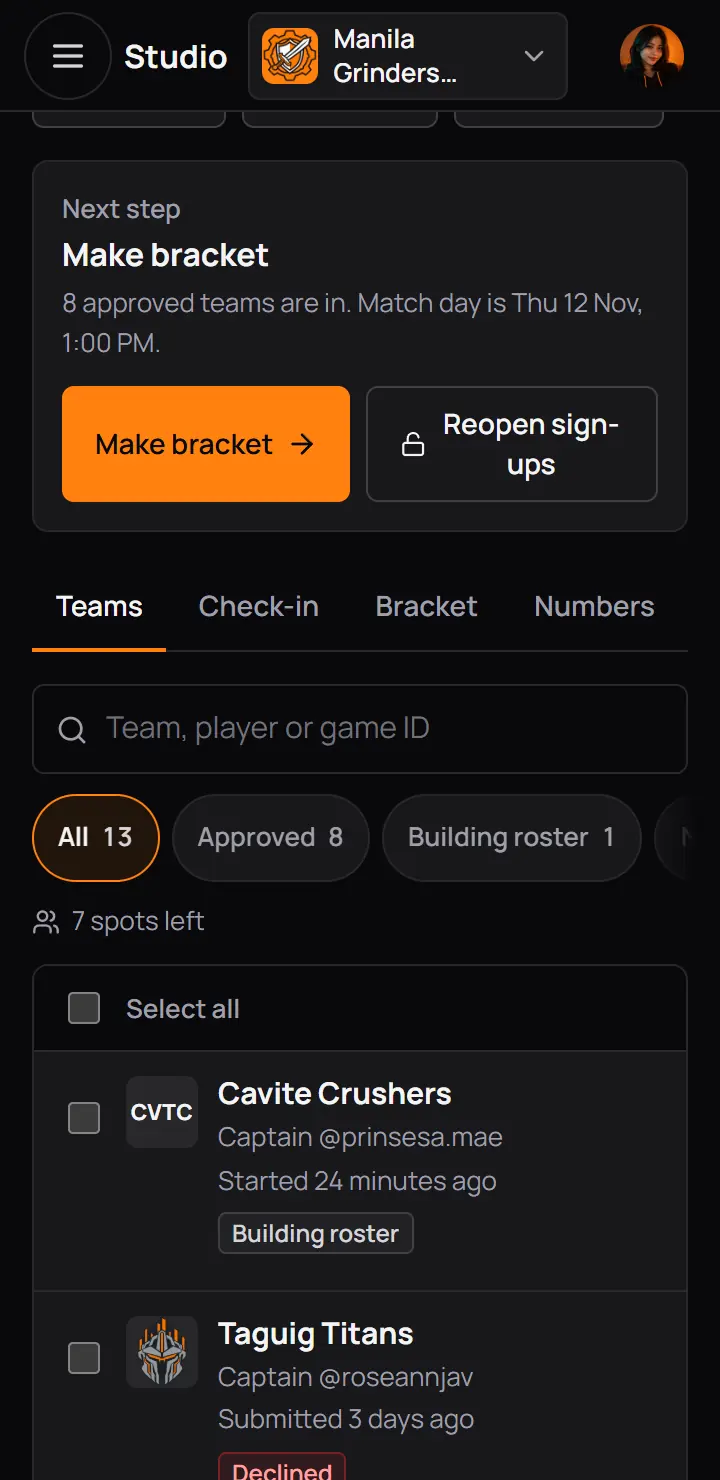
- Make bracketOpens the Bracket tab.
- Reopen sign-upsOnly before match day, and before the bracket is made.
If teams still wait for review when sign-ups close, the card asks you to answer them first. The close and reopen boxes are in Move it to the next stage.
10Check-in
With check-in on, every approved team confirms who is here before the first match. A team that has not checked in when match day starts becomes a no-show, and the other team wins by no-show. Check-in is off until you turn it on.
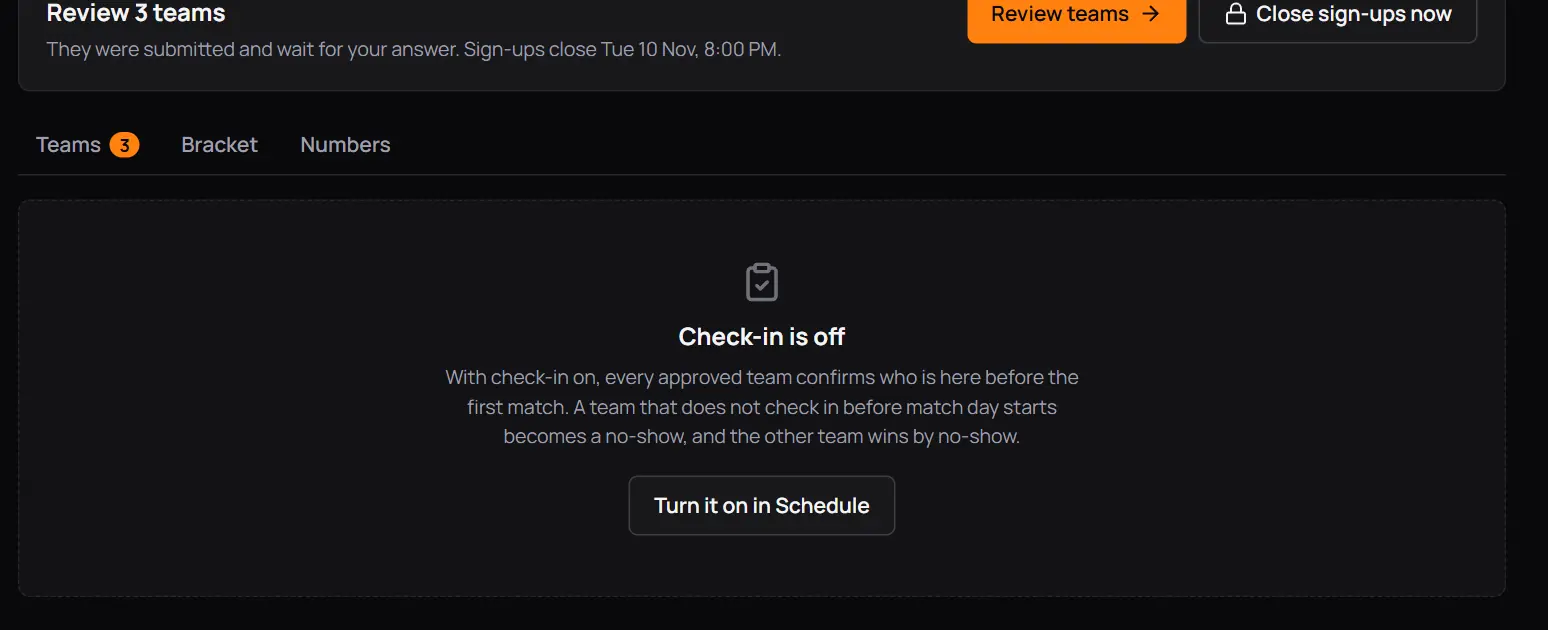
- Check-in is off
- Turn it on in ScheduleOpens the builder.
The phone picture shows Valkyries Duel Night of Valkyries PH, which has check-in off.
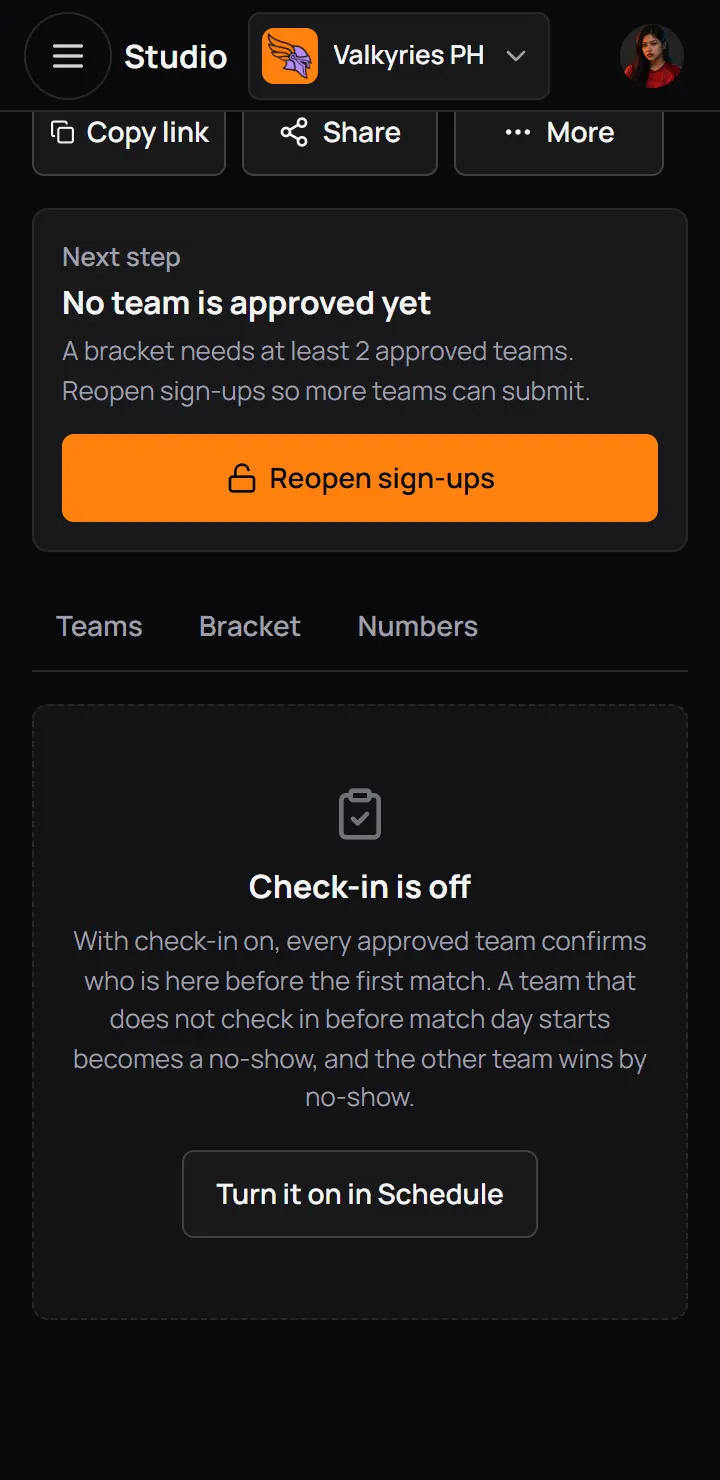
- Check-in is off
- Turn it on in ScheduleOpens the builder.
The phone picture shows Valkyries Duel Night of Valkyries PH, which has check-in off.
Once check-in is on, the tournament has a Check-in tab. It looks different before, during and after check-in. While it is open, the Next step card says Check-in is open, with Open check-in.
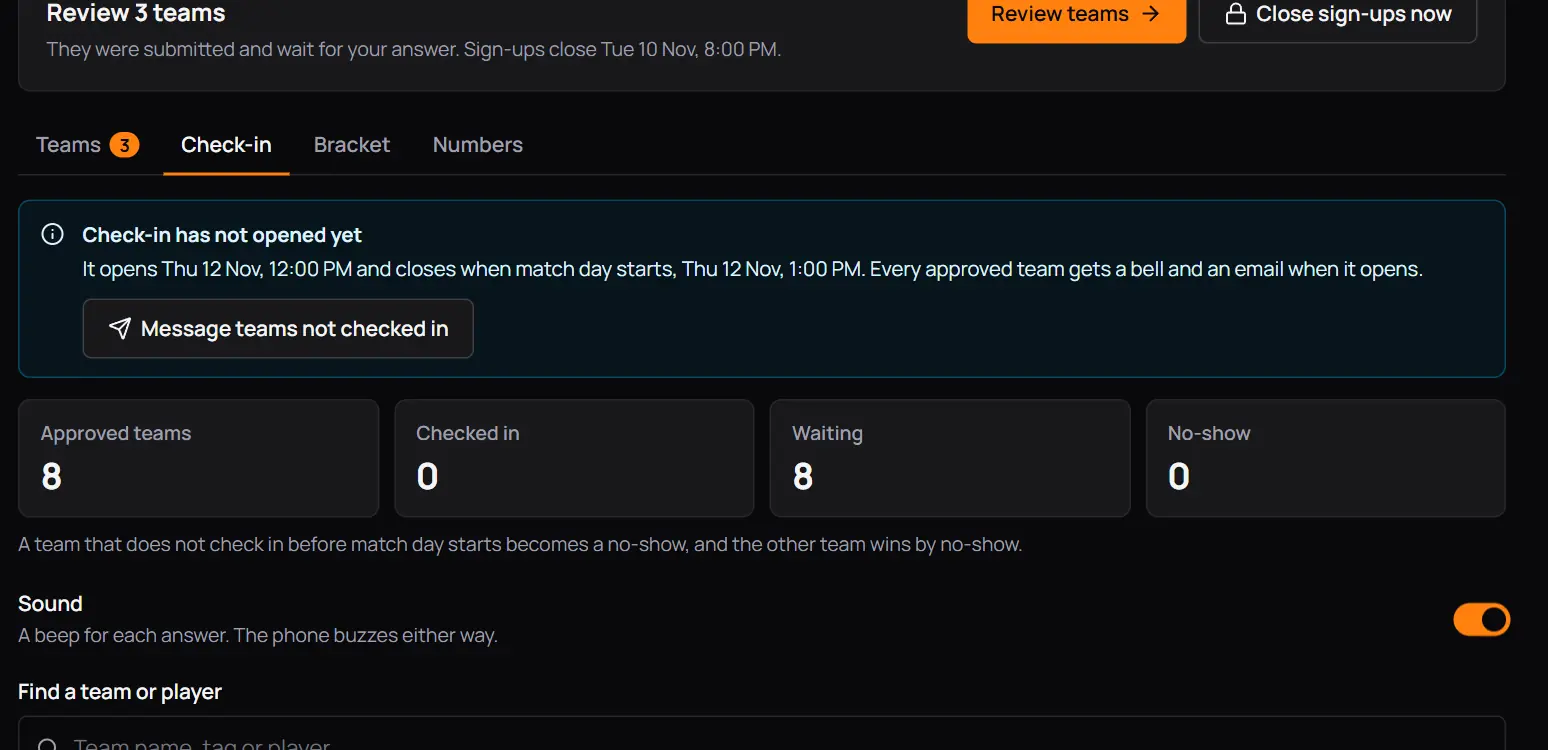
- Check-in has not opened yetWhen it opens and closes. Every approved team gets a bell and an email when it opens.
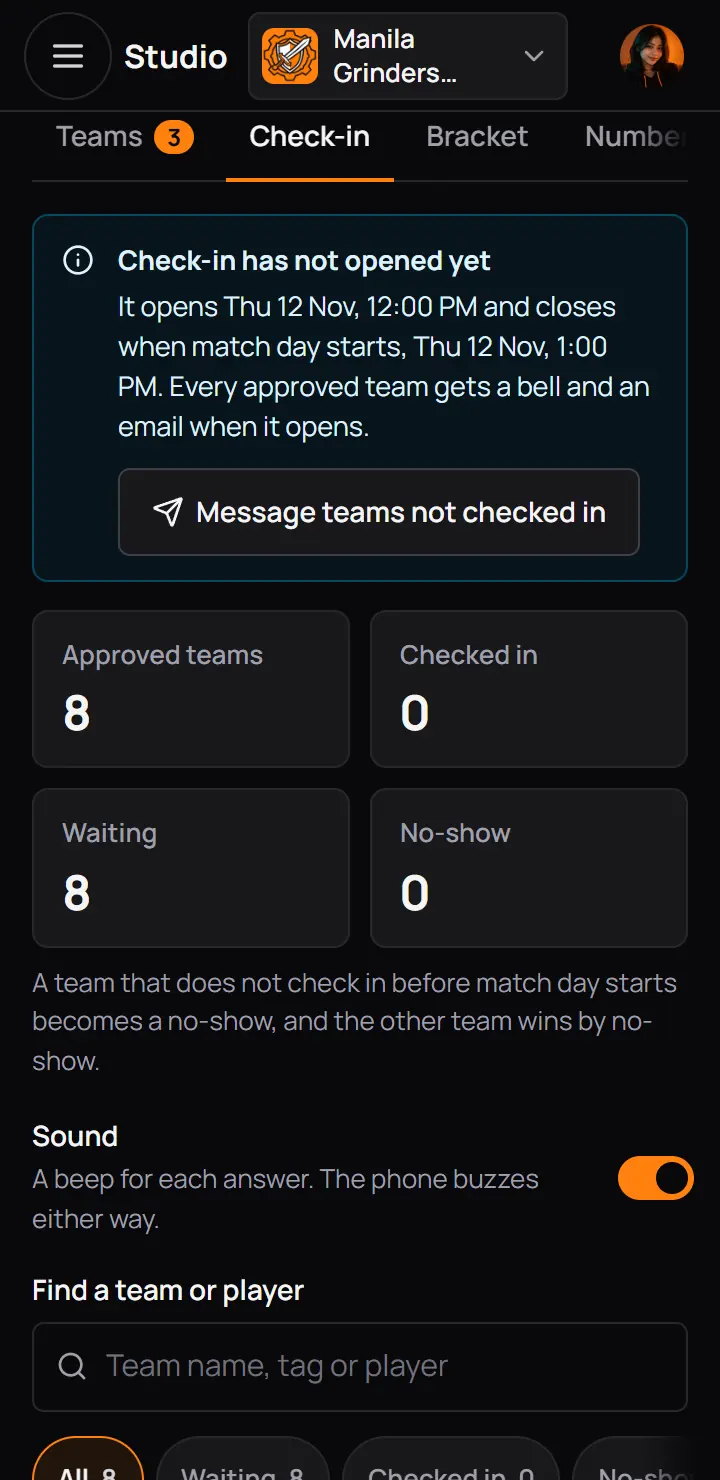
- Check-in has not opened yetWhen it opens and closes. Every approved team gets a bell and an email when it opens.
How teams check in
When check-in opens, a box comes up on the team page. Each player can tap I'm here, and a manager ticks who is here and checks the team in.
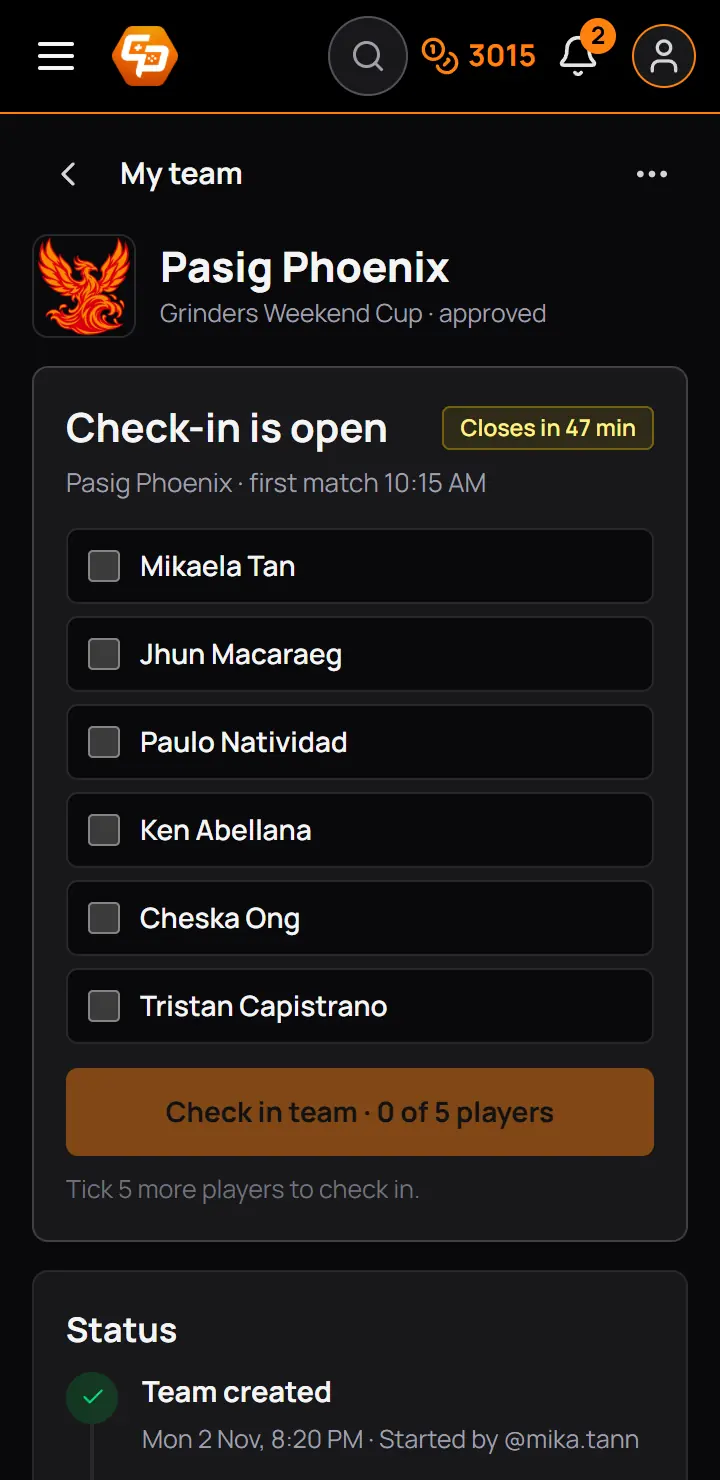
- Check-in is openWith how long it stays open.
- Check in teamTurns on once enough players are ticked.
- Check-in is openWith how long it stays open.
- Check in teamTurns on once enough players are ticked.
Check a team in by hand
When a team is at the venue and has not checked in, check it in for them.
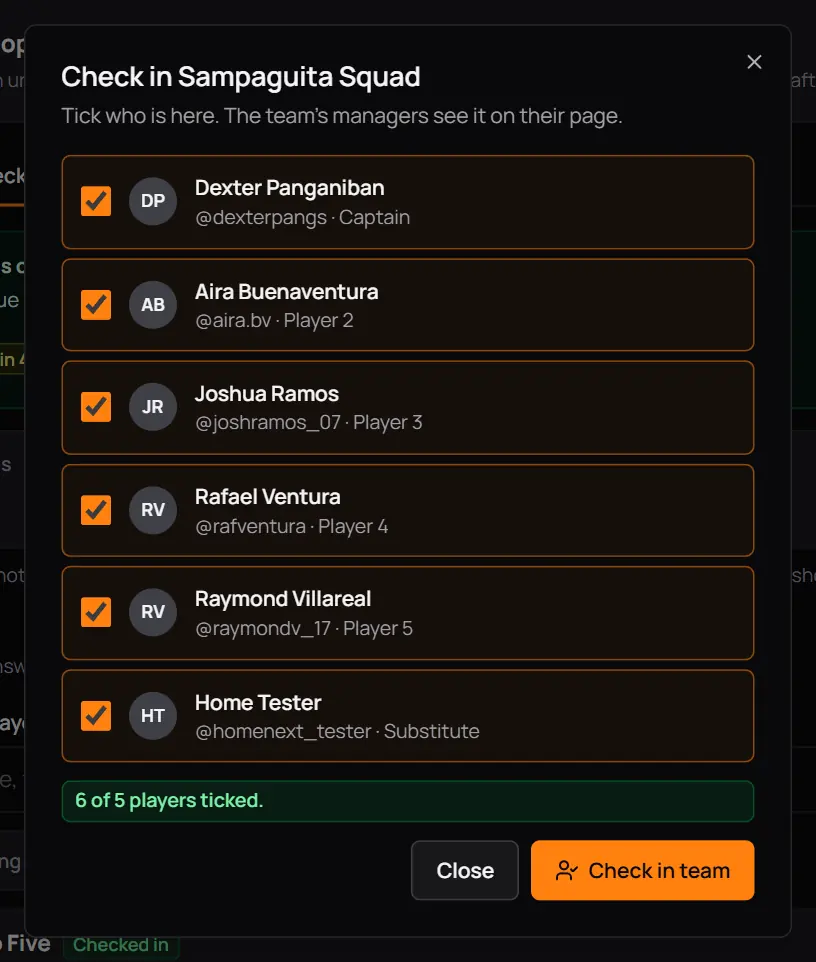
- A playerUntick anyone who is not here. Players who tapped I'm here are ticked.
- How many are ticked
- Check in team
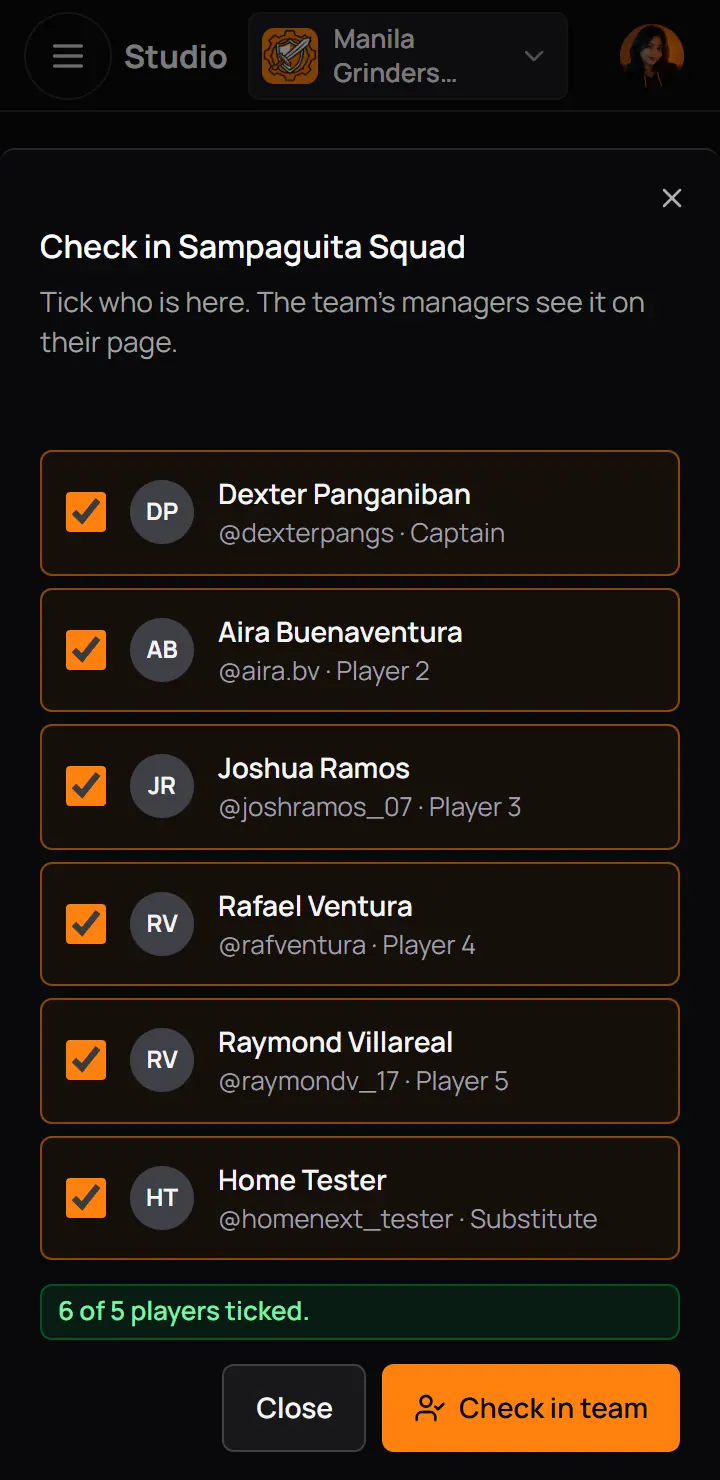
- A playerUntick anyone who is not here. Players who tapped I'm here are ticked.
- Check in team
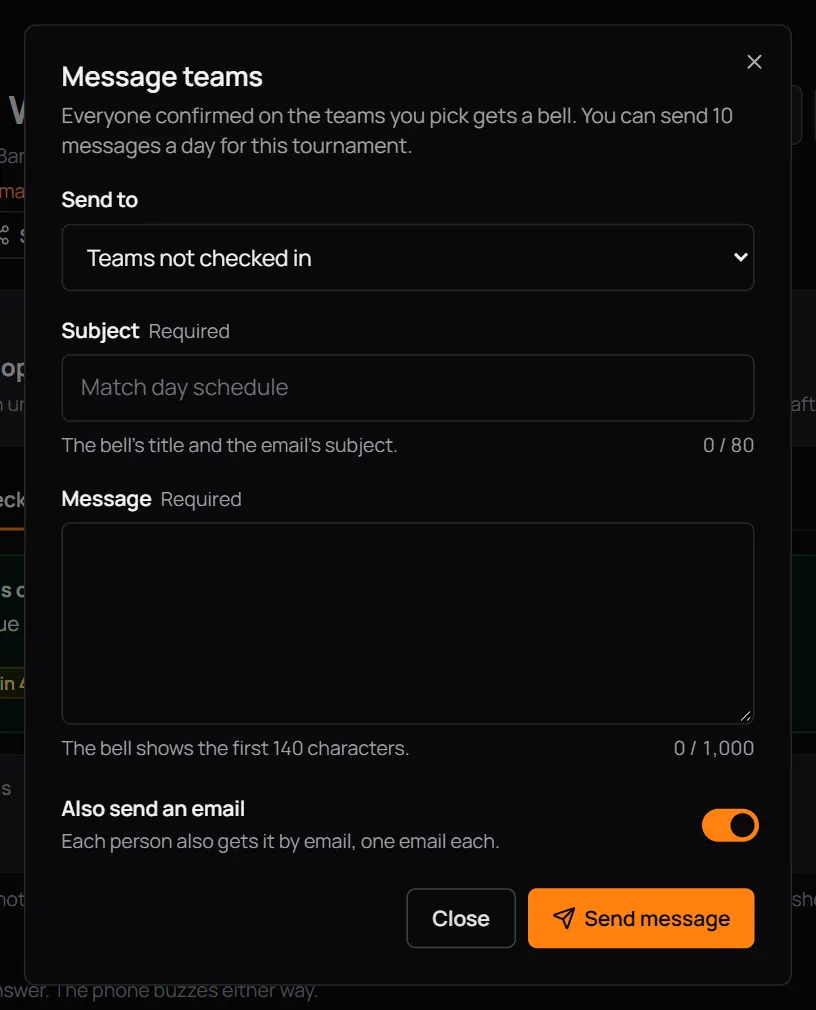
- Teams not checked inMessage teams not checked in, on the Check-in tab, opens the message on them.
- Teams not checked inMessage teams not checked in, on the Check-in tab, opens the message on them.
When match day starts
Check-in closes when match day starts. Every approved team that has not checked in becomes a no-show. For 2 hours after that you can still check a late team in by hand.
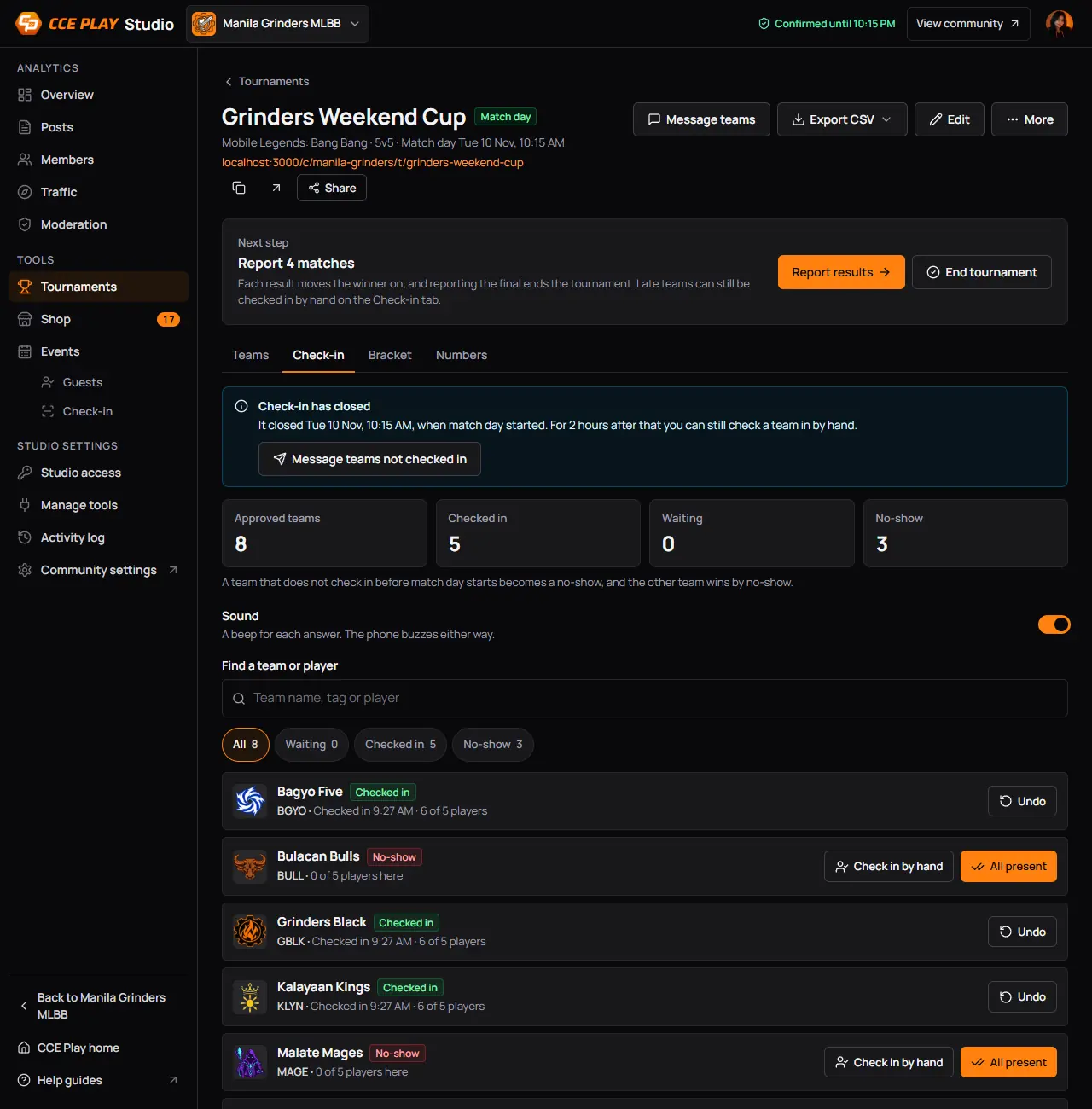
- Check-in has closedWhen it closed, and the 2 hours for late teams.
- Checked in 5, No-show 3
- No-show
- Check in by handStill there for 2 hours.
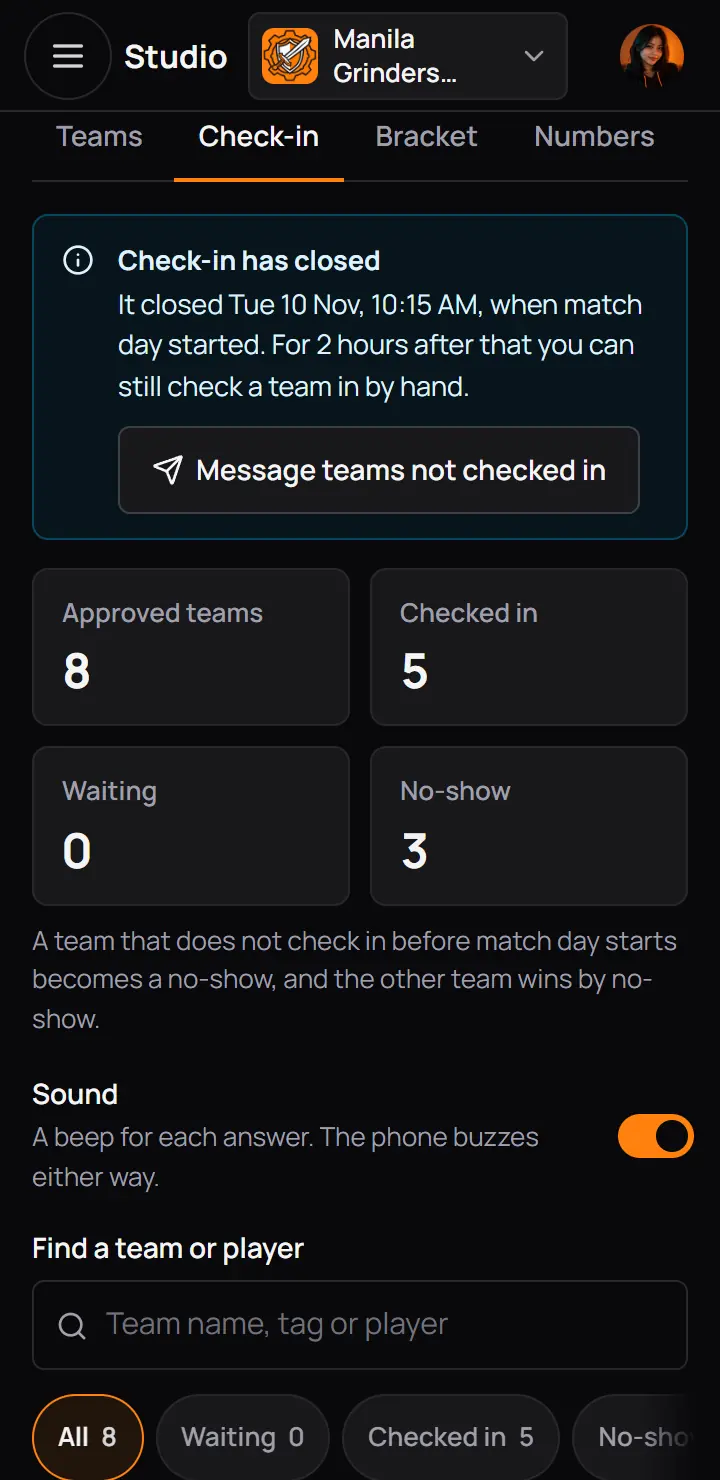
- Check-in has closedWhen it closed, and the 2 hours for late teams.
11Make the bracket
CCE Play makes the bracket for single elimination tournaments. Make it after sign-ups close and before the first match. It needs 2 approved teams or more.
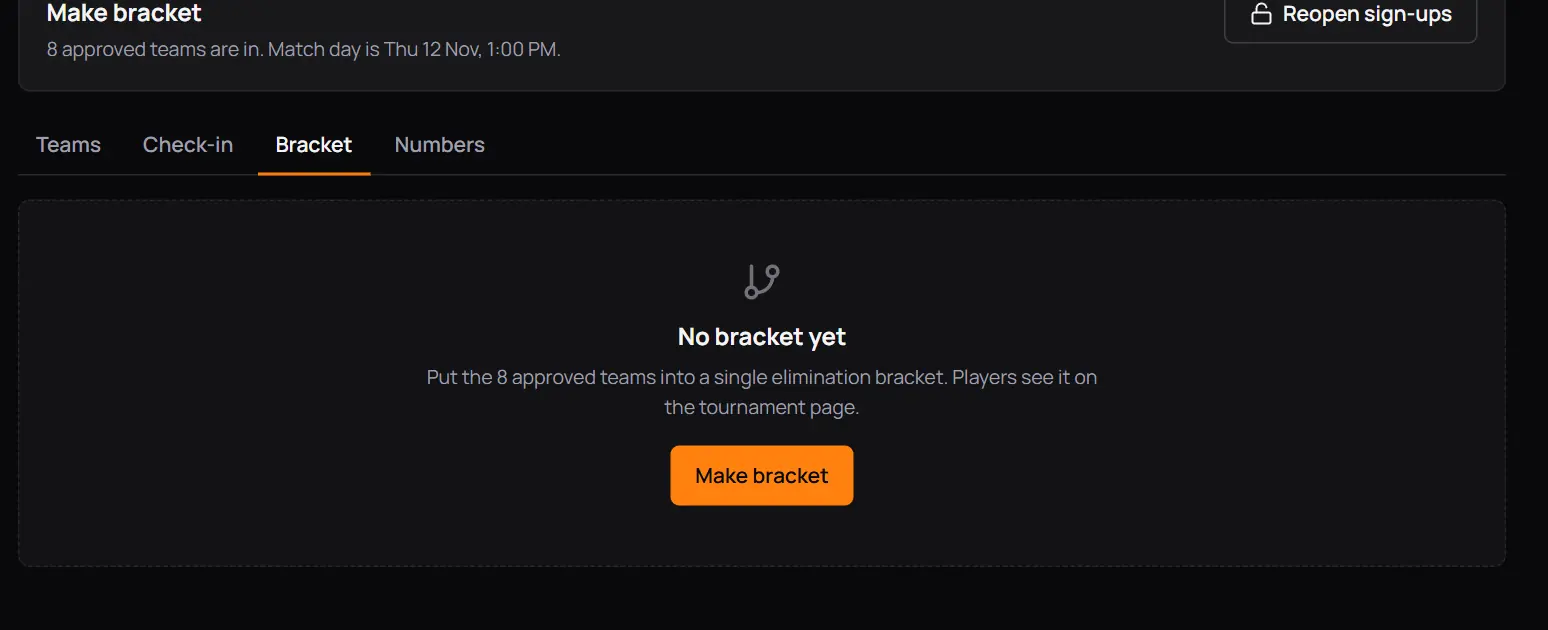
- No bracket yet
- Make bracket
While sign-ups are open, the tab says when the bracket can be made instead. The phone picture shows Valkyries Duel Night of Valkyries PH, which has no approved team yet, so its Next step card says so.
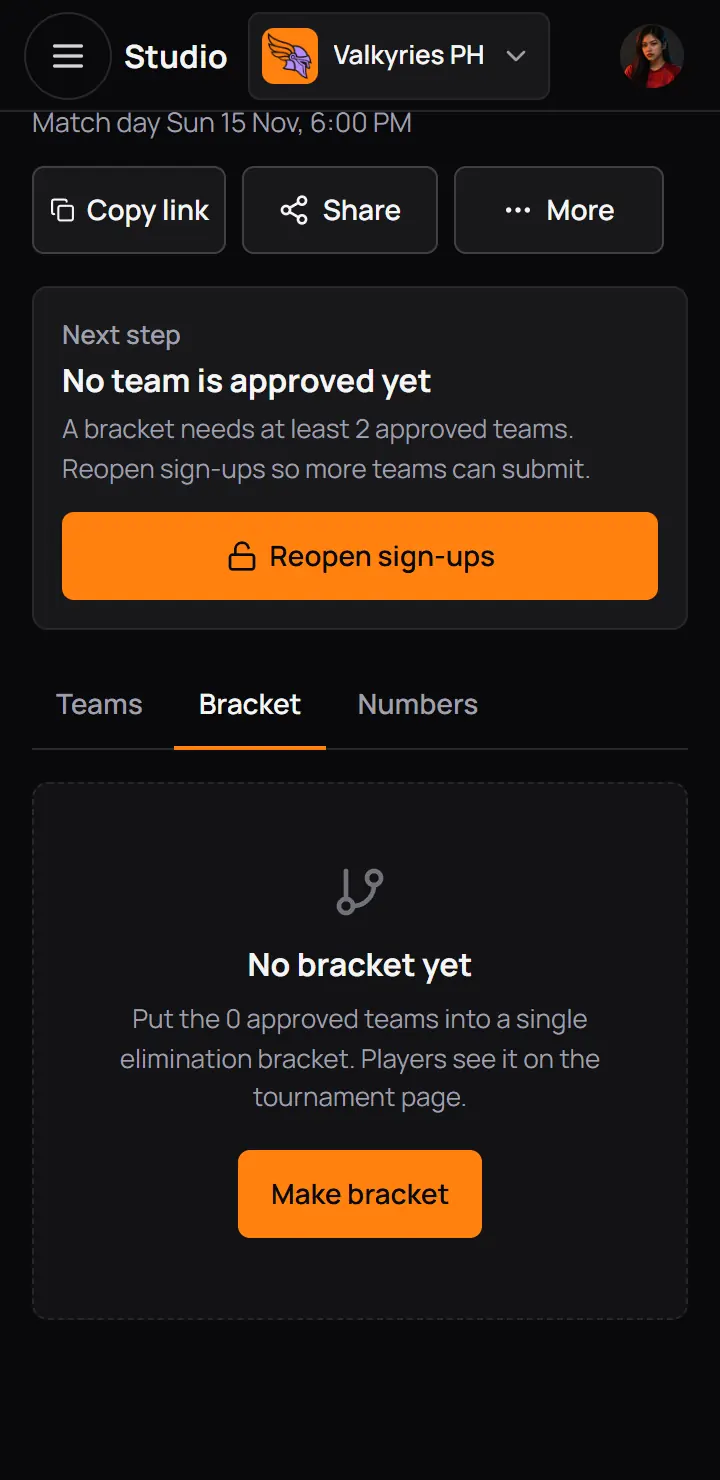
- No bracket yet
- Make bracket
While sign-ups are open, the tab says when the bracket can be made instead. The phone picture shows Valkyries Duel Night of Valkyries PH, which has no approved team yet, so its Next step card says so.
- When the number of teams is not 4, 8, 16 or 32, the top seeds skip round 1. That is called a bye.
- Before check-in closes, every approved team goes in the bracket. A team that then does not check in loses its match by no-show.
- After check-in closes, the no-show teams are left out, and the box says how many.
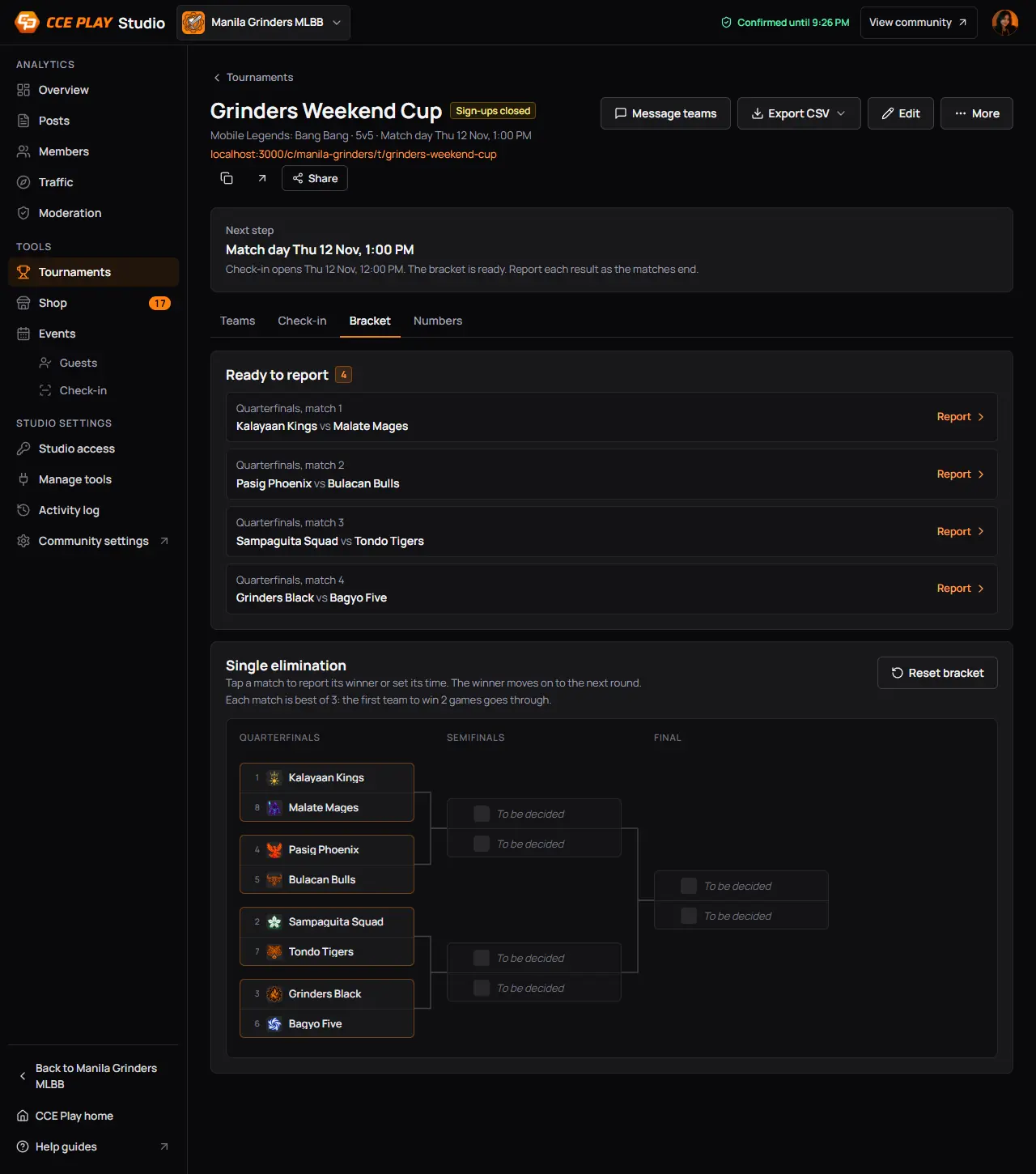
- Ready to reportEvery match with both teams and no result, earliest round first.
- The boardPlayers see the same board on the tournament page.
- A matchPress it to report its result or set its time.
- Reset bracketRemoves the bracket so you can make it again. Only while no match has a result.
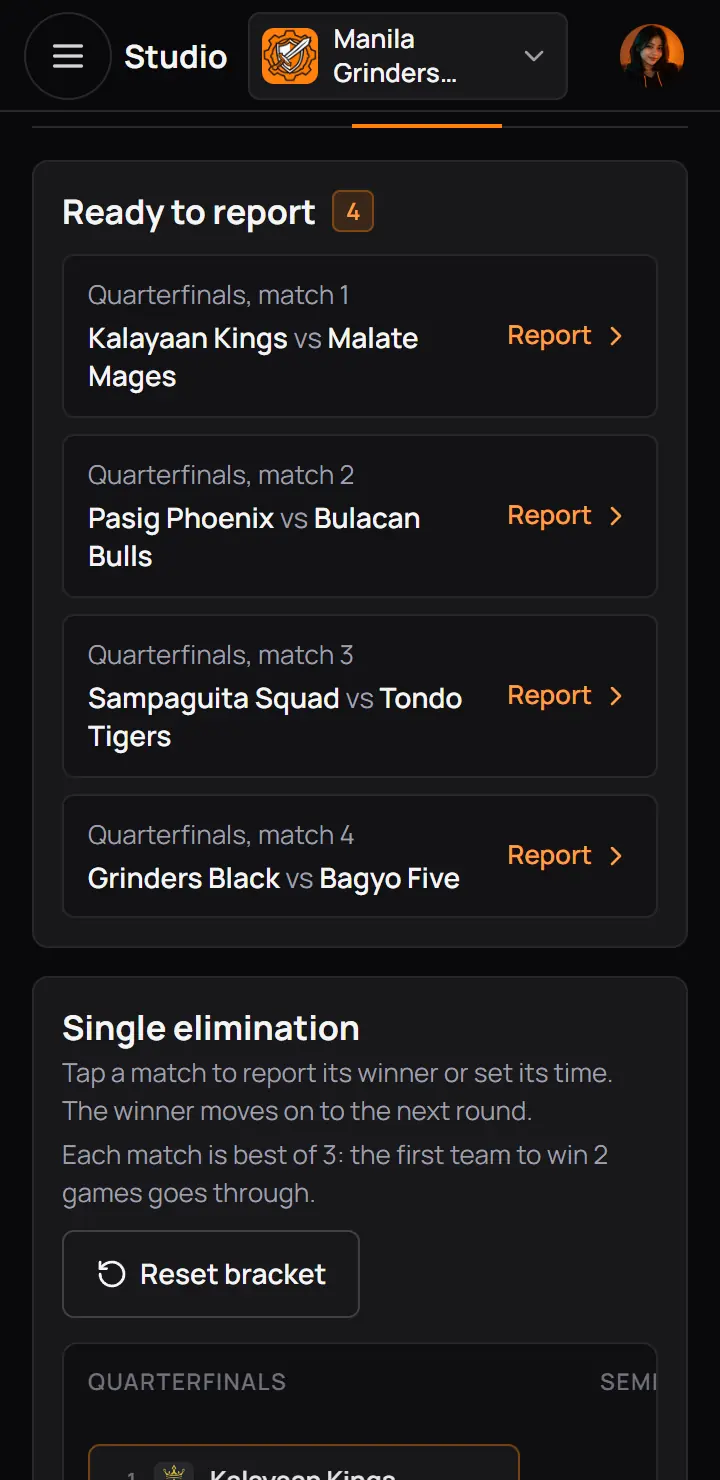
- Ready to reportEvery match with both teams and no result, earliest round first.
12Report results and match times
When match day starts, the stage label reads Match day and the Next step card counts the matches to report. Press a match in Ready to report or on the board. The same box saves the result and the match time. The winner moves on to the next round.
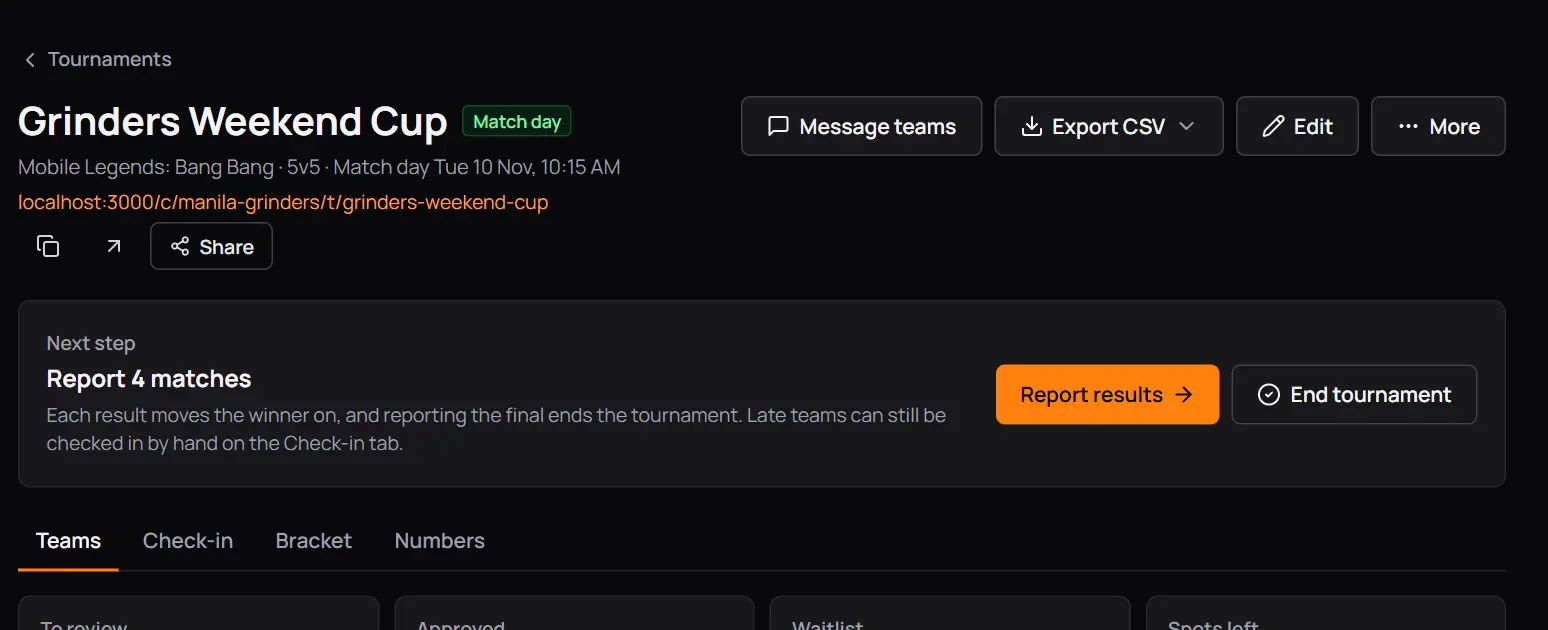
- Match day
- Report 4 matchesReporting the final ends the tournament.
- Report resultsOpens the Bracket tab.
- End tournamentEnds it with the places saved so far.
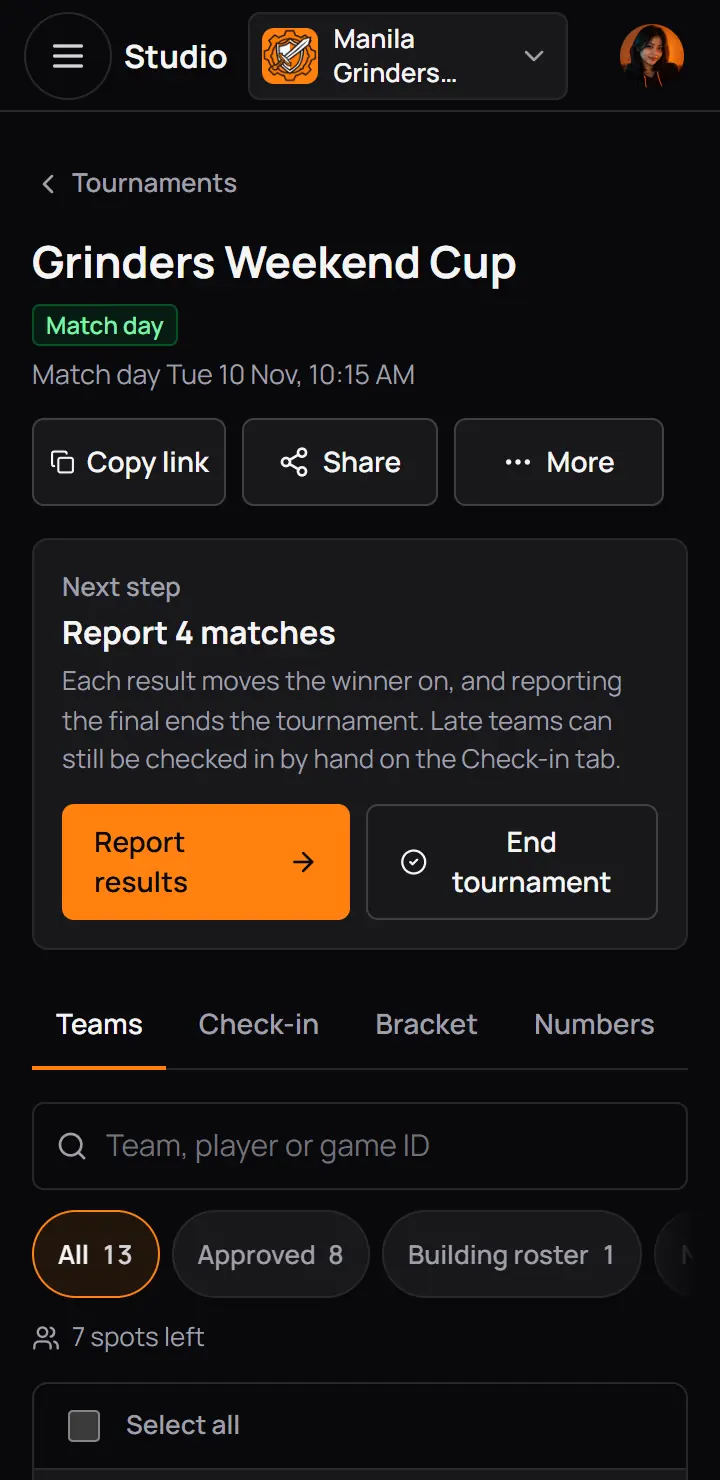
- Match day
- Report 4 matchesReporting the final ends the tournament.
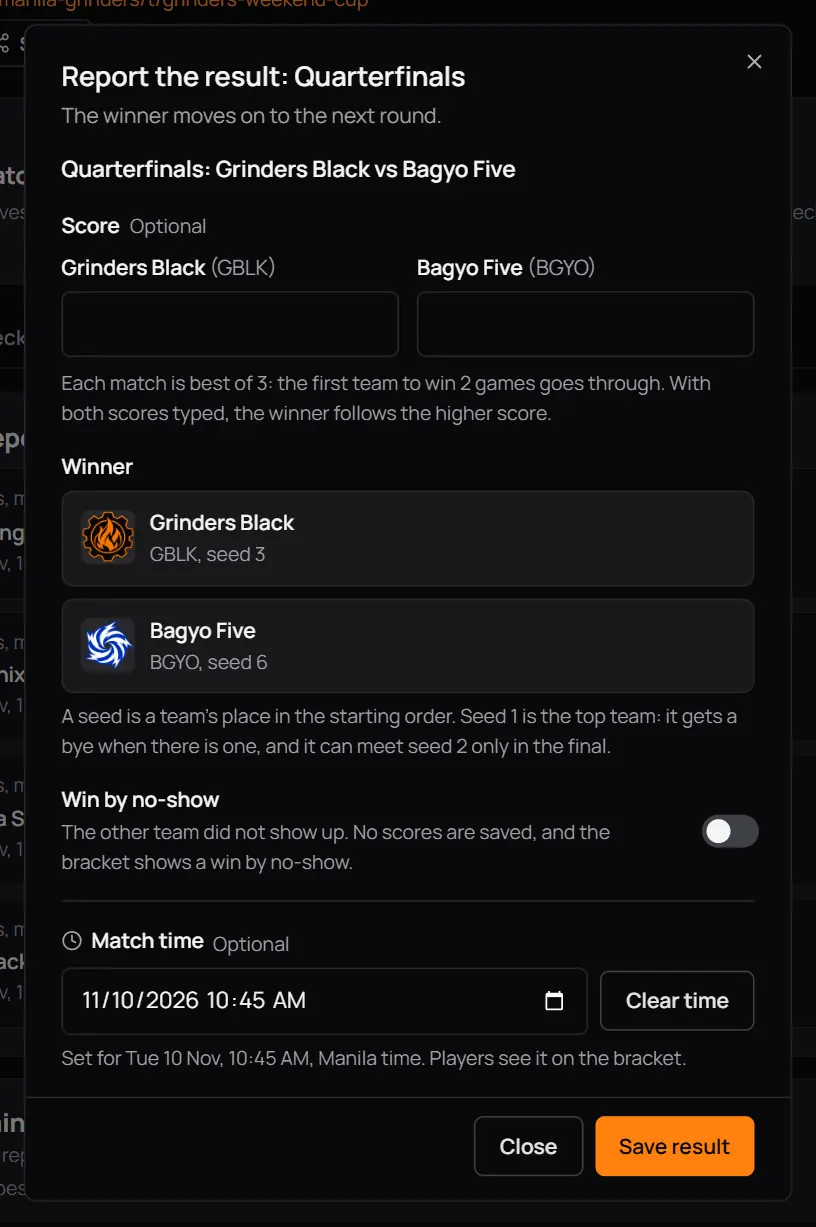
- ScoreOptional. With both scores typed, the winner follows the higher one.
- WinnerPick the team that won, if you typed no scores.
- Win by no-showThe other team did not show up. No scores are saved.
- Match timeManila time. Players see it on the bracket.
- Save result
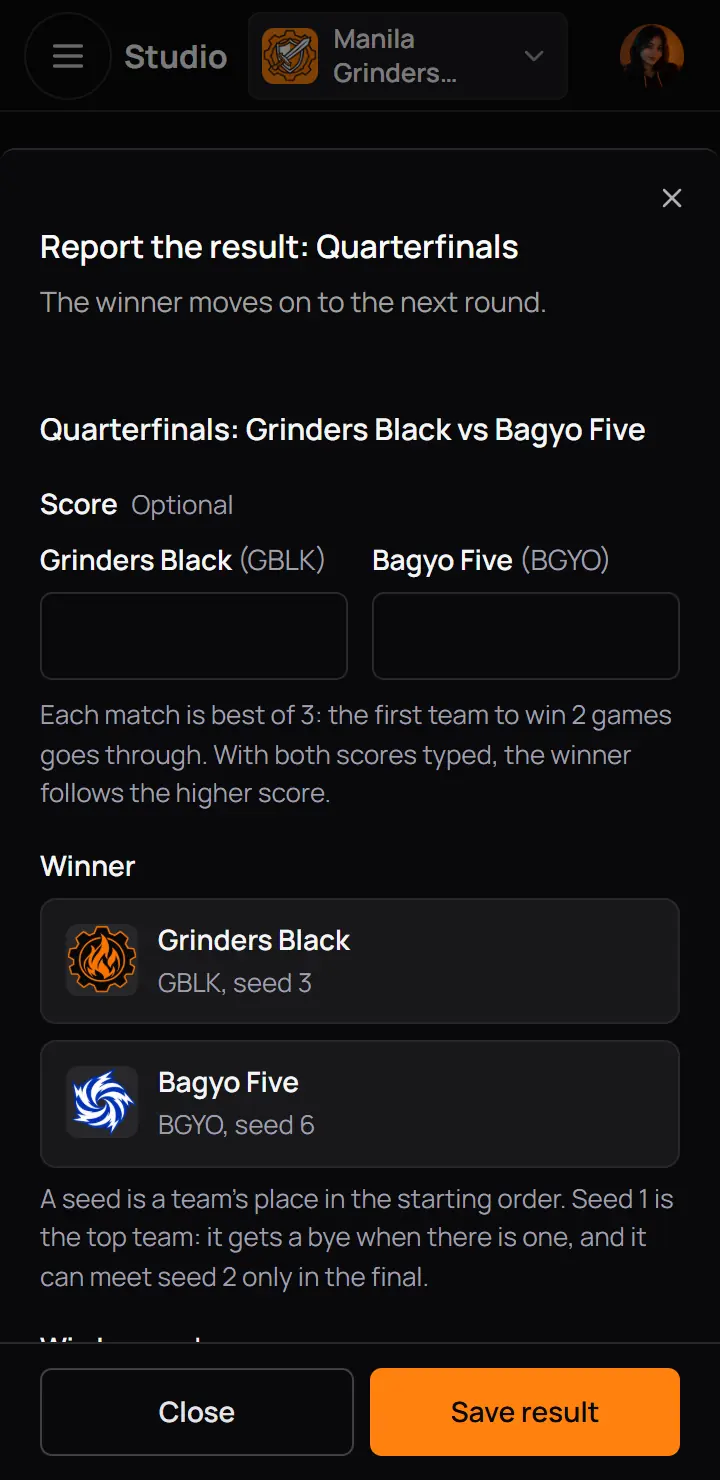
- ScoreOptional. With both scores typed, the winner follows the higher one.
- WinnerPick the team that won, if you typed no scores.
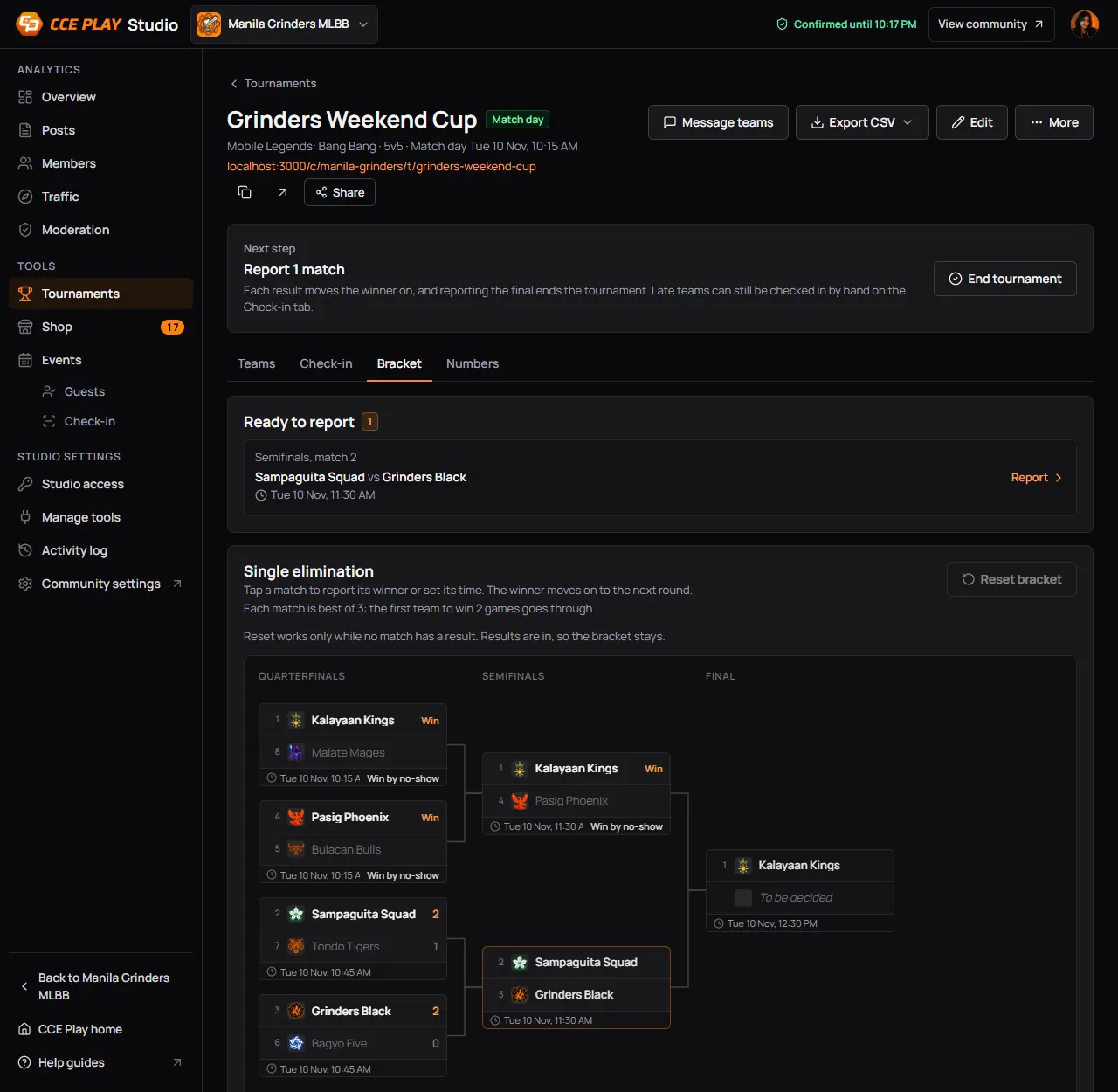
- Ready to reportNow one semifinal.
- A resultThe winner in bold, with the scores and the match time.
- A win by no-showWin, and Win by no-show under the match.
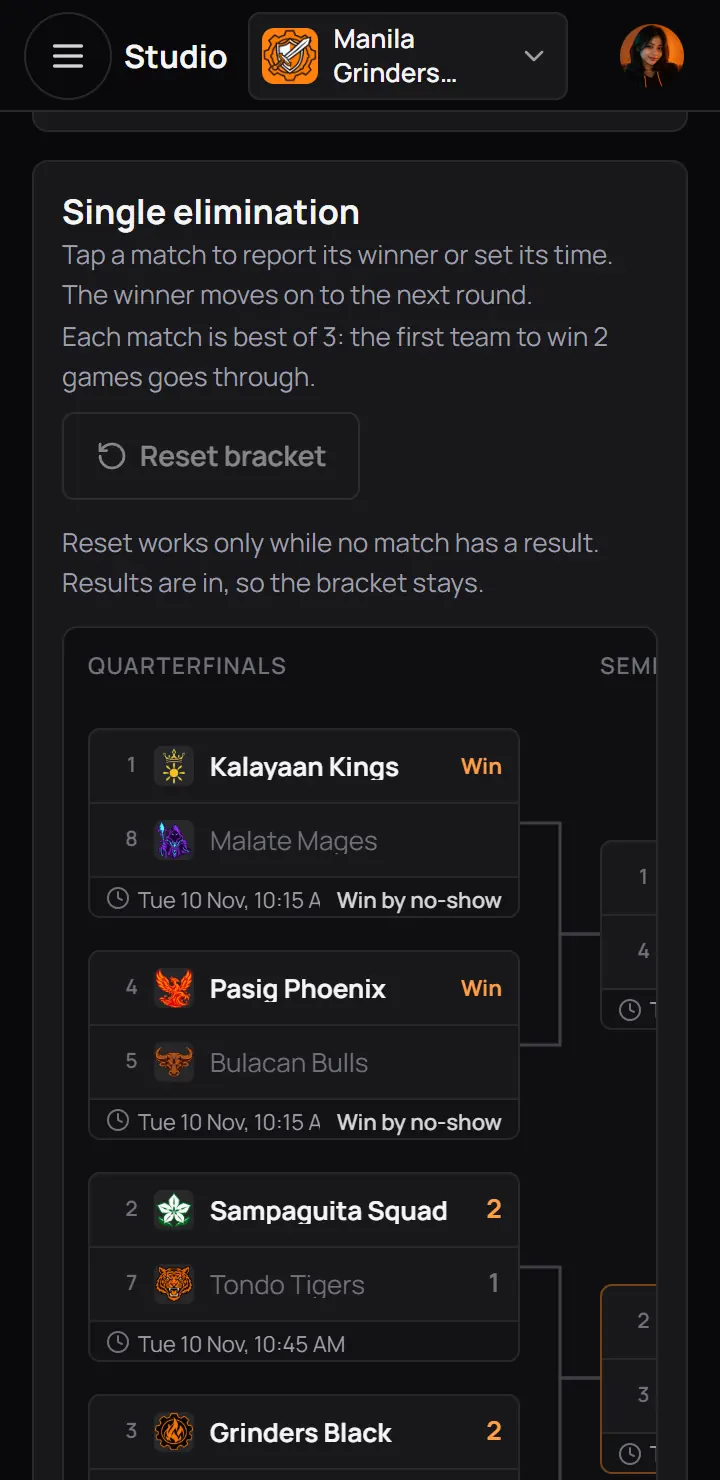
- A resultThe winner in bold, with the scores and the match time.
Good to know. To fix a wrong early result, clear the results from the newest one backwards, then report them again.
13Points formats: enter the placements
A tournament with the Battle royale points format has no bracket. Its tab is called Results. Add up the points yourself, then save where each team placed.
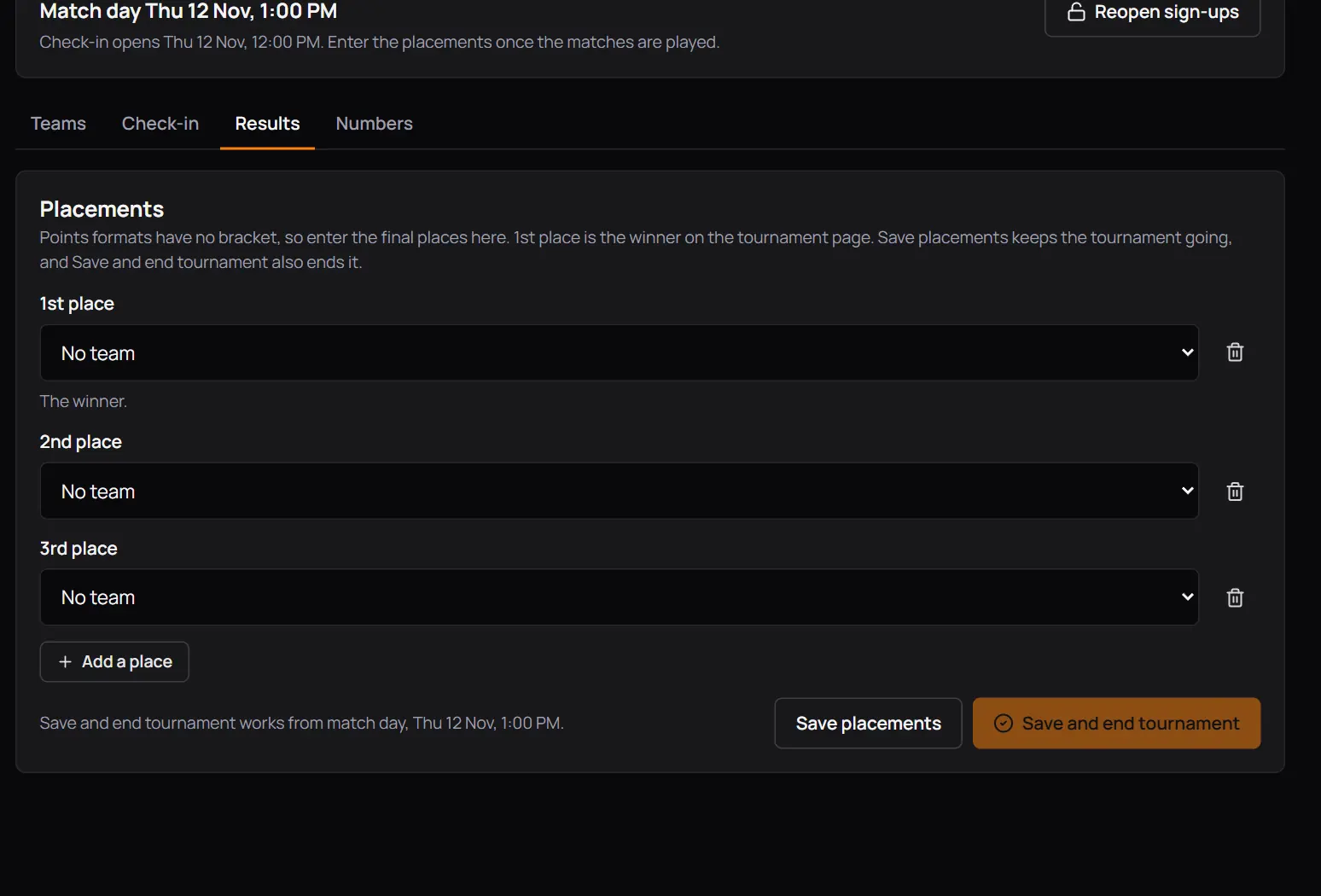
- Results
- 1st placeThe winner on the tournament page. Add a place adds more.
- Save placementsKeeps the tournament going. Save and end tournament also ends it.
Save and end tournament works from match day. These pictures show Grinders Weekend Cup as if it had the points format.
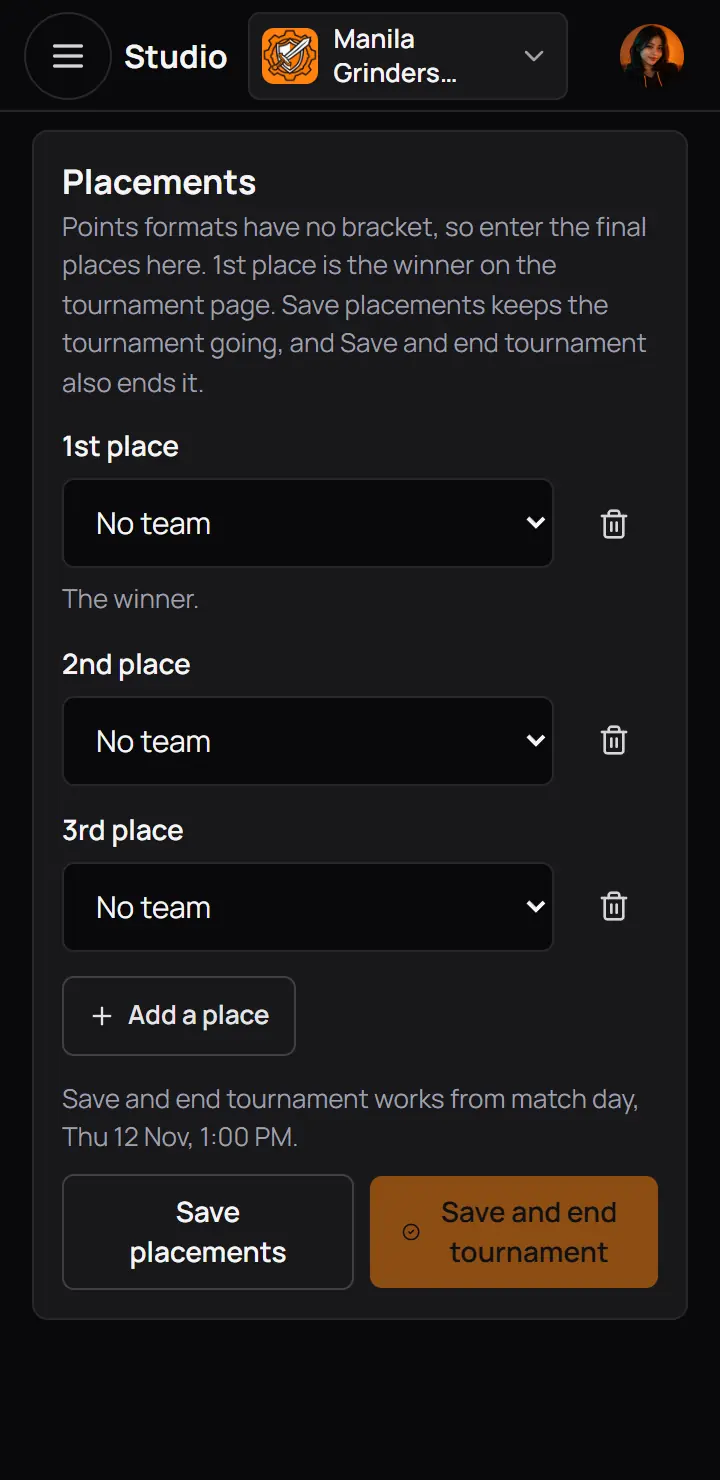
- 1st placeThe winner on the tournament page. Add a place adds more.
Save and end tournament works from match day. These pictures show Grinders Weekend Cup as if it had the points format.
Each team can take one place only.
14The end, and shop prizes
Reporting the final ends a single elimination tournament. Its box says so on the button.
The final can be reported once match day has started. Before that its box says The final waits for match day and has no Save button, so a result typed early cannot end the tournament. Every other match can be reported at any time.
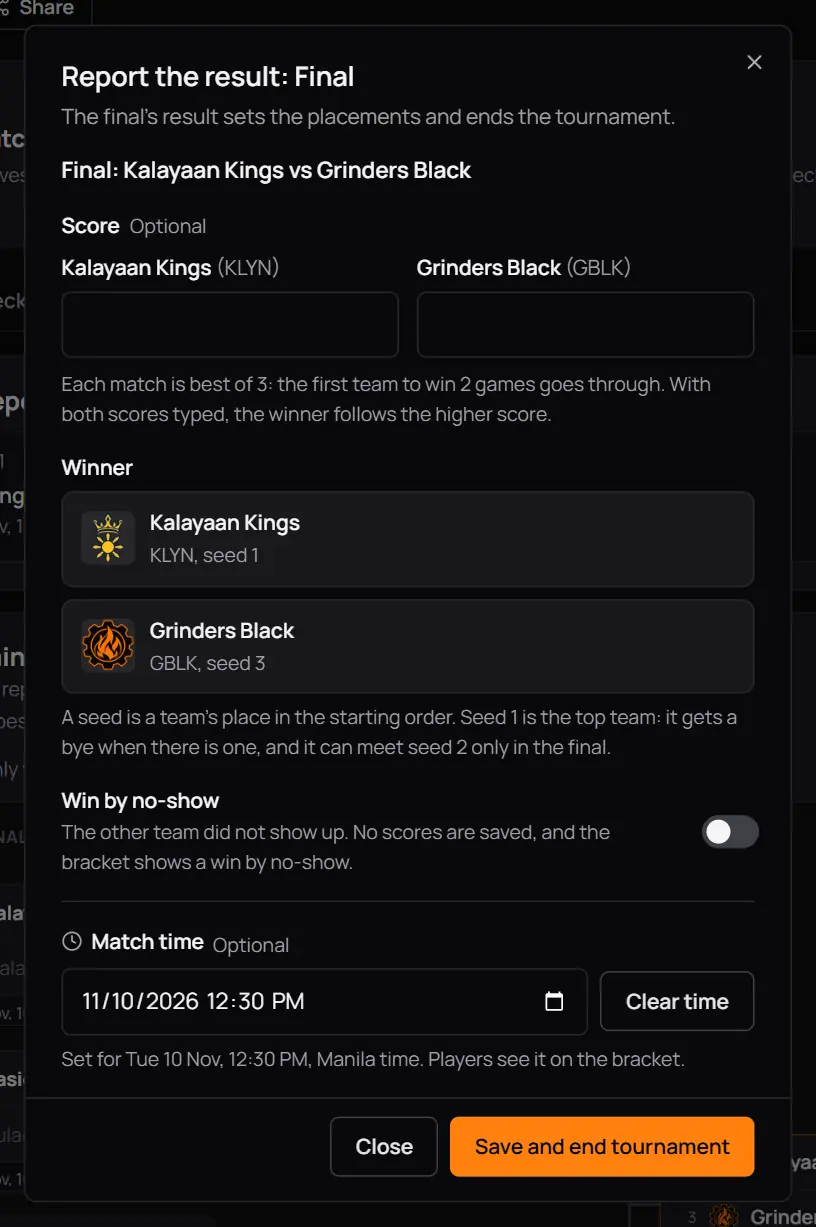
- Save and end tournamentThe final's result sets the places and ends the tournament.
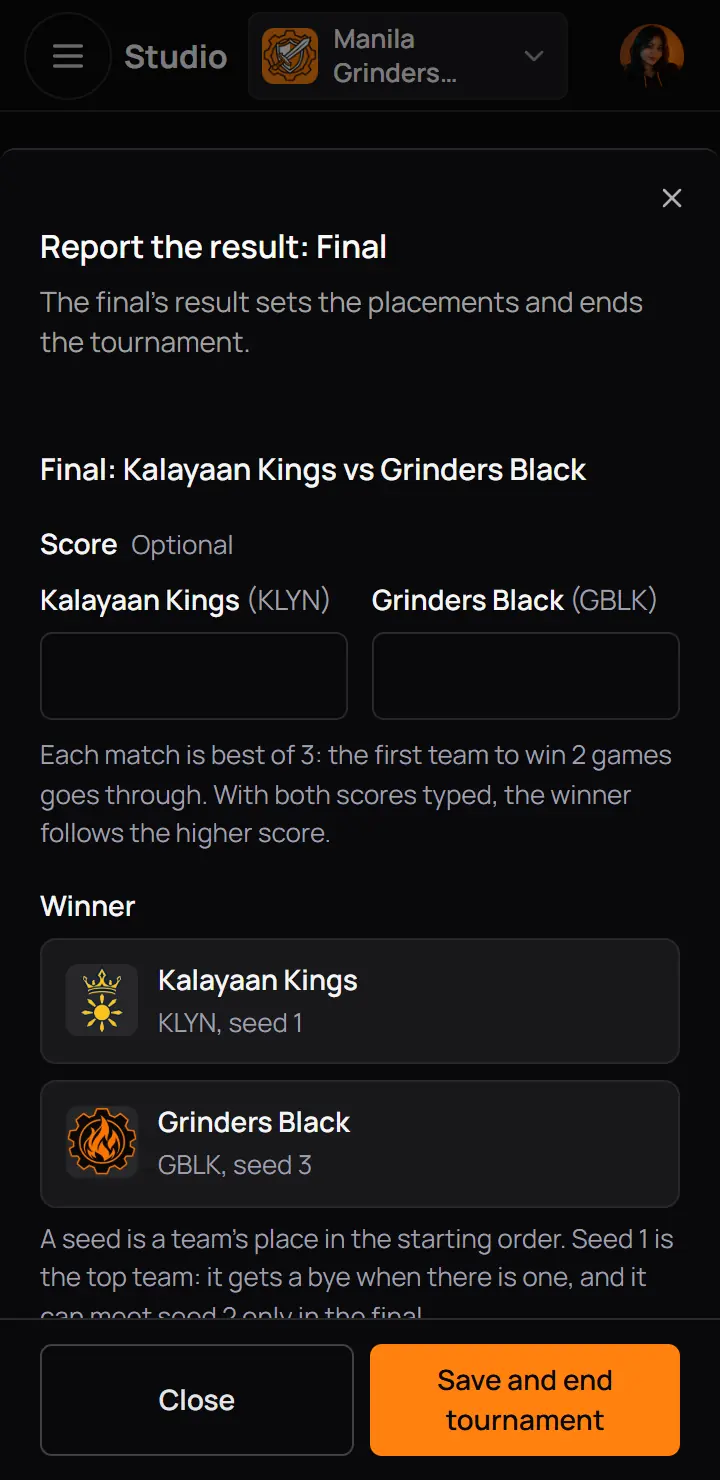
- Save and end tournamentThe final's result sets the places and ends the tournament.
- You can also end it with End tournament on the Next step card. With no place saved, it ends with no winner.
- A tournament ends by itself 24 hours after match day ends.
- Ending is final. The tournament moves to Past on the community page, and nothing can change after that.
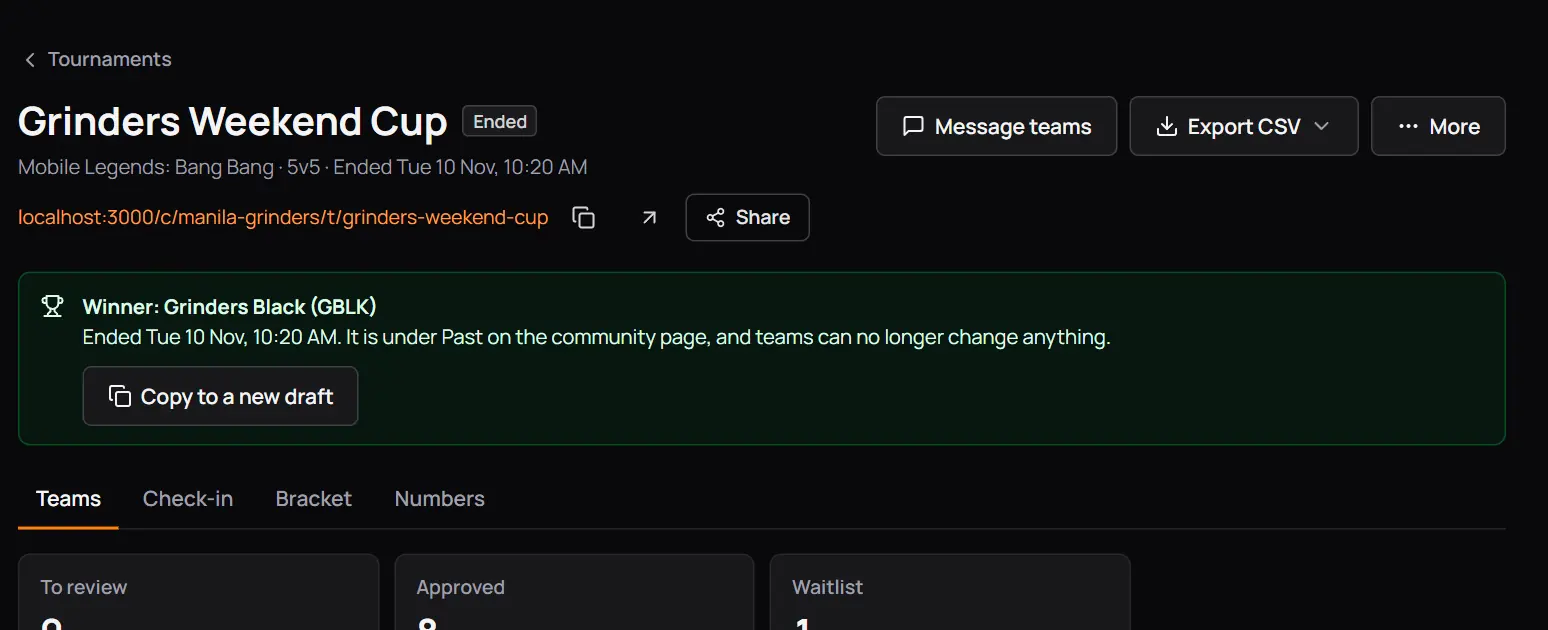
- Ended
- Winner: Grinders BlackOr Ended with no winner.
- Save as templateKeeps its settings for the next tournament.
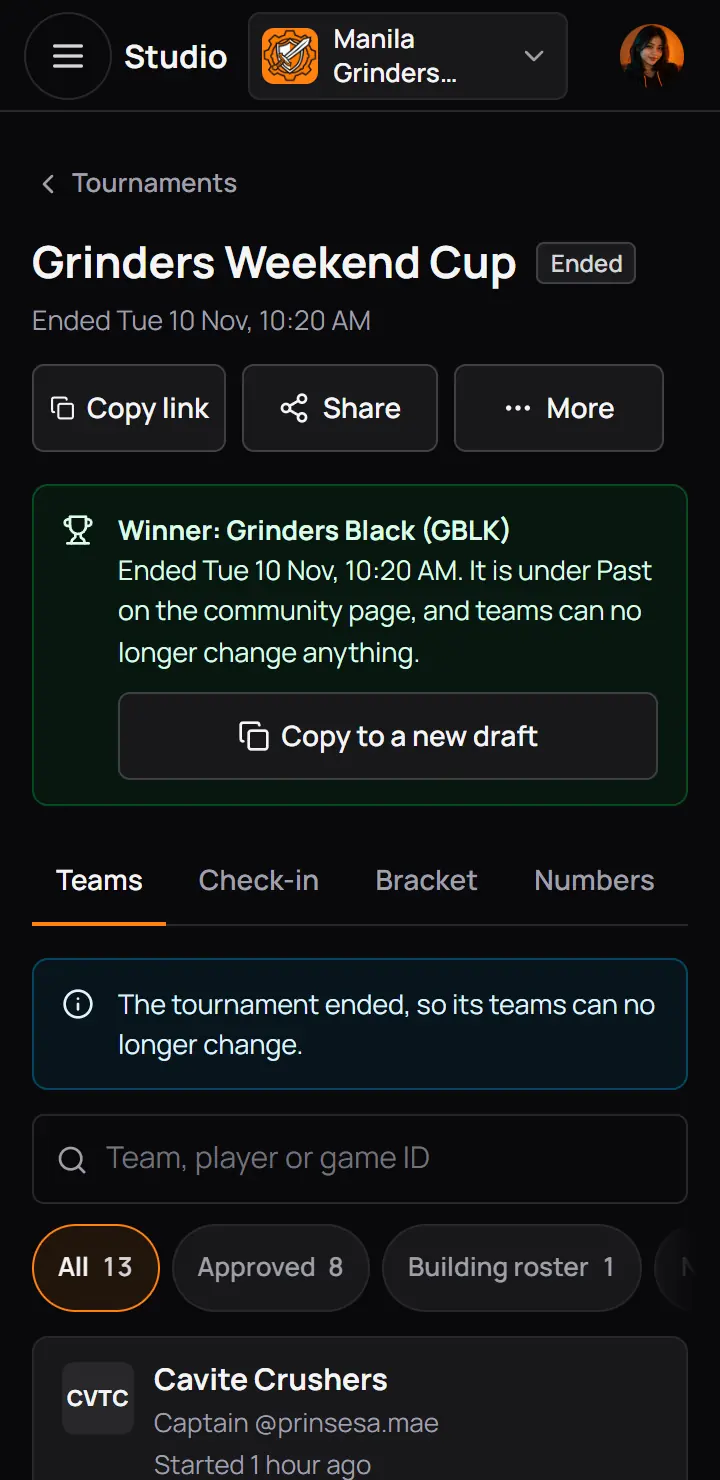
- Ended
- Winner: Grinders BlackOr Ended with no winner.
- Save as templateKeeps its settings for the next tournament.
Shop items as prizes
If your community has Shop, a prize can be an item from your shop. Link it in the builder's Rules and prizes step. When the tournament ends, every confirmed player of the team in that place gets the item, within about 10 minutes.
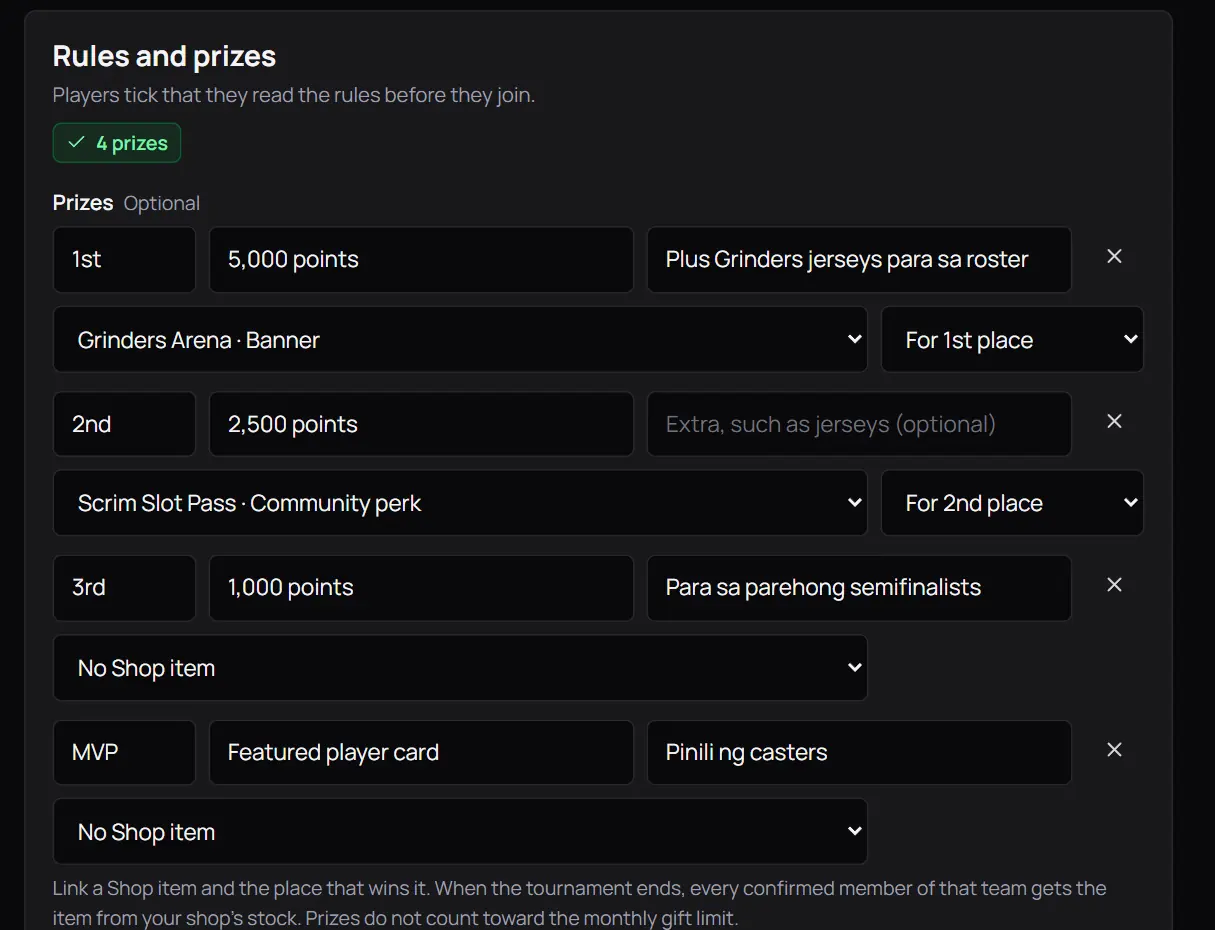
- The Shop itemItems from your shop that can be given. Delivered merch cannot.
- For placeThe place that wins it.
- How it worksPrizes do not count toward the monthly gift limit.
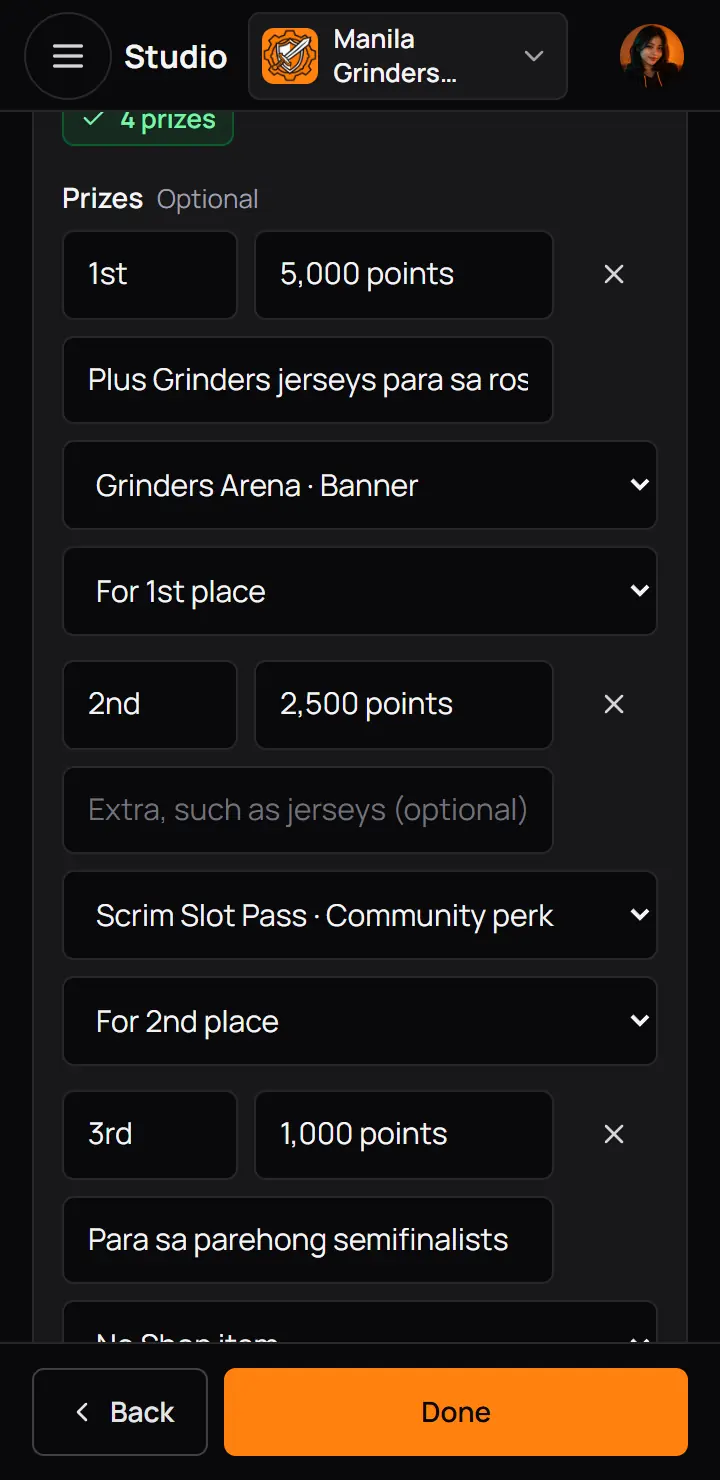
- The Shop itemItems from your shop that can be given. Delivered merch cannot.
- For placeThe place that wins it.
Good to know. Linking a Shop item needs the Shop row in Studio access too, not only Tournaments. Anyone with the Tournaments row can remove a link.
15The Numbers page
The Numbers tab shows how the tournament did, counted from the day it was published. Only Studio staff see it. A draft has no numbers yet.
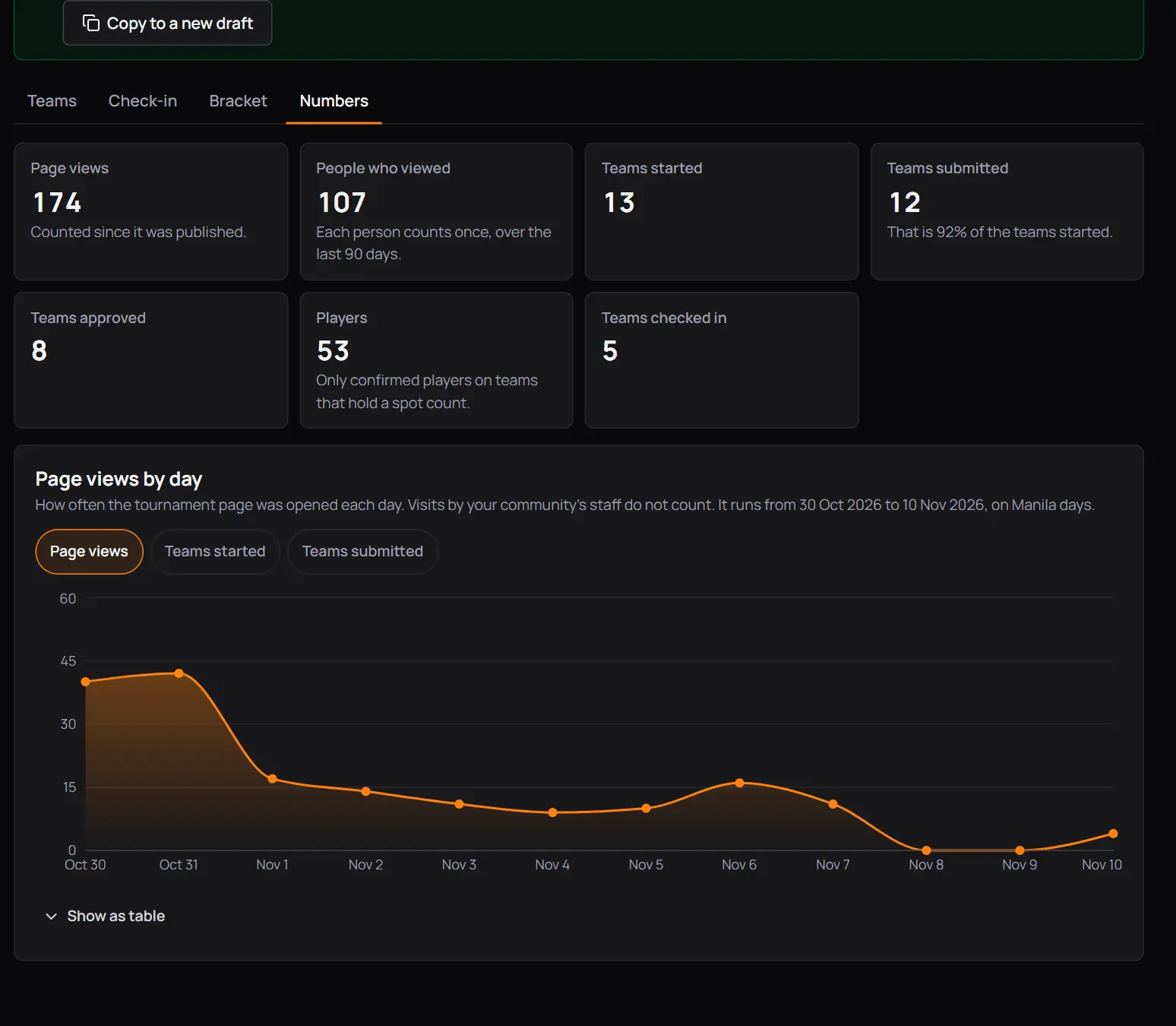
- The numbersSee the table below.
- What the chart showsPage views, Teams started or Teams submitted.
- By dayCounted on Manila days, from the day it was published.
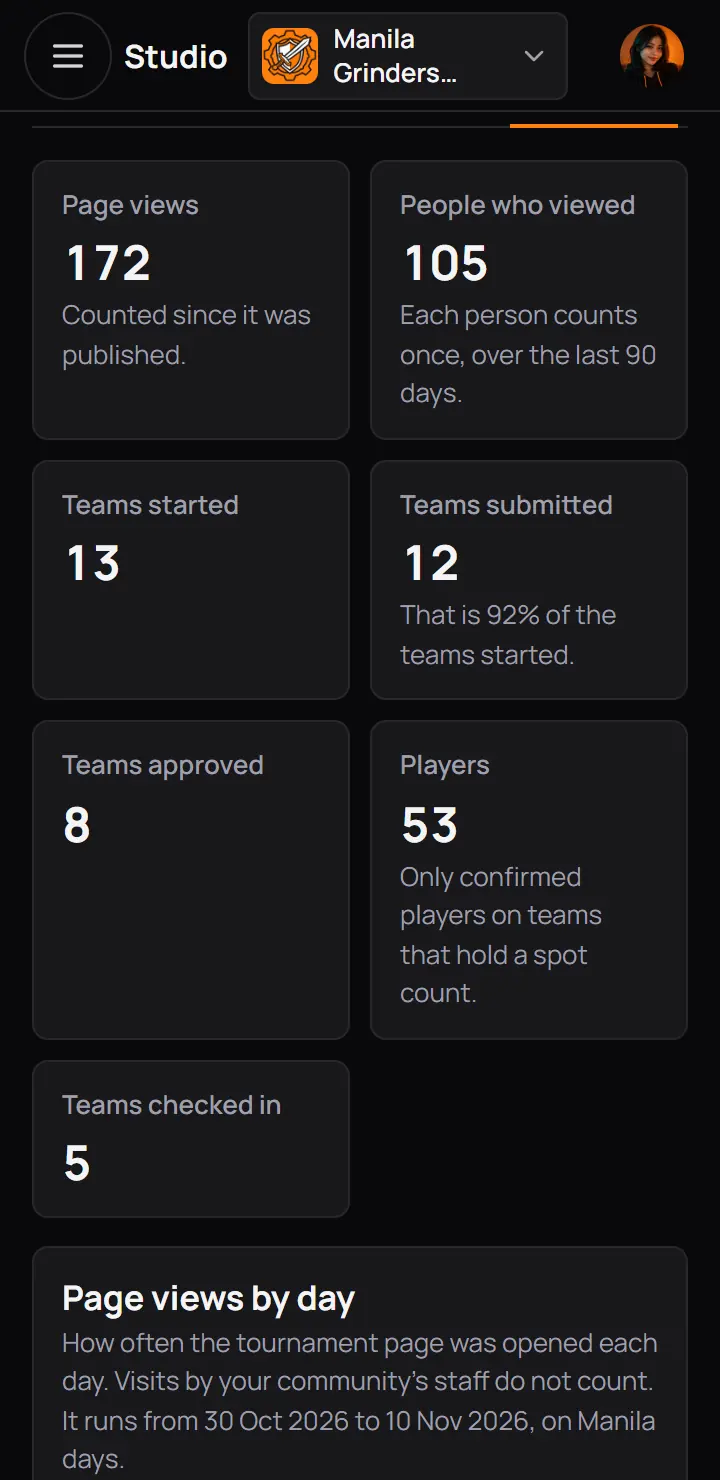
- The numbersSee the table below.
| Number | What it counts |
|---|---|
| Page views | What it countsHow often the tournament page was opened. Visits by your community's staff do not count. |
| People who viewed | What it countsEach person once, over the last 90 days. |
| Teams started | What it countsEvery team made, submitted or not. |
| Teams submitted | What it countsTeams sent to you for review, with how many of the teams started that is. |
| Teams approved | What it countsTeams you approved. |
| Players | What it countsConfirmed players on teams that hold a spot. |
| Teams checked in | What it countsOnly with check-in on. |
16What players see
Players follow the tournament on its page. Once the bracket is made, it shows there with every result and match time. After the final, the page shows the winner.
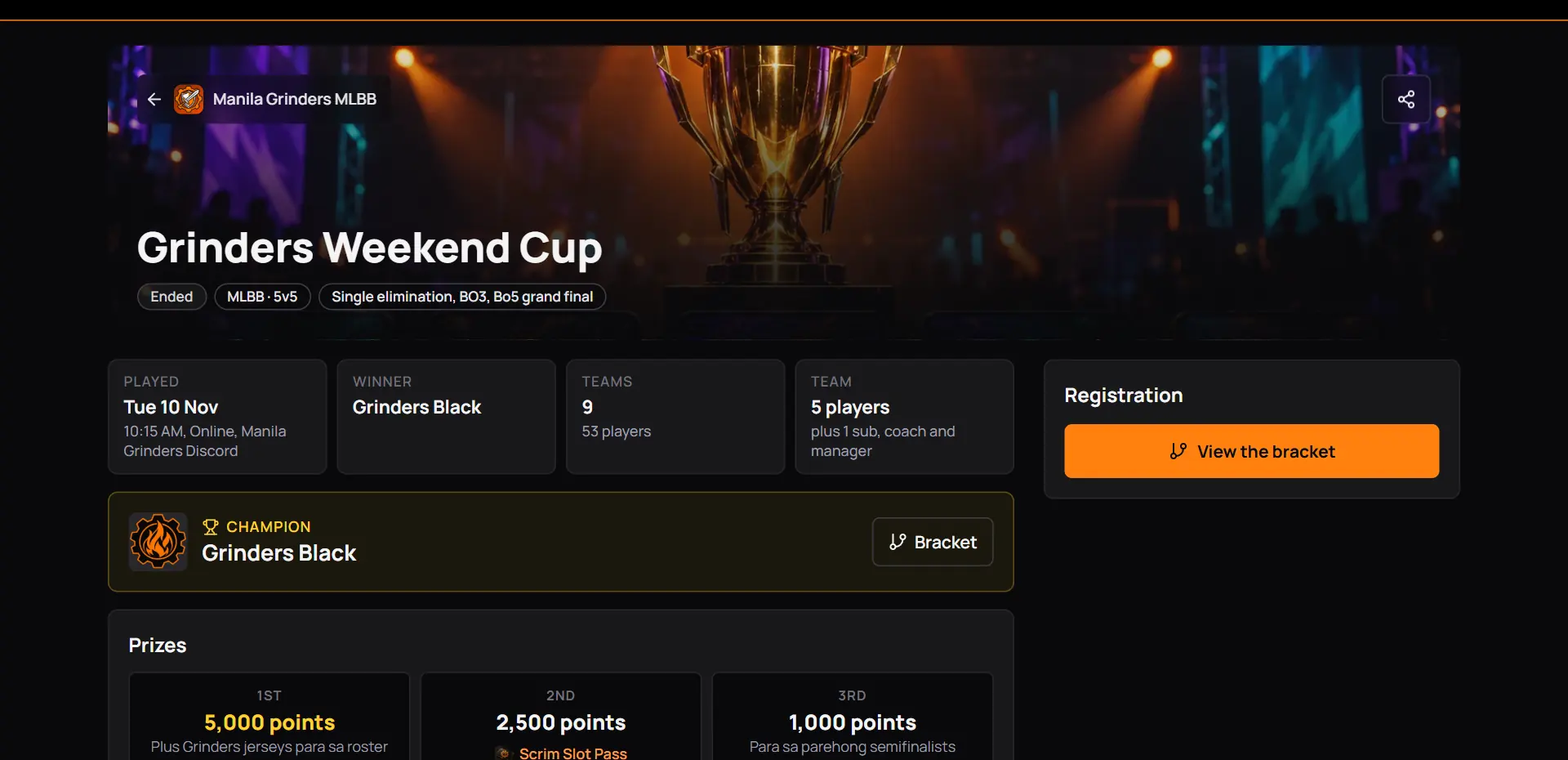
- ChampionAnd the winner in the facts above it.
- PrizesA Shop item prize shows its name under the prize.
- View the bracket
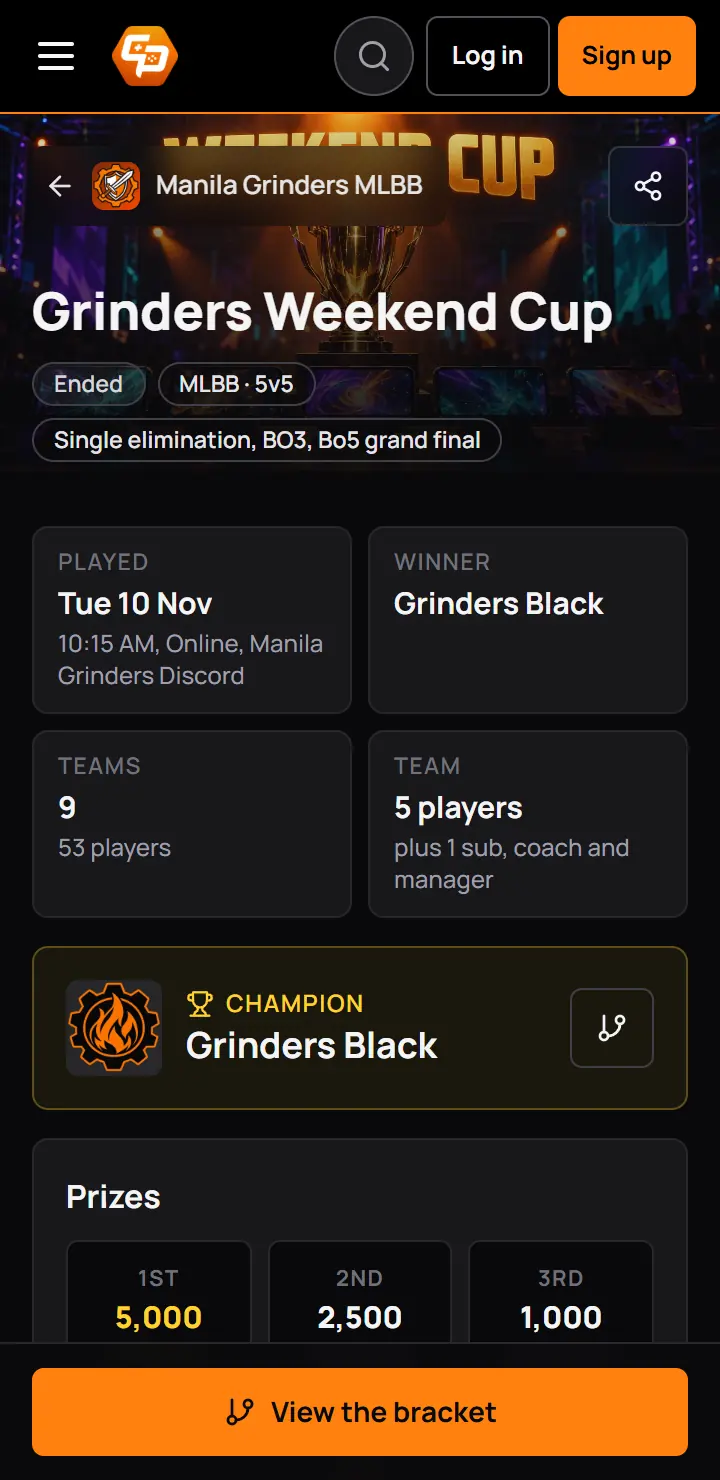
- ChampionAnd the winner in the facts above it.
- View the bracket
For CCE Play staff. CCE Play staff can open any published tournament with its teams in the admin app, under Community tools. See CCE Play's side in part 1.
17If something goes wrong
| You see | What to do |
|---|---|
| Check first: same MLBB ID and server as a player on another team | What to doOpen both teams and ask the one with the wrong ID for changes. |
| The tournament is full, so your team is on the waitlist. | What to doTell the team it moves up when a spot frees. Or raise Most teams. |
| None of the selected teams can be reviewed now | What to doBuilding roster and withdrawn teams have nothing to review. Untick them. |
| The scores are level. The winning team needs the higher score. | What to doFix the scores, or leave them empty. |
| This result is locked | What to doClear the next match's result first, then this one. |
| Only one team is approved | What to doA bracket needs 2. Approve more teams, or reopen sign-ups. |
| Save and end tournament works from match day. | What to doSave the placements now, and end it on match day. |
| The final waits for match day | What to doReport the final once match day has started. You can still set its time before that. |
| The answer took too long, with Try again | What to doCheck your connection and press Try again. A repeat check-in does no harm. |