
1Where Events is
Events is a tool. Once CCE Play has turned it on for your community, it is in the Studio menu under Tools, with Guests and Check-in under it. On a phone, tap the round menu button first.
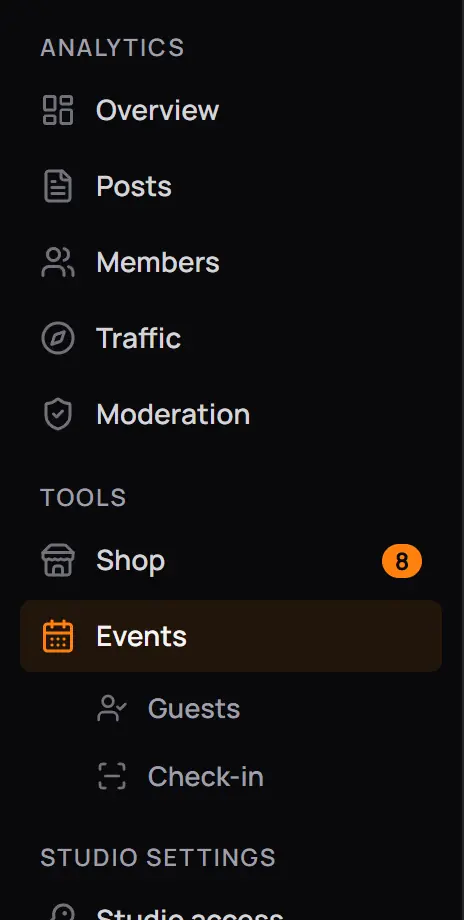
- ToolsEvery tool that is on for your community.
- EventsYour events, and New event.
- GuestsGuests who wait for approval, from every event. Part 2 covers it.
- Check-inThe door scanner. Part 2 covers it.
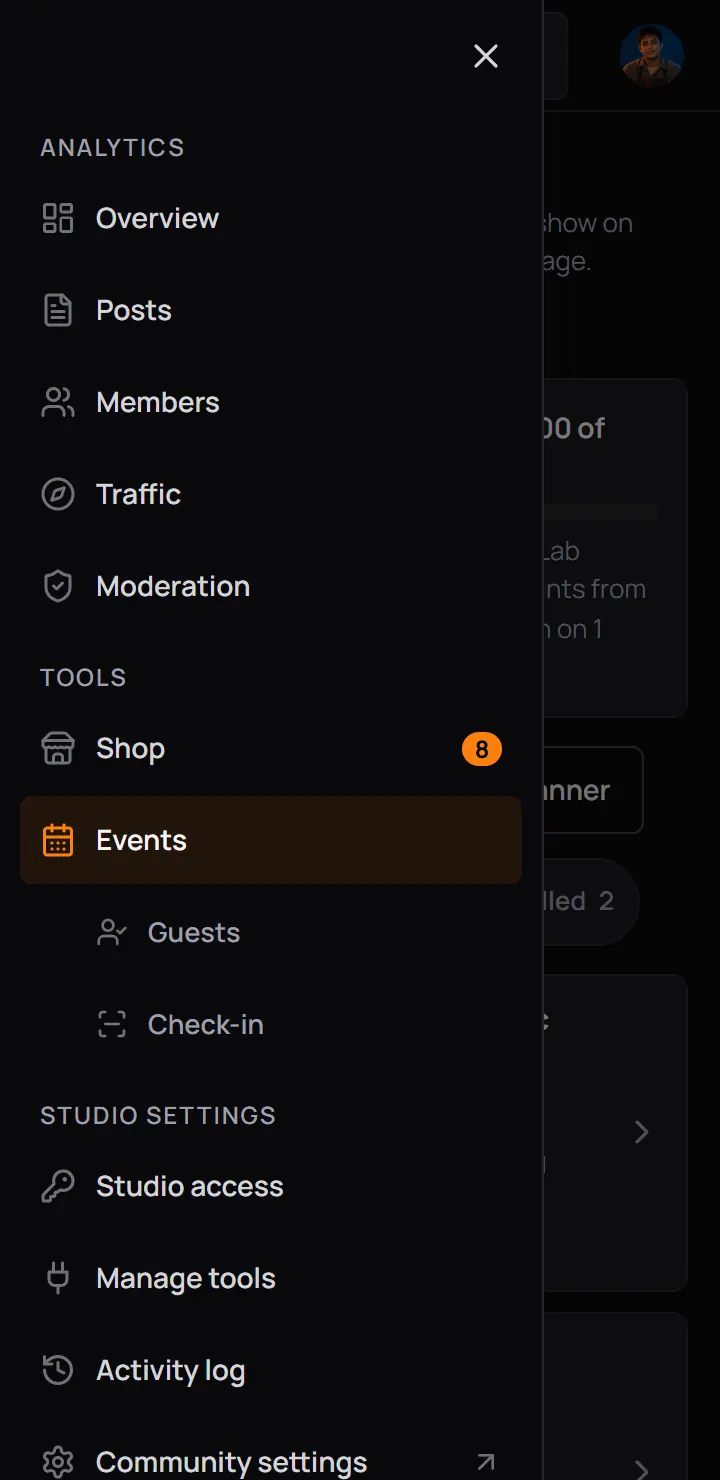
- ToolsEvery tool that is on for your community.
- EventsYour events, and New event.
- GuestsGuests who wait for approval, from every event. Part 2 covers it.
- Check-inThe door scanner. Part 2 covers it.
Who can open it
The owner always can. In Studio access the owner gives each role two rows for Events: Run events (make and change events, guests, messages and numbers) and Check in guests (only the door scanner). Someone with neither does not see Events in the menu, and a link to it says the page is not shared with them. In the picture an admin of Valkyries PH opened Events.
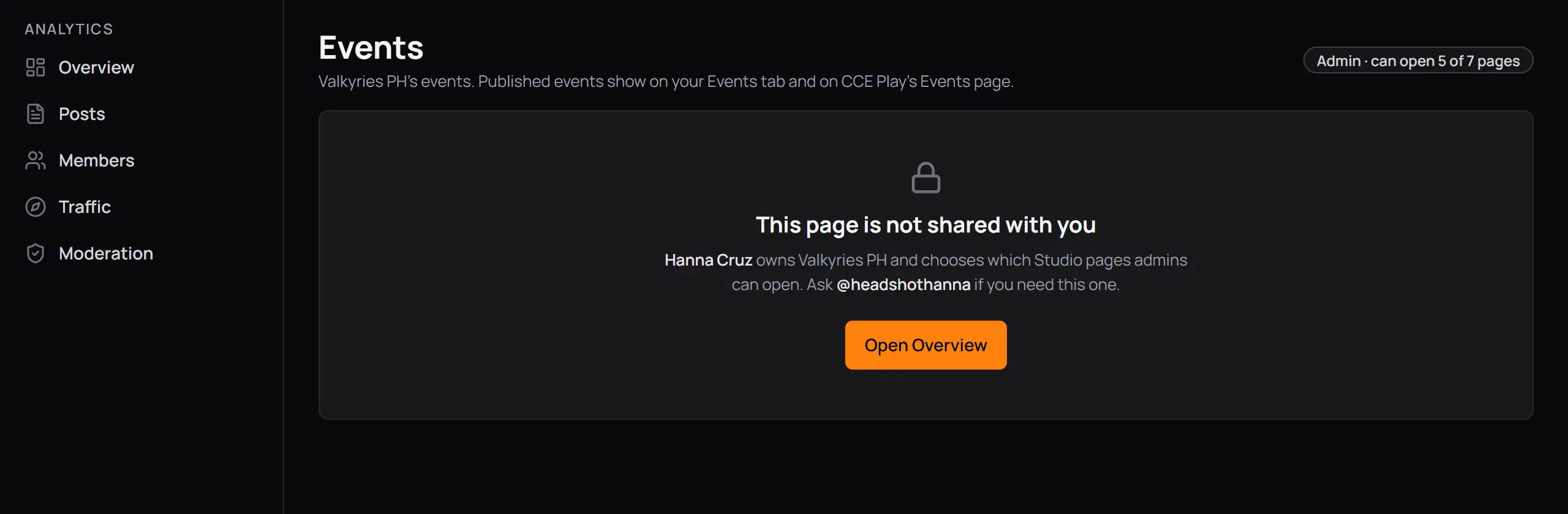
- This page is not shared with youIt names the owner. Ask them to turn on Run events for your role.
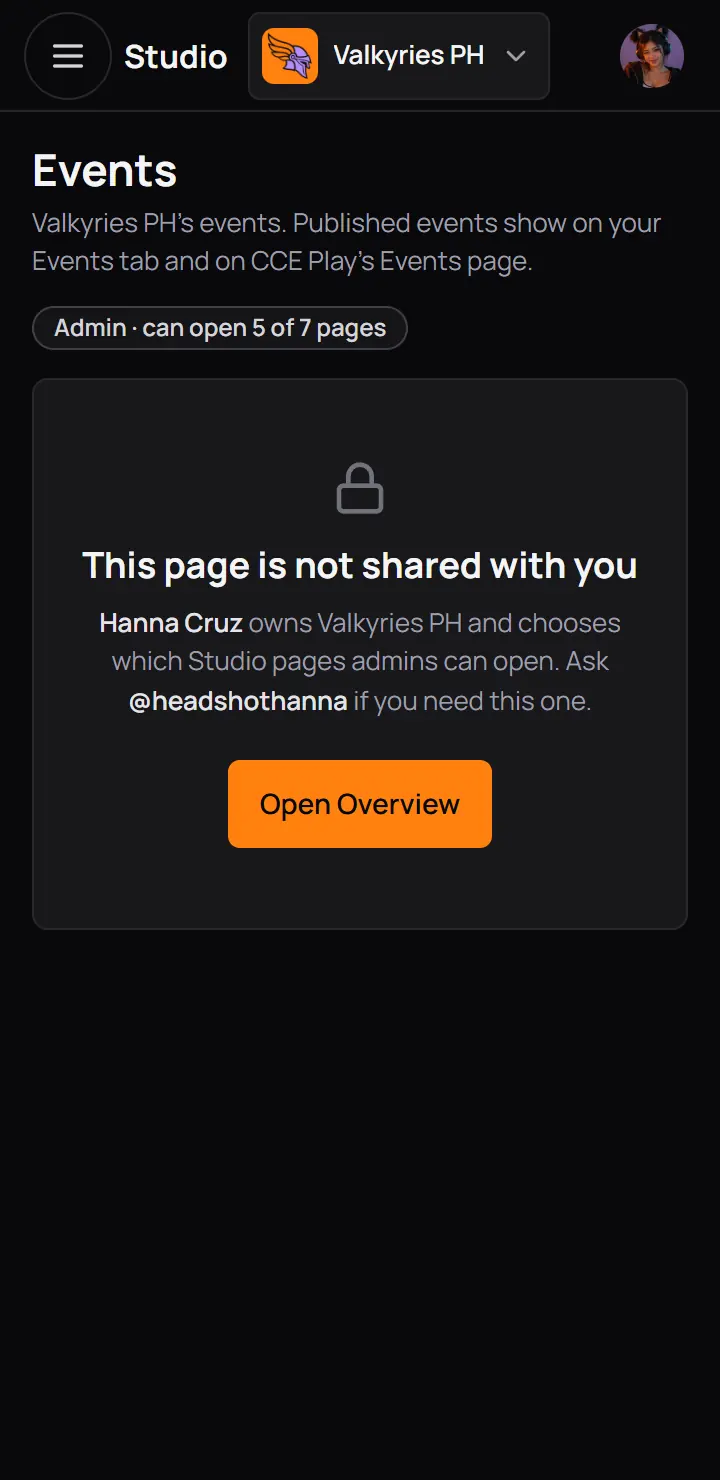
- This page is not shared with youIt names the owner. Ask them to turn on Run events for your role.
- Someone with only Check in guests sees Check-in in the menu, which opens the door scanner. They cannot make events.
- If Tools is not in the owner's menu at all, the community does not have the tool yet. The owner asks for it in Manage tools once the community has 25 members. See Ask for a tool.
2The list of events
The Events page lists every event your community made. Each row has the date on the left, the name with its label, the time and the place, and how many are going. Press a row to open the event.
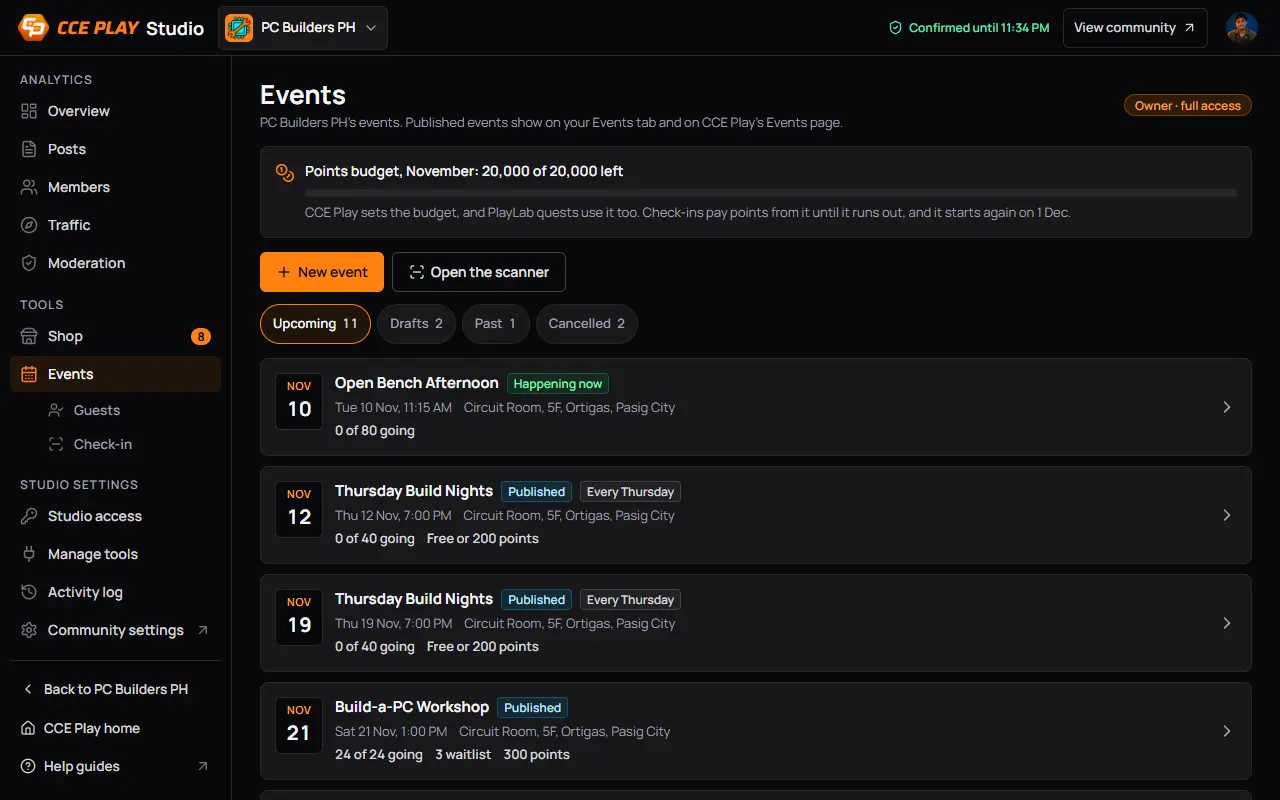
- Points budgetShows while an event pays points for checking in. CCE Play sets it each month.
- New eventOpens the templates.
- Open the scannerThe door scanner, for check-in. Part 2 covers it.
- UpcomingEvents coming up and happening now, the soonest first. It always shows.
- One eventThe date, the name and label, the time and place, and how many are going.
A row says "6 guests waiting for approval" in orange while guests wait. A repeating event has a row for each date.
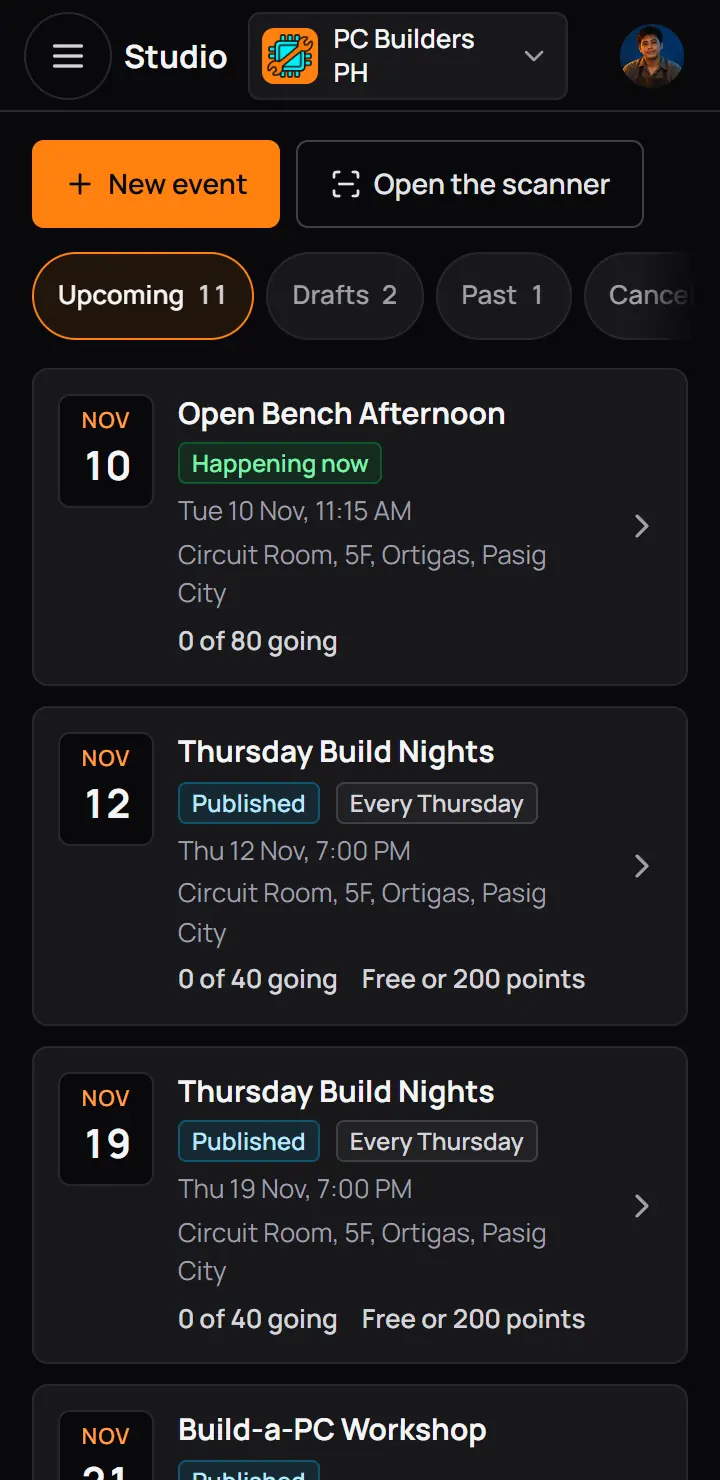
- New eventOpens the templates.
- Open the scannerThe door scanner, for check-in. Part 2 covers it.
- UpcomingEvents coming up and happening now, the soonest first. It always shows.
- One eventThe date, the name and label, the time and place, and how many are going.
A row says "6 guests waiting for approval" in orange while guests wait. A repeating event has a row for each date.
- A chip other than Upcoming shows only when it has events in it.
- A community can have 50 drafts, upcoming and live events at once.
3Pick a template
Every event starts from a template. A template fills in the format, the length, the tickets, the seats and the questions. You type the name, the date and the place, and you can change everything else in the next steps.
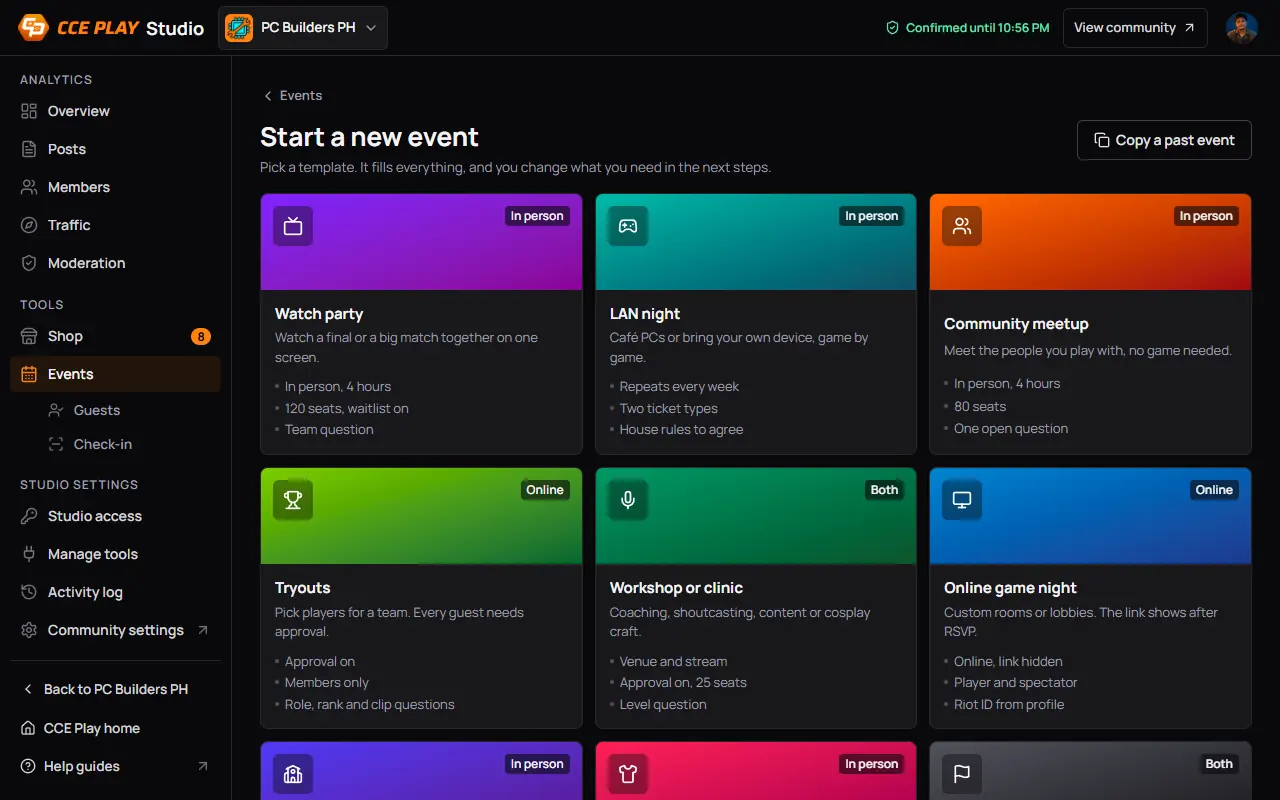
- Copy a past eventStarts from one of your events instead.
- A templateIts format, then what it fills in. Press it to start.
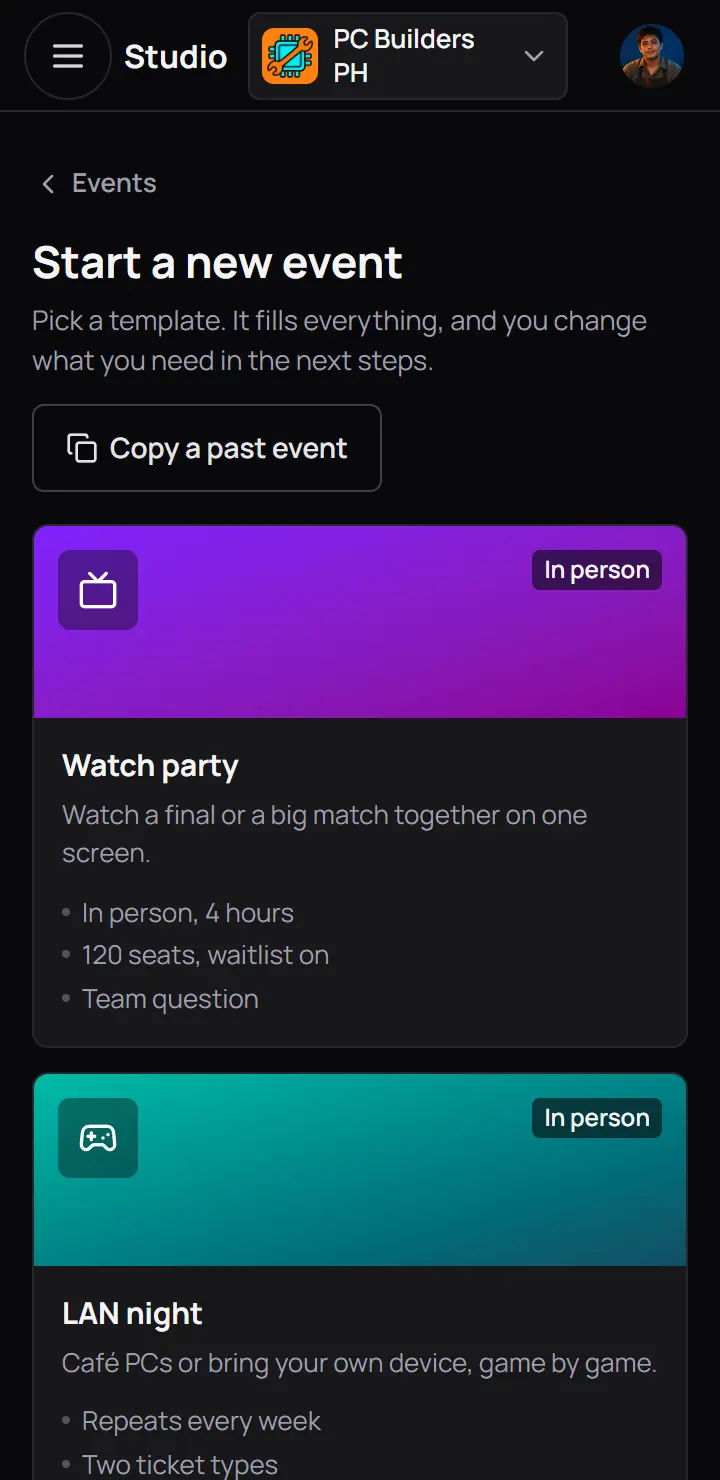
- Copy a past eventStarts from one of your events instead.
- A templateIts format, then what it fills in. Press it to start.
| Template | Format | What it fills in |
|---|---|---|
| Watch party | FormatIn person | What it fills in4 hours, 120 seats, waitlist on, a team question |
| LAN night | FormatIn person | What it fills inRepeats every week, two ticket types, house rules to agree |
| Community meetup | FormatIn person | What it fills in4 hours, 80 seats, one open question |
| Tryouts | FormatOnline | What it fills inApproval on, members only, role, rank and clip questions |
| Workshop or clinic | FormatBoth | What it fills inA venue and a stream, approval on, 25 seats, a level question |
| Online game night | FormatOnline | What it fills inThe link hidden until guests register, player and spectator tickets, Riot ID |
| Campus booth | FormatIn person | What it fills inNo seat limit, school questions, the walk-in poster |
| Cosplay meetup | FormatIn person | What it fills inCosplayer and photographer tickets, photo consent, a morning of 4 hours |
| Tournament finals day | FormatBoth | What it fills inA linked tournament, a venue and a stream, 200 seats |
| Blank | FormatIn person | What it fills inOne free ticket and no questions |
For CCE Play staff. CCE Play keeps the templates in the admin app. An edit there changes only events made after it.
4The five steps
An event has five steps: Name and look, When and where, Tickets and who can come, Questions, and Review. Questions is optional. The event is saved as a draft the first time you press Save the draft and go on. After that, a draft saves each time you press Next or Save draft.
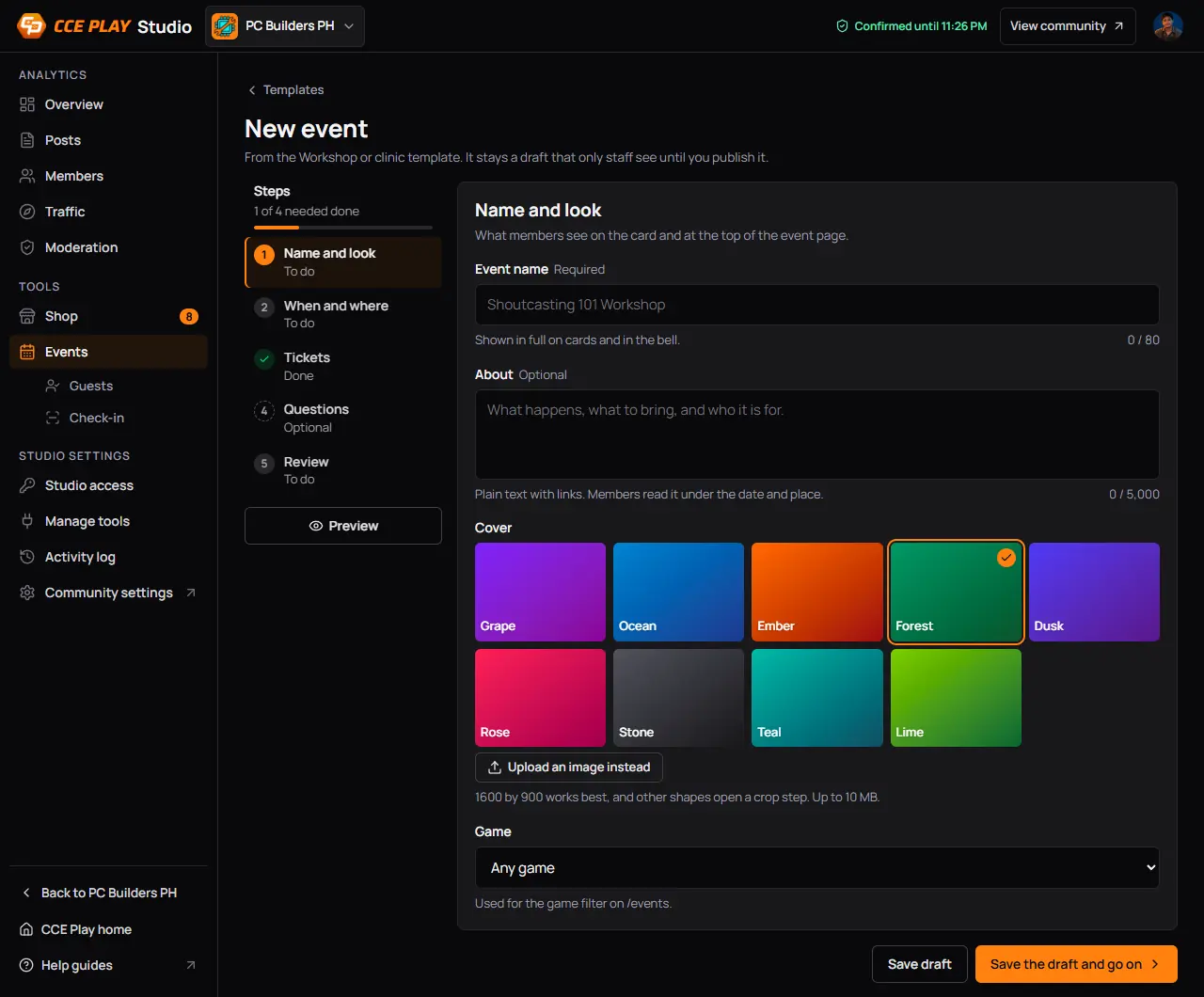
- TemplatesBack to the templates.
- The five stepsPress one to open it.
- Event nameGrey words show the template's idea. Type your own.
- PreviewThe card members will see.
- Save the draft and go onMakes the draft. Only staff see it.
- TemplatesBack to the templates.
- The five stepsPress one to open it.
- Event nameGrey words show the template's idea. Type your own.
- PreviewThe card members will see.
- Save the draft and go onMakes the draft. Only staff see it.
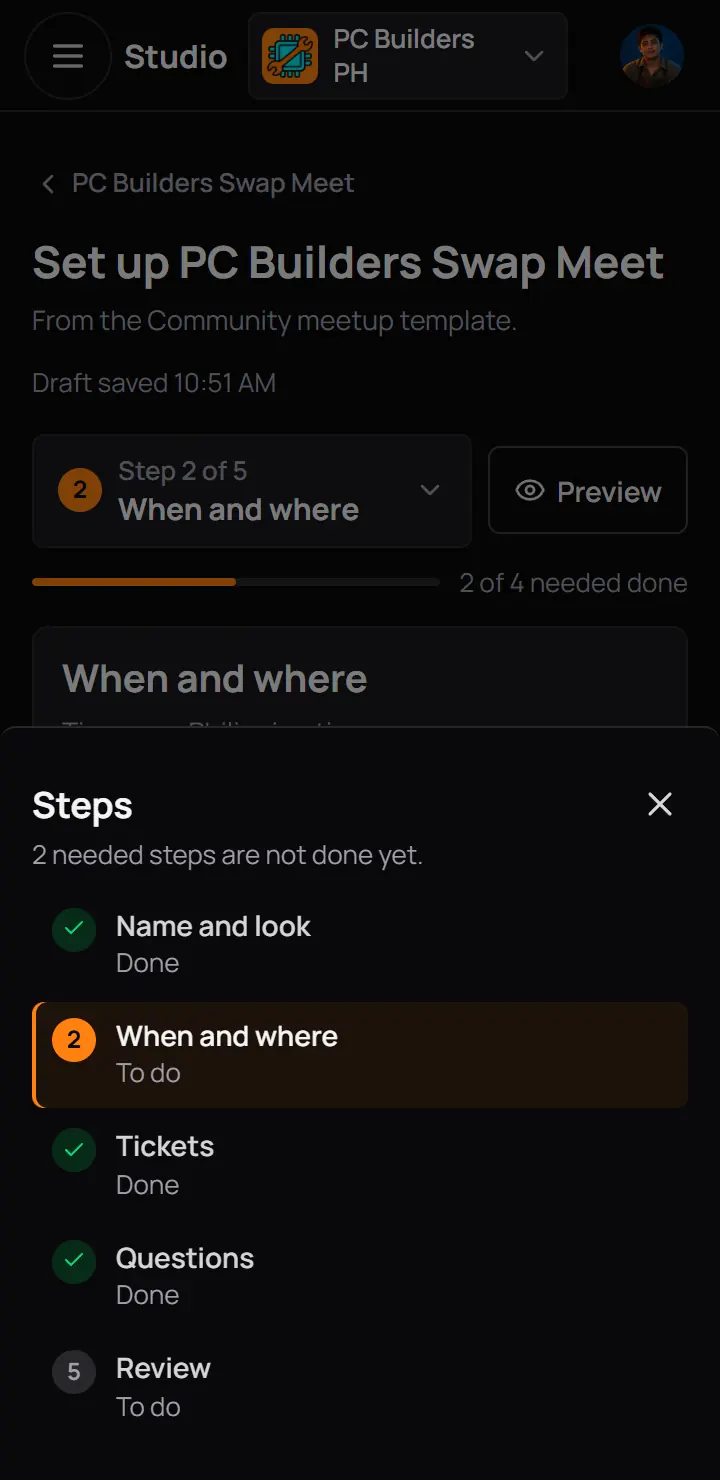
- DoneA green tick. Everything the step needs is there.
- To doSomething the step needs is missing.
- QuestionsOptional until you open it. Done here, because the template already asks a question.
- DoneA green tick. Everything the step needs is there.
- To doSomething the step needs is missing.
- QuestionsOptional until you open it. Done here, because the template already asks a question.
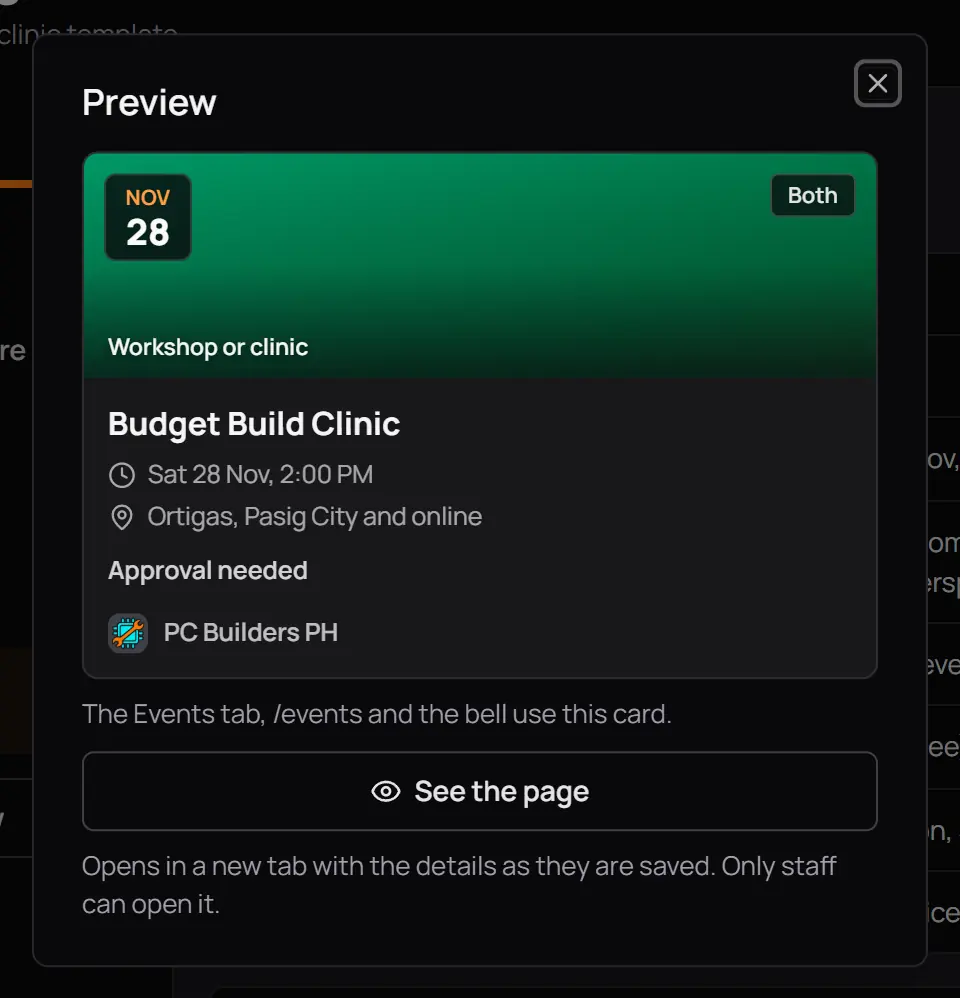
- The cardThe Events tab, the Events page and the bell use it.
- See the pageOpens the whole event page in a new tab, as it is saved. Only staff can open it.
- The cardThe Events tab, the Events page and the bell use it.
- See the pageOpens the whole event page in a new tab, as it is saved. Only staff can open it.
Good to know. Leaving the steps with something not saved asks first, so a change is never lost by a wrong tap.
5Step 1: Name and look
What members see on the card and at the top of the event page. The name is needed.
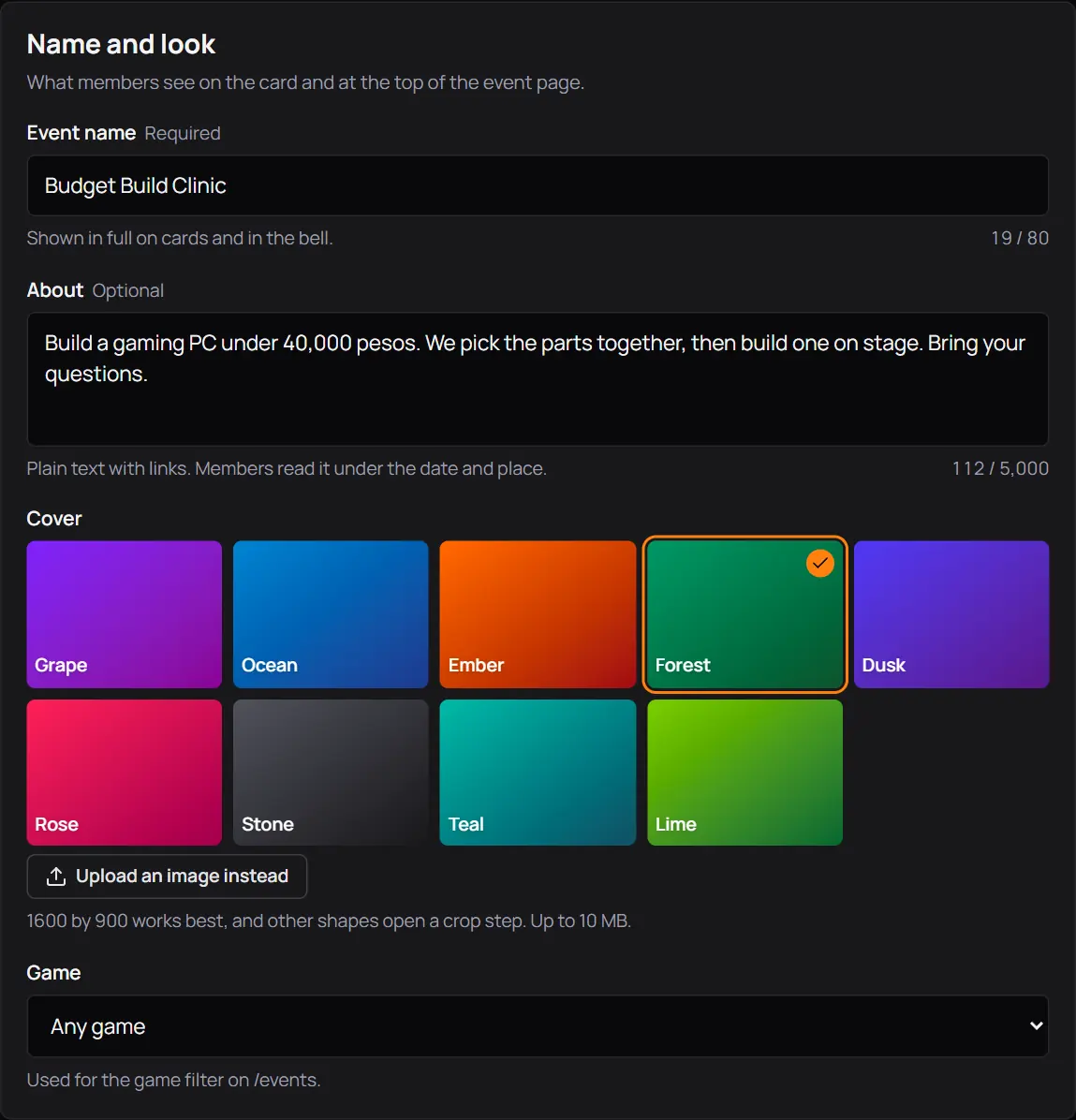
- Event nameUp to 80 letters, shown whole on cards and in the bell.
- AboutOptional. What happens, what to bring, who it is for. Links work.
- CoverPick a colour.
- Upload an image instead1600 by 900 works best. Another shape opens a crop step. Up to 10 MB.
- GameOptional. The game filter of the Events page uses it.
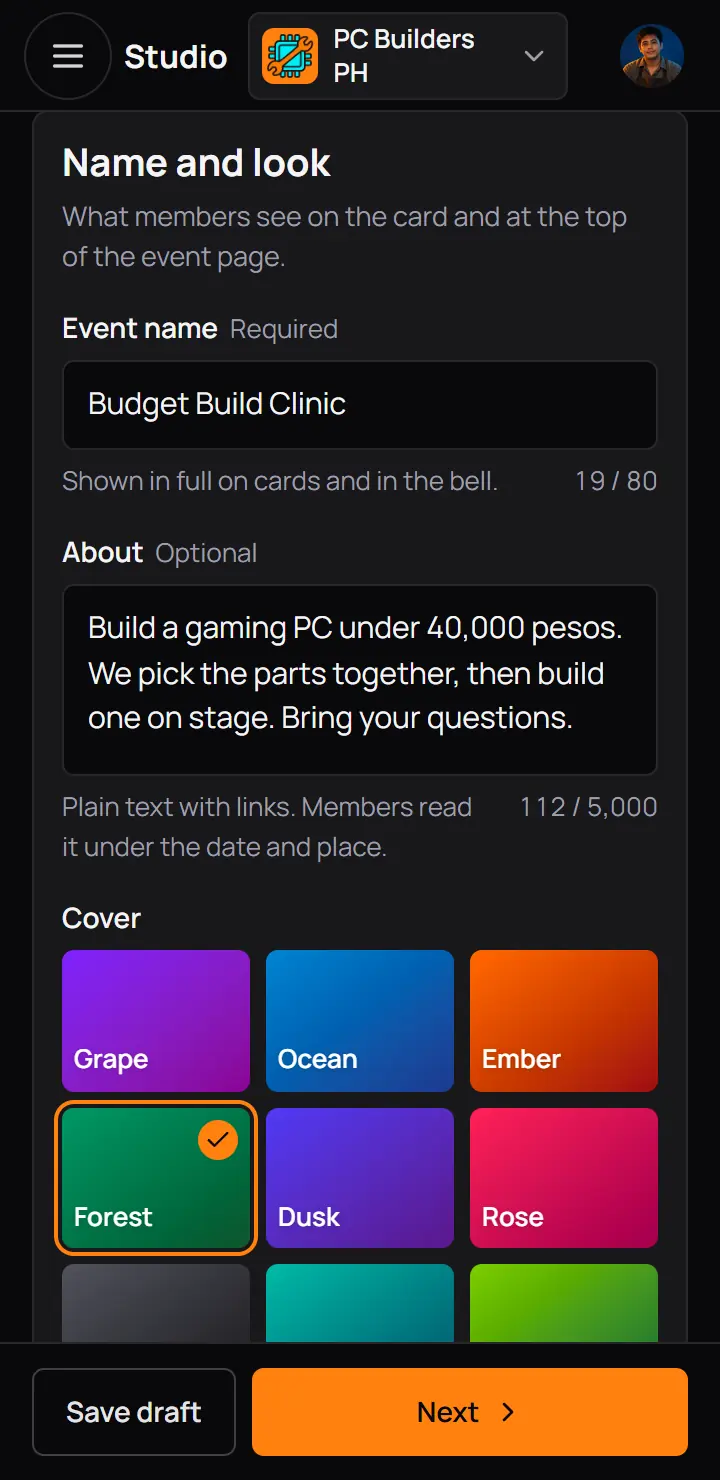
- Event nameUp to 80 letters, shown whole on cards and in the bell.
- AboutOptional. What happens, what to bring, who it is for. Links work.
6Step 2: When and where
All times are Philippine time. Starts, Ends and the place are needed: a venue and its city for an event in person, a link or a note for an online one, and both for an event that is both.
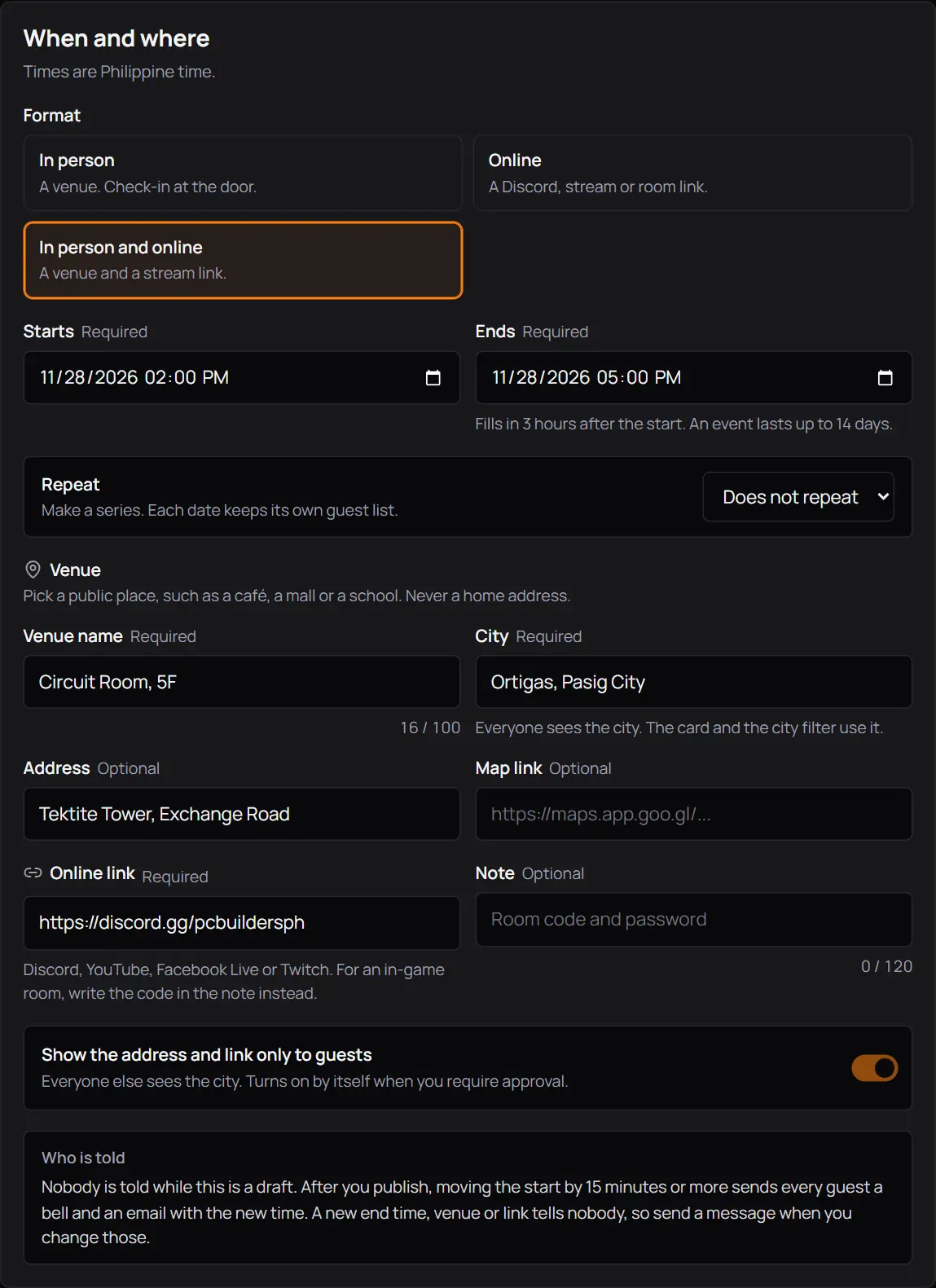
- FormatIn person (a venue, check-in at the door), Online (a Discord, stream or room link), or In person and online.
- StartsIn the future.
- EndsFills in 3 hours after the start. An event lasts up to 14 days.
- RepeatDoes not repeat, every week, every 2 weeks or every month.
- Venue nameA public place, such as a café, a mall or a school. Never a home address.
- CityEveryone sees the city. The card and the city filter use it.
- Map linkOptional, like the address above it.
- Online linkDiscord, YouTube, Facebook Live or Twitch. For an in-game room, write the code in the Note.
- Show the address and link only to guestsOn at first. Everyone else sees only the city, or Online.
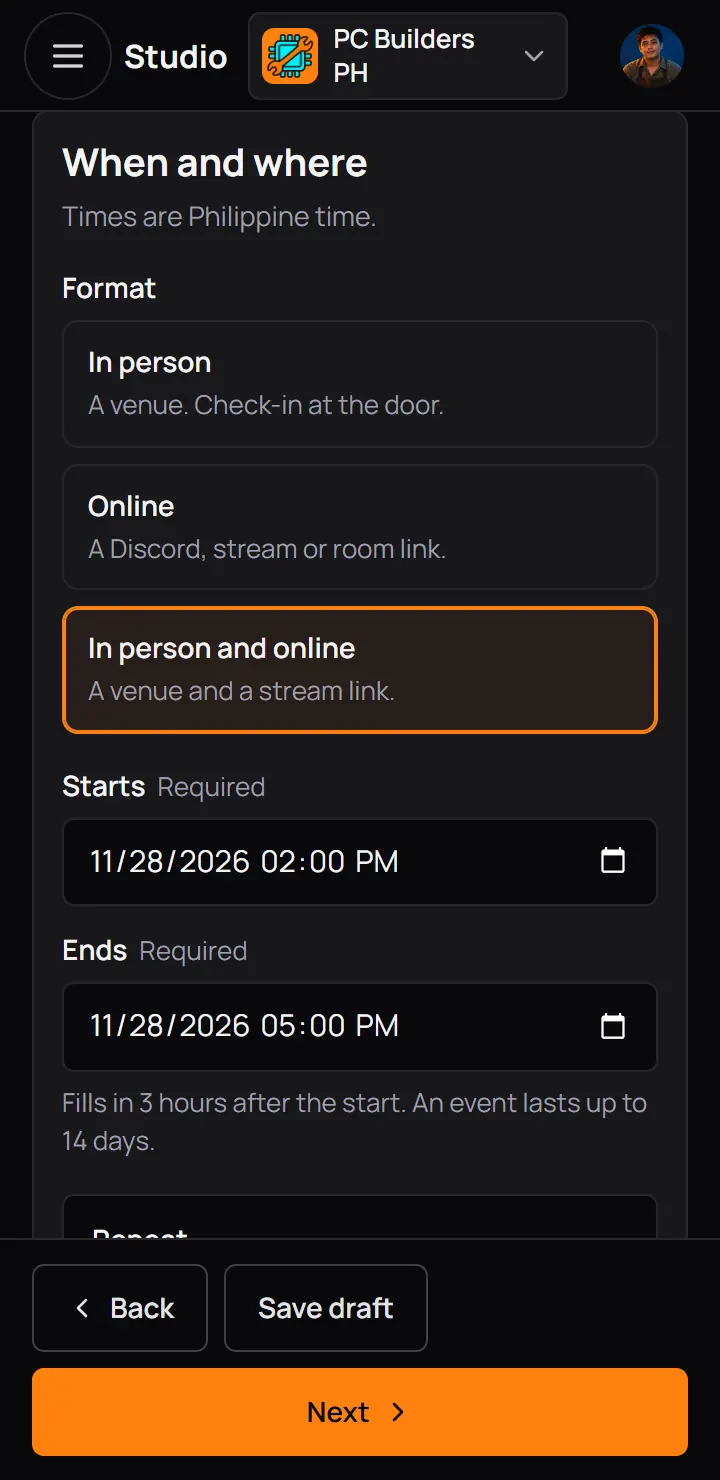
- StartsIn the future.
- EndsFills in 3 hours after the start. An event lasts up to 14 days.
- RepeatDoes not repeat, every week, every 2 weeks or every month.
Good to know. With the address hidden, guests who hold a seat see the address and the link on their ticket, in the reminders and in the email. Someone who waits for approval or is on the waitlist sees only the city. Require approval keeps it hidden.
7Step 3: Tickets and who can come
The tickets and the seats first. The rest is closed under More options, and the template already set it.
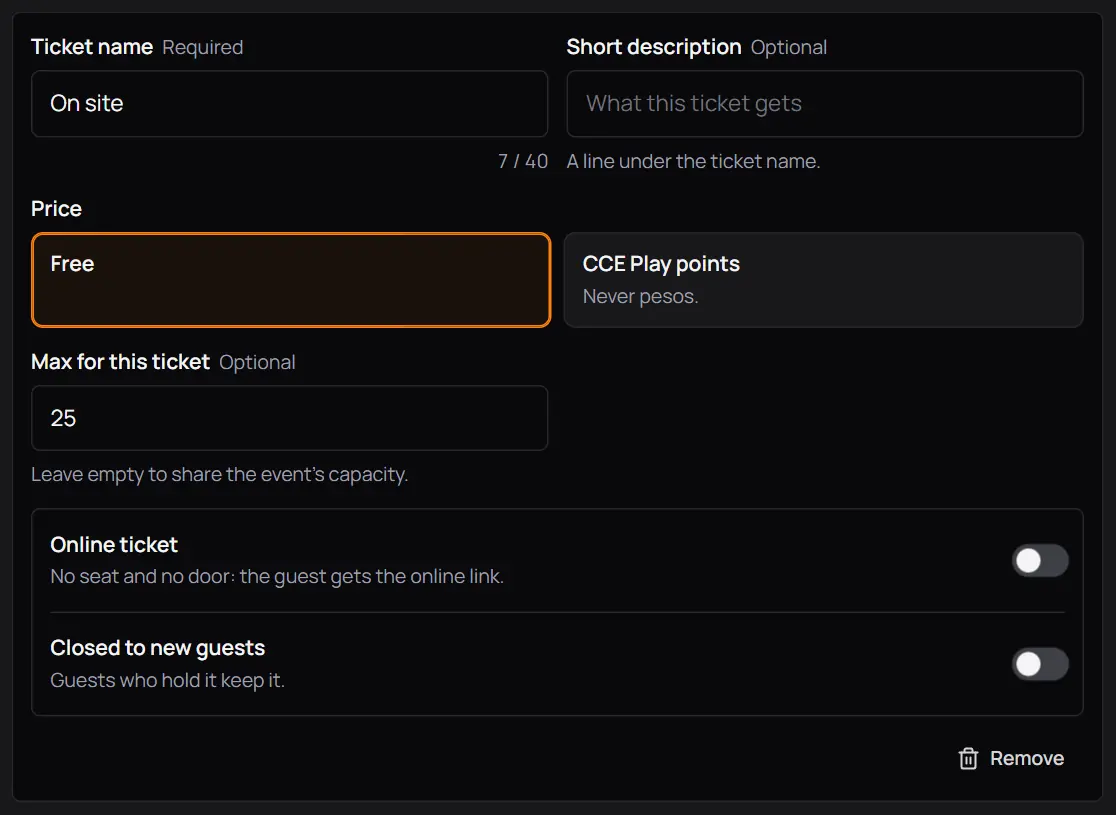
- Ticket nameUp to 40 letters, such as General or Player.
- Short descriptionOptional. A line under the ticket name.
- PriceFree, or CCE Play points, never pesos. The points come out of the guest's wallet when they register.
- Max for this ticketOptional. Empty shares the event's capacity.
- Online ticketNo seat and no door. The guest gets the online link.
- Closed to new guestsGuests who hold it keep it.
- Remove
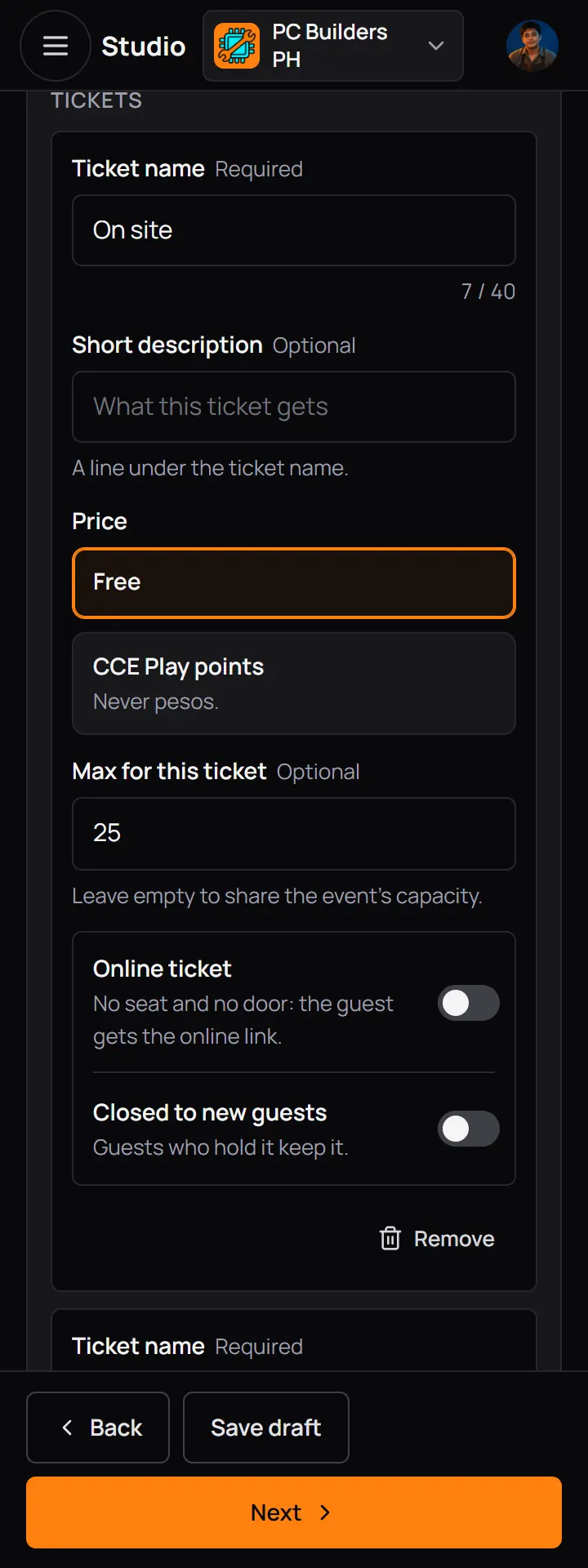
- Ticket nameUp to 40 letters, such as General or Player.
- Short descriptionOptional. A line under the ticket name.
- PriceFree, or CCE Play points, never pesos. The points come out of the guest's wallet when they register.
- Max for this ticketOptional. Empty shares the event's capacity.
- Online ticketNo seat and no door. The guest gets the online link.
- Closed to new guestsGuests who hold it keep it.
- Remove
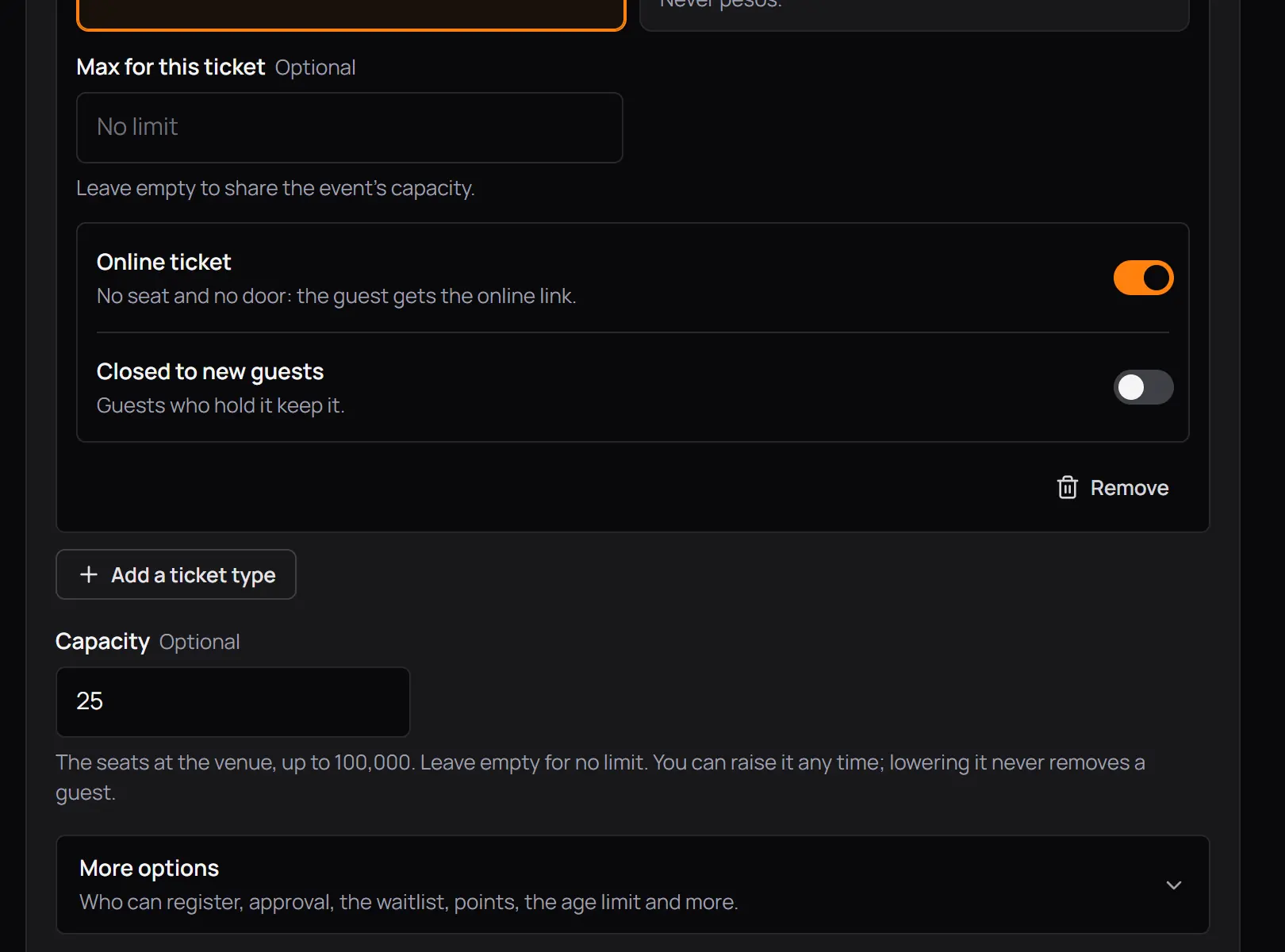
- Add a ticket typeUp to 6, such as Player and Spectator.
- CapacityThe seats at the venue. Empty means no limit.
- More optionsWho can register, approval, the waitlist, points and more.
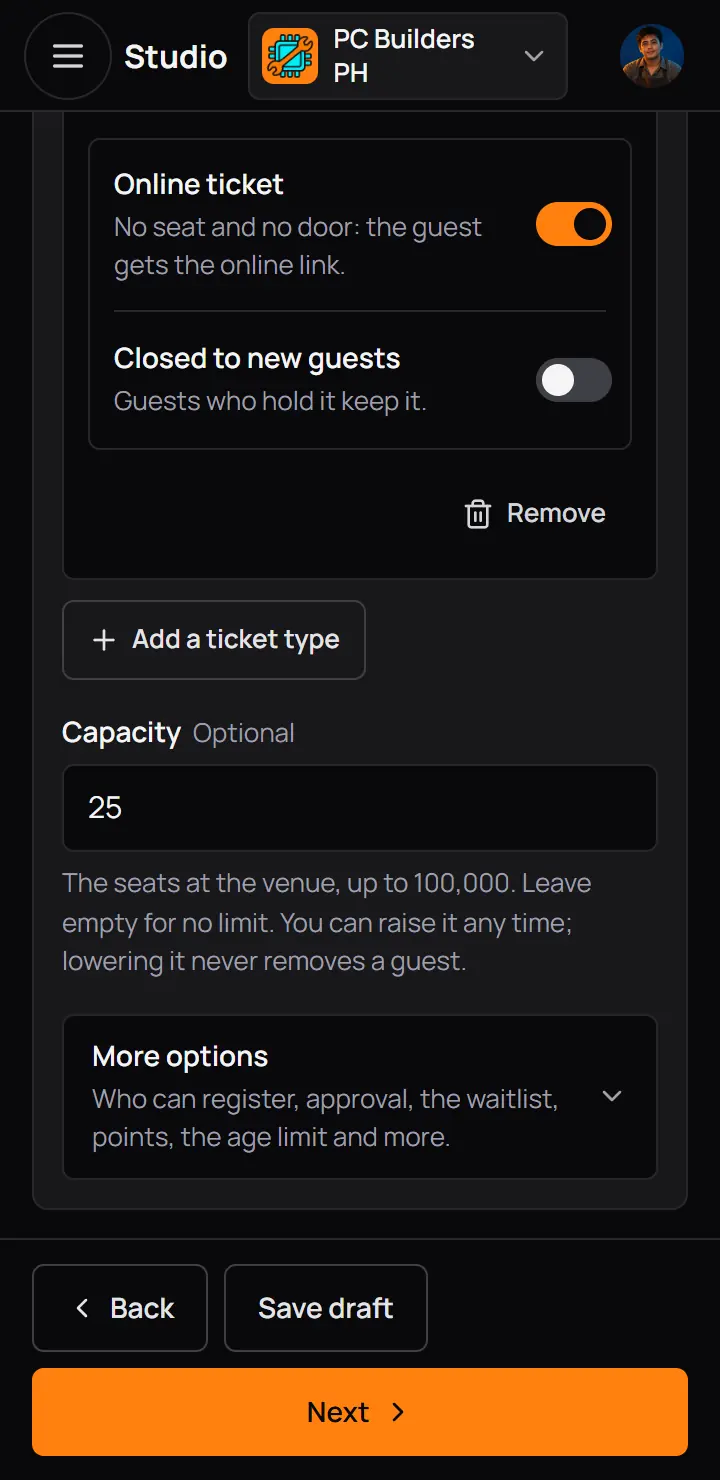
- Add a ticket typeUp to 6, such as Player and Spectator.
- CapacityThe seats at the venue. Empty means no limit.
- More optionsWho can register, approval, the waitlist, points and more.
- An online event has no capacity: each online ticket counts only against its own maximum.
- Raise the capacity any time. Lowering it never removes a guest.
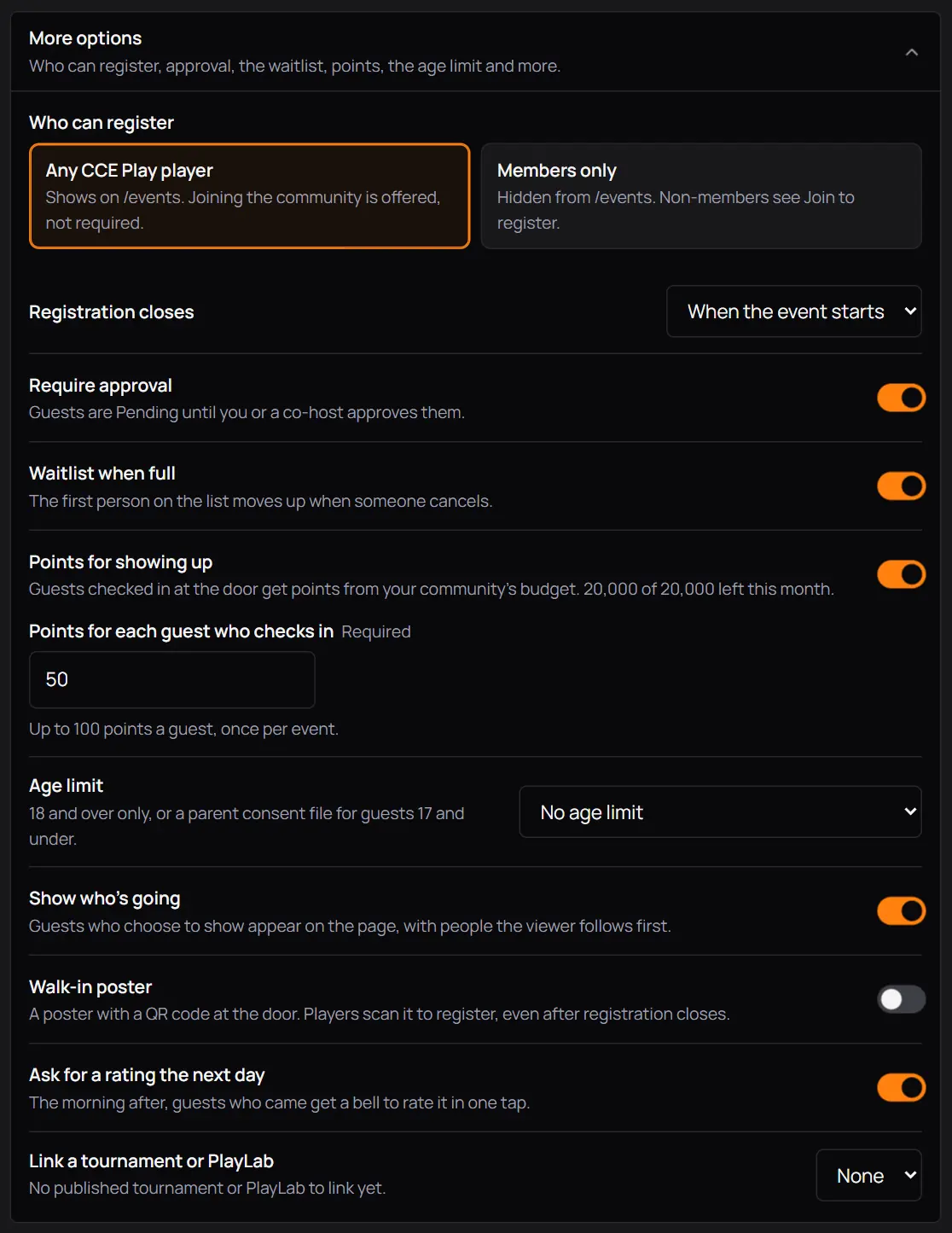
- Who can registerAny CCE Play player (shows on the Events page), or Members only (hidden from the Events page).
- Registration closesWhen the event starts, 1 hour before or 1 day before.
- Require approvalGuests wait as Pending until a host approves them.
- Waitlist when fullThe first on the list moves up when someone cancels.
- Points for showing upUp to 100 points for each guest checked in at the door, from the monthly budget.
- Age limitNo age limit, 18 and over only, or parent consent for guests 17 and under.
- Show who's goingGuests who choose to show appear on the page.
- Walk-in posterA QR code at the door that registers players on the spot. See the walk-in poster below.
- Ask for a rating the next dayGuests who came get a bell to rate it.
- Link a tournament or PlayLabShows it on the event page.
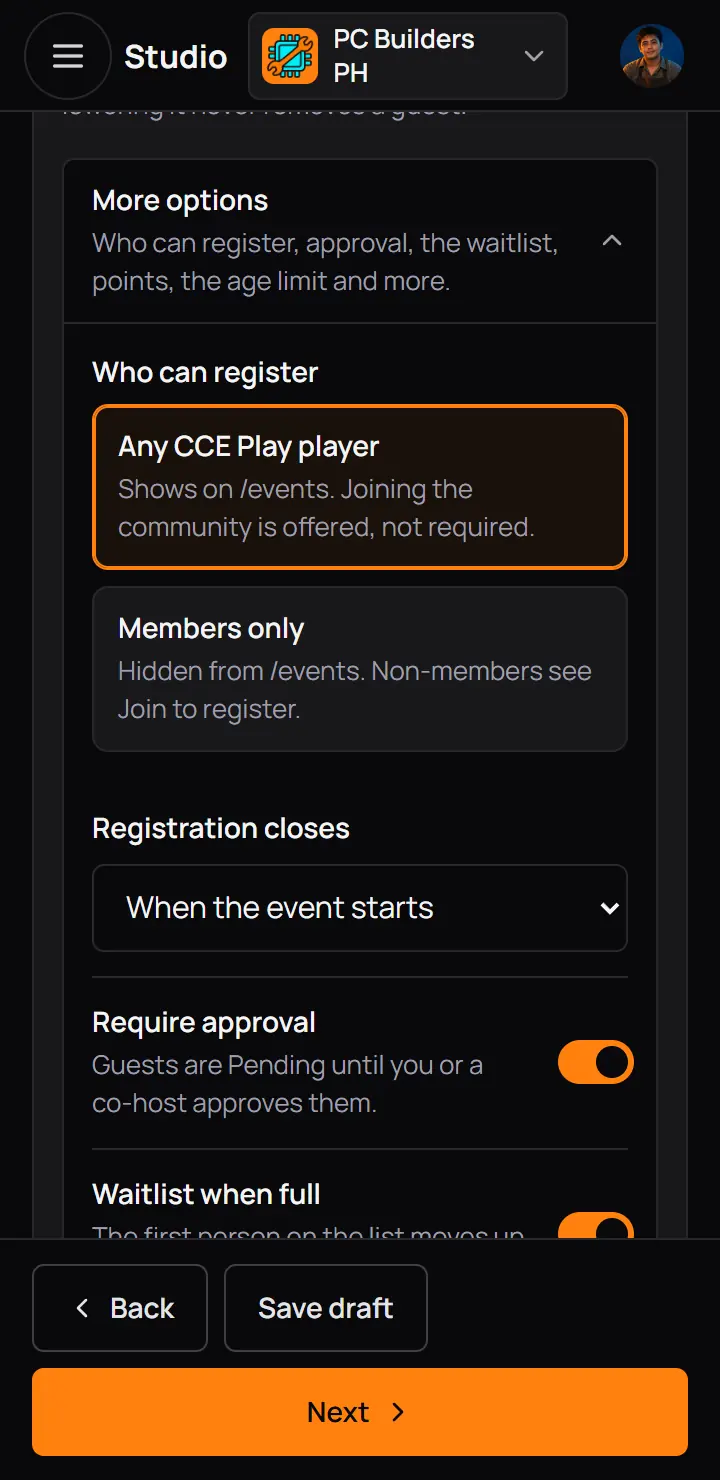
- Who can registerAny CCE Play player (shows on the Events page), or Members only (hidden from the Events page).
- Registration closesWhen the event starts, 1 hour before or 1 day before.
- Require approvalGuests wait as Pending until a host approves them.
- Waitlist when fullThe first on the list moves up when someone cancels.
- With a points ticket, More options also has Refund window for points tickets: until the start, 1 hour before, 1 day before (the first choice) or 2 days before. A guest who cancels in time gets the points back. Later, the seat frees and the points stay.
8Step 4: Questions
Name, email and phone come from the guest's profile and are always asked. Add only what you need to know, up to 10 questions. This step is optional.
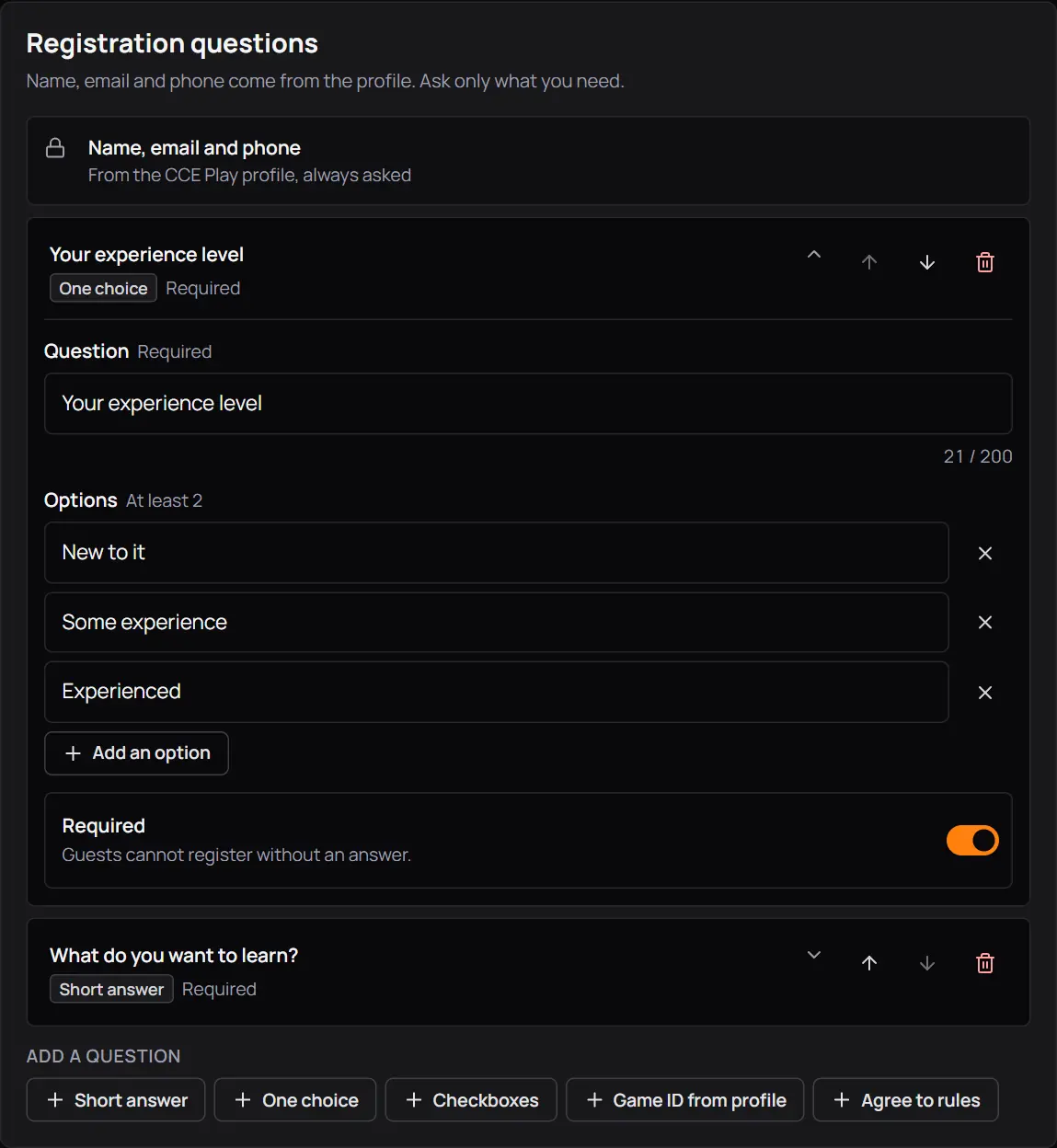
- Name, email and phoneFrom the profile, always asked.
- A questionPress it to open or close it.
- RequiredGuests cannot register without an answer.
- Add a questionPick the kind.
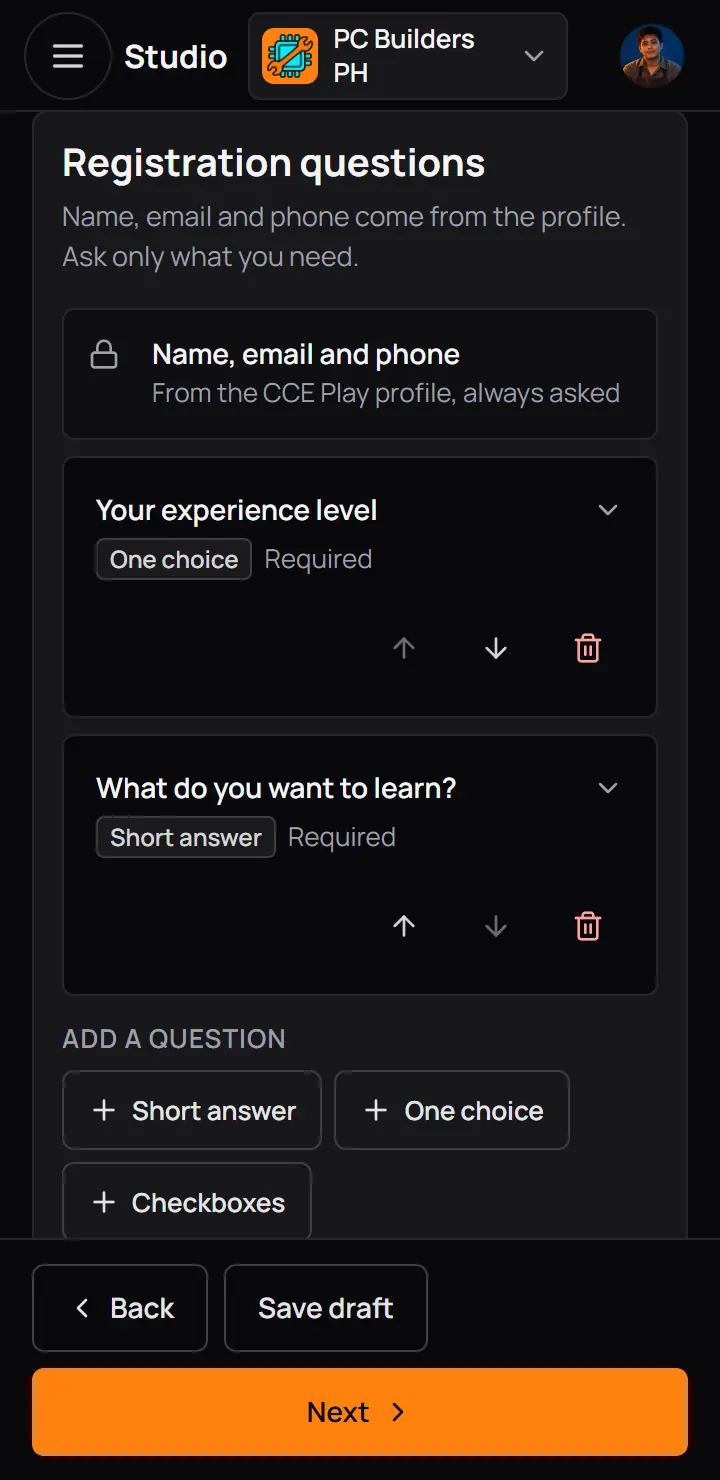
- Name, email and phoneFrom the profile, always asked.
- A questionPress it to open or close it.
| Kind | What the guest does |
|---|---|
| Short answer | What the guest doesTypes up to 500 letters. |
| One choice | What the guest doesPicks one of at least 2 choices. |
| Checkboxes | What the guest doesTicks one or more choices. |
| Game ID from profile | What the guest doesFills in from their profile. A new ID saves back to it. |
| Agree to rules | What the guest doesTicks that they agree to the rule text you write, such as the venue's house rules. |
9Step 5: Review and publish
Review lists everything in one place. Pick who hears about it, then publish, or keep it as a draft.
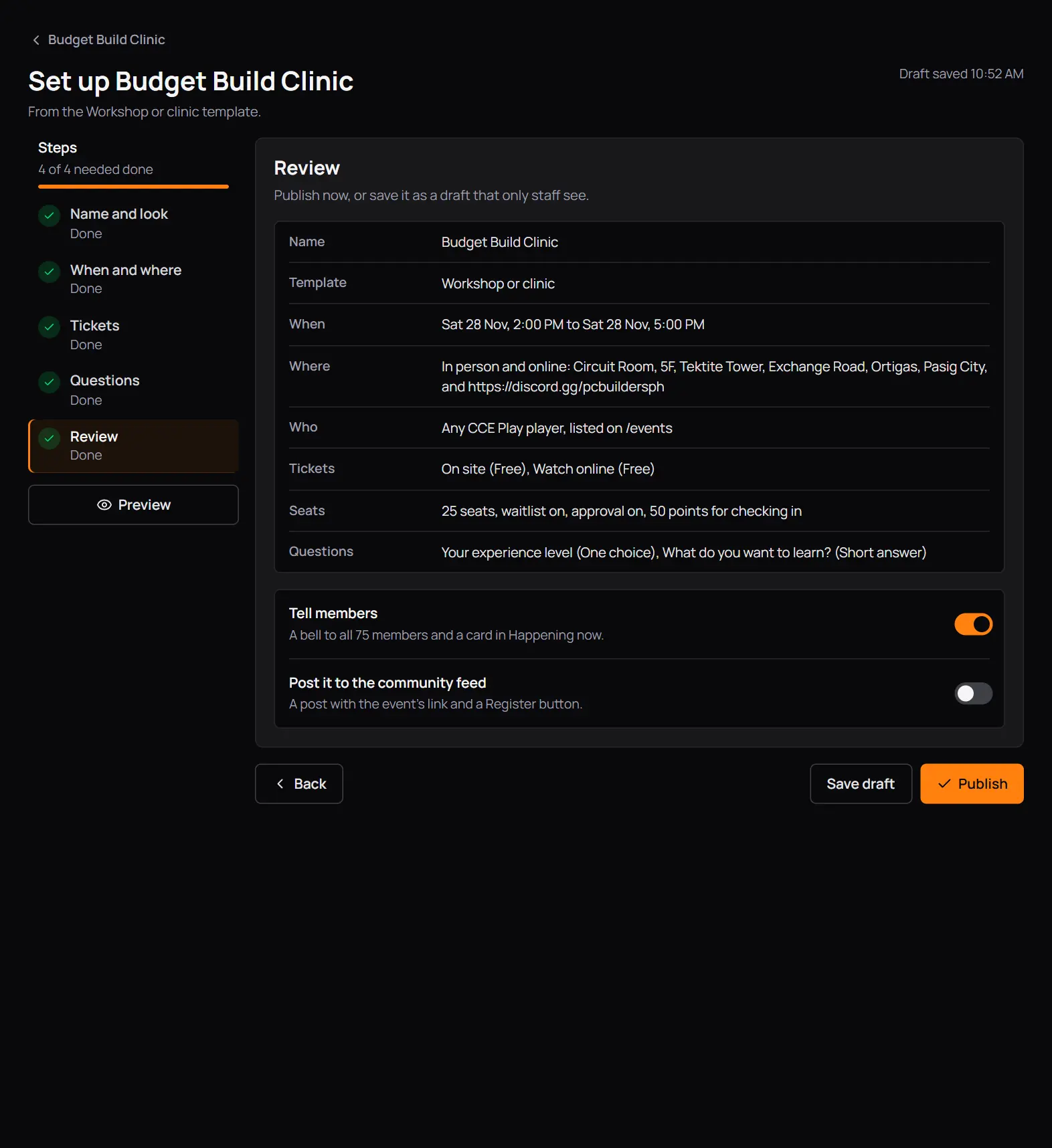
- The summaryThe name, template, when, where, who, tickets, seats and questions.
- Tell membersA bell to every member and a card in Happening now. On at first.
- Post it to the community feedA post with the event's link and a Register button. Off at first.
- Save draft
- PublishMembers can register at once, and it shows on your Events tab.
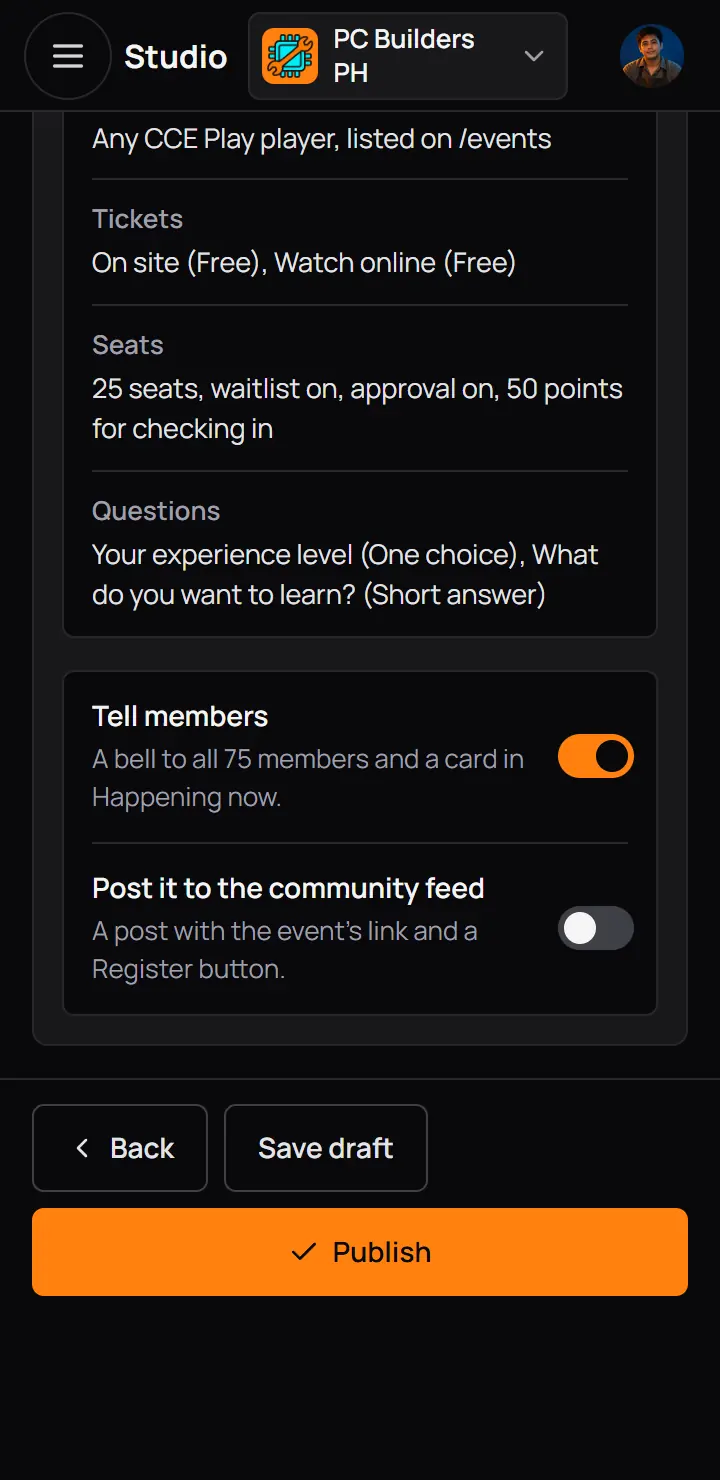
- Tell membersA bell to every member and a card in Happening now. On at first.
- Post it to the community feedA post with the event's link and a Register button. Off at first.
- PublishMembers can register at once, and it shows on your Events tab.
- Members get the bell only for the first date of a repeating event.
- An event for Members only is never on CCE Play's Events page, and the bell still goes to members.
10A draft's page
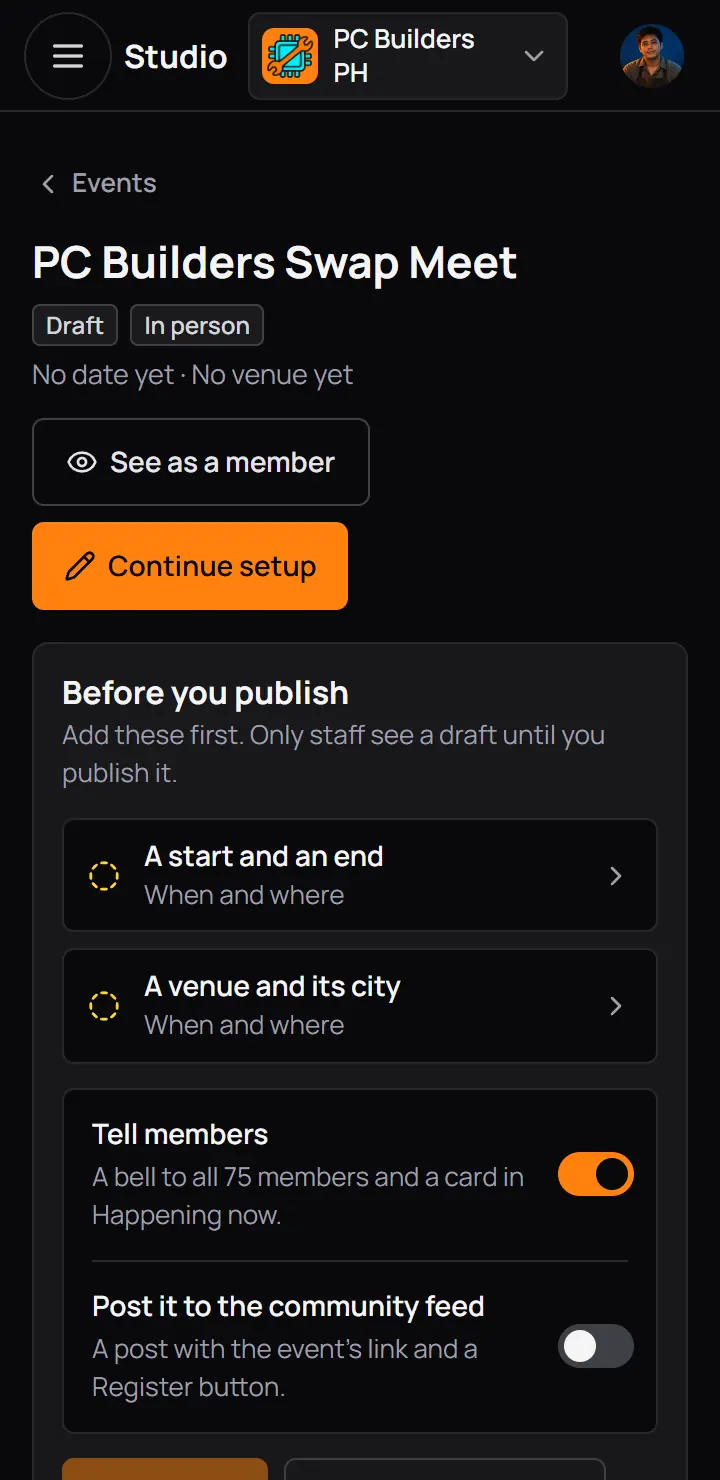
Press a draft in the list to open its page. Until it is published, the page says what is left, and you can publish from there too.
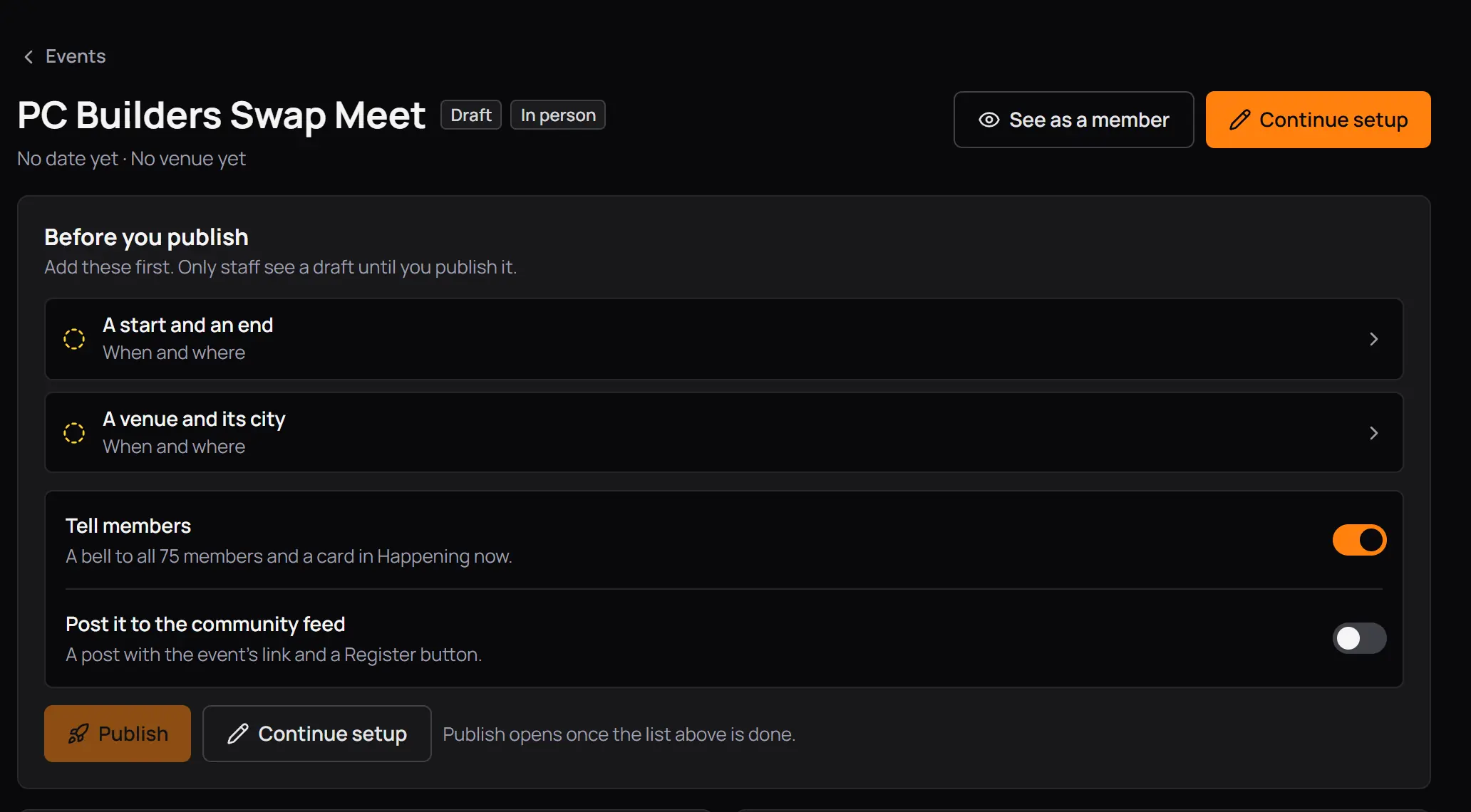
- DraftAnd the format.
- See as a memberThe staff preview of the page.
- Continue setupOpens the first step with something missing.
- What is leftPress one to go to it.
- Tell members
- Post it to the community feed
- PublishOpens once the list is done.
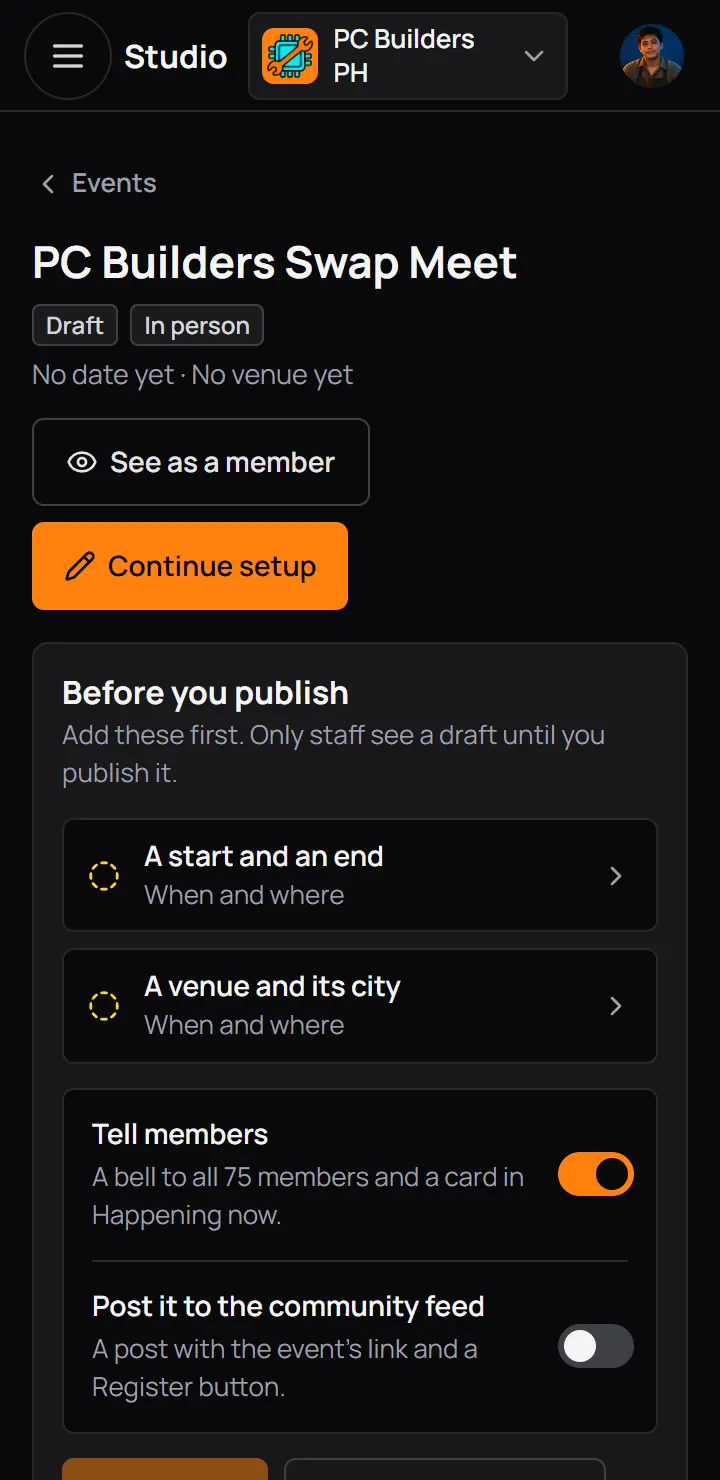
- DraftAnd the format.
- Continue setupOpens the first step with something missing.
- What is leftPress one to go to it.
Delete a draft
A draft that nobody has registered for can be deleted, at the foot of its page. A published event cannot be deleted: cancel it.
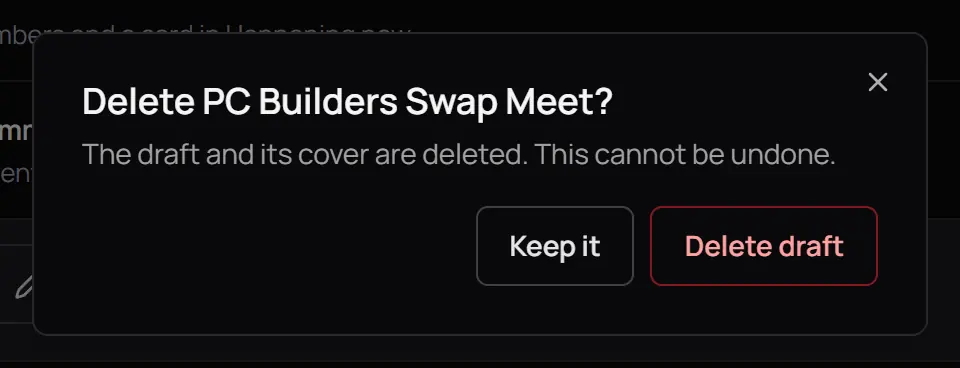
- Delete draftThe draft and its cover go. This cannot be undone.
- Delete draftThe draft and its cover go. This cannot be undone.
11A published event's page
A published event has tabs: Overview, Guests, Check-in, Messages and Insights. An online event has no Check-in tab. This guide covers Overview; the other tabs are in part 2.
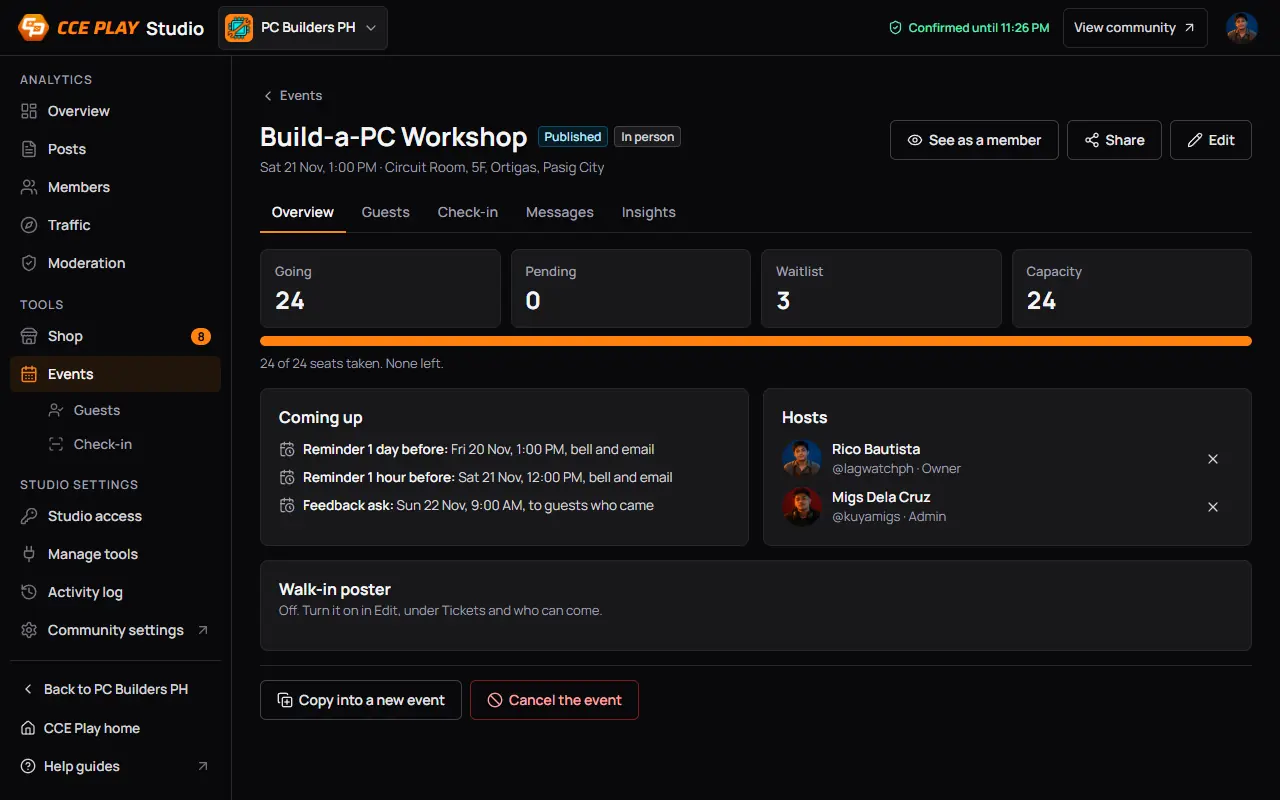
- PublishedMembers can see it and register.
- See as a memberOpens the event page in a new tab.
- ShareCopies the link, or opens your phone's share list.
- EditThe five steps again.
- The tabs
- Going, Pending, Waitlist and CapacityWith the seats taken under them.
- Coming upThe reminders and the rating ask, with their times.
- HostsUp to 6, from your community's staff. Add a co-host shows while someone is left to add.
- Copy into a new event
- Cancel the event
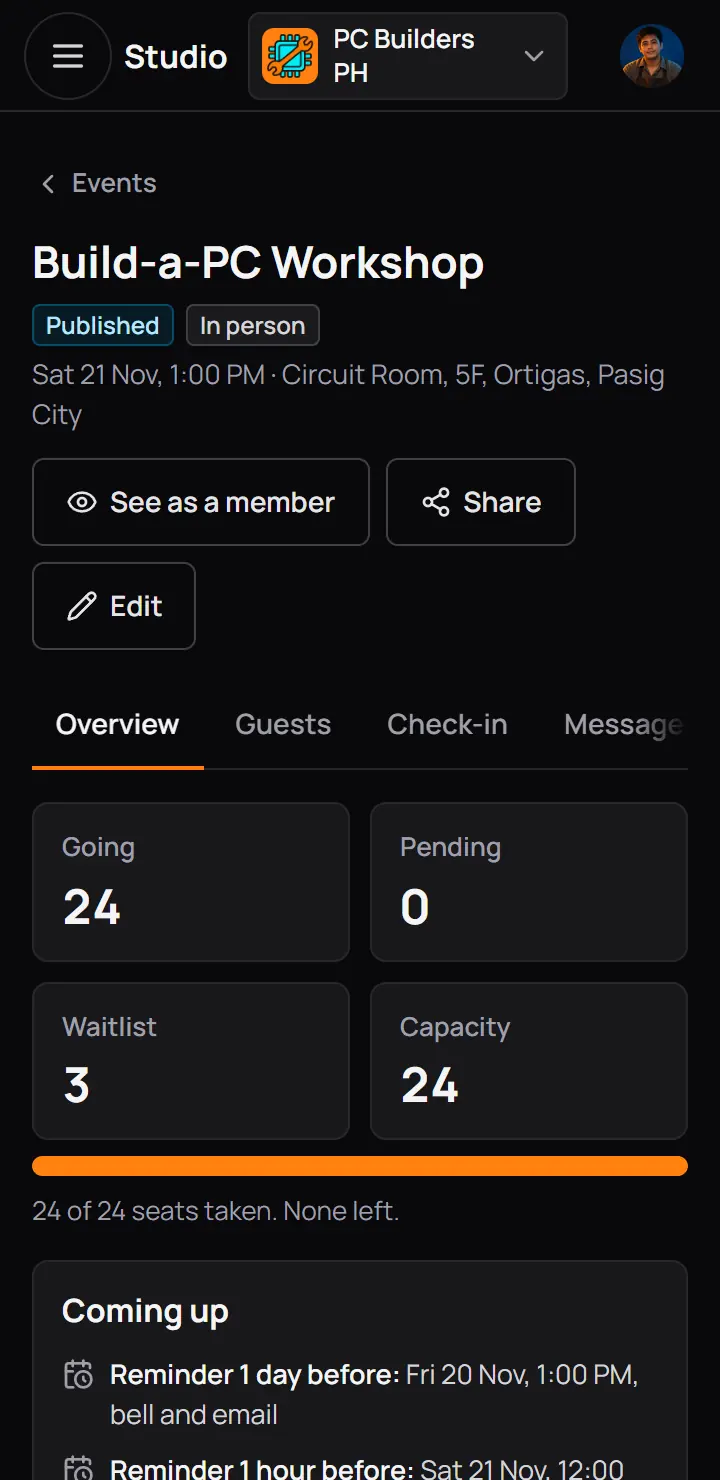
- PublishedMembers can see it and register.
- EditThe five steps again.
- The tabs
- Guests who hold a seat get a reminder by bell and email 1 day before and 1 hour before.
- A day-before reminder is skipped for an event that starts within 2 hours of being published.
- With the rating ask on, guests who came get a bell at 9:00 AM the day after.
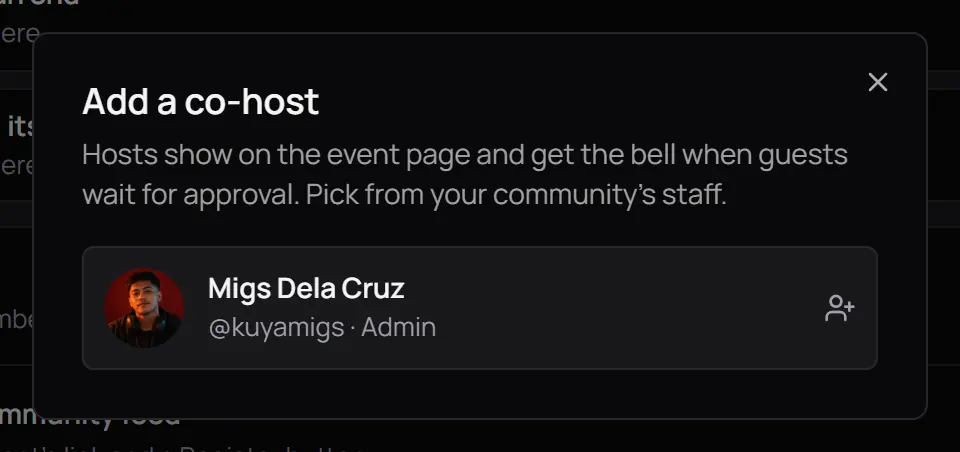
- Add a co-hostPick an admin or moderator. Hosts show on the event page, and get a bell when guests wait for approval.
- Add a co-hostPick an admin or moderator. Hosts show on the event page, and get a bell when guests wait for approval.
12Every stage of an event
An event shows its stage in a label beside its name, on the list and on its page.
| Label | What it means | What you can do |
|---|---|---|
| Draft | What it meansOnly staff see it. | What you can doContinue setup, publish, or delete it. |
| Published | What it meansComing up. Members can see it and register. | What you can doChange anything, under the locks below. Cancel it. |
| Happening now | What it meansIt has started and has not ended. | What you can doChange About, the online link, hosts, check-in points and the rating ask. Cancel it. |
| Ended | What it meansIts end time has passed. It is under Past. | What you can doRead the numbers, message guests, copy it. |
| Cancelled | What it meansYou cancelled it. Guests got a bell and an email with your reason. | What you can doCopy it to run it again. |
| Taken down by CCE Play | What it meansMembers cannot see it, and its guests were cancelled and refunded. | What you can doRead the reason, then write to CCE Play support. |
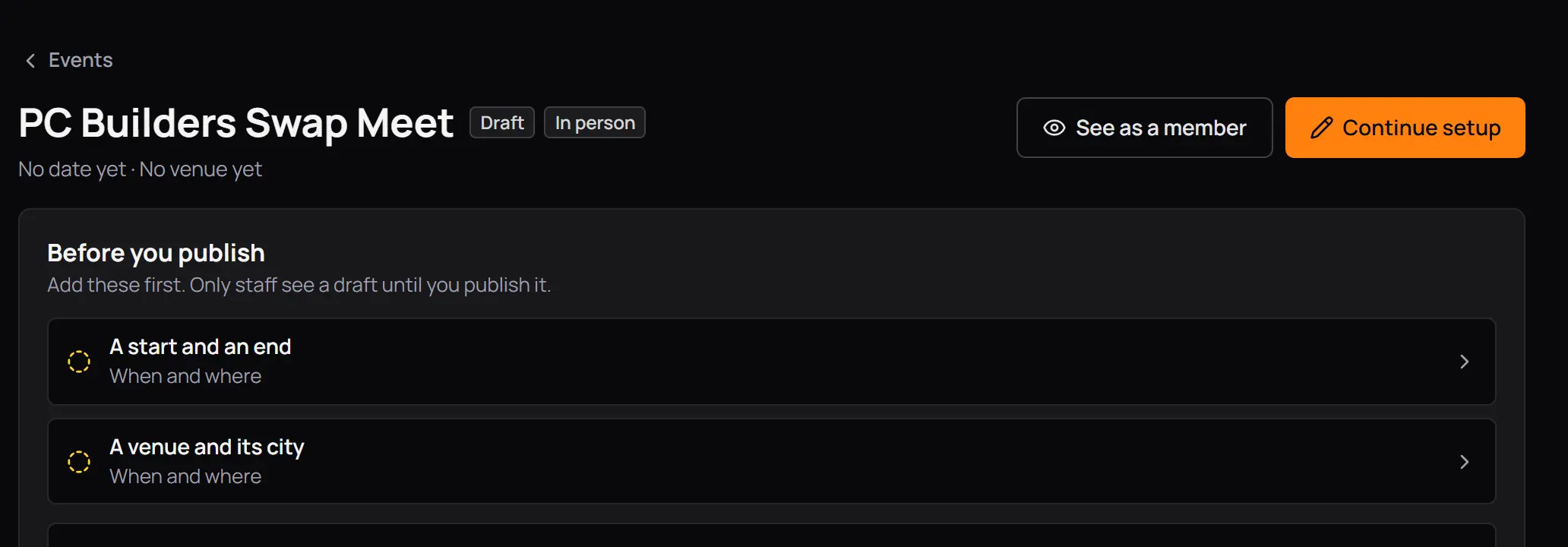
- DraftThe label beside the name.
Members cannot open the page of a draft.
- DraftThe label beside the name.
Members cannot open the page of a draft.
13Change, copy or cancel an event
Press Edit to open the five steps of a published event. Your changes stay on the page until you press Save changes on Review. Review lists each change with what it was and what it becomes, and says who is told.
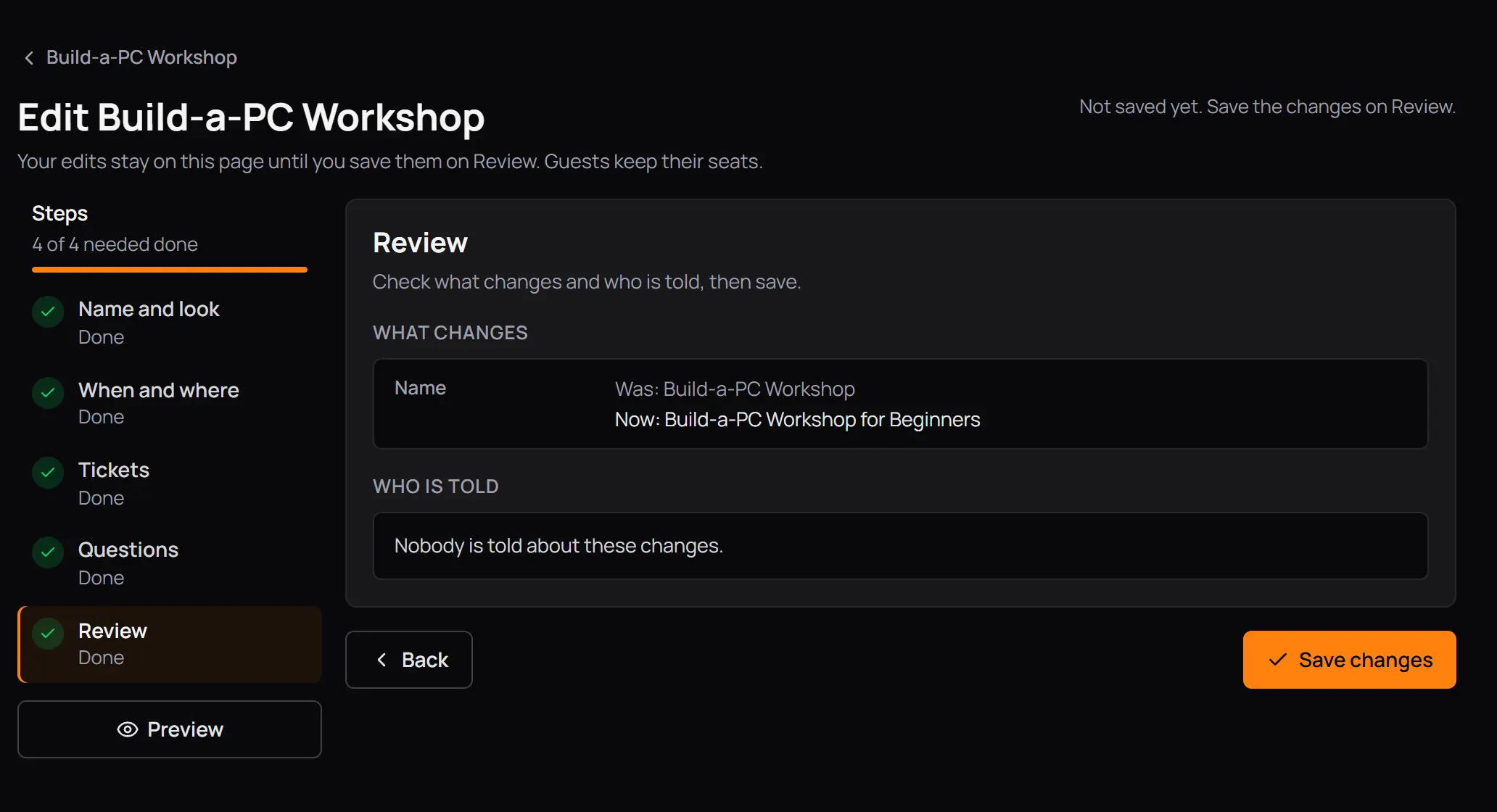
- Your edits stay on this page until you save themGuests keep their seats.
- What changesEach change, before and after.
- Who is toldA start moved by 15 minutes or more sends guests a bell and an email. Any other change tells nobody.
- Save changes
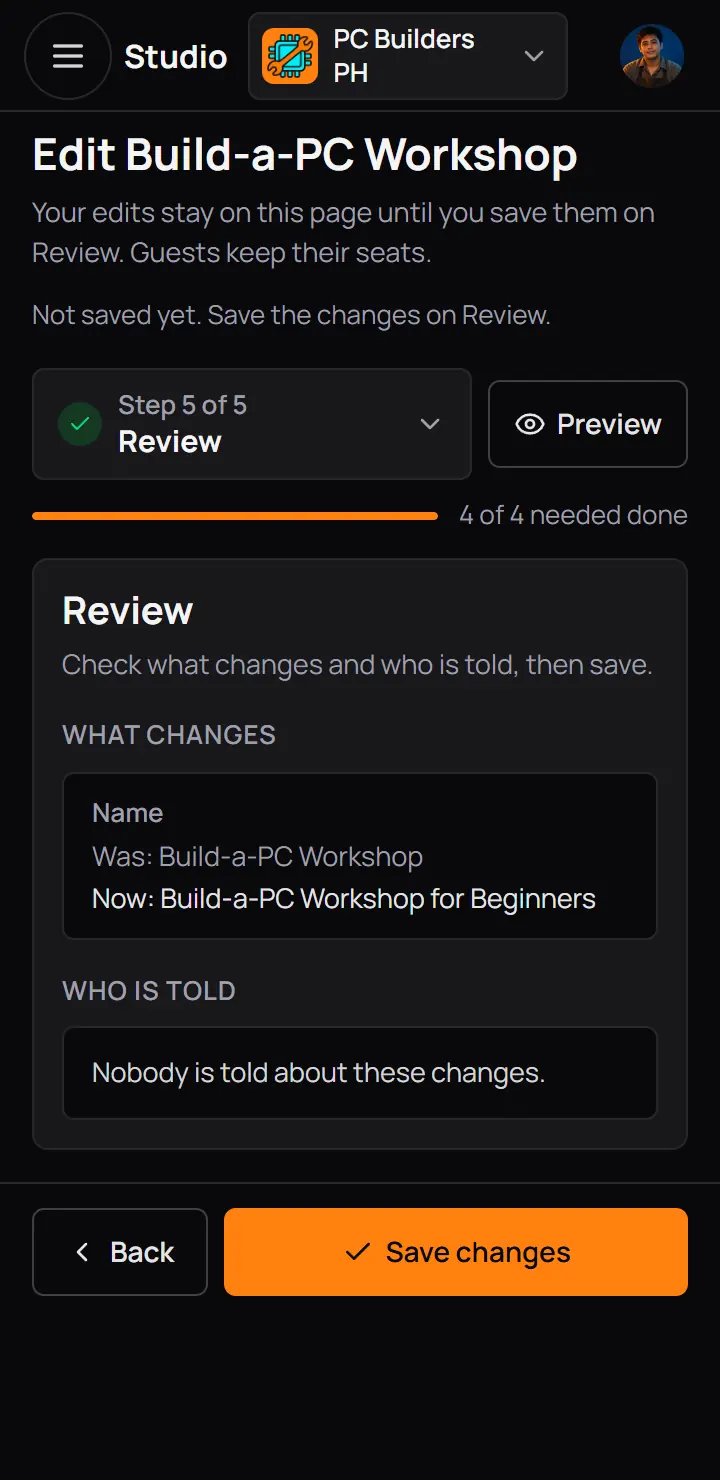
- What changesEach change, before and after.
- Who is toldA start moved by 15 minutes or more sends guests a bell and an email. Any other change tells nobody.
- Save changes
To tell guests about another change, send them a message from the Messages tab (part 2).
Copy into a new event
Copy into a new event, at the foot of the Overview, makes a new draft with the same settings and opens it on When and where, so you set the new date. The guests, the dates and the walk-in poster stay behind.
Cancel the event
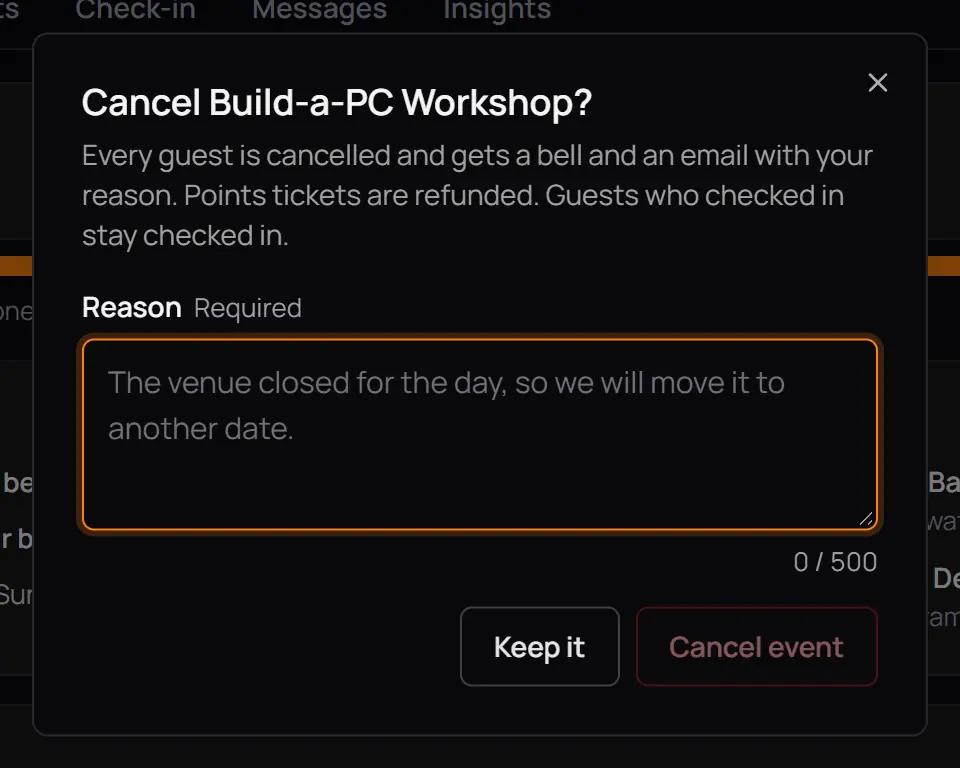
- ReasonRequired. Every guest reads it.
- Cancel eventEvery guest gets a bell and an email. Points tickets are refunded. Guests who checked in stay checked in.
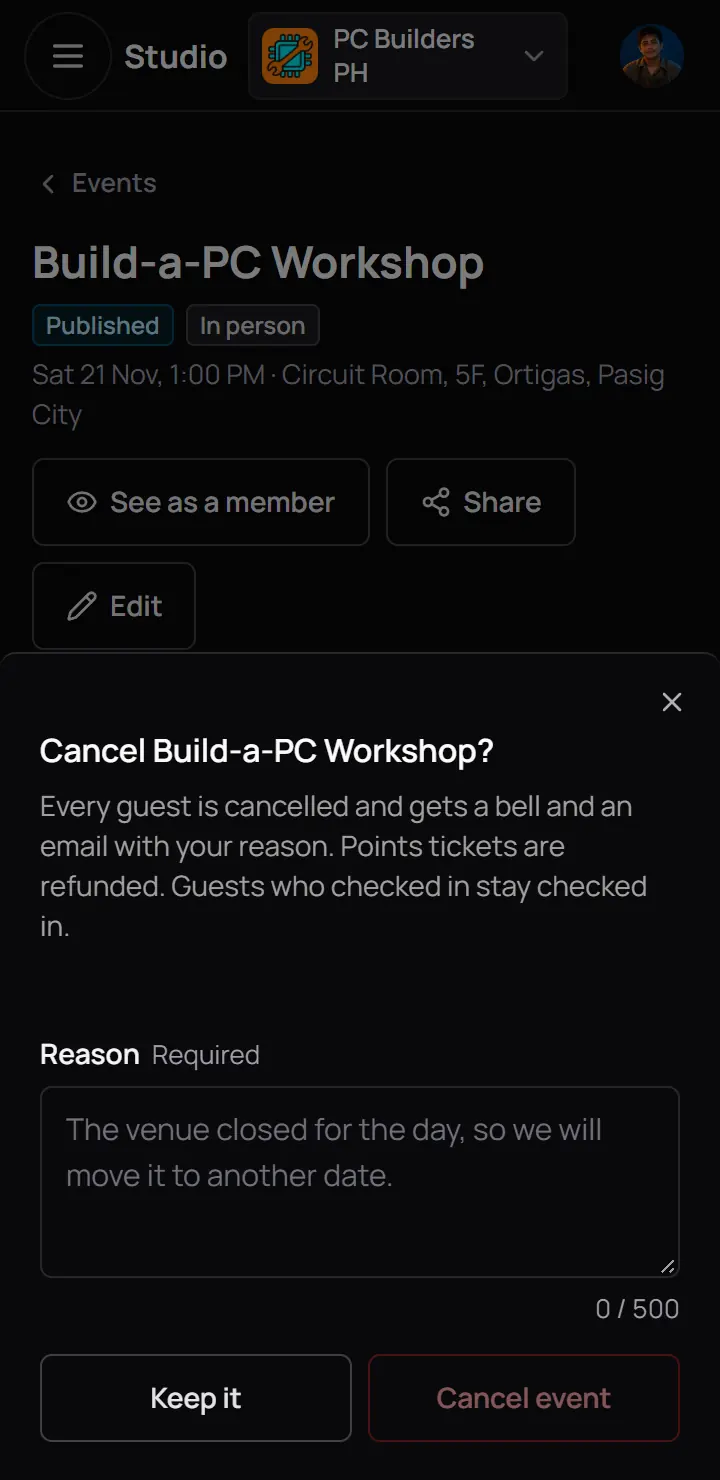
- ReasonRequired. Every guest reads it.
- Cancel eventEvery guest gets a bell and an email. Points tickets are refunded. Guests who checked in stay checked in.
An upcoming or live event can be cancelled. Cancelling cannot be undone.
14What locks once guests join
Once someone registers, some settings lock, so no guest loses a seat, a ticket or points. The step says so where it applies. In the pictures Build-a-PC Workshop already has guests.
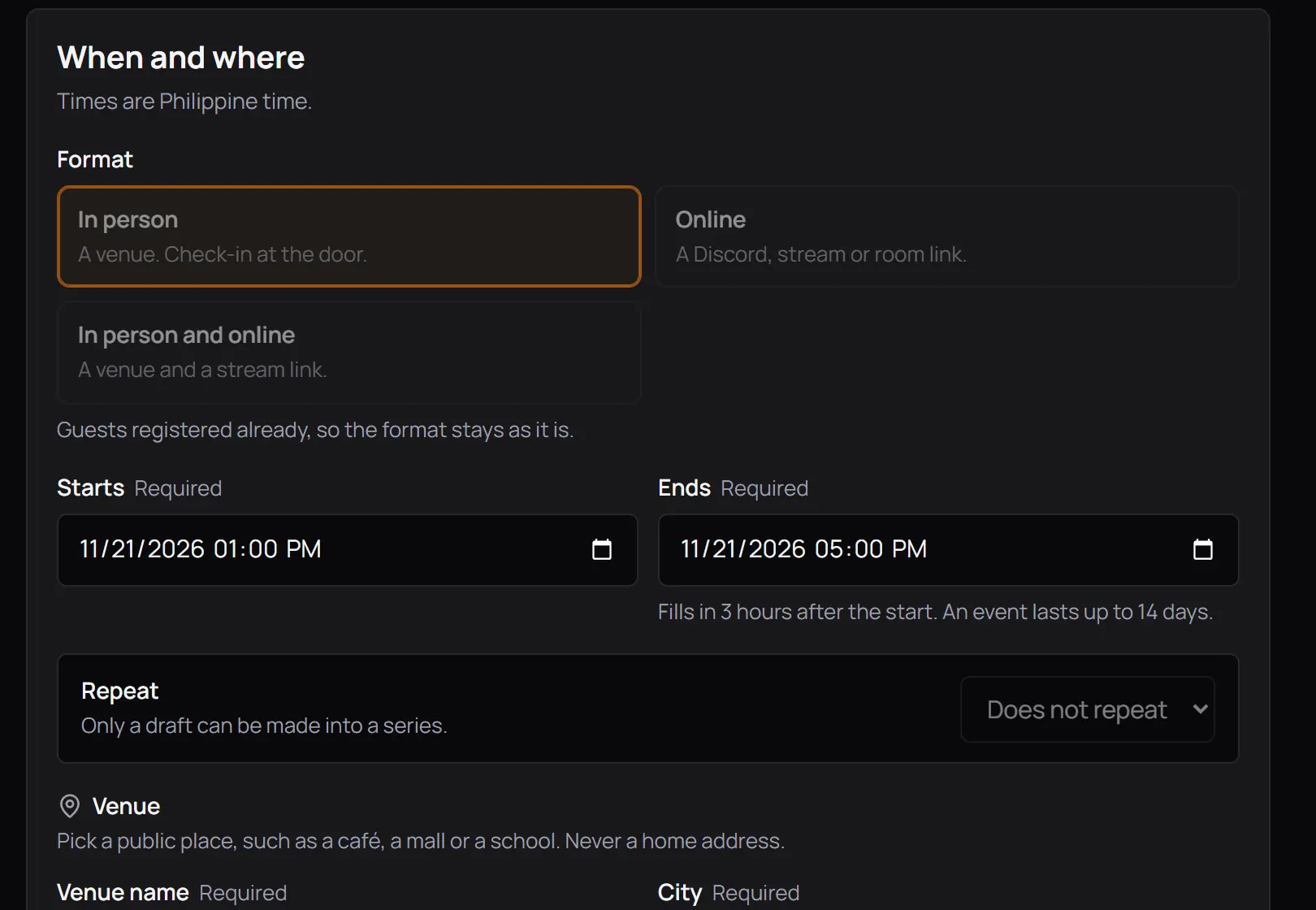
- The format stays as it is
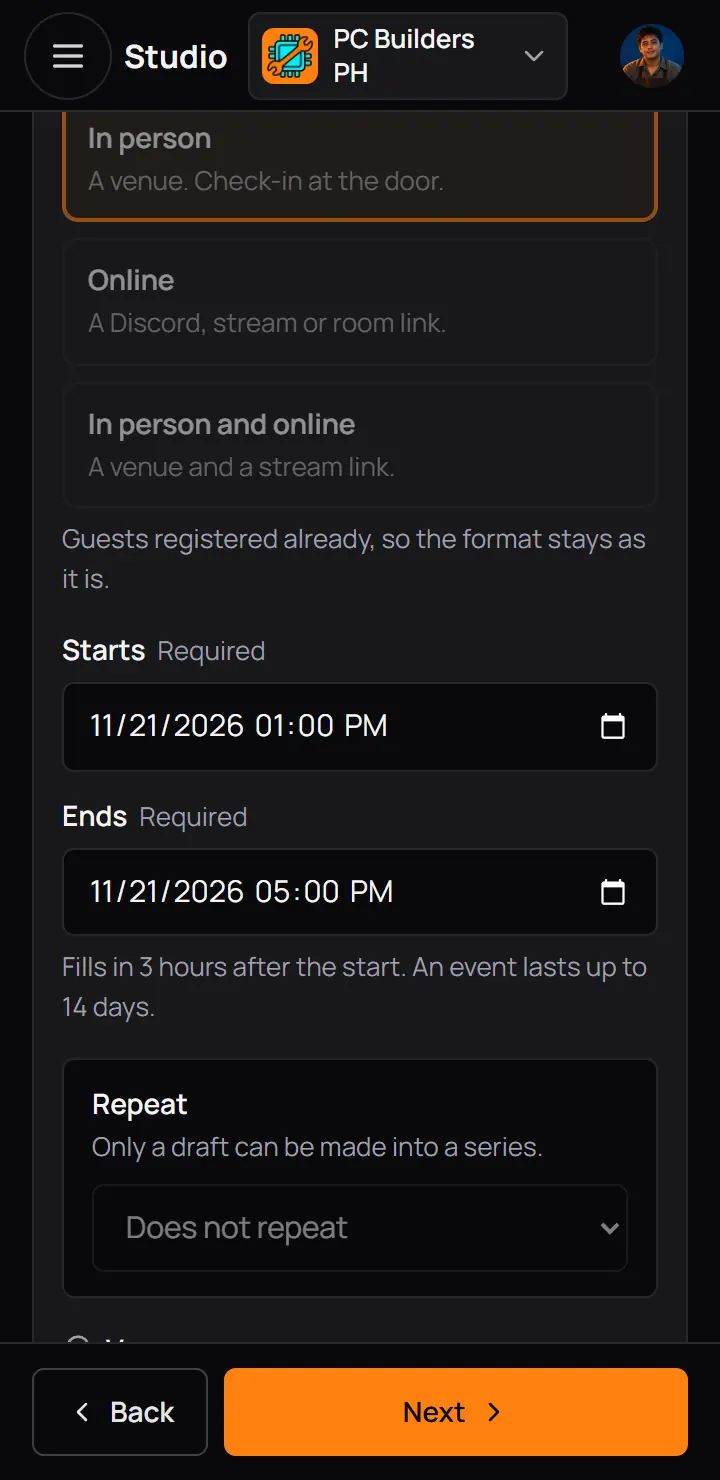
- The format stays as it is
| You can | You cannot |
|---|---|
| Change the name, About, the cover, the time and the place | You cannotChange the format |
| Add a ticket, or close one to new guests | You cannotRemove a ticket a guest holds |
| Raise or lower the seats (nobody is removed) | You cannotChange the price of a points ticket |
| Add questions, and reword a question | You cannotChange a question's kind, choices or Required |
| Add or remove hosts | You cannotChange the age limit |
- While an event is happening now, you can change About, the online link, the hosts, check-in points and the rating ask.
15An event that repeats
Set Repeat in When and where while the event is a draft: every week, every 2 weeks or every month (the same weekday of the same week, like the third Friday). Each date is its own event with its own guests. CCE Play makes the dates up to 60 days ahead, and adds the next one each night.
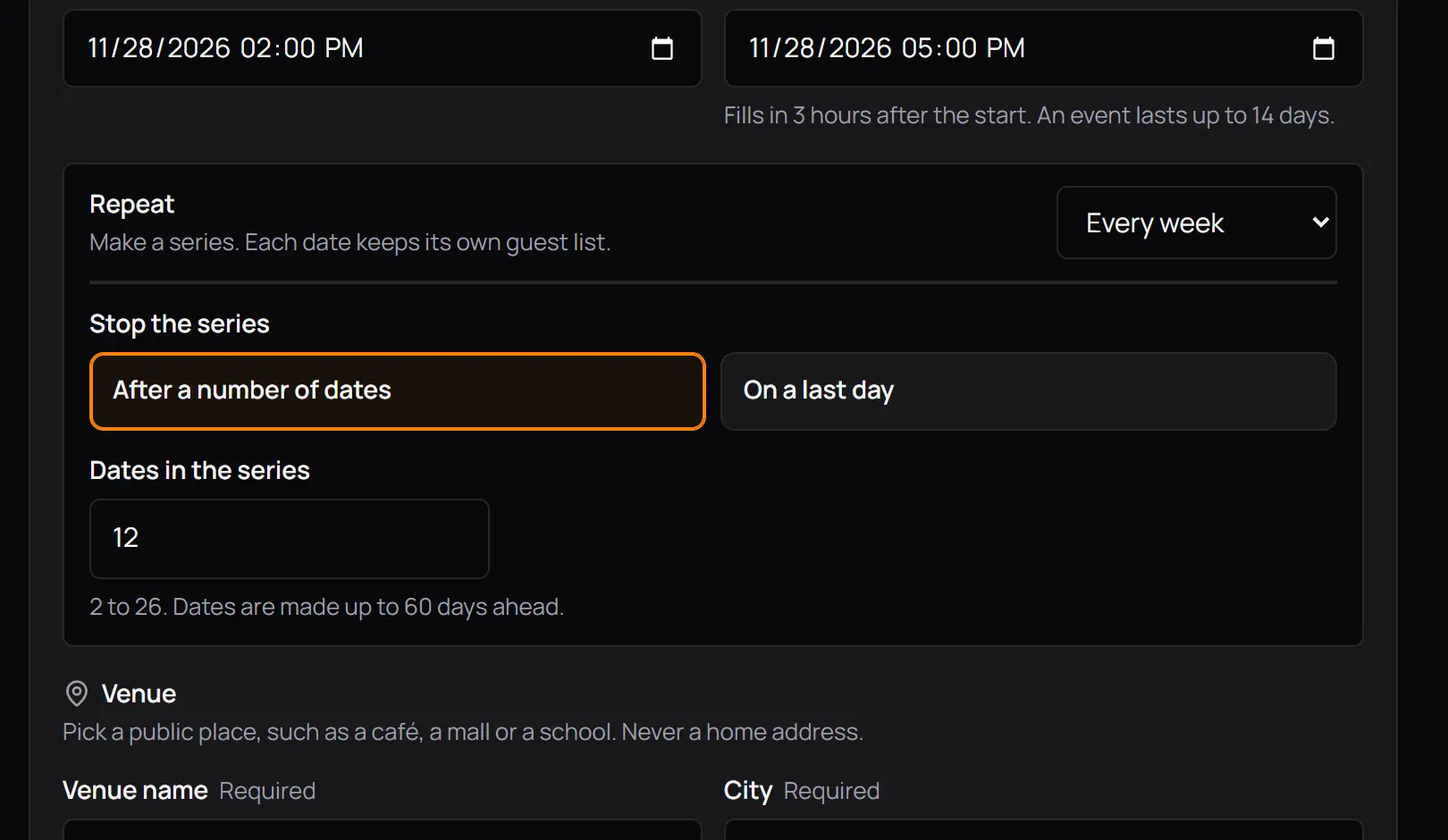
- Repeat
- Stop the seriesAfter a number of dates, or on a last day you pick.
- Dates in the series2 to 26. 12 at first.
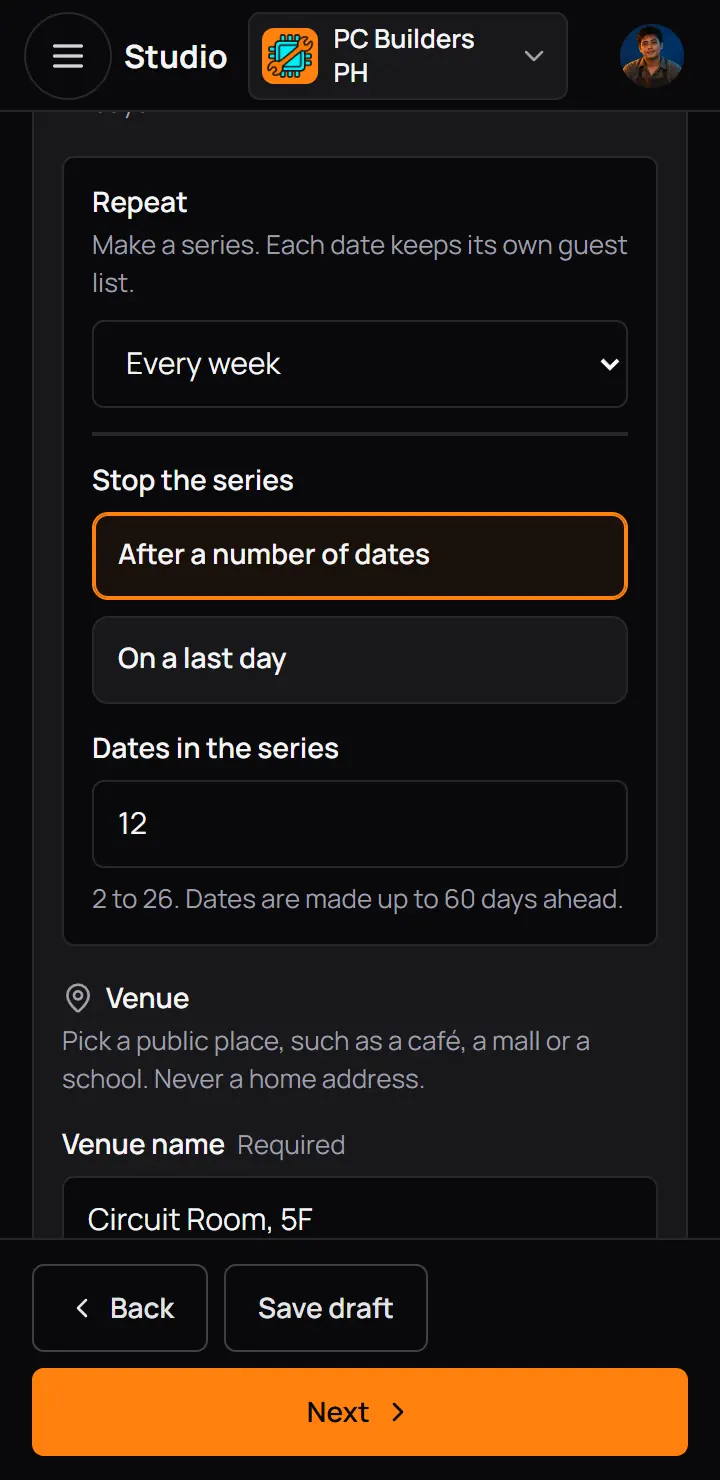
- Repeat
- Stop the seriesAfter a number of dates, or on a last day you pick.
- Dates in the series2 to 26. 12 at first.
- A new date copies the latest date, publishes at once and sends no bell and no feed post.
- When you edit a date, Review offers Apply to every later date. Later dates get the same details and keep their own times. A date with guests keeps its own tickets and questions.
16The walk-in poster
The walk-in poster is a QR code you print and put at the door. A player scans it to register on the spot, even after registration closes, and shows the ticket at the door. Turn it on in Tickets and who can come, under More options.
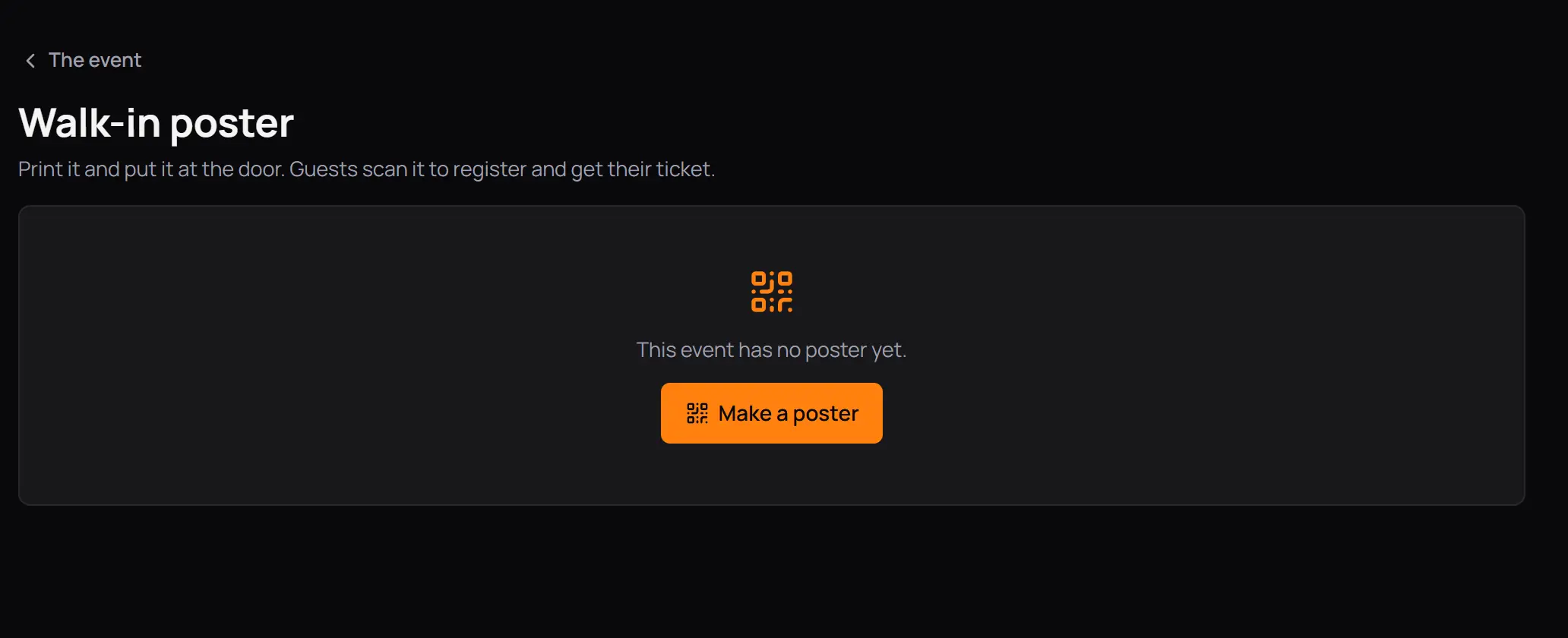
- Make a posterOnly once the event is published.
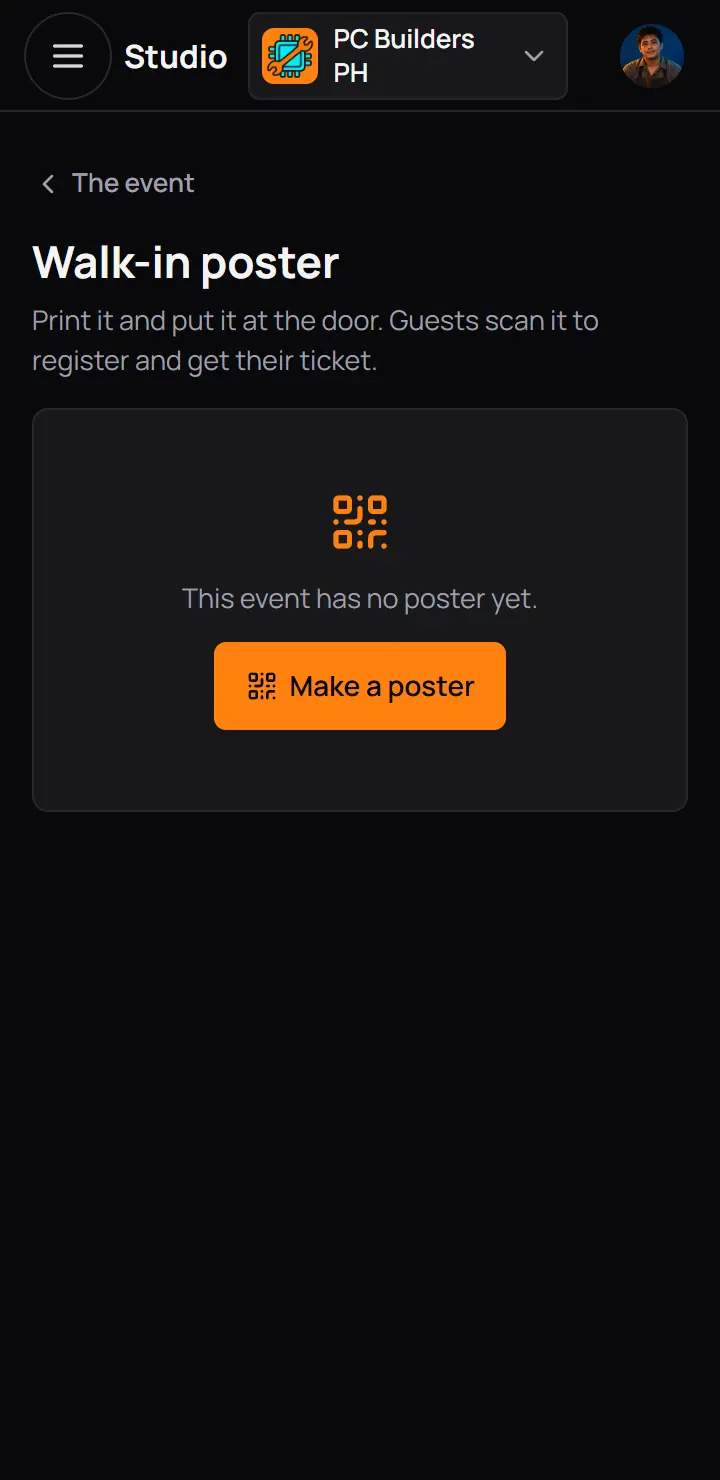
- Make a posterOnly once the event is published.
- With Guests check themselves in from the poster on, a registered guest can check in by scanning it at the door. That counts for attendance and badges, but pays no points.
- If a poster gets into the wrong hands, make a new one and put it up in place of the old one.
17Badges for coming
Players earn a badge on their profile when they check in at events: First event, Ten events, and a regular badge after 5 events of one template (Watch party, LAN night, Meetup, Workshop, Cosplay meetup and Finals day). The ticket shows the badge under "You went". You set nothing for this: CCE Play runs the badges for every community.
For CCE Play staff. A badge is handed out only after CCE Play uploads its picture on the Badges tab of the admin app, and while it is on.
18What members see
A published event has its own page, listed on your community's Events tab and, when anyone can register, on CCE Play's Events page. A draft is never shown, and a page of a taken-down event says it is not found.
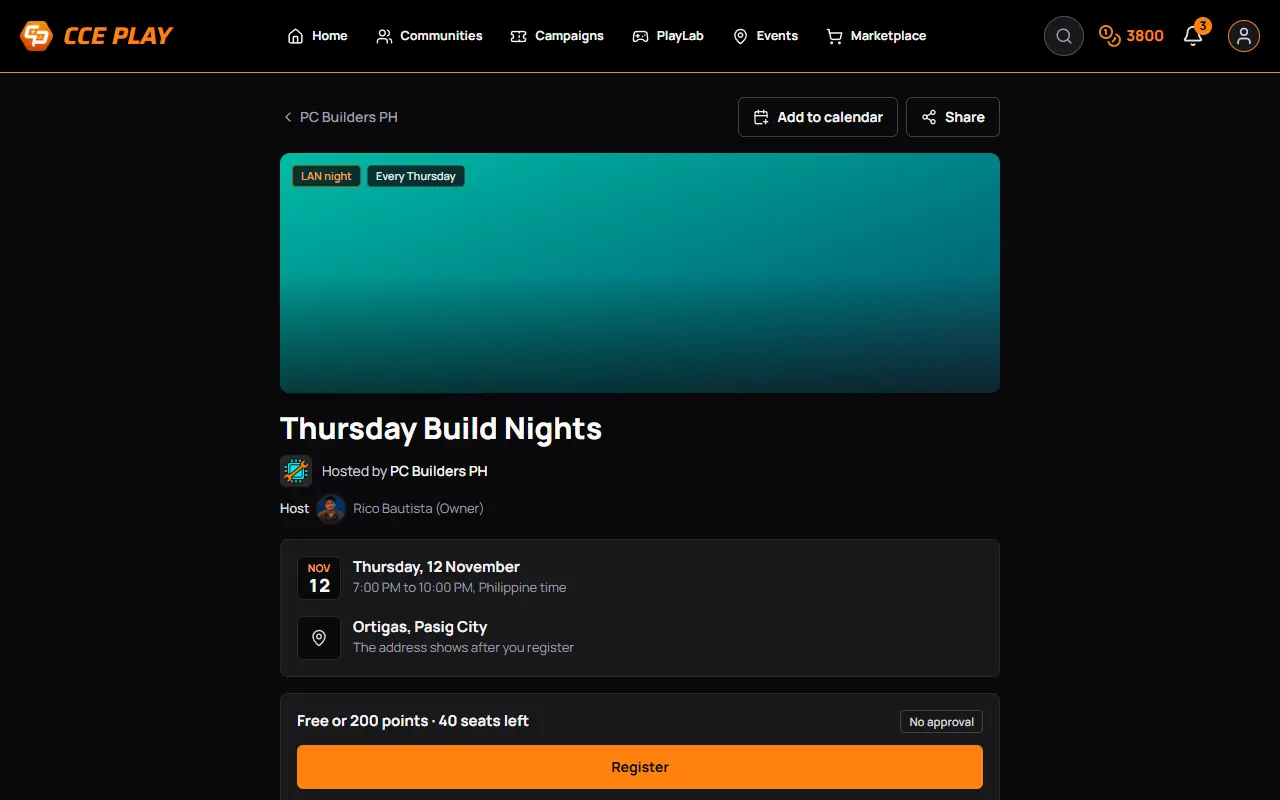
- Hosted by PC Builders PHYour community, then the hosts.
- The address shows after you registerThe city only, while the address is hidden.
- RegisterOr Request to join with approval on, or Join the waitlist when it is full.
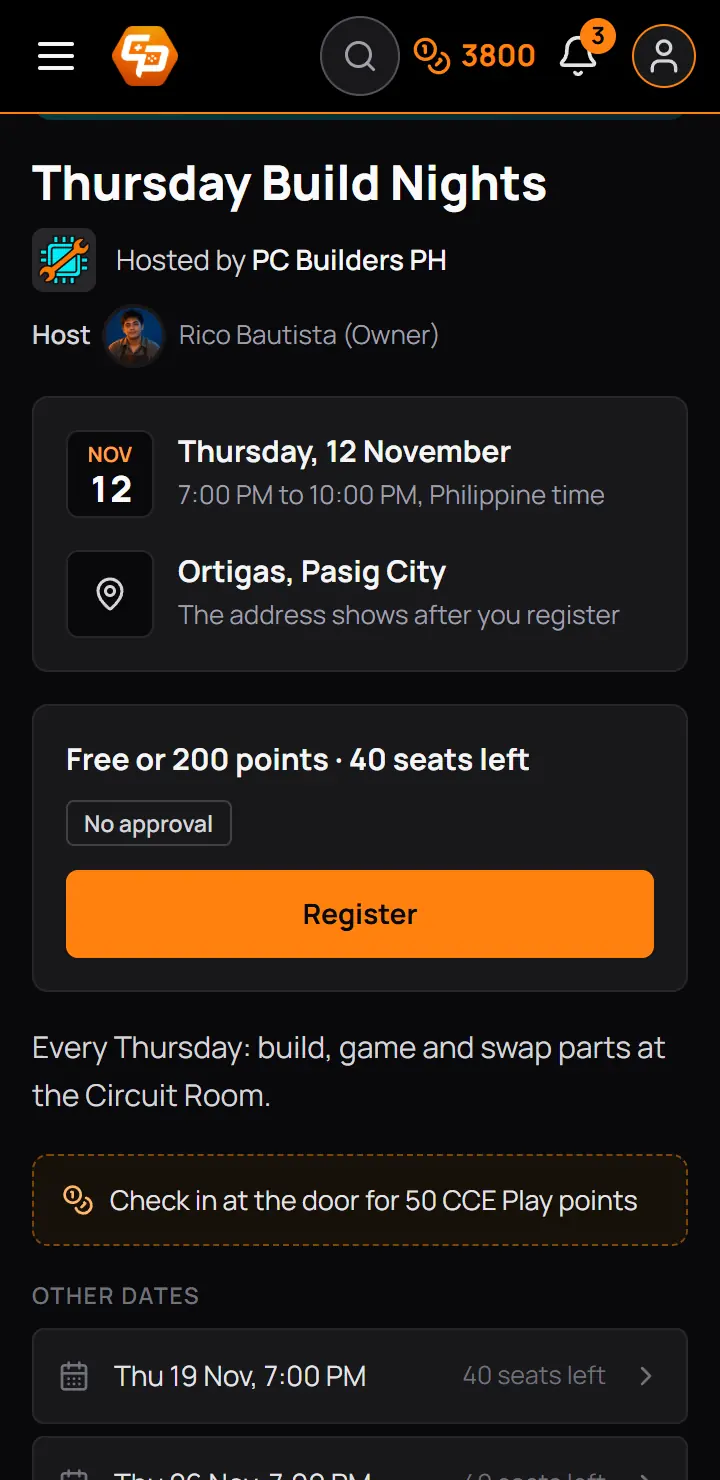
- Hosted by PC Builders PHYour community, then the hosts.
- RegisterOr Request to join with approval on, or Join the waitlist when it is full.
- A community that is not open to everyone shows its events only to its members.
- A Members only event of an open community shows on its Events tab, with Join PC Builders PH to register.
19CCE Play's side, in the admin app
For CCE Play staff. This step is for CCE Play staff. Community events are in the admin app under Community tools, with four tabs.
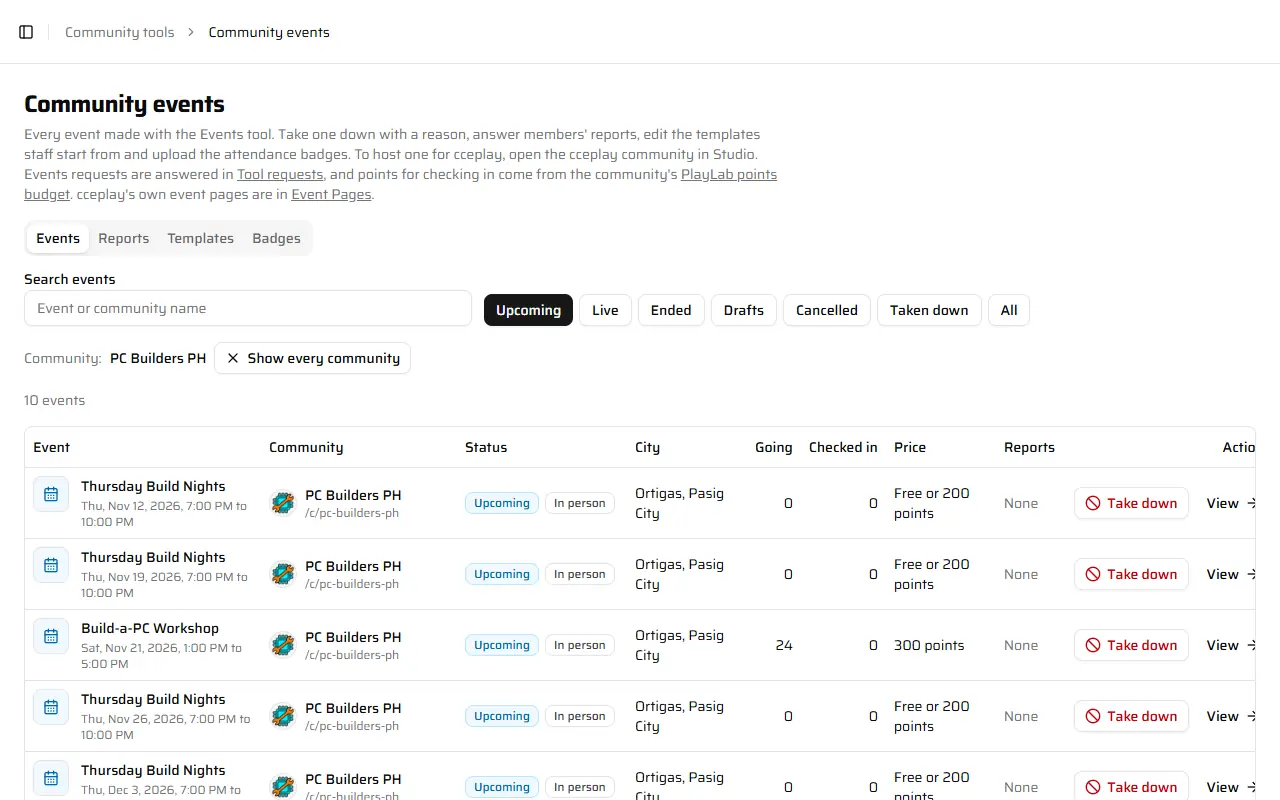
- Events, Reports, Templates and Badges
- The stage chipsUpcoming, Live, Ended, Drafts, Cancelled, Taken down and All.
- An eventView opens it, read only.
- Events, Reports, Templates and Badges
- The stage chipsUpcoming, Live, Ended, Drafts, Cancelled, Taken down and All.
- An eventView opens it, read only.
Reports lists members' reports of events, the open ones first. Take down or Dismiss each one with a note. A community never learns who reported. Opening an event in the admin app adds "CCE Play support viewed" to the owner's Activity log, at most once an hour.
20If something goes wrong
| You see | What to do |
|---|---|
| This page is not shared with you | What to doAsk the owner to turn on Run events for your role in Studio access. |
| You cannot make events | What to doYou have only Check in guests. Ask the owner for Run events. |
| Finish these before you publish | What to doPress each line to open the box it needs, fill it, then publish. |
| Starts is in red after Next | What to doPick a start in the future, then an end after it. |
| Guests registered already, so the format stays as it is. | What to doCopy the event into a new one with the other format. |
| The event has started. The date, the place and the format stay as they are. | What to doSend guests a message for anything else. |
| The walk-in poster is off | What to doTurn it on in Edit, under Tickets and who can come. |
| Taken down by CCE Play | What to doRead the reason, then write to CCE Play support. |
| The events could not load. Try again. | What to doCheck your internet connection, then press Try again. |